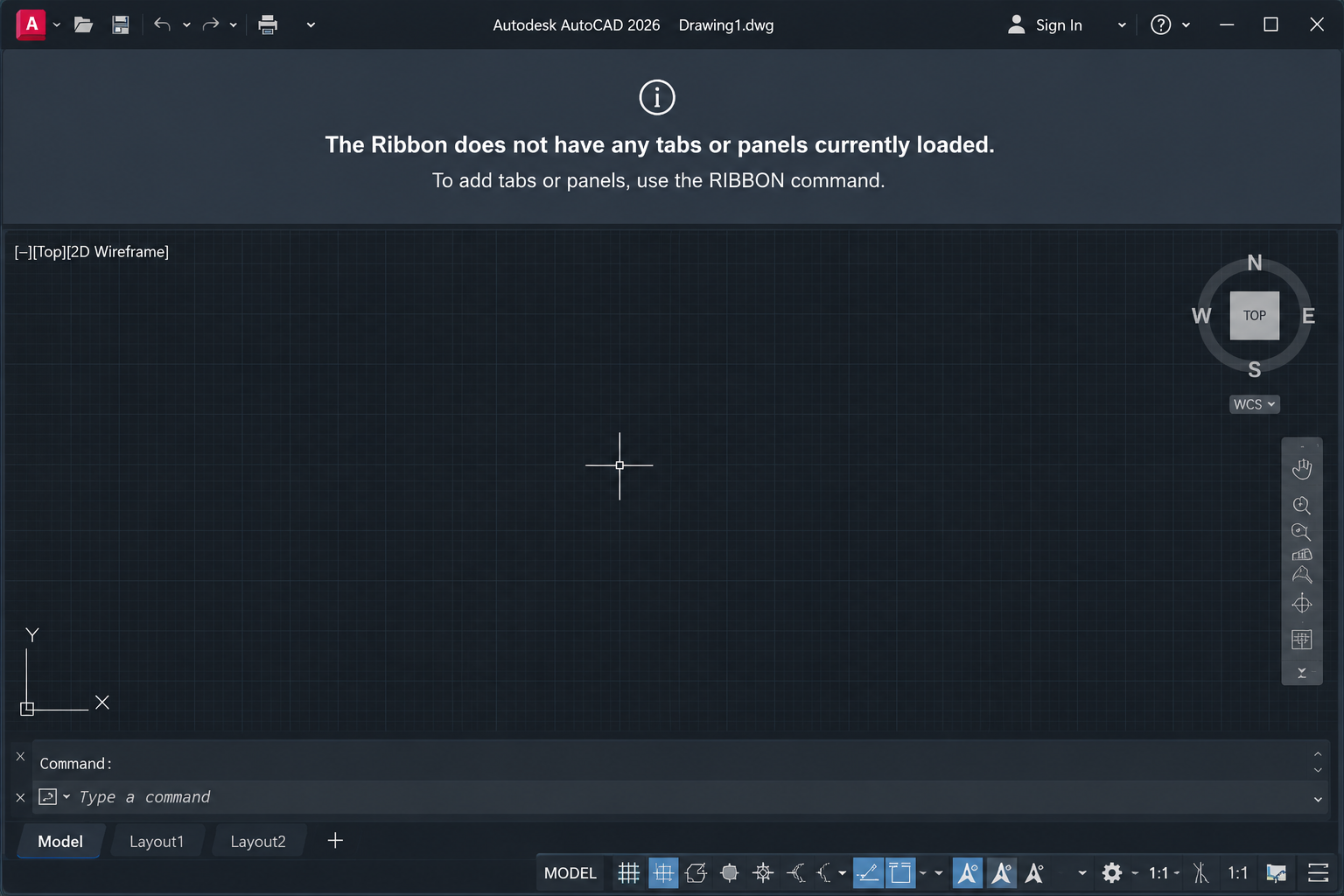
You open AutoCAD and the ribbon is empty, blank, or showing the message “The Ribbon does not have any tabs or panels currently loaded“. The drawing area is there, the command line is there, but the entire ribbon at the top of the screen has vanished. Nothing works the way it should.
This is one of the most common AutoCAD problems reported by users at every experience level. The good news is that it almost always has a quick fix. The reason it feels so frustrating is that there are several possible causes, and if you try the wrong fix first, you can waste significant time. This guide eliminates that guesswork.
It covers every reason an AutoCAD ribbon disappears or goes blank, in order from the most common and easiest to fix to the most complex. For each cause, there is a clear, numbered step-by-step solution. A diagnostic table at the top helps you match what you are seeing on screen to the exact fix you need.
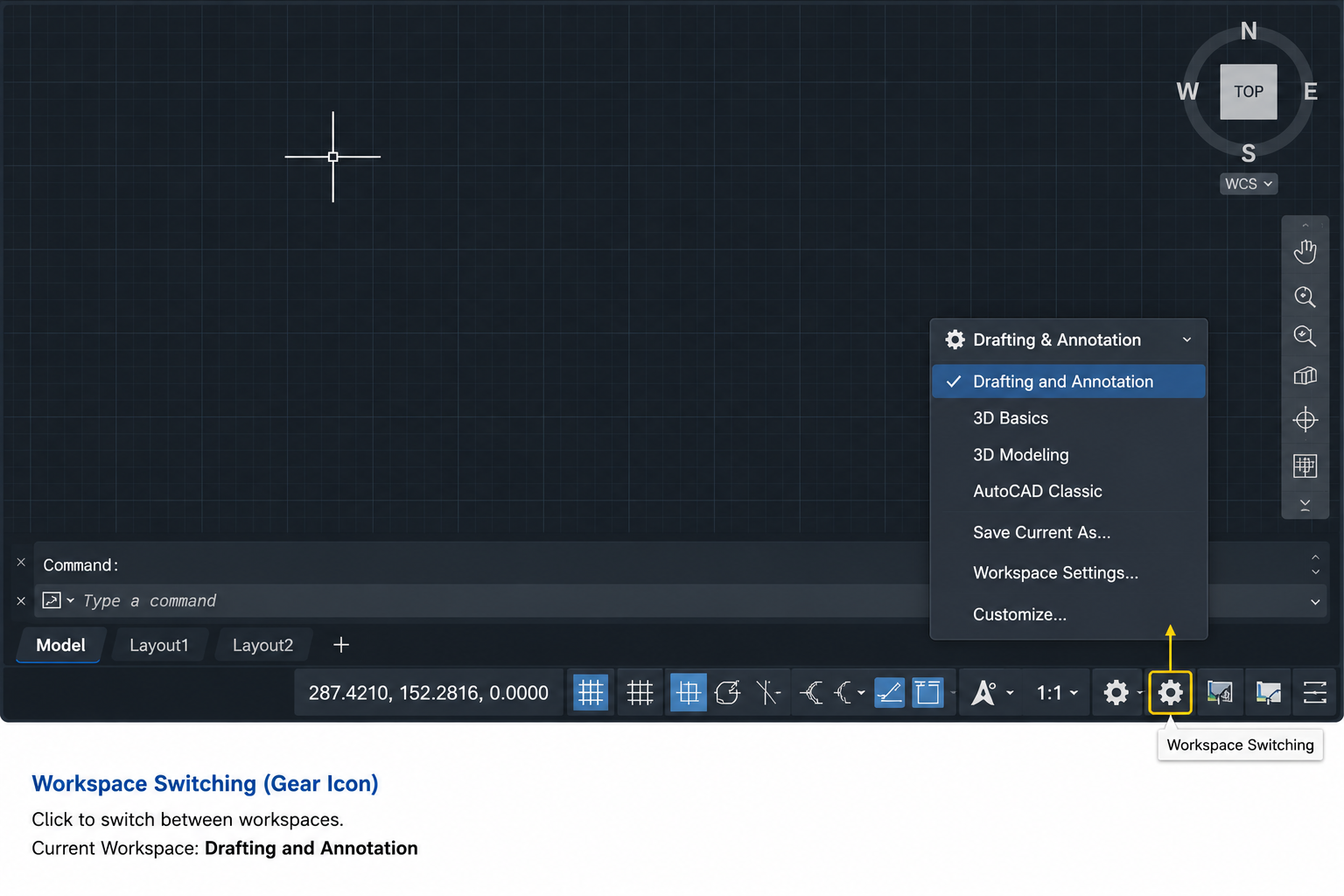
Quick Fix: If you just need the ribbon back immediately, type RIBBON in the command line and press Enter. If that does not work, check that the correct workspace is loaded using the gear icon in the bottom-right status bar. These two steps fix the majority of empty ribbon problems in under 30 seconds.
Diagnose Your Ribbon Problem: Match Your Symptom to the Fix
Before working through individual fixes, use this diagnostic table to identify which cause matches what you are seeing. This saves time and gets you to the right solution immediately.
What You See on Screen
Most Likely Cause
Go to Fix
Ribbon area is completely absent. No tabs, no panels, no blank bar.
Ribbon was turned off via command or menu
Fix 1: RIBBON Command
Ribbon area shows a blank/empty bar with the message: ‘The Ribbon does not have any tabs or panels currently loaded’
Wrong workspace selected, or corrupted CUIX file
Fix 2: Workspace, then Fix 6: CUIX File
Entire AutoCAD interface is full-screen with no ribbon, no status bar, no toolbars at all
Clean Screen mode is active
Fix 3: Clean Screen Mode
A thin ribbon title bar is visible at the top but the panels collapse when you move the mouse away
Ribbon is set to Auto-Hide mode
Fix 4: Auto-Hide Setting
Ribbon is present but has drifted or is floating as a separate window, partially off-screen
Ribbon was undocked and dragged off-screen
Fix 5: Undocked Ribbon
Ribbon was working fine until AutoCAD was updated or a new plugin was installed
CUIX file corrupted or overwritten by update or plugin
Fix 6: Reset CUIX File
Ribbon blank only for certain toolsets (e.g. Architecture, Mechanical) not standard tabs
Industry toolset not installed or profile settings incorrect
Fix 6 or Fix 7: Profile Reset
Ribbon has been blank since a settings migration from an older version of AutoCAD
User profile from previous version incompatible
Fix 7: Reset User Profile
All above fixes have been tried and nothing works
Deep corruption in AutoCAD installation or profile
Fix 8: Reset to Defaults or Reinstall
Fix 1: The Ribbon Was Accidentally Turned Off (RIBBON Command)
This is the most common cause of a missing AutoCAD ribbon and the easiest fix. The ribbon can be toggled off accidentally by pressing Ctrl + 0 (which activates Clean Screen), by clicking the X button on the ribbon, or by navigating to Tools > Palettes > Ribbon and unchecking it. Many users do this unintentionally while reaching for a nearby keyboard shortcut.
Step-by-Step Fix
Click anywhere in the AutoCAD command line at the bottom of the screen to make sure it is active.
Type RIBBON and press Enter.
The ribbon should immediately reappear at the top of the screen.
If the ribbon reappears but is not the correct workspace, continue to Fix 2.
Alternatively, if the classic menu bar is visible at the top (Tools, Draw, Modify etc.), go to Tools > Palettes > Ribbon and click to enable it. If the menu bar is not visible either, the command line is your only entry point.
Command Line Not Visible? If the command line itself has disappeared alongside the ribbon, press Ctrl + 9 to restore it. Once the command line is back, type RIBBON and press Enter to restore the ribbon.
Fix 2: Wrong Workspace Selected
AutoCAD uses workspaces to define the arrangement of the interface: which ribbon tabs are visible, where the toolbars sit, and what the screen layout looks like. If the wrong workspace is loaded, the ribbon may appear completely blank or show only partial tabs. This is one of the most common causes of the message “The Ribbon does not have any tabs or panels currently loaded“.
Step-by-Step Fix
Look at the status bar at the very bottom-right of the AutoCAD screen. Find the gear icon (Workspace Switching).
If the ribbon does not load, try switching to a different workspace first, then switching back to your preferred workspace.
Alternatively, type WORKSPACE in the command line, press Enter, then type RESTORE followed by the workspace name (e.g. RESTORE “Drafting & Annotation”).
If the gear icon is not visible in the status bar, right-click the status bar and make sure Workspace Switching is ticked. Alternatively, type WSCURRENT in the command line and press Enter to see which workspace is currently active.
After the Update Problem: If the ribbon went blank after an AutoCAD update, a workspace settings migration often causes this. After updating, go to the workspace switcher, select the appropriate workspace, and then go to Tools > Workspaces > Save Current As to save a clean version of the workspace. This prevents the same issue occurring after the next update.
Fix 3: AutoCAD Is in Clean Screen Mode
AutoCAD’s Clean Screen mode maximises the drawing area by hiding all interface elements: the ribbon, toolbars, status bar, and palettes. It is designed for users who need maximum drawing space, particularly on smaller monitors. If you accidentally activated it, the entire interface appears to have vanished.
The giveaway sign that you are in Clean Screen mode (rather than a genuine ribbon failure) is that the drawing area fills the entire screen right to the edges, with no interface elements visible anywhere, not even a thin title bar at the top.
Step-by-Step Fix
Press Ctrl + 0 (zero) to toggle Clean Screen mode off. This is a single keyboard shortcut that toggles the mode on and off.
The full interface including the ribbon should immediately reappear.
Alternatively, look for the Clean Screen icon in the far bottom-right corner of the screen (a small double-headed arrow icon) and click it to toggle Clean Screen off.
Quick Test: Press Ctrl + 0 twice in quick succession. If the ribbon disappears and then comes back, you have confirmed that Clean Screen mode is being toggled. The first press activates it (hiding the ribbon), the second press deactivates it (restoring the ribbon). Now you know the shortcut that caused the problem and can avoid pressing it accidentally in the future.
Fix 4: The Ribbon Is Set to Auto-Hide
The AutoCAD ribbon auto-hide feature collapses the ribbon to just a thin title bar at the top of the screen when the cursor is not hovering over it, and expands it again when the cursor moves into the ribbon area. If this is active, the ribbon appears to be missing whenever the cursor is in the drawing area, leading users to believe something has gone wrong.
The difference between Auto-Hide and a genuinely missing ribbon: when you move the cursor to the very top of the screen, a thin ribbon bar becomes visible momentarily and then disappears again. If this is what you are seeing, Auto-Hide is the cause, not a technical problem.
Step-by-Step Fix
Move your cursor to the very top of the screen until the ribbon appears.
Look for the small upward-pointing arrow icon (pin/unpin icon) at the far right of the ribbon.
Click this icon once to toggle Auto-Hide off. The ribbon will remain permanently expanded.
Alternatively, right-click on the ribbon title bar at the top and look for the Auto-Hide Ribbon option. Uncheck it.
Fix 5: The Ribbon Has Been Undocked and Is Floating Off-Screen
The AutoCAD ribbon can be undocked from its default position at the top of the screen and dragged to any location, including off the visible screen area. If this has happened (usually after a monitor configuration change, a switch from dual to single monitor, or an accidental drag), the ribbon appears to be missing even though it technically still exists.
Step-by-Step Fix
Type RIBBON in the command line and press Enter. This restores and re-docks the ribbon to its default position at the top of the interface.
If the ribbon reappears but is floating as a separate window, grab its title bar and drag it back to the top of the AutoCAD window until the docking highlight appears, then release to dock it.
To lock the ribbon in place and prevent future accidental undocking, right-click on the ribbon title bar and select Lock Location > Floating Windows.
Fix 6: Corrupted or Missing CUIX File
The CUIX file (Customisation User Interface file) is what defines the entire AutoCAD ribbon: which tabs exist, which panels are in each tab, and which commands appear in each panel. The main file is called acad.cuix (or acadlt.cuix for AutoCAD LT). If this file becomes corrupted, is accidentally overwritten by a software update or third-party plugin, or cannot be located by AutoCAD, the ribbon loads blank or empty.
This is the most technically involved fix but also one of the most reliable. Resetting or reloading the CUIX file resolves the vast majority of persistent AutoCAD ribbon blank problems that the simpler fixes above do not address.
Method 1: Reset the CUIX File via the CUI Command
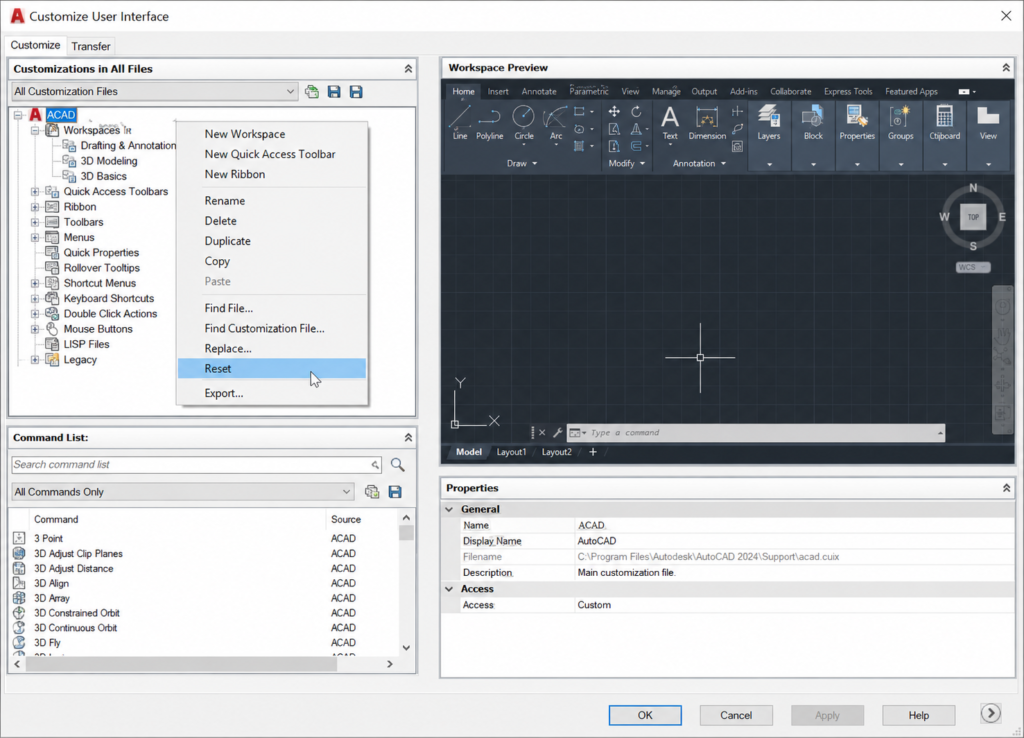
Type CUI in the command line and press Enter. The Customize User Interface dialogue box opens.
In the top-left panel, you will see a list of loaded customisation files. Find ACAD (or the relevant product: ACADLT, C3D, etc.).
Right-click on the ACAD entry.
From the context menu, select Reset.
A confirmation dialogue will appear. Click Yes to confirm the reset.
Click OK to close the CUI dialogue.
The CUIX file is now reset to its factory default state. Restart AutoCAD and check whether the ribbon has been restored.
Method 2: Reload the CUIX File via CUILOAD
Type CUILOAD in the command line and press Enter.
Click the Browse button in the dialogue that appears.
Navigate to the AutoCAD support folder. The default location for acad.cuix is typically:
If the file is already loaded, first select it in the Loaded Customisation Files list, click Unload, and then reload it using Browse.
Click Close and check whether the ribbon has been restored.
Method 3: Check the Support File Search Path
If AutoCAD cannot find the CUIX file because the support file path is missing or incorrect (this commonly happens after installation of a new AutoCAD version or after moving user files to a new computer), you need to add the correct path to AutoCAD’s Options.
Type OPTIONS (or OP) in the command line and press Enter.
Go to the Files tab.
Expand the Support File Search Path node.
Click Add and browse to the folder containing your CUIX file.
Click OK to close Options.
Restart AutoCAD and verify the ribbon has been restored.
Warning: Third-Party Plugins and the CUIX File: Installing or uninstalling third-party AutoCAD plugins (add-ons, structural analysis tools, MEP tools, or manufacturer-specific libraries) can overwrite or corrupt the acad.cuix file. If the ribbon went blank immediately after installing a plugin, the CUI Reset method (Method 1 above) is almost always the solution. After resetting, you may need to re-install the plugin if you still need it, or contact the plugin developer for an updated version compatible with your AutoCAD version.
Fix 7: Corrupted AutoCAD User Profile
AutoCAD stores each user’s interface settings, support paths, and customisations in a user profile. If this profile becomes corrupted, particularly during version upgrades where settings are migrated from an older version, the ribbon may load blank or with missing panels even after the CUIX file has been reset.
Step-by-Step Fix: Switch Profile and Reset
Type OPTIONS (or OP) in the command line and press Enter.
Go to the Profiles tab.
In the Available Profiles list, select <<Unnamed Profile>> (or any profile that is not your current one).
Click Set Current.
Close Options and check whether the ribbon loads correctly on this profile.
If the ribbon now works on the new profile, return to Options > Profiles and either delete the corrupted profile or click Reset to restore it to defaults.
If switching profiles restores the ribbon, save the working profile as your new default using Set Current.
Migration Tip: When upgrading to a new version of AutoCAD, Autodesk recommends importing all settings from the previous version rather than only the profile. Importing only the profile, without the associated customisation files, is a known cause of blank ribbons in freshly upgraded installations. If you are setting up a new AutoCAD version, use the Migrate Custom Settings option from the Windows Start menu under the new AutoCAD version folder.
Fix 8: AutoCAD Needs a Reset to Defaults
If none of the above fixes have restored the ribbon, a full AutoCAD reset to factory defaults is the next step. This resets all settings, profiles, and customisations to the state they were in immediately after installation. It is a more drastic step because any custom settings, toolbars, aliases, or profiles you have built will need to be reconfigured, but it is very reliable at resolving deep corruption issues.
Step-by-Step: Reset AutoCAD to Factory Defaults
Close AutoCAD completely.
In Windows, search for AutoCAD [version] in the Start menu.
Look for Reset Settings to Default in the AutoCAD folder within the Start menu.
Click Reset Settings to Default. A dialogue will ask you to backup your settings or reset without backup.
Choose your preferred option and confirm the reset.
Relaunch AutoCAD. It will start with a completely clean default configuration.
If the ribbon now loads correctly, the issue was a deep corruption in the user settings. Rebuild only the custom settings you actually need rather than restoring from the corrupted backup.
If even a full reset does not restore the ribbon, the issue likely lies in the AutoCAD installation itself. In this case, use the Autodesk desktop app or Programs and Features to run a Repair on the AutoCAD installation. If the repair fails, a full uninstall and clean reinstall of AutoCAD using the latest installer from your Autodesk account will resolve installation-level corruption.
Why Does the AutoCAD Ribbon Keep Disappearing?
If the AutoCAD ribbon keeps disappearing repeatedly rather than just once, there is usually an underlying cause that the temporary fix is not addressing. The most common reasons for a ribbon that keeps going missing are:
AutoCAD Is Not Saving Workspace Changes
By default, AutoCAD does not always save changes to the workspace automatically. If you restore the ribbon but AutoCAD is not configured to save the workspace state on exit, the ribbon position and visibility settings are lost the next time you open the program.
The fix: type WSSETTINGS in the command line and press Enter to open the Workspace Settings dialogue. Enable Automatically Save Workspace Changes. This ensures any interface configuration changes you make are preserved between sessions.
A Plugin or Script Is Modifying the Interface on Startup
Some third-party plugins load their own CUIX customisation on AutoCAD startup, which can overwrite the standard ribbon. If the ribbon disappears every time you restart AutoCAD but is fine after being restored manually, check whether any startup suite scripts or plugins are loading on AutoCAD startup. Go to Tools > Load Application > Startup Suite and review what is loading automatically. Removing or updating a conflicting plugin often resolves the persistent ribbon problem.
Incompatible Customisation Files from a Previous Version
If customisation files (CUIX, MNS, MNR) from a previous version of AutoCAD are being loaded by the new version, they may not be fully compatible and can cause the ribbon to load incorrectly on every startup. Remove old version customisation files from the Support File Search Path in Options and recreate any custom tool entries in the current version’s native format.
How to Stop Your AutoCAD Ribbon from Disappearing Again
Once your AutoCAD ribbon is restored, three habits will prevent the problem from recurring:
Prevention Habit
How to Implement It
What It Prevents
Save your workspace explicitly after setting it up
After configuring the interface the way you want it, go to Tools > Workspaces > Save Current As and save it with a clear name (e.g. ‘MY-2D-WORKSPACE’)
Interface configuration being lost on restart or after an AutoCAD update
Enable automatic workspace saving
Type WSSETTINGS, press Enter, and tick ‘Automatically Save Workspace Changes’
Ribbon position and tab visibility changes being lost between sessions
Keep a saved backup of your CUIX file
After setting up your customisations, export your profile via Options > Profiles > Export and save the .arg file to a safe location
Having to rebuild all customisations from scratch after a CUIX corruption
Be selective about which plugins you install
Before installing any third-party AutoCAD plugin or add-on, check that it is compatible with your specific AutoCAD version number on the developer’s website
Plugin-triggered CUIX corruption and ribbon blank problems after installation
Use AutoCAD’s Migrate Settings correctly during upgrades
When installing a new AutoCAD version, use the ‘Migrate Custom Settings’ option and choose to migrate all settings, not just the profile
Blank ribbon in freshly upgraded AutoCAD installations due to incomplete settings migration
Frequently Asked Questions (FAQ)
Why is my AutoCAD ribbon empty?
An empty AutoCAD ribbon is most commonly caused by one of five things: the ribbon was accidentally turned off (fix: type RIBBON in the command line and press Enter); the wrong workspace is selected (fix: use the gear icon in the status bar to switch to Drafting and Annotation); AutoCAD is in Clean Screen mode (fix: press Ctrl + 0 to toggle it off); the ribbon is set to Auto-Hide (fix: click the pin icon at the top-right of the ribbon title bar); or the CUIX file is corrupted (fix: type CUI, right-click ACAD, select Reset). The RIBBON command fixes the majority of cases immediately.
How do I restore the AutoCAD ribbon?
To restore a missing AutoCAD ribbon, type RIBBON in the command line and press Enter. If the ribbon reappears but shows the message ‘The Ribbon does not have any tabs or panels currently loaded’, switch to the correct workspace using the gear icon in the status bar and select Drafting and Annotation. If the ribbon still does not load correctly, reset the CUIX file by typing CUI, right-clicking the ACAD entry, selecting Reset, and restarting AutoCAD.
What does ‘The Ribbon does not have any tabs or panels currently loaded’ mean in AutoCAD?
This message means that AutoCAD has loaded but the ribbon definition file (the CUIX file) either cannot be found, has been corrupted, or has not been associated with the current workspace. The most reliable fix is to: first try switching workspaces using the gear icon in the status bar; if that does not work, type CUI in the command line, right-click the ACAD customisation file in the top-left panel, and select Reset. Restart AutoCAD after the reset.
Why does my AutoCAD ribbon disappear every time I restart?
If the AutoCAD ribbon disappears on every restart, it is almost always because AutoCAD is not saving your workspace settings between sessions. Type WSSETTINGS in the command line, press Enter, and enable ‘Automatically Save Workspace Changes’. Also verify that no startup script or third-party plugin is resetting the interface on launch by checking Tools > Load Application > Startup Suite.
How do I fix the AutoCAD ribbon after an update?
After an AutoCAD update, a blank ribbon is usually caused by a workspace settings migration issue. Switch to the Drafting and Annotation workspace using the gear icon in the status bar. If the ribbon loads, save this workspace using Tools > Workspaces > Save Current As. If the ribbon is still blank, type CUI, right-click ACAD, select Reset, and restart AutoCAD. For a permanent fix, type WSSETTINGS and enable automatic workspace saving.
What is the CUIX file in AutoCAD and why does it affect the ribbon?
The CUIX file (Customisation User Interface file) is an XML-based file that defines the entire AutoCAD ribbon: which tabs exist, which panels are in each tab, which commands are in each panel, and how toolbars and menus are structured. The main file is called acad.cuix. When this file is corrupted, accidentally overwritten by a plugin or update, or cannot be found by AutoCAD, the ribbon loads blank. The fix is to reset the CUIX file using the CUI command: right-click ACAD and select Reset.
Conclusion
A blank or empty AutoCAD ribbon is always fixable. The vast majority of cases resolve in under two minutes with either the RIBBON command, a workspace switch, or turning off Clean Screen mode. For the minority of cases involving a corrupted CUIX file or user profile, the fixes are still well within reach of any AutoCAD user who follows the numbered steps above.
The key is to identify the correct cause first using the diagnostic table at the top of this article, then apply the right fix rather than working through every solution sequentially. Once the ribbon is restored, implementing the five prevention habits will stop the problem from recurring.
Back to the full AutoCAD guide: AutoCAD Tutorials for Beginners and Professionals. Or continue with the next tutorial: How to Draw a Line from Its Midpoint in AutoCAD.
AutoCAD is the most widely used CAD software in the world. With over 4 million active subscribers globally and adoption across architecture, mechanical engineering, civil engineering, electrical design, and manufacturing, it is the tool that connects a design concept to a finished technical drawing more reliably than any other software in existence.
Whether you have never opened a CAD program before, or you have been using AutoCAD for years and want to sharpen the professional skills that separate competent users from genuinely efficient ones, this guide covers the full spectrum. It is structured as a genuine beginner-to-professional learning path, not a reference list or a tips collection.
You will learn what AutoCAD is, how its interface works, the foundational 2D drawing commands every user must know, how to set up drawings correctly from day one, how layers and blocks work and why they matter, how to produce professional-grade 3D models, how to print and plot drawings to industry standards, and how to apply AutoCAD skills across different engineering and design disciplines. The guide also covers the professional-level habits, keyboard shortcuts, and workflow principles that experienced AutoCAD users use daily but that beginners rarely encounter in online tutorials.
Quick Answer: AutoCAD is a Computer-Aided Design (CAD) software developed by Autodesk, first released in 1982. It is used to create precise 2D drawings and 3D models across engineering, architecture, and design. Learning AutoCAD typically takes 1 to 3 months to reach productive competence for 2D drafting, and 3 to 6 months to develop solid 3D modelling skills. It remains the most in-demand CAD skill in the global job market.
What Is AutoCAD? A Complete Overview
AutoCAD is a commercial computer-aided design and drafting software developed and marketed by Autodesk. First released on 1 December 1982 as one of the first CAD programs to run on personal computers, it has grown into the global standard for technical drawing and design across dozens of industries.
At its core, AutoCAD allows users to create precise geometric drawings in 2D (lines, arcs, circles, polygons) and 3D (solid models, surfaces, meshes) with exact dimensional control that paper drawing and general-purpose illustration software cannot match. Every object in an AutoCAD drawing exists in coordinate space: it has a precise location, dimension, and relationship to other objects that can be measured, queried, and modified with engineering-level accuracy.
What AutoCAD Is Used For
AutoCAD is used to produce engineering drawings (mechanical component drawings, assembly drawings, schematics), architectural drawings (floor plans, elevations, sections, construction documents), civil engineering plans (site plans, road layouts, drainage networks, surveys), and electrical and piping diagrams (single-line diagrams, P&IDs, wiring schematics). In manufacturing, it is used to produce the 2D drawings that define component dimensions, tolerances, and surface finishes for machining and fabrication.
Who Uses AutoCAD
Mechanical engineers and designers: Creating component drawings, assembly drawings, and manufacturing documentation
Architects: Producing construction documentation, floor plans, sections, and elevations
Civil engineers: Site layouts, road design, drainage plans, earthwork sections
Interior designers: Space planning, furniture layouts, interior elevations
Students and trainees: Learning CAD fundamentals applicable to multiple disciplines
AutoCAD Versions: Which One Should You Use?
Autodesk releases a new version of AutoCAD annually, typically numbered by year. The current version is AutoCAD 2026 for the 2026/2026 subscription year. Understanding which version to use and which licensing option suits your situation is the first practical decision any new user must make.
Version / Option
Who It Is For
Key Features
Cost Model
AutoCAD 2026 (full)
Professional engineers, architects, and designers in industry
Full 2D/3D capability, all industry toolsets, AutoCAD Web and Mobile, cloud collaboration
Subscription: ~$2,230/year or ~$195/month (Autodesk 2026 pricing)
All standard AutoCAD features plus industry-specific symbol libraries, automated tools, and templates
Same subscription as full AutoCAD; toolsets included
AutoCAD Web
Light users, collaboration review, remote access to drawings
Browser-based, core 2D commands, DWG compatible
Included with full AutoCAD subscription; limited standalone access
AutoCAD Mobile
Site engineers, field access to drawings
View, markup, and basic editing on iOS/Android
Basic free tier; full features with subscription
AutoCAD for Students (Education)
Students and educators
Full AutoCAD functionality
Free for verified students and educators via Autodesk Education Community
Key Recommendation: If you are a student, get the free AutoCAD student licence from the Autodesk Education Community immediately. It is identical in functionality to the professional version and is valid for 1 year, renewable. If you are a professional evaluating AutoCAD, Autodesk offers a 30-day free trial of the full version. For 2D-only work in a professional setting, AutoCAD LT offers excellent value at less than one-quarter of the full version’s annual cost.
Mastering the AutoCAD Interface
The AutoCAD interface can look intimidating the first time you open it. There are panels, toolbars, tabs, a command line, and a drawing area that all compete for your attention simultaneously. The good news is that once you understand what each element does and why it is there, the interface becomes logical and highly efficient. Most experienced users find that AutoCAD’s interface structure is one of the most streamlined in the professional CAD world.
The Application Menu
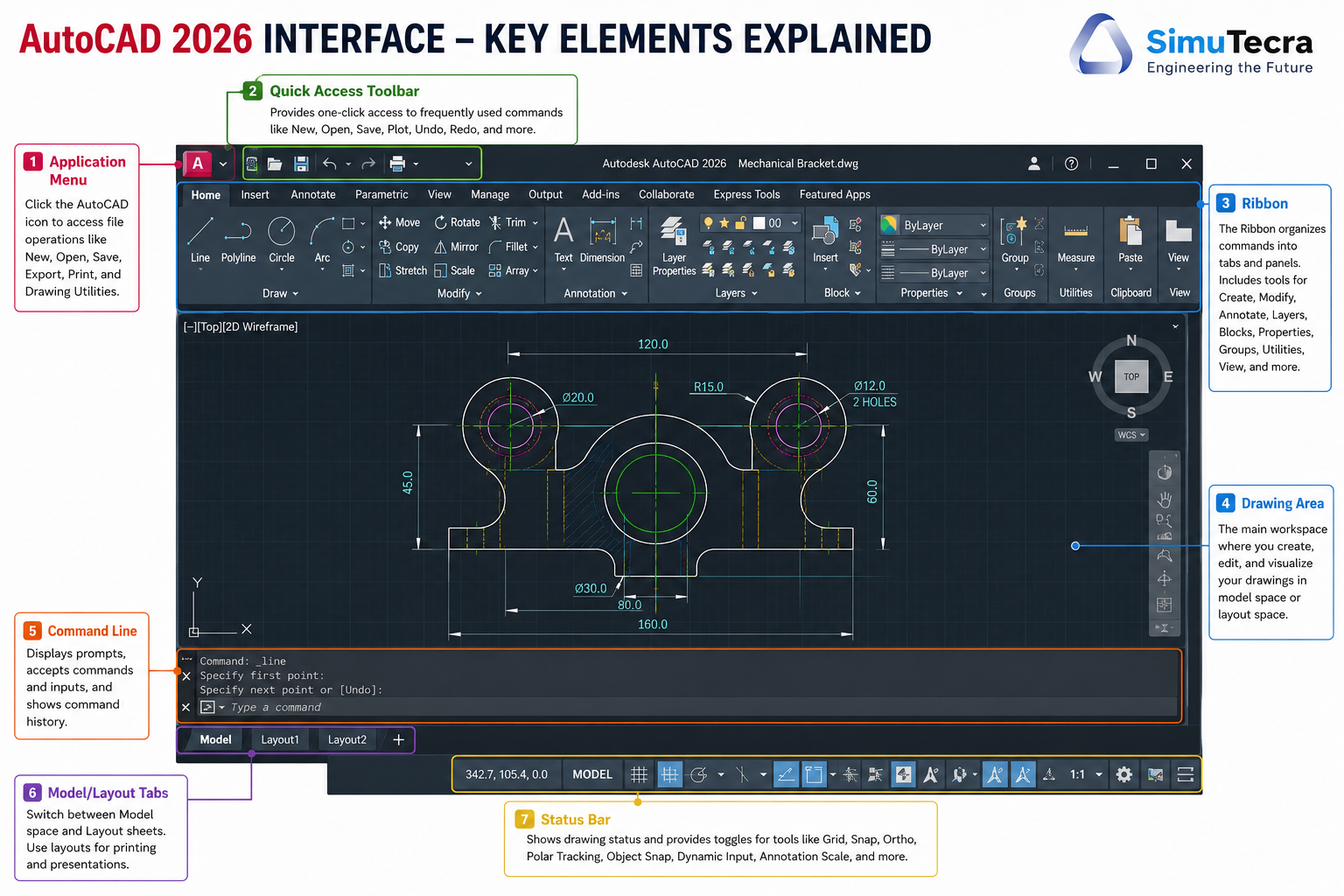
The Application Menu (the AutoCAD logo in the top-left corner) provides access to file management commands: New, Open, Save, Save As, Print, Publish, and Export. It also provides access to recent documents and drawing utilities. Think of it as AutoCAD’s equivalent of a File menu.
The Quick Access Toolbar
Directly to the right of the Application Menu is the Quick Access Toolbar (QAT), which contains the most frequently used file and undo commands: New, Open, Save, Save As, Print, Undo, and Redo. This toolbar can be customised to add any command you use frequently. Experienced users typically add the LAYER command and PLOT command to their QAT to save navigation time.
The Ribbon
The Ribbon is the large tabbed panel at the top of the interface, introduced in AutoCAD 2009 to replace the classic menu bar and toolbar system. It is organised into tabs (Home, Insert, Annotate, Parametric, View, Manage, Output, Add-ins, Collaborate) and within each tab, into panels containing related commands. The Home tab contains the most frequently used drawing and modification commands and is where most users spend the majority of their working time.
If your ribbon has disappeared or appears empty, this is one of the most common AutoCAD problems for new users. It is easily resolved: type RIBBON in the command line and press Enter to restore it. Alternatively, check that the correct workspace is loaded under the Workspace Switching icon in the bottom-right status bar.
The Drawing Area
The Drawing Area is the large central space where your design exists. It represents an infinite 2D coordinate plane (or 3D space in the 3D workspace). The drawing area has no physical size: you draw at real-world scale (a 10-metre wall is drawn as 10 metres long) and control the print scale when plotting. The cursor crosshair tracks your position in coordinate space, displayed in the bottom-left status bar.
The Command Line
The Command Line at the bottom of the drawing area is the most important element of the AutoCAD interface for productive work. It is where you type command names and shortcuts (LINE, CIRCLE, TRIM, etc.), where AutoCAD prompts you for input, and where you enter dimensions, angles, and coordinates. Experienced AutoCAD users rely heavily on the command line because typing a command alias is almost always faster than clicking through the ribbon.
AutoCAD’s command autocomplete means you only need to type the first few letters of a command to see a filtered list of options. Typing LA reveals LAYER and all layer-related commands. Typing TR reveals TRIM and TRIM-related commands. This is the single biggest productivity accelerator for new AutoCAD users to learn early.
The Status Bar
The Status Bar runs along the very bottom of the screen and contains toggleable drawing aids that profoundly affect how you interact with AutoCAD: SNAP (snaps cursor to a defined grid), GRID (displays a reference grid), ORTHO (constrains drawing to horizontal and vertical directions only), POLAR (constrains to specified angles), OSNAP (Object Snap: snaps to specific points on existing objects), and DYNAMIC INPUT (displays coordinates and prompts near the cursor).
The most critical status bar setting to understand immediately is OSNAP (Object Snap). When OSNAP is active, moving the cursor near an existing object snaps it to precise points: endpoints, midpoints, centres, intersections, perpendiculars. Drawing without OSNAP active leads to inaccurate drawings where lines appear to connect but are actually slightly misaligned. Experienced AutoCAD users virtually always work with OSNAP on.
F8 = ORTHO, F3 = OSNAP, F10 = POLAR TRACKING – memorise these three
Properties Palette
Ctrl + 1
View and modify all properties of selected objects
Use to change layer, colour, linetype of multiple selected objects at once
Layer Properties Manager
LA then Enter
Create, modify, and manage all layers in the drawing
Pin it as a docked palette for drawings with complex layer structures
Setting Up Your Drawing Correctly from Day One
One of the most common mistakes new AutoCAD users make is starting to draw without setting up their drawing environment properly. Drawing setup takes five to ten minutes and saves hours of correction work later. Experienced CAD professionals always work from a correctly configured template file, never from a blank default drawing.
Setting Drawing Units
Type UNITS (or UN) and press Enter to open the Drawing Units dialogue. Set the unit type (Decimal for metric engineering, Architectural for feet and inches) and precision (typically 0.00 for most engineering work, 0.000 for precision parts). Set the Insertion Scale to the units your drawing will use. Getting units wrong at setup means all dimensions will be incorrect and all blocks inserted from external sources will scale incorrectly.
Setting Drawing Limits
Type LIMITS to define the extent of your drawing. For most mechanical engineering work at 1:1 scale, set limits to match your drawing sheet size multiplied by your intended print scale. A drawing to be printed at 1:10 on an A1 sheet would have limits of 8,400 x 5,940 mm (A1 dimensions: 841 x 594 mm multiplied by 10).
Setting Up Layers Before Drawing
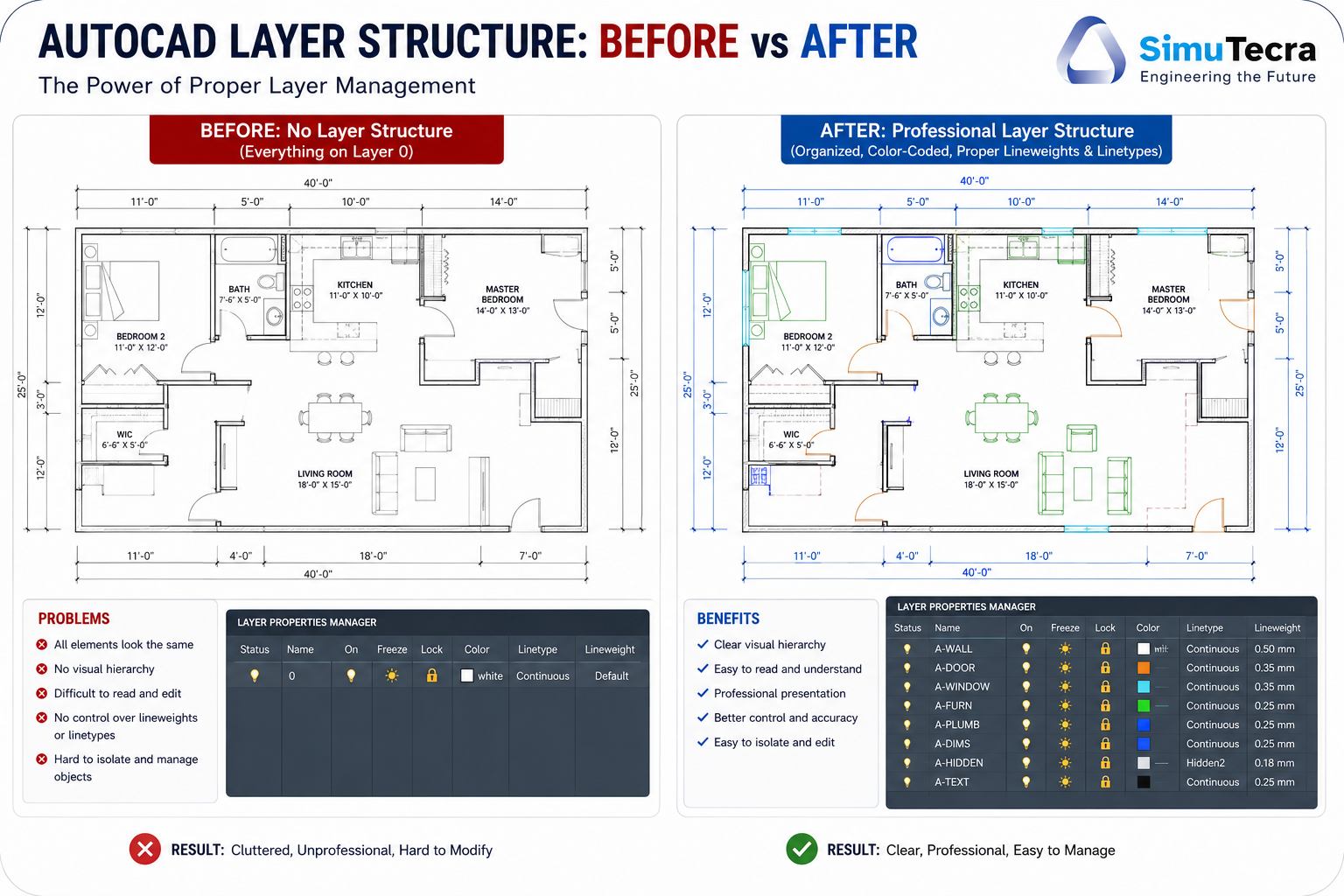
Never draw everything on Layer 0. Create your layer structure before drawing a single line. A well-structured layer scheme for a mechanical drawing might include layers for: Object Lines, Hidden Lines, Centre Lines, Dimensions, Text/Annotations, Hatching, Title Block, and Construction Lines. Each layer should have a defined colour, linetype, and lineweight. This investment at setup saves enormous time when editing, plotting, and sharing drawings.
Using a Template File
A drawing template file (.DWT) saves your standard layer structure, units settings, text styles, dimension styles, and title block layout so you do not need to recreate them for every new drawing. Create your company or personal standard template once and select it in the New Drawing dialogue whenever you start a drawing. Autodesk also provides standard template files (acad.dwt for imperial, acadiso.dwt for metric) as starting points.
Essential AutoCAD Drawing Commands for Beginners
The following AutoCAD drawing commands are the foundation of 2D drafting. Every AutoCAD user, from student to 30-year professional, uses these commands daily. Learn them thoroughly before moving to more advanced topics.
Command
Alias
What It Does
Key Input Tips
LINE
L
Creates straight line segments between specified points
Click points or type coordinates. Press Enter or Esc to end. Type C then Enter to close a polygon back to the start point
CIRCLE
C
Creates a circle by centre point and radius (default), or by diameter, 2 points, or 3 points
Type C, click centre, type radius value and press Enter. Or type C, then D for diameter mode
ARC
A
Creates an arc defined by 3 points, or start/centre/end, or other combinations
Default is 3-point arc. Right-click during ARC command to see all arc definition methods
RECTANGLE
REC
Creates a closed rectangular polyline by two diagonal corner points
Type REC, click first corner, type relative coordinates @width,height (e.g. @150,80) and Enter
POLYGON
POL
Creates a regular polygon with a specified number of sides
Type POL, enter number of sides, specify centre, choose inscribed or circumscribed, enter radius
POLYLINE
PL
Creates connected line and arc segments as a single object
Unlike LINE, a polyline is one object. Essential for shapes that need to be edited as a unit
ELLIPSE
EL
Creates an ellipse by axis endpoint and other axis distance, or by centre
Type EL, specify axis endpoint, second endpoint of same axis, then other axis distance
SPLINE
SPL
Creates a smooth curve through or near specified control points
Used for irregular curves. Click control points, press Enter to end
HATCH
H
Fills a closed area with a pattern (hatching) or solid fill
Type H to open Hatch Creation. Click inside a closed boundary. Select hatch pattern and scale
POINT
PO
Places a point object at a specified location
Set point display style with PDMODE before placing points. Useful as construction references
Critical Habit for Beginners: Always use Object Snap (OSNAP) when drawing. Press F3 to toggle it on and off. With OSNAP on, your cursor will snap to the exact endpoints, midpoints, centres, and intersections of existing objects. Drawing without OSNAP leads to drawings that look correct visually but have tiny gaps and overlaps that cause major problems when trimming, hatching, or exporting to manufacturing. Professional AutoCAD users virtually never draw with OSNAP off.
Essential AutoCAD Modify Commands
Drawing commands create geometry. Modify commands are how you edit, refine, and complete that geometry. In professional AutoCAD use, modify commands are used more frequently than drawing commands. The ability to efficiently trim, extend, offset, mirror, array, and fillet geometry is what separates fast, accurate drafters from slow ones.
Command
Alias
What It Does
Professional Tip
ERASE
E
Deletes selected objects
Select objects first, then press Delete key as an alternative to typing ERASE
COPY
CO
Creates copies of selected objects at specified offsets
Type CO, select objects, press Enter, specify base point, then displacement point. Use multiple copy mode for placing many copies
MOVE
M
Moves selected objects to a new position
Type M, select objects, press Enter, specify base point, then new position. Combine with OSNAP for precision
ROTATE
RO
Rotates selected objects around a specified base point
Type RO, select objects, Enter, base point, then rotation angle. Add R for Reference to rotate to a specific angle
SCALE
SC
Scales selected objects up or down from a base point
Type SC, select objects, Enter, base point, scale factor. Use R (Reference) to scale by known dimensions
MIRROR
MI
Creates a mirrored copy of selected objects about a mirror line
Type MI, select objects, Enter, two points defining mirror line, then Yes/No to delete original
OFFSET
O
Creates a parallel copy of a line, arc, circle, or polyline at a specified distance
Type O, specify offset distance, click the object, click the side to offset toward. One of the most-used commands in all of AutoCAD
TRIM
TR
Trims objects back to cutting edges defined by other objects
Type TR, press Enter (selects all objects as potential cutting edges), then click objects to trim. In AutoCAD 2021+, press Enter twice to use quick trim mode
EXTEND
EX
Extends objects to meet a boundary edge
Same workflow as TRIM. In recent AutoCAD versions, holding Shift while in TRIM mode switches to EXTEND
FILLET
F
Creates a rounded corner (arc) between two lines or edges
Type F, set radius (R then value), then click the two lines to fillet. Set radius 0 to create sharp corners at intersections
CHAMFER
CHA
Creates a bevelled corner between two lines
Similar to FILLET but creates a flat bevel. Set distances with D option
ARRAY
AR
Creates a rectangular grid, polar ring, or path-distributed array of objects
Type AR, select objects, Enter, choose array type. Associative arrays update when the source object changes
STRETCH
S
Stretches part of a drawing while keeping connections intact
Must use a crossing selection (right to left selection window). Excellent for adjusting geometry without rebuilding it
EXPLODE
X
Breaks blocks, polylines, and other compound objects into individual elements
Use with caution: exploded objects lose their block properties and polyline width information
AutoCAD Layers: The Professional’s Most Important Tool
If there is one AutoCAD concept that separates professional-quality drawings from amateur ones, it is the correct use of layers. Layers in AutoCAD function like transparent overlays: each layer contains specific types of drawing content, and layers can be turned on or off, locked, frozen, or plotted independently. A drawing with a well-designed layer structure is infinitely easier to edit, plot, and share than one where everything exists on a single layer.
How Layers Work
Every object in an AutoCAD drawing exists on a layer. The default layer is Layer 0, which has special properties useful for block creation but should not be used for general drawing content. Each layer has four key properties that can be set independently:
Colour: Controls the display colour of objects on that layer. In plotting, colour is used to control lineweight through colour-based plot styles (CTB files).
Linetype: Controls whether lines are continuous, dashed, centre-line style, dotted, etc. Load linetypes with the LINETYPE command before assigning them to layers.
Lineweight: Controls the physical width of plotted lines. Set in millimetres (0.25mm for thin lines, 0.5mm for medium, 0.7mm for thick/outline lines is a common convention).
Plot/No Plot: Controls whether a layer is included in plots. Construction lines and reference layers should typically be set to No Plot.
Professional Layer Naming Conventions
Industry standards for AutoCAD layer naming vary by discipline and company, but all good naming conventions share the same principle: the layer name should immediately communicate what type of content is on that layer. A mechanical engineering drawing might use:
Layer Name
Colour
Linetype
Lineweight
Content
OBJ-VISIBLE
White / 7
Continuous
0.50 mm
Visible object outlines and edges
OBJ-HIDDEN
Blue / 5
HIDDEN2
0.25 mm
Hidden lines (edges not visible in current view)
OBJ-CENTRE
Red / 1
CENTER2
0.25 mm
Centre lines for holes, arcs, and symmetry axes
DIM
Green / 3
Continuous
0.18 mm
All dimension objects
TEXT-NOTES
Cyan / 4
Continuous
0.18 mm
General annotation and notes text
HATCH
Magenta / 6
Continuous
0.18 mm
All hatch and fill patterns
TITLE-BLOCK
White / 7
Continuous
0.50 mm
Title block and border geometry
CONSTRUCTION
Grey / 8
Continuous
0.18 mm
Construction lines and reference geometry (No Plot)
VIEWPORT
Grey / 8
Continuous
0.18 mm
Paper space viewport borders (No Plot)
Professional Rule: Never override layer properties at the object level (avoid using ‘BYLAYER’ exceptions) unless you have a specific reason. Keep all colour, linetype, and lineweight assignments set to BYLAYER. This means each object’s appearance is controlled entirely by its layer, making drawing-wide changes as simple as modifying a layer property once. Drawings where individual objects have overridden colours and linetypes are extremely difficult to maintain and edit professionally.
Dimensions, Text, and Annotations in AutoCAD
A drawing without dimensions and annotations is just a picture. AutoCAD dimensions are intelligent objects that measure and display the size of geometric features automatically, and they update when the geometry changes. Setting up dimension styles correctly before annotating is as important as setting up layers before drawing.
Setting Up Dimension Styles
Open the Dimension Style Manager (DIMSTYLE or D) to create and modify dimension styles. Key settings to configure include: text height (should match your drawing scale so text prints at 2.5-3.5mm high on the final sheet), arrow size (typically equal to or slightly larger than text height), precision (number of decimal places), tolerances (if applicable), and overall scale (DIMSCALE: set this to your drawing scale factor to ensure dimensions plot at the correct size).
Key Dimensioning Commands
DIMLINEAR (DLI): Creates horizontal or vertical linear dimensions. The most commonly used dimension type.
DIMALIGNED (DAL): Creates a linear dimension aligned to an angled line.
DIMRADIUS (DRA): Dimensions the radius of an arc or circle.
DIMDIAMETER (DDI): Dimensions the diameter of a circle or arc.
DIMANGULAR (DAN): Measures the angle between two lines or between three points.
QDIM: Quickly creates a series of dimensions from selected objects simultaneously.
DIMCONTINUE (DCO): Creates a chain of dimensions from the endpoint of an existing dimension.
DIMBASELINE (DBA): Creates stacked dimensions all measured from a common baseline point.
Text in AutoCAD: MTEXT vs DTEXT
AutoCAD has two text objects: MTEXT (MT) (Multiline Text) and DTEXT (DT) (Dynamic Text, also called Single-Line Text). MTEXT is the preferred method for most annotation: it supports paragraph formatting, automatic wrapping within a defined boundary, and advanced text editing features. DTEXT is useful for quick single-line labels. Always create a Text Style (STYLE command) that references a standard font (SHX or TTF) and set a standard text height before creating text in any drawing.
AutoCAD Blocks: Build Once, Use Forever
AutoCAD blocks are one of the most powerful productivity tools in the software. A block is a named collection of objects grouped into a single reusable entity. Once defined, a block can be inserted into a drawing as many times as needed, at any scale and rotation, and any change to the block definition automatically updates all instances in the drawing.
Why Blocks Matter for Professional Work
In professional drafting, the same standard elements appear repeatedly: bolt holes, surface finish symbols, weld symbols, title blocks, door and window symbols, electrical components, piping fittings. Drawing these elements from scratch every time they appear is a massive waste of time. AutoCAD blocks allow you to create or import these standard elements once and insert them with a single command, at any scale and orientation, across any number of drawings.
Creating a Block
Draw the geometry that will form the block (draw it at 1:1 scale, centred on or near the origin).
Type BLOCK (B) and press Enter to open the Block Definition dialogue.
Enter a name for the block (descriptive and unique, e.g. M8-HOLE-SYMBOL or SURFACE-FINISH-125).
Specify the Base Point: the insertion handle for the block. Pick a logical point (bottom-left corner, centre, or a specific snap point).
Select Objects: select all the geometry that should form the block.
Choose block settings: decide whether to convert selected objects to a block, retain them, or delete them.
Click OK. The block is now defined in the drawing and can be inserted with the INSERT (I) command.
Dynamic Blocks: The Professional Standard
Dynamic blocks extend standard blocks with parameters and actions that allow a single block to represent multiple configurations. A dynamic block for a bolt, for example, might allow the user to choose bolt length from a drop-down list by clicking the block after insertion. A door swing block might allow the swing angle to be adjusted by dragging a grip. Creating dynamic blocks requires the Block Editor (BEDIT command) and is an intermediate-to-advanced AutoCAD skill, but using existing dynamic blocks is straightforward and significantly accelerates drafting.
Master AutoCAD Keyboard Shortcuts: The Complete Reference Table
Keyboard shortcuts are the single most effective way to increase AutoCAD productivity. Experienced AutoCAD users rarely click the ribbon for common commands: they type aliases in the command line. The difference in speed between a user who draws by clicking ribbon icons and one who types command aliases is dramatic: alias users are typically 30 to 50 percent faster on equivalent tasks.
Shortcut / Alias
Full Command
Category
What It Does
L
LINE
Drawing
Create line segments
C
CIRCLE
Drawing
Create circle
A
ARC
Drawing
Create arc
REC
RECTANGLE
Drawing
Create rectangle
PL
POLYLINE
Drawing
Create polyline
POL
POLYGON
Drawing
Create regular polygon
EL
ELLIPSE
Drawing
Create ellipse
H
HATCH
Drawing
Create hatch pattern
SPL
SPLINE
Drawing
Create spline curve
E
ERASE
Modify
Delete selected objects
CO
COPY
Modify
Copy objects
M
MOVE
Modify
Move objects
RO
ROTATE
Modify
Rotate objects
SC
SCALE
Modify
Scale objects
MI
MIRROR
Modify
Mirror objects
O
OFFSET
Modify
Offset / parallel copy
TR
TRIM
Modify
Trim objects to cutting edge
EX
EXTEND
Modify
Extend objects to boundary
F
FILLET
Modify
Create filleted corner
CHA
CHAMFER
Modify
Create chamfered corner
AR
ARRAY
Modify
Create array of objects
X
EXPLODE
Modify
Explode compound objects
S
STRETCH
Modify
Stretch part of drawing
PE
PEDIT
Modify
Edit polylines
LA
LAYER
Layer / View
Open Layer Properties Manager
VP
VPORTS
Layer / View
Create/manage viewports
Z
ZOOM
Navigation
Zoom (add E for Extents, W for Window, P for Previous)
P
PAN
Navigation
Pan the view
RE
REGEN
Navigation
Regenerate drawing display
UN
UNITS
Setup
Drawing units settings
OP
OPTIONS
Setup
AutoCAD options/preferences
DS
DSETTINGS
Setup
Drafting settings (OSNAP, POLAR, etc.)
D
DIMSTYLE
Dimension
Dimension style manager
DLI
DIMLINEAR
Dimension
Linear dimension
DAN
DIMANGULAR
Dimension
Angular dimension
DRA
DIMRADIUS
Dimension
Radius dimension
DDI
DIMDIAMETER
Dimension
Diameter dimension
MT
MTEXT
Text
Multiline text
DT
DTEXT
Text
Single line text
ST
STYLE
Text
Text style manager
I
INSERT
Blocks
Insert block
B
BLOCK
Blocks
Create block definition
W
WBLOCK
Blocks
Write block to external file
PL
PLOT
Output
Print / plot drawing
PU
PURGE
Utilities
Remove unused objects, layers, styles
Ctrl + Z
UNDO
General
Undo last action
Ctrl + Y
REDO
General
Redo last undone action
Ctrl + S
SAVE
General
Save current drawing
Ctrl + 1
PROPERTIES
General
Open properties palette
Ctrl + 9
COMMANDLINE
General
Toggle command line visibility
F3
OSNAP toggle
Status Bar
Toggle Object Snap on/off
F8
ORTHO toggle
Status Bar
Toggle Ortho mode on/off
F10
POLAR toggle
Status Bar
Toggle Polar Tracking on/off
Esc
Cancel
General
Cancel current command
Enter / Space
Repeat last command
General
Pressing Enter or Space repeats the last command
AutoCAD Layouts and Paper Space Explained
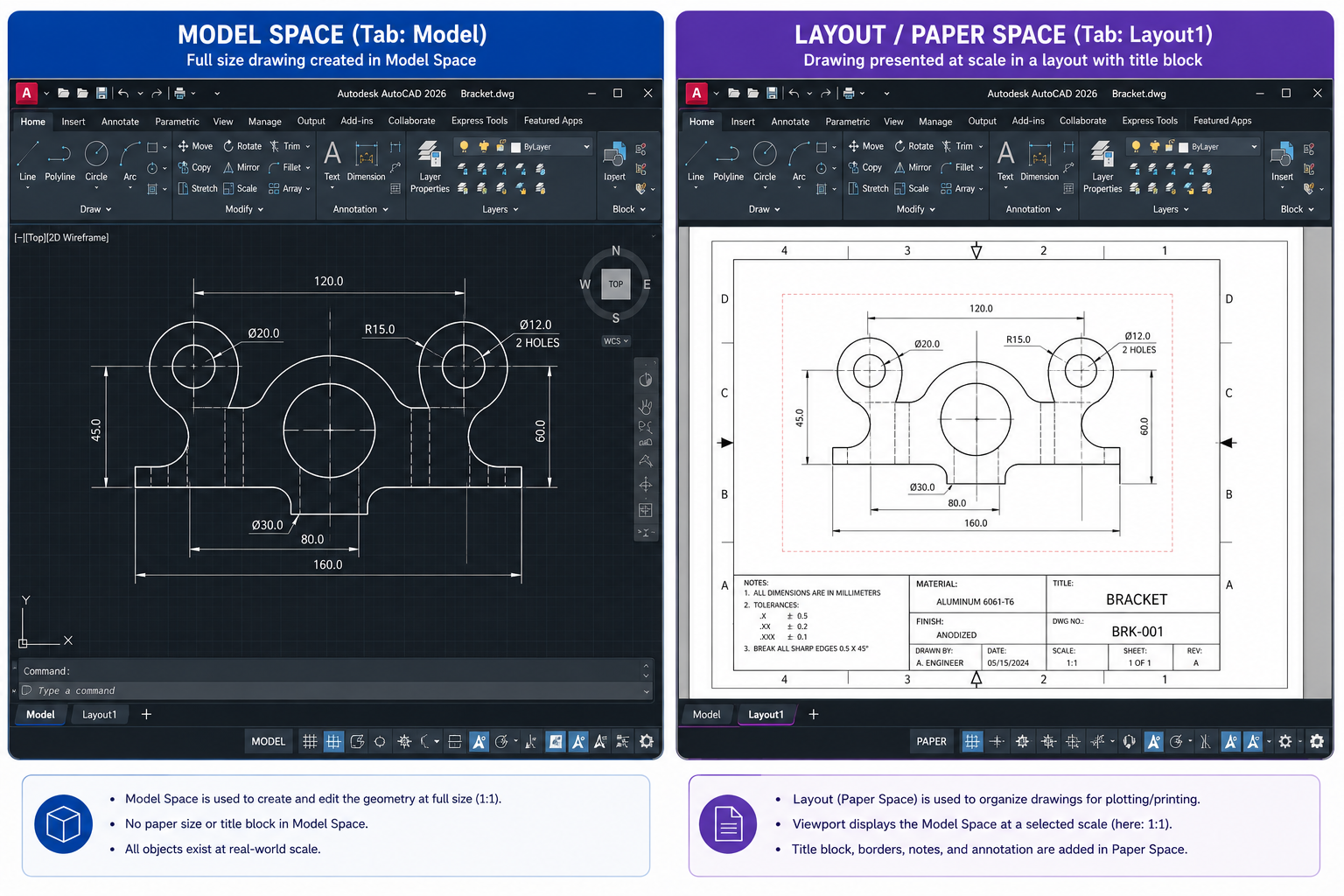
The distinction between Model Space and Paper Space is one of the most confusing concepts for new AutoCAD users, and one of the most important to understand for professional drafting. Misunderstanding this distinction leads to drawings that look correct on screen but print incorrectly or that have dimensions and text at the wrong scale.
Model Space: Where You Draw
Model Space is the infinite drawing environment accessed from the Model tab at the bottom of the drawing area. This is where you draw everything at full real-world scale: a 5-metre beam is drawn as 5000mm long, a 50mm bolt is drawn as 50mm. There is no concept of paper size or print scale in Model Space. Everything exists at its true physical scale.
Paper Space: Where You Compose for Printing
Paper Space (accessed via Layout tabs at the bottom of the screen) represents a physical sheet of paper at its actual print size (A1, A2, A3, A4, etc.). In Paper Space, you create Viewports: rectangular (or custom-shaped) windows that display views of your Model Space content at specific scales. A single Paper Space layout can contain multiple viewports at different scales, allowing you to show an overall plan at 1:100 and a detail at 1:10 on the same sheet.
The professional workflow is always: draw in Model Space at 1:1, compose and annotate in Paper Space using appropriately scaled viewports, and plot from Paper Space at 1:1. This is the workflow used by every professional CAD office globally, and it is the only workflow that correctly handles scale-dependent elements like dimension text, annotation symbols, and title blocks.
Printing and Plotting AutoCAD Drawings Professionally
Producing a correctly formatted, accurately scaled plot from an AutoCAD drawing is a skill that many users never fully master, leading to drawings that print at the wrong scale, with incorrect lineweights, or without the right elements included. The following workflow produces professional-quality plots consistently.
The Professional Plotting Workflow
Work from a Paper Space Layout: set up your title block, viewports, and scale from Paper Space.
Set viewport scales exactly: double-click inside a viewport to enter it, type Z, then 1/50XP for 1:50 scale (replace 50 with your scale denominator), then press Enter.
Lock viewports after scaling: select the viewport border, right-click, Display Locked > Yes. This prevents accidental zoom changes to the viewport scale.
Open the Plot dialogue: Ctrl + P or type PLOT and Enter.
Select the correct printer/plotter: choose your physical printer, PDF driver (DWG to PDF for digital output), or multi-format publisher.
Set paper size: match the paper size to your layout (A1, A2, A3, A4).
Plot from Layout: ensure ‘What to Plot’ is set to Layout, not Extents or Window.
Select Plot Style Table (CTB or STB): choose your company standard plot style. CTB (colour-based) is most common for mechanical engineering.
Enable Plot with Plot Styles and Plot Object Lineweights.
Preview before plotting: always use Preview (bottom of Plot dialogue) to verify the output before committing to print.
Introduction to AutoCAD 3D Modelling
While AutoCAD is most widely used for 2D drafting, its 3D modelling capabilities are substantial and are used extensively in mechanical engineering, architecture, and product design for creating solid models, surface models, and conceptual 3D layouts.
Switching to the 3D Modelling Workspace
AutoCAD organises its tools into Workspaces. Switch from the default Drafting and Annotation workspace to the 3D Modelling workspace using the Workspace Switching icon in the status bar (bottom right). This changes the Ribbon to show 3D-specific tools including Solid, Mesh, and Surface creation panels.
Core 3D Solid Modelling Commands
BOX: Creates a rectangular 3D solid. Specify corner, opposite corner, and height.
CYLINDER: Creates a cylindrical solid. Specify centre, radius, and height.
SPHERE: Creates a spherical solid. Specify centre and radius.
EXTRUDE (EXT): Extrudes a 2D closed profile (polyline, circle, region) into a 3D solid to a specified height. The most commonly used 3D command in mechanical engineering.
REVOLVE (REV): Revolves a 2D closed profile around an axis to create a solid of revolution. Essential for shafts, turned parts, and axisymmetric components.
LOFT: Creates a solid or surface that transitions between two or more cross-section profiles.
SWEEP: Sweeps a 2D profile along a specified path curve to create a 3D solid.
UNION: Combines two or more 3D solids into one by Boolean union.
SUBTRACT: Cuts one 3D solid from another by Boolean subtraction. Used to create holes, pockets, and cutouts.
INTERSECT: Creates a solid from the overlapping volume of two intersecting solids.
FILLET (3D): Applies rounded fillets to edges of 3D solids. Select edge(s) and specify fillet radius.
CHAMFER (3D): Applies bevelled chamfers to edges of 3D solids.
3D vs Dedicated CAD Software: AutoCAD’s 3D modelling capability is suitable for conceptual models, spatial layouts, and relatively simple mechanical parts. For complex parametric mechanical design, detailed assembly modelling, or integrated FEA simulation, dedicated parametric CAD tools such as SolidWorks, CATIA, Fusion 360, or NX are more appropriate. AutoCAD 3D is best used when you are already working in AutoCAD for 2D documentation and need to add 3D geometry to support the drawing set, or when producing architectural 3D layouts that complement 2D construction documents.
AutoCAD for Different Industries: Mechanical, Architectural, and Civil
While AutoCAD is the same software across industries, the way it is used, the drawing standards applied, the templates used, and the industry toolsets employed differ significantly by discipline.
Understanding how AutoCAD compares to alternative CAD platforms helps engineers and designers choose the right tool for their needs and understand AutoCAD’s genuine strengths and limitations.
Software
Best For
Key Advantage over AutoCAD
Key Disadvantage vs AutoCAD
Typical Industries
AutoCAD
2D drafting across all disciplines; documentation; multi-industry
DWG is the universal exchange format; largest user base; widest discipline coverage
2D-oriented; limited parametric 3D capability compared to dedicated ME CAD tools
All engineering disciplines, architecture, construction
SolidWorks
Parametric 3D mechanical design and engineering
Full parametric feature-based 3D modelling; integrated FEA (SolidWorks Simulation); assembly management
Less capable for 2D documentation and drawing annotation; not used outside mechanical engineering
Limited professional features; less reliable for high-stakes production work; smaller support community
Hobbyists, students, small businesses, developing markets
Professional Workflow Habits That Separate Good Users from Great Ones
The difference between an AutoCAD user who is competent and one who is genuinely efficient comes down to habits. The following professional workflow habits are what experienced AutoCAD practitioners use consistently, and they are almost never taught in beginner tutorials.
Work from the Command Line, Not the Ribbon
The single fastest way to improve AutoCAD productivity is to stop clicking the ribbon for common commands and start typing aliases in the command line. The alias for OFFSET is O: two keystrokes. Finding and clicking the Offset icon in the Modify panel of the Home ribbon takes five to seven seconds. Multiplied across hundreds of commands per day, the time difference is enormous. Set a goal to memorise five new command aliases per week until you have mastered the 40 most common ones.
Use Selection Sets Intelligently
AutoCAD has multiple selection methods, and choosing the right one for each situation is a significant efficiency multiplier. Window selection (left to right drag) selects only objects entirely within the window. Crossing selection (right to left drag) selects all objects that the window crosses or contains. FENCE selection (type F during selection) selects all objects the fence line crosses. SELECT ALL (Ctrl + A) selects everything in the current space. Quick Select (QSELECT command) allows filtering selections by layer, object type, colour, or any other property: invaluable for changing all objects on a specific layer or of a specific type at once.
Use OVERKILL to Clean Drawings
The OVERKILL command removes duplicate or overlapping objects from a drawing, a common problem when drawings have been built up over time or imported from external sources. Run OVERKILL on any drawing before submitting it to a client, sharing it with a contractor, or importing it into another application. It dramatically reduces file size and eliminates geometric inconsistencies.
PURGE Drawings Before Saving
The PURGE command (PU) removes all unused named objects from a drawing: unused layers, block definitions, text styles, dimension styles, and linetypes. Run PURGE and OVERKILL before archiving or sharing any drawing. Unpurged drawings accumulate enormous quantities of redundant data, particularly when blocks from external sources have been inserted and then deleted without purging.
Save with Incremental Version Numbers
Professional CAD practice involves saving drawings with version-tracked file names (e.g. PROJECT-PIPE-LAYOUT-R1.dwg, PROJECT-PIPE-LAYOUT-R2.dwg) rather than overwriting the same file. This provides a recovery path if a drawing is damaged, incorrectly modified, or if a previous version is needed to resolve a design query. A simple R1, R2, R3 suffix system is sufficient for most projects.
AutoCAD Learning Path: From Zero to Job-Ready
The following structured learning path takes a complete beginner from zero AutoCAD knowledge to job-ready professional competence. The timeline assumes approximately 1 to 2 hours of daily practice.
Stage
Duration
Focus Topics
Milestone to Achieve
Stage 1: Orientation
Week 1-2
Interface navigation, drawing setup, units, OSNAP, ORTHO, basic LINE and CIRCLE commands
Draw a simple mechanical part (bracket or plate) from a sketch with correct dimensions
Build a professional drawing template with full layer structure, text styles, and dimension styles; complete a multi-sheet drawing set for a real project
Formal AutoCAD certification from Autodesk validates your proficiency for employers and clients and distinguishes you from candidates who are self-taught without formal validation. Autodesk offers two levels of certification for AutoCAD.
Autodesk Certified User (ACU) in AutoCAD
The Autodesk Certified User (ACU) certification is the entry-level validation, targeting students and early-career professionals. It tests competency in the core 2D drawing, modifying, annotating, and file management tasks covered in Stages 1 through 5 of the learning path above. The exam is available through Autodesk Authorised Testing Centres and takes approximately 50 minutes.
Autodesk Certified Professional (ACP) in AutoCAD
The Autodesk Certified Professional (ACP) certification is the professional-level validation, targeting experienced users with at least 400 hours of AutoCAD use. It tests advanced 2D and 3D skills, complex block and xref workflows, parametric constraints, customisation, and professional plotting. The ACP designation is recognised by engineering and architecture employers globally and provides a meaningful CV differentiator in competitive job markets.
AutoCAD Career Value in 2026
AutoCAD proficiency remains one of the most consistently in-demand technical skills in engineering job postings globally. According to LinkedIn job posting data analysed by multiple career research platforms in 2024 and 2026, AutoCAD appears as a required or preferred skill in more engineering and design job postings than any other single software tool. Starting salaries for engineering technicians and drafters with verified AutoCAD proficiency are typically 10 to 20 percent higher than equivalents without documented CAD skills. For mechanical engineers, AutoCAD (combined with SolidWorks or CATIA for 3D) represents the fundamental software stack that virtually all employers expect.
Frequently Asked Questions (FAQ)
What is AutoCAD used for?
AutoCAD is used to create precise 2D drawings and 3D models across engineering, architecture, and design. Mechanical engineers use it for component and assembly drawings. Architects use it for floor plans, sections, and construction documents. Civil engineers use it for site plans, road layouts, and drainage designs. Electrical engineers use it for circuit diagrams and wiring schematics. It is the most widely deployed CAD software globally, with over 4 million active subscribers across virtually every industry that produces technical drawings.
How long does it take to learn AutoCAD?
With consistent daily practice, most beginners can achieve productive 2D drafting competence in 4 to 8 weeks. Reaching professional-level proficiency in 2D drafting, including layers, blocks, paper space layouts, and professional plotting, typically takes 3 to 5 months. Adding solid 3D modelling competence requires a further 2 to 3 months. Full professional mastery, including dynamic blocks, parametric constraints, customisation, and industry-specific workflows, develops over 1 to 2 years of regular use on real projects.
Is AutoCAD hard to learn?
AutoCAD has a moderate learning curve. The basic drawing commands (LINE, CIRCLE, TRIM, OFFSET) can be learned in a few hours. The concepts that require more effort are the professional workflow principles: layers, paper space vs model space, drawing setup, and annotation scaling. These take most new users 4 to 8 weeks of practice to master. The good news is that AutoCAD’s logic is consistent: once you understand how one command works, similar commands follow the same pattern. The investment pays off quickly because AutoCAD proficiency is one of the most transferable and in-demand technical skills in engineering.
What is the difference between AutoCAD and AutoCAD LT?
AutoCAD LT is a lower-cost version of AutoCAD that includes full 2D drafting capability but excludes 3D modelling, the AutoCAD programming API (for custom scripts and applications), and the industry-specific toolsets (Mechanical, Architecture, Electrical, etc.). For professionals who need only 2D drafting and documentation, AutoCAD LT provides excellent value at approximately one-quarter of the full AutoCAD subscription cost. Most drafters, engineering technicians, and architects working on 2D documentation can work effectively with AutoCAD LT.
What are the most important AutoCAD commands for beginners?
The most important AutoCAD commands for beginners to learn first are: LINE (L), CIRCLE (C), RECTANGLE (REC), OFFSET (O), TRIM (TR), FILLET (F), COPY (CO), MOVE (M), ERASE (E), LAYER (LA), and HATCH (H). These ten commands cover the majority of basic 2D drafting tasks. Alongside these, mastering OSNAP (F3), ORTHO (F8), and the ZOOM and PAN navigation commands is essential. Once these are fluent, the next priority is BLOCK (B), INSERT (I), MTEXT (MT), and the dimensioning commands (DIMLINEAR, DIMRADIUS, DIMDIAMETER).
What is the difference between model space and paper space in AutoCAD?
Model Space is where you draw your design at true real-world scale (1:1). Paper Space (accessed via Layout tabs) represents a physical sheet of paper at its actual print size, where you compose viewports of your Model Space content at specific scales for printing. The professional workflow is: draw in Model Space at 1:1, compose and annotate in Paper Space using scaled viewports, and plot from Paper Space at 1:1. This is the correct, professional method for producing multi-scale, multi-view drawings.
What is the best way to learn AutoCAD for free?
The best free resources for learning AutoCAD are: the Autodesk student licence (free full AutoCAD for verified students via the Autodesk Education Community), Autodesk’s own free tutorial library at learn.autodesk.com, the 30-day free trial of AutoCAD for non-students, and the tutorial articles on this site which cover specific commands and workflows in detail. YouTube channels by experienced AutoCAD instructors provide excellent supplementary video content. The most important free resource, however, is simply regular practice on real drawing projects: reading tutorials without applying them in a live drawing environment is far less effective.
Is AutoCAD still relevant in 2026?
Yes, AutoCAD is fully relevant and widely in demand in 2026. While dedicated parametric 3D tools (SolidWorks, CATIA) are preferred for complex mechanical 3D design, and BIM tools (Revit) are increasingly used in architecture and construction, AutoCAD remains the universal standard for 2D technical drawing production, drawing exchange, and documentation across all engineering and design disciplines. Its DWG file format is the universal language of technical drawing. AutoCAD proficiency consistently appears in more engineering and design job postings than any other single software tool.
Conclusion
AutoCAD has been the global standard for technical drawing for over 40 years, and in 2026 it remains the most in-demand CAD skill across engineering, architecture, and design. Whether you are learning it for the first time, transitioning from paper-based drafting, or seeking to sharpen professional-level skills you already have, the path is consistent: understand the interface, master the foundational 2D commands, build professional habits around layers and drawing setup, learn blocks and paper space properly, and then extend into 3D and industry-specific workflows.
The articles in this cluster provide deep, step-by-step coverage of specific AutoCAD topics that complement this pillar guide. Each supporting article addresses a specific task or workflow that engineers and designers encounter regularly and struggle to find clear, practical answers for.
Explore the full AutoCAD tutorial series on this site. Start with our guides on the most common AutoCAD problems and workflows: Why Is My AutoCAD Ribbon Empty?, How to Draw a Line from Its Midpoint, How to Create a 3D Model from 2D Views, and Dynamic Block Lookup Tables Explained.