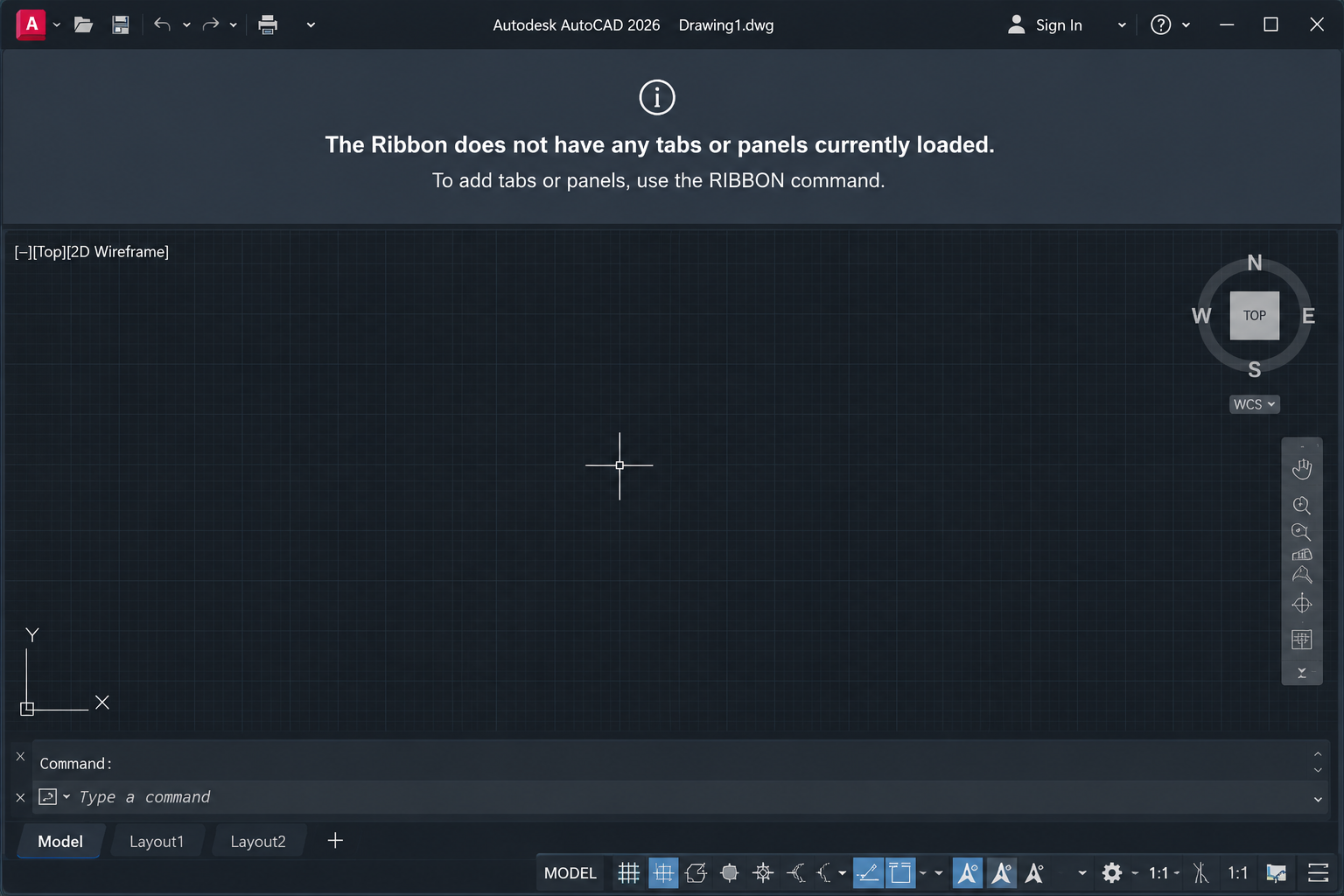
You open AutoCAD and the ribbon is empty, blank, or showing the message “The Ribbon does not have any tabs or panels currently loaded“. The drawing area is there, the command line is there, but the entire ribbon at the top of the screen has vanished. Nothing works the way it should.
This is one of the most common AutoCAD problems reported by users at every experience level. The good news is that it almost always has a quick fix. The reason it feels so frustrating is that there are several possible causes, and if you try the wrong fix first, you can waste significant time. This guide eliminates that guesswork.
It covers every reason an AutoCAD ribbon disappears or goes blank, in order from the most common and easiest to fix to the most complex. For each cause, there is a clear, numbered step-by-step solution. A diagnostic table at the top helps you match what you are seeing on screen to the exact fix you need.
| Quick Fix: If you just need the ribbon back immediately, type RIBBON in the command line and press Enter. If that does not work, check that the correct workspace is loaded using the gear icon in the bottom-right status bar. These two steps fix the majority of empty ribbon problems in under 30 seconds. |
Diagnose Your Ribbon Problem: Match Your Symptom to the Fix
Before working through individual fixes, use this diagnostic table to identify which cause matches what you are seeing. This saves time and gets you to the right solution immediately.
| What You See on Screen | Most Likely Cause | Go to Fix |
| Ribbon area is completely absent. No tabs, no panels, no blank bar. | Ribbon was turned off via command or menu | Fix 1: RIBBON Command |
| Ribbon area shows a blank/empty bar with the message: ‘The Ribbon does not have any tabs or panels currently loaded’ | Wrong workspace selected, or corrupted CUIX file | Fix 2: Workspace, then Fix 6: CUIX File |
| Entire AutoCAD interface is full-screen with no ribbon, no status bar, no toolbars at all | Clean Screen mode is active | Fix 3: Clean Screen Mode |
| A thin ribbon title bar is visible at the top but the panels collapse when you move the mouse away | Ribbon is set to Auto-Hide mode | Fix 4: Auto-Hide Setting |
| Ribbon is present but has drifted or is floating as a separate window, partially off-screen | Ribbon was undocked and dragged off-screen | Fix 5: Undocked Ribbon |
| Ribbon was working fine until AutoCAD was updated or a new plugin was installed | CUIX file corrupted or overwritten by update or plugin | Fix 6: Reset CUIX File |
| Ribbon blank only for certain toolsets (e.g. Architecture, Mechanical) not standard tabs | Industry toolset not installed or profile settings incorrect | Fix 6 or Fix 7: Profile Reset |
| Ribbon has been blank since a settings migration from an older version of AutoCAD | User profile from previous version incompatible | Fix 7: Reset User Profile |
| All above fixes have been tried and nothing works | Deep corruption in AutoCAD installation or profile | Fix 8: Reset to Defaults or Reinstall |
Fix 1: The Ribbon Was Accidentally Turned Off (RIBBON Command)
This is the most common cause of a missing AutoCAD ribbon and the easiest fix. The ribbon can be toggled off accidentally by pressing Ctrl + 0 (which activates Clean Screen), by clicking the X button on the ribbon, or by navigating to Tools > Palettes > Ribbon and unchecking it. Many users do this unintentionally while reaching for a nearby keyboard shortcut.
Step-by-Step Fix
- Click anywhere in the AutoCAD command line at the bottom of the screen to make sure it is active.
- Type RIBBON and press Enter.
- The ribbon should immediately reappear at the top of the screen.
- If the ribbon reappears but is not the correct workspace, continue to Fix 2.
Alternatively, if the classic menu bar is visible at the top (Tools, Draw, Modify etc.), go to Tools > Palettes > Ribbon and click to enable it. If the menu bar is not visible either, the command line is your only entry point.
| Command Line Not Visible? If the command line itself has disappeared alongside the ribbon, press Ctrl + 9 to restore it. Once the command line is back, type RIBBON and press Enter to restore the ribbon. |
Fix 2: Wrong Workspace Selected
AutoCAD uses workspaces to define the arrangement of the interface: which ribbon tabs are visible, where the toolbars sit, and what the screen layout looks like. If the wrong workspace is loaded, the ribbon may appear completely blank or show only partial tabs. This is one of the most common causes of the message “The Ribbon does not have any tabs or panels currently loaded“.
Step-by-Step Fix
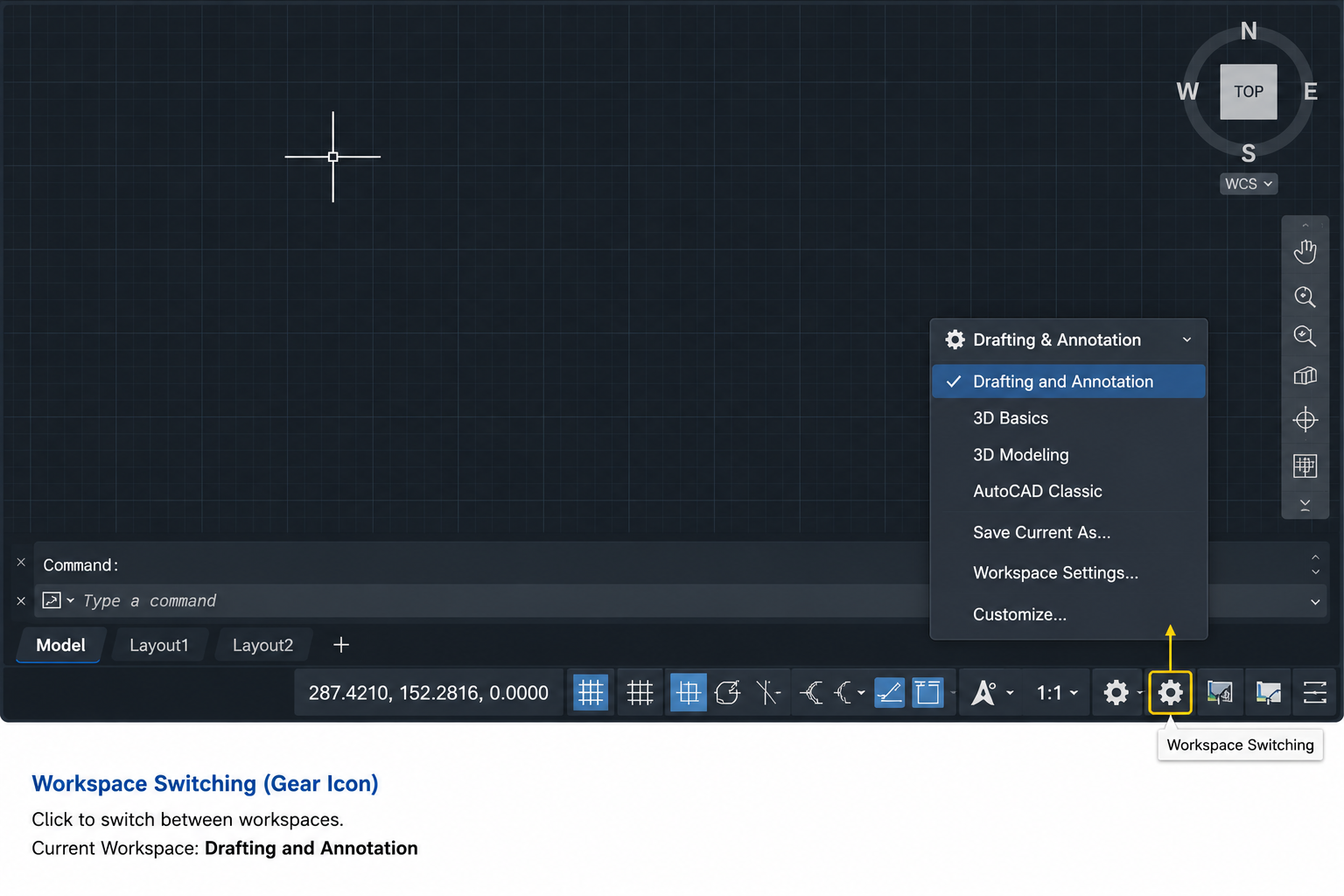
- Look at the status bar at the very bottom-right of the AutoCAD screen. Find the gear icon (Workspace Switching).
- Click the gear icon to open the workspace menu.
- Select one of the standard workspaces: Drafting and Annotation (for 2D work), 3D Modelling (for 3D work), or 3D Basics (simplified 3D interface).
- If the ribbon does not load, try switching to a different workspace first, then switching back to your preferred workspace.
- Alternatively, type WORKSPACE in the command line, press Enter, then type RESTORE followed by the workspace name (e.g. RESTORE “Drafting & Annotation”).
If the gear icon is not visible in the status bar, right-click the status bar and make sure Workspace Switching is ticked. Alternatively, type WSCURRENT in the command line and press Enter to see which workspace is currently active.
| After the Update Problem: If the ribbon went blank after an AutoCAD update, a workspace settings migration often causes this. After updating, go to the workspace switcher, select the appropriate workspace, and then go to Tools > Workspaces > Save Current As to save a clean version of the workspace. This prevents the same issue occurring after the next update. |
Fix 3: AutoCAD Is in Clean Screen Mode
AutoCAD’s Clean Screen mode maximises the drawing area by hiding all interface elements: the ribbon, toolbars, status bar, and palettes. It is designed for users who need maximum drawing space, particularly on smaller monitors. If you accidentally activated it, the entire interface appears to have vanished.
The giveaway sign that you are in Clean Screen mode (rather than a genuine ribbon failure) is that the drawing area fills the entire screen right to the edges, with no interface elements visible anywhere, not even a thin title bar at the top.
Step-by-Step Fix
- Press Ctrl + 0 (zero) to toggle Clean Screen mode off. This is a single keyboard shortcut that toggles the mode on and off.
- The full interface including the ribbon should immediately reappear.
- Alternatively, look for the Clean Screen icon in the far bottom-right corner of the screen (a small double-headed arrow icon) and click it to toggle Clean Screen off.
| Quick Test: Press Ctrl + 0 twice in quick succession. If the ribbon disappears and then comes back, you have confirmed that Clean Screen mode is being toggled. The first press activates it (hiding the ribbon), the second press deactivates it (restoring the ribbon). Now you know the shortcut that caused the problem and can avoid pressing it accidentally in the future. |
Fix 4: The Ribbon Is Set to Auto-Hide
The AutoCAD ribbon auto-hide feature collapses the ribbon to just a thin title bar at the top of the screen when the cursor is not hovering over it, and expands it again when the cursor moves into the ribbon area. If this is active, the ribbon appears to be missing whenever the cursor is in the drawing area, leading users to believe something has gone wrong.
The difference between Auto-Hide and a genuinely missing ribbon: when you move the cursor to the very top of the screen, a thin ribbon bar becomes visible momentarily and then disappears again. If this is what you are seeing, Auto-Hide is the cause, not a technical problem.
Step-by-Step Fix
- Move your cursor to the very top of the screen until the ribbon appears.
- Look for the small upward-pointing arrow icon (pin/unpin icon) at the far right of the ribbon.
- Click this icon once to toggle Auto-Hide off. The ribbon will remain permanently expanded.
- Alternatively, right-click on the ribbon title bar at the top and look for the Auto-Hide Ribbon option. Uncheck it.
Fix 5: The Ribbon Has Been Undocked and Is Floating Off-Screen
The AutoCAD ribbon can be undocked from its default position at the top of the screen and dragged to any location, including off the visible screen area. If this has happened (usually after a monitor configuration change, a switch from dual to single monitor, or an accidental drag), the ribbon appears to be missing even though it technically still exists.
Step-by-Step Fix
- Type RIBBON in the command line and press Enter. This restores and re-docks the ribbon to its default position at the top of the interface.
- If the ribbon reappears but is floating as a separate window, grab its title bar and drag it back to the top of the AutoCAD window until the docking highlight appears, then release to dock it.
- To lock the ribbon in place and prevent future accidental undocking, right-click on the ribbon title bar and select Lock Location > Floating Windows.
Fix 6: Corrupted or Missing CUIX File
The CUIX file (Customisation User Interface file) is what defines the entire AutoCAD ribbon: which tabs exist, which panels are in each tab, and which commands appear in each panel. The main file is called acad.cuix (or acadlt.cuix for AutoCAD LT). If this file becomes corrupted, is accidentally overwritten by a software update or third-party plugin, or cannot be located by AutoCAD, the ribbon loads blank or empty.
This is the most technically involved fix but also one of the most reliable. Resetting or reloading the CUIX file resolves the vast majority of persistent AutoCAD ribbon blank problems that the simpler fixes above do not address.
Method 1: Reset the CUIX File via the CUI Command
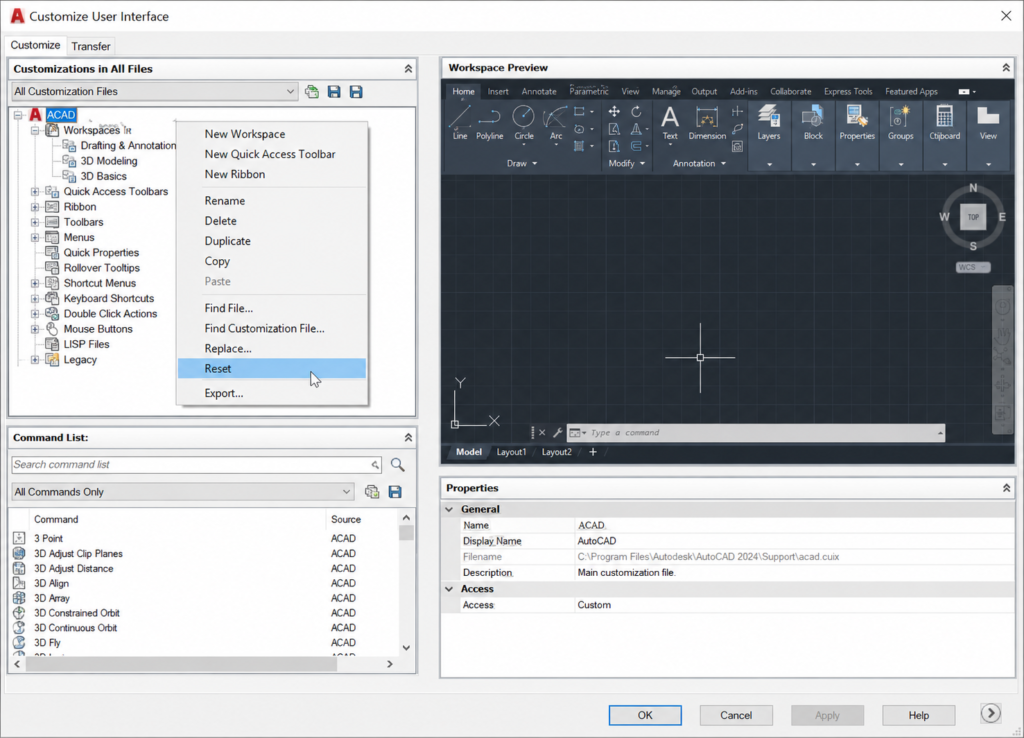
- Type CUI in the command line and press Enter. The Customize User Interface dialogue box opens.
- In the top-left panel, you will see a list of loaded customisation files. Find ACAD (or the relevant product: ACADLT, C3D, etc.).
- Right-click on the ACAD entry.
- From the context menu, select Reset.
- A confirmation dialogue will appear. Click Yes to confirm the reset.
- Click OK to close the CUI dialogue.
- The CUIX file is now reset to its factory default state. Restart AutoCAD and check whether the ribbon has been restored.
Method 2: Reload the CUIX File via CUILOAD
- Type CUILOAD in the command line and press Enter.
- Click the Browse button in the dialogue that appears.
- Navigate to the AutoCAD support folder. The default location for acad.cuix is typically:
Windows: C:\Users\[username]\AppData\Roaming\Autodesk\AutoCAD [version]\[release]\[language]\Support\
- Select acad.cuix and click Load.
- If the file is already loaded, first select it in the Loaded Customisation Files list, click Unload, and then reload it using Browse.
- Click Close and check whether the ribbon has been restored.
Method 3: Check the Support File Search Path
If AutoCAD cannot find the CUIX file because the support file path is missing or incorrect (this commonly happens after installation of a new AutoCAD version or after moving user files to a new computer), you need to add the correct path to AutoCAD’s Options.
- Type OPTIONS (or OP) in the command line and press Enter.
- Go to the Files tab.
- Expand the Support File Search Path node.
- Click Add and browse to the folder containing your CUIX file.
- Click OK to close Options.
- Restart AutoCAD and verify the ribbon has been restored.
| Warning: Third-Party Plugins and the CUIX File: Installing or uninstalling third-party AutoCAD plugins (add-ons, structural analysis tools, MEP tools, or manufacturer-specific libraries) can overwrite or corrupt the acad.cuix file. If the ribbon went blank immediately after installing a plugin, the CUI Reset method (Method 1 above) is almost always the solution. After resetting, you may need to re-install the plugin if you still need it, or contact the plugin developer for an updated version compatible with your AutoCAD version. |
Fix 7: Corrupted AutoCAD User Profile
AutoCAD stores each user’s interface settings, support paths, and customisations in a user profile. If this profile becomes corrupted, particularly during version upgrades where settings are migrated from an older version, the ribbon may load blank or with missing panels even after the CUIX file has been reset.
Step-by-Step Fix: Switch Profile and Reset
- Type OPTIONS (or OP) in the command line and press Enter.
- Go to the Profiles tab.
- In the Available Profiles list, select <<Unnamed Profile>> (or any profile that is not your current one).
- Click Set Current.
- Close Options and check whether the ribbon loads correctly on this profile.
- If the ribbon now works on the new profile, return to Options > Profiles and either delete the corrupted profile or click Reset to restore it to defaults.
- If switching profiles restores the ribbon, save the working profile as your new default using Set Current.
| Migration Tip: When upgrading to a new version of AutoCAD, Autodesk recommends importing all settings from the previous version rather than only the profile. Importing only the profile, without the associated customisation files, is a known cause of blank ribbons in freshly upgraded installations. If you are setting up a new AutoCAD version, use the Migrate Custom Settings option from the Windows Start menu under the new AutoCAD version folder. |
Fix 8: AutoCAD Needs a Reset to Defaults
If none of the above fixes have restored the ribbon, a full AutoCAD reset to factory defaults is the next step. This resets all settings, profiles, and customisations to the state they were in immediately after installation. It is a more drastic step because any custom settings, toolbars, aliases, or profiles you have built will need to be reconfigured, but it is very reliable at resolving deep corruption issues.
Step-by-Step: Reset AutoCAD to Factory Defaults
- Close AutoCAD completely.
- In Windows, search for AutoCAD [version] in the Start menu.
- Look for Reset Settings to Default in the AutoCAD folder within the Start menu.
- Click Reset Settings to Default. A dialogue will ask you to backup your settings or reset without backup.
- Choose your preferred option and confirm the reset.
- Relaunch AutoCAD. It will start with a completely clean default configuration.
- If the ribbon now loads correctly, the issue was a deep corruption in the user settings. Rebuild only the custom settings you actually need rather than restoring from the corrupted backup.
If even a full reset does not restore the ribbon, the issue likely lies in the AutoCAD installation itself. In this case, use the Autodesk desktop app or Programs and Features to run a Repair on the AutoCAD installation. If the repair fails, a full uninstall and clean reinstall of AutoCAD using the latest installer from your Autodesk account will resolve installation-level corruption.
Why Does the AutoCAD Ribbon Keep Disappearing?
If the AutoCAD ribbon keeps disappearing repeatedly rather than just once, there is usually an underlying cause that the temporary fix is not addressing. The most common reasons for a ribbon that keeps going missing are:
AutoCAD Is Not Saving Workspace Changes
By default, AutoCAD does not always save changes to the workspace automatically. If you restore the ribbon but AutoCAD is not configured to save the workspace state on exit, the ribbon position and visibility settings are lost the next time you open the program.
The fix: type WSSETTINGS in the command line and press Enter to open the Workspace Settings dialogue. Enable Automatically Save Workspace Changes. This ensures any interface configuration changes you make are preserved between sessions.
A Plugin or Script Is Modifying the Interface on Startup
Some third-party plugins load their own CUIX customisation on AutoCAD startup, which can overwrite the standard ribbon. If the ribbon disappears every time you restart AutoCAD but is fine after being restored manually, check whether any startup suite scripts or plugins are loading on AutoCAD startup. Go to Tools > Load Application > Startup Suite and review what is loading automatically. Removing or updating a conflicting plugin often resolves the persistent ribbon problem.
Incompatible Customisation Files from a Previous Version
If customisation files (CUIX, MNS, MNR) from a previous version of AutoCAD are being loaded by the new version, they may not be fully compatible and can cause the ribbon to load incorrectly on every startup. Remove old version customisation files from the Support File Search Path in Options and recreate any custom tool entries in the current version’s native format.
How to Stop Your AutoCAD Ribbon from Disappearing Again
Once your AutoCAD ribbon is restored, three habits will prevent the problem from recurring:
| Prevention Habit | How to Implement It | What It Prevents |
| Save your workspace explicitly after setting it up | After configuring the interface the way you want it, go to Tools > Workspaces > Save Current As and save it with a clear name (e.g. ‘MY-2D-WORKSPACE’) | Interface configuration being lost on restart or after an AutoCAD update |
| Enable automatic workspace saving | Type WSSETTINGS, press Enter, and tick ‘Automatically Save Workspace Changes’ | Ribbon position and tab visibility changes being lost between sessions |
| Keep a saved backup of your CUIX file | After setting up your customisations, export your profile via Options > Profiles > Export and save the .arg file to a safe location | Having to rebuild all customisations from scratch after a CUIX corruption |
| Be selective about which plugins you install | Before installing any third-party AutoCAD plugin or add-on, check that it is compatible with your specific AutoCAD version number on the developer’s website | Plugin-triggered CUIX corruption and ribbon blank problems after installation |
| Use AutoCAD’s Migrate Settings correctly during upgrades | When installing a new AutoCAD version, use the ‘Migrate Custom Settings’ option and choose to migrate all settings, not just the profile | Blank ribbon in freshly upgraded AutoCAD installations due to incomplete settings migration |
Frequently Asked Questions (FAQ)
Why is my AutoCAD ribbon empty?
An empty AutoCAD ribbon is most commonly caused by one of five things: the ribbon was accidentally turned off (fix: type RIBBON in the command line and press Enter); the wrong workspace is selected (fix: use the gear icon in the status bar to switch to Drafting and Annotation); AutoCAD is in Clean Screen mode (fix: press Ctrl + 0 to toggle it off); the ribbon is set to Auto-Hide (fix: click the pin icon at the top-right of the ribbon title bar); or the CUIX file is corrupted (fix: type CUI, right-click ACAD, select Reset). The RIBBON command fixes the majority of cases immediately.
How do I restore the AutoCAD ribbon?
To restore a missing AutoCAD ribbon, type RIBBON in the command line and press Enter. If the ribbon reappears but shows the message ‘The Ribbon does not have any tabs or panels currently loaded’, switch to the correct workspace using the gear icon in the status bar and select Drafting and Annotation. If the ribbon still does not load correctly, reset the CUIX file by typing CUI, right-clicking the ACAD entry, selecting Reset, and restarting AutoCAD.
What does ‘The Ribbon does not have any tabs or panels currently loaded’ mean in AutoCAD?
This message means that AutoCAD has loaded but the ribbon definition file (the CUIX file) either cannot be found, has been corrupted, or has not been associated with the current workspace. The most reliable fix is to: first try switching workspaces using the gear icon in the status bar; if that does not work, type CUI in the command line, right-click the ACAD customisation file in the top-left panel, and select Reset. Restart AutoCAD after the reset.
Why does my AutoCAD ribbon disappear every time I restart?
If the AutoCAD ribbon disappears on every restart, it is almost always because AutoCAD is not saving your workspace settings between sessions. Type WSSETTINGS in the command line, press Enter, and enable ‘Automatically Save Workspace Changes’. Also verify that no startup script or third-party plugin is resetting the interface on launch by checking Tools > Load Application > Startup Suite.
How do I fix the AutoCAD ribbon after an update?
After an AutoCAD update, a blank ribbon is usually caused by a workspace settings migration issue. Switch to the Drafting and Annotation workspace using the gear icon in the status bar. If the ribbon loads, save this workspace using Tools > Workspaces > Save Current As. If the ribbon is still blank, type CUI, right-click ACAD, select Reset, and restart AutoCAD. For a permanent fix, type WSSETTINGS and enable automatic workspace saving.
What is the CUIX file in AutoCAD and why does it affect the ribbon?
The CUIX file (Customisation User Interface file) is an XML-based file that defines the entire AutoCAD ribbon: which tabs exist, which panels are in each tab, which commands are in each panel, and how toolbars and menus are structured. The main file is called acad.cuix. When this file is corrupted, accidentally overwritten by a plugin or update, or cannot be found by AutoCAD, the ribbon loads blank. The fix is to reset the CUIX file using the CUI command: right-click ACAD and select Reset.
Conclusion
A blank or empty AutoCAD ribbon is always fixable. The vast majority of cases resolve in under two minutes with either the RIBBON command, a workspace switch, or turning off Clean Screen mode. For the minority of cases involving a corrupted CUIX file or user profile, the fixes are still well within reach of any AutoCAD user who follows the numbered steps above.
The key is to identify the correct cause first using the diagnostic table at the top of this article, then apply the right fix rather than working through every solution sequentially. Once the ribbon is restored, implementing the five prevention habits will stop the problem from recurring.
Back to the full AutoCAD guide: AutoCAD Tutorials for Beginners and Professionals. Or continue with the next tutorial: How to Draw a Line from Its Midpoint in AutoCAD.