Is CAD Drafting Taking Too Long?
If you’ve ever spent hours drawing the same part over and over, writing technical notes, or searching for the right command in AutoCAD, you’re not alone.
CAD drafting is powerful. But it’s also slow, repetitive, and frustrating, especially for beginners.
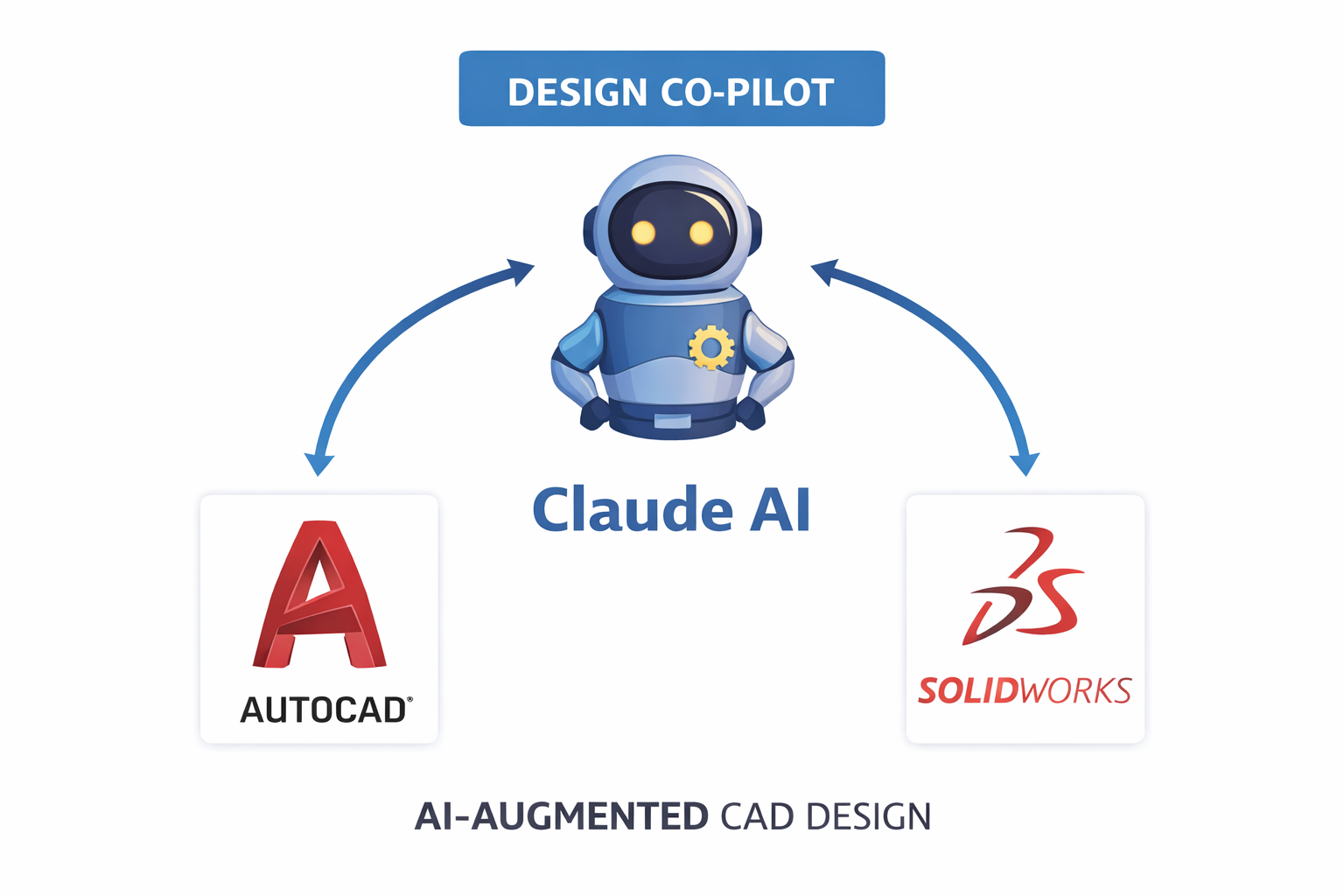
That’s where Claude AI for CAD drafting comes in, a growing part of modern AI for CAD design workflows.
Claude is an AI assistant made by Anthropic. It can help you write commands, generate design ideas, automate documentation, and even help you learn CAD faster, all through simple, plain-English conversation.
You don’t need to be a tech expert. You don’t need to know coding. You just need to know what you want to build.
| Quick Answer |
| Claude AI for CAD drafting means using Claude (an AI by Anthropic) to help you write CAD commands, generate design parameters, create technical documentation, and automate repetitive drawing tasks, all by typing simple prompts in plain English using natural language CAD commands. It works alongside tools like AutoCAD, SolidWorks, and FreeCAD to make your workflow faster and smarter as part of an AI CAD software ecosystem. |
What Is Claude AI and Why Should CAD Users Care?
Claude is a large language model (LLM) built by Anthropic. Think of it as a very smart assistant that understands what you type and gives you helpful, detailed responses, making it one of the most practical AI CAD tools for engineers today.
For CAD drafters, Claude is useful because:
- It understands engineering language, tolerances, dimensions, material properties, GD&T
- It can generate ready-to-use code scripts for AutoCAD (like AutoLISP or macros), supporting AutoCAD AI automation 2025
- It explains complex design concepts in simple terms, helping with AI engineering design
- It helps write professional technical documentation without starting from scratch using AI-assisted technical drawing
- It suggests design improvements based on your description
In short, Claude acts like a smart design partner sitting next to you, available 24/7, never tired, and always patient, enhancing your Claude AI mechanical design workflow.
How Claude AI Helps With CAD Drafting, Practical Use Cases
1. Generating AutoCAD Scripts and Macros
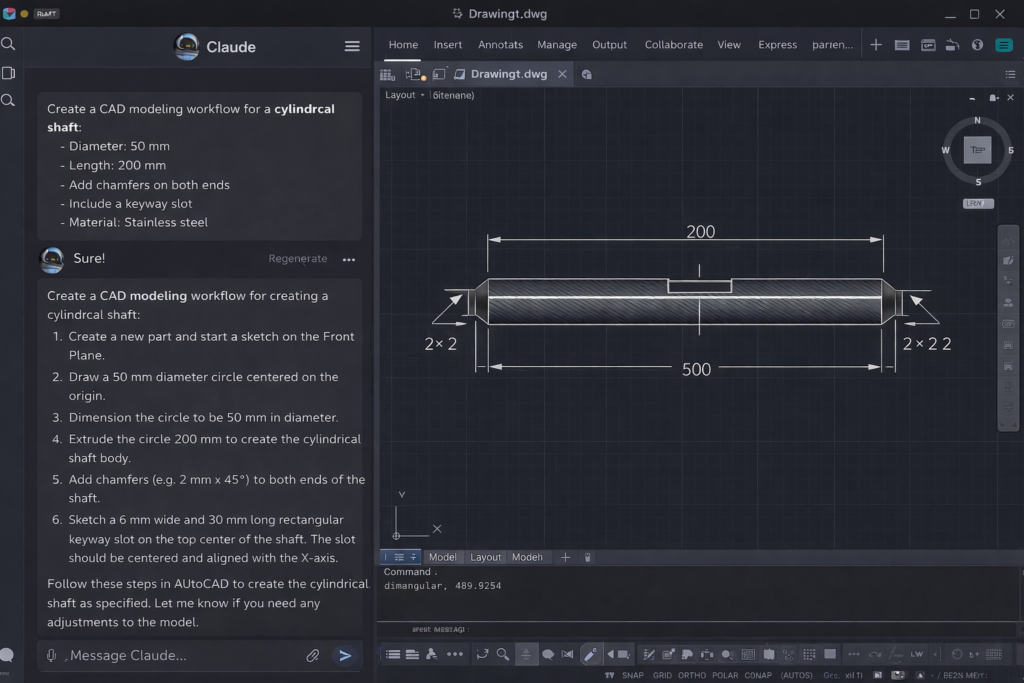
One of the most time-saving things Claude can do is write AutoCAD scripts for you. Instead of spending an hour figuring out AutoLISP syntax, you just describe what you want using prompt engineering for designers.
For example, you can type:
| 💬 Example Prompt: “Write an AutoLISP script that draws a rectangle 200mm x 100mm at the origin and adds a center mark.” |
Claude will produce a working script. You paste it into AutoCAD and run it. Done.
This works for batch renaming layers, setting up drawing templates, inserting title blocks, and much more, a core part of AI CAD tools for engineers.
2. Creating Design Parameters and Calculations
Let’s say you’re designing a steel bracket. You need to figure out wall thickness, load capacity, or material selection. Claude can help you reason through these decisions quickly, supporting AI engineering design workflows.
Just describe your situation: the load, the material, the environment, and Claude will walk you through the engineering logic in simple steps.
This is especially helpful for beginners who are still learning how to use Claude AI for CAD modeling.
3. Writing Technical Documentation
Every CAD project eventually needs documentation, drawing notes, revision histories, part descriptions, material call-outs.
Claude can generate all of this from a short description. You tell it what the part does, and it writes clean, professional technical notes that you can paste right into your drawing, improving AI-assisted technical drawing efficiency.
4. Learning CAD Commands Faster
Stuck on a command? Don’t understand what a dimension constraint does? Instead of watching a 20-minute YouTube tutorial, ask Claude.
Claude explains things in plain English. It gives examples. It adjusts its explanation if you ask it to simplify.
It’s like having a patient teacher available every time you’re confused, making it easier to understand how to use Claude AI for CAD modeling.
5. Reviewing and Suggesting Design Improvements
You can describe your design to Claude and ask if there are any common problems or improvements. While Claude can’t see your actual CAD file, it can give general design guidance based on your description, enhancing your Claude AI mechanical design workflow.
For example: “I’m designing a plastic enclosure that needs to snap together without screws. What design features should I include?”, Claude will give you a detailed, practical answer using principles from AI for CAD design.
Step-by-Step Guide: Using Claude AI for Your CAD Drafting Workflow
Here is a simple workflow you can start using today, even if you’re a complete beginner.
- Open Claude at claude.ai (free version available) in your browser alongside your CAD software.
- Describe your project clearly. Include dimensions, materials, and what the part needs to do, this is key to effective prompt engineering for designers.
- Ask for what you need, a script, a formula, documentation text, or design advice using natural language CAD commands.
- Review Claude’s output. Read it carefully and ask follow-up questions if anything is unclear.
- Paste or apply the output. Use scripts directly in AutoCAD, copy documentation into your drawing, or apply the design suggestion in your model.
- Iterate. Ask Claude to revise, expand, or simplify any output until it fits your needs exactly.
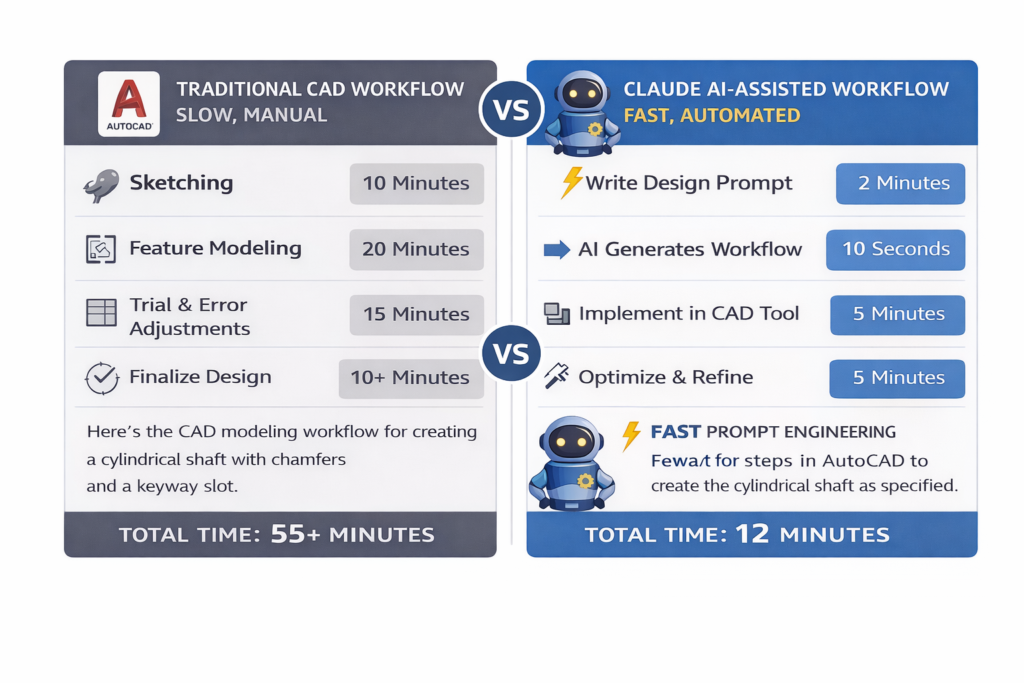
That’s it. The whole process takes minutes, not hours, thanks to AI CAD software and automation.
Real-World Benefits of Using Claude AI for CAD Drafting
Key Benefits at a Glance
- Save 30–50% of time on repetitive documentation and scripting tasks using AutoCAD AI automation 2026
- Reduce errors by checking your design logic with AI before finalizing
- Learn CAD concepts faster through conversational explanations
- Generate professional-quality technical text in seconds
- Work through design challenges even when no colleague is available
- Speed up onboarding for junior drafters and new team members
- Improve drawing quality with AI-assisted technical drawing best practices
These aren’t just theoretical benefits. Engineers are already using AI CAD tools for engineers to do more work in less time.
Who Should Use Claude AI for CAD Drafting?
Claude AI is useful across a wide range of users. Here’s a quick breakdown:
| User Type | How Claude Helps |
| Beginners / Students | Get explanations, learn commands, understand design concepts without overwhelming documentation |
| Freelance Drafters | Speed up documentation, script generation using AI for CAD design |
| Mechanical Engineers | Automate calculations documentation and improve AI engineering design |
| Architecture Drafters | Generate room schedules, material notes using AI-assisted technical drawing |
| Non-Engineers / Managers | Understand drawings using natural language CAD commands |
Common Mistakes to Avoid When Using Claude for CAD
Like any tool, Claude works best when you use it correctly. Here are the most common mistakes, and how to avoid them.
Mistake #1: Vague Prompts
BAD: “Draw a part for me.”
GOOD: Use best AI prompts for AutoCAD drafting with clear details.
Mistake #2: Trusting Output Without Review
Always validate results, even when using advanced AI CAD software.
Mistake #3: Trying to Replace CAD Completely
Claude supports your workflow, it doesn’t replace AI CAD tools for engineers.
Mistake #4: Not Iterating
The real power comes from refining prompts, a core part of prompt engineering for designers.
Pro Tips: Getting the Most Out of Claude AI for CAD Work
Expert Insights
- Use the “role” technique: Start your prompt with “You are an experienced mechanical engineer…”
- Be specific with units
- Ask Claude to explain its output
- Save your best AI prompts for AutoCAD drafting
- Combine Claude with CAD plugins for better results
- Use Claude for reports and communication
- Improve your Claude AI mechanical design workflow over time
Conclusion:
CAD drafting doesn’t have to be a slow, frustrating process.
With Claude AI for CAD drafting, you have a powerful assistant that can help you write scripts, generate documentation, learn commands, and solve design problems, all through a simple conversation.
Whether you’re a beginner or an experienced engineer, adopting AI for CAD design and AI engineering design tools will transform how you work.
The best part? You can start for free, right now, at claude.ai.
| Want to go deeper?Read our complete Pillar Guide: Prompt Engineering in Mechanical Engineering, the ultimate resource for using AI in every part of your engineering workflow. |
Frequently Asked Questions (FAQ)
Q1. Can Claude AI actually help with CAD drafting if I’m not an engineer?
Yes, tools like AI CAD tools for engineers are beginner-friendly and designed for accessibility.
Q2. Does Claude AI work directly inside AutoCAD or SolidWorks?
Not directly, but it enhances workflows involving AI CAD software.
Q3. Is Claude AI free to use for CAD drafting?
Yes, and it’s one of the easiest ways to explore how to use Claude AI for CAD modeling.
Q4. What is the difference between Claude AI and ChatGPT for CAD work?
Both support AI engineering design, but differ in approach and strengths.
Q5. Can Claude AI write AutoLISP scripts for AutoCAD?
Yes, especially when using best AI prompts for AutoCAD drafting.
Q6. Is it safe to use AI-generated CAD scripts in professional projects?
Yes, but always validate outputs when working with AI CAD tools for engineers.
Q7. What is prompt engineering and why does it matter for CAD drafting?
It’s the process of writing better inputs to get better outputs, essential in prompt engineering for designers and modern AI for CAD design workflows.
Leave a Reply