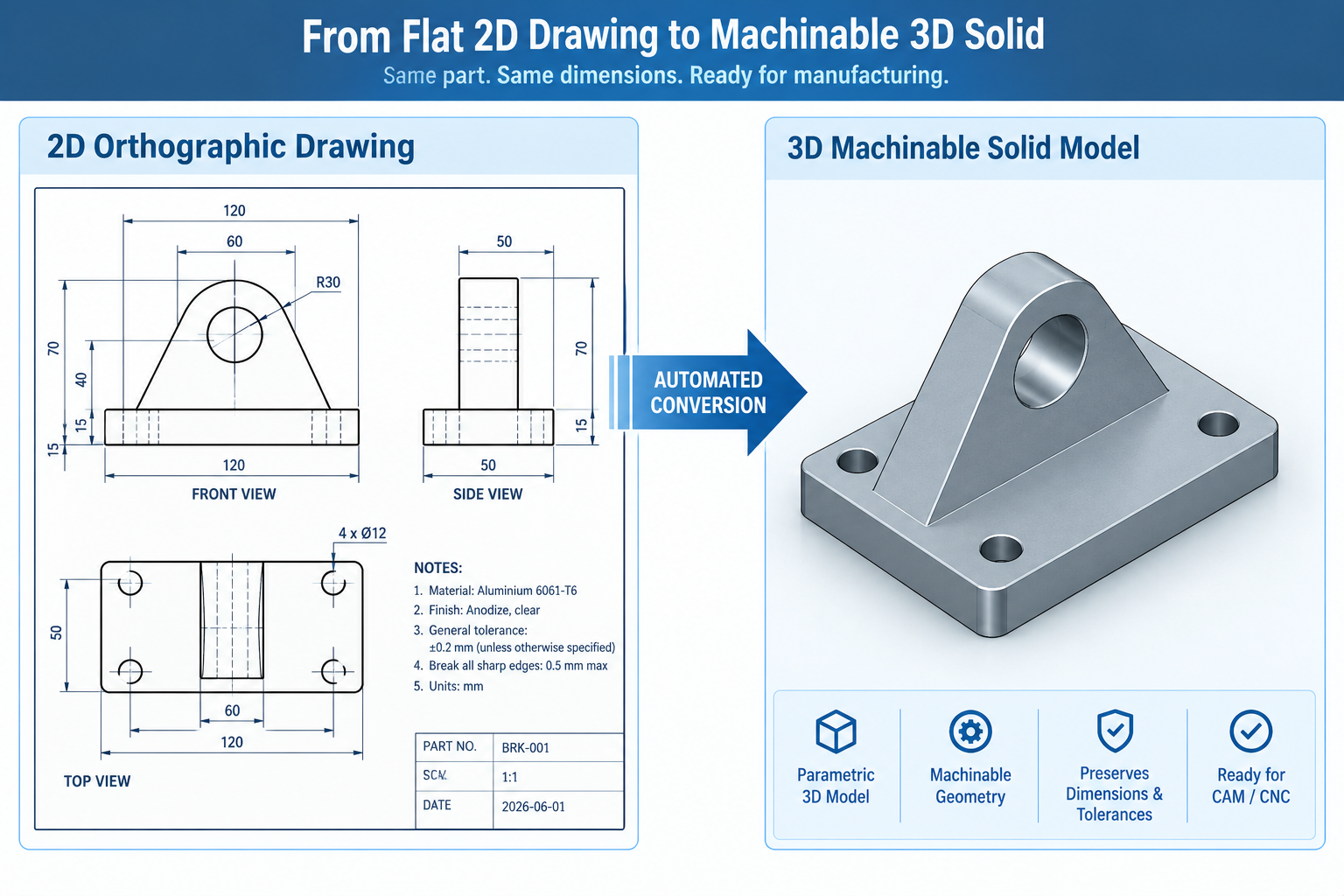
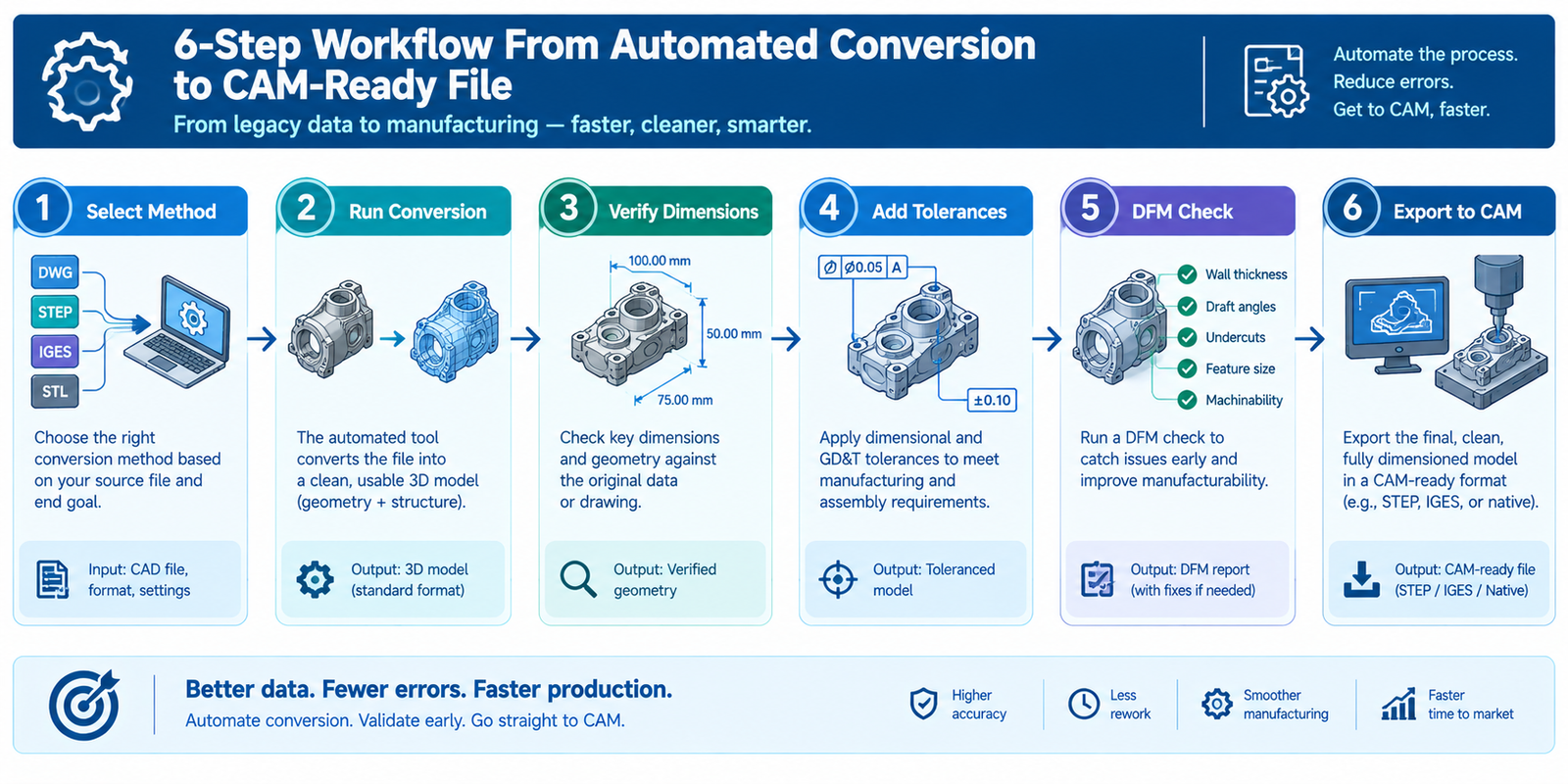
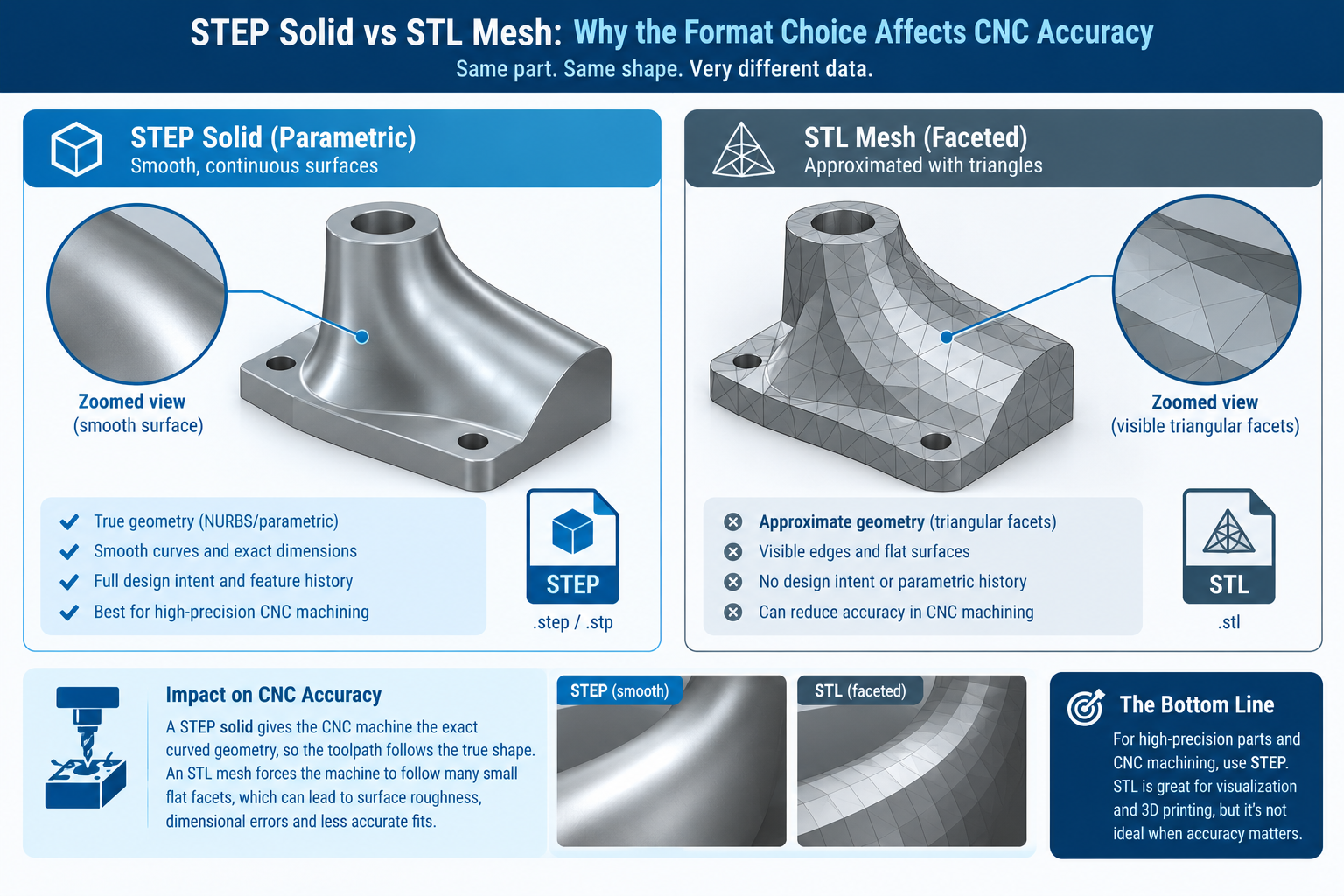
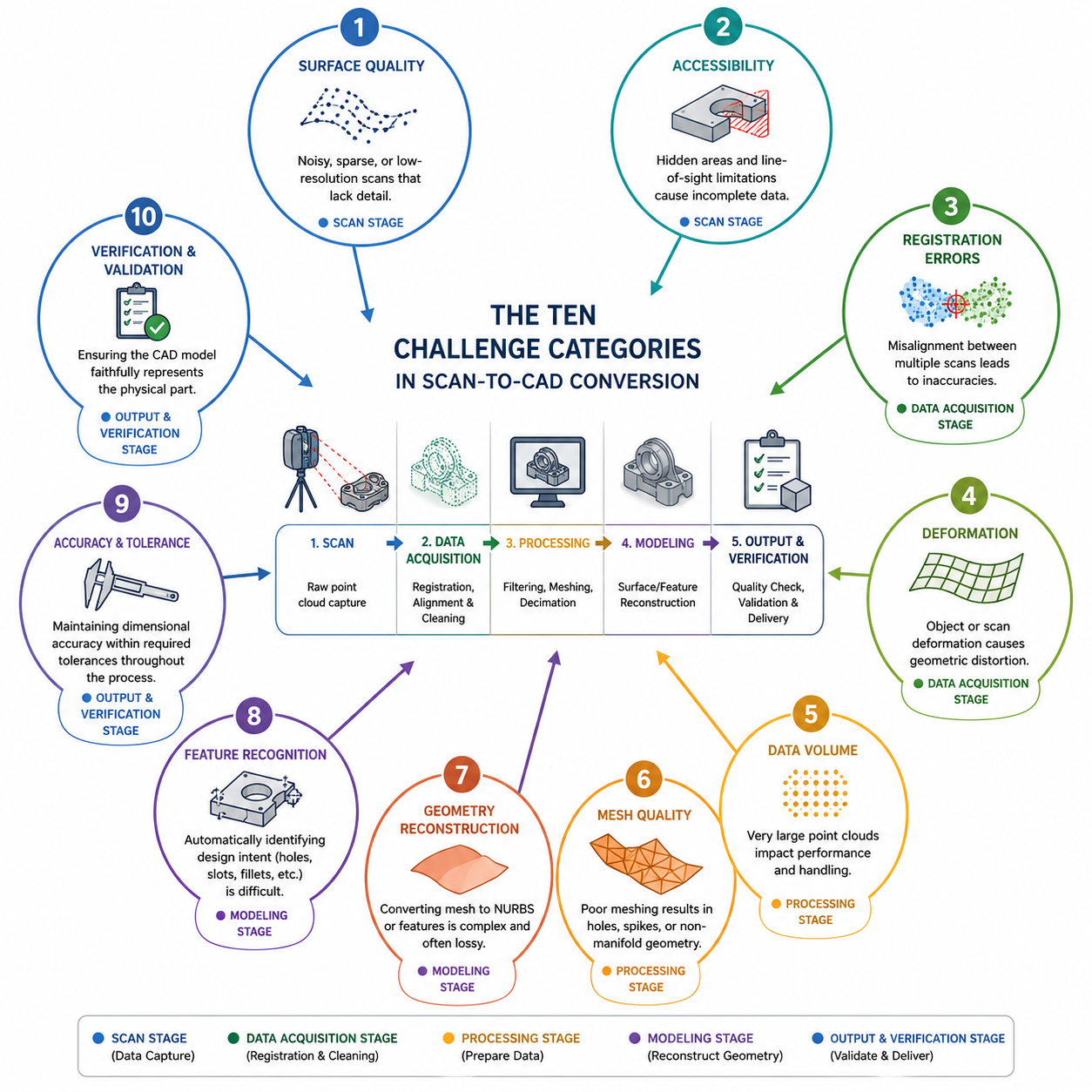
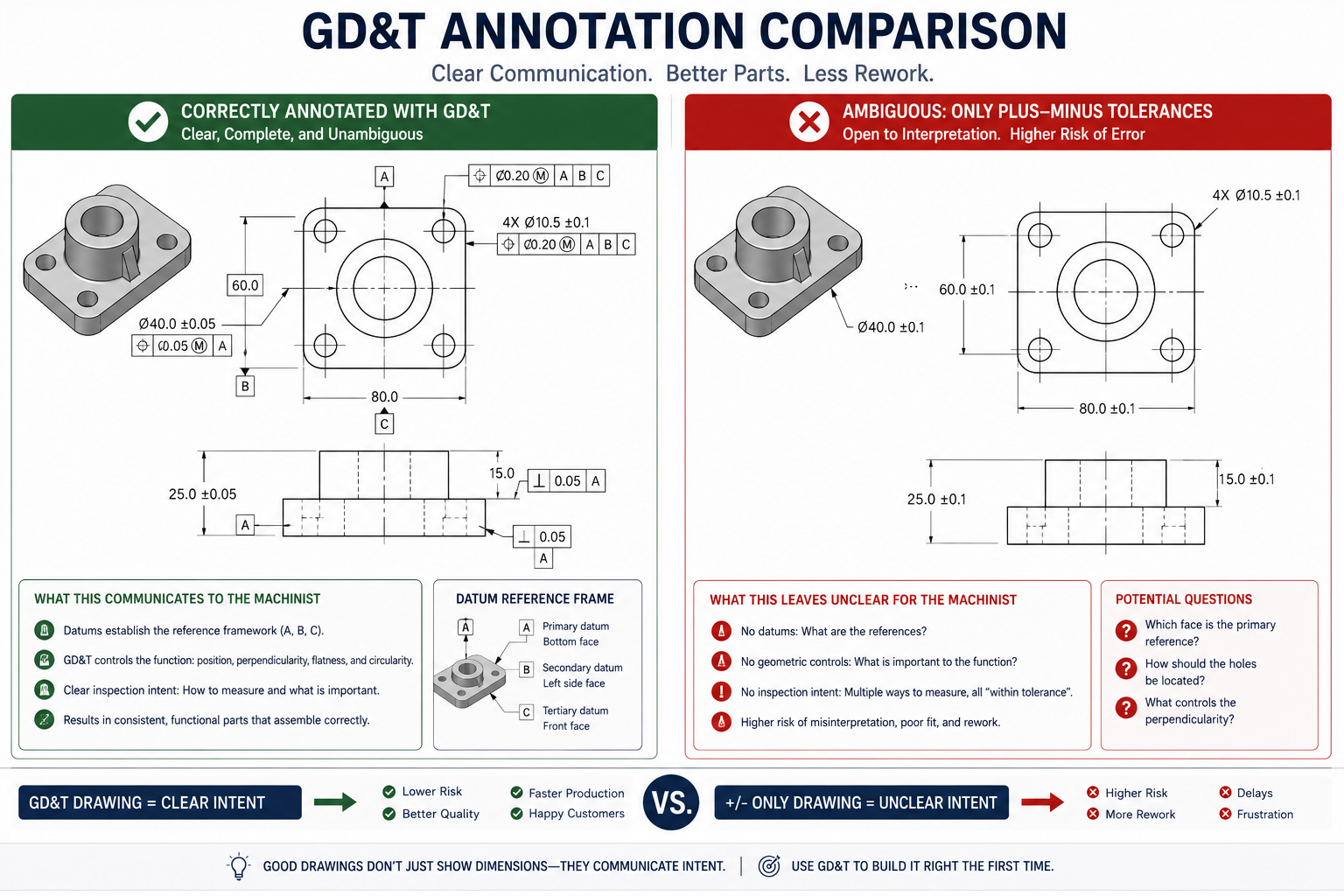
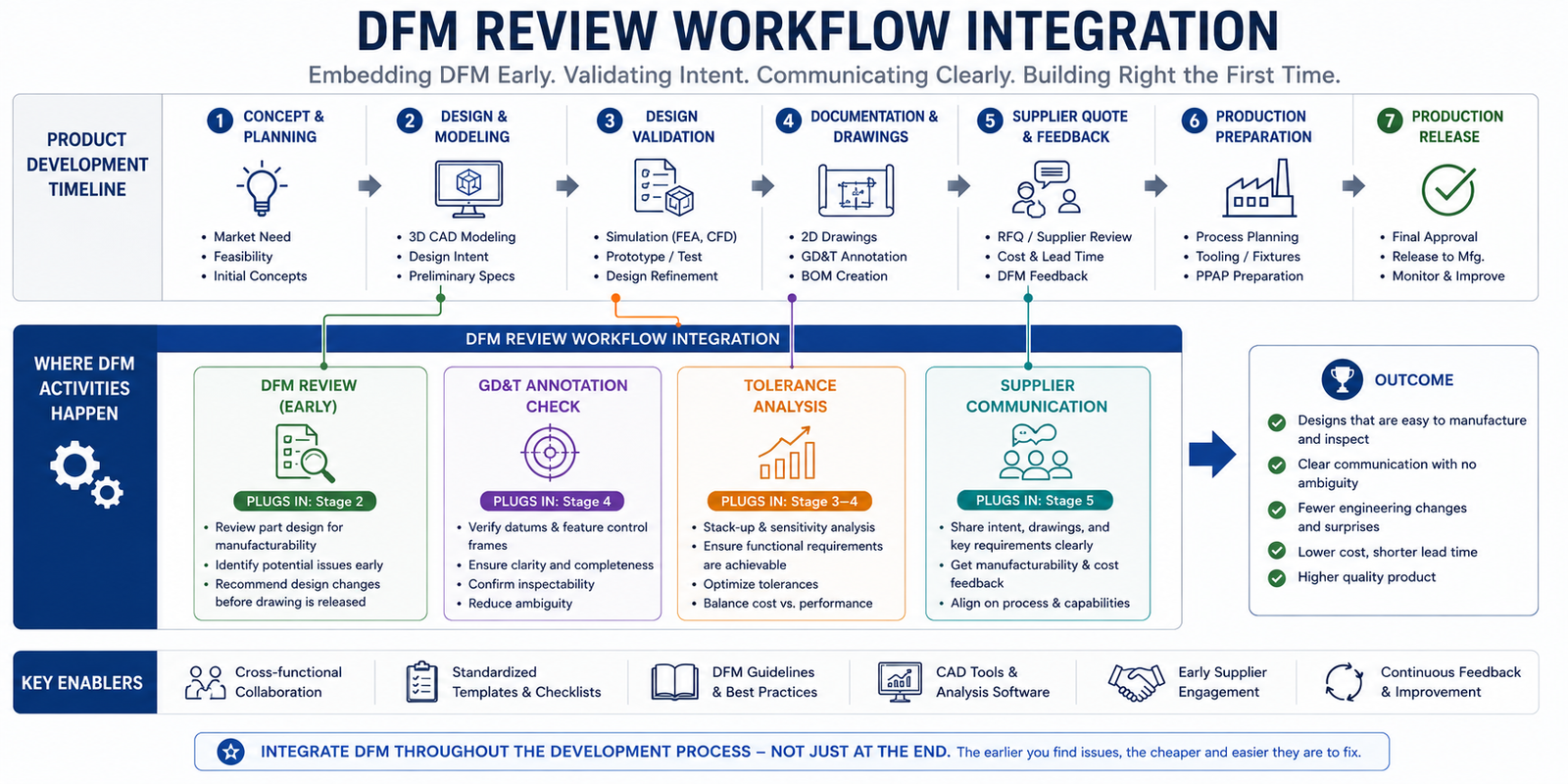
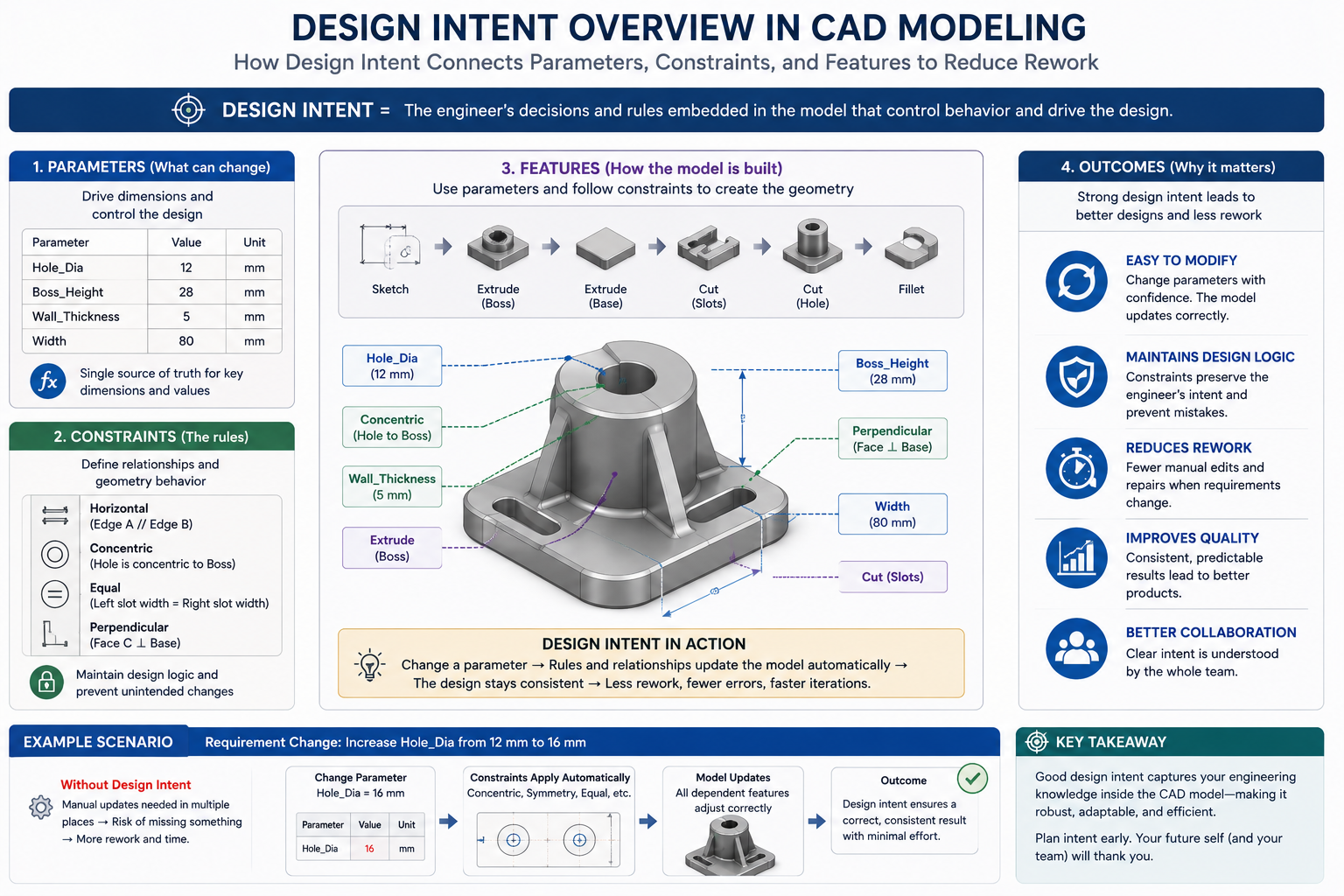
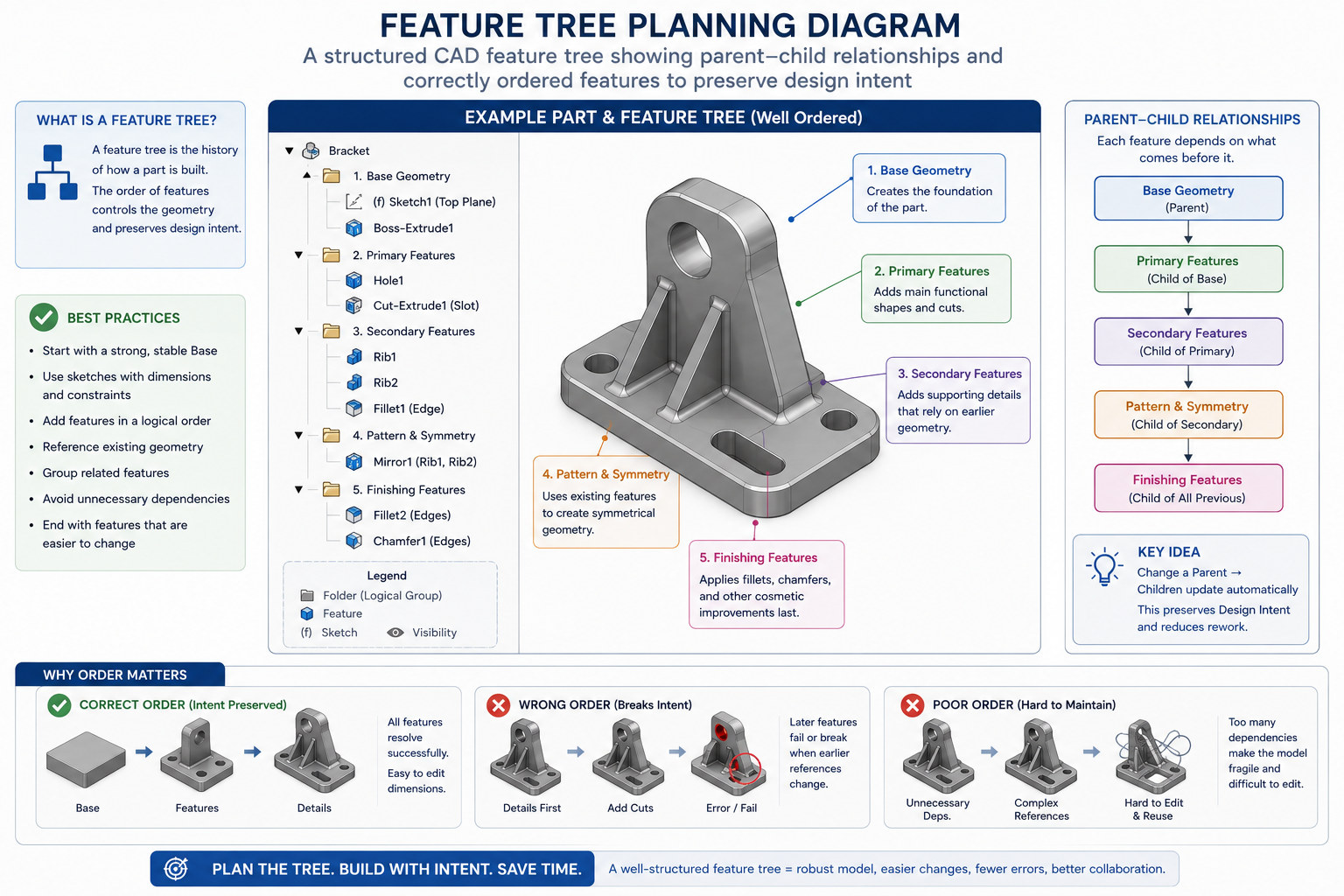
Category: CAD Technology

  • How to Write an RFQ for CAD Drafting Services (With Template)

    How to Write an RFQ for CAD Drafting Services (With Template)

    What to Include in an RFQ for CAD Drafting Services (With a Free Template)

    Most bad CAD drafting projects do not fail during production. They fail during procurement. Specifically, they fail because the Request for Quotation that kicked off the vendor selection process was vague, incomplete, or missing the technical details that drafting firms need to price work accurately and deliver it correctly.

    An RFQ for CAD drafting services is not a general services inquiry. It is a technical procurement document. When done well, it compresses your vendor selection process, produces comparable quotes you can actually evaluate side by side, protects you contractually, and sets the production relationship up for success from day one. When done poorly, it produces wildly different quotes that are impossible to compare, drawing output that does not match your standards, and revision cycles that inflate your final cost far above the original estimate.

    This guide covers every element that belongs in a professional RFQ for CAD drafting services. It explains why each element matters, what information to include, and what happens when you leave it out. At the end, you will find a complete, ready-to-use RFQ template you can adapt for your own projects, whether you are procuring architectural drawings, mechanical detailing, structural shop drawings, BIM deliverables, or PDF-to-CAD conversion work.

    RFQ document for CAD drafting services laid out on a desk alongside engineering drawings and CAD software on a laptop, representing the procurement process for technical drawing services

    1. RFQ vs RFP vs RFI: Which Document Do You Actually Need?

    Before you write a single line of your document, you need to know which type of procurement document fits your situation. Sending the wrong one wastes your time and the vendor’s.

    DocumentFull NameUse WhenPrimary Question Asked
    RFIRequest for InformationYou are exploring the market, gathering general information about what CAD drafting services exist and what capabilities providers have. No pricing involved.‘What services do you offer and what capabilities do you have?’
    RFQRequest for QuotationYou know exactly what you need (drawing type, quantity, standards, format) and you need vendors to quote a price. Scope is defined, price is the primary variable.‘What will it cost to produce these specific deliverables to these specific requirements?’
    RFPRequest for ProposalYour project is complex or open-ended, and you need vendors to propose a methodology, team structure, and approach alongside pricing. Common for large or multi-phase CAD projects.‘How would you approach this project, with what team, on what timeline, at what cost?’

    For most CAD drafting procurement, an RFQ is the right document. You know what you need (a set of mechanical drawings, an architectural permit package, a BIM model to LOD 300), and you need comparable quotes from qualified vendors. The RFQ is the workhorse of technical drafting procurement.

    When to use an RFP instead: If your project involves significant design input from the drafter, multi-discipline coordination over several months, or you genuinely do not know the best approach and want vendors to propose solutions, the RFP gives you more flexibility. The cost is a longer, more complex procurement process.

    When to start with an RFI: If you are evaluating the outsourced CAD market for the first time, want to understand what capabilities are available, or are building a pre-qualified vendor list before running a formal RFQ, an RFI is a lower-commitment first step.

    2. Why Most CAD Drafting RFQs Fail

    Research across the procurement literature and direct practitioner experience consistently shows that CAD drafting RFQs fail in the same predictable ways. Understanding these failure patterns is the fastest path to writing one that does not.

    • Scope described in output terms, not input terms: Saying ‘we need 10 drawings’ tells a vendor almost nothing useful. It does not tell them what type of drawings, what level of detail, what source material you are providing, what standards the output must meet, or what software format you need. Without this, quotes are guesses.
    • Drawing standards not specified: Most RFQs for drafting services do not mention the drawing standard, layer convention, or annotation requirements the output must meet. The vendor’s default and your requirement may be completely different. This is discovered, expensively, after the first deliverable.
    • Revision terms left undefined: How many revision rounds are included? What counts as a minor revision versus a scope change? What is the billing rate for out-of-scope changes? Leaving this undefined turns every revision cycle into a potential dispute.
    • File format and software not stated: ‘Send us the CAD files’ is not a deliverable specification. DWG, DXF, STEP, IGES, IFC, PDF, native SolidWorks, native Revit: these are not interchangeable. Getting the wrong format after delivery creates cost and delay.
    • IP and confidentiality terms absent: Sharing proprietary design intent and sensitive project data without a defined confidentiality requirement is a legal and business risk. It is also easily preventable.
    • Evaluation criteria invisible to bidders: If vendors do not know how you will evaluate their quotes, they cannot highlight what makes them qualified. You get generic responses instead of targeted proposals.
    • No sample or reference drawing provided: The single fastest way to communicate drawing quality expectations is to share a drawing that meets your standard as a reference. Most RFQs do not include one.
     Key Point:  The core principle. A CAD drafting RFQ is a technical brief, not a general procurement form. Every element that is ambiguous or missing in your RFQ will be resolved later, at your expense, either in revision cycles, disputes, or deliverables that do not fit your workflow.

    3. The 10 Core Elements of a CAD Drafting RFQ

    A complete RFQ for CAD drafting services contains ten core elements. Each is covered in detail in the sections that follow. Here is the structure at a glance:

    #RFQ ElementWhat It CoversWhy It Cannot Be Skipped
    1Project and Company OverviewWho you are, what the project is, and the context vendors need to understand the workVendors need context to assess fit and ask intelligent questions
    2Scope of WorkExactly what drawings are needed, how many, what type, what viewsThe most critical section; vague scope = incomparable quotes
    3Drawing Standards and Technical SpecsStandard (ISO, ASME, AIA, NCS), layers, title block, annotation requirementsDefines what ‘correct’ output looks like; missing = expensive rework
    4Source Material and Input ProvidedSketches, existing drawings, site measurements, 3D models, PDFs you are providingDetermines the drafter’s starting point; affects time and cost estimate
    5Deliverable Format and SoftwareFile types required (DWG, STEP, IFC, PDF), software platform, versionWrong format delivered = not usable; must be stated upfront
    6Revision TermsNumber of included revision rounds, what counts as a revision vs scope changeMost common source of cost overruns; must be contractually clear
    7Timeline and TurnaroundSubmission deadline, internal milestones, rush requirements if anyAllows vendor to assess capacity and price rush premium honestly
    8Vendor Qualification RequirementsExperience, portfolio samples, certifications, QA processScreens out unqualified bidders before you waste evaluation time
    9Pricing Format RequiredHow to present the quote (per sheet, hourly, fixed fee, itemized)Ensures quotes are comparable; different formats make comparison impossible
    10IP, NDA, and Confidentiality TermsData handling, IP ownership, deletion requirements, NDA requirementProtects proprietary designs; must be agreed before files are shared
    Step-by-step infographic showing the CAD drafting RFQ process from scope definition through vendor selection and project kickoff

    4. Drawing Standards and Technical Specifications: The Section Most RFQs Skip

    This is the section of the CAD drafting RFQ that separates competent procurement documents from ones that generate problems. Drawing standards define what correct output looks like before production begins. Without them, you are asking the vendor to guess, and their guess may be different from your requirement.

    Which Drawing Standard Applies to Your Project?

    The major drawing standards relevant to CAD drafting procurement in North America and internationally are:

    StandardDomainKey RequirementsWho Uses It
    ASME Y14.5-2018Mechanical engineering, GD&TGeometric dimensioning and tolerancing symbols, tolerance callouts, datum referencesManufacturing, aerospace, automotive, defense
    ISO 7200General technical drawing title blocksRequired fields for title block: legal owner, revision, approval, dateISO-compliant engineering organizations globally
    ISO 128General technical drawing presentationLine types, line weights, projection methods, section conventionsISO-compliant engineering organizations globally
    AIA CAD Layer GuidelinesArchitecture, engineering, constructionLayer naming convention: discipline code + major group + minor groupAEC industry, architecture firms, construction managers
    NCS (National CAD Standard)Architecture and construction (US)Layer standards, sheet organization, file naming, symbols libraryUS-based architecture and construction industry
    ISO 13567CAD layer structuringInternational standard for layer naming and organizationInternational AEC and engineering firms
    BS 8888Technical product documentation (UK)Drawing preparation, tolerancing, surface texture, annotationUK engineering and manufacturing companies

    Your RFQ must specify which standard applies, or if your organization uses an internal drawing standard derived from one of the above, provide a copy or reference to that standard. The National CAD Standard (NCS) is the most widely adopted base standard in US AEC work. ASME Y14.5 governs mechanical and manufacturing drawings. ISO standards apply to international work.

     Pro Tip:  Include a reference drawing. Attach one drawing from your current project or an approved previous project that meets your quality and format expectations. A single reference drawing communicates your standard more clearly than three paragraphs of written description.

    Layer Convention and File Organization

    If your organization uses a specific layer naming convention (whether derived from AIA, NCS, ISO 13567, or an internal standard), document it explicitly in the RFQ. Receiving drawings with incompatible layer names forces your team to spend hours restructuring files before they can be used in your workflow. State your required layer convention, or attach your layer standards document as an RFQ appendix.

    Title Block Requirements

    Every organization has a preferred title block format. Specify in your RFQ whether you require the drafter to use your title block template, whether they may use their own, or whether a specific standard governs the title block content. If you are providing a title block template (DWT file in AutoCAD, for example), note that it will be provided upon vendor selection and confirm the drafter is familiar with the relevant platform.

    Annotation, Dimensioning, and Text Standards

    State your required text height, dimension style, annotation scale behavior, and any specific callout conventions. For mechanical drawings, confirm whether ASME Y14.5 or ISO 1101 tolerancing symbology applies. For architectural drawings, confirm scale conventions and sheet size requirements. These details feel granular, but they are the difference between receiving drawings that slot directly into your production workflow and drawings that require hours of reformatting.

    5. How to Describe Your Scope of Work Precisely

    The scope of work section is the heart of your RFQ. It is where most of the ambiguity either lives or gets eliminated. Here is how to write it so that vendors can price accurately and you can compare quotes on an equal basis.

    Comparison showing a vague CAD drafting RFQ scope description versus a complete, specific scope description for the same engineering drawing project

    Be Specific About Drawing Type and Count

    Do not say ‘engineering drawings.’ Say:

    • ’12 mechanical detail drawings (2D, single-part, A3 sheet format) from provided SolidWorks models’
    • ‘Full architectural permit set for a 2,500 sq ft single-family residence: floor plans (2), elevations (4), sections (2), foundation plan (1), roof plan (1)’
    • ‘PDF-to-DWG conversion of 35 existing HVAC layout sheets, maintaining original scale and annotation’
    • 3D solid model in SolidWorks 2025 for a 6-component bracket assembly, plus associated 2D drawing package with BOM and exploded view’

    Each of these tells the vendor what they are producing, in what quantity, in what format, from what starting point. That is what produces an accurate quote.

    Describe the Source Material You Are Providing

    What the vendor starts with is as important as what they need to produce. Be explicit:

    • Sketches or hand drawings: Describe quality and completeness. Are dimensions marked? Are critical features identified? Are there conflicting dimensions that need engineering resolution?
    • Existing CAD files: Specify the platform and version (AutoCAD 2022 DWG, SolidWorks 2024 SLDPRT). Note whether they are clean, production-ready files or rough working files.
    • PDFs or scanned drawings: State whether they are vector PDFs (directly traceable) or raster scans. Raster scans require more drafter time and cost more per sheet.
    • 3D models: Confirm format (STEP, IGES, native CAD) and whether the model is fully featured or a mesh/solid without edit history.
    • Physical measurements: If drawings are being produced from field measurements, clarify who took the measurements and how they are being provided (tabulated dimensions, a rough sketch, a site survey report).
    • Nothing (original design work): If the drafter is starting from a design intent description with no existing geometry, state this clearly and provide as much context as possible about the design parameters.
     Watch Out:  The undefined starting point. The single most common cause of scope disputes is a vendor who assumed clean input and received chaotic input. Describe your source material honestly, even if it is rough. A good provider will adjust their quote accordingly rather than discovering the problem mid-project.

    State the Final Use of the Drawings

    What will these drawings be used for? Permit submission, fabrication, client presentation, internal reference, regulatory submission? The intended use affects the required level of detail, annotation completeness, and compliance requirements. A drawing package for permit submission has different annotation requirements than one for internal manufacturing reference. State the intended use so the vendor can calibrate accordingly.

    Clarify Whether Design Input Is Expected

    CAD drafting and engineering design are different services. A drafter translates an existing design into accurate drawing form. An engineer makes design decisions. If you need the vendor to resolve design ambiguities, make engineering judgment calls, or apply code compliance knowledge (not just drafting execution), clarify that upfront. It affects who needs to do the work and what it costs.

    6. Deliverables, File Formats, and Software Requirements

    This section eliminates the single most technically preventable problem in CAD drafting procurement: receiving files you cannot use.

    Deliverable TypeCommon FormatsWhen to Specify EachCommon Mistake
    2D CAD drawingsDWG, DXF, PDFAlways specify DWG version (e.g. AutoCAD 2020-compatible) alongside PDF; DXF for non-AutoCAD workflowsAssuming DWG is universally compatible; AutoCAD 2024 DWG may not open in older software
    3D solid modelsSTEP (.stp), IGES (.igs), Parasolid (.x_t), native CADSTEP is the safest neutral format for cross-platform use; native formats needed if vendor must match your PLM systemReceiving IGES when STEP was needed, or native SolidWorks when Creo is your platform
    BIM deliverablesRVT (Revit), IFC, NWC (Navisworks)Specify Revit version AND IFC schema version (IFC2x3 vs IFC4)Revit version mismatch; IFC schema incompatibility with your BIM coordination tool
    Sheet layout packagesDWG (paper space), PDF (plotted)Specify sheet size (A1, A0, ANSI D), scale convention, plot style (CTB vs STB)Receiving model-space-only DWG without paper space layouts; incorrect plot style file
    Supporting dataBOM (CSV/Excel), material callouts, revision recordsSpecify format and whether BOM must link to drawing title blocks or is a standalone documentBOM provided in a format incompatible with your ERP or document management system

    How to State Software Requirements

    Software specification should include three things: the platform (AutoCAD, SolidWorks, Revit, MicroStation), the version (2024, 2025, 2026 or a compatibility floor such as ‘AutoCAD 2020-compatible’), and whether the native editable file or only an export format is required.

    If you need native editable files (so your team can open and modify the source), state that explicitly and confirm the vendor has a current licensed version of the required software. If export formats (PDF, STEP, IFC) are sufficient, state that as well. Native files are generally more expensive to produce properly because they require the software license and require the vendor to structure the file correctly for future editing.

     Pro Tip:  Specify version floors, not exact versions. Stating ‘AutoCAD 2022 or compatible’ is more practical than ‘2022 exactly.’ Vendors with AutoCAD 2025 can save backward-compatible DWG files. A version floor ensures compatibility without artificially limiting your vendor pool.

    7. Revision Terms, Timeline, and Turnaround Expectations

    Defining Revision Terms in Your RFQ

    Revision terms are the most frequently disputed element in CAD drafting contracts, and they are the easiest to define upfront. Your RFQ should state:

    • Number of included revision rounds: State clearly how many rounds of revisions are included in the quoted price. Industry norms range from one to three rounds of minor revisions for standard projects. ‘Unlimited revisions’ is not a professional procurement term and will lead to scope abuse in both directions.
    • Definition of a minor revision: A minor revision is a correction or small change within the original defined scope: fixing a dimension that was incorrectly transcribed, adjusting a text callout, correcting a title block error. Defining this prevents disputes about whether a requested change was included.
    • Definition of a scope change: A scope change is a modification that was not part of the original brief: adding a view that was not in the original scope, redesigning a component, adding annotation that was not requested. State that scope changes will be quoted separately at the vendor’s hourly rate.
    • Revision submission process: Clarify how you will submit revision requests. Marked-up PDF, tracked notes in a shared document, a project management tool? A consistent, organized revision submission process reduces misunderstanding and speeds cycles.

    Timeline and Submission Deadline

    State your required submission date and any intermediate milestones. If you need preliminary drawings for review before the final set, note that. If you are working toward a regulatory submission or permit deadline, state that context: it helps the vendor understand why the deadline is firm and plan their resources accordingly.

    For complex projects, include a request for the vendor’s proposed production schedule alongside the quote. A vendor who can show you a realistic week-by-week delivery plan is demonstrating project management capability that matters for execution.

    Give vendors adequate time to respond to the RFQ itself. For straightforward projects, 5 to 7 business days is reasonable. For complex multi-discipline packages or large drawing sets, 10 to 15 business days allows vendors to assess the scope properly and produce accurate quotes. Rushing the quote process produces inaccurate quotes, which creates problems downstream.

     Pro Tip:  Turnaround and cost. Rush delivery adds cost. If your deadline is flexible, say so explicitly. Many providers offer reduced rates for projects with extended timelines, using them to fill gaps between priority engagements. Stating ‘standard 10-business-day turnaround acceptable’ can meaningfully lower your quote.

    8. Evaluation Criteria and Vendor Qualification Requirements

    Telling vendors how you will evaluate their responses improves the quality of responses you receive. When vendors know what you are weighting, they present their strengths in those areas rather than giving you a generic submission. It also makes your evaluation process systematic rather than subjective.

    Vendor Qualification Requirements to State

    For a CAD drafting RFQ, relevant qualification requirements include:

    • Industry experience: Years of experience in your specific discipline (mechanical, architectural, structural, civil, MEP). State the minimum acceptable experience level if you have one.
    • Software proficiency: Confirmation that the vendor holds current licensed versions of the required software platform. For larger projects, request confirmation of the number of licensed seats to ensure they can staff the project appropriately.
    • Portfolio samples: Request samples of completed work in the same drawing type and discipline as your project. Not a general portfolio: specifically drawings similar to what you are commissioning. This is the fastest way to assess whether the vendor’s output quality meets your standard.
    • Quality assurance process: Ask explicitly how drawings are reviewed before delivery. A vendor with no answer to this question is not performing internal QC. Your revision rounds will be doing the QA work instead.
    • References: Request at least one reference from a client with a similar project type. A brief reference conversation surfaces practical information that no portfolio can show.
    • Data security practices: For IP-sensitive projects, ask about their file handling protocols: encrypted transfer, isolated storage, staff NDA practices. More on this in Section 9.

    Evaluation Criteria and Weighting

    State in your RFQ how you will weight the criteria in your selection decision. This does not have to be a formal scoring matrix, but communicating the weighting signals what matters most. Example language:

    • Technical quality of portfolio samples (40 percent)
    • Price and pricing structure clarity (30 percent)
    • Timeline feasibility and production schedule (20 percent)
    • Vendor experience in discipline and references (10 percent)

    These weightings tell vendors that quality matters more than price in your evaluation, which filters out vendors competing purely on rate and attracts those competing on output quality.

    9. IP Protection, NDA, and Confidentiality Requirements

    For most CAD drafting projects, you are sharing at minimum: design intent, project parameters, possibly proprietary product geometry, client details, and existing drawings. This is sensitive material. Your RFQ must establish confidentiality expectations before any files are exchanged.

    What to State in Your RFQ

    • NDA requirement: State explicitly that all selected vendors must execute a mutual Non-Disclosure Agreement before receiving any project files. A standard NDA covering technical drawings, design concepts, specifications, and client information is the baseline.
    • IP ownership clause: State that all drawings produced under the engagement are work-for-hire and that IP ownership transfers to your organization upon delivery and payment. Do not assume this is understood; state it.
    • Data handling requirements: Specify that all project files must be transmitted via encrypted file transfer (not email attachments), stored in isolated project storage, and deleted from vendor systems within a defined period after project completion (typically 30 to 60 days).
    • Subcontracting restriction: State that any subcontracting of drawing work to third parties requires your written approval, and that any approved subcontractors must be bound by the same IP and confidentiality terms.
    • ITAR notice if applicable: If your project involves defense, aerospace, or any export-controlled technical data, state this prominently in the RFQ and note that vendors must confirm they are eligible to receive ITAR-controlled information before proceeding.
     Watch Out:  Share after NDA, not before. Do not include sensitive design files or proprietary drawings as attachments in your initial RFQ distribution. Share the project description, drawing count, type, and standards in the RFQ. Provide source files only after NDAs are executed with shortlisted vendors.

    10. Pricing Structure: How to Ask for Quotes You Can Compare

    The way you ask vendors to present their pricing determines whether you receive comparable quotes or a collection of apples-and-oranges responses that are impossible to evaluate side by side.

    Choose and State Your Preferred Pricing Model

    Tell vendors which pricing structure you want them to use:

    • Per-sheet pricing: Best for well-defined drawing packages with a fixed sheet count. Ask vendors to quote a per-sheet rate plus a total for the full set.
    • Hourly rate plus estimated hours: Best for iterative work, complex projects, or situations where scope may evolve. Ask for the hourly rate, a role breakdown (senior drafter vs junior drafter), and an estimated total hours range.
    • Fixed fee for defined scope: Best when scope is completely defined and you want budget certainty. Ask for an all-in fixed fee covering production, revisions (defined), and final delivery.
    • Per-item pricing for 3D modeling: For mechanical component modeling, ask for a per-part rate with complexity tiers (simple, moderate, complex) so you can estimate costs for your full component list.

    If you do not specify a pricing structure, vendors will quote in whatever format they prefer, making comparison nearly impossible. Standardizing the format is one of the most valuable things your RFQ can do.

    Require Itemized Pricing

    Even if you ask for a fixed fee, require an itemized breakdown. Ask vendors to show their pricing by drawing type or phase. This serves two purposes: it lets you identify where the cost is concentrated (useful for scope negotiation), and it reveals whether the vendor actually understands the scope or is quoting a lump sum without having worked through the details.

    Read more on CAD DRAFTING COST

    Require Explicit Pricing for Out-of-Scope Work

    Ask vendors to state their hourly rate for work beyond the quoted scope. This is the rate that will apply to additional revision rounds, scope changes, and added drawing sheets. Knowing this rate before you engage is essential for project cost management.

    Pricing ScenarioWhat to Ask For in the RFQWhy It Matters
    Standard 2D drawing packagePer-sheet rate + total for defined set + hourly for out-of-scope changesEnables direct comparison; reveals per-unit cost for budget planning
    3D modeling engagementPer-part rate by complexity tier + estimated total + out-of-scope hourlyComplexity tiers make the quote honest; avoids flat-rate surprises when complex parts arrive
    BIM deliverableFixed fee by LOD level + change order rate + fee for each additional disciplineLOD clarity prevents scope creep; change order rate protects your budget if scope evolves
    PDF-to-DWG conversionPer-sheet rate split by complexity (basic/detailed) + rush rate + minimum project feeComplexity split reflects real effort difference; rush rate lets you plan timeline vs cost tradeoff
    Ongoing retainerMonthly rate + included hours + hourly overage rate + minimum commitment periodRetainer economics only work if included hours and overage rate are clearly defined upfront

    11. Ten Costly RFQ Mistakes (And How to Avoid Every One)

    These are the ten most common and most expensive mistakes in CAD drafting procurement. Each one is preventable with a well-written RFQ.

    Mistake 1: Describing Output Without Describing Input

    Saying ‘we need 15 mechanical drawings’ tells vendors your destination but not your starting point. Without knowing what source material you are providing, vendors cannot estimate the drafting effort involved. A drawing produced from a clean, dimensioned SolidWorks model takes two hours. The same drawing produced from a rough hand sketch with missing dimensions takes six hours. State your input clearly.

     Common Mistake:  ’15 mechanical drawings needed’. ’15 mechanical detail drawings (2D, single part) produced from provided SolidWorks 2025 SLDPRT files. All parts are fully modeled and dimensioned in the 3D model.’

    Mistake 2: Not Specifying the Drawing Standard

    If you do not specify a standard, you will receive drawings built to the vendor’s default, which may be different from yours. Discovering this after delivery means a reformatting project on top of the drafting cost you already paid.

    Mistake 3: Leaving Revision Terms Open-Ended

    ‘Unlimited revisions’ sounds generous until your project is still in revision cycle eight and both sides are frustrated. Define the number of included revision rounds, what a revision is, and what the billing mechanism is for additional rounds.

    Mistake 4: Not Specifying File Format and Software Version

    ‘Please send us the CAD files’ is not a deliverable specification. Specify platform, version floor, and whether native editable files or export formats are required. A deliverable you cannot open is not a deliverable.

    Mistake 5: Sending the RFQ to Too Few Vendors

    Three vendors is the practical minimum for a meaningful comparison. Fewer than that reduces competitive pressure and limits your negotiation leverage. Five vendors is appropriate for larger projects. Do not send to so many that evaluation becomes unmanageable.

    Mistake 6: Setting an Unrealistically Short Response Window

    A rushed quote is an inaccurate quote. Give vendors enough time to review your scope properly. Five to seven business days for simple projects, ten to fifteen for complex ones. Vendors who receive inadequate time to quote may decline or submit a placeholder quote padded for risk.

    Mistake 7: Not Asking for Portfolio Samples in Your Discipline

    A general portfolio shows that a vendor can produce drawings. It does not show that they can produce your type of drawing to your standard. Ask for samples specifically relevant to your discipline and drawing type.

    Mistake 8: Sharing Sensitive Files Before NDA Execution

    Attaching proprietary design files to your initial RFQ distribution sends sensitive data to multiple vendors without any confidentiality protection in place. Describe your project in the RFQ; share files only after NDAs are signed with shortlisted vendors.

    Mistake 9: Not Asking for the Vendor’s QA Process

    If a vendor cannot describe how drawings are reviewed before delivery, you are serving as their quality control department. Your revision rounds are doing the QA work that should have been done internally. Ask the question before you commit.

    Mistake 10: Choosing the Lowest Quote Without Normalizing It

    Quotes that do not include the same revision terms, the same file formats, the same drawing standards, or the same QA process are not comparable. The cheapest quote on a drawing set that requires two rounds of reformatting to meet your standards is not the cheapest option. Normalize all quotes against a common scope before evaluating price.

    12. Complete RFQ Template for CAD Drafting Services

    The following template is ready to customize for your project. Every section marked with [BRACKETS] requires your specific information. Guidance notes in italics explain what to include in each field.

    FREE TEMPLATE DOWNLOAD HERE

    13. After the RFQ: Evaluating Responses and Selecting a Vendor

    A well-structured RFQ makes the evaluation process straightforward, because all responses are in the same format against the same requirements. Here is how to move from responses to a selection decision efficiently.

    Normalize Before You Compare

    Before comparing prices, confirm that every quote covers the same scope. Check that each response includes the same number of sheets, the same revision rounds, the same file formats, and the same QA commitment. Differences in any of these dimensions make price comparison meaningless. Adjust or ask for clarification on any quote that covers different scope before building your comparison table.

    Evaluate Portfolio Samples Rigorously

    Price is visible in thirty seconds. Quality takes longer to assess but matters more for your project’s success. Review each vendor’s portfolio samples against your reference drawing. Check layer organization, annotation consistency, title block completeness, dimension placement, and overall drawing clarity. A small premium for a vendor whose sample work matches your standard precisely is almost always worth paying over a cheaper vendor whose samples require extensive rework to meet your requirements.

    Score Against Your Stated Criteria

    Use the evaluation criteria you stated in the RFQ to build a structured comparison. If you stated a 40/30/20/10 weighting, apply it. This keeps the selection decision defensible and objective, especially if multiple stakeholders are involved in the review.

    Conduct a Short Pre-Award Conversation

    Before issuing a purchase order to your preferred vendor, have a 15 to 30 minute conversation. Use it to confirm that the vendor has genuinely read and understood your scope, that there are no surprises in either direction about the work, that the communication approach and project management process feel aligned with your expectations, and that the NDA and contract terms are workable. This conversation costs almost nothing and prevents the most common source of post-award disappointment: discovering that the vendor’s understanding of the project differed from yours.

    14. FAQ:

    What is the difference between an RFQ and an RFP for CAD drafting?

    An RFQ (Request for Quotation) is used when you know exactly what you need and you want vendors to quote a price for a defined scope. An RFP (Request for Proposal) is used when the project is complex or open-ended and you need vendors to propose an approach, methodology, and team alongside pricing. For most CAD drafting engagements where the drawing types and count are defined, an RFQ is the right document. Use an RFP when you need the vendor to contribute to design decisions, manage a multi-phase project, or when you genuinely do not know the best approach and want competitive proposals on how to solve the problem.

    How many vendors should I send my CAD drafting RFQ to?

    Three vendors is the practical minimum for a meaningful price comparison and competitive dynamic. Five is appropriate for larger projects or when you are entering a new market and want broader visibility. More than five creates evaluation overhead that rarely produces proportionate value. If you have an existing pre-qualified vendor list, sending to three known candidates is often more efficient than an open distribution to ten unknown firms.

    Should I share my actual design files with vendors before selecting one?

    No. Your RFQ should describe the project clearly enough for vendors to quote without seeing sensitive source files. Include the drawing types, count, discipline, standards, and format requirements. Reserve file sharing until after you have selected a vendor and executed an NDA. If a vendor cannot quote without seeing proprietary files, ask whether they can provide a preliminary estimate based on the scope description with a final quote subject to file review.

    What is a reasonable timeline to give vendors for responding to a CAD drafting RFQ?

    Five to seven business days for straightforward projects with a small drawing set. Ten to fifteen business days for complex multi-discipline packages, large drawing sets, or projects requiring the vendor to review source files before quoting. Shorter than five business days for anything but an emergency produces inaccurate quotes. Vendors who feel rushed will either pad their quotes for risk or decline to participate.

    What should a CAD drafting quote include?

    A complete quote should include: itemized pricing per drawing type or phase (not just a total), the hourly rate for out-of-scope changes and additional revision rounds, the number of included revision rounds, the exact file formats and software version to be delivered, the proposed production schedule with delivery milestones, the vendor’s QA process for drawings before delivery, and the quote validity period. A quote that cannot answer all of these is incomplete and should be returned for clarification before evaluation.

    How do I handle scope changes after issuing a purchase order?

    The mechanism for scope changes should be defined in both your RFQ and your contract: scope changes must be requested in writing, the vendor must provide a written change order quote before work begins, and no additional work is authorized without written approval. This prevents scope creep in both directions and ensures both parties have agreed on price before work is performed. The hourly rate stated in the RFQ becomes the basis for change order pricing.

    15. Conclusion:

    Every CAD drafting project starts with a conversation between a client and a vendor about what is needed, what it will cost, and what the output will look like. The RFQ is the document that formalizes that conversation and gives it teeth. A well-written RFQ sets clear expectations on both sides, produces comparable quotes, and establishes the contractual foundation for a successful engagement.

    The template in this guide covers every element of a professional CAD drafting RFQ. You do not need to use every section for every project. A simple PDF-to-DWG conversion requires a much lighter RFQ than a multi-discipline commercial construction document package. But the structure is here for any complexity level, and the guidance in each section explains exactly what information to include and why it matters.

    Two final principles worth remembering: First, the time you invest in writing a precise, thorough RFQ is always less than the time you will spend managing the problems that a vague one creates. Second, the most expensive line item in any CAD drafting project is not the vendor’s hourly rate. It is the revision cycle that stems from an incomplete brief. The RFQ is where that cycle either starts or gets prevented.

    Ready to put this to work?

    Download the template in Section 12, fill in your project details, and send it to three qualified CAD drafting providers. Then explore our guides on CAD drafting costs, in-house versus outsourced drafting, and version control for engineering drawings to build a complete framework for managing your technical documentation workflow.

  • How to Convert Hand-Drawn Sketches into Professional CAD Drawings | Sketch to CAD

    How to Convert Hand-Drawn Sketches into Professional CAD Drawings | Sketch to CAD

    Xometry Aug 2025  tested seven AI text-to-CAD tools and found all required substantial engineering refinement before the output could be used for manufacturing
    600 DPI  minimum scan resolution for clean raster-to-vector conversion; below this threshold, noise interferes with line recognition in both manual and AI workflows
    Ragnar CAD  February 2026 sketch-to-3D AI tool claims to close the gap between ‘I can see it’ and ‘I can model it’ for concept geometry from annotated sketches
    Gartner 2026  projects that a majority of digital design workflows will include some level of AI-assisted modelling, with sketch interpretation as a growing entry point

    Introduction:

    Before any engineer opens CAD software, before any parametric model is built, before any drawing is dimensioned, there is usually a sketch. On the back of an envelope, on a whiteboard, on graph paper in a site meeting, on a napkin at a client conversation. The sketch is where the design intent lives in its earliest, most honest form.

    The challenge is that a sketch, no matter how clear to the person who drew it, is not a manufacturing instruction. It has no scale guarantee, no tolerance definition, no projection convention, no standard symbol for surface finish or weld specification. A fabricator or machinist working from a hand sketch is working from engineering intent without the engineering rigour that turns that intent into a part.

    Converting a hand drawn sketch to CAD is the process that bridges that gap. It is not simply tracing lines. It is a structured engineering activity that takes the intent captured in the sketch and translates it into a document that carries enough information for a manufacturer to build the part correctly without needing to contact the engineer for clarification.

    This guide covers the complete workflow for sketch to CAD conversion, from preparing the sketch before scanning to issuing the final drawing for manufacturing. It also covers where AI tools genuinely help in 2026, where they do not, and the mistakes that produce wrong geometry at every stage of the process.

    Quick answer:  To convert a hand-drawn sketch into a CAD drawing: annotate the sketch with all critical dimensions before scanning, scan at 600 DPI minimum, import as a scaled underlay in your CAD software, trace geometry with geometric constraints applied, add dimensions from the sketch annotations, apply GD&T and manufacturing specifications, verify against the original sketch, and peer-review before issue. AI tools can assist with concept geometry but cannot yet produce manufacturing-ready drawings without engineering validation.
    How to Convert Hand-Drawn Sketches into Professional CAD Drawings  Sketch to CAD
    The sketch is the idea. The CAD drawing is the instruction. The conversion is an engineering activity, not a drawing exercise.

    Choosing Your Conversion Approach: Five Methods and When to Use Each

    Before starting any CAD drawing from sketch work, the most important decision is which conversion method is appropriate for the output required. The method determines how much time the conversion takes, what quality of output it produces, and whether that output is suitable for its intended use.

    ApproachWhat It InvolvesBest When
    Manual trace (2D CAD)Engineer imports scanned sketch as underlay, traces lines manually, applies dimensionsSketch is complex, requires GD&T, or is destined for a manufacturing drawing package
    AI-assisted sketch conversionUpload sketch to AI tool; AI generates geometry; engineer validates and refinesSimple geometry, concept visualisation, or getting a 3D starting point quickly
    AutoCAD Markup ImportImport scanned or PDF sketch; AutoCAD interprets marks and suggests geometryExisting AutoCAD workflow; sketch is relatively clean and line-based
    Photogrammetry + CADPhotograph physical object or model; import into CAD as reference mesh or point cloudPart physically exists but no drawing exists; RE workflow supplements sketch
    Outsourced sketch-to-CADProvide annotated sketch to a CAD specialist; they produce the drawingTeam lacks CAD capability; volume of conversions is high; deadline is tight

    The Honest Reality About AI Sketch Conversion in 2026

    The AI sketch-to-CAD landscape in 2026 is significantly more active than it was two years ago. Ragnar CAD, launched in February 2026, describes itself as purpose-built to close the gap between seeing an idea and modeling it. AutoCAD Markup Import has been present since the 2023 release and handles line-based sketches reasonably well. Autodesk Raster Design converts scanned images to editable vector geometry in AutoCAD.

    However, when Xometry, a major manufacturing marketplace, tested seven text-to-CAD and sketch-to-CAD tools in August 2025, the findings were consistent: all tools produced geometry that required significant engineering refinement before it could be used for manufacturing. The AI is interpreting visual patterns, not engineering intent. It does not know that a circle represents a through-hole of a specific standard size. It does not apply geometric constraints that would make two lines parallel. It does not understand that a tangent transition must be mathematically smooth.

    This does not make AI tools useless. For concept geometry, early-stage visualisation, and getting a 3D starting point from an annotated sketch, tools like Ragnar CAD can save meaningful time. But the output requires validation, refinement, and the addition of all manufacturing information before it can be used as a production drawing. The engineer remains responsible for every dimension that appears on the final drawing, regardless of how it was generated.

    AI sketch conversion red flag:  Any tool that claims to convert a hand sketch directly to a manufacturing-ready DWG or STEP file without engineering input is making a claim that current technology cannot support. A sketch has no tolerances, no GD&T, no datum structure, and no manufacturing specifications. None of these can be inferred from sketch geometry alone. They must be added by an engineer. The AI handles geometry interpretation. The engineer handles engineering.

    Preparing Your Sketch for CAD Conversion: The Step Most People Skip

    The quality of the CAD drawing you produce is determined before you open the software. A sketch that is fully annotated, clearly drawn, and systematically organised converts quickly and accurately. A sketch that is vague, proportionally distorted, and missing dimensions forces the CAD operator, whether that is you or an outsourcing partner, to make engineering decisions that should have been made by the designer.

    The time spent annotating the sketch thoroughly before scanning pays back immediately in the conversion process and many times over if the drawing is being produced by a CAD specialist. Every query raised during conversion, every dimension that must be estimated rather than read, adds cost and delay and risks introducing errors that the original sketch did not contain.

    Sketch ElementWhat Makes It CAD-ReadyWhat Causes Problems at the CAD Stage
    Line clarityBold, continuous lines; no broken strokesFaint pencil lines that digitise as noise; overlapping smudged strokes
    Dimension annotationsAll critical dimensions written clearly next to featuresMissing dimensions force CAD operator to guess or query; incorrect output guaranteed
    ProportionsSketch roughly to scale; major features proportionally correctWildly distorted proportions make the CAD baseline incorrect before any refinement
    Feature identificationEach feature clearly bounded; circles closed; arcs labelled as arcsAmbiguous lines that could be a tangency, a step, or a gap produce wrong geometry
    Orthographic viewsFront, top, and side views clearly labelled and positionedMissing view or mislabelled projection produces 3D model with features on wrong faces
    Reference planesCentre lines, axis of symmetry, and datum planes markedNo reference planes forces CAD operator to assume datum structure; may be wrong
    Notes and calloutsMaterial, finish, special requirements noted on the sketchUndocumented requirements surface after CAD is complete; rework cycle begins
    Scale referenceOne known dimension or scale bar presentNo scale reference means AI tools guess proportions; manual trace loses context

    The Annotation Checklist: What to Add Before You Scan

    1. All critical dimensions written in pen next to every feature. Length, width, height, hole diameter, radius, depth, thread specification. Not ‘approximately 50mm’. Exactly 50mm or the correct tolerance range.
    2. Orthographic view labels. Write ‘FRONT VIEW’, ‘TOP VIEW’, ‘RIGHT SIDE VIEW’ clearly next to each view. Label the projection method if you know it (first-angle or third-angle).
    3. Centre lines and axes of symmetry drawn as thin lines with alternating long-short dashes, or simply labelled ‘CL’ or ‘SYM’. These define the datum structure that the CAD model must reference.
    4. At least one scale reference. Either a dimensioned scale bar or one known dimension from which everything else can be scaled. Without this, the CAD operator has no way to set the underlay at the correct scale.
    5. Material and surface finish notes. Write the material grade and any surface finish requirement directly on the sketch. Add thread standards where relevant (M12x1.75, 1/2-13 UNC).
    6. Special requirements and constraints. If a feature must be concentric with another, write it. If a surface must be flat within a stated tolerance, note it. If there is a mating part, sketch the mating geometry or note the mating part number.
    The pre-scan annotation habit:  Treat the annotation step as a design review of your own sketch. If you cannot write a dimension next to a feature because you do not yet know what the dimension should be, the design is not ready for CAD conversion. The sketch annotation step forces every engineering decision to be made before the drawing production starts, which is exactly when those decisions cost the least to change.

    Step-by-Step: Converting a Hand Sketch to a CAD Drawing

    This is the complete workflow for converting a hand-drawn sketch into a professional CAD drawing in AutoCAD or SolidWorks. The same sequence applies for most CAD platforms. The tool names vary but the logic is the same.

    Sketch to Cad Annotated vs Unannotated sketch
    The annotation is not extra work. It is the engineering work. The CAD conversion is just the documentation
    StepWhat HappensKey Action RequiredCommon Error at This Step
    1. PrepareAnnotate sketch fully before scanningAdd all dimensions, labels, and reference marks to the physical sketchScanning first then trying to add annotation to the digital image
    2. Scan / photographCreate a clean digital image of the sketch600 DPI minimum for scanning; good lighting for photography; no distortionLow-resolution scan; angled photograph; shadow across sketch
    3. Import underlayBring the image into CAD as a reference underlayScale the underlay using a known dimension (INSUNITS + reference scale)Importing without scaling; drawing on top of wrong-scale reference
    4. Set up drawingConfigure units, projection method, layers, and templateUse company drawing template before creating any geometryStarting on Layer 0 with no template; default settings applied
    5. Trace 2D geometryDraw CAD lines and arcs over the underlayUse constraints to make geometry geometrically correct, not just visually closeTracing visually without applying geometric constraints; drawing remains unconstrained
    6. Apply dimensionsDimension every feature required for manufactureCheck every dimension against the sketch annotation; query anything unclearScaling dimensions from the underlay instead of reading the sketch annotation
    7. Add GD&TApply tolerances, datum structure, and surface finish calloutsUse the drawing standard appropriate to the manufacturing destinationSkipping GD&T entirely and relying on general tolerance for everything
    8. Add 3D modelExtrude or revolve 2D profile to create 3D solid if requiredVerify every sketch profile is a closed loop before 3D operationOpen profiles that prevent extrusion; missing fillet or chamfer detail
    9. Final checkOverlay CAD drawing on original sketch to verify correspondenceEvery feature in the sketch should be present in the CAD; every dimension should matchMissing features; dimensions that do not match the annotated sketch values
    10. IssueRelease drawing through normal review and approval processPeer review against the drawing standard; title block completeIssuing without peer review; reverting to the sketch as the production reference

    Step 1 to 3: Preparing and Importing the Sketch

    The first three steps happen before you draw a single CAD line. Sketch annotation ensures every engineering decision is made before conversion starts. Scanning at 600 DPI minimum produces an image with enough resolution for clean line recognition, whether you are tracing manually or using an AI assist tool. Anything below 400 DPI produces a raster image where sketch lines are broken or blurred at the edges, making accurate tracing significantly harder.

    Scaling the underlay correctly is the most technically critical step in the import process. The INSUNITS system variable in AutoCAD controls how the software interprets the scale of inserted content. If INSUNITS is set to millimetres and you import an image scanned at 96 DPI (standard screen resolution), the image will import at screen-pixel scale, not millimetre scale. Use the SCALE command with the reference option immediately after import: select the underlay, pick two points at either end of a known dimension on the sketch, and type the known dimension value. The software scales the underlay so that dimension matches exactly.

    Step 4 to 6: Setting Up, Tracing, and Dimensioning

    Setting up the drawing before tracing is not optional. Tracing on Layer 0 without a template is the single most common error in sketch-to-CAD conversion work. Layer 0 geometry cannot be managed by layer, cannot have line weights assigned correctly, and creates a drawing that does not meet any professional drawing standard. Open your company template file or create a new drawing with the correct layer structure, then import the underlay into that environment.

    When tracing, work with geometric constraints active. Every relationship visible in the sketch that should be geometric, not just visual, must be applied as a constraint. Two lines that look parallel are not necessarily parallel until a parallel constraint is applied. A circle that appears tangent to a line may not be until a tangent constraint is set. Geometry that is visually approximate but not mathematically constrained produces a drawing that cannot be used reliably for manufacturing because the relationships it shows are not guaranteed to hold.

    Dimensioning from the sketch annotation, not from the underlay geometry, is the rule that prevents scale errors from propagating into the drawing. The underlay is a reference image. Its geometric proportions may be accurate or may not, depending on how the original sketch was drawn. The annotations on the sketch are the engineering values. Always type the annotated value into the dimension, not the measured distance from the underlay.

    Step 7 to 10: GD&T, 3D, Checking, and Issue

    Adding GD&T from a sketch is a translation exercise. The sketch may show a circle with a note ‘concentric with boss’. The CAD drawing translates that into a position tolerance referenced to the appropriate datum axis. The sketch may show a surface with a note ‘flat, smooth surface’. The CAD drawing translates that into a flatness tolerance and an Ra surface finish callout. The sketch provides the design intent. The CAD drawing provides the engineering specification.

    For 3D modeling from a sketch, the critical check is profile closure. Every 2D sketch profile that will be extruded, revolved, or used as a sweep path must be a closed loop with no gaps, overlaps, or branching lines. In SolidWorks, use the Sketch Doctor tool before any 3D operation to identify open contours. In Fusion 360, the extrude command will warn if the profile is not closed. In AutoCAD, the BOUNDARY command helps identify closed regions from traced geometry.

    The final check is the overlay: place the completed CAD drawing alongside the original sketch and compare every feature. Every view that existed in the sketch should exist in the CAD drawing. Every dimension that was annotated on the sketch should appear on the CAD drawing with the correct value. Any feature present in the sketch that is absent from the CAD drawing is a missing element that must be added before issue.

    Using AutoCAD Markup Import for Sketch Conversion

    AutoCAD Markup Import, introduced in AutoCAD 2023 and developed further in subsequent releases, is Autodesk’s built-in tool for converting scanned drawings and markups into editable CAD geometry. It handles the most common use case for sketch to AutoCAD conversion: a sketch or marked-up drawing on paper, scanned to PDF or image, that needs to become editable DWG geometry.

    How Markup Import Works

    The workflow: import the scanned image or PDF markup into AutoCAD, which places it as a background reference. Markup Import’s AI analyses the image and identifies lines, arcs, circles, and text. It then overlays suggested geometry on the image, which the engineer accepts, rejects, or modifies. Accepted geometry becomes editable AutoCAD objects on specified layers.

    The tool is genuinely useful for drawings with clear, clean lines, straight edges, and simple geometry. It struggles with freehand curves, overlapping lines, and complex connection points. It does not interpret engineering intent: a circle with four lines radiating from it at 90-degree intervals might be a bolt circle pattern, a wheel, a connection diagram, or a structural element. Markup Import will create a circle and four lines. Deciding what they mean is an engineering judgment that the tool does not make.

    Autodesk Raster Design: The More Powerful Alternative

    For organisations with more demanding raster-to-vector conversion requirements, Autodesk Raster Design (a free add-on for AutoCAD subscribers) provides more comprehensive raster image processing. It cleans image noise, straightens lines, converts raster arcs to vector arcs, and handles complex legacy drawing conversion more reliably than Markup Import alone.

    Raster Design is particularly useful for converting large volumes of legacy scanned drawings to editable CAD, a common requirement in industries that have paper drawing archives from pre-CAD decades. For converting fresh hand sketches, Markup Import is usually sufficient.

    AI Sketch-to-CAD Tools: What Actually Works in 2026

    The AI sketch to CAD market in 2026 is loud and active. New tools appear regularly with significant marketing claims. The honest engineering assessment is that all current tools sit somewhere on the spectrum between ‘useful starting point for concept geometry’ and ‘requires complete engineering rebuild before manufacturing use’. None sits at ‘production-ready manufacturing drawing from sketch without engineering input’.

    ToolTypeWhat It Actually DoesBest Realistic Use CaseHonest Limitation
    Ragnar CADSketch-to-3D AIInterprets sketch geometry; generates 3D mesh or solidConcept geometry from annotated sketchOutput needs significant refinement for manufacturing use
    AutoCAD Markup ImportDrawing importRecognises lines and shapes in scanned markup; suggests CAD geometryUpgrading scanned 2D drawings to editable DWGDoes not understand engineering intent; produces dumb geometry
    Autodesk Raster DesignRaster-to-vectorConverts scanned raster image to vector lines in AutoCADExisting AutoCAD workflow with scan inputManual cleanup of noise and artefacts still required
    Leo AIEngineering AISearches existing CAD vault; assists with design intent; not sketch-to-CADFinding similar existing parts; reuse of previous designsNot a sketch conversion tool; often mispositioned in marketing
    Pixa / similarAI image-to-visualGenerates technical-style visual from sketch imageVisualisation and presentation imagesNot a CAD file; not manufacturable; not dimensioned
    SketchUpManual 3D modelingSimple push-pull 3D from 2D sketch input; not AI-drivenArchitecture concept models from floor plan sketchNo engineering GD&T capability; not suitable for manufacturing
    Traditional tracingManual CADEngineer manually traces sketch in AutoCAD or SolidWorksAny application requiring a production-ready drawingSlowest method; most reliable for manufacturing output

    The Xometry Test Results: What the Data Actually Shows

    When Xometry tested seven AI sketch and text-to-CAD tools in August 2025, the findings were consistent across all tools: simple prismatic geometry was handled reasonably; complex geometry with multiple interacting features was inconsistent; none produced output with tolerances, GD&T, or manufacturing specifications; all required significant engineering review and refinement.

    This is not a criticism of the tools. It reflects the fundamental challenge: interpreting sketch geometry is a different problem from understanding engineering intent. A sketch line that represents a wall might be 2mm thick, 20mm thick, or structural steel. The sketch looks the same. The engineering specification does not. Until AI tools can reliably infer engineering intent from visual sketch input, the engineer remains essential to every sketch-to-CAD workflow that produces a manufacturing deliverable.

    Where AI Sketch Tools Add Genuine Value

    • Concept geometry for client presentations. Getting a rough 3D view of a concept in minutes rather than days. The geometry does not need to be manufacturing-ready.
    • Starting point acceleration. A reasonable first-pass geometry from Ragnar CAD or Markup Import gives the engineer a starting model to refine rather than building from a blank file.
    • Legacy drawing digitisation at volume. Converting hundreds of scanned paper drawings to editable DWG where speed matters more than perfection on each individual drawing.
    • Rapid iteration on proportions. Testing multiple layout interpretations of the same sketch quickly before committing to detailed CAD work.
    Sketch to CAD Workflow: Manual vs AI-Assisted Side-by-Side Timeline
    AI tools accelerate the geometry step. The engineering steps remain the same.

    Working in SolidWorks: Converting a Sketch to a Parametric 3D Model

    When the end deliverable is a 3D parametric model rather than a 2D drawing, SolidWorks (or Creo, Inventor, or Fusion 360) is the appropriate tool. The workflow differs from AutoCAD in a fundamental way: instead of tracing the sketch as a 2D drawing, you trace it as a 2D sketch profile inside SolidWorks that will then be extruded, revolved, or used as a path sweep to create the 3D solid.

    The SolidWorks Sketch Import Workflow

    1. Create a new part document using your company SolidWorks template.
    2. Insert the scanned sketch as a sketch picture on the front plane or the plane most representative of the primary view in the sketch.
    3. Scale the sketch picture by dragging the scale handle or entering a scale factor. Use the same reference dimension method: identify a known dimension on the sketch and scale until the measured distance in SolidWorks matches the annotated value.
    4. Trace the 2D profile over the sketch picture using sketch tools. Apply all geometric constraints. Every relationship in the sketch that should be mathematical must be a constraint, not an approximation.
    5. Verify closure before any 3D operation. Use Sketch Doctor or the profile highlighting that appears when you hover over the Extrude feature to confirm the sketch is fully closed.
    6. Apply driving dimensions from the sketch annotations. Make the sketch fully defined before extruding.
    7. Extrude or revolve to create the 3D body. Delete or hide the sketch picture underlay after the 3D model is complete.
    8. Create the 2D drawing from the 3D model using SolidWorks Drawing. The drawing views are generated from the model, ensuring the drawing and model are always consistent.

    Why SolidWorks Produces a More Complete Output

    The SolidWorks workflow produces two deliverables from one sketch: a parametric 3D model and a manufacturing drawing derived from that model. The drawing and model are linked: change the dimension in the drawing and the model updates; change the model and the drawing views update. This is significantly more valuable than a 2D AutoCAD drawing alone for parts that will be revised, analysed, or used as the basis for a part family.

    For straightforward 2D applications (construction drawings, civil layouts, P&IDs, structural floor plans) AutoCAD is the more efficient route. For mechanical part design that will go through multiple iterations, SolidWorks or an equivalent parametric 3D platform produces an output that serves the full product development lifecycle, not just the initial manufacturing order.

    Outsourcing Sketch-to-CAD Conversion: When and How

    Sketch-to-CAD conversion is one of the most commonly outsourced engineering drawing activities, and for good reason. It is a well-defined scope of work with a clear input (the annotated sketch) and a clear output (the CAD drawing), and it benefits from specialists who do this type of work repeatedly and efficiently.

    The conditions under which outsourcing sketch-to-CAD conversion makes sense: the volume of conversions is higher than in-house capacity can handle efficiently, the in-house team lacks CAD capability or CAD proficiency for the specific type of drawing required, the deadline is tighter than the in-house workflow can meet, or the drawing type (architectural floor plans, structural steel, MEP schematics) requires specialist CAD knowledge that the in-house team does not have.

    What to Give an Outsourcing Partner for Sketch Conversion

    • The annotated sketch: fully dimensioned, labelled, with material and finish notes, and at least one scale reference. If the sketch is inadequately annotated, the partner will query or guess. Both add cost and risk.
    • The drawing specification: your drawing standard (ASME Y14.5 or ISO 1101), CAD software and version, file format required, layer naming convention, and title block template. Without these, the partner produces a technically competent drawing in their own style, not yours.
    • Go-by drawings: two or three representative drawings from your existing archive that show your exact style, layer structure, line weights, and annotation conventions. A written specification and a visual example together eliminate virtually all style-related rework.
    • A clear brief of any constraints not visible in the sketch: mating part requirements, assembly context, functional requirements that affect manufacturing priority. The sketch shows geometry. The brief provides the engineering context that the sketch cannot communicate.

    Common Mistakes in Sketch-to-CAD Conversion

    These are the errors that most consistently produce wrong output from sketch to CAD conversion, whether the work is done in-house or by an outsourcing partner.

    MistakeWhat Goes WrongPrevention
    Scanning sketch before annotating itDigital image has no dimensions; guessing from proportions throughoutComplete all annotations on the physical sketch before scanning. Scanning is the last step in sketch preparation.
    Importing at wrong scale (INSUNITS mismatch)All traced geometry is at the wrong scale; dimensions incorrectSet INSUNITS before import. Scale the underlay using one known dimension immediately after import.
    Tracing visually without geometric constraintsLines appear parallel but are not; circles appear tangent but are notApply constraints (parallel, perpendicular, tangent, concentric) to every geometric relationship in every sketch.
    Using scale from underlay for dimensionsDimensions reflect the scan proportions, not the design intentAlways read dimensions from the sketch annotation. Never scale from the underlay image.
    Treating AI-generated geometry as production-readyMesh or approximated geometry sent to manufacturer; parts cannot be madeAI tools produce starting points. Every AI output requires engineering validation before manufacturing release.
    Skipping the 3D profile closure checkExtrude fails or creates wrong solid because sketch profile is not closedCheck every sketch profile for closure before any 3D operation. Use the profile analysis tool before extruding.
    No peer review before issueDrawing released with errors that a second set of eyes would have caughtApply the pre-release checklist. Require a second engineer to sign off before any drawing is issued from a sketch.
    Losing the original sketch after CAD is completeConflict between sketch intent and CAD output cannot be resolvedArchive the annotated sketch alongside the CAD file as a permanent project record.
    The final overlay check:  The single most effective quality check in any sketch-to-CAD workflow is placing the finished CAD drawing alongside the original annotated sketch and comparing them feature by feature. Every view present in the sketch should be present in the CAD. Every annotated dimension should appear in the CAD with the correct value. Every note should be accounted for. This check takes five minutes and catches the majority of conversion errors before the drawing is issued.

    Conclusion:

    A hand-drawn sketch is the most natural form of engineering communication. It is fast, flexible, and honest. It captures proportions, relationships, and intent in a way that talking around a table cannot. But it is not an engineering instruction. It is the raw material that an engineering drawing is made from.

    The process of converting a hand drawn sketch to CAD is the process of translating that raw material into a precise, complete, and unambiguous manufacturing instruction. It requires engineering judgment at every step: which tolerances apply, which GD&T controls are needed, which dimensions govern assembly, and which features are critical versus general. These judgments cannot be made by tracing lines. They cannot be made by AI tools in 2026. They are made by the engineer who understood what the sketch was trying to say.

    AI tools are genuinely useful for concept geometry, for getting a 3D starting point from an annotated sketch, and for converting large volumes of legacy scanned drawings. They are not yet useful for producing manufacturing-ready engineering drawings from sketches without engineering validation. The tools are evolving quickly. The engineering requirement remains constant.

    Annotate the sketch fully. Import it correctly. Trace with constraints. Dimension from the sketch, not the underlay. Verify against the original. Then issue.

    Frequently Asked Questions

    How do you convert a hand-drawn sketch into a CAD drawing?

    To convert a hand-drawn sketch into a CAD drawing, follow this sequence: annotate the sketch with all critical dimensions, notes, and labels before scanning; scan at a minimum of 600 DPI or photograph with good even lighting; import the image into your CAD software as an underlay; scale the underlay using a known reference dimension; set up your drawing template with correct units, layers, and projection method; trace the geometry over the underlay and apply geometric constraints to all relationships; add dimensions, GD&T, surface finish, and material callouts; verify the CAD output against the original sketch by overlaying; and peer-review before issuing the drawing for manufacturing.

    Can AI tools convert a hand-drawn sketch to a CAD file automatically?

    AI tools can interpret sketch geometry and generate a starting point for a CAD model, but they cannot currently produce manufacturing-ready drawings from sketches without significant engineering input. When Xometry tested seven text-to-CAD tools in August 2025, all required substantial refinement for engineering use. Tools like Ragnar CAD (February 2026) and AutoCAD Markup Import can accelerate the process for simple geometry. For production drawings requiring GD&T, tolerances, and manufacturing specifications, human engineering validation remains essential regardless of which AI tool is used.

    What makes a hand-drawn sketch ready to convert to CAD?

    A hand-drawn sketch is ready to convert to CAD when it includes: all critical dimensions written clearly next to every feature, orthographic views labelled by name (front, top, side), centre lines and axes of symmetry marked, a scale reference or at least one known dimension, all feature boundaries clearly closed with no ambiguous lines, material and surface finish notes where relevant, and any special requirements or constraints annotated on the drawing. A sketch without dimensions is not a CAD input. It is a visual concept that requires engineering decisions before CAD work can begin.

    What is the difference between tracing a sketch in CAD and using AI conversion?

    Manual tracing in CAD involves importing the sketch as an underlay, drawing lines and arcs over it with geometric constraints applied, dimensioning every feature from the sketch annotations, and adding GD&T and manufacturing specifications. The result is an engineering drawing with full design intent. AI conversion interprets sketch geometry automatically and generates geometry without manual input. It is faster for simple shapes but produces approximate geometry without constraints, tolerances, or manufacturing specifications. Manual tracing is required for any drawing that will be used for manufacturing. AI conversion is useful for concept visualisation and early-stage geometry.

    How do I scale a hand-drawn sketch correctly in AutoCAD?

    To scale a hand-drawn sketch correctly in AutoCAD: first set the INSUNITS variable to match the unit system of your drawing before importing the image. Import the scanned image using the IMAGEATTACH command. Identify one dimension on the sketch where you know the exact real-world value. Use the SCALE command with the reference option to scale the image so that the known dimension matches its correct value in the drawing. Once the underlay is correctly scaled, all traced geometry will automatically be at the correct scale provided your INSUNITS setting is correct.

    Should I use AutoCAD or SolidWorks to convert a sketch to CAD?

    The choice between AutoCAD and SolidWorks depends on the output required. For 2D manufacturing drawings, construction drawings, or any application where a flat drawing set is the deliverable, AutoCAD is the more efficient tool. The underlay workflow is well-established and the 2D output is directly usable. For parts that require a 3D parametric model, assembly checking, FEA, or a manufacturing drawing derived from a 3D model, SolidWorks is more appropriate. The sketch becomes the reference for a 2D sketch profile in SolidWorks, which is then extruded or revolved to create the solid body. For most engineering manufacturing applications, SolidWorks produces a more complete and useful output from a hand sketch.


    ‘Autodesk: how AutoCAD Markup Import converts scanned drawings and sketches to editable geometry

  • How Much Does CAD Drafting Cost? 2026 Pricing Guide

    How Much Does CAD Drafting Cost? 2026 Pricing Guide

    One of the most common questions engineering managers, architects, and small business owners ask when a new project lands on their desk is deceptively simple: what is this going to cost in drafting?

    The honest answer is that CAD drafting costs span a wide range, from under $50 for a basic conversion task to well over $50,000 for a complex commercial construction drawing package. The range is not arbitrary. It reflects real differences in drawing complexity, drafter experience, project discipline, delivery speed, and where in the world the work is being done.

    Most pricing articles on this topic give you a number and move on. This guide goes deeper. We break down costs by drawing type, discipline, pricing model, and provider category. We explain every factor that moves the price up or down. We include a practical budget-planning section and a red flag list for quotes that do not pass the smell test. By the end, you will know not just what CAD drafting costs, but why it costs what it does, and how to get better value from every dollar you spend.

    Quick Answer: CAD Drafting Cost at a Glance
    If you need a number right now, here is where most CAD drafting projects land based on current market data compiled from vendor pricing pages, industry surveys, and published rate data for 2026-2026:
    CAD drafting cost comparison chart showing price ranges for 2D drafting, 3D modeling, BIM services, and shop drawings in 2026
    Pricing MetricTypical RangeNotes
    Hourly rate (domestic freelancer)$45 – $95/hrVaries by discipline and experience
    Hourly rate (domestic firm)$75 – $150/hrIncludes overhead, QA, account management
    Hourly rate (offshore firm)$8 – $35/hrVaries significantly by region and quality tier
    Per-sheet rate (2D CAD conversion)$45 – $250/sheetRush turnaround doubles or triples cost
    Simple 2D drawing package$150 – $800Single-page layouts, basic floor plans
    Standard residential drawing set$800 – $3,500Full permit-ready plans for a home
    Commercial drafting package$5,000 – $30,000+Multi-discipline, multi-sheet sets
    3D CAD model (single component)$300 – $2,500Complexity and tolerance precision drive cost
    BIM model (full building)$8,000 – $50,000+Depends on LOD and number of disciplines
    Monthly retainer (outsourced)$1,200 – $6,000/moDedicated or shared resource block
     Important framing:  These ranges reflect real market data, not optimistic estimates. The bottom of each range represents straightforward work from lower-cost providers. The top reflects complex, high-stakes deliverables from experienced domestic firms. Most real projects land somewhere in the middle.

    2. What Determines CAD Drafting Pricing? The 7 Core Variables

    CAD drafting is not a commodity where one price fits all. Every quote you receive reflects a specific combination of the following factors. Understanding each one helps you assess whether a quote is fair, and gives you tools to control your costs.

    Infographic showing seven variables that determine CAD drafting cost complexity, drafter experience, software, turnaround time, provider location, revisions, and project volume

    Variable 1: Drawing Complexity

    Complexity is the single biggest cost driver in CAD drafting. A simple 2D floor plan redraw with clean linework and basic dimensions might take a skilled drafter three to five hours. The same space drawn with structural details, MEP coordination, material specifications, and permit-ready annotation can take fifteen to thirty hours. That difference directly multiplies your cost.

    Complexity factors include the number of distinct components or rooms, the level of annotation and dimensioning required, whether the drawing needs to meet code compliance or permit submission standards, how many layers and disciplines must be coordinated, and whether 3D modeling or BIM data is involved alongside 2D output.

    Variable 2: Drafter Experience and Specialization

    An entry-level drafter working in AutoCAD LT will produce basic 2D layouts accurately and affordably. A senior mechanical engineer who also drafts will charge three to four times more per hour, but may deliver a complete SolidWorks assembly package with GD&T annotations, BOM, and manufacturing notes in a fraction of the time. Specialization commands a premium. Structural steel detailing, medical device drafting, aerospace documentation, and MEP coordination drawings all require expertise that general drafters do not have, and the market rates for specialists reflect that.

    Variable 3: Software and Deliverable Format

    The software platform matters both for capability and cost. An AutoCAD 2D drawing is the most common and typically the least expensive output. SolidWorks or CATIA 3D models involve more complex workflows and higher-cost software licenses, which factor into quoted rates. Revit BIM deliverables require BIM-trained professionals and carry a premium over standard CAD. If you require deliverables in a specific format (native DWG, STEP, IFC, PDF, DXF), or need files structured to a specific standard like ISO or AIA layering, mention this upfront, as non-standard requirements affect time and cost.

    Variable 4: Turnaround Time

    Rush work costs more, often significantly more. Most CAD drafting providers have tiered pricing based on delivery speed. Standard turnaround (5 to 10 business days) is typically the baseline rate. Three-day delivery often carries a 25 to 50 percent premium. Same-day or next-day delivery, when available, can double the base price. If your timeline is flexible, communicate that clearly. Some providers discount work with relaxed deadlines, using it to fill gaps between priority projects.

    Variable 5: Provider Location

    Where the drafting is done dramatically affects what you pay. A domestic US firm in a major metropolitan area will charge two to five times what an equivalent-quality offshore firm in India or the Philippines charges for the same drawing. The cost difference is real, but so are the tradeoffs in communication, time zone overlap, and IP handling. The pricing section on domestic versus offshore providers covers this in detail.

    Variable 6: Number of Revisions

    Revisions are a significant and often underestimated cost driver. Most drawing packages include a defined number of revision rounds in the base quote (commonly one or two rounds of minor changes). Changes beyond that scope are billed at the hourly rate, which can substantially increase total project cost. Poor upfront briefing is the main cause of excessive revision cycles. The clearer and more complete your design intent and specifications are at the start, the fewer revision rounds you will need.

    Variable 7: Project Scale and Volume

    Volume pricing is real. A single drawing sheet costs proportionally more than a batch of fifty similar sheets. If you have an ongoing, high-volume drafting need, most firms will offer a reduced per-sheet or per-hour rate in exchange for a committed volume or retainer arrangement. Conversely, minimum project charges (typically $150 to $250 for most firms) mean that very small one-off requests are often not worth outsourcing individually.

    3. CAD Drafting Hourly Rates: A Realistic Breakdown

    Hourly billing is the most transparent and flexible pricing model for CAD drafting, and it is the dominant model for iterative or undefined-scope work. Here is what the market looks like in 2026-2026 across provider types and experience levels.

    Bar chart comparing CAD drafting hourly rates by provider type from entry-level freelancers to domestic firms in 2026
    Provider TypeEntry LevelMid LevelSenior / SpecialistNotes
    US Domestic Freelancer$30 – $45/hr$45 – $75/hr$75 – $120/hrRates vary by discipline; structural and MEP specialists at the top
    US Domestic Firm$60 – $80/hr$80 – $120/hr$100 – $175/hrIncludes project management, QA, software overhead
    UK / Western Europe Firm£45 – £65/hr£65 – £100/hr£95 – £150/hrComparable to US in GBP; EU regulations familiarity a plus
    Eastern Europe (Poland, Romania)$20 – $35/hr$35 – $55/hr$50 – $80/hrStrong technical quality; growing for BIM and complex drafting
    India-Based Firm$8 – $15/hr$15 – $25/hr$22 – $40/hrLargest offshore talent pool; quality varies significantly
    Philippines-Based Firm$10 – $18/hr$18 – $30/hr$25 – $45/hrStrong English proficiency; good AEC and MEP drafting capability

    What Is Included in an Hourly Rate?

    When you hire a domestic firm at $100 per hour, you are not just paying for the drafter’s hands on a mouse. That rate typically covers:

    • The drafter’s time and expertise
    • Software license costs (AutoCAD at $1,975/year, Revit at $2,310/year, SolidWorks at $4,000+ per year)
    • Internal quality review before delivery
    • File management and delivery infrastructure
    • Project management and communication overhead
    • The firm’s business overhead including insurance, office, and administrative staff

    When you hire a solo freelancer at $55 per hour, most of those costs are lower or absent, which explains the rate difference. Neither is inherently better — the right choice depends on your project’s complexity and what level of process and oversight you need.

    4. Per-Sheet and Per-Project Pricing: When Each Makes Sense

    Per-Sheet Pricing

    Per-sheet pricing is common for CAD conversion work, PDF-to-DWG conversion, permit drawing sets, and other tasks where each sheet is a discrete, standardized deliverable. It is popular with clients because it is predictable: you know how many sheets you need, you multiply by the rate, and you have your budget.

    Drawing Sheet TypeTypical Per-Sheet RateRush MultiplierNotes
    PDF to CAD conversion (basic)$45 – $90/sheet2 – 3xSimple linework, minimal annotation
    PDF to CAD conversion (detailed)$90 – $180/sheet2 – 4xFull annotation, dimensions, notation
    Architectural floor plan (new draw)$150 – $350/sheet1.5 – 2xOriginal drafting from sketches or notes
    Structural detail sheet$200 – $450/sheet1.5 – 2.5xIncludes member sizing, connection details
    MEP (mechanical/electrical/plumbing)$175 – $400/sheet1.5 – 3xCoordination complexity adds cost
    Shop drawing (fabrication)$150 – $350/sheet1.5 – 2xWeld symbols, tolerances, BOM
    Civil site plan$250 – $600/sheet1.5 – 2xSurvey data integration, grading, utilities
    On rush pricing:  One published provider (CAD/CAM Services) lists a flat rate of $185 per D or E size AutoCAD 2D sheet at standard turnaround. The same work at rush turnaround (24 hours) typically runs $370 to $550. Plan your deadlines accordingly.

    Per-Project (Fixed Fee) Pricing

    Fixed-fee pricing works well when the scope is clearly defined and the deliverables are well-understood. The drafter agrees to produce a specific set of outputs for a set price. You get budget certainty; the drafter accepts the risk if the job takes longer than estimated.

    Fixed-fee pricing is common for residential drawing packages, permit submission sets, and defined industrial or manufacturing drawing packages. It is less common for complex commercial or industrial projects where scope evolves during the engagement.

    Project TypeTypical Fixed-Fee RangeWhat Is Usually Included
    Simple 2D drawing (single sheet)$150 – $400Line conversion or basic redraw, one revision round
    Small residential renovation drawings$800 – $2,700Floor plans, elevations, basic sections for permit
    Full custom home drawing set$3,500 – $10,000+Full architectural set: plans, sections, elevations, details
    Small commercial building (permit set)$5,000 – $15,000Multi-discipline permit package, ADA compliance
    Medium commercial / industrial$15,000 – $35,000Full structural, MEP, architectural coordination
    Large commercial or industrial project$35,000 – $100,000+Multiple disciplines, extensive coordination, BIM deliverables
    Product design (simple mechanical part)$300 – $1,5003D model, 2D drawing package, BOM
    Product design (complex assembly)$2,000 – $15,000+Multi-component assembly, GD&T, manufacturing drawings

    5. Cost by Drawing Type and Discipline

    CAD drafting costs vary significantly across disciplines. The differences are not arbitrary: they reflect the level of specialized knowledge required, the complexity of applicable standards and codes, and the typical time investment per drawing.

    Architectural CAD Drafting Costs

    Architectural drafting is one of the most common CAD services and covers a wide range of work from basic floor plans to complex construction document sets. Costs are driven by the number of sheets, the level of detail, and whether permit submission formatting is required.

    • Basic floor plan (single level): $300 – $800
    • Full residential permit set (plans, elevations, sections, details): $1,500 – $5,000
    • Commercial permit-ready drawing package: $8,000 – $30,000+
    • As-built drawings (measured and drawn): $500 – $3,000 depending on size and complexity
    • PDF to AutoCAD conversion (per sheet): $45 – $180

    Architectural drafting rates for domestic freelancers average $75 to $125 per hour. This is substantially less than hiring a licensed architect, whose hourly rates run $200 to $400 per hour. For pure drafting work (translating a design into accurate CAD output), a skilled architectural drafter is the appropriate choice, not an architect.

    Mechanical Engineering CAD Drafting Costs

    Mechanical CAD drafting is where precision is paramount. Drawings must convey exact dimensions, tolerances, material specifications, and surface finish requirements in a format that machinists and fabricators can execute without ambiguity. This level of precision requires experienced drafters and commands higher rates than basic architectural work.

    • Simple machined part (2D drawing): $150 – $600
    • Complex machined part with GD&T: $400 – $1,500
    • 3D solid model (single component): $300 – $2,000
    • Sub-assembly drawing package: $800 – $4,000
    • Full product assembly with BOM and exploded views: $2,000 – $15,000+

    Mechanical CAD specialists in AutoCAD Mechanical, SolidWorks, or CATIA typically bill $65 to $120 per hour domestically. The premium over general drafting rates reflects the knowledge of manufacturing processes, GD&T standards (ASME Y14.5), and the criticality of getting tolerances right.

    Structural Engineering CAD Drafting Costs

    Structural drafting covers foundation plans, framing plans, structural steel details, rebar layouts, and connection details. It sits at the intersection of engineering judgment and drafting skill, meaning the best structural drafters have a solid understanding of structural behavior, not just drafting technique.

    • Foundation plan: $400 – $1,200
    • Structural steel shop drawings (per sheet): $200 – $450
    • Rebar detailing drawings (per sheet): $150 – $350
    • Full structural drawing package for a residential project: $1,500 – $4,000
    • Commercial structural documentation package: $8,000 – $40,000+

    Structural shop drawings are a category where outsourcing to specialized overseas firms is extremely common. Firms in India and the Philippines have built strong capabilities specifically in steel detailing and rebar drawings for US and UK markets, typically charging $15 to $30 per hour for what domestic firms bill at $90 to $150 per hour.

    Civil Engineering CAD Drafting Costs

    Civil CAD drafting covers site plans, grading plans, utility layouts, road designs, and land development drawings. Civil work often involves integration with survey data, GIS systems, and regulatory formatting requirements that vary by municipality.

    • Basic site plan: $500 – $1,500
    • Full land development drawing package: $3,000 – $15,000
    • Road design drawings (per sheet): $300 – $700
    • Utility layout drawings (per sheet): $200 – $500
    • Civil 3D model (grading and drainage): $1,500 – $8,000

    MEP (Mechanical, Electrical, Plumbing) Drafting Costs

    MEP drafting is among the most complex and expensive CAD work because it requires coordination between three distinct systems, all of which must occupy the same physical building space without conflict. MEP drawings are increasingly produced in BIM to enable clash detection.

    • HVAC layout drawing (per floor): $600 – $2,000
    • Electrical layout drawing (per floor): $400 – $1,500
    • Plumbing riser diagram: $300 – $900
    • Full MEP coordination package for a commercial building: $15,000 – $60,000+
    • BIM model with MEP coordination and clash detection: $20,000 – $80,000+

    BIM Modeling Costs

    Building Information Modeling (BIM) represents the highest tier of CAD-related drafting cost. BIM is not just drawing: it is a data-rich 3D model that carries information about every component in a building, including material properties, manufacturer data, maintenance requirements, and spatial relationships. The Level of Development (LOD) spec required significantly determines cost.

    BIM Level of DevelopmentWhat It IncludesTypical Cost Impact
    LOD 100 (Conceptual)Massing and overall form onlyLowest cost; schematic only
    LOD 200 (Approximate Geometry)Generic elements, approximate sizesModerate cost; early design phase
    LOD 300 (Specific Geometry)Accurate dimensions, coordination-readyStandard for permit/construction use
    LOD 350 (Construction)Interfaces with adjacent elements includedHigh cost; needed for fabrication coordination
    LOD 400 (Fabrication)Full fabrication and installation detailVery high cost; used for prefab and shop drawing production
    LOD 500 (As-Built)Verified field conditions, actual installed stateHighest cost; full as-built documentation

    6. Domestic vs Offshore CAD Drafting: The Real Cost Comparison

    The cost gap between domestic and offshore CAD drafting is large, and it is worth examining honestly rather than in generalities.

    Cost FactorDomestic (US/UK)Offshore (India/Philippines)Notes
    Hourly rate$65 – $150/hr$8 – $30/hr4 – 10x difference in base rate
    Time zone overlapFull overlapMinimal (8 – 12 hrs difference)Offshore requires asynchronous workflow
    Communication frictionLowModerate to HighDepends on provider’s English proficiency and process maturity
    Revision cycle timeHours1 – 2 daysTime zone gap extends correction loops
    IP risk levelLowModerateManageable with proper contracts; not eliminated
    Drawing quality ceilingVery highHigh for standardized work, variable for complexBest offshore firms deliver excellent output
    Total effective cost (with mgmt overhead)$75 – $160/hr est.$20 – $55/hr est.Offshore savings real but not as large as rate gap suggests

      💰 The real saving:  If a domestic firm charges $100/hr and an offshore firm charges $18/hr, your raw cost savings are 82%. But management overhead, revision cycles, and QA review typically consume 30 to 50% of those savings. Real net savings for well-managed offshore arrangements typically run 40 to 60% compared to equivalent domestic work. Still significant, but calibrate expectations honestly.

    7. Freelancer vs Firm vs Outsourcing Agency: Pricing Differences

    Beyond geography, the type of provider you hire shapes both cost and experience significantly.

    Provider ModelHourly Range (Domestic)Best ForRisk Factors
    Solo freelancer$30 – $95/hrWell-defined projects, cost-conscious budgetsSingle point of failure; limited capacity; inconsistent availability
    Small specialist firm (2-10 people)$65 – $130/hrMid-complexity projects needing some team depthLimited surge capacity; still owner-dependent
    Established CAD firm$85 – $175/hrComplex, multi-sheet, regulated-industry workHighest cost; best process and accountability
    Offshore outsourcing firm$8 – $35/hrVolume drafting, standardized work, cost reductionCommunication overhead; QA management required
    Freelance platform (Upwork, Freelancer)$15 – $80/hrQuick tasks, price testing, low-stakes projectsHighly variable quality; no accountability structure
    Retainer / dedicated resourceNegotiated monthly rateOngoing high-volume needsRequires volume commitment; not flexible for sporadic work

    8. The Hidden Costs No One Talks About

    The quoted price for a CAD drafting project is often not the final price. These additional costs catch clients off guard repeatedly, and they deserve direct attention.

    Revision Costs Beyond Scope

    Most quotes include one or two rounds of minor revisions. Changes beyond that, whether driven by a design change on your end or a misunderstanding in the brief, are billed at the hourly rate. On a complex drawing package, multiple out-of-scope revision cycles can easily add 20 to 40 percent to the original quote. The solution is a comprehensive brief at the start, not a fight with your provider at the end.

    Format Conversion and File Compatibility

    If your provider works in one software platform and you need files in another, expect conversion fees. DWG to DXF is simple. AutoCAD to CATIA native format is not. File format requirements should be specified clearly in the brief and confirmed as included in the quote. Discovering at delivery that your machine shop needs a STEP file when you were expecting DWG files is a costly surprise.

    Minimum Project Fees

    Most professional CAD drafting providers have minimum fees, typically between $150 and $250. A five-minute correction that takes 30 minutes of a drafter’s time, including file handling and delivery, may still cost you the minimum. For very small, frequent requests, a retainer arrangement or in-house capability is usually more economical than individual project billing.

    Rush Premiums

    Rush fees are real and significant. A drawing that costs $500 at standard turnaround may cost $800 to $1,200 at two-day delivery. For same-day or next-day delivery (when available), premiums of 100 percent or more are not unusual. If you find yourself frequently paying rush rates, the root problem is usually project planning and timeline management, not drafting capacity.

    Back-and-Forth Communication Time

    This cost is invisible but real. Every email thread chasing clarification, every video call to explain a markup, every iteration of a brief that was not clear the first time represents time you are paying for indirectly (in management overhead) or paying for directly (in revision billing). Investing 30 to 60 minutes in a thorough project brief almost always saves more time and money than it costs.

    Software License Fees (When Applicable)

    Some specialized deliverables require proprietary software licenses. If you need a Revit model and your preferred firm works in AutoCAD, either the firm will need to bring in a Revit resource (which costs more) or you will need to engage a different firm. Similarly, if you require CATIA or Creo deliverables, expect a reduced pool of providers and higher rates. Always specify required software in your brief.

     Cost trap:  The single most expensive mistake in CAD drafting procurement is providing an incomplete brief and assuming the drafter will figure out the rest. Ambiguity in scope almost always resolves at your expense.

    9. How to Budget for a CAD Drafting Project

    Accurate budget planning for CAD drafting requires more than looking up a price range. Here is a practical process that experienced project managers use.

    Step 1: Define Your Deliverables Before You Ask for a Quote

    Write down exactly what you need: how many drawing sheets, what views (plan, section, elevation, detail, isometric, 3D model), what software format, what layering standard, what annotation level, and what the final use will be (permit submission, fabrication, client presentation, internal reference). The more specific your scope, the more accurate your quote will be.

    Step 2: Identify Your Drawing Type and Discipline

    Use the cost ranges in Section 5 as your starting benchmark. Are you buying architectural, mechanical, structural, civil, or MEP drawings? Simple 2D or 3D? BIM or CAD? Each discipline and output type has a different cost baseline.

    Step 3: Add a Revision Buffer

    Whatever your base quote is, budget an additional 15 to 25 percent as a revision contingency. This is not pessimism; it is realistic planning. Design changes, client feedback, and engineering review comments are normal, and they generate revision work. If you use the full contingency, you accounted for it. If you do not, it is a pleasant surprise.

    Step 4: Get Multiple Quotes and Compare Apples to Apples

    Price alone does not tell you which quote is the best value. When comparing quotes, confirm that each includes the same deliverables (number of sheets, revision rounds, file formats), the same software, the same turnaround window, and the same QA process. A quote that looks 30 percent cheaper may include fewer revision rounds or exclude file format delivery in your required standard.

    Step 5: Consider the Total Engagement Cost, Not Just the Hourly Rate

    If you are evaluating an offshore option, account for your management time. If a $20/hr offshore provider requires three hours of your team’s coordination time per week that would not be needed with a domestic provider at $90/hr, the real cost difference is smaller than the rates suggest. Factor in communication overhead, QA review time, and revision cycle duration when comparing total engagement costs.

    Budget example:  A small manufacturing firm needs a product redesign: 3D model of a new bracket assembly plus 2D manufacturing drawings for five components. Based on current market data, a domestic mid-level freelancer at $65/hr would likely complete this in 15 to 22 hours, putting total cost at $975 to $1,430. An offshore firm at $18/hr for similar complexity would quote $270 to $396, but factor in 4 to 6 hours of your team’s coordination and review time at your internal cost rate. The real offshore cost is likely $450 to $650, still a significant saving, but not the 80% discount the headline rate implies.

    10. Red Flags in CAD Drafting Quotes

    Not every low quote is a bargain, and not every high quote is unjustified. These warning signs in a quote or provider relationship deserve attention before you commit.

    • Vague scope acceptance: A provider who accepts your project brief without asking any clarifying questions does not fully understand the scope. Good providers ask about software requirements, layering standards, revision expectations, and deliverable formats upfront.
    • Unusually low rates without explanation: If a quote is 50 percent below the market rate, ask why. It may reflect genuinely lower overhead (offshore team, minimal QA), or it may reflect inexperience, substandard software, or a plan to bill extensively for revisions.
    • No portfolio in your discipline: A general CAD firm that has never done structural shop drawings is probably not the right choice for your structural shop drawing project. Ask for samples of work similar to yours before committing.
    • No defined revision terms: If the quote does not specify how many revision rounds are included and what constitutes a billable change, you have no budget protection once the project starts.
    • Resistance to NDA: Any provider that hesitates to sign a non-disclosure agreement for a project involving proprietary designs is a serious IP risk. A reputable firm will have a standard NDA ready.
    • No QC process described: Ask directly: who reviews the drawings before they are delivered to you? If the answer is unclear or does not involve a second set of eyes, your QA burden just landed entirely on you.
    • No example of their actual layering standards: A firm that cannot show you a sample drawing in their preferred layering convention before you commit may not have consistent standards, which means more rework aligning their output to your workflow.

    11. How to Reduce Your CAD Drafting Costs Without Cutting Quality

    There are legitimate ways to get better value from your CAD drafting budget. None of them involve choosing the cheapest provider regardless of capability.

    • A thorough brief reduces revision cycles, which is the most controllable cost lever you have. Specify drawing types, view counts, standards, format, software, and final use. Drawings produced to a clear brief require fewer corrections.Write a complete project brief before requesting quotes
    • Disorganized sketches, conflicting markup sets, and unclear source files slow the drafter down, and you pay for that time. Organize your inputs, resolve conflicts internally, and present a clear package.Provide organized input files
    • Rush premiums are avoidable if you plan ahead. Build drafting time into your project schedule rather than treating it as a last-minute activity.Be flexible on turnaround when you can
    • If you have a regular, predictable drafting volume, negotiate a monthly retainer rate. Most providers offer 10 to 20 percent below standard hourly rates for committed volume.Use retainer pricing for ongoing needs
    • Keep complex, IP-sensitive, or fast-turnaround work with a domestic provider. Send standardized, well-defined, lower-risk work offshore. This captures most of the cost savings from offshore pricing while protecting your most sensitive projects.Consider a hybrid sourcing model
    • Volume discounts are real. Instead of requesting five individual drawings one at a time, batch them into a single package. Per-unit cost drops, and provider efficiency increases.Batch similar work together
    • A well-organized title block, layer standard, and annotation template that you provide to your provider eliminates the time they spend inferring or guessing your preferences. This speeds production and reduces errors.Invest in a good drawing standards template

    Frequently Asked Questions

    The following questions represent the most common cost-related queries from engineering managers, project owners, and business leaders evaluating CAD drafting services.

    How much does a CAD drafter charge per hour?

    In the United States, domestic freelance CAD drafters typically charge between $45 and $95 per hour depending on their experience and specialization. Established domestic firms charge $75 to $175 per hour inclusive of overhead, QA, and project management. Offshore firms in India and the Philippines charge $8 to $35 per hour for equivalent skill levels. Hourly rates for specialized disciplines (structural detailing, medical device documentation, aerospace drawings) fall at the upper end of each range.

    How much does a single CAD drawing cost?

    A single CAD drawing can cost anywhere from $45 for a simple PDF-to-DWG conversion to $600 or more for a complex mechanical drawing with full GD&T annotation and 3D model. A standard architectural floor plan sheet typically costs $150 to $350. Structural and MEP sheets generally run $175 to $450 each. The cost per sheet drops meaningfully when you order a full set rather than individual sheets.

    How long does it take to produce a CAD drawing?

    Time varies dramatically with complexity. A simple 2D layout redraw takes 3 to 6 hours. A standard architectural floor plan with annotation and dimensions takes 8 to 15 hours. A complex mechanical assembly model with associated 2D drawings can take 20 to 60 hours. A full construction document set for a residential project typically takes 40 to 120 hours of drafting time. Turnaround time in calendar days depends on how many hours the drafter can dedicate per day and their current workload.

    Is it cheaper to hire a freelancer or a CAD firm?

    A freelancer will almost always be cheaper on an hourly basis. But cheaper per hour does not always mean lower total project cost. Firms bring process discipline, QA review, project management, and the ability to replace a resource if your dedicated drafter is unavailable. For high-stakes, complex, or ongoing work, the overhead of a firm is often worth the premium. For well-defined, contained projects without regulatory requirements, a skilled freelancer can deliver excellent value.

    Why do CAD drafting prices vary so much?

    Because the work itself varies enormously. A simple 2D redraw of a clean sketch and a BIM coordination package for a 10-story commercial building are both called ‘CAD drafting,’ but they involve completely different skill levels, software platforms, time investments, and risk profiles. The price range reflects the reality of the work, not inconsistency in the market. When you understand which of the seven variables in Section 2 apply to your project, the price range for your specific situation narrows considerably.

    What is the cheapest way to get CAD drafting done?

    The cheapest option is typically an offshore firm in India or the Philippines with published hourly rates of $8 to $15 per hour. However, the cheapest option is not always the most cost-effective. Poor quality or misunderstood drawings that require extensive rework can cost more than a higher-priced provider who got it right the first time. The most cost-effective approach combines a well-written project brief (which you control), a provider who has experience with your drawing type, clear revision terms in the contract, and a defined QA review step before the drawings enter production.

    Do CAD drafting services include revision rounds?

    Most professional providers include one or two rounds of minor revisions in their base quote. ‘Minor revisions’ typically means corrections to the existing scope (fixing a dimension that was marked incorrectly, adjusting an annotation). Scope changes (adding a view that was not in the original brief, redesigning a component) are almost always billed additionally at the hourly rate. Clarify exactly what revision terms are included before you sign off on a quote.

    Conclusion:

    CAD drafting costs are not mysterious, but they are not one-size-fits-all either. The wide price range you encounter when researching this topic is real, and it reflects real differences in scope, discipline, complexity, provider type, and geography.

    The most important insight in this guide is this: the cost of your CAD drafting project is more controllable than most clients realize. The biggest cost variable is not the provider’s rate. It is the clarity of your brief. An ambiguous or incomplete brief generates revision cycles, and revision cycles are the primary mechanism by which a well-priced project becomes an expensive one.

    Invest time in defining your scope clearly. Match your provider choice to your project’s actual requirements rather than just choosing the cheapest rate. Build a revision buffer into your budget. And review the drawings before they enter your production workflow, not after they have already been used.

    Do those things consistently, and you will get better results from every CAD drafting dollar you spend.

    Ready to plan your next CAD drafting project?

    Explore our related guides on in-house versus outsourced CAD drafting, version control for engineering drawings, and how to select the right CAD software platform for your team.

  • Common CAD Drafting Mistakes That Cause Manufacturing Delays (and How to Avoid Them)

    Common CAD Drafting Mistakes That Cause Manufacturing Delays (and How to Avoid Them)

    29%  of project reworks in design teams come from simple drafting errors, not complex design failures (CAD Drafter industry report, 2025)
    Top cause  simple drafting errors are among the top causes of rework on-site, per multiple 2026 construction and manufacturing industry sources
    10x  cost multiplier of fixing a design error at production vs at the drawing stage; the same drafting mistake that takes minutes to fix in CAD costs days or weeks to correct in fabricated metal
    Feb 2026  Printform published list of top 10 CAD design mistakes identifies DFM ignorance, incomplete GD&T, and revision control failures as the three most programme-impacting error categories

    Introduction: Why Drawings That Look Right Still Delay Manufacturing

    There is a specific kind of engineering problem that does not get caught by technical design review, does not show up in simulation, and does not appear in a structural calculation. It shows up when a drawing lands on a machinist’s desk and they cannot proceed because a dimension is missing, or when a fabricated batch arrives and the features are on the wrong face because the projection method was never stated.

    These are CAD drafting mistakes. They are not design errors. The design intent is usually correct. The problem is that the drawing, the document that translates that intent into manufactured reality, fails to communicate it accurately, completely, or unambiguously enough for the manufacturer to proceed without stopping, querying, or guessing.

    Industry data published in 2025 and 2026 consistently identifies simple engineering drawing errors as responsible for approximately 29 percent of project reworks. They are not caused by inadequate engineering knowledge. They are caused by habits, by shortcuts taken under time pressure, by the absence of a pre-release checklist, and by the assumption that if the drawing looks complete, it probably is.

    This guide covers fifteen of the most common CAD drawing errors that cause manufacturing delays, what each one costs in time and money, and the specific prevention that eliminates each one before the drawing leaves the engineer’s desk.

    Quick definition:  A CAD drafting mistake is a documentation error in an engineering drawing that prevents or misleads the manufacturer, even when the underlying design intent is correct. It is distinct from a design error. It is fixable at the drawing stage for the cost of engineering time. The same mistake discovered after fabrication costs orders of magnitude more.
    The Manufacturing Delay Chain From CAD Error to Production Impact which cause CAD Drafting Mistakes
    The same mistake. The cost is entirely determined by when it is caught.

    15 Common CAD Drafting Mistakes That Delay Manufacturing

    The table below covers fifteen of the most consistently occurring CAD drafting mistakes in mechanical, structural, and civil engineering drawing practice. Each is identified by type, manufacturing consequence, and the specific prevention that addresses it. Use this table as a reference during drawing review.

    CAD Drafting MistakeCategoryManufacturing ConsequenceHow to Avoid It
    Missing or incomplete dimensionsDrawing completenessManufacturer stops work to query; delay while engineer respondsEvery feature required for manufacture must be fully dimensioned. Run a dimension audit before release.
    Incorrect or undefined unitsSetup errorSteel plate designed in mm cut in inches; complete scrapping of material and orderSet units in template before modeling. Confirm units on every drawing import with INSUNITS.
    Outdated drawing revision issuedRevision controlTeam builds from superseded design; structural or functional error discovered after fabricationUse a revision control block on every sheet. Archive old versions. Single-source distribution only.
    Ambiguous or missing tolerancesGD&T and tolerancingManufacturer applies own judgment; parts fail assembly or inspectionApply ISO 2768-m as drawing default. Add explicit tolerances only where function requires them.
    Wrong or missing projection symbolDrawing standardViews read as mirrored; features on wrong faceAlways include the first-angle or third-angle projection symbol in the title block. Never omit it.
    Mismatched layer structureDrawing managementReviewer cannot separate structure from annotation; critical notes hidden on wrong layerUse a named layer standard file. Never draft on Layer 0. Assign line weights per layer.
    No general tolerance block in title blockDrawing completenessEvery undimensioned feature is ambiguous; manufacturer queries whole drawingAdd general tolerance reference (ISO 2768-mK or ASME equivalent) to title block on every drawing.
    Scale error in model spaceCAD setupBlocks and XREFs imported at wrong scale; printed dimensions do not match modelAlways draw at 1:1 in model space. Set viewport scale in layout. Mark NTS where applicable.
    Incorrect line weights and typesDrawing clarityHidden lines indistinguishable from visible; centre lines read as object linesAssign line weights through layers not individual entities. Follow ISO 128 or ASME Y14.2 line standards.
    No surface finish callout where requiredDrawing completenessManufacturer applies default finish; sealing or mating surfaces fail in serviceSpecify Ra value by zone: mating faces, sealing surfaces, general. Reference ISO 1302 or ASME B46.1.
    GD&T datum structure missing or inconsistentGD&T errorsInspection built on wrong reference; all positional measurements meaninglessDefine a three-plane datum reference frame. Apply datums consistently throughout all views.
    Single layer draftingDrawing managementImpossible to isolate discipline layers; collaboration, printing, and review all failMinimum layer set: Object, Hidden, Centre, Dimension, Annotation, Titleblock, Viewport. Never merge.
    No weld specification on welded assembliesFabrication documentationWeld size, type, and process left to fabricator judgment; structural integrity at riskApply AWS or ISO welding symbols to every weld joint. Specify process where it affects quality.
    File format incompatible with downstream toolFile managementFabricator cannot open DWG version; CNC controller cannot read STEP; programme delayedConfirm required format and version before release. Specify format in drawing notes or transmittal.
    No revision cloud on changed areasRevision managementReviewer cannot identify what changed; entire drawing re-checked; review time tripledAdd a revision cloud around every changed region. Log the change description in the revision table.

    What Each Type of Error Actually Costs: Discovery Stage vs Financial Impact

    The cost of a CAD drawing error is not fixed. It is determined almost entirely by the stage at which the error is discovered. The same missing dimension costs minutes to fix at the drawing stage and days of programme delay if it reaches the fabricator. This table puts real numbers on the cost spectrum for the most common error types.

    Error TypeDiscovery StageTypical Direct CostDelay Impact
    Missing dimensionQuoting stageEngineer time only: 0 to $200Hours: query and response turnaround
    Wrong units (mm vs inches)FabricationMaterial scrap plus rework: $500-$10,000Days to weeks: reorder and remake
    Outdated revision issuedPost-fabricationFull part batch scrapped: $5,000-$100,000+Weeks to months: tooling and remanufacture
    Wrong projection (1st vs 3rd angle)FabricationFeatures on wrong face: complete rejectionWeeks: remake of entire batch
    Missing tolerance on critical fitAssemblyReassembly or selective fitting: $1,000-$50,000Days to weeks: 100% inspection and rework
    File format incompatibleBefore fabricationConversion time: $0-$500Hours to days: format conversion or resupply
    Weld not specifiedPost-inspectionWeld rework or full re-fab: $2,000-$30,000Days to weeks: weld repair programme
    Surface finish missing on seal faceIn-service failureWarranty claim or field rework: $10,000+Weeks: field intervention plus investigation

    These ranges are conservative estimates based on published industry case studies and fabrication cost benchmarks. On larger programmes with multiple trades, the cascade effects of a single drawing error can multiply these figures significantly when downstream trades are waiting on the affected component.

    Error Cost vs Discovery Stage Before and After Bar Chart Common CAD Drafting Mistakes
    The engineering principle is the same at both stages. The economics are not.

    Missing and Incomplete Dimensions: The Most Frequent Delay Trigger

    Missing or incomplete dimensions are the single most reported engineering drawing error category across manufacturing, construction, and infrastructure sectors. They are also the most preventable because their absence is, in principle, detectable by anyone who checks the drawing systematically.

    The practical reason they persist is that engineers check drawings for correctness of what is there, not for completeness of what should be there. A drawing review that confirms every stated dimension is correct can still miss three dimensions that should have been stated but were not. The prevention requires a different type of check: a systematic audit of every feature against what is required for manufacture.

    Dimension Error TypeWhat a Manufacturer Cannot Do Without ItPractical Fix
    Missing linear dimension on a featureCannot set up machine to correct depth, width, or heightDimension audit: every feature must have at least one dimension defining each axis of extent
    Missing hole depth calloutDrills blind hole to default or to judgment; may break throughUse depth symbol with every blind hole callout. Specify depth from which face.
    Missing thread specificationTaps wrong thread standard or pitch; fastener will not engageCallout must include standard, nominal diameter, and pitch (M12x1.75 or 1/2-13 UNC)
    Conflicting dimensions on same featureMust choose one; chooses incorrectly; both can be wrongRemove driven dimensions or reference them explicitly. Check all views show consistent values.
    Reference dimension unmarkedTreated as production dimension; inspected; fails unnecessarilyMark all reference dimensions as REF or in parentheses (50) so manufacturer knows intent.
    Tolerance on non-critical feature too tightManufacturer applies premium process; cost uplift with no benefitAudit every tolerance. Ask: does function change if this is at the wrong end of its tolerance range?
    No GD&T on a feature that requires itSize tolerance controls nothing about form or positionApply GD&T where form, orientation, or position matters for assembly or function.

    The Dimension Audit Method

    A dimension audit is a feature-by-feature check of the drawing against the question: if a machinist builds this feature from this drawing alone, without reference to the 3D model, do they have everything they need? For each feature, identify: what defines its location in X, Y, and Z, what defines its size in every relevant direction, what defines its angular orientation where it is not parallel to a reference plane, and what defines its depth or extent.

    Any feature for which any of these questions cannot be answered from the drawing has a missing dimension. The audit takes five to fifteen minutes on a typical mechanical part drawing. The rework it prevents can save days of programme delay.

    The ‘machinist test’ for dimension completeness:  Before releasing any drawing, ask yourself: if I handed this drawing to a skilled machinist with no access to the 3D model, no access to me, and no ability to ask questions, could they build this part exactly as intended? Every gap in that scenario is a missing dimension or specification that needs to be added before the drawing is released.

    Unit and Scale Errors: Small Oversight, Catastrophic Consequence

    Unit errors are among the most expensive single drafting mistakes in manufacturing. A part designed in millimetres that is cut in inches is 25.4 times larger than intended. A part designed in inches that is cut in millimetres is 25.4 times too small. The material is scrapped entirely. The order is repriced. The lead time restarts from zero.

    The reason these errors happen is structural, not careless. CAD software assumes a unit system and does not always enforce it visibly. When drawing files are shared between teams using different unit conventions, the units embedded in the file may not match the units the recipient expects. An engineer who opens a file, checks the geometry looks right on screen, and proceeds without checking the unit setting is working from an assumption that may be wrong.

    How to Eliminate Unit Errors Permanently

    1. Use a company-standard drawing template (DWT file) with units set correctly for your primary manufacturing context. Every new drawing created from this template inherits the correct units automatically.
    2. Check INSUNITS before inserting any external block or XREF. The INSUNITS variable controls how the CAD software scales inserted content. Mismatched INSUNITS between the source file and the destination file cause scale errors on insertion.
    3. State the unit system explicitly in the title block. Millimetres or inches. Never leave it implicit. The title block statement is the authoritative reference for anyone who reviews or uses the drawing.
    4. Add a dimension of a known element to a new import as a first check. If an imported block shows 25mm where you know it should show 1 inch (25.4mm), the units have mismatch. Catch it immediately, not after the drawing is built around the wrong scale.
    The unit error that keeps happening:  A steel plate designed in AutoCAD in metric units is exported to DWG and opened by a contractor working in an imperial-unit environment. The plate appears at the correct proportional size on screen because AutoCAD scales intelligently, but the file’s internal units are now ambiguous. The fabricator cuts to the dimensions on screen. The plate is 25.4 times too small. This exact sequence is one of the most consistently reported manufacturing disasters from cross-border drawing sharing. The fix is one line in the title block and one INSUNITS check.

    Outdated Revisions on the Shop Floor: The Error That Cannot Be Unseen

    Of all the common drafting errors covered in this guide, issuing an outdated drawing revision to the manufacturing floor is the one with the most consistently catastrophic consequences. When a fabricator builds from a superseded design, the error is invisible until the part either fails to fit, fails inspection, or fails in service. By that point, the material is consumed, the machining time is spent, and the programme impact is measured in weeks, not days.

    Why Outdated Revisions Keep Reaching Manufacturing

    The root cause is almost always a distribution problem rather than a revision control problem. The revision table on the drawing is correctly maintained. The drawing number is correct. But the drawing that reaches the fabricator is a copy from a previous issue, saved to a personal drive, an unmanaged shared folder, or an email attachment that predates the current revision.

    The fabricator has no way of knowing the drawing is outdated because it looks identical to the current drawing in every visible respect. The only difference is the revision letter in the title block, which is easy to overlook if the process for checking revision currency before fabrication is not enforced.

    The Three-Part Revision Control System

    • Revision control block on every sheet: Current revision letter, change description, date, and approver name visible in the title block on every sheet of a multi-sheet drawing set. If sheet 3 carries a different revision from sheet 1, the set is not coherent and must not be issued.
    • Single-source distribution: One controlled location where fabricators and site teams access drawings. Any copy of a drawing outside this controlled source is a liability. Archive superseded revisions with a clear SUPERSEDED watermark or move them to a separated archive folder.
    • Transmittal acknowledgement: When a revised drawing is issued, the transmittal record documents who received it, which revision, and on what date. This creates an auditable chain of custody and eliminates the ‘I did not receive the updated drawing’ dispute at the root cause.

    Tolerance Errors: The Silent Cause of Failed Assemblies

    Tolerance errors in CAD drawings fall into two categories that cost in opposite directions. Over-specified tolerances add cost and lead time without improving function because they require premium machining processes and 100 percent inspection of features that do not need precision control. Under-specified tolerances, or no tolerances at all, allow parts to be made within a range that prevents correct assembly or function, leading to selective fitting, rework, or rejection.

    Both types of tolerance error are extremely common. A 2026 industry analysis by Printform identified incomplete GD&T and inconsistent tolerance application as one of the three most programme-impacting error categories in mechanical CAD design. The consistent pattern is engineers applying tight tolerances by default to all dimensions, or applying no GD&T at all and relying on plus/minus values that do not control form or position.

    The Tolerance Strategy That Prevents Both Problems

    The correct approach is selective tolerancing: apply tight tolerances only to features that genuinely require them for assembly or function, and let all other features default to a general tolerance standard. In practice, this means two steps before any drawing is released.

    First, add a general tolerance block to the title block referencing ISO 2768-m (for ISO drawings) or the equivalent ASME general tolerance note. This covers all undimensioned and unlabelled features with a documented default. Second, go through every dimension that carries an individual tolerance and ask: does the function of this assembly change measurably if this dimension is at the opposite end of its tolerance range? If yes, the tolerance is justified. If no, replace the individual tolerance with a general tolerance reference.

    This approach removes the cost of precision machining from features that do not require it, concentrates quality control effort on the features that genuinely matter, and communicates to the manufacturer which features are critical and which are not.

    The Pre-Release Drawing Checklist: 13 Checks Before Every Issue

    The majority of engineering drawing mistakes that cause manufacturing delays are detectable by a structured pre-release check. The following checklist addresses the most common error categories systematically. Build it into your drawing release workflow as a mandatory gate before any drawing is issued to manufacturing, procurement, or a client.

    General tolerance stated | All features dimensioned | Tolerances selective and correct | Projection symbol present | Surface finish specified | Weld symbols on all joints | GD&T datum structure defined | Revision cloud on all changes | Layer structure correct | File format confirmed compatible | Drawing standard stated | Peer review completed.
    This checklist takes three minutes to complete. It prevents rework that takes three weeks to fix.’
    Pre-Release CheckWhat to Verify
    Title block completeDrawing number, revision, date, scale, units, projection symbol, approval signature all populated
    General tolerance statedISO 2768-m or ASME equivalent in title block; no drawing issued without a general tolerance reference
    All features dimensionedEvery feature a manufacturer needs to produce is dimensioned; no feature defined by scale alone
    Tolerances selective and correctTight tolerances on mating and functional interfaces only; general tolerance everywhere else
    Projection symbol presentFirst-angle or third-angle symbol visible in title block; never omitted
    Surface finish specified by zoneRa value on all sealing, mating, and cosmetic surfaces; general finish in notes for remaining surfaces
    Weld symbols on all jointsEvery joint that will be welded carries the correct AWS or ISO symbol with process note where relevant
    GD&T datum structure definedPrimary, secondary, tertiary datums established and consistently referenced throughout all views
    Revision cloud on all changesEvery area changed from the previous revision is circled; revision table updated with description and date
    Layer structure correctAll content on named layers per convention; nothing on Layer 0; line weights assigned through layers
    File format confirmed compatibleFormat and version match the downstream requirement; INSUNITS set correctly before any XREFs inserted
    Drawing standard statedGeneral note referencing ASME Y14.5-2018, ISO 1101, or equivalent; standard clear to any reader
    Peer review completedA second engineer has checked the drawing; checker name and date in title block or review record
    The two-minute check that prevents two-week delays:  Print this checklist or keep it on your second monitor. Before issuing any drawing, run through every item. Cross off each one as you confirm it is present and correct. If any item cannot be crossed off, the drawing is not ready to issue. The checklist takes two minutes. The rework it prevents takes days or weeks.

    GD&T Errors: When Geometry Looks Right but Cannot Be Inspected

    Geometric Dimensioning and Tolerancing errors occupy a specific category of CAD drafting mistake because their consequences are not always visible at fabrication. A part made to a drawing with incorrect GD&T may be dimensionally correct by the manufacturer’s interpretation but fail inspection under the correct interpretation, or pass inspection and then fail to assemble correctly because the GD&T should have controlled a form error that the manufacturer did not realise was significant.

    The Most Common GD&T Drafting Errors

    • No datum reference frame: GD&T callouts for position, orientation, and runout are all meaningless without a defined datum structure. A positional tolerance of 0.2mm means nothing unless it is stated relative to a specific datum. Define primary, secondary, and tertiary datums that correspond to how the part will be fixtured and inspected.
    • Datum letters not consistent across views: Datum A references one face in the front view and appears to reference a different face in the right side view due to unclear label placement. Inspection builds on the wrong surface. All positional measurements are invalid.
    • Mixing ASME and ISO GD&T symbols: Concentricity is deprecated in ASME Y14.5-2018 but valid in ISO 1101. Using it on an ASME drawing creates an undefined callout. The drawing standard must be stated and symbols must be sourced from that standard alone.
    • GD&T applied where plus/minus is sufficient: Adding unnecessary feature control frames to every dimension adds complexity without adding information. GD&T should be applied where form, orientation, or position genuinely needs controlling beyond what a size tolerance provides.
    • Feature control frame referencing non-existent datum: The positional callout references datum D, but datum D is not labelled anywhere on the drawing. The manufacturer cannot inspect the feature to the stated control. The drawing must be re-issued before inspection can proceed.

    Layer Structure and File Management Errors: The Hidden Source of Review Time

    Layer management errors and file management mistakes do not always cause physical manufacturing problems, but they consistently cause review delays, collaboration failures, and the kind of confusion that makes a drawing set difficult to use efficiently. In an outsourcing or multi-discipline environment, a drawing with disorganised layers adds rework time at every stage of review, coordination, and update.

    Single-Layer Drafting: The Most Persistent Bad Habit

    Drawing all content on a single layer (or on Layer 0 in AutoCAD) is one of the most widespread CAD drafting mistakes in practice and one of the most difficult to correct retroactively. When all content is on a single layer, it is impossible to isolate object lines from annotations, to hide dimension layers for presentation, to control line weights by layer, or to extract specific content for coordination or fabrication.

    The minimum layer set for a mechanical drawing is: Object (visible geometry), Hidden (hidden lines), Centre (centre lines and axes), Dimension (dimension lines and text), Annotation (notes, leaders, hatching), Titleblock (title block content), Viewport (viewport borders in layout space). Every element on the drawing belongs to exactly one of these layers. No element should ever be on Layer 0 in a drawing issued for production.

    File Format and Version Incompatibility

    Specifying or delivering the wrong file format or wrong software version is a drafting workflow mistake that is entirely preventable and entirely common. The three most frequent situations: a DWG file saved in a newer format than the recipient’s software can open, a STEP file exported with the wrong geometry kernel for the recipient’s CAD system, and a PDF that is a rasterised image rather than a vector file, making text and dimensions unsearchable and non-scaleable.

    The prevention is a one-line confirmation: ask the recipient what format and version they require before the first file is delivered. State the required format in the drawing transmittal. For recurring partners, include format requirements in your CAD drawing specification document.

    How AI and DFM Tools Are Catching CAD Drafting Errors in 2026

    The category of CAD drawing errors that AI and automated DFM tools are most effective at catching in 2026 is geometric manufacturability violations: internal corners too tight for available tooling, pocket depths exceeding standard tool reach, walls lacking required draft angles, holes too close to bends. These are systematic, rule-based errors that human reviewers consistently miss because they are focused on technical content rather than process compliance.

    ToolWhat it checksCAD integration2026 status
    DFMXpress (SolidWorks)DFM violations: corner radii, draft, hole ratiosNative in SolidWorksBuilt-in, available to all SW users
    Fusion 360 DFM workspaceMachining, 3D printing, and sheet metal rulesNative in Fusion 360Active development, cloud-connected
    CoLab AutoReviewDrawing best practices, standard complianceBrowser-based, no CAD requiredComment on 3D models; emerging tool
    Xometry Instant DFMCNC, moulding, printing manufacturabilitySTEP file upload, cloudReturns feedback with quote instantly
    Autodesk Forma / ACCClash detection, coordination checkingCloud BIM environmentFor architecture and civil, not mechanical
    InfinitFormActive geometry optimisation for DFMFusion 360 and SolidWorksAutomated fix, not just flag
    GD&T AdvisorGD&T completeness and consistencyEmbedded in PTC CreoSpecialist GD&T checking tool

    What AI Tools Cannot Catch

    AI DFM tools in 2026 are strong on geometric rules and process compliance. They are weak on intent. A drawing that is geometrically manufacturable but functionally wrong, where the correct dimension was entered but the feature is in the wrong location relative to the datum, will pass most automated checks and fail only when the part is assembled. This category of error still requires human peer review.

    The most effective quality system in 2026 combines automated first-pass checking for geometric and format compliance (using DFMXpress, Xometry, or similar tools) with mandatory human peer review for technical content, and a structured pre-release checklist as the final gate before issue. Each layer catches what the others miss.

    Building Habits That Prevent CAD Drafting Mistakes

    The majority of common drafting errors are not caused by a lack of knowledge about what is correct. They are caused by habits, by defaults that were set up incorrectly long ago, by time pressure that shortcuts review, and by the absence of a system that makes the correct practice the path of least resistance.

    Use a Drawing Template, Not a Blank File

    Every engineering drawing should be started from a company-standard template that pre-configures units, projection method, title block, layer structure, text styles, dimension styles, and general tolerance reference. A blank file requires the engineer to set all of these correctly each time. A template makes the correct configuration automatic.

    A well-built DWT template file in AutoCAD, or a drawing template in SolidWorks, Revit, or Civil 3D, eliminates the unit setup error, the missing title block, the wrong projection symbol, and the default layer problem in one action. It is the single highest-leverage investment against systematic CAD drafting mistakes.

    Make Peer Review Non-Negotiable

    Industry data is unambiguous on this point: drawings reviewed by a second engineer before issue have significantly fewer drafting errors reaching manufacturing than drawings reviewed only by the drafter. The peer reviewer does not need to check every dimension for technical correctness. They need to run through the pre-release checklist and verify that the drawing is complete and internally consistent.

    In organisations where peer review is consistently applied, the rate of engineering drawing errors reaching manufacturing falls significantly. In organisations where it is treated as an optional step to be skipped under schedule pressure, the same errors recur in every batch of rework.

    Treat the Drawing as a Manufacturing Instruction, Not a Visual Record

    The most powerful mental shift for eliminating CAD drafting mistakes is to change how you think about what a drawing is. It is not a visual record of a 3D model. It is a manufacturing instruction set. Every element on the drawing is there to tell the manufacturer something they need to know. Every element that is missing prevents the manufacturer from knowing something they need to know.

    If an element on the drawing would not help a skilled machinist build the part correctly, it probably does not need to be there. If an element that would help the machinist is not there, it needs to be added. That single question, ‘what does this manufacturer need to know and have I told them?’, is the foundation of every effective drawing review.

    Conclusion:

    The CAD drafting mistakes covered in this guide are not the result of inadequate engineering skill. They are the result of process gaps: no template, no pre-release checklist, no peer review, no revision distribution system. Every one of them is preventable with a structured approach that takes less time to apply than the rework it prevents.

    The statistics are consistent: approximately 29 percent of project reworks start with simple drafting errors. The cost multiplier between fixing a drawing error at the CAD stage versus fixing it after fabrication is measured in orders of magnitude. The prevention investment, a proper template, a 13-item checklist, a peer review gate, and a revision distribution protocol, is measured in engineering hours per project.

    Start with the checklist. Apply it to the next drawing you release. Identify which items you are currently not checking. Those gaps are where your manufacturing delays are coming from.

    The drawing is the instruction. Write it so clearly that the manufacturer can follow it without stopping to ask a single question.

    Frequently Asked Questions

    What are the most common CAD drafting mistakes that cause manufacturing delays?

    The most common CAD drafting mistakes that cause manufacturing delays are: missing or incomplete dimensions that force the manufacturer to stop and query, incorrect or undefined units causing scale errors in fabrication, outdated drawing revisions issued to the shop floor, ambiguous or missing tolerances, missing projection symbols that cause views to be read as mirrored, and file formats incompatible with the downstream tool. Industry data shows approximately 29 percent of project reworks in design teams come from simple drafting errors.

    How do missing dimensions on a CAD drawing cause manufacturing delays?

    Missing dimensions cause manufacturing delays because the fabricator cannot proceed without knowing the exact size of a feature. When a dimension is missing, the standard workflow is to raise a query to the engineer, wait for the response, receive a revised drawing, and then begin fabrication. This cycle typically costs one to five days. On time-critical projects, a single missing dimension can push a part off a machine schedule entirely, adding weeks to the programme if the machinist’s capacity is allocated and cannot be immediately recovered.

    Why do wrong units in a CAD drawing cause such expensive problems?

    Wrong units in a CAD drawing cause expensive problems because the scale error is invisible until the fabricated part is measured or assembled. A part designed in millimetres and cut in inches is 25.4 times the intended size. A part designed in inches and cut in millimetres is 25.4 times too small. The material is scrapped, the order must be repriced, the lead time restarts, and the programme delay can range from days to weeks depending on material availability. Industry case studies consistently cite unit errors as one of the most expensive single-drawing mistakes.

    What is the difference between a drafting error and a design error in CAD?

    A design error is a technical decision that is wrong: the part will not function, the assembly will not fit, or the structure will not carry the load. A drafting error is a documentation error: the design intent is correct but the drawing fails to communicate it accurately to the manufacturer. A missing dimension is a drafting error. A hole in the wrong position is a design error. Both cause manufacturing delays, but drafting errors are generally cheaper to fix at the drawing stage and more expensive to catch after fabrication because they are easy to overlook during design review.

    How do I prevent outdated CAD drawings from reaching the manufacturing floor?

    Preventing outdated drawings from reaching the manufacturing floor requires three practices. First, a drawing distribution system where only the current approved revision is accessible to the manufacturing team, with older revisions archived and clearly marked as superseded. Second, a revision control block on every drawing sheet showing the current revision letter, change description, date, and approver. Third, a document transmittal process where every drawing issue is logged, dated, and acknowledged by the recipient, so there is an auditable record of who received which revision and when.

    Can AI tools catch CAD drafting mistakes before drawings are released?

    Yes. AI and automated DFM tools in 2026 can catch many common CAD drafting mistakes before drawings are released to manufacturing. DFMXpress in SolidWorks checks for geometric manufacturability violations. Xometry’s Instant DFM returns manufacturability feedback at the same time as a quote. CoLab AutoReview checks drawings against best practice standards. InfinitForm actively corrects geometry rather than just flagging it. These tools do not replace peer review, but they catch the systematic and geometric errors that human reviewers tend to miss because they are focused on technical content rather than drawing compliance.


    Printform 2026: the top 10 CAD design mistakes that delay manufacturing’

  • How to Write a Proper CAD Drawing Specification for Your Outsourcing Partner

    How to Write a Proper CAD Drawing Specification for Your Outsourcing Partner

    60%  cost saving reported by engineering firms outsourcing CAD drafting to specialist providers vs maintaining equivalent in-house capacity (C-Design, 2026)
    3-4x  higher cost of an in-house CAD and BIM team in the US or UK compared to specialist outsourcing, per published 2026 industry benchmarks
    Go-by set  the single most effective tool for reducing rework on outsourced drawings, per leading providers who make it a mandatory first step
    Free pilot  the most credible outsourcing partners offer a no-charge pilot on a representative sample before any volume commitment is made

    Introduction:

    Outsourcing CAD drawing work is a legitimate and increasingly common strategy for engineering teams in 2026. The cost advantage is real. Access to specialist skills is real. The ability to scale without permanent headcount is real. What is also real is the pattern of what happens when the briefing is done informally.

    An engineer sends a sketch, a PDF of an old drawing, and a brief email. The outsourcing partner, skilled and capable, produces drawings based on what they understood from those inputs. The drawings arrive. They are technically competent but in the wrong style, wrong file format, wrong drawing standard, with a title block the client has never seen, and layer names that make no sense in the client’s drawing management system.

    None of that is the partner’s fault. They were not told what was required. They applied their defaults. The rework is expensive and entirely avoidable, caused by the absence of a proper CAD drawing specification at the start of the engagement.

    This guide explains what a drawing specification must contain, how to use go-by drawings to communicate what a written document cannot, how to structure a pilot project that genuinely tests a partner before you commit production volume, and the mistakes that cause rework even when everyone involved is competent.

    Quick answer:  A CAD drawing specification for outsourcing is a written document defining the drawing standard, CAD software and version, file delivery formats, layer naming, title block requirements, revision protocol, and quality acceptance criteria. Without it, every assumption your partner makes is a potential source of rework. Provide go-by drawings alongside it to communicate style and quality that words alone cannot capture.
    How to Write a Proper CAD Drawing Specification for Your Outsourcing Partner
    A verbal briefing produces verbal results. A complete specification package produces drawings that match your standards from day one.

    Why a Written Specification Is Not Optional

    Every gap in the briefing becomes an assumption. Every assumption your partner makes that differs from your expectation becomes rework. The disciplines that benefit most from documented specifications are also the ones where rework is most expensive: mechanical drawing packages for manufacturing, structural drawing sets for construction, and MEP coordination drawings where errors propagate across multiple trades.

    What Happens Without a Specification

    • The partner applies their default drawing standard. If they work to ISO and your manufacturing base works to ASME, the GD&T interpretation is immediately wrong.
    • The partner uses their own title block template. Your drawing register uses a specific format. Every drawing must be recreated, not just corrected.
    • The partner uses their preferred layer naming convention. New drawings cannot be integrated with your existing archive without a conversion exercise.
    • The partner selects the file format they use most. If they deliver DWG 2024 and your CNC software requires DWG 2018, every file must be individually converted.
    • The revision protocol is improvised. Mark-ups go by email. Three revisions in, neither party has a reliable audit trail.

    Each problem is entirely preventable with a written drawing specification document provided before any work begins.

    What Your CAD Drawing Specification Must Contain

    A complete CAD drawing specification covers three categories: technical standards governing what the drawing contains, format requirements governing how files are delivered, and process requirements governing how work is managed. Missing any category produces avoidable rework.

    Specification ItemWhat to State PreciselyWhy It Matters If Missing
    Drawing standardASME Y14.5-2018, ISO 1101:2017, or DIN EN ISO equivalentPartner applies wrong GD&T defaults; form controls misinterpreted
    CAD software and versionSolidWorks 2025, AutoCAD 2026, Revit 2026, NX 2312Incompatible file format or missing features if version differs
    Deliverable file formatsDWG, STEP, PDF/A, IFC, native format, or combinationsWrong format blocks downstream workflow with manufacturer or client
    Sheet size and orientationASME A-E or ISO A4-A0, landscape or portrait per sheetPrinted sets misaligned; PDF pagination incorrect for review
    Title block templateProvide your template file; specify required fieldsPartner creates own title block; branding and fields are wrong
    Layer naming conventionProvide layer standard file or reference documentLayer chaos makes file management and overlay work impossible
    Line weights and typesSpecify or provide a line weight tableDrawings look inconsistent; printed output does not match standard
    General tolerance standardISO 2768-mK or ASME title block tolerance noteAmbiguous tolerances lead to over- or under-constrained parts
    Projection methodThird-angle (ASME) or first-angle (ISO)Views misread as mirrored; wrong features on wrong faces
    UnitsMillimetres, inches, or mixed (state clearly)Dimensional errors from unit conversion if mixed unwittingly
    Scale convention1:1 default; NTS where stated; scale bar requiredPrinted drawings used for measurement; wrong parts made
    Revision control systemRevision letter sequence, revision table format, ECN refRevision history lost; old revisions used in production
    Numbering and drawing registerPart number format, drawing number format, BOM numberingMismatched part numbers between drawing and procurement
    BOM format and contentRequired columns, hierarchy, link to drawing numbersBOM does not match drawing; procurement builds wrong assembly
    Confidentiality levelProprietary, controlled distribution, or openIntellectual property risk if unmarked drawings are shared

    The Drawing Standard Declaration

    This is the single most technically consequential element. State the standard by name and year: ASME Y14.5-2018, ISO 1101:2017, or DIN EN ISO 2768-mK. If your drawings use multiple standards, state each separately with a clear note about which governs which element.

    The Scope Document: Structure That Prevents Disputes

    Alongside the technical specification, provide a scope document defining the commercial and process boundaries of the engagement.

    Document SectionWhat It Must ContainCommon Gap If Missing
    Project overviewWhat is being designed, industry context, end usePartner draws without understanding function; misses safety-critical features
    Deliverable listEvery drawing type, quantity, and format requiredDrawing types or formats missed; argument about scope at invoice
    Input documentsGo-by drawings, sketches, models, specifications providedPartner works from memory or assumptions; wrong style or standard
    Drawing standard referenceStandard name, year, and which elements it governsPartner applies default standard; GD&T and projections conflict
    Software requirementsSoftware name, version, required plugins or templatesFile compatibility issues at delivery; cannot open without conversion
    Timeline and milestonesSubmission date per batch, review period, revision deadlineNo accountability; delivery slips without contractual reference
    Revision protocolHow mark-ups are sent, turnaround time, back-redline reqRevision cycles become unstructured; changes get lost or duplicated
    Quality check requirementWhat QA the partner must perform before submissionUnchecked errors submitted; review burden falls entirely on client
    Communication protocolPrimary contact, escalation path, response time SLACommunication gaps; decisions made without documentation
    IP and confidentialityNDA status, marking requirements, data security standardIntellectual property risk; no contractual protection if breach occurs
    Acceptance criteriaWhat constitutes a complete and acceptable deliverableDisputes about quality at completion; rework without clear definition

    Go-by Drawings: The Most Effective Tool in Your Specification Package

    A specification document tells a partner what you require. Go-by drawings show them. Leading CAD outsourcing providers ask for go-by drawings before beginning any work because a written description of dimension text height 3.5mm with closed filled arrowheads is not as unambiguous as a drawing where the engineer can see exactly what those requirements produce visually.

    Go-by drawing elementWhat it communicates to your outsourcing partner
    Title block layout and field positionsExactly which field goes where, how your company name and logo appear, what the revision table looks like
    Layer naming and colour assignmentsThe visual hierarchy of the drawing; what is visible in which colour on screen and in print
    Line weight hierarchyWhich features print heavy (object lines), medium (hidden), or fine (centre lines, dimension lines)
    Text height and fontAnnotation style throughout: dimension text, note text, title text, table text
    Dimension style and arrow typeClosed filled arrows vs open arrows; leader line style; tolerance annotation format
    View layout and spacingHow views are arranged on the sheet; spacing between views; section label placement
    General notes format and contentStandard notes your drawings carry: projection symbol note, general tolerance note, surface finish default
    BOM table formatColumn headers, row spacing, part number format, quantity and unit format
    Revision table formatColumn headers, revision letter format, description field length, approval field
    Section and detail view labellingHow section cuts are labelled (A-A, B-B), how detail enlargements are referenced
    Weld symbol and GD&T callout styleHow feature control frames are placed; leader line and flag note conventions

    How to Select Good Go-by Drawings

    The best go-by drawings are: technically complete with no missing information, representative of the complexity of work the partner will produce, free of known errors that crept in under schedule pressure, and recently produced to reflect your current standards. Provide at least two to three go-by drawings covering different drawing types and complexity levels.

    Go-by drawing rule:  Redact proprietary dimensional information from go-by drawings before sending if they show commercially sensitive products. Replace specific dimensions with representative values while keeping all stylistic and format information intact. The partner needs to see how the drawing is built, not the exact dimensions of the product.

    The Pilot Project: Testing a Partner Before Committing Volume

    A pilot project is the most reliable way to discover whether a partner can genuinely meet your specification before you commit significant volume. Every credible outsourcing provider offers pilot work, and many offer it at no charge because they understand it is the normal due diligence step before a production relationship begins.

    Pilot phaseWhat to includeWhat you are testing
    Scope selectionOne to three drawings of moderate complexityReal capability, not a showcase best effort on an easy drawing
    Full spec provisionProvide your complete specification, templates, and go-by drawings as if for full productionWhether partner can absorb and apply your standards correctly
    Defined timelineSet the same turnaround expectation as production; do not give extra timeReal delivery performance, not a padded demonstration
    Structured reviewReview against your specification point by point; document every findingWhether partner quality matches your requirement, not just your impression
    Revision roundIssue one complete set of mark-ups; request back-redlined copy with changes highlightedRevision discipline: how thoroughly and accurately changes are applied
    Communication logNote response times, question quality, escalation handling across the pilot periodWhether working relationship will be productive at scale
    Go/no-go decisionSet explicit criteria before the pilot; do not grade on a curve at the endWhether this partner can safely receive production work

    Evaluating the Pilot

    The pilot review should answer four questions. Did the partner apply your specification correctly without constant reminders? Are the drawings technically complete and accurate, not just visually correct? How did they handle gaps in the specification that required judgment? And was the revision round productive, with changes applied completely and a back-redlined copy returned? The go/no-go decision should be based on objective criteria defined before the pilot begins, not on a general impression.

    Defining Your Revision Protocol

    The revision protocol governs how changes are communicated between your team and the outsourcing partner. Without a documented protocol, mark-up cycles become an email chain where changes get applied partially and both parties lose track of the current revision state.

    • Mark-up format: Annotated PDF, redlined DWG, numbered comment list, or cloud review tool. State the format and provide a template.
    • Turnaround time: 24 hours, 48 hours, or by a named date. State it explicitly.
    • Back-redline requirement: After implementing changes, the partner should return a back-redlined copy showing exactly what changed. This confirms the mark-up was understood and applied completely.
    • Revision letter protocol: What triggers a revision letter increment? State it in advance.
    • Scope of change vs new drawing: When is a change large enough to become a new drawing? Define the threshold.
    The back-redline rule:  Always require a back-redlined copy after every revision round. A partner who returns a clean updated drawing without a back-redline cannot prove every mark-up was addressed. This single practice eliminates the majority of revision disputes.

    Quality Assurance: What to Require Before Submission

    Every drawing your outsourcing partner submits should have passed their own internal quality check before it reaches you. Specifying what that check must cover transfers the first-pass review burden to the partner.

    QA check itemWhat the partner should verify before submission
    Drawing standard complianceGD&T symbols, datum notation, and projection method match the stated standard
    Title block completenessAll mandatory fields populated: drawing number, revision, date, scale, units, approval
    Layer complianceAll content on correct layers per naming convention; no content on Layer 0 or default layers
    Revision table accuracyRevision letter, description, date, and approver fields match the current revision and change log
    BOM accuracy vs drawingEvery part called out on the drawing appears in the BOM with correct quantity and description
    Dimension completenessEvery feature required for manufacture is dimensioned; no features defined only by scale
    Tolerance consistencyNo dimension lacks a tolerance where one is required; general tolerance reference in title block
    View completenessAll referenced views exist on the sheet or a named sheet; all section cuts reference their views
    File format deliveryAll required formats delivered (DWG, PDF, STEP etc.); file naming matches drawing register convention
    Scale accuracy (model space)Model drawn at 1:1 in model space; viewports set to specified scales; NTS noted where applicable
    Spell check and nomenclatureNotes, labels, and BOM descriptions spell-checked; terminology consistent with client standards
     Revision Cycle Workflow in CAD Drawing Specification
    A documented revision cycle with back-redline requirement eliminates the most common revision disputes.

    Intellectual Property and Data Security

    When you outsource CAD drawings, you share information about your products, designs, and clients with a third party. That information needs legal and procedural protection before it is shared, not after a breach has occurred.

    The NDA: Sign Before You Brief

    A Non-Disclosure Agreement should be signed before any project information is shared, including during scope discussions and before providing go-by drawings. Make it a standing rule: NDA first, then specification, then go-by drawings, then project briefing.

    Drawing Confidentiality Markings

    Every drawing sheet should carry a confidentiality marking: PROPRIETARY, CONFIDENTIAL, or CONTROLLED DISTRIBUTION. Specify the required markings in your drawing specification and provide a template that includes them in the correct title block position.

    Data Security Requirements

    • File storage: State where project files must be stored. Prohibit storage on personal devices or consumer file-sharing services.
    • Access control: Who within the partner organisation may access the files?
    • Subcontracting: Is the partner permitted to pass work to subcontractors? Under what conditions?
    • File deletion: When and how are your files deleted at project end? Request written confirmation.
    • Software licensing: Confirm the partner uses fully licensed CAD software.
    The most common IP mistake in CAD outsourcing:  Providing go-by drawings and project sketches before the NDA is signed because the partner needs to see the scope to quote it. A responsible partner will sign the NDA before receiving any design information. If a prospective partner resists signing before the briefing, that is itself a red flag about their approach to client data.

    Managing the Outsourcing Relationship After It Starts

    Single Point of Contact

    Nominate one internal contact for all communication with the outsourcing partner. When multiple team members brief the partner independently, the partner receives conflicting instructions. The resulting drawings satisfy one internal stakeholder and disappoint another.

    Regular Output Review

    Do not wait for a large batch to be complete before reviewing quality. Schedule periodic light reviews of recent submissions against your specification. Drift happens gradually: a partner fully compliant at pilot end may begin taking shortcuts on elements rarely checked.

    Specification Version Control

    Treat the drawing specification exactly as you would treat an engineering drawing: version-control it, note what changed in each revision, and confirm the partner has received and understood the updated version before they produce work to it.

    10 CAD Outsourcing Briefing Failures That Produce Rework

    These are the patterns that appear most consistently when outsourced drawing quality falls short. Almost all trace back to something not specified at the start rather than any failure of partner capability.

    FailureWhat happensHow to prevent it
    Spec given verbally or by email threadPartner interprets differently; no audit trailAlways deliver a written specification document, not a call summary. Version control it.
    No go-by drawings providedPartner creates own style; training rework neededProvide go-by drawings before work starts. Allow no assumptions about style.
    Drawing standard not statedPartner applies their default; GD&T misinterpretedState the standard explicitly. ASME Y14.5-2018 or ISO 1101:2017.
    Software version not specifiedFile delivered in incompatible format or versionName the exact software and version. Include required plugins or template files.
    No pilot project runMisalignment discovered after full batch submittedAlways run a scoped pilot before committing full production volume to a new partner.
    Revision protocol undefinedMark-ups lost; changes applied inconsistentlyDefine revision turnaround, back-redline requirement, and mark-up format before work begins.
    NDA not signed before briefingIP disclosed before legal protection is in placeExecute NDA before any project information is shared, including during scope discussion.
    No acceptance criteria definedDisputes about what correct means at deliveryDefine acceptance criteria in the specification before work starts, not during review.
    Single point of contact not definedMultiple people brief partner inconsistentlyNominate one internal contact for all communication. Document this in the spec.
    No versioning on specification itselfSpec updated informally; partner works to old versionVersion-control your specification document. Treat it like an engineering drawing.
    The outsourcing briefing checklist:  Before assigning any work: (1) NDA signed. (2) Written specification provided and version-controlled. (3) Go-by drawings provided for all drawing types. (4) CAD template and layer standard files provided. (5) Pilot project scoped, run, and evaluated against objective criteria. (6) Revision protocol agreed. (7) QA checklist provided. (8) Single point of contact confirmed on both sides. (9) File format and software version confirmed compatible. (10) IP and data security requirements stated in writing. Ten items. All preventable rework if addressed before work begins.

    AI and Digital Collaboration Tools in CAD Outsourcing in 2026

    Cloud-based review platforms like Bluebeam Revu and Autodesk Construction Cloud allow mark-ups in a shared environment with every comment timestamped and tracked. AI-assisted review tools like CoLab AutoReview automate first-pass checks of submitted drawings against company standards. AI tools like Claude can draft a complete CAD drawing specification from a conversational description of requirements, reducing the time from ‘we need a spec’ to ‘the partner has it’ from days to hours.

    Conclusion:

    The quality of your CAD outsourcing relationship is determined before the first drawing is produced. It is determined by the completeness of the specification you provide, the relevance of the go-by drawings you include, the rigour of the pilot project you run, and the clarity of the protocols you define for revision, QA, and communication.

    Outsourcing partners in 2026 are generally capable. What they cannot invest in is your specific drawing standard, your specific title block, your specific revision convention, and your specific layer naming. That knowledge lives in your organisation and must travel to them in writing.

    A good specification is the contract between what you need and what you receive. Write it that way.

    Frequently Asked Questions

    What is a CAD drawing specification for outsourcing?

    A CAD drawing specification for outsourcing is a written document defining every technical, format, and process requirement your external CAD partner must meet. It covers the drawing standard, CAD software and version, file delivery formats, layer naming, title block requirements, general tolerance reference, revision control protocol, and quality acceptance criteria. Without it, every assumption your partner makes is a potential source of rework.

    What are go-by drawings in CAD outsourcing?

    Go-by drawings are representative examples from your existing drawing set provided to a partner as a visual reference for style, standard, and quality expected. They communicate what a written specification cannot: layer structure, line weights, text heights, dimension style, title block layout, and BOM format. A good go-by set covers a range of drawing types representative of the work the partner will produce.

    How do you run a pilot project with a new CAD outsourcing partner?

    A pilot project involves issuing one to three representative drawings to a new partner before committing full volume. Provide the complete specification, templates, and go-by drawings. Set the same timeline as production. Review output against your specification point by point. Issue one revision round and check whether all changes are applied correctly with a back-redlined copy returned. Define go/no-go criteria before the pilot begins.

    What file formats should I specify for CAD drawing outsourcing?

    File format for CAD drawing requirements depend on your downstream workflow. For manufacturing: DWG and PDF/A. For BIM coordination: Revit native plus IFC. For machining: STEP alongside 2D DWG. For sheet metal: DXF for flat patterns. Always specify the software version alongside the format because DWG from AutoCAD 2026 may not open correctly in AutoCAD 2019 without conversion.

    How do I protect my IP when outsourcing CAD drawings?

    IP protection requires three measures. First, a signed NDA before any project information is shared. Second, confidentiality markings on every drawing sheet. Third, data security requirements in the specification covering file storage location, access control, subcontracting restrictions, and file deletion procedures at project end.

    What should a CAD drawing outsourcing scope document contain?

    A scope document should contain: a project overview, a complete deliverable list, a list of input documents provided, the applicable drawing standard, software and version requirements, a timeline with milestones, the revision protocol, QA requirements the partner must perform before submission, communication protocols, IP and confidentiality requirements, and acceptance criteria defining what constitutes a complete and acceptable deliverable.


    ASME Y14.100: the engineering drawing practices standard governing drawing completeness and approval’

  • Reverse Engineering Using 3D Scanning: How Physical Parts Become CAD Models

    Reverse Engineering Using 3D Scanning: How Physical Parts Become CAD Models

    $7.51 billion  projected global 3D scanning market size by 2030, growing at 10.1% CAGR from $4.28B in 2024 (Grand View Research)
    0.01mm  best-in-class accuracy achievable with structured light scanning for small precision components in a controlled lab environment
    1/10th the time  Geomagic Design X and Artec claim scan-to-CAD reverse engineering takes one-tenth the time of building the same model from physical measurement alone
    20 seconds  CT segmentation time per scan achieved by AnatomikModeling using VGTRAINER + VGSTUDIO MAX AI, down from 1 hour manually (Hexagon, 2026)

    Introduction:

    A manufacturing plant is called to replace a critical pump impeller. The original manufacturer no longer exists. The engineering drawings were lost in a flood thirty years ago. The only thing available is the worn impeller sitting on the workshop bench.

    Before 3D scanning reverse engineering was available, the options were: manual measurement with calipers and a coordinate measuring machine, which for a complex curved impeller profile could take weeks and still miss detail in the vane geometry; or fabrication by trial and error, which is expensive and slow. Today, an engineer with a structured light scanner and a laptop running Geomagic Design X can have a fully parametric CAD model of that impeller, accurate to 0.02mm, in under a day.

    This is the practical reality of reverse engineering with 3D scanning in 2026. The technology has matured to the point where it is no longer a specialist capability restricted to large aerospace and automotive programs. It is accessible to any engineering team dealing with legacy equipment, worn parts, no-drawing components, or geometry that is simply too complex to measure manually.

    This guide walks through the complete scan to CAD workflow from first capture to exported parametric model, covering what each stage involves, which tools are used, where the process commonly fails, and what AI is beginning to change about a workflow that has traditionally been dominated by skilled human judgment.

    Quick definition:  Reverse engineering using 3D scanning is the process of digitising a physical part into a point cloud with a scanner, converting that data into a clean mesh, and extracting a parametric or surface-based CAD model that can be used for manufacturing, analysis, or modification. The result is a digital model derived from the physical reality of the part, not from original design drawings.
    The Four Stages of Scan to CAD Reverse Engineering
    One physical part. Four processing stages. One parametric CAD model.

    What Is Reverse Engineering with 3D Scanning and Why It Matters

    Traditional engineering goes from design to manufacture: a drawing is created, then a part is made to match it. Reverse engineering inverts that sequence. You start with an existing physical object and work backward to create the design documentation that could have produced it.

    3D scanning makes this process practical for complex geometry. The alternative, manual measurement using calipers, micrometers, templates, and coordinate measuring machines, works adequately for simple prismatic parts with flat faces, cylindrical bores, and standard features. It breaks down for freeform surfaces, complex contours, organic shapes, and any geometry where the critical dimensions are difficult to access with a physical probe.

    When Reverse Engineering Is Actually Needed

    • No surviving drawings: Legacy plant equipment, inherited tooling, or parts from suppliers no longer in business. If the drawings never existed or have been lost, scanning is the only practical route to a CAD model.
    • As-built capture: Where the physical plant or structure has been built and modified over decades in ways that diverge from the original drawings. Oil and gas facilities, ships, and heritage buildings commonly require as-built scanning to support retrofit and maintenance engineering.
    • Worn or damaged part analysis: Understanding how a part has changed from its nominal condition through wear, deformation, or damage. The scan is compared against the nominal CAD model to map deviation.
    • Fitting design to existing geometry: When a new component must fit precisely around or into an existing physical assembly that has no accurate CAD model. Customised prosthetics, ergonomic product design, and retrofit equipment design all rely on this use case.
    • Competitive benchmarking: Understanding how a competitor’s product is constructed by digitising and analysing it. Common in automotive, consumer products, and industrial equipment.
    • Complex freeform geometry: Turbine blades, propeller profiles, automotive exterior panels, injection mould cavities. These surfaces cannot be described accurately by a few measurements. They require full-field 3D capture.

    How 3D Scanners Work: The Physics Behind the Data

    Different scanner technologies use different physics to capture geometry. Understanding the underlying method explains why each type has specific accuracy limits and specific material constraints.

    Structured Light Scanning

    A structured light scanner projects a series of striped or fringe patterns onto the surface of the part. Two cameras observe how those patterns deform as they follow the contours of the surface. The system uses the principle of triangulation: knowing the angle between the projector and each camera, and knowing the expected undistorted pattern, the software calculates the 3D position of every visible point where the pattern deforms.

    The result is a dense, accurate point cloud captured in a single shot or a rapid sequence of shots. High-end systems like the GOM ATOS series achieve accuracies of 0.01mm on small components. This makes structured light scanning the benchmark method for precision part digitisation in metrology and quality control workflows.

    The limitation is field of view: a single setup captures only what the cameras can see. Multiple setups are needed to cover the full part, and all setups must be registered into a single coordinate system. Reference targets, small adhesive dots applied to the part or the fixture, give the registration software fixed points to align the scans against.

    Laser Line Scanning

    A laser line scanner projects a single laser stripe across the surface and records how that line deforms using a camera sensor. The scanner moves relative to the part, sweeping the laser line across the surface to build up a full point cloud. Handheld versions like the Creaform HandySCAN and the Artec Leo use inertial measurement units and surface texture tracking to maintain position without external targets.

    Handheld laser scanning offers significantly more flexibility than structured light for large parts and parts with complex access requirements. Accuracy of 0.05 to 0.1mm is achievable for most mechanical parts with a skilled operator. The penalty relative to structured light is that real-time motion tracking introduces positional noise that the software must manage, and the accuracy degrades slightly as the scanned area grows.

    Photogrammetry

    Photogrammetry uses photographs from multiple positions around an object and computes the 3D positions of identifiable features in those images using the known geometry of the camera. Scale is introduced through coded reference targets of known dimensions. The method is scale-independent: the same technique works for scanning a small artefact on a turntable or a full aircraft fuselage in a hangar.

    Accuracy scales with measurement volume. For a one-metre part, photogrammetry achieves 0.02 to 0.05mm. For a ten-metre structure, accuracy is 0.2 to 0.5mm. The method is particularly strong for capturing overall shape and position with high accuracy across large volumes, and it is often combined with local structured light scanning for features requiring higher local detail.

    CT Scanning: The Internal Geometry Solution

    Industrial CT scanning (computed tomography) is the only widely available non-destructive method that captures internal geometry from a 3D scan. X-rays are passed through the part from multiple angles, and the attenuation of those X-rays through the material is measured by a detector. Software reconstructs the internal and external geometry of the part as a voxel model (a three-dimensional pixel grid) from which a surface mesh can be extracted.

    The method captures everything: external surfaces, internal bores and passages, wall thickness variations, inclusions, voids, and porosity. For cast or moulded parts with critical internal geometry, CT scanning is the only practical option. Published results demonstrate CT scanning reducing CT segmentation from one hour to 20 seconds per scan using AI-accelerated processing in 2026 workflows.

    The limitation is size and cost. CT scanning requires the entire part to fit within the X-ray beam envelope, limiting practical part size to roughly one metre for most industrial systems. Larger parts must be scanned in sections. Cost per scan is significantly higher than optical methods, making CT scanning appropriate for high-value or critical parts where internal geometry is essential, not for routine reverse engineering projects.

    Scanner TypeHow It WorksTypical AccuracyBest ForPrice Range (2026)
    Structured lightProjects fringe patterns, captures deformation0.01-0.05mmSmall-medium precision parts$5k – $80k
    Laser line scannerLaser stripe swept across surface0.02-0.1mmGeneral mechanical parts, panels$8k – $60k
    Handheld laserPortable, marker or markerless track0.05-0.1mmLarge parts, on-site scanning$15k – $80k
    PhotogrammetryMultiple camera angles, targets0.02-0.05mm / metreLarge structures, vehicles, aircraft$5k – $50k
    CT scanning (X-ray)X-ray slices through solid part0.005-0.05mmInternal geometry, complex castings$100k+
    Arm-mounted CMM probeContact probe on articulating arm0.005-0.025mmHigh-precision machined parts$20k – $150k
    LiDAR (long range)Pulsed laser time-of-flight1-5mm at rangeLarge facilities, ships, plant$30k – $200k+

    The Complete Scan to CAD Workflow: Every Stage Explained

    The scan to CAD process for reverse engineering is not a single step. It is a pipeline with nine distinct stages, each requiring specific tools and specific judgment. Understanding each stage prevents the most common failure: assuming a clean part scan automatically produces a usable CAD model.

    Structured Light vs Handheld Laser Scanner Accuracy Comparison
    Scanner selection is an engineering decision. Match the accuracy specification to the tolerance requirement of the part.
    StageWhat HappensKey Software / ToolsCommon Failures at This Stage
    1. PlanIdentify scan coverage, fixturing, targetsPart inspection, scanner spec sheetNot scanning all surfaces, missing undercuts
    2. ScanCapture point cloud from multiple positionsArtec Leo, FARO Arm, Creaform HandySCANNoise from reflective surfaces, gaps in coverage
    3. AlignRegister multiple scan positions to one modelArtec Studio, FARO Scene, VXelementsPoor alignment from insufficient overlap between scans
    4. MeshConvert aligned point cloud to polygon meshArtec Studio, Geomagic Wrap, MeshmixerMesh holes, inverted normals, duplicate faces
    5. CleanRemove noise, fill holes, smooth artefactsGeomagic Wrap, Artec Studio, MeshLabOver-smoothing removes real geometry detail
    6. SegmentIdentify surfaces, features, reference planesGeomagic Design X, PolyWorks, RapidformFeature boundaries misidentified, wrong primitives
    7. ModelFit primitives, extract features, build CADGeomagic Design X, Siemens NX, Creo RENominal model drift from best-fit alignment errors
    8. ValidateCompare model to scan, check deviationsGeomagic Control X, PolyWorks InspectorAccepting deviation above tolerance for critical features
    9. ExportOutput to native CAD formatLiveTransfer to SolidWorks, NX, CATIALosing parametric history during format conversion

    Stage 1 to 4: From Physical Part to Clean Mesh

    The first four stages are about capture and data quality. The planning stage defines the scanning strategy: how many positions are needed, where targets go if required, whether the surface needs preparation, and which scanner is appropriate for the part geometry and required accuracy.

    Surface preparation is frequently underestimated. Reflective metallic surfaces scatter laser and structured light, producing sparse data or complete gaps in the scan. Applying a temporary matte scanning spray, a chalk-based aerosol that wipes clean with a damp cloth, resolves this for almost all metallic surfaces. Dark or black surfaces absorb laser energy with the same result. The spray solution works equally well there. For parts where any surface contamination is unacceptable, switching to CT scanning avoids the problem entirely.

    Mesh cleaning fills the inevitable holes at occluded surfaces, removes noise spikes from scanner artefacts, and repairs duplicate or inverted faces that would cause downstream errors. The principle here is to repair, not to sculpt. The cleaned mesh should represent the real part geometry, not a smoothed approximation of it. Aggressive smoothing removes real geometric detail that the CAD model needs to capture accurately.

    Stage 5 to 7: From Mesh to CAD Model

    This is where the most engineering judgment is applied and where the most time is spent. The cleaned mesh contains the captured geometry but no structural understanding. The software does not know which regions are cylindrical, which are planar, which are filleted transitions. Segmentation divides the mesh into regions that correspond to individual geometric features.

    In Geomagic Design X, this segmentation is increasingly automated: the Feature Wizard identifies prismatic features such as cylinders, planes, cones, and spheres directly from the mesh. For a machined mechanical part, 70 to 80 percent of the features may be identified automatically. The remaining freeform or unusual surfaces require manual region definition.

    Feature extraction fits the best mathematical primitive to each segmented region. A cylindrical region becomes a parametric cylinder with a defined diameter and axis. A planar region becomes a plane with defined orientation. A filleted transition becomes a radius with a defined value. The result is a collection of parametric features that the CAD system can use to build a history-based model, equivalent to what a designer would have built from scratch.

    Stage 8 to 9: Deviation Analysis and Export

    Deviation analysis is the quality gate of the reverse engineering process. The completed CAD model is projected back onto the original scan data and a colour map is generated showing the deviation between the model surface and the scanned surface at every point. Areas of green indicate good agreement within tolerance. Areas of red or blue indicate regions where the model diverges from the scan.

    This analysis identifies whether the model is an accurate representation of the part. For a reverse engineering project, the target deviation depends on the application. A heritage part being reproduced for historical accuracy might accept 0.5mm. A precision aerospace component might require every critical surface to be within 0.02mm. The deviation analysis makes the agreement quantifiable rather than subjective.

    Export uses LiveTransfer technology in Geomagic Design X to send the parametric model directly to SolidWorks, Siemens NX, PTC Creo, Autodesk Inventor, or CATIA with the feature history intact. The receiving engineer can modify dimensions, suppress features, add new geometry, and use the model exactly as they would use a model built originally in that CAD system.

    The one step most engineers skip:  Running the deviation colour map before sign-off. A model that looks right visually may deviate by several tenths of a millimetre from the scan at compound curves and blended transitions. The colour map catches this. Always check the deviation analysis before releasing the model for manufacturing or analysis.
    3D CAD deviation analysis overlay
    The deviation map is the quality proof. Without it, you cannot verify the model matches the part.

    Reverse Engineering Software in 2026: What Is Used and Why

    The reverse engineering software landscape in 2026 is more varied than it has ever been, with traditional established platforms being joined by AI-native tools that automate steps previously requiring significant expert skill. Understanding which tool belongs where prevents expensive mismatches between software capability and project requirement.

    SoftwareDeveloperPrimary FunctionBest For2026 Status
    Geomagic Design XHexagon/3D Sys.Scan to parametric CADMech parts, all industriesIndustry benchmark, Go/Plus/Pro tiers
    Artec Studio 18Artec 3DScan processing and mesh outputArtec scanner ecosystemAI auto-align in Studio 18, 2025
    PolyWorks ModelerInnovMetricPoint cloud to surface and CADLarge industrial partsWidely used in automotive and aero
    Siemens NX RESiemensScan-integrated parametric designAerospace, automotive OEMsDeep NX CAD integration
    CATIA V5/3DE REDassaultScan to Class-A surfaceAutomotive exterior surfacesKey in automotive styling RE
    PTC Creo REPTCScan-aware parametric modelingAerospace, defenceDirect Model tech, no regen needed
    Agisoft MetashapeAgisoftPhotogrammetry to mesh/modelCultural heritage, large objectsLeading photogrammetry pipeline tool
    Recap ProAutodeskReality capture, point cloud mgmtArchitecture, plant as-builtAutodesk cloud-connected, BIM ready
    Backflip AIBackflipAI mesh to parametric CADLegacy part digitisation2025 launch, AI-native, cloud-based
    MeshLab / CloudComp.Open sourcePoint cloud and mesh processingResearch, budget workflowsFree, widely used in academia

    Geomagic Design X: The Benchmark Standard

    Geomagic Design X from Hexagon is the most widely referenced tool for professional scan-to-CAD reverse engineering. Its combination of history-based CAD modeling directly integrated with point cloud and mesh processing sets it apart from tools that either process scans or build CAD models but not both in the same environment.

    The three-tier model introduced in 2026, Go for beginners, Plus for intermediate users, and Pro for full-capability expert workflows, has made the tool more accessible to smaller engineering teams who previously could not justify the full Pro license cost. The LiveTransfer technology, which sends parametric model history directly to the target CAD system without conversion, is the feature that most directly reduces the gap between scan data and a model that can be used productively in the downstream engineering workflow.

    Hexagon also used Geomagic Design X with their HYPERSCAN and MARVELSCAN hardware to create the digital twins of the 2026 Mustang and Camaro, demonstrating that the platform operates at the scale of complete vehicle programs, not just isolated part reverse engineering.

    Backflip AI: The 2026 Disruptor

    Backflip AI, which emerged from stealth in early 2025, represents the most significant new entrant in the reverse engineering software market in years. It uses deep learning to convert raw mesh geometry directly into fully parametric CAD models without the manual feature extraction step that has historically been the most time-consuming part of complex reverse engineering projects.

    For legacy parts with conventional mechanical geometry, cylinders, flanges, bolt patterns, and fillets, Backflip AI can produce a parametric model from a clean mesh in a fraction of the time Geomagic Design X requires with manual guidance. The limitation is complex freeform surfaces where the neural network has less training data and the automatic parametrisation produces less reliable results. For those cases, Geomagic Design X and human expertise remain the stronger choice.

    Scan to CAD Challenges: The Surfaces and Geometries That Make It Hard

    The surfaces and geometries that make 3D scanning reverse engineering difficult are predictable. Knowing them in advance allows the right scanner and preparation strategy to be selected before the project starts, rather than discovering the problem mid-scan.

    ChallengeWhy It HappensPractical Solution
    Reflective surfacesLaser and structured light scatter off mirror finishesApply temporary matte scanning spray. Remove after scanning. Never permanent.
    Black/dark surfacesNear-zero reflectance means no data returnScanning spray again, or switch to CT scanning for fully black parts.
    Thin walls and edgesEdge artefacts and mesh dropout at thin sectionsUse higher-resolution scanner, scan from more angles, reduce scan speed.
    Undercuts and re-entrant geometryLine-of-sight limitation of optical scannersUse CT scanning, or combine multiple scanner positions with rotation fixture.
    Large part with tight local toleranceAccumulated error across full part volumeUse photogrammetry for overall shape, arm-mounted CMM for precise local features.
    Moving or vibrating partsScan data from different positions misalignsRigid fixturing required. Scan in a controlled environment away from vibration sources.
    Internal geometryNo optical access to internal featuresCT scanning is the only non-destructive solution for internal cavities and passages.
    Soft or deformable partsPart shape changes under scanner fixture or gravityUse contact-free scanning with part in service orientation. Minimal fixturing.

    The Reflective Surface Problem in Detail

    Laser and structured light scanners rely on diffuse reflection from the surface to capture point data. A polished or mirror-finish surface reflects the laser at a specular angle that the scanner camera cannot see, producing no data. The practical solution, temporarily applied scanning spray, is so effective and so reversible that it should be the first consideration for any metallic part. The spray dries in seconds, is applied by aerosol, and wipes off completely with a damp cloth.

    The only surfaces where spray cannot be used are those with functional surface properties that must not be contaminated: bearing surfaces, sealing faces, optical components, and parts in clean-room environments. For these, the choice is between CT scanning (which does not rely on surface reflectance) and contact probing with a CMM arm (which bypasses the reflectance problem entirely by touching the surface).

    Where Reverse Engineering 3D Scanning Is Used: Industry Applications

    The applications of reverse engineering with 3D scanning extend across virtually every manufacturing and engineering industry. The common thread is always the same: a physical object exists whose geometry is not fully documented, and that geometry needs to be captured digitally.

    IndustryWhy Reverse Engineering Is UsedTypical Scan Accuracy Required
    AerospaceLegacy part reproduction, maintenance of aged fleet, tooling verification, as-built documentation of complex assemblies0.02-0.05mm for structural, 0.1mm for large structure
    AutomotiveCompetitive benchmarking, clay model digitisation, Class-A surface reconstruction, tooling and die capture0.05mm for body panels, 0.01mm for drivetrain parts
    Oil and gasOffshore plant as-built capture, piping retrofit design, corrosion assessment on aged pipework1-5mm for layout, 0.1mm for flange interfaces
    Medical devicesImplant customisation to patient anatomy, surgical guide design, anatomical model creation0.05-0.1mm for orthopaedic, finer for dental
    Consumer productsCompetitive analysis, heritage product replication, mould and tooling digitisation0.1mm typical, tighter for mating surfaces
    Industrial machineryDiscontinued part reproduction, retro-fit design, OEM drawing recovery from worn parts0.05-0.1mm general, tighter for wear surfaces
    Cultural heritageMuseum artefact digitisation, restoration reference models, virtual exhibition assets0.1-1mm depending on artefact size and detail
    MarineVessel hull capture for as-built documentation, propeller and shaft RE, ballast water retrofit design1-5mm for hull, 0.1mm for mechanical components

    The Aerospace Legacy Parts Case

    The commercial aviation industry maintains fleets of aircraft that can be 30 to 50 years old. Many of the parts in these aircraft were designed in an era of paper drawings and manual manufacturing. When drawings are missing, damaged, or have never been converted to digital format, and a worn part needs replacement, reverse engineering is the path to reproduction.

    A documented case from the mining industry demonstrates the approach at scale: adopting SHINING 3D scanners, including EinScan HX and FreeScan UE Series, reduced measurement times by threefold, increased accuracy to 0.02mm, and enabled rapid design and manufacturing of complex mining parts previously unmanageable with manual methods. The same pattern applies in aviation MRO, where 3D scanning of aged components has compressed part reproduction timelines from months to weeks.

    Automotive Competitive Benchmarking

    Hyundai employs Artec Spider II and Leo scanners to deliver custom vehicle part scans that enable rapid prototyping, design refinement, and quality control. The same approach is used by virtually every automotive OEM for competitive analysis: purchasing a competitor vehicle, scanning components of interest, and comparing the resulting CAD data against internal design targets for dimensions, weight, and manufacturing approach.

    This is entirely legal and constitutes standard engineering intelligence gathering in the automotive industry. The P&IDs or design drawings of a competitor’s powertrain component are proprietary. The physical dimensions of a part available through normal market channels are not. Scanning establishes facts about what exists, not what was intended.

    Key Concepts: Point Cloud, Mesh, NURBS, and Parametric Model

    These four terms describe the successive states of the data as it transforms from raw scan output to a usable engineering model. Understanding what each one is, and what it can and cannot do, prevents unrealistic expectations about what can be delivered at each stage.

    Point Cloud

    A point cloud is the direct output of a 3D scanner: a set of XYZ coordinate points, sometimes with colour information, representing the scanned surface. A typical scan of a medium-sized mechanical part produces 10 to 100 million points. The point cloud has no connectivity: each point is an independent measurement. It cannot be used directly for manufacturing, simulation, or most CAD operations. It is the raw material that all subsequent processing uses as input.

    Mesh

    A mesh is created from the point cloud by triangulating adjacent points into a network of connected polygonal faces, typically triangles. The mesh is a surface representation: it has area, it has volume if closed, and it can be imported into most software environments. An STL file is a mesh. An OBJ file is a mesh. But a mesh is still not a CAD model. It carries no design intent, no feature history, no dimensional parameters. Editing a mesh means moving triangles, not changing dimensions. For reverse engineering, the mesh is an intermediate state, not a deliverable.

    NURBS Surface

    NURBS (Non-Uniform Rational B-Spline) surfaces are the mathematical representations used in professional CAD and Class-A surface modeling. A NURBS surface is smooth, mathematically precise, and scaleable: it can be displayed at any resolution without losing quality. Fitting NURBS patches to the mesh is how freeform organic surfaces, automotive body panels, turbine blade profiles, and ergonomic product forms are converted from scan data into CAD-usable geometry. NURBS models are editable through control point manipulation, but they do not have a parametric history in the same way a feature-based model does.

    Parametric Feature-Based Model

    A parametric feature-based model is the ideal output for most mechanical reverse engineering projects. It has the same structure as a model built from scratch in SolidWorks or NX: named dimensions, a feature tree, relationships between features, and the ability to change a value and have the geometry update throughout. Geomagic Design X produces this type of model through its feature extraction workflow, and LiveTransfer delivers it directly into the target CAD environment with the history intact.

    For parts with significant freeform geometry, a hybrid approach is common: parametric for the prismatic features, NURBS for the organic surfaces, assembled into a single model that gives the downstream engineer access to the editable dimensions where they exist and the surface definition where they do not.

    AI in Reverse Engineering 3D Scanning: What Is Genuinely Changing in 2026

    Artificial intelligence is having a measurable impact on the reverse engineering workflow in 2026, and it is important to be specific about where the impact is real versus where it remains a vendor aspiration.

    AI-Powered Scan Alignment

    Artec Studio 18, released in 2025, uses AI algorithms to automatically align multiple scan positions without requiring manual target placement or point-by-point reference selection. The AI analyses geometric features in overlapping scan regions and finds the best alignment automatically. For parts with sufficient surface variation to provide geometric anchors, this reduces post-scan alignment time from hours to minutes. For very uniform surfaces, manual alignment guidance is still needed.

    AI Feature Recognition in Geomagic Design X

    The Feature Wizard in Geomagic Design X uses pattern recognition to identify prismatic geometric features from mesh data automatically. For machined parts with conventional geometry, the wizard correctly identifies the majority of cylindrical, planar, and conical surfaces without user guidance. This reduces one of the most time-consuming manual steps in the parametric reconstruction workflow.

    The limitation is well-understood: the recognition works on geometry that matches known primitive types. Complex freeform surfaces, unusual compound shapes, and non-standard feature intersections still require expert manual segmentation. The AI reduces the time spent on standard geometry so the expert can focus on the non-standard parts.

    Mesh to Parametric CAD: The Backflip AI Approach

    Backflip AI represents the most aggressive application of AI to the scan-to-CAD conversion problem. Its deep learning approach attempts to infer parametric feature structure from mesh geometry without the intermediate step of manual or guided segmentation. Research from ETH Zurich (Point2CAD, 2024) demonstrated that hybrid analytic-neural reconstruction pipelines can set new performance benchmarks on the ABC dataset of CAD models, reconstructing complex CAD topology from point clouds with significantly better results than previous automated methods.

    The practical result in 2026 is that for a reasonably well-defined mechanical part with conventional geometry, AI-native tools can produce a parametric model from a clean mesh in a fraction of the time a skilled Geomagic Design X operator would take using guided feature extraction. The output quality on complex or freeform geometry is still inferior to expert manual work, but the gap is closing with each model training update.

    AI for Documentation and Reporting

    Beyond the scan data itself, AI tools are being used in reverse engineering projects to accelerate the documentation layer. Scan project reports, deviation analysis summaries, as-built documentation for plant engineering, and manufacturing specifications derived from reverse-engineered models all require significant structured writing that draws on the technical outputs of the scanning and modeling process.

    Tools like Claude can take the structured outputs from deviation analysis, feature extraction logs, and measurement data, and generate formatted reverse engineering reports, inspection records, and procurement specifications in a fraction of the time required for manual preparation. The technical content comes from the scanning workflow. The communication and documentation layer is where AI tools save measurable time without compromising technical accuracy.

    10 Reverse Engineering Mistakes That Produce Unusable Models

    These are the errors that consistently produce deliverables that cannot be used for their intended purpose, whether that is manufacturing, simulation, or documentation. Most of them reflect misaligned expectations about what each stage of the process delivers.

    MistakeConsequencePrevention
    Scanning only visible surfacesModel has holes where geometry is missingPlan coverage before scanning. Use a fixture to rotate part and scan all faces systematically.
    Accepting the raw scan as the CAD modelNoisy mesh cannot be machined or 3D printed cleanlyAlways process through cleaning, hole filling, and feature extraction before using for manufacturing.
    Using wrong alignment methodModel is misaligned to true datum, all dims wrongDefine datums and reference planes from nominal geometry. Align to part datums, not scan noise.
    Skipping deviation analysisYou cannot prove the model matches the partAlways run colour map deviation check between final CAD model and original scan before sign-off.
    Treating every surface as organicCylindrical holes modelled as freeform shapesUse feature recognition to identify prismatic geometry first. Apply organic surfacing only where necessary.
    Wrong K-factor in mesh to CAD conversionFlat patterns wrong if used for sheet metal REFor sheet metal parts, always verify material thickness and K-factor independently from scan data.
    Not accounting for wear in worn partsRE model captures worn condition, not nominalDocument part wear condition before scanning. Separate nominal RE from wear analysis in reporting.
    Exporting dumb geometry onlyDownstream CAD users cannot modify the modelUse LiveTransfer or equivalent to preserve parametric history in the target CAD system.
    Using photogrammetry for precision partsInsufficient accuracy for mechanical tolerancesUse structured light or CMM probe for parts requiring better than 0.1mm accuracy.
    Not documenting scan parametersScan cannot be reproduced or validated laterRecord scanner model, settings, target placement, ambient conditions, and operator name for every project.
    The mistake that invalidates entire reverse engineering projects:  Aligning the CAD model to the scan using a global best-fit with no reference to the part’s actual datum structure. A best-fit alignment minimises the overall deviation between model and scan, but it does not place the model in the correct coordinate system relative to the part’s functional datums. If the part has a reference flat face and two reference bores, the model must be aligned to those datums, not floated to the mathematical minimum deviation. A model aligned by best-fit will have every feature in the wrong position relative to the datum, which makes every derived dimension wrong.

    Conclusion:

    The combination of accessible, accurate scanning hardware and powerful scan-to-CAD software has moved reverse engineering with 3D scanning from a specialist capability to a standard engineering tool. The 3D scanning market growing at 10.1 percent annually to a projected $7.5 billion by 2030 reflects an industry that has found widespread, recurring utility in digitising physical geometry.

    The process is not magic. A scanner produces raw data. A mesh is an intermediate surface. A parametric CAD model requires either expert manual work or AI assistance to extract from that surface. And a deviation analysis is the only way to confirm that the model accurately represents the part rather than a plausible approximation of it.

    In 2026, AI is compressing the timeline of the feature extraction and parametrisation steps that have historically been the bottleneck. Backflip AI, Geomagic Design X’s Feature Wizard, and Artec Studio 18’s auto-alignment collectively reduce the expert-hours required for a complete scan-to-CAD project. The engineering judgment at each stage, choosing the right scanner, planning coverage correctly, validating against datums, and checking deviation, remains the engineer’s responsibility.

    For any engineering team dealing with legacy parts, as-built documentation gaps, or geometry too complex for manual measurement, the investment in scan-to-CAD capability, whether in-house or through a specialist service provider, pays back in engineering hours, manufacturing accuracy, and the ability to work confidently from digital geometry rather than worn physical reference.

    Scan it. Clean it. Extract it. Validate it. Then manufacture from it.

    Frequently Asked Questions

    What is reverse engineering using 3D scanning?

    Reverse engineering using 3D scanning is the process of capturing the geometry of an existing physical part with a scanner, processing the resulting point cloud data into a clean mesh, and converting that mesh into a usable CAD model. It is used to create digital records of parts with no surviving drawings, reproduce discontinued components, analyse competitor products, design parts that must fit existing physical geometry, and document as-built plant or equipment for retrofit and maintenance engineering.

    How accurate is 3D scanning for reverse engineering?

    Accuracy depends entirely on the scanner type chosen. Structured light scanners achieve 0.01 to 0.05mm for small to medium parts. Handheld laser scanners achieve 0.05 to 0.1mm. Photogrammetry achieves 0.02 to 0.05mm per metre of measurement scale. CT scanning achieves 0.005 to 0.05mm including full internal geometry. Arm-mounted CMM probes achieve 0.005 to 0.025mm for the highest-precision machined parts. The accuracy requirement should be established from the design tolerance of the part before selecting the scanner, not after.

    What is the difference between a point cloud and a mesh in 3D scanning?

    A point cloud is the raw output of a 3D scanner: millions of individual XYZ coordinate points representing the surface of the scanned object, with no connection between them. A mesh is a polygonal surface created from those points by triangulating adjacent points into a connected network of faces. The mesh is what most software can work with for surfacing, feature extraction, and CAD model creation. Converting a point cloud to a mesh is one of the first processing steps in any reverse engineering workflow.

    What software is used for scan to CAD reverse engineering in 2026?

    The most widely used scan-to-CAD software in 2026 is Geomagic Design X from Hexagon, which converts scan data into feature-based parametric CAD models with native export to SolidWorks, NX, CATIA, Creo, and Inventor. Artec Studio processes data from Artec scanners. PolyWorks Modeler is common in large industrial and automotive projects. Siemens NX and CATIA have integrated reverse engineering environments. Backflip AI is an emerging AI-native platform converting meshes to parametric models automatically. For large facility scanning, Autodesk Recap Pro handles point cloud management and BIM integration.

    Can you reverse engineer a part with internal geometry using 3D scanning?

    Optical 3D scanners, whether laser, structured light, or photogrammetry, cannot capture internal geometry because they rely on line-of-sight to the surface. CT scanning (X-ray computed tomography) is the only non-destructive method that captures internal features such as internal passages, blind holes, wall thickness variations, and embedded features. For parts where internal geometry is critical, CT scanning is required. For parts where only the external form is needed, optical scanning is faster and significantly less expensive.

    How does AI improve the reverse engineering scan to CAD process in 2026?

    AI is improving the scan to CAD workflow in 2026 in three practical ways. First, AI-powered scan alignment in tools like Artec Studio 18 automatically aligns multiple scan positions without manual target placement, reducing post-scan processing time significantly. Second, AI feature recognition in Geomagic Design X and competing tools automatically identifies prismatic features such as holes, cylinders, planes, and fillets in mesh data, reducing the manual feature extraction time that has historically been the most labour-intensive step. Third, tools like Backflip AI use deep learning to convert raw mesh geometry directly into fully parametric CAD models, a process that previously required expert manual modeling that could take days for a complex part.


    Artec 3D: an independent guide to the best reverse engineering software for 3D scanning

  • How CAD Drafting Is Used in Structural Steel Detailing | SimuTecra

    How CAD Drafting Is Used in Structural Steel Detailing | SimuTecra

    A structural engineer’s design drawings tell you what to build. A steel detailer’s shop drawings tell you exactly how to build it. Without that second set of documents, fabricators are left guessing, and guessing in structural steel is a problem that shows up on-site as misaligned connections, wrong-length members, and weeks of expensive rework.

    Structural steel detailing is the discipline that bridges the gap between engineering design and fabrication. It takes the structural engineer’s intent, member sizes, load paths, connection zones, and translates it into manufacturing-ready drawings that a steel fabricator can actually work from. This guide explains what steel detailing is, what a complete shop drawing package includes, how the process works, and what happens when any part of it is done poorly.

    Structural steel shop drawing showing beam and column layout with member marks, dimensions, and connection references
    A typical structural steel shop drawing package, the fabrication document that turns engineering design into build-ready instructions.

    What Is Structural Steel Detailing?

    Structural steel detailing is the process of producing detailed technical drawings for every component of a steel-framed structure, every column, beam, brace, connection plate, and anchor bolt, with enough precision that a fabricator can manufacture each piece in a workshop without ever visiting the construction site.

    The structural engineer defines the design: which member sizes carry which loads, where the columns go, what the connection zones look like. The steel detailer translates that design into fabrication instructions: exact cut lengths, hole patterns, weld specifications, bolt grades, member mark numbers, and surface treatment requirements. These are two fundamentally different documents serving two different audiences.

    Structural engineers define the ‘what’ and ‘why’ of a steel structure. Steel detailers define the ‘how’, in enough detail that fabrication can begin without further interpretation.

    In practice, structural engineers do not typically produce shop drawings, and fabricators cannot manufacture complex steelwork from structural design drawings alone. The detailer occupies the critical middle ground, and their work directly determines whether steel arrives on site fitting correctly or requiring costly modification.

    Who Uses Steel Shop Drawings?

    • Steel fabricators: Use shop drawings as the primary manufacturing document. Every cut, drill, bend, and weld is made to the shop drawing specification.
    • Site erectors: Use erection drawings (a subset of the shop drawing package) to locate, orient, and assemble steel members in the correct sequence.
    • Structural engineers: Review and approve shop drawings before fabrication begins, confirming they accurately represent the design intent.
    • Contractors and project managers: Use the drawing package for programme planning, procurement, and site coordination with other trades.
    • Inspectors and certifiers: Reference shop drawings during quality assurance inspections to verify that fabricated members match the approved specification.

    What a Complete Steel Shop Drawing Package Includes

    A shop drawing package is not a single sheet, it is a coordinated set of documents covering every aspect of the steel structure from overall layout down to individual component fabrication. Here are the five core drawing types that make up a complete package:

    Drawing TypeWhat It ShowsWho Uses It
    General Arrangement (GA) DrawingThe overall steel framework, column grid, beam layout, levels, key dimensions, and member mark references. The big-picture roadmap of the structure.All stakeholders: engineers, fabricators, erectors, contractors. Always the first document reviewed.
    Fabrication Shop DrawingIndividual member details, exact lengths, cross-section sizes, hole locations, end cuts, weld preparation, surface treatment, and member mark numbers.Steel fabricator in the workshop. This is the primary manufacturing document.
    Connection Detail DrawingHow members are joined, end plate dimensions, bolt specifications (grade, size, spacing), weld types (fillet, groove), stiffener plates, cleats, and gussets.Fabricator and structural engineer. Connection details are the most safety-critical drawings in the package.
    Erection DrawingSite assembly instructions, member marks matched to positions on the structure, erection sequence, temporary bracing requirements, and orientation notes.Site erectors and crane operators. Governs how and in what order steel goes up.
    Anchor Bolt / Baseplate DrawingThe interface between the steel structure and its foundations, anchor bolt patterns, projection heights, baseplate dimensions, grout details.Civil/structural engineer and site team. Must be issued before concrete is poured.

    What a Fabrication Shop Drawing Contains in Detail

    The fabrication drawing is the most detail-intensive document in the package. For every individual steel member, whether it is a 200 mm universal column or a 12 m long crane beam, the fabrication drawing includes:

    • Member mark number (a unique identifier used to track the piece from workshop to site)
    • Cross-section size and steel grade (e.g. 310UC97 Grade 350, or W12x96 A992)
    • Overall length and end-to-end dimensions
    • Hole pattern: diameter, spacing, edge distance, and bolt gauge lines for every connection
    • End preparation: square cut, coped, notched, or shaped to suit the connection
    • Weld callouts: weld type, size, length, and location using standard weld symbols
    • Stiffener plates, web plates, flange plates, and any additional fabricated elements
    • Surface finish: bare steel, primed, hot-dip galvanised, or intumescent coated
    • Weight of the finished member (for crane planning and logistics)
    A typical structural steel shop drawing package, the fabrication document that turns engineering design into build-ready instructions.
    Connection detail drawings specify every bolt, weld, and plate dimension, leaving no interpretation to the fabricator.
    Common problem: Connection details are the most frequently incomplete element of a structural engineer’s drawing package. When connection geometry is not specified by the engineer, the steel detailer is responsible for designing and calculating the connections, adding scope, time, and coordination requirements to the detailing process. Clarify this responsibility before starting any steel detailing engagement.

    The Steel Detailing Process: From Design Intent to Fabrication-Ready Drawings

    Steel detailing follows a structured sequence. Compressing or skipping any stage increases the risk of errors that compound through fabrication and into site installation. Here is how a properly managed steel detailing process works:

    Stage 1: Design Review and Input Gathering

    The detailer starts by reviewing the structural engineer’s drawings in full, checking member sizes, connection zones, load transfer paths, and any special requirements. Before any drawing is started, every piece of missing information is identified and resolved. Structural drawings that leave connection design to the detailer require additional coordination before work can begin.

    Best practice: Issue a formal Request for Information (RFI) log at the start of every steel detailing project. Capturing all ambiguities before detailing starts prevents revision cycles later, each revision to a fabrication drawing after approval costs far more than the time spent resolving the RFI upfront.

    Stage 2: 3D Modelling

    Most professional steel detailing today begins with a 3D model built in Tekla Structures, Advance Steel (AutoCAD), or Revit. The structural framework is modelled in full, every column, beam, brace, connection plate, and bolt, before any 2D drawings are produced. The 3D model serves as the single source of truth for all geometry.

    The 3D modelling stage is where clash detection happens: two members occupying the same space, a beam centreline that misses the column by 20 mm, a stiffener plate that conflicts with a bolt head. Catching these in the model costs minutes. Catching them during fabrication costs days.

    Stage 3: Drawing Generation and Annotation

    With the 3D model complete and clash-free, 2D fabrication drawings are generated directly from the model geometry. Each drawing is then annotated with member marks, dimensions, hole callouts, weld symbols, material grades, surface treatment, and any special notes. The drawings are checked against the structural engineer’s specifications and reviewed internally before submission.

    Stage 4: Engineer Review and Approval

    The complete drawing package is submitted to the structural engineer of record for review. The engineer checks that every drawing accurately reflects the design intent, member sizes, connection types, load paths, and any project-specific requirements. Comments are returned, revisions are made, and the cycle continues until the drawings receive an approved-for-fabrication stamp.

    Drawings issued for fabrication without engineer approval are a liability risk for every party in the supply chain. Approved-for-fabrication status is a non-negotiable gate before any steel is cut.

    Stage 5: Issue and Fabrication

    Approved drawings are issued to the fabricator, along with any associated NC (numerical control) data files for automated cutting and drilling equipment. The fabricator manufactures each member to the drawing specification, marks it with its member number, and stages it for delivery to site in erection sequence.

    Structural steel building frame being erected on a construction site, with columns and beams assembled from shop-fabricated and marked steel members
    Every member arriving on site has been cut, drilled, and marked in the fabrication shop to the approved shop drawing, making erection a process of assembly, not guesswork.

    What Happens When Steel Detailing Is Done Poorly

    The consequences of poor steel detailing are not abstract, they appear as concrete, measurable problems on the fabrication floor and construction site. Here are the most common failure modes and what they cost:

    ProblemHow It Manifests on SiteTypical Cost Impact
    Incorrect hole patternsBolts do not align when members are brought together on site. Holes must be reamed, slotted, or in severe cases the member returned for refabrication.High. Reaming is labour-intensive; refabrication requires remobilising the fabricator and delays the erection programme.
    Wrong member lengthsBeams arrive too long or too short for their connections. Short members may require extension plates; long members cannot be forced into position.High. Extension plating requires engineer approval and adds welding work on site, where quality control is harder than in the workshop.
    Missing connection detailsFabricator encounters a connection type not shown on the drawings and makes an assumption. The assumption is wrong. Connection is built incorrectly.Very high. Structural integrity is compromised. Engineer review, remediation work, and potential programme shutdown may follow.
    Outdated revision used for fabricationSteel is manufactured to a superseded revision of the drawing. Members arrive on site that do not match the current design intent.High to very high depending on scope. Worst case is a full batch of steel scrapped and refabricated.
    Clashes not resolved before fabricationTwo members designed to share the same space conflict during erection. Field modifications are made on site without engineering review.Medium to high. Field modifications are expensive, slow, and often structurally suboptimal. Liability exposure increases significantly.

    Standards That Govern Structural Steel Detailing

    Steel detailing does not operate in a standards vacuum. The drawings must comply with the applicable structural design code and the industry standards governing fabrication quality and drawing presentation. The most commonly referenced are:

    • AISC (American Institute of Steel Construction): Governs structural steel design and fabrication in the United States. The AISC Code of Standard Practice defines the division of responsibility between engineers, detailers, and fabricators, including who is responsible for connection design when not specified by the engineer.
    • AWS D1.1 (American Welding Society): The structural welding code referenced on US shop drawings for all weld specifications. Weld symbols, procedures, and inspection requirements are governed by this standard.
    • ASTM material standards: Define the steel grade (e.g. ASTM A992 for wide flange sections, ASTM A36 for plates). Material callouts on shop drawings reference these standards directly.
    • Eurocode 3 / BS EN 1993: The structural steel design standard used across Europe and increasingly in international projects. Detailing conventions differ from AISC in member designation, weld symbols, and bolt standards.

    For international projects: Always confirm which standard set applies before beginning detailing. A drawing package produced to AISC standards and submitted to a European fabricator may use member designation systems, weld symbols, and bolt standards that the fabricator interprets differently. Agreeing the applicable standards at the start of the project is a 30-minute conversation that prevents a multi-week misunderstanding.

    Frequently Asked Questions

    What is the difference between structural engineer’s drawings and shop drawings?

    Structural engineer’s drawings define the design, member sizes, load paths, connection zones, and overall layout. They communicate design intent but typically do not contain enough fabrication detail to manufacture from directly. Shop drawings, produced by the steel detailer, translate that design into exact manufacturing instructions: cut lengths, hole patterns, weld callouts, and surface treatments. Both sets of drawings are required on any significant steel project.

    What software is used for structural steel detailing?

    Tekla Structures (by Trimble) is the most widely used dedicated steel detailing platform, particularly for complex projects. Advance Steel (Autodesk, built on AutoCAD) is common in North America and Australia. Revit with structural extensions is used where BIM coordination is the primary requirement. Traditional 2D detailing is still done in AutoCAD for simpler projects or where the client requires 2D-only deliverables.

    Who is responsible for connection design, the engineer or the detailer?

    This depends on what the structural engineer’s drawings specify. Where connection geometry is fully specified by the engineer, the detailer documents it. Where connections are left unspecified or noted as ‘connection by detailer’, the steel detailer is responsible for designing and calculating the connection, a responsibility that requires structural knowledge, not just drafting skill. The AISC Code of Standard Practice governs this split of responsibility in the US.

    How long does a steel detailing package take to produce?

    It depends entirely on the scope and complexity of the structure. A simple single-storey industrial shed might be detailed in one to two weeks. A multi-storey commercial building with complex connections and BIM coordination requirements could take two to four months. The critical path items are always the completeness of the input drawings, the speed of engineer review and approval, and the management of RFIs. Incomplete inputs are the most common cause of detailing delays.

    What file formats are delivered as part of a steel detailing package?

    Typically: PDF (for drawing review and site use), DWG or DXF (for 2D CAD files), and IFC or native Tekla/Revit files (for 3D BIM model delivery). NC files (CNC cutting and drilling data) are often included for modern fabrication facilities with automated equipment. The required formats should be agreed with the fabricator and engineer before detailing begins.

    The Bottom Line

    Structural steel detailing is not a back-office function, it is the document control system that determines whether a steel structure gets built correctly, on time, and without costly surprises. Every bolt, weld, and cut on the fabrication floor is made to a shop drawing. When those drawings are complete, coordinated, and approved, fabrication runs smoothly and steel arrives on site fitting where it should.

    When they are incomplete, ambiguous, or produced from inadequate inputs, the problems that follow, misaligned connections, wrong-length members, clashing geometry, rejected inspections, are expensive, time-consuming, and entirely avoidable with a properly managed detailing process.

    Whether you are a fabricator needing a complete shop drawing package, a contractor managing a steel structure project, or an engineer looking for a detailing partner who will coordinate closely through the approval cycle, that is the work SimuTecra’s structural team does.


    You can download the full Steel building DWG file here

    Need Steel Detailing Drawings Done Right?
    SimuTecra produces complete structural steel detailing packages, GA drawings, fabrication shop drawings, connection details, and erection drawings, for fabricators, contractors, and engineering firms. Delivered to AISC, AWS, or client-specified standards.
    Send us your structural drawings and we will come back with a clear scope, timeline, and quote.
  • CAD File Formats Explained: DWG vs DXF vs STEP vs IGES and When Each Matters

    CAD File Formats Explained: DWG vs DXF vs STEP vs IGES and When Each Matters

    A supplier sends back a file you cannot open. A manufacturer returns a model with geometry errors that were not in your original design. A client cannot view the drawing you emailed them. In each of these cases, there is a good chance the format was wrong, not the content. CAD file formats are one of the most misunderstood and most consequential decisions in any engineering workflow, and getting them wrong costs time at every stage of a project.

    This guide explains the most common CAD file formats, what each one actually is, what it carries, what it cannot carry, and when to use or request it. Whether you are an engineer managing a design handover, a project manager coordinating with suppliers, or a buyer receiving deliverables from a CAD partner, understanding file formats means fewer errors, fewer delays, and fewer frustrating email chains about why a file will not open.

    Quick Reference: CAD File Formats at a Glance

    FormatTypeBest ForWorks WithAvoid When
    DWGNative / Proprietary2D drafting, AutoCAD workflows, drawing exchange between AutoCAD usersAutoCAD, BricsCAD, NavisworksSharing with non-Autodesk tools, compatibility issues are common
    DXFOpen Exchange2D drawing exchange across different CAD platforms and older softwareAlmost any CAD or CNC toolTransferring 3D geometry, DXF 3D support is inconsistent
    STEPOpen Neutral3D model exchange between different CAD systems, supplier collaborationSolidWorks, CATIA, NX, Creo, Fusion 360When you need full parametric feature tree, STEP is non-parametric
    IGESOpen Neutral (legacy)Surface geometry transfer, legacy systems, aerospace/defence workflowsMost major CAD platformsNew projects, STEP is the modern replacement in most cases
    STLMesh / Output3D printing, additive manufacturing, rapid prototypingAll 3D printers and slicing softwarePrecision engineering or machining, no dimensions, no tolerances
    PDFVisual ReferenceClient approvals, drawing review, non-editable distributionAny PDF viewerActive design collaboration, cannot be edited back to CAD
    CAD File Formats DWG, DXF, STEP, IGES, STL, PDF

    Why CAD File Formats Matters More Than Most People Realise

    A CAD file is not just a container for geometry. Depending on the format, it may carry, or fail to carry, parametric feature history, assembly structure, tolerances and GD&T callouts, material properties, layer information, and metadata. When a file is converted from one format to another, some of that information is always lost. The question is which information, and whether that loss matters for the next stage of the workflow.

    This is why format is a workflow decision, not just a technical preference. The right format depends on who receives the file, what they intend to do with it, and what tools they are using. A STEP file that works perfectly for a supplier machining your part tells you nothing about whether it is the right format for a client doing a design review, a 3D printing bureau producing a prototype, or a structural analyst running an FEA simulation.

    There is no single best CAD file formats. There is only the right format for the specific recipient, tool, and purpose. The most common and costly mistake in CAD file exchange is sending whatever format is convenient rather than what the downstream workflow actually requires.

    2D Drawing Formats: DWG and DXF

    DWG and DXF are the two dominant formats for 2D engineering drawings. They share a common origin, both were created by Autodesk for AutoCAD, but they serve different purposes and have meaningfully different compatibility profiles.

    DWG (.dwg) is AutoCAD’s native binary file format. It is the working format for AutoCAD and the broader Autodesk ecosystem, including Inventor, Civil 3D, and Revit in some workflows. DWG files are compact and preserve all AutoCAD-specific features: layers, blocks, line types, dimension styles, layouts, and drawing scale settings. The limitation is compatibility: while many CAD tools claim to support DWG, the format is proprietary and Autodesk updates its specification with each AutoCAD release. Files created in a newer version of AutoCAD may not open correctly, or at all, in older versions or non-Autodesk tools.

    DXF (.dxf), Drawing Exchange Format, was also created by Autodesk but as an open format, specifically to allow other CAD tools to read AutoCAD geometry. Because DXF is ASCII-based (in its standard form), it is readable by an enormous range of software including most CNC controllers, laser cutters, plasma cutters, and virtually every CAD platform on the market. It is the most universally compatible 2D format in engineering.

    2D Drawing Formats DWG and DXF CAD file formats

    DWG vs DXF: Side-by-Side Comparison

    PropertyDWGDXF
    Format typeProprietary binary format owned by AutodeskOpen ASCII or binary exchange format
    Primary useNative working format for AutoCAD and Autodesk toolsCross-platform 2D drawing exchange
    CompatibilityBest with AutoCAD family; variable with other toolsNear-universal, works with almost any CAD or CNC software
    3D supportYes, solid and surface geometryLimited, 3D data transfer is inconsistent
    File sizeCompact binary formatLarger (ASCII version); binary DXF is more compact
    Parametric dataNoNo
    When to request itYour supplier or client uses AutoCAD as their primary toolYou need to share drawings with a different CAD platform or CNC machine

    For practical purposes: if both parties are using Autodesk tools, share DWG. If the recipient uses a different CAD platform, a CNC machine, or any tool outside the Autodesk ecosystem, DXF is the safer and more reliable choice. When in doubt, send both.

    3D Neutral Formats: STEP and IGES

    When you need to transfer a 3D model, a solid body, a surface model, or an assembly, between different CAD systems, you need a neutral format. Native CAD files (SolidWorks .sldprt, CATIA .CATPart, NX .prt, Creo .prt) are proprietary and require the originating software to open. STEP and IGES are the two dominant neutral formats that work across the industry.

    STEP (.stp or .step), Standard for the Exchange of Product model data, is the current international standard, governed by ISO 10303. It is the most widely used neutral format for 3D model exchange in manufacturing today. STEP carries solid geometry, surface geometry, and assembly structure accurately across different CAD environments. A STEP file generated in SolidWorks will open cleanly in CATIA, NX, Creo, Fusion 360, FreeCAD, or any other modern CAD platform. This is as close to a universal 3D format as the engineering industry has.

    IGES (.igs or .iges), Initial Graphics Exchange Specification, is STEP’s predecessor. Developed in the 1980s under ANSI, IGES was the dominant neutral format for decades and remains in active use in aerospace, defence, and some government procurement programmes that have not transitioned to STEP. IGES handles surface and wireframe geometry well but is less reliable for solid body transfer and often loses assembly structure on import.

    3D Neutral Formats STEP and IGES SImutecra

    STEP vs IGES: When to Use Each

    PropertySTEP (.stp / .step)IGES (.igs / .iges)
    StandardISO 10303, current international standardANSI Y14.26M, established 1980, still maintained
    Format typeNeutral open standardNeutral open standard (older)
    3D geometrySolid bodies, surfaces, assemblies, metadataSurfaces and wireframe geometry primarily
    Assembly supportYes, full assembly structure preservedLimited, assembly data often lost on import
    Parametric dataNo, geometry only, no feature historyNo, geometry only
    Industry adoptionCurrent standard, used across manufacturing globallyLegacy, still required in some aerospace and defence programmes
    Recommended forAll new 3D model exchange between different CAD systemsLegacy system compatibility or where STEP is explicitly not supported
    The most important limitation of both STEP and IGES is that neither carries parametric feature history. When a supplier or partner imports your STEP file, they receive geometry, not an editable feature tree. If future modification of the model is required, the native CAD file formats must be provided alongside the STEP. This is non-negotiable in any long-term design relationship.

    Other Formats You Will Encounter: STL, PDF, and Native Files

    Beyond the four main formats, three others appear regularly in engineering workflows and are worth understanding clearly.

    STL (.stl), stereolithography, is a mesh format that represents 3D geometry as a collection of triangular faces. It is the standard input format for 3D printers and additive manufacturing equipment. STL files carry no dimensional accuracy, no tolerances, no material data, and no parametric information, they are output files for fabrication, not engineering documents. Sending an STL to a CNC machine shop is not appropriate. Sending a STEP to a 3D printing bureau is also not appropriate unless they specifically ask for it. Each format belongs to its process.

    PDF (.pdf) is not a CAD format in the engineering sense, but it is the most widely used format for drawing distribution and approval. A 2D engineering drawing exported to PDF is universally readable, non-editable, and appropriate for client review, manufacturing reference, and project archiving. PDF should accompany every drawing deliverable, it is the human-readable record of what the CAD file formats contains. It is not a substitute for a proper CAD file formats in any active design workflow.

    Native CAD files (.sldprt, .CATPart, .prt, .ipt, etc.) are the working formats specific to each CAD platform. They contain the full parametric feature tree, design history, configurations, and all information that allows a model to be meaningfully edited. Native files should always be retained and should be requested as a deliverable alongside STEP and PDF in any outsourced CAD engagement. Receiving only a STEP from a CAD partner means any future modification requires rebuilding the model from scratch.

    Real-World Example: A Product Sent to Three Different Destinations

    A mechanical assembly is designed in SolidWorks, a housing, an internal shaft, four fasteners, and two seals. The design is complete and ready for fabrication and review. Three different destinations require the same data in three different formats.

    Destination 1: The Machine Shop
    The machinist needs to manufacture the housing and shaft. They use their own CAD tool to verify geometry and their CNC software to generate toolpaths. They request STEP for the 3D geometry and DXF for the 2D detail drawings. The STEP gives them an accurate solid body to check fit and clearances. The DXF feeds directly into their CNC controller. A PDF of the detail drawings is sent alongside as a manufacturing reference.
    Destination 2: The Client for Design Approval
    The client has no CAD software. They need to review the design, confirm dimensions, and sign off before manufacturing begins. A PDF of the general assembly drawing and a set of rendered views are sent. The client can mark up the PDF, review dimensions, and approve, without needing to install or understand any CAD tool.
    Destination 3: The 3D Printing Bureau for a Prototype
    Before committing to machined parts, a prototype of the housing is required. The 3D printing bureau requests an STL file. The SolidWorks model is exported to STL at high resolution. The bureau loads it into their slicing software, checks wall thickness and orientation, and prints. The STL carries no engineering dimensions, it is geometry only, which is all the printer needs.

    Three destinations, three CAD file formats, all from the same original SolidWorks model. The format decision was made based on the recipient’s tool and purpose, not based on what was easiest to export.

    Which CAD File Formats to Request From Your Engineering Partner

    One of the most practical questions in any outsourced CAD engagement is what file formats to specify in your brief. The answer depends on your downstream workflow. Use this as a reference when writing your CAD specification or RFQ:

    ScenarioRequest This FormatWhy
    Sending 2D drawings to a machine shopDXF or PDFDXF for CNC-ready files; PDF as a readable reference. Always send both if possible.
    Sharing a 3D model with a supplier using different CADSTEP (.step)STEP is the universal neutral format, almost every modern CAD tool imports it cleanly.
    Handing off a model for 3D printingSTL3D printers and slicing software require mesh format, not solid CAD file formats.
    Getting a design reviewed by a client or stakeholderPDFNon-editable, universally readable, no CAD software required on the client’s end.
    Collaborating with an Autodesk-based teamDWGNative format for the entire Autodesk ecosystem, no translation loss.
    Working with a legacy aerospace or defence supplierIGES or STEPCheck their specification, some legacy programmes still mandate IGES. Default to STEP otherwise.
    Receiving deliverables from your CAD partnerNative + STEP + PDFNative file for future editing; STEP for cross-platform use; PDF for approval and archiving.

    As a general rule: always request the native CAD file formats as a standard deliverable, regardless of what else you ask for. It is the only format that preserves full editability. The STEP and PDF are for distribution, the native file is for retention and future work.

    Frequently Asked Questions

    1. What is the difference between DWG and DXF?

    DWG is AutoCAD’s native binary format, compact, feature-rich, and best shared between Autodesk tools. DXF is an open exchange format originally created by Autodesk to allow other software to read AutoCAD files. DXF works across almost any CAD or CNC platform but has limited and inconsistent 3D support. For 2D drawing exchange outside the Autodesk ecosystem, DXF is the more reliable choice for CAD file formats.

    What is a STEP file and why is it the standard for 3D exchange?

    STEP (Standard for the Exchange of Product model data) is an ISO-standardised neutral file format that carries 3D solid geometry, surfaces, and assembly structure between different CAD systems without being tied to any single vendor. It is the current international default for 3D model exchange because it is widely supported, geometry-accurate, and preserves assembly relationships. Its main limitation is that it does not carry parametric feature history, the model arrives as geometry, not as an editable feature tree.

    Is IGES still used in engineering?

    Yes, but primarily in legacy and regulated environments. IGES (Initial Graphics Exchange Specification) predates STEP and was the dominant neutral format for decades. It is still required by some aerospace, defence, and government programmes that have not migrated to STEP. For new projects with no legacy system constraint, STEP is the better choice, it handles solid geometry and assemblies more reliably than IGES. CAD file formats

    Can I convert a STEP file back to native CAD with full parametric features?

    No. STEP files carry geometry, solid bodies and surfaces, but not parametric feature history. When a STEP file is imported into SolidWorks, CATIA, or any other parametric CAD tool, it arrives as a dumb solid: you can modify it by pushing and pulling faces, but you cannot access the original feature tree, sketches, or design intent. If you need a fully editable parametric model, you need the native CAD file formats from the originating software.

    What CAD file formats should I ask for from my engineering partner?

    For a complete and future-proof deliverable, request three formats: the native CAD file formats (in whatever software was used, SolidWorks .sldprt, CATIA .CATPart, etc.) for future editing; a STEP file for cross-platform 3D exchange; and a PDF of all 2D drawings for approval, archiving, and manufacturing reference. For 2D-only work, request DXF alongside the PDF as a CAD file formats.

    What is the difference between STL and STEP?

    STEP is an engineering format that represents precise solid geometry, it is accurate to the mathematical definition of the model and suitable for manufacturing. STL is a mesh format that approximates surfaces with triangles, it loses precision and carries no dimensional, tolerance, or material information. STL is used exclusively for 3D printing and additive manufacturing. Never send an STL to a machine shop expecting CNC-accurate results for CAD file formats.

    The Bottom Line

    CAD file formats are not a technical afterthought. They are a workflow decision that determines whether the right information reaches the right person in a form they can actually use. DWG and DXF carry 2D drawings. STEP carries 3D geometry between different CAD systems. IGES serves legacy and regulated environments. STL serves additive manufacturing. PDF serves human review and archiving. Native files serve future editability.

    The teams that get this right specify formats at the start of a project, in the brief, in the RFQ, in the supplier specification, not after a file arrives in a format no one can open. If you are outsourcing CAD work or receiving deliverables from an engineering partner, building a clear CAD file formats requirement into your specification is one of the simplest ways to prevent delays that have nothing to do with the quality of the design itself.

    Getting the Right Files the First Time
    At Simutecra CAD Drafting Services, every deliverable is packaged in the formats your team actually needs, native CAD files for editing, STEP for supplier exchange, and fully detailed PDFs for manufacturing reference and approval. We confirm file format requirements at the start of every project, not after the work is done.Tell us about your project and we will advise on the right format package for your workflow and manufacturing partners.
    Reach out to us today, Simutecra
  • How to Read Engineering Blueprints: A Practical Guide for Non-Engineers

    How to Read Engineering Blueprints: A Practical Guide for Non-Engineers

    A set of engineering blueprint drawings lands on your desk. You need to review them, approve them, or pass them to a fabricator. But the sheets are covered in symbols, numbers, dashed lines, and abbreviations that make no immediate sense. You are not alone, and this is not as complicated as it looks.

    Learning how to read engineering blueprints is a practical skill anyone can develop. You do not need an engineering degree to understand what a drawing is communicating. You need a clear framework for where to look and what each element means. This guide walks you through that framework in plain language, step by step.

    What is Engineering Blueprint?

    An engineering blueprint drawing is a technical document that communicates the exact geometry, dimensions, materials, tolerances and manufacturing requirements of a part or assembly. The name comes from the blue-tinted prints used in the 19th and 20th centuries. Today it refers to any formal technical drawing, whether printed or digital.

    Annotated Engineering Blueprint Drawing with Key Areas Labelled

    Step 1: Always Start with the Title Block

    Before you look at a single line of geometry, go to the title block. It sits in the bottom-right corner of every engineering blueprint drawing, in every industry, on every sheet. It is the drawing’s identity card. Everything else you read on the sheet depends on confirming this information first.

    Title Block FieldWhat It ContainsWhy Check It First
    Drawing TitleThe name of the part, assembly or system being drawnConfirms you have the right drawing for your project
    Drawing NumberA unique identifier in the document control systemUse this in all correspondence and purchase orders
    Revision LevelA letter or number such as Rev A, Rev B, or Rev 3Outdated revisions cause manufacturing errors
    ScaleThe ratio between drawing size and actual part sizeTells you whether dimensions can be read visually
    UnitsMillimetres, inches, or other unit systemMixing metric and imperial is a costly mistake
    DateWhen the drawing was created or last revisedCross-reference with your project timeline
    Drawn By / Approved ByNames and signatures of drafter and approving engineerConfirms the drawing went through a review process
    Company / ClientOrganisation that produced or commissioned the drawingConfirms which standards and formats apply

    Watch out:  The single most common and costly mistake when working with engineering drawings is using an outdated revision. Before reviewing any drawing in detail, confirm the revision level matches your project’s current issued document register. A drawing that looks fine might be three revisions behind the current design.

    Also in the Title Block: The Projection Symbol

    Look for a small symbol near the title block that shows a truncated cone viewed from two angles. This tells you which projection standard the mechanical engineering blueprint uses.

    • Third-angle projection (circle on the left, cone tip pointing right): Used in the United States, Canada, and Australia. Each view is placed on the same side as the direction you are looking from.
    • First-angle projection (circle on the right, cone tip pointing left): Used in Europe, Asia, and most of the rest of the world. Each view is placed on the opposite side to the direction you are looking from.

    Important:  If you read a first-angle drawing as if it were third-angle (or vice versa), the views appear mirrored. This leads to parts being built with holes, features, and interfaces in the wrong positions. Always check the projection symbol before reading the views.

    Step 2: Understand How the Views Work

    Engineering drawings show a 3D object as a series of flat 2D views, like photographs of the part from different directions. The standard set is a front view, a top view, and a side view. Together, these three views define the complete shape of the part.

    Think of it this way. If you placed a part inside a glass box and drew what you could see through each face, then unfolded the box flat onto paper, you would have an orthographic drawing. Each face of the box becomes one view on the sheet.

    View NameWhat It ShowsPosition on Sheet
    Front ViewThe most descriptive face of the part, chosen to show the most geometryCentre-left of the drawing sheet
    Top ViewLooking directly down onto the partDirectly above the front view
    Right Side ViewLooking at the right side of the partTo the right of the front view (third-angle)
    Section ViewA cut-open view showing internal geometry that would be hiddenAnywhere on sheet, labelled e.g. Section A-A
    Detail ViewAn enlarged view of a small or complex area at a larger scaleAnywhere on sheet, labelled e.g. Detail B
    Isometric ViewA 3D-like pictorial view showing length, width and depth, for referenceUsually top-right corner, marked NOT TO SCALE

    Tip:  When you first open a drawing sheet, identify all the views before you read any dimensions. Trace how each view relates to the others. The front view drives the layout and the other views align to it. Understanding this spatial relationship is the foundation for reading the rest of the drawing correctly.

    Step 3: Decode the Lines and Dimensions

    Not all lines on a mechanical engineering blueprint are the same. Each line type has a specific meaning, and misreading them is one of the most common errors for people new to technical drawings.

    Line TypeAppearanceWhat It Means
    Visible (object) lineSolid, thick continuous lineA real edge visible in this view. The actual boundary of the part.
    Hidden lineMedium-weight dashed lineA real edge that exists but is hidden behind another feature in this view.
    Centre lineThin alternating long-short dashThe axis or centre of a circular feature such as a hole or bore. Not a physical edge.
    Dimension lineThin line with arrowheads at each endIndicates the distance being measured. The value sits above or within the line.
    Extension lineThin line from part edgeConnects the part geometry to the dimension line and shows what is being measured.
    Section/cutting planeThick dash-dot line with arrowsShows where an imaginary cut is made for a section view. Arrows show viewing direction.
    Phantom lineThin long-short-short dashShows adjacent parts, alternate positions or motion paths. Not part of the actual component.
    Break lineThin wavy or zigzag lineIndicates a portion of the part has been omitted from the drawing to save space.

    Reading Dimensions

    Dimensions tell the manufacturer the exact size of every feature. Here are the main types you will encounter on any engineering blueprint drawing:

    • Linear dimensions: Straight-line measurements between two points, shown with a dimension line and a value. The most common type.
    • Angular dimensions: Measurements of angles between two surfaces or lines, shown in degrees.
    • Diameter dimensions: Shown with the diameter symbol (a circle with a diagonal line through it) before the number. Always applies to circular features.
    • Radius dimensions: Shown with R before the number. Applies to arcs, fillets and rounded corners. Measured from centre to edge.
    • Depth dimensions: Shown with a downward arrow symbol. Common on hole callouts to specify how deep the hole goes.

    Tolerances on Dimensions

    Dimensions carry tolerances, which are the allowable variation from the stated value. You will see these in three main forms:

    • Plus/minus values: For example, 25.00 plus or minus 0.10 means the finished dimension can be anywhere from 24.90 to 25.10.
    • Limit dimensions: The upper and lower limits are stated directly, such as 25.10 / 24.90.
    • GD&T controls: Feature control frames that define geometric variation in addition to or instead of size tolerances.

    Important:  Never measure directly off a printed engineering blueprint drawing to determine dimensions. Drawings are not printed at a guaranteed 1:1 scale and even minor printing variation makes direct measurement unreliable. Always read the dimension value written on the drawing.

    Step 4: Read the Engineering Blueprint Symbols, Notes, and Callouts

    Beyond dimensions and views, engineering blueprint symbols communicate requirements that would take several lines of text to describe in words. Knowing the most common ones means you can scan a drawing and understand what is being asked of the manufacturer without needing to ask an engineer to translate every callout.

    Symbol / NotationLooks LikeWhat It Means
    Surface finishTick mark with a number (Ra value)How smooth a surface must be. Ra 1.6 is smoother than Ra 6.3. Applies to mating and sealing surfaces.
    DiameterCircle with diagonal line before numberThe feature is circular. This is the full width through the centre, not the radius.
    RadiusR before a numberHalf the diameter. Used for arcs, rounded corners and fillets.
    CounterboreStepped circle symbolA larger flat-bottomed hole above the main hole. Used to recess bolt heads flush with the surface.
    CountersinkAngled V symbolA conical recess at the top of a hole for a flush countersunk screw head.
    Thread calloute.g. M12 x 1.75 or 1/2-13 UNCSpecifies the thread size, pitch and type for holes or external threads such as bolts and studs.
    TYP (Typical)Written after a dimension valueThis dimension applies to all identical features unless otherwise noted, not just the one it points to.
    REF (Reference)Written in brackets: (50) or 50 REFFor reference information only. Not to be used for inspection or manufacturing.
    NTS (Not to Scale)Written below a dimension or viewThis view or dimension is not drawn proportionally. Read the written number, do not measure visually.

    The General Notes Section

    Look for a notes section on the drawing, usually in the upper-left corner or near the title block. General notes apply to the entire drawing and cover things that cannot be expressed graphically: default tolerances for features without individual dimensions, surface treatment requirements, material standards, heat treatment specs, inspection requirements, and applicable regulatory or industry standards.

    A critical rule:  When a general note conflicts with a specific dimension or symbol shown on the drawing, the specific instruction takes precedence. The general note applies only where nothing more specific has been stated.
    Common Engineering Blueprint Symbols Reference Sheet

    Engineering Blueprint Examples: What You Actually See and What It Means

    Reading engineering blueprints is much easier when you have seen real examples of common callouts and know exactly what action to take. The table below covers the situations you are most likely to encounter when reviewing a mechanical engineering blueprint as a non-engineer.

    Think of this as a translation guide. Left column is what the drawing shows. Middle column is what it actually means. Right column is what you should do as the reviewer.

    What You See on the DrawingWhat It MeansWhat You Should Do
    50 +0.0 / -0.2 next to a circleA hole with diameter 50mm, but it can be 49.8mm minimum. The plus side has zero tolerance.This is a precision hole. Flag to the engineer if the tolerance seems tighter than usual for the application.
    M8 x 1.25 inside a circle with arrowAn M8 metric threaded hole with 1.25mm thread pitchConfirm the correct bolt or stud is specified in the BOM. Thread size must match the fastener.
    Dashed rectangle inside a solid outlineA hidden internal pocket or cavity not visible in this viewDo not assume the part is solid. Check the section view to understand the internal geometry.
    Section A-A with a line and arrowsA cut has been made along this line. Section view A-A shows what is inside.Find the section view labelled A-A on the sheet or on the referenced sheet.
    Ra 1.6 on a surface edgeThat surface must be machined smooth to 1.6 microns average roughnessSmoother surfaces cost more to machine. Verify this is genuinely required for the application.
    (75) in brackets near a dimensionThis is a reference dimension only. Not used for inspection.Do not use this number for manufacturing or checking. It is informational only.
    REV C in the title blockThis is the third revision of the drawingCheck your document register. Confirm Rev C is the currently issued version before proceeding.

    Real-World Example: Reviewing a Structural Steel Fabrication Package

    You are a project manager reviewing a structural steel fabrication drawing package before issuing it to a fabricator for pricing. You are not a structural engineer, but you need to confirm the package is complete and ready to issue.

    Here is exactly what you do:

    1. Confirm every sheet carries the same revision level. A mixed-revision package is a fabrication risk. If sheet 1 says Rev C and sheet 3 says Rev B, stop. Do not issue until the engineer confirms which sheets are current.
    2. Confirm the title block on each sheet references the correct project number and part descriptions. Mislabelled sheets cause real problems at a fabrication shop.
    3. Scan for revision clouds. These are the cloud-shaped borders around changed areas. If a revision cloud exists, check the revision table to confirm the change has been documented and signed off.
    4. Check for any RFI notations or open queries. An RFI marker means a question has been raised that has not been answered. Do not issue to fabrication with open RFIs.
    5. Confirm units are consistent across all sheets. If the drawing set uses millimetres throughout, every sheet should say mm. A single sheet using inches in a metric package causes manufacturing errors.

    You do not need to verify every dimension or tolerance callout. That is the engineer’s role. Your job is to confirm the package is administratively complete, internally consistent, and shows no outstanding issues before it leaves your hands.

    The Non-Engineer Blueprint Review Checklist

    Use this checklist every time a drawing set arrives for review, approval, or issue to a supplier. You do not need engineering expertise to complete it. These ten checks catch the administrative and structural problems that cause the most expensive mistakes downstream.

    Engineering Blueprint Reading Checklist Visual
    What to CheckWhy It Matters
    ☐  Confirm the revision level matches your project document registerOutdated drawings cause manufactured parts that do not match current design intent
    ☐  Verify the drawing number and title match the expected part or assemblyMislabelled drawings get issued to the wrong supplier or used for the wrong job
    ☐  Check that units are stated and consistent across all sheetsMetric/imperial confusion is one of the most costly errors in manufacturing
    ☐  Identify the projection method (first-angle or third-angle)Misreading the projection direction produces mirrored or inverted parts
    ☐  Confirm all views are present and labelled with section references matchingMissing or misreferenced views leave geometry undefined or ambiguous
    ☐  Scan for revision clouds. Have all flagged changes been resolved?Unresolved revision clouds indicate the design is not yet finalised
    ☐  Check for any RFI notations or open queries on the drawingOpen RFIs mean unresolved questions. Do not issue to fabrication.
    ☐  Confirm the general notes section is present and legibleMissing notes leave default tolerances, surface treatments and material specs undefined
    ☐  Verify the drawing has been signed or approved in the title blockUnapproved drawings have not been through a design review. Issuing them is a risk.
    ☐  Check the scale is stated and marked NTS where applicableUnstated or incorrect scale creates confusion about whether dimensions can be read visually

    External Resource:  For the international standard that governs engineering drawing practice, see ISO 128 (Technical Drawings: General Principles of Presentation) published by the International Organization for Standardization at iso.org. This is the foundational standard that defines line types, projection methods, and drawing conventions referenced in this guide.

    The Bottom Line

    Reading engineering blueprints does not require an engineering degree. It requires knowing where to look, what each element means, and what questions to ask when something is missing or unclear.

    The title block tells you what you are looking at and whether it is current. The projection symbol tells you how to read the views. The line types tell you what is real geometry and what is reference information. The engineering blueprint symbols and dimension callouts tell the manufacturer exactly what to build. The general notes fill in the requirements that cannot be shown graphically.

    Together, these elements give you enough information to review a mechanical engineering blueprint confidently, catch the issues that matter, and communicate clearly with the engineers and fabricators involved. The checklist in this guide covers the ten checks that catch the majority of drawing-related problems before they reach the shop floor. Use it every time a drawing set crosses your desk.

    Know where to look. Read what it says. Ask when something is missing.

    Working With Engineering Drawings and Need Support?
    Whether you need a new drawing set produced, an existing one reviewed and updated, or a legacy drawing converted to current CAD standards, SimuTecra’s team handles the full range of engineering drafting work. Every drawing we produce is structured to be read correctly the first time.
    Send us your project details and we will come back with a clear scope and timeline.
    Reach out to us today, Simutecra

    Frequently Asked Questions

    What is an engineering blueprint?

    An engineering blueprint is a technical drawing that communicates the exact dimensions, materials, tolerances and features of a part or assembly to a manufacturer. Today the term covers both traditional blue-line prints and modern CAD-produced engineering drawing blueprints. The purpose is the same: give the maker everything needed to build the part correctly the first time.

    What is the difference between first-angle and third-angle projection?

    Both methods show the same three views of a part but arrange them differently on the sheet. In third-angle projection (used in the US, Canada and Australia), each view is placed on the side you are looking from. In first-angle projection (used in Europe and Asia), each view is placed on the opposite side. A small projection symbol in the title block tells you which method is used. Reading one as the other produces mirrored parts.

    What does NTS mean on an engineering drawing?

    NTS stands for Not to Scale. It means the feature or view is not drawn at a reliable proportion. When you see NTS, always use the written dimension value and never try to measure the feature visually off the sheet.

    How do I know which dimension takes priority if values conflict?

    Specific dimensions shown directly on the drawing geometry always override general notes. If two dimensions appear to conflict with each other, that is a drawing error. Raise it as an RFI (Request for Information) and do not send the drawing to fabrication until the discrepancy is resolved in writing.

    What is a revision cloud on an engineering drawing?

    A revision cloud is a curved, cloud-shaped border drawn around an area that changed from the previous revision. It is a visual flag so reviewers can quickly spot what is new. The change is also recorded in the revision table with the revision letter, a brief description and the date.

    Do I need to understand GD&T symbols to review an engineering blueprint drawing?

    For an administrative review covering revision level, completeness and approval status, no. For a more thorough technical review, a basic understanding of GD&T helps you confirm that critical tolerances are properly specified. Our separate guide on GD&T covers the symbols in detail if you need to go further.

  • The Most Common Types of Engineering Drawings (And What Each One Is Actually For)

    The Most Common Types of Engineering Drawings (And What Each One Is Actually For)

    If you’ve ever handed a design to a manufacturer and gotten back something completely wrong, there’s a good chance the issue wasn’t the design, it was the drawing. Understanding the different types of engineering drawings isn’t just technical trivia; it’s the difference between a project that flows and one that bleeds time and money on avoidable revisions.

    Engineering drawings are the universal language of making things. From a steel bracket for a conveyor system to an entire building’s HVAC layout, every physical product or structure gets communicated through drawings before it ever becomes real. But not all engineering drawings are the same, and using the wrong type, or misunderstanding what a drawing is supposed to communicate, is one of the most common and costly mistakes in product development and manufacturing.

    This guide covers the four most common drawing types, what each one does, who reads it, and where teams typically go wrong, followed by a quick-reference table and an FAQ optimised for the questions engineers and manufacturing managers are actually searching for.

    Quick Reference: Engineering Drawing Types at a Glance

    Drawing TypePrimary PurposeKey ContentWho Reads It
    Detail DrawingDefine how to manufacture a single partDimensions, tolerances, material, surface finish, GD&TMachinists, CNC operators, fabricators
    Assembly DrawingShow how parts fit and connectExploded or assembled view, BOM balloon callouts, clearancesTechnicians, assembly teams, QA inspectors
    Schematic / DiagramCommunicate system function and flowStandardised symbols, logic connections, not to scaleElectrical, instrumentation, process engineers
    Layout / GA DrawingDefine spatial arrangement within an envelopeOverall dims, equipment placement, clearances, interfacesAll disciplines, clients, contractors, planners
    most common types of engineering drawings

    An article from ScienceDIrect says: “The modern engineering drawing has become a very sophisticated method of relaying information about the geometry of parts and assemblies.”

    Detail Drawings, The Blueprint for a Single Part

    If you only know one type of engineering drawing, make it this one. A detail drawing, sometimes called a part drawing, is a fully dimensioned, annotated drawing of a single component. Its entire job is to give a manufacturer or machinist every piece of information they need to produce that one part exactly as designed. Nothing more, nothing less.

    A complete detail drawing includes orthographic views (front, top, side), all critical dimensions, tolerances, material specifications, surface finish requirements, and any relevant notes about manufacturing processes. In environments using GD&T (Geometric Dimensioning and Tolerancing), the detail drawing is also where those callouts live, defining not just size, but shape, orientation, and location of every controlled feature.

    A detail drawing is not a sketch. It is a legal-grade manufacturing document. Manufacturers produce exactly what the drawing says, not what you meant. Every ambiguity on a detail drawing is a defect waiting to happen on the shop floor.

    What it’s for: Manufacturing a single, discrete part. If someone at a machine shop is going to cut, mill, turn, or fabricate something from your design, they need a detail drawing.

    A detail drawing is also the document that gets revised when a part changes. Version control on detail drawings is not optional in a serious engineering environment, it is what keeps the machinist, the inspector, and the assembly technician all working from the same revision.

    Where teams go wrong: Over-constraining the drawing with redundant dimensions that create closed loops, making it mathematically impossible to satisfy all tolerances simultaneously. Equally common is leaving tolerances out entirely and assuming the shop will apply sensible defaults. Neither approach ends well.

    Assembly Drawings, Showing How the Parts Come Together

    Once you have individual parts designed, someone needs to understand how they fit together. That is the job of an assembly drawing. Rather than describing how to manufacture each component, an assembly drawing shows the spatial relationships between components, which part connects to which, in what orientation, and how the complete unit looks when assembled.

    Assembly drawings typically show the product in an assembled state, with callout numbers (called balloons) that correspond to a parts list or Bill of Materials (BOM). They do not include manufacturing dimensions, that information lives in the detail drawings. What they do include is clearances, mating features, fastener locations, and sometimes assembly sequence instructions.

    There are two common sub-types:

    General assembly (GA) drawings show the complete, final assembly at a high level, useful for understanding the overall product and communicating with clients, procurement teams, or project managers who need a picture of the whole before the parts.

    Sub-assembly drawings focus on a specific module or section of a larger product. A complex machine might have dozens of sub-assemblies, each with its own drawing, before they all come together in the general assembly. This keeps individual drawings readable and reduces the risk of assembly errors on the floor.

    Real-World Example: A Hydraulic Pump Unit
    Consider a small hydraulic pump unit being built for an industrial client. The pump housing, shaft, seals, and end plates each have their own detail drawing. The assembly drawing is what the technician in the assembly shop refers to during build, it shows which seal goes where, the correct bolt torque sequence, and how the shaft aligns to the motor. Without the assembly drawing, those individual detail drawings are a pile of disconnected information. With it, the build is repeatable by any trained technician, every time.

    What it’s for: Communicating assembly instructions to technicians, verifying that components fit together correctly before manufacturing begins, and supporting procurement by identifying all required parts in one document.

    Schematic and Diagram Drawings, Communicating Systems, Not Shapes

    Not every engineering drawing is about physical geometry. A significant category of drawings deals with systems, how energy, fluid, or signals flow through a design. These schematic and diagram drawings use standardised symbols rather than realistic shapes to communicate function. They answer ‘how does it work?’ rather than ‘how is it shaped?’

    The most common types in this category:

    Electrical schematics show how electrical components are connected, resistors, switches, relays, power sources, using standardised IEC or ANSI symbols. They do not show where components are physically located on a board; they show how they are logically connected. A schematic for a motor control panel maps every contact, coil, and protection device without any concern for physical layout.

    P&ID drawings (Piping and Instrumentation Diagrams) are the backbone of process engineering, oil and gas, chemical plants, water treatment facilities. A P&ID shows all piping, instrumentation, valves, and control elements in a process system, along with their interconnections. It is not drawn to scale, and it does not tell you where a pipe physically runs in a building, it tells you what connects to what and how the system is controlled.

    Wiring diagrams are a step closer to physical reality than schematics, they show actual wire routing between components and are commonly used by electricians and field technicians during installation. When a schematic answers ‘what is connected to what?’, a wiring diagram answers ‘which wire goes where?’

    A P&ID is not the same as a general arrangement drawing. A schematic is not a wiring diagram. In industries like oil and gas or industrial electrical, using the wrong drawing type to communicate system information creates real-world errors, and those errors can be costly or dangerous.

    What they’re for: Designing, troubleshooting, and communicating how a system functions. In maintenance and operations, technicians rely on schematic and diagram drawings daily to diagnose faults, plan modifications, and verify that systems are correctly configured.

    Layout and General Arrangement Drawings, The Big Picture

    Sometimes you need to step back from individual parts and systems and show the whole picture. Layout drawings, also called general arrangement or GA drawings in a spatial context, communicate how everything fits within a physical space or envelope. They are the coordination document: the drawing that aligns mechanical, structural, electrical, and civil disciplines before anyone starts building.

    These drawings are common in three broad contexts:

    Facility and plant design, where equipment placement, access paths, maintenance clearances, and structural interfaces all need to be coordinated across multiple engineering disciplines before any steel is ordered or any concrete is poured.

    Engineering Drafting - Simutecra

    Structural engineering, where a GA drawing might show beam placements, column grid lines, and connection locations across an entire building level, giving the structural team, the architect, and the MEP engineers a shared spatial baseline.

    Product packaging and enclosure design, where a layout drawing shows how components fit inside a chassis, panel, or housing, ensuring that every PCB, connector, cooling element, and cable run actually fits before detailed design work begins on each individual part.

    A layout drawing answers ‘where does everything go?’, not ‘how is each part made?’ These are different questions that require different documents. When layout drawings start accumulating manufacturing dimensions, they become ambiguous and difficult to maintain.

    What it’s for: Spatial coordination, client approval, interdisciplinary design review, and installation planning. In construction and large-scale engineering projects, the layout drawing is often the first drawing reviewed in any project meeting, because it gives everyone in the room a shared spatial understanding of what is being built.

    What to watch out for: Layout drawings can become a crutch. Some teams try to include too much detail in a layout drawing, blurring it with detail drawings or assembly drawings. Keep your drawing types disciplined. The moment a layout drawing tries to be everything, it becomes useful to no one.

    Putting It All Together, Which Drawing Do You Actually Need?

    Before a design goes into production, a complete drawing package typically includes all four types working together. A practical way to decide which drawings your project needs:

    QuestionIf YesDrawing Type Needed
    Will someone manufacture this part from scratch?YesDetail Drawing
    Does someone need to assemble multiple parts together?YesAssembly Drawing (GA or Sub-Assembly)
    Does the product involve electrical, fluid, or gas systems?YesSchematic / P&ID / Wiring Diagram
    Does the design need to fit within a space or facility?YesLayout / General Arrangement Drawing
    Is this a complex product with all of the above?YesFull drawing package, all types working together

    Experienced engineers and CAD teams don’t think in terms of ‘just drawing something.’ They think in terms of what each drawing needs to communicate, and to whom. A detail drawing speaks to a machinist. An assembly drawing speaks to a technician. A schematic speaks to an instrumentation engineer. A layout drawing speaks to everyone in the room.

    The moment you start expecting one drawing type to do another’s job, the communication breaks down, and that breakdown shows up later as rework, delays, or parts that simply do not fit.

    A Note on Standards

    Engineering drawings do not exist in a vacuum. They follow international or regional standards that define everything from line weights and title block formats to how tolerances and symbols are expressed. The two most common frameworks are ASME Y14 (widely used in North America, especially in manufacturing and mechanical engineering) and ISO 128 (dominant in Europe and international projects).

    Understanding which standard your project or client uses matters. A drawing that is perfectly correct under one standard can be ambiguous or misread under another. When working with international suppliers or distributed manufacturing, always state the applicable standard in the title block of every drawing, and verify that all parties are reading from the same convention.

    Common Mistakes When Working With Engineering Drawing Types

    Getting drawing types right is half the battle. These are the most common errors seen when teams misapply or misunderstand their drawing package:

    MistakeWhat Goes WrongHow to Avoid It
    Using a layout drawing instead of a detail drawingThe manufacturer has spatial context but no dimensions, tolerances, or material specs. The part gets made wrong or the shop asks for a complete re-draw.Produce a detail drawing for every unique manufactured component. Layout drawings support coordination, they do not replace manufacturing documentation.
    Expecting one assembly drawing to cover everythingComplex products with dozens of sub-assemblies become unreadable when forced into one drawing. Technicians miss components or misread orientations.Break large assemblies into logical sub-assembly drawings. Each sub-assembly gets its own drawing. The general assembly references them all.
    Confusing a schematic with a wiring diagramA schematic shows logical connections. A wiring diagram shows physical routing. Using one when you need the other causes field installation errors.Use schematics for design and troubleshooting. Use wiring diagrams for physical installation. Produce both for complex electrical systems.
    Mixing drawing standards (ASME vs ISO) in one packageProjection angles, tolerancing conventions, and symbol interpretations differ between standards. Mixed packages create ambiguity that shows up as machined errors.Establish one standard per project and apply it throughout. State the applicable standard in the title block of every drawing.

    Frequently Asked Questions

    1. What is the difference between a detail drawing and an assembly drawing?

    A detail drawing defines how to manufacture a single part, it contains all dimensions, tolerances, and material specifications for that component in isolation. An assembly drawing shows how multiple parts fit together in the final product. It references detail drawings through a parts list but does not contain manufacturing dimensions itself.

    2. Do I need all types of engineering drawings for every project?

    No. The drawing package you need depends on the complexity of your product. A simple machined bracket might only need one detail drawing. A complete industrial machine will need detail drawings for every custom component, assembly drawings at sub-assembly and general assembly level, schematic drawings if it has electrical or pneumatic systems, and a layout drawing if it needs to be integrated into a facility.

    3. What is a P&ID drawing and when is it used?

    A P&ID (Piping and Instrumentation Diagram) is a type of schematic drawing used in process engineering, oil and gas, chemical processing, water treatment, and similar industries. It shows all piping, valves, instrumentation, and control systems in a process, along with how they are interconnected. It is not drawn to scale and does not show physical routing, it communicates system logic.

    4.What standards apply to engineering drawings?

    The two primary frameworks are ASME Y14 (used widely in North America, particularly in manufacturing and mechanical engineering) and ISO 128 (dominant in Europe and international projects). These standards govern projection method, line types, title block content, and tolerancing conventions. GD&T specifically follows ASME Y14.5 or ISO 1101. Always confirm which standard applies before producing or reviewing a drawing package.

    5. What is a general arrangement (GA) drawing?

    A general arrangement drawing, sometimes called a layout drawing, shows the overall spatial organisation of a product, system, or facility. It communicates where everything sits relative to everything else: overall envelope dimensions, major component positions, access clearances, and key interfaces. It is the coordination document used across engineering disciplines and with clients.

    The Bottom Line

    Engineering drawings are the contract between designers and builders. When they are done right, correct type, correct content, correct standard, they eliminate ambiguity and let production move with confidence. When they are done wrong or misunderstood, the costs show up in ways that are rarely traceable back to the drawing itself: defective parts, assembly failures, missed timelines.

    Whether you are building a single custom component or managing a complex multi-discipline project, getting your drawing types right from the start is not a formality. It is a foundation.

    Need Drawings That Work the First Time?
    At Simutecra Engineering Services, our engineering team handles CAD drafting and 3D modeling for mechanical and structural projects of all scales, from individual part drawings to full assembly and layout packages. We produce drawing sets that are correctly typed, correctly formatted, and correctly toleranced from the start.Share your project requirements and we will review your current drawing package or build a new one, the right drawing types, done correctly.
    Reach out to us today, Simutecra