Tag: engineering design

  • What Is Design for Manufacturability (DFM) and How Does It Affect Your CAD Drawings?

    What Is Design for Manufacturability (DFM) and How Does It Affect Your CAD Drawings?

    10x  cost multiplier at each development stage for fixing the same manufacturing issue. A sketch-stage fix costs hours. A post-tooling fix costs months and six figures.
    1981  year the first DFM software was released on an Apple II Plus, offering real-time feedback to engineers. DFM as a discipline predates the modern CAD era.
    30-50%  typical quote price reduction achievable by applying DFM to sheet metal and machined parts before issue to suppliers (published fabrication industry data, 2026)
    Weeks to days  DFM review cycle time compression reported by CoLab AutoReview users by sharing designs with manufacturing and quality engineers simultaneously, without requiring CAD access

    Introduction:

    There is a particular type of engineering problem that happens quietly, costs a lot, and is almost entirely avoidable. An engineer spends three weeks building a detailed CAD model. The drawing is clean, well-dimensioned, and geometrically precise. It goes to the fabricator. A week later, the quote comes back with a price that is 40 percent higher than expected and a list of queries about features the machinist cannot make with standard tooling.

    Or worse: the drawing passes quoting, the parts are made, and the first batch comes back with features that are technically within drawing tolerance but functionally wrong because the drawing was not specific enough about what the manufacturing process needed to deliver.

    Both of these problems have the same root cause: the design was completed without Design for Manufacturability applied. The engineer knew what the part needed to do. They did not build the knowledge of how it would be made into the decisions that shaped the geometry, the tolerances, and the drawing notes.

    This guide explains what DFM is, how it changes the specific content of CAD drawings, what the most important rules are for each common manufacturing process, how tolerances should actually be allocated rather than how they usually are, what AI DFM tools are doing differently in 2026, and the ten mistakes that most consistently make parts expensive, slow, or wrong.

    Quick definition:  Design for Manufacturability (DFM) is the practice of designing parts and assemblies so they can be manufactured efficiently, at minimum cost, and without the defects that result from ignoring process constraints during design. Applied to CAD drawings, DFM changes how features are geometrically defined, how tolerances are allocated, and what notes and specifications the drawing must contain to produce a manufacturable part.
    What Is Design for Manufacturability (DFM) and How Does It Affect Your CAD Drawings
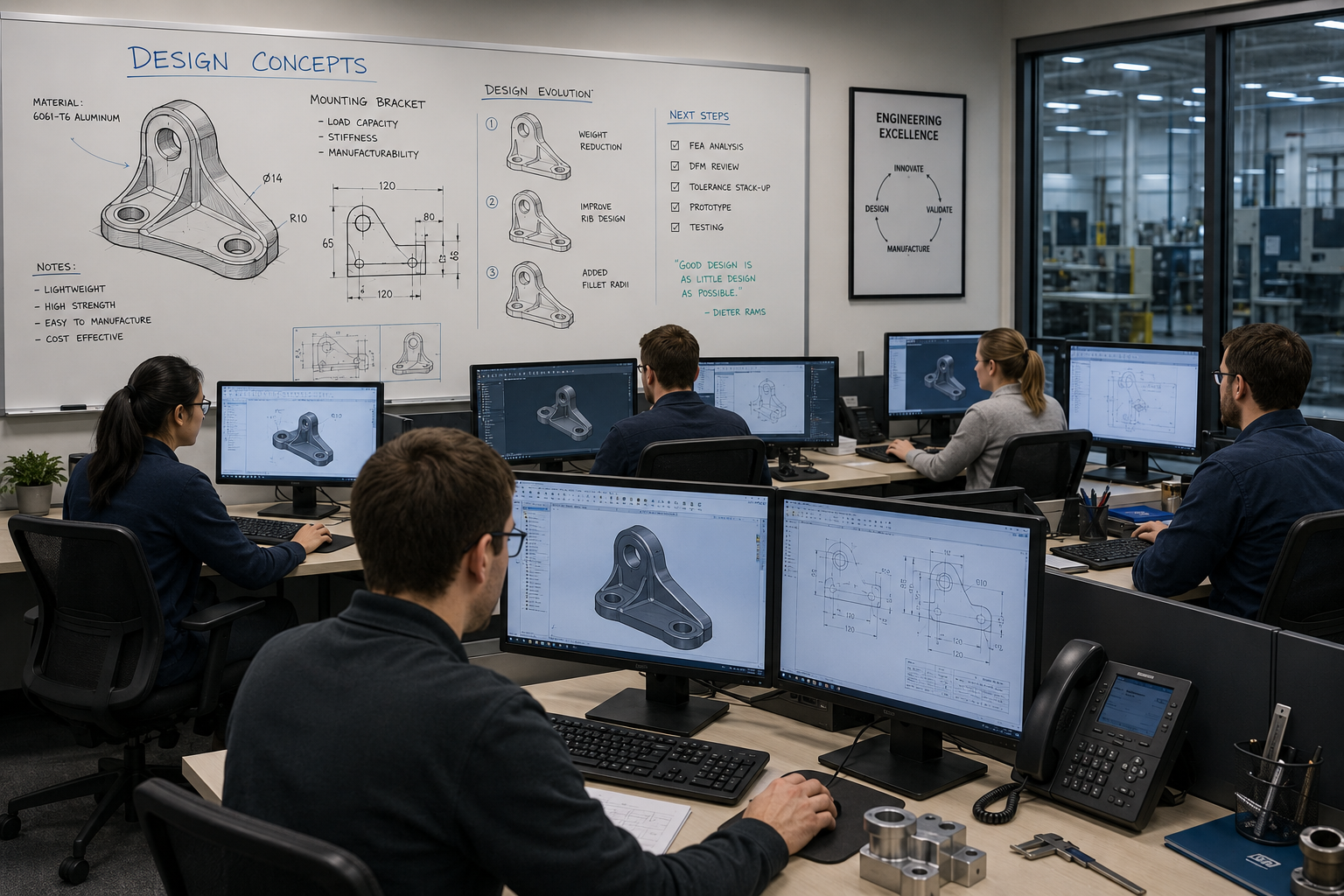
    DFM is not about making the drawing more complex. It is about making the geometry actually manufacturable.

    What Is Design for Manufacturability? The Clear Explanation

    The idea behind Design for Manufacturability is straightforward. Every manufacturing process has constraints. CNC milling cutters are round, so they cannot cut perfectly sharp internal corners. Injection moulds open and close in a single direction, so walls must have draft to release cleanly. Sheet metal presses bend material in a way that deforms nearby holes if they are too close to the bend line.

    DFM is the practice of knowing these constraints and designing around them from the start, rather than discovering them when the quote comes back with a problem list or when the first batch fails inspection. It is not a single review step at the end of the design process. It is a continuous mindset applied to every feature as the model is built.

    The core disciplines within the broader DFM umbrella include:

    • DFM (Design for Manufacturability): individual part geometry designed to be made efficiently by the target process
    • DFA (Design for Assembly): assemblies designed to be assembled with minimum parts, minimum operations, and mistake-proof orientations
    • DFMA (Design for Manufacture and Assembly): both combined, which is how most mature organisations approach the methodology
    • DFQ (Design for Quality): geometry and tolerances designed so that inspection and quality control are practical and reliable
    • DFS (Design for Sustainability): material selection and geometry designed for minimum material waste, energy use, and end-of-life disassembly

    This guide focuses on DFM in its most direct engineering application: how the manufacturing process a part will go through should determine the geometry, tolerances, and documentation of the CAD drawing that produces it.

    Why DFM Has Been Around Since 1981 and Still Gets Ignored

    The first DFM software was released in 1981 on an Apple II Plus. Boothroyd Dewhurst, Inc. was founded in 1983 to commercialise DFM and DFA methodology. The principles have been taught in mechanical engineering degrees for four decades. And yet, the most common feedback from manufacturing engineers reviewing designs from product engineers is still that basic DFM rules have not been applied.

    The reason is structural, not individual. In most product development workflows, the design engineer and the manufacturing engineer are separated by process, timeline, and sometimes by geography. The design engineer’s incentive is to get the design right functionally. The manufacturing engineer’s knowledge enters the process only at review gates that happen after significant design investment has been made. By the time a DFM problem is formally identified, it is expensive to fix.

    AI DFM tools in 2026 are beginning to solve this by giving the design engineer manufacturing feedback at the moment they are making the decisions that create the problem, not after those decisions are locked into a finished drawing.

    The Cost of Getting DFM Wrong: Why Early Matters So Much

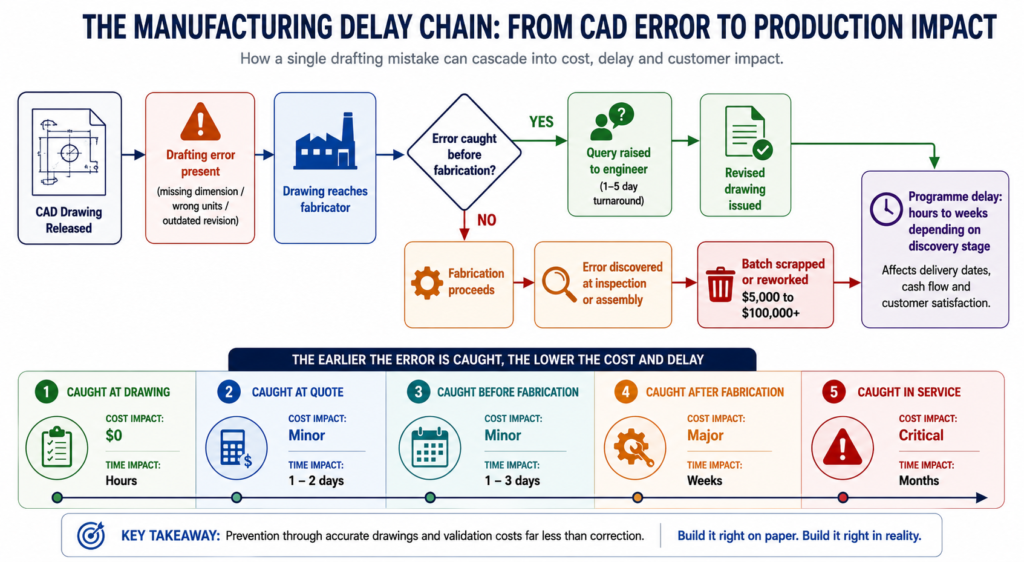
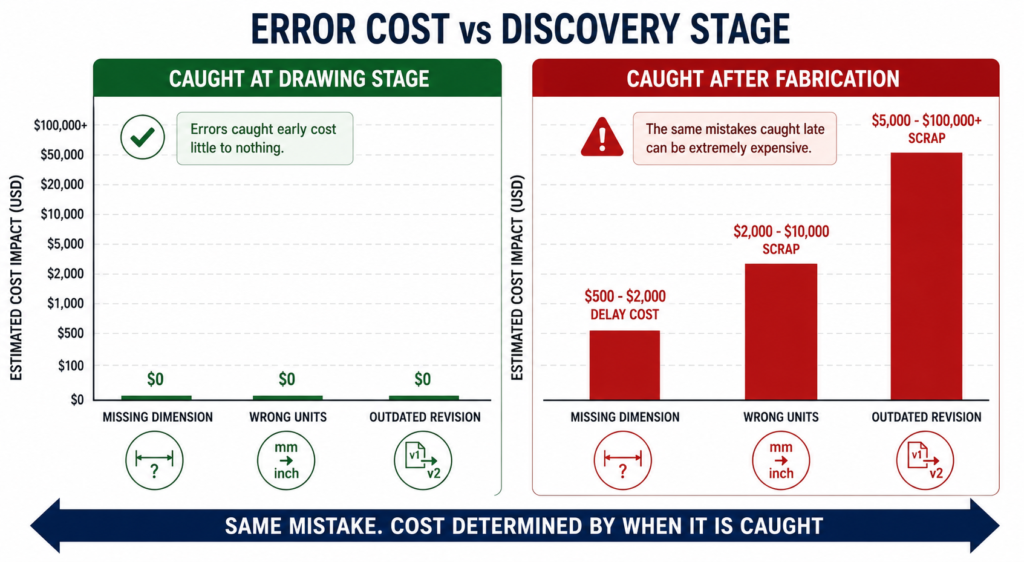
    The relationship between when a manufacturing problem is discovered and what it costs to fix it is not linear. It is exponential. Published data from the manufacturing industry consistently shows a ten times cost multiplier at each stage of the development process.

    StageWho catches the issueTypical correction costTime impact
    Concept / sketchDesign engineerNear zero: edit the sketchHours
    CAD model completeDFM review or tool$1,000 – $5,000Days to 1 week
    Drawing issuedManufacturer or DFM check$5,000 – $20,0001-3 weeks
    Prototype builtTesting team$20,000 – $100,000Weeks to months
    Tooling cut or orderedProduction engineer$50,000 – $500,000+Months
    Volume productionQuality / customer return$500,000 – millionsProgramme delay

    These are not theoretical figures. They reflect the actual economics of product development: engineering time to redesign, management overhead to approve the change, supplier communication to revise the order, scrapped tooling or scrapped parts, extended lead times, and in volume production, the cost of customer returns and warranty claims.

    The table makes the business case for DFM review at the concept stage self-evident. The cost of an engineering hour at concept is the same as at prototype. But an engineering hour at concept prevents a problem that would cost a hundred times more to fix at the same stage one step later in the process.

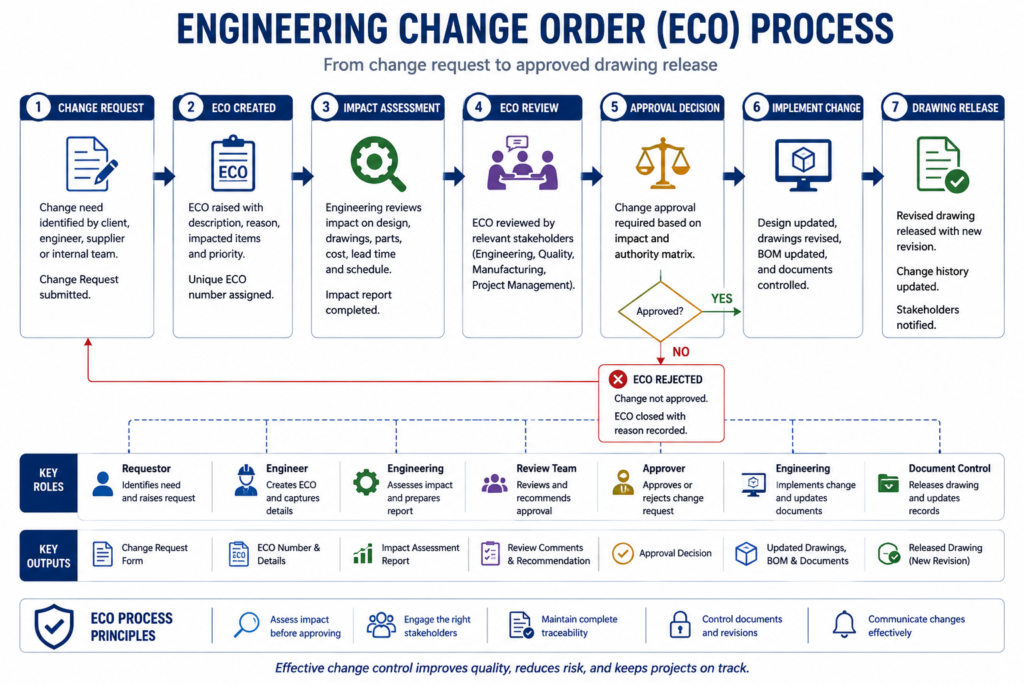
    The most common DFM timing mistake:  Treating DFM as a drawing release gate rather than a design activity. When DFM review only happens after the CAD model is complete and the drawing is drafted, every finding requires changes to finished work. The model must be reopened and edited. The drawing must be revised and re-checked. If DFM is instead applied feature by feature as the model is being built, the cost of each correction is essentially zero because the geometry does not yet exist in final form.
    Cost of Design Change by Development Stage Bar Chart
    DFM is not about adding cost to the design process. It is about avoiding the far larger costs that come when manufacturing problems are discovered late

    How DFM Directly Affects Your CAD Drawings: Element by Element

    The clearest way to understand how DFM in CAD works in practice is to look at specific drawing elements and compare how they appear with and without DFM applied. The differences are not cosmetic. They are the difference between a drawing that a manufacturer can confidently execute and one that generates a query list before production starts.

    Drawing ElementWithout DFM thinkingWith DFM applied
    Internal corner radiusSharp 90-degree corners on pocketed featuresMinimum radius callout matching available tool size
    Draft anglesVertical walls on moulded or cast parts1-3 degree draft on every wall with draw direction arrow
    TolerancesUniform tight tolerance on all featuresSelective: tight on functional interfaces, ISO 2768 elsewhere
    Wall thicknessVariable wall, thicker for stiffness, thinner for weightUniform wall, stiffness achieved through ribs and form
    Hole placementHoles positioned by assembly need aloneHoles checked against DFM rules for process before finalising
    Surface finishSingle Ra value across all surfacesSurface finish specified by zone: mating, sealing, general
    Material calloutNominal material grade, no processing specFull material spec with temper, condition, and standard reference
    Weld symbolsGeneric weld calloutProcess-specific: groove type, joint prep, inspection class
    GD&TAll dimensions in plus/minusGD&T applied at functional interfaces, datum structure defined
    NotesGeneric manufacturing notesProcess-specific notes: tool access, assembly sequence, inspection

    The Tolerance Conversation: What Most Engineers Get Wrong

    Tolerance over-specification is one of the most consistently expensive DFM failures, and one of the most consistently overlooked. When a drawing applies the same tight tolerance to every dimension regardless of whether that dimension affects function, the fabricator must either meet every tolerance at premium cost or query the drawing. Most of the time, tight tolerances are applied by default because the engineer did not consciously decide what each feature’s tolerance should be.

    The correct approach is selective tolerancing: apply tight tolerances only to features that genuinely require them for assembly or function, and let everything else default to a general tolerance standard like ISO 2768 medium (m). This approach communicates clearly to the fabricator what is critical and what is not, allowing them to prioritise process control where it matters and use their judgment elsewhere.

    Feature typeStandard tolerancePrecision toleranceWhen to specify precision
    Non-functional dimensionsISO 2768-mNot neededNever. Leave to process default.
    Mating clearance fitsISO 2768-mH7/g6 or similarWhen assembly requires controlled clearance
    Press fits / interferenceISO 2768-fH7/p6 or tighterWhen retention force is load-bearing
    Bearing seatsIT6-IT7 typicalIT5 for precisionAll rotating or oscillating bearing interfaces
    Sealing surfacesRa 1.6 surface finishRa 0.8 or 0.4All elastomeric or metal-to-metal seals
    Bolt clearance holesH12 or H13Not neededOnly for precise pin/dowel location
    General machined facesISO 2768-mAvoidGeneral form only, not functional mating
    Welded joint gapsPlus/minus 1.0mmPlus/minus 0.5mmOnly for precision structural weld joints
    The tolerance audit habit:  Before releasing any drawing, go through every toleranced dimension and ask one question: does the function of this part or assembly change measurably if this dimension is at the opposite end of its tolerance? If the answer is no, the tolerance is over-specified. Remove it or replace it with a general note reference. This single habit reduces manufacturing cost on most parts by 10 to 30 percent without changing function.

    DFM Rules by Manufacturing Process: What the Drawing Must Communicate

    The most important DFM knowledge for a design engineer is process-specific. The rules for CNC machining DFM are different from the rules for injection moulding, which are different from sheet metal, which are different from casting. The manufacturing process determines what the drawing must say, and a drawing that does not communicate the right things for its intended process is not a complete engineering document.

    Manufacturing ProcessKey DFM Rules for CADCommon CAD drawing violations
    CNC MachiningMin internal corner radius = tool radius + 10%. Max depth-to-width = 4:1 for slots. Uniform wall thickness. Limit setups to one or two sides.Sharp internal corners, pockets deeper than tool reach, features requiring 5-axis where 3-axis is spec
    Injection MouldingDraft angle 1-2 degrees on all walls. Min wall 1.2mm, uniform thickness. Rib height max 3x wall thickness. Gate location away from mating faces.No draft on tall walls, variable wall thickness causing sink marks, undercuts needing side actions
    Sheet MetalMin hole diameter = material thickness. Hole-to-bend distance = 2.5x thickness. Flange height = 4x thickness. Bend relief at intersecting bends.Holes too close to bends, flanges too short for press brake, no bend relief at corners
    Die CastingDraft 1-3 degrees. Wall uniformity critical. Parting line position chosen to minimise surface marks. Draft on cores and inserts.Non-uniform walls causing porosity, draft violations, undercuts on parting plane
    3D Printing (FDM)Orient to minimise supports. Min feature 2x nozzle diameter. Avoid horizontal overhangs beyond 45 degrees. Bridge length under 50mm without support.Features requiring excessive support, thin horizontal bridges, tolerance expectations beyond FDM capability
    Casting (sand/invest.)Min wall 3-5mm depending on alloy. Generous draft 2-5 degrees. Avoid sharp transitions, use fillets everywhere. Core placement feasibility.Thin sections that cannot fill, missing draft, sharp corners causing stress concentration in casting
    Welded fabricationAccess for welding torch and visual inspection. Joint gap specification. Weld sequence to minimise distortion. Avoid welds in high-stress zones.No access for torch, joints requiring simultaneous multi-position welding, tolerance on welded geometry too tight
    Turning / lathe workConsistent diameters to minimise tool changes. Undercuts need relief groove. Chamfers on all transitions. Length-to-diameter max 4:1 without steady.Long slender parts with no steady provision, multiple non-standard diameters, undercuts without relief

    CNC Machining DFM: The Internal Corner Is Where It Always Breaks

    The single most common CNC machining DFM violation is the sharp internal corner in a pocketed feature. A milling cutter is round. It cannot cut a 90-degree internal corner. It leaves a radius equal to its own radius. If the design requires a sharp corner, either a different operation is needed (EDM wire cutting, broaching, or grinding), or the part cannot be made as drawn.

    The solution is not complicated: specify a minimum internal corner radius in every pocketed feature, equal to the cutter radius plus ten percent clearance. For a 10mm end mill, specify R6mm internal corners. For a 6mm end mill, R4mm. If the mating part that fits into the pocket has a sharp corner, chamfer or relieve that part’s corner rather than requiring the pocket to be square.

    The second most common issue is feature depth relative to available tooling. Standard end mills have a flute length to diameter ratio of around 3:1 to 4:1. A pocket 60mm deep requiring a 10mm end mill cannot be machined with standard tooling because the flute length is only 30 to 40mm. The feature requires special extended-reach tooling, which adds cost, delivery time, and vibration risk to the operation. If the pocket depth is driven by function, acknowledge in the notes that extended tooling is required and confirm with the machinist before releasing.

    Injection Moulding DFM: Draft and Wall Thickness Are Not Optional

    Draft angle is the first and most critical injection moulding DFM rule. When a part is injected into a mould, it must be ejected cleanly as the mould opens. Without draft on the walls, the part grips the mould and either damages the surface, requires excessive ejection force that marks the part, or sticks entirely. The minimum draft angle depends on the surface finish: polished surfaces require at least 0.5 degrees, textured surfaces require 3 to 5 degrees in addition to the texture depth.

    Wall thickness uniformity is the second critical rule. Injection-moulded parts cool from the outside in. Thick walls cool slowly, thin walls cool quickly. Where thick and thin sections meet, the differential cooling creates internal stress, sink marks on the surface opposite the thick section, and warping as the part cools unevenly. The DFM-compliant approach is to design uniform wall thickness throughout and use ribs and gussets to add stiffness, not increased wall thickness.

    Rib design follows specific proportions from the wall: rib height maximum 3 times the wall thickness, rib thickness 50 to 60 percent of the wall thickness, and a draft of 0.5 to 1 degree on each rib face. These proportions prevent the rib from causing sink marks on the visible face while providing the stiffness that the design requires.

    Sheet Metal DFM: The Rules That Are Invisible Until You Break Them

    Sheet metal DFM rules are covered in depth in our guide on sheet metal design for manufacturing. The most consequential rules that affect CAD drawings specifically are the hole-to-bend distance (minimum 2.5 times material thickness from the hole edge to the nearest bend tangent line), the flange height minimum (4 times material thickness for press brake grip), and the requirement for bend relief cuts at all intersecting bends.

    These rules are invisible on the finished drawing to anyone who does not know them. A hole positioned 3mm from a bend in 2mm steel looks like a standard hole. The drawing does not announce that it will deform oval during bending. The experienced fabricator will query it. The inexperienced one will cut it and discover the problem at forming.

    AI DFM Tools in 2026: From Rule Checkers to Active Design Optimisers

    The AI DFM tool landscape in 2026 has split into two distinct categories: tools that check designs against rules and flag problems, and tools that actively optimise designs against manufacturing constraints without requiring the engineer to make every correction manually. Understanding the difference helps set realistic expectations about what each tool can deliver.

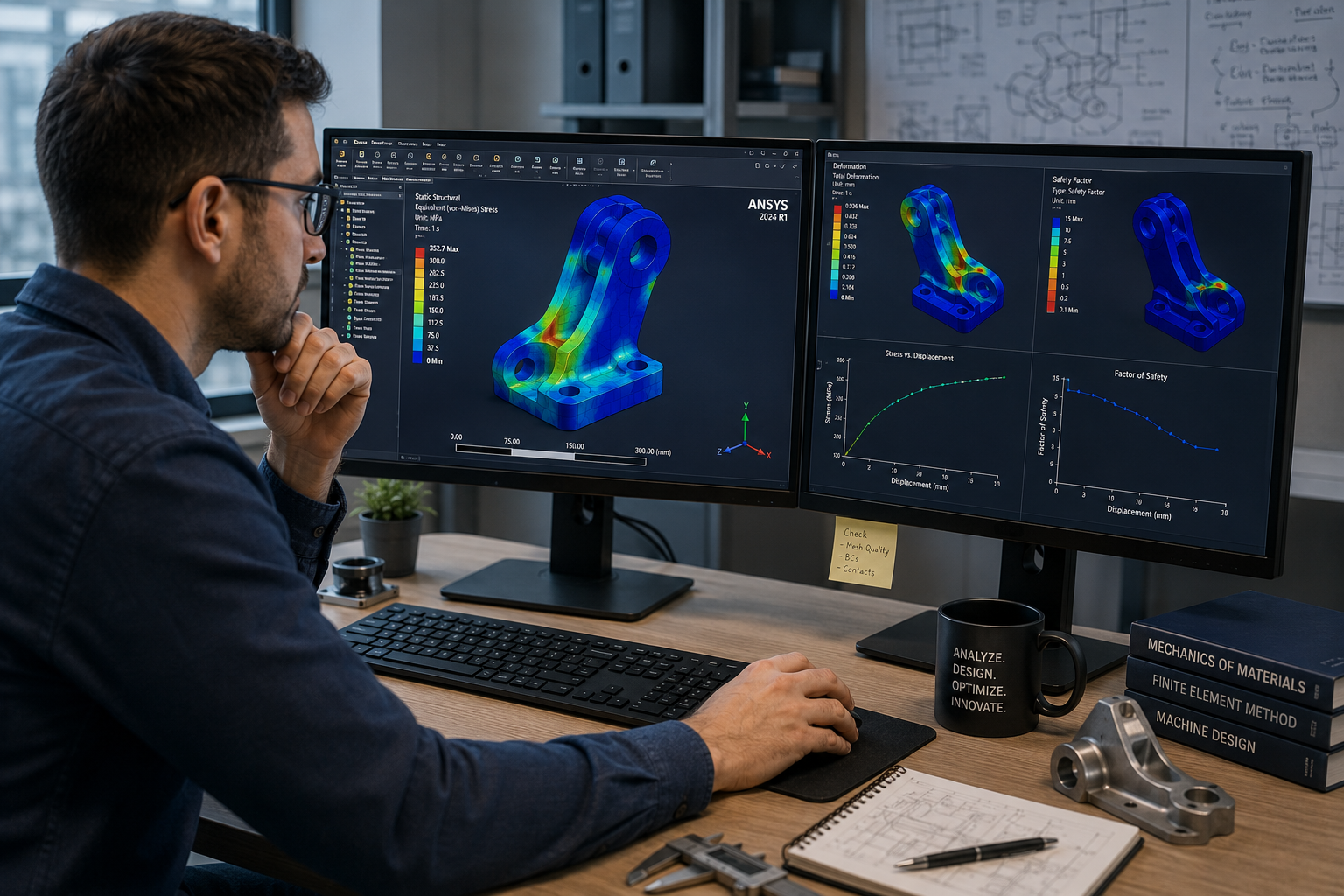
    AI DFM Analysis Interface Real-Time Feedback on CAD Model
    I DFM tools in 2026 flag issues as you model, not after the drawing is released. The fix takes seconds. The same fix after tooling takes months.
    ToolTypeWhat it checksCAD integration
    Xometry DFMCloud / uploadCNC, 3D printing, injection mouldingSTEP upload, instant feedback online
    CoLab AutoReviewCollaboration AIBest practices, company-specific standardsComment on 3D models in browser, no CAD needed
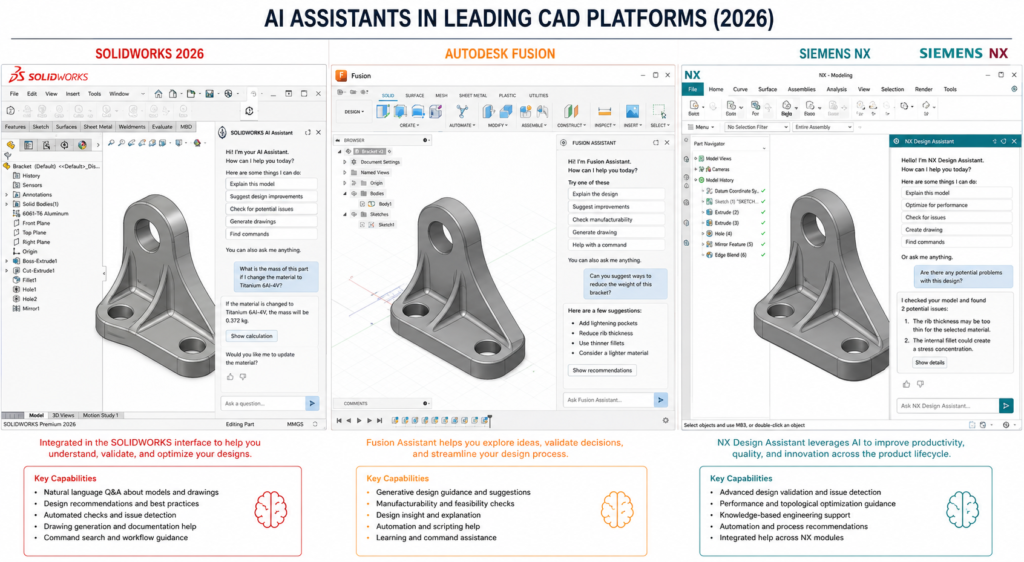
    InfinitFormIn-CAD AIActively optimises geometry, not just flagsDirect Fusion 360 and SolidWorks integration
    Autodesk DFM (Fusion)In-CAD integratedMachining, additive, sheet metalNative in Fusion 360 Manufacture workspace
    DFMXpressIn-CAD integratedMachining and injection moulding rulesNative in SolidWorks, runs on active model
    Dashnode AI DFMCloud / uploadCNC, turning, sheet metal, additiveSTEP/IGES upload, detailed feature-level report
    Protolabs DFMCloud / uploadInjection moulding, machining, 3D printingPart upload on quoting platform
    Fictiv DFM feedbackCloud / uploadAll common processes with manufacturabilityIntegrated in quoting and ordering workflow

    Static Rule Checkers vs AI-Driven Optimisers

    Traditional DFM tools, including the built-in DFMXpress in SolidWorks and early versions of cloud upload tools, apply static geometric rule sets. The rules are hard-coded: minimum corner radius, minimum draft, minimum hole diameter. When a feature violates a rule, the tool flags it. The engineer decides what to do.

    The limitation identified in a March 2026 CoLab analysis is that static rule checkers often generate high volumes of false positive alerts on designs that are technically acceptable for the specific tooling and process setup being used, even if they violate a generic rule. Engineers begin ignoring the alerts because too many are irrelevant. The signal-to-noise ratio degrades the value of the tool.

    AI-trained tools like InfinitForm and the newer generation of analysis engines trained on real manufacturing outcomes are beginning to address this. Rather than applying static geometric rules, they are trained on historical manufacturing data: which designs were quoted at a premium, which resulted in scrap, which required tool changes or process deviations. The feedback is contextual rather than generic, which reduces false positives and increases engineer trust in the outputs.

    InfinitForm: The Active Optimiser Approach

    InfinitForm represents a conceptually different approach from flagging tools. Rather than producing a list of problems for the engineer to solve, it applies automated geometry corrections directly to the CAD model: rounding corners, adding draft, adjusting wall thickness, all within the CAD environment without requiring the engineer to identify and manually fix each issue.

    For engineering teams processing high volumes of similar part geometries, this approach delivers significant throughput gains. For complex or novel designs where the engineering judgment behind each feature is important, the active optimiser approach needs careful supervision: automated corrections can change the design intent if the optimiser does not understand why a specific geometry exists. The engineer remains responsible for reviewing what the tool has changed.

    Cloud Upload Tools: Xometry, Protolabs, and Fictiv

    The cloud quoting platforms operated by Xometry, Protolabs, and Fictiv have built DFM analysis directly into their quoting workflow. When an engineer uploads a STEP file for a quote, the platform analyses the geometry against the selected process rules and returns both a price and a DFM report in the same response.

    This is probably the most consequentially positioned DFM feedback in any workflow: the engineer receives manufacturing feedback at the exact moment they are deciding whether to proceed with the design. A DFM issue flagged at the quoting stage costs an email and a model revision. The same issue discovered during production at that same supplier costs a production hold and an emergency re-design.

    Design for Assembly: The DFM Dimension That Affects the Whole Product

    If DFM focuses on how individual parts are made, Design for Assembly (DFA) focuses on how those parts come together. The principles are related but distinct, and both have direct effects on what appears on CAD drawings and assembly documentation.

    The Boothroyd-Dewhurst Principles That Still Apply in 2026

    Geoffrey Boothroyd and Peter Dewhurst codified the foundational DFA principles in the 1970s and 1980s. Four decades later, they remain the most consistently useful framework for assembly design decisions in CAD:

    1. Minimise the part count. Every part is a cost: material, manufacturing, inspection, inventory, and assembly time. Ask whether each part can be combined with an adjacent part without losing function. The part count is the single highest-lever driver of assembly cost.
    2. Design parts with unambiguous assembly orientation. If a part can be inserted in the wrong orientation, it will be, eventually, and the consequence will be a field failure or an assembly line stoppage. Use asymmetric geometry or assembly features to make the wrong orientation physically impossible.
    3. Design for top-down assembly. Where possible, design assemblies so each part is added from above and drops into place under gravity. This enables robotic assembly and reduces the number of repositioning steps required during manual assembly.
    4. Minimise fastener count and types. Each different fastener type requires a different tool, a different bin, and a different training requirement. Standardise on a minimum number of fastener types and sizes across a product family.

    How DFA Appears in CAD Drawings

    • Poka-yoke features (asymmetric tabs, locating pins, orientation notches) that make wrong assembly physically impossible
    • Assembly sequence notes specifying the order of sub-assembly and final assembly operations
    • Fastener callouts using the minimum number of standardised types across the assembly
    • Clearance specifications for assembly tool access (screwdriver, spanner, rivet gun)
    • Datum references that are accessible and measurable during assembly, not just during inspection

    Integrating DFM Into Your CAD Modeling Workflow

    DFM is most effective when it is not a separate activity from CAD modeling but a habit embedded in how the model is built. The following approach integrates DFM thinking at each stage of the modeling process without adding a separate review gate that is often compressed or skipped under schedule pressure.

    Before Opening the CAD Software

    The most important DFM decision is often the first one: selecting the manufacturing process. The process determines every subsequent DFM rule that applies. A design engineer who does not know whether a part will be machined, moulded, or fabricated cannot make any sensible geometry decisions because the constraints are completely different for each.

    If the process is not yet fixed, the concept design should use geometry that is agnostic enough to work for at least two candidate processes. Do not design sharp internal corners as a default if the part might be injection moulded, because adding draft later is more disruptive than designing with draft from the start. Use the concept stage to test which process is most appropriate before committing to the geometry that locks the choice.

    During Feature Creation

    Apply the most critical DFM rule for the chosen process to each feature as it is created. For machined parts: never create an internal pocket without specifying the corner radius in the feature. For moulded parts: apply draft before finalising any extruded wall. For sheet metal: check hole-to-bend clearance before placing any hole near a fold line.

    This is not additional work. It is the same modeling time applied with process awareness rather than pure geometry focus. The feature takes the same time to create. The only difference is whether the geometry that is created will need to be reopened and corrected when the DFM check is run after drawing completion.

    At Drawing Creation

    The drawing is where DFM is either confirmed or undermined by tolerances and notes. Three things matter most at the drawing stage.

    First, tolerance allocation: apply the tolerance table approach from earlier in this guide. Tight only where function requires it. General reference everywhere else. Add a general tolerance block in the title block referencing ISO 2768-m so the fabricator knows the default.

    Second, drawing notes: add process-specific notes that the drawing geometry alone cannot communicate. Tool access direction for inspection. Acceptable substitution materials if the primary specification is unavailable. Required testing before acceptance. Any feature that is critical to assembly or safety, marked as such.

    Third, run the AI DFM check before releasing. With tools like DFMXpress in SolidWorks or the Fusion 360 DFM workspace, this takes minutes and catches the geometric violations that might have slipped through modeling. Treat any critical finding as a mandatory fix, not an optional consideration.

    10 DFM Mistakes That Make Parts Expensive, Slow, or Wrong

    These are the DFM failures that come up most consistently across machined, moulded, and fabricated part reviews. Each one has a specific, measurable cost consequence and a straightforward prevention strategy.

    MistakeCost consequencePrevention
    Sharp internal corners in CNC pockets100% rejection or EDM rework: $500-$5,000/partSpecify minimum internal radius = tool radius + 10% in all pocketed features. Put it in the drawing notes.
    No draft on injection-moulded wallsMould tools reworked or part sticks on ejectionApply 1-2 degree draft to all walls in draw direction. Check mould flow simulation before tooling.
    Over-toleranced non-critical featuresQuote 30-50% higher than necessaryApply ISO 2768-m as default. Tighten only mating and functional interfaces. Mark critical dimensions clearly.
    Variable wall thickness in mouldingSink marks, warping, weld lines in productionDesign uniform wall thickness. Add ribs for stiffness. Transition thickness changes with tapered sections.
    Undercuts without side actions budgetedTooling cost overrun by 20-40%Identify all undercuts during DFM review and confirm whether side actions are in tooling budget and lead time.
    Material specified without temperWrong material properties, wrong machinabilityAlways specify full material standard: alloy, grade, temper, condition. Not ‘aluminium’ but ‘6061-T6 per AMS 2770’.
    Feature depth exceeding tool reachSpecial tooling ordered, programme delayedCheck all pocket depths against standard end mill reach ratios (max 4:1 depth:diameter for standard tooling).
    No tool access for inspectionIn-process inspection impossible, defects missedDesign inspection access for all critical features. Confirm measurement method with quality team before drawing release.
    Assembly sequence not consideredParts cannot be assembled in the designed orderBuild assembly sequence into notes. Check that every fastener has access and every sub-assembly can reach its position.
    Ignoring DFM until drawing is completeRework of finalised model is expensive and slowIntegrate DFM checks at the concept and mid-model stage, not as a gate after the drawing is finished.
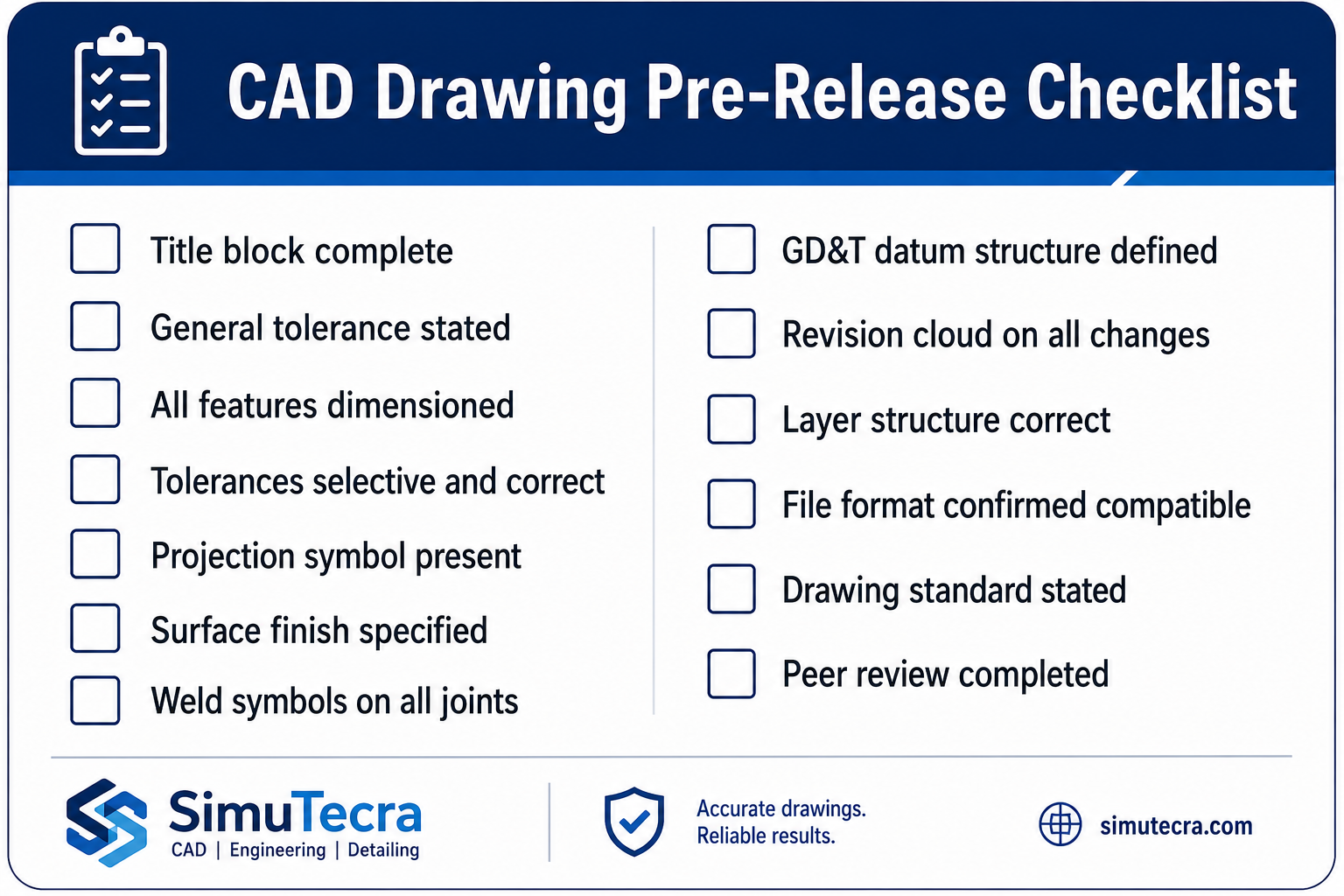
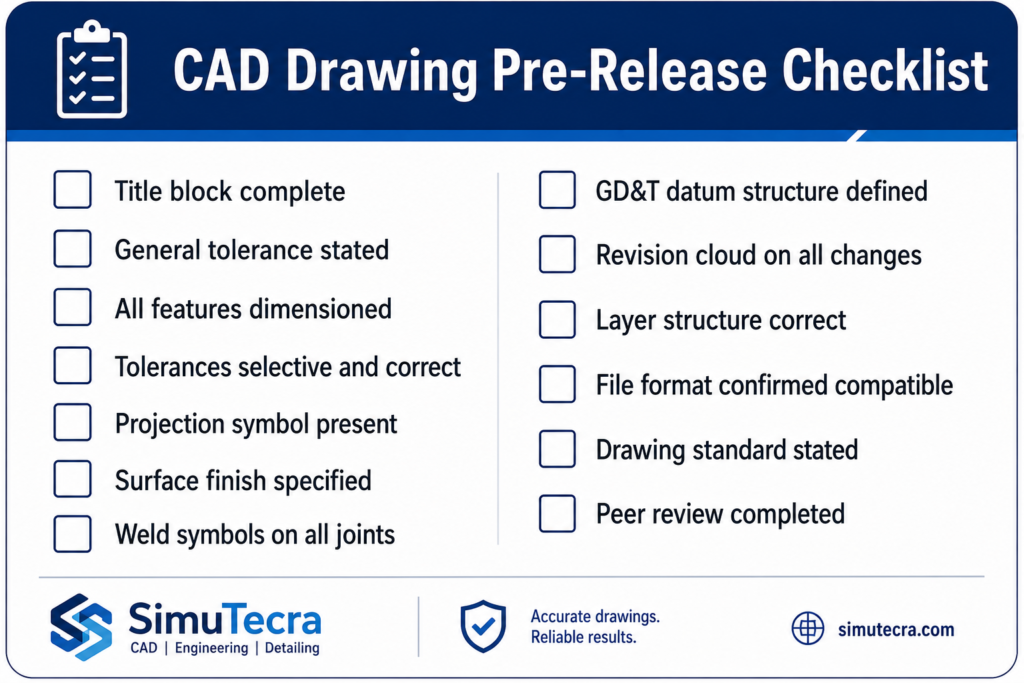
    The DFM checklist for every drawing release:  Before releasing any CAD drawing: (1) Internal corner radii specified for all machined pockets. (2) Draft angles on all moulded or cast walls. (3) Wall thickness uniform or tapered for injection moulding. (4) Hole positions checked against bend distances for sheet metal. (5) Tolerance callouts reviewed, non-critical features set to ISO 2768-m. (6) Full material specification including temper and standard. (7) AI DFM check run and all critical findings resolved. (8) Assembly sequence and tool access confirmed where relevant. Two minutes of checking here prevents two weeks of rework later.

    DFM and Sustainability: The 2026 Dimension

    Sustainability-focused DFM is the fastest-growing component of the discipline in 2026. Regulatory pressure, customer expectations, and genuine cost savings from material efficiency are driving its adoption in sectors from consumer electronics to industrial equipment.

    Sustainability-focused design for manufacturability applies the same logic as cost-focused DFM: the design decision made at the CAD stage determines the material waste, energy consumption, and end-of-life recyclability of every part produced. Those outcomes cannot be improved significantly once the geometry is fixed and tooling is committed.

    • Material efficiency: topology-optimised geometry removes material from low-stress regions, reducing both part weight and the energy required to produce the raw material
    • Process selection for carbon footprint: machining from solid generates significant swarf waste; near-net-shape forming processes such as forging and casting use materially less input stock for the same output part
    • Fastener-free joining: snap-fit, press-fit, and adhesive-bonded joints reduce the number of dissimilar materials in an assembly, improving recyclability at end of life
    • Recycled material specification: calling out recycled aluminium alloys or post-consumer recycled polymer grades in the material specification is now a viable and often cost-neutral choice on many standard part types
    • Design for disassembly: ensuring that assembled parts can be separated at end of life without destroying either component, by avoiding permanent bonding of dissimilar materials and designing accessible fastener access

    Conclusion:

    The engineers who produce drawings that go directly to manufacture without a problem list are not the ones with the most experience. They are the ones who have internalised the constraints of the processes they are designing for, and who apply those constraints feature by feature as the model is built rather than as a checklist after it is finished.

    Design for Manufacturability is not complicated. The rules for each process are learnable in an afternoon. The tolerance strategy is a decision framework, not a table to memorise. The DFM habits, checking corner radii in machined pockets, adding draft to moulded walls, keeping holes away from bends, take no additional time once they are reflexive.

    What makes DFM expensive to ignore is the compounding cost of discovering problems late. What makes it worth prioritising is the compounding benefit of designs that work the first time: faster first article acceptance, fewer supplier queries, lower quoted prices, and manufacturing teams that trust the drawings they receive.

    In 2026, AI DFM tools from InfinitForm, Xometry, CoLab, and others are making it easier to catch the remaining violations that slip through even experienced design reviews. But the tools only work well on designs that were already being thought about correctly. The AI catches what the engineer missed. It does not replace the engineer thinking about manufacturability while the model is being built.

    Design the process into the part. The process cannot be designed in after the drawing is released.

    Frequently Asked Questions

    What is design for manufacturability (DFM)?

    Design for manufacturability (DFM) is an engineering methodology that ensures products are designed to be manufactured efficiently, reliably, and at minimum cost. It involves applying process-specific design rules during CAD modeling, reviewing geometry against manufacturing constraints before drawings are released, and selecting materials and tolerances that match what the production process can actually achieve. DFM reduces rework, scrap, and tooling corrections by catching problems at the design stage rather than on the shop floor.

    How does DFM affect CAD drawings specifically?

    DFM changes what a CAD drawing must communicate. A DFM-compliant drawing includes minimum internal corner radii that match available tooling, draft angles on moulded and cast walls, hole-to-bend distances for sheet metal, and selective tolerances that are tight only on functional interfaces while leaving the rest to ISO 2768 defaults. The manufacturing process determines what the drawing must say. Without DFM applied, drawings routinely specify features that are impossible for the intended process, tolerances that add cost without functional benefit, and geometry that a fabricator must query or reject.

    When in the design process should DFM be applied?

    DFM should be applied at the concept stage, before detailed CAD modeling begins. The cost of fixing a manufacturing issue increases by roughly a factor of 10 at each development stage. Fixing a DFM issue at concept costs engineering time only. The same problem found after tooling is cut costs tens of thousands to hundreds of thousands of dollars and delays the programme by months. The most effective DFM is not a gate review at drawing completion but a continuous habit of checking each feature against the target process as the model is built.

    What are the most important DFM rules for CNC machining?

    The most critical DFM rules for CNC machining in CAD are: minimum internal corner radius equal to the cutter radius plus ten percent, maximum pocket depth to width ratio of 4:1 for standard tooling, uniform wall thickness to avoid chatter and deflection, feature access from two setups maximum, chamfers rather than sharp edges on all transitions, and thread relief grooves on all threaded sections. Each of these rules is directly reflected in how the part is dimensioned and annotated on the drawing.

    What is the difference between DFM and DFA?

    DFM (Design for Manufacturability) focuses on how individual parts are made. DFA (Design for Assembly) focuses on how parts are assembled together. DFM asks whether a single part can be manufactured efficiently by the intended process. DFA asks whether the number of parts can be reduced, whether fasteners are accessible, whether parts can be assembled in only one orientation, and whether the assembly sequence is practical. Both disciplines are related and both affect CAD drawings, but they address different failure modes in product development.

    How does AI DFM analysis work in 2026?

    AI DFM tools in 2026 analyse CAD geometry automatically when a model is uploaded or as it is being built inside the CAD environment. They check features against process-specific rule libraries, flag violations with location, severity, and suggested fix, and in the most advanced tools such as InfinitForm, they automatically optimise the geometry rather than simply flagging the problem. Tools like Xometry and Protolabs integrate DFM feedback directly into the quoting workflow, so engineers receive manufacturability feedback at the same time as they receive a price. The shift from static geometric rules to AI trained on manufacturing outcomes is making DFM analysis faster, more accurate, and more accessible to engineering teams without dedicated DFM specialists.


    Boothroyd Dewhurst: the founding research organisation for DFMA methodology

  • Piping and Instrumentation Diagrams (P&IDs): What They Are and How to Read Them

    Piping and Instrumentation Diagrams (P&IDs): What They Are and How to Read Them

    ISA 5.1-2024  latest revision of the dominant global P&ID instrumentation standard, reaffirmed with updated tagging conventions for modern DCS and SIS systems
    100-300+  typical P&ID sheet count for a single process unit, compared to 10-30 sheets for the equivalent Process Flow Diagram
    5 letters  maximum tag length in the ISA 5.1 system: first letter (measured variable) plus up to four modifier and function letters
    Life of plant  P&IDs are living documents maintained from FEED through decommissioning, unlike most engineering drawings that are frozen at handover

    Introduction:

    If a process plant has one drawing that every engineer, operator, and maintenance technician needs to understand, it is the piping and instrumentation diagram. Walk into any control room in any refinery, chemical plant, water treatment facility, or pharmaceutical manufacturing site and you will find P&IDs on the wall, on screens, and in the hands of the people running the plant.

    A P&ID is not a photograph of the plant. It is not a pipe routing drawing. It is not a process overview. It is something more specific and more useful than any of those: it is the complete schematic record of every pipe, every valve, every instrument, and every control connection in a process system, drawn in a standardised symbolic language that anyone trained in the conventions can read, regardless of which plant they are working in or which language they speak.

    This guide explains what a P&ID drawing actually contains, how to decode the instrument tag system, what the different symbol shapes mean, how to trace a control loop from measurement to output, and where P&IDs fit in the wider family of process engineering documents. It also covers the most common reading mistakes and where digital P&IDs are heading in 2026.

    Quick definition:  A P&ID (Piping and Instrumentation Diagram) is a schematic engineering drawing that shows every pipe, valve, instrument, and control element in a process system. It includes pipe sizes and material specifications, valve types and locations, instrument tags following the ISA 5.1 standard, control loops, and safety systems. P&IDs are used for design, construction, operations, and maintenance throughout the life of a plant.
    Piping and Instrumentation Diagrams (P&IDs): What They Are and How to Read Them
    Every element on a P&ID has a precise meaning. None of it is decoration.’

    What Is a P&ID? The Complete Explanation

    A P&ID is a schematic drawing. That single word, schematic, is the key to understanding what it is and what it is not. It shows logical and functional connections between process elements, not their physical positions in the plant. Two pipes shown crossing on a P&ID may be 20 metres apart in reality. A pump shown next to a vessel may have 50 metres of pipework between them on site. The P&ID is not concerned with distance or physical layout.

    What it is concerned with is completeness and accuracy of what is connected. Every valve, no matter how small. Every instrument, no matter how minor. Every control signal, every safety device, every isolation point. If it exists in the process system, it appears on the P&ID.

    What a P&ID Contains

    • All process piping with line numbers that encode pipe size, service, material specification, and insulation requirement
    • Every valve shown by type (gate, globe, ball, butterfly, check, control, safety) with its tag number
    • All process equipment shown schematically: pumps, compressors, vessels, heat exchangers, columns, reactors
    • Every instrument with its ISA tag number identifying what it measures and what function it performs
    • All control loops showing the connection from measurement through controller to final control element
    • Safety systems including pressure safety valves, bursting discs, emergency shutdown valves, and interlocks
    • Utility connections showing how steam, cooling water, instrument air, and nitrogen connect to process equipment
    • Battery limits showing where this drawing’s scope ends and the adjacent drawing or system begins

    What a P&ID Does NOT Contain

    • Physical pipe routing or dimensioned layout (that is the isometric drawing)
    • Structural supports, building walls, or topographic information
    • Equipment dimensions or installation details (those are equipment general arrangement drawings)
    • Electrical wiring detail (that is the electrical schematics and loop drawings)
    • Accurate spatial relationships between any components

    These exclusions are not limitations. They are the reason P&IDs are so useful. By removing all spatial and dimensional information, the drawing focuses entirely on what matters for process understanding, operations, and maintenance: what exists, how it connects, and how it is controlled.

    P&ID vs PFD: Understanding Where Each Drawing Fits

    The most common source of confusion when engineers and operators first encounter process plant documentation is the relationship between the Process Flow Diagram and the P&ID. They look superficially similar but serve entirely different purposes.

    AspectProcess Flow Diagram (PFD)P&ID
    Level of detailHigh-level process overviewEvery pipe, valve, and instrument
    Pipe informationMajor flows only, no sizesAll pipes with size, spec, tag number
    Valve detailMajor control valves shownEvery valve by type and tag
    Instrument detailKey measurements onlyEvery instrument with tag and loop
    Safety systemsNot shownPSVs, ESDs, interlocks all shown
    Who uses itProcess engineer, project managementAll engineering disciplines, operations, maintenance
    When producedEarly FEED and front-end designDetailed design through plant life
    For operations useNot appropriate for field usePrimary reference for operators
    For maintenance useNot appropriateIsolation planning, lockout/tagout
    Drawing count (typical)10-30 sheets for a process unit100-300+ sheets for same unit

    A useful way to think about the relationship: the PFD tells you what the process is supposed to do. The P&ID tells you everything that exists to make it do that. If someone asks why a certain pump is installed, the PFD gives the process logic. If someone asks which valves to close to isolate that pump for maintenance, the P&ID provides the answer.

    How to Read P&ID Instrument Tags: The ISA 5.1 System

    Every instrument on a P&ID has a tag number. That tag is not arbitrary. It follows a precise coding system defined by ANSI/ISA 5.1, the international standard for instrumentation symbols and identification last revised in 2024. Once you understand the system, you can decode any instrument tag on any P&ID drawn to this standard, in any plant, anywhere in the world.

    ISA 5.1 tag decoding and control loop

    The Tag Structure

    An ISA 5.1 tag has two parts: letters and a number. The letters identify the function. The number identifies the loop.

    The letters consist of:

    1. First letter: the measured or initiating variable. What is being measured. F for Flow. T for Temperature. P for Pressure. L for Level.
    2. Second letter (modifier or function): adds detail to the first. D means differential. H means high. L means low. I means indicate.
    3. Third and subsequent letters: the output function. C means control (has a control output). T means transmit (sends a signal). S means switch (has a discrete on/off output). R means record.

    The number identifies the control loop. All instruments sharing the same number belong to the same control loop. FT-101, FIC-101, and FV-101 are all part of loop 101, the flow control loop.

    LetterMeasured variable (first letter)Modifier (second letter)Output function (third+ letter)
    AAnalysisAlarmAlarm
    CConductivityControlController
    DDensity / specific gravityDifferential
    EVoltageSensor / element
    FFlow rateRatio
    HHand (manual)High
    ICurrent (electrical)IndicateIndicator
    JPowerScan / multipoint
    KTime / scheduleControl station
    LLevelLowLight
    PPressure / vacuumPoint (test)
    QQuantityIntegrate / totalize
    RRadiationRecordRecorder
    SSpeed / frequencySafetySwitch
    TTemperatureTransmitter
    VVibrationValveValve (control element)
    WWeight / forceWell
    XUnclassifiedX-axisUnclassified
    YEvent / stateY-axisRelay / compute / convert
    ZPosition / dimensionZ-axisDriver / actuator

    Tag Examples You Will Encounter on Real P&IDs

    Tag exampleMeaningFull expansionBubble type
    FIC-101Flow Indicating ControllerFlow (F) + Indicate (I) + Control (C) + Loop 101Circle (field)
    PT-202Pressure TransmitterPressure (P) + Transmit (T) + Loop 202Circle (field)
    TIC-305Temp Indicating ControllerTemperature (T) + Indicate (I) + Control (C) + Loop 305Circle-line (panel)
    LT-401Level TransmitterLevel (L) + Transmit (T) + Loop 401Circle (field)
    PSV-501Pressure Safety ValvePressure (P) + Safety (S) + Valve (V) + Loop 501Hexagon (SIS)
    FE-102Flow ElementFlow (F) + Sensor/Element (E) + Loop 102Circle (field)
    LSH-403Level Switch HighLevel (L) + Switch (S) + High (H) + Loop 403Circle (field)
    AIT-601Analyser Indicating TransmitterAnalysis (A) + Indicate (I) + Transmit (T) + Loop 601Circle (field)
    The fastest way to read a tag you do not recognise:  Split the letters into groups. The first letter always gives the measured variable. Everything after it tells you what the instrument does with that measurement. FT: measures Flow, Transmits the signal. TIC: measures Temperature, Indicates it on a display, Controls a valve. PSV: Pressure Safety Valve. Once you know the first-letter meanings, the rest follows logically.

    Instrument Bubble Shapes: What the Circle Shape Tells You

    The tag letters and number sit inside a shape on the P&ID. That shape is called the instrument bubble, and it carries critical information about where the instrument is physically located and what type of system it connects to. An operator or maintenance technician reading a P&ID needs to know not just what an instrument measures, but where to find it in the field or in the control system.

    Symbol shapeWhat it meansLocationStandard
    Plain circleDiscrete instrument, field-mountedProcess line or equipmentISA 5.1 / ISO 10628
    Circle with lineInstrument mounted in panel or cabinetControl room panelISA 5.1
    Circle with double lineInstrument behind panel or in cabinetNot directly accessibleISA 5.1
    Circle with dashed lineShared display or shared controllerDCS or PLC shared systemISA 5.1
    HexagonComputer / programmable logic functionDCS, PLC, SIS logicISA 5.1
    Square / rectangleProgrammable controller or computerDCS or SCADA systemISA 5.1 / ISO variant
    DiamondDefined in process data or simulationProcess simulation toolCompany-specific

    The distinction between field-mounted and panel-mounted instruments matters operationally. A field transmitter is accessible at the process, where you can see the physical measurement point and the local indicator. A panel-mounted controller is in the control room. When you are planning field work around an instrument, knowing its location type from the bubble shape alone saves a trip to the control room to ask.

    P&ID Line Types: Reading the Connections Between Instruments

    The lines on a P&ID drawing are not all the same. Different line styles carry different types of signals between different types of elements. Misreading a line type means misunderstanding how an instrument connects to the process or to the control system, which in an operational context leads to wrong decisions about instrument behaviour and loop performance.

    Line typeWhat it representsWhen you see it
    Thick solid lineMain process pipe carrying the primary fluidThe backbone of any P&ID, carrying process fluid between equipment
    Thin solid lineInstrument signal line (pneumatic or electrical)Connecting a transmitter to a controller or indicator
    Dashed lineElectrical signal (wiring between instruments)Between field transmitter and DCS input card
    Dashed and dotted lineSoftware or data link (Fieldbus, HART, etc.)Digital communication between field device and control system
    Dotted lineHydraulic signalHydraulic control line on valve actuator
    Double lineJacketed pipe (pipe within a pipe for temperature)Heat-traced or cryogenic service piping
    Line with diagonal crossCapillary tube (filled system)Thermowell to filled temperature transmitter
    Thick dashed lineMechanical link between instrumentsConnecting two valves that move together
    Boundary box (dashed rect)Battery limit or system boundaryShows where one P&ID sheet hands off to the next

    Line Numbers: The Data Encoded in Every Pipe Label

    Every process pipe on a P&ID carries a line number, typically formatted as: nominal bore / service code / sequential number / pipe specification / insulation or tracing code.

    A line number such as 6-P-1001-CS150-I would decode as:

    • 6: 6-inch nominal bore pipe
    • P: service code for process fluid (company-specific codes vary)
    • 1001: sequential line number within the system
    • CS150: pipe specification: carbon steel, Class 150 ANSI flange rating
    • I: insulation required

    The pipe specification code connects to the piping materials class document, which defines the wall thickness, fitting standards, weld types, gasket materials, and testing requirements for every pipe of that specification class. Without the pipe spec, a piping team cannot make purchasing decisions or specify welds. The P&ID line number is the link that connects the drawing to the piping materials specification system.

    One control loop. Three instruments. One tag number connecting them all.

    Control Loops on a P&ID: Tracing Measurement to Action

    A control loop is the complete set of instruments and connections that measure a process variable, compare it to a target, and adjust something in the process to keep the variable at that target. Understanding how to trace a control loop on a P&ID is one of the most valuable skills for anyone working in process operations, instrumentation, or process engineering.

    The Three Components of Every Basic Control Loop

    • The measuring element: a sensor or transmitter that reads the process variable. Level transmitter LT-201. Pressure transmitter PT-301. Flow element FE-101. This connects physically to the process pipe or vessel.
    • The controller: receives the measurement signal, compares it to the setpoint, and calculates the required output to correct any deviation. LIC-201. FIC-101. These are shown with panel-mounted bubble symbols in most P&IDs, indicating they live in the DCS or control system.
    • The final control element: acts on the process. Almost always a control valve (LV-201, FV-101). Occasionally a variable-speed pump drive or an electrical heater. The actuating signal from the controller drives the valve position.

    The loop number connects all three. If you see LT-201, LIC-201, and LV-201 on the same P&ID, they are all part of loop 201. Trace the signal lines between them and you have the complete picture of how that measurement drives that valve.

    Cascade Control Loops

    Some P&IDs show cascade control: one controller’s output becomes the setpoint of a second controller. A temperature controller TIC-401 sets the setpoint of a flow controller FIC-402, which controls a steam valve FV-402. This is shown on the P&ID by the signal line from TIC-401 feeding into the setpoint input of FIC-402, rather than directly to a valve. Cascade loops appear more complex but follow the same tracing logic: follow the signal lines.

    Interlocks and Safety Instrumented Functions on P&IDs

    Not all control actions are continuous. Some are discrete: if a pressure reaches a certain level, shut a valve. If a level drops too low, trip a pump. These are interlocks and safety instrumented functions, and they appear on P&IDs with specific notation.

    Safety instrumented functions (SIFs) are shown with hexagon bubbles in ISA 5.1 notation, indicating they are handled by a Safety Instrumented System (SIS) rather than the regular DCS. A pressure switch PSH-501 triggering an emergency shutdown valve ESDV-501 on high pressure is a typical SIF. The hex bubble on PSH-501 and the notation on ESDV-501 linking it to the SIS logic identify this immediately to anyone reading the P&ID.

    Critical safety reading point:  Never plan a maintenance or operational change without first checking whether the instruments or valves involved are part of a Safety Instrumented Function. An SIF has a specific bypass and override procedure defined in the SIS documentation. Bypassing an SIF valve using normal maintenance isolation procedures can inadvertently disable a safety layer that prevents a serious incident. The P&ID is the first place to identify SIF involvement. The hex bubble and SIS loop numbers are the flags to look for.

    Process Equipment Symbols on P&IDs

    Process equipment on a P&ID is represented by standardised geometric symbols that indicate the type of equipment without showing its actual physical form. The symbols under ISO 10628 and ISA 5.1 differ in some cases, which is why the legend sheet matters. Here are the most common equipment types and their symbol conventions.

    Equipment typeISA symbolISO 10628 symbolNotes
    Centrifugal pumpCircle with arrowCircle with filled triangleArrow shows rotation direction
    Positive displ. pumpCircle with vertical lineRectangle with PD notationDistinguish from centrifugal
    CompressorTriangle pointing flow directionCircle with internal linesType noted in tag
    Heat exchangerInterlocked circlesRectangle with crossing linesDuty noted in line list
    Vessel / tankRectangle or cylinderRectangle or cylinderInternals shown if relevant
    Column / towerTall rectangle with traysTall rectangle with traysTray numbers sometimes shown
    ReactorRectangle with internal detailSimilar, R-type notationReaction type noted
    Filter / strainerDistinct shape with mesh linesSimilarRating and connection shown
    Fired heaterRectangle with flame symbolSimilarBurner arrangement may show
    Cooling towerTrapezoid with wavy lineSimilarCell count and type vary

    Valve Symbols on P&IDs: How to Tell Every Type Apart

    Valves are the most numerous symbols on any P&ID. A single process unit may contain hundreds of valves of different types, each shown with a specific symbol that identifies its physical operating principle. Getting these right is important for maintenance planning, isolation procedures, and procurement.

    Valve typeISA/ISO symbolTypical applicationActuator options
    Gate valveTwo triangles pointing inwardIsolation; fully open or closed onlyManual handwheel
    Globe valveCircle between two converging linesFlow throttling and controlManual, motor, pneumatic
    Ball valveCircle with a bar through itFast isolation, quarter-turnManual, pneumatic, electric
    Butterfly valveCircle with a diagonal barLarge bore isolation and controlManual, pneumatic, electric
    Check valveTriangle against a stop linePrevents reverse flowNone (self-actuating)
    Relief / safety valveArrow with spring symbolOverpressure protectionSelf-actuating (spring-set)
    Control valveBowtie (ISA) or rectangle (ISO/DIN)Automated flow, pressure, level controlPneumatic, electric, hydraulic
    Needle valveTwo triangles with fine openingFine flow adjustment, sample pointsManual
    Diaphragm valveCurved body symbolHygienic and corrosive serviceManual, pneumatic
    Plug valveDiamond or rectangle bodyMulti-port flow diversionManual, gear, actuated

    The Control Valve Symbol and Fail Position

    The control valve deserves specific attention because it carries more information than any other valve symbol. In ISA 5.1, a control valve body is a bowtie shape. In ISO 10628 and DIN standards, it is a rectangle. The actuator symbol sits on top of the valve body and indicates the actuator type.

    Below or adjacent to the control valve symbol, you will see the fail position annotation: FC (fail closed), FO (fail open), or FL (fail last). This annotation defines what happens to the valve if it loses its control signal, whether that is instrument air on a pneumatic actuator or electrical supply on an electric actuator.

    FC valves on process streams typically indicate that the closed position is the safer state for that valve if control is lost. FO valves indicate that open is safer. The process hazard analysis drives these decisions, and the P&ID makes the result visible to everyone who reads the drawing.

    The ISA vs ISO vs DIN Symbol Difference

    This is one of the most practically important points for anyone who works across international projects. The same control valve is drawn three different ways depending on which standard the drawing follows. In ISA 5.1 (North America and parts of Asia), a globe valve looks like a bowtie. In ISO 10628 (international, European), the valve body is a rectangle. In DIN 19227 (historically German, still common in European industrial plants), the symbol is similar to ISO but with stricter actuator notation conventions.

    The consequence: a process engineer moving from a North American project to a European plant will initially misread valve types because the symbols for the same valves look different. The solution is always the same: read the legend sheet first. Every P&ID drawing set should have a legend that defines every symbol used, including which standard was applied. Do not assume ISA or ISO without checking the title block.

    How to Read a P&ID: A Practical Step-by-Step Approach

    Reading a P&ID for the first time is overwhelming. A complex process unit P&ID can contain hundreds of symbols on a single sheet. The approach below makes it manageable.

    1. Start with the title block and legend. Confirm which drawing standard is applied, which revision you are reading, and what any custom symbols mean. Never skip this step on an unfamiliar drawing set.
    2. Identify the battery limits. The dashed boundary boxes at the edges of the drawing show where this P&ID connects to the adjacent drawings. Note the connecting line numbers and the sheet references so you can trace flows that cross sheet boundaries.
    3. Find the main process flow direction. Thick process pipe lines define the primary flow path. Follow the main stream from left to right as a starting orientation. Identify where material enters the drawing and where it exits.
    4. Identify major equipment. Vessels, pumps, compressors, and heat exchangers are the anchor points. Understand what each piece of equipment does in the process before looking at the instrumentation.
    5. Trace the pipe line numbers. Read the line number on each pipe. Size, service, spec, and insulation are all encoded. Cross-reference the spec with the piping materials class document if the material selection matters for your task.
    6. Read the valve types and tags. Identify isolation valves (gate, ball, butterfly) and control valves. Check fail positions on actuated valves. Note block valve arrangements around control valves, which tell you how to isolate the control valve for maintenance.
    7. Trace the control loops. Starting from any transmitter, follow the signal line to the controller, then from the controller to the control valve. All three will share a loop number. This is the complete picture of one control function.
    8. Identify safety devices. Look for PSVs (pressure safety valves), bursting discs, and hexagon-bubble SIS instruments. These define the overpressure protection and safety shutdown envelope for the equipment.
    9. Check utility connections. Identify where steam, cooling water, instrument air, and nitrogen connect to equipment. These are often shown as smaller diameter branch lines off utility headers.
    10. Cross-reference with the line designation table. The line designation table (also called the line list) holds the full specification for every line number on the P&ID. If you need to know the design pressure, operating temperature, or corrosion allowance for a line, the P&ID line number is the key to finding it in the line list.
    The most useful habit for P&ID reading:  When tracing a control loop, put your finger on the transmitter bubble and trace the signal line with your finger all the way to the controller, then to the control valve. Do not let your eye jump ahead. Follow the physical line path on the paper or screen. On complex P&IDs with many overlapping signal lines, it is easy to miss a junction or follow the wrong line branch. Physical tracing prevents the most common reading errors.

    P&ID Software in 2026: From CAD to Intelligent Engineering Databases

    The P&ID software market in 2026 splits clearly into two categories: drawing tools that produce P&ID-looking documents, and intelligent engineering databases that happen to display as P&IDs. The distinction matters significantly for how the drawings are maintained and how useful they are beyond the initial design phase.

    SoftwareDeveloperKey strengthBest for2026 status
    AVEVA P&IDAVEVAIntelligent P&ID, database-drivenOil and gas, petrochemicalIndustry standard, cloud roadmap
    SmartPlant P&IDHexagon PPMEPC project database integrationLarge capital projectsRebranding as Hexagon SDx
    AutoCAD P&IDAutodeskDWG-based, familiar interfaceSmaller projects, retrofitsSubscription, part of AEC suite
    CADWorx P&IDHexagon/IntergraphCAD-integrated intelligenceMid-size process plantsStrong US market presence
    Bentley OpenPlantBentley3D-linked, ISO 15926 dataOwner-operators, lifecycleStrong in energy sector
    E3.series ProcessZukenElectrical + process integrationMultidiscipline panel integrationEuropean market focus
    Lucidchart / VisioVariousSimple, fast markup toolConcept and review onlyNot intelligent, no database
    COMOSSiemensMultidiscipline lifecycle toolChemical, pharmaceutical plantsStrong digital twin integration

    Intelligent P&IDs vs Drawing-Based P&IDs

    A drawing-based P&ID, produced in AutoCAD P&ID or a generic diagramming tool, is essentially a sophisticated drawing. The symbols and line numbers look correct. But the drawing has no database behind it. If you want to extract a valve list from it, someone reads the drawing and types a spreadsheet. If you want to find all instruments in loop 101, someone searches the drawing manually.

    An intelligent P&ID, produced in AVEVA P&ID, SmartPlant P&ID, or COMOS, is a graphical interface to a database. Every symbol represents a real object in the engineering database. Every tag number is a record with attributes: service, size, material, design pressure, operating conditions, test requirements, spare parts reference. Extract a valve list and the software queries the database directly. Search for loop 101 and every instrument tagged 101 is highlighted automatically.

    For large capital projects and operating plants with hundreds of P&ID sheets and thousands of instruments, the difference between these two approaches is the difference between engineering information that supports operations and maintenance and engineering information that becomes progressively less useful as the plant ages and changes are made without updating every affected drawing.

    Digital P&IDs and AI in Process Engineering: What Is Changing in 2026

    The convergence of intelligent P&ID platforms with digital twin technology and AI processing is one of the more significant developments in process plant engineering in 2026. The P&ID has always been the most information-dense drawing in a process plant. The current trend is making that information actively machine-readable rather than just human-readable.

    AI-Assisted P&ID Digitisation

    Enormous amounts of process plant documentation exist as scanned paper P&IDs or flat PDF files with no database behind them. AI symbol recognition systems, now commercially available in 2026, can scan these legacy P&IDs, recognise instrument bubbles, valve symbols, equipment shapes, and line connections, and export the results to structured engineering databases at a fraction of the time and cost of manual transcription.

    Published research demonstrates automated recognition of P&ID symbols and connection topology at accuracy rates sufficient for engineering validation workflows. The practical use case: a plant built in the 1990s with paper P&IDs can now be digitised into an intelligent P&ID platform in weeks rather than years, giving operators and maintenance teams searchable, linkable drawing data for the first time in the plant’s operational history.

    P&IDs Connected to Digital Twins

    The ultimate destination for intelligent P&ID data is integration with the plant digital twin: a computational model of the plant that receives live sensor data and can simulate process behaviour, predict maintenance needs, and support engineering change management. The P&ID is the structural map that tells the digital twin what is connected to what. Without accurate P&ID data, the digital twin does not know the topology of the process.

    CMMS integration, where digital P&ID systems link directly to Computerised Maintenance Management Systems, is already standard in well-managed operating facilities. Clicking on a pump tag on a digital P&ID opens the maintenance history, spare parts record, and calibration schedule for that instrument directly in the CMMS. This connection is what makes a P&ID a living operational tool rather than a reference document that sits in a filing cabinet.

    Using AI for P&ID Documentation

    For process engineers and plant documentation teams, AI tools like Claude are being used to accelerate the documentation that accompanies P&ID development: writing process descriptions that explain what each P&ID sheet represents, generating hazard identification checklists from P&ID content, structuring operation procedures that reference specific P&ID elements, and producing training materials that explain control loops and safety functions to operations teams.

    The P&ID provides the technical content and structure. AI handles the communication layer: turning that technical content into readable, consistent documentation that supports operator training, management of change procedures, and regulatory submissions.

    How Operations and Maintenance Teams Use P&IDs Every Day

    Understanding the operational use of P&IDs places the reading skills from the previous sections in their most practical context.

    Isolation Planning and Lockout / Tagout

    Before any maintenance work on process equipment, the isolation scope must be defined: which valves are closed, which are locked, which instruments are isolated or bypassed. The P&ID is the tool used to identify every isolation point because it shows every valve in the system and its relationship to the equipment being maintained.

    A maintenance engineer planning an isolation for a centrifugal pump uses the P&ID to trace the suction and discharge piping, identify the nearest isolation valves, check for any bypass lines that must also be isolated, locate the drain points for de-pressurisation, and identify any instruments connected to the pump system that must be isolated or drained before maintenance begins. All of this information is on the P&ID. Without an accurate, up-to-date P&ID, isolation planning is guesswork.

    Fault-Finding and Process Troubleshooting

    When a process problem occurs, operators and process engineers use the P&ID to trace the cause. An unexplained flow reduction is traced from the flow transmitter back through the control loop to the control valve, then to the upstream isolation valves, checking whether any component in the loop could explain the observed behaviour. A pressure excursion is traced through the P&ID to identify which protection devices should have activated and which points are connected to the affected system.

    This troubleshooting use is why the accuracy of the P&ID is a safety issue, not just a documentation quality issue. A P&ID that does not reflect as-built plant configuration, one where a valve was added or removed without a drawing update, directs operators to non-existent isolation points or fails to show an additional line that provides an unexpected flow path. Outdated P&IDs have been contributing factors in process safety incidents.

    10 P&ID Reading Mistakes That Lead to Wrong Decisions

    These are the errors that show up most consistently when engineers and operators unfamiliar with P&ID reading attempt to use the drawings for operational or maintenance decision-making. Each one has a direct operational consequence.

    MistakeWhy it mattersHow to prevent it
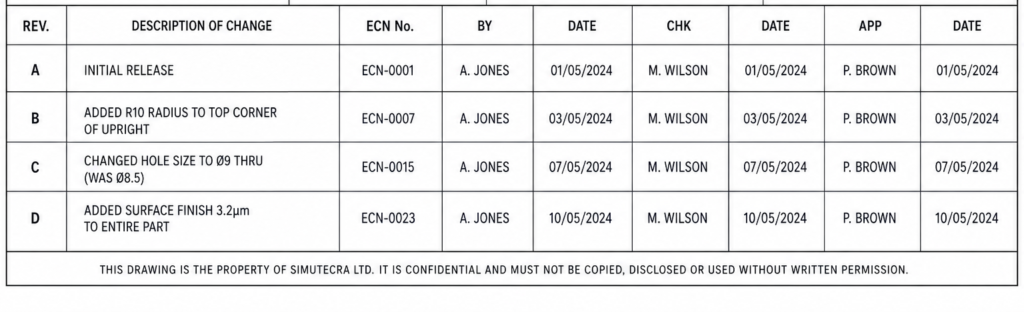
    Using outdated P&ID revisionYou plan maintenance based on wrong valve locationsAlways verify drawing revision against the facility document register before any field work.
    Ignoring the legend sheetCompany-specific symbols misread as standard onesRead the legend and symbol key first on any unfamiliar drawing set. Never assume standard symbols.
    Confusing ISA and ISO symbol setsGlobe valve looks like a different valve typeCheck the title block for the standard applied. ISA and ISO have significant symbol differences.
    Treating P&ID as a piping layoutWrong expectations about physical pipe routingP&IDs are schematic, not spatial. Use isometric drawings for actual routing and dimensions.
    Not reading control loop numbersInstruments in the same loop not identifiedThe loop number after the letters connects all related instruments. Always trace the full loop.
    Ignoring fail position on valvesValve behaviour during shutdown misunderstoodFC (fail closed), FO (fail open), FL (fail last) on actuated valves defines safety behaviour.
    Not checking battery limit tie-insSystem scope undefined, cross-boundary work missedBattery limit boxes define where P&ID sheets connect. Always trace to the adjacent sheet.
    Missing safety instrumented functionsSIF trips and interlock logic not identifiedHexagon symbols and SIS loop numbers flag safety functions. These have priority over all other operations.
    Reading from left to right onlyControl loops missed because instruments branch upP&IDs are not linear. Follow signal lines in all directions from each instrument bubble.
    Assuming unlabelled valves are minorUnlabelled isolation valves can affect LO/TO scopeEvery valve on a P&ID is intentional. If it has no tag, it still affects isolation and maintenance planning.

    Conclusion:

    Everything in a process plant starts and ends with the piping and instrumentation diagram. It is the drawing that design engineers use to specify every component. It is the document that operations teams use to understand what they are running. It is the reference that maintenance teams use to plan every isolation and every instrument calibration. And it is the record that regulatory bodies and insurance assessors use to verify that the plant is built and operated as designed.

    Reading a P&ID fluently takes practice, but the underlying system is logical. The ISA 5.1 tag structure encodes the function of every instrument in a consistent, decodable format. The symbol library distinguishes every valve type and every equipment category. The line notation captures every pipe attribute in a compact reference. The control loop tracing connects measurement to control action in a traceable graphic.

    In 2026, P&IDs are becoming more powerful through digitisation: searchable engineering databases, AI-assisted legacy digitisation, digital twin integration, and CMMS linkage that makes the drawing actively useful during operations rather than only during design. The drawings are changing format and gaining machine-readability. The fundamental skill of reading them accurately has not changed and will not change.

    Read the legend. Trace the loops. Check the revision. Never assume.

    Frequently Asked Questions

    What is a P&ID drawing?

    A P&ID (Piping and Instrumentation Diagram) is an engineering drawing that shows every pipe, valve, instrument, and control element in a process system. It includes pipe sizes and material specifications, every valve by type and tag number, every instrument with its ISA tag, the control loops connecting instruments to controllers and final control elements, and all safety systems including pressure relief valves and emergency shutdowns. P&IDs are used throughout the life of a plant: during design, construction, operations, and maintenance. They are not spatial drawings. They show what components exist and how they are connected, not where they physically sit in the plant.

    How do you read an instrument tag on a P&ID?

    An instrument tag on a P&ID follows the ISA 5.1 standard format: letters followed by a loop number. The first letter indicates the measured variable (F for Flow, T for Temperature, P for Pressure, L for Level). Subsequent letters indicate the function (I for Indicate, C for Control, T for Transmit, S for Switch). The number identifies the control loop. So FIC-101 means: Flow (F) + Indicating (I) + Controller (C) in loop 101. All instruments with the number 101 belong to the same control loop. The bubble shape around the tag indicates instrument location: a plain circle is field-mounted, a circle with a line is panel-mounted.

    What is the difference between a P&ID and a process flow diagram?

    A Process Flow Diagram (PFD) shows the high-level overview of a process: major equipment, main process streams, and key operating conditions. It contains limited valve detail and shows only key instruments. A P&ID shows every pipe with its size, material specification, and insulation requirement, every valve by type, every instrument with its tag and loop number, and all safety systems. A typical process unit might have 10 to 30 PFD sheets and 100 to 300 or more P&ID sheets for the same scope. PFDs are used for process understanding and early design. P&IDs are the primary reference for detailed engineering, construction, operations, and maintenance.

    What does fail closed (FC) and fail open (FO) mean on a P&ID valve?

    FC (fail closed) and FO (fail open) are fail-safe position designations on actuated control valves. FC means the valve moves to the fully closed position if it loses its actuating signal, whether that signal is air pressure, electrical power, or hydraulic supply. FO means it moves to the fully open position on signal loss. FL (fail last or fail locked) means the valve stays in its last position when signal is lost. These designations define the safe state of the process on instrument or utility failure and are critical information for process hazard analysis, shutdown planning, and operations procedures. Always check the fail position before operating or isolating an actuated valve.

    What is a control loop on a P&ID?

    A control loop on a P&ID is the complete set of instruments and connections that measure a process variable, compare it to a setpoint, and adjust a final control element to bring the variable to target. A basic loop contains three elements: a transmitter that measures the variable (such as a flow transmitter FT-101), a controller that calculates the required output (FIC-101), and a final control element that acts on the process (a control valve FV-101). All three share the loop number 101. Signal lines on the P&ID connect these elements to show the measurement path from the process to the transmitter, the signal path to the controller, and the output path to the control valve.

    Are P&IDs the same as piping drawings?

    No. P&IDs and piping drawings serve completely different purposes. A P&ID is a schematic diagram showing what components exist and how they connect functionally. It has no scale, no spatial accuracy, and does not show the physical routing of pipes through the plant. Piping drawings, including isometric drawings and piping general arrangement drawings, show the actual three-dimensional routing, dimensions, support locations, and physical configuration of the pipework. An engineer needs both: the P&ID to understand what is connected and why, and the piping drawing to understand where it physically goes and how to access it in the field.


    ISA (International Society of Automation) — ANSI/ISA-5.1-2024 Standard Overview ()

  • How CAD Drafting Is Used in Structural Steel Detailing | SimuTecra

    How CAD Drafting Is Used in Structural Steel Detailing | SimuTecra

    A structural engineer’s design drawings tell you what to build. A steel detailer’s shop drawings tell you exactly how to build it. Without that second set of documents, fabricators are left guessing, and guessing in structural steel is a problem that shows up on-site as misaligned connections, wrong-length members, and weeks of expensive rework.

    Structural steel detailing is the discipline that bridges the gap between engineering design and fabrication. It takes the structural engineer’s intent, member sizes, load paths, connection zones, and translates it into manufacturing-ready drawings that a steel fabricator can actually work from. This guide explains what steel detailing is, what a complete shop drawing package includes, how the process works, and what happens when any part of it is done poorly.

    Structural steel shop drawing showing beam and column layout with member marks, dimensions, and connection references
    A typical structural steel shop drawing package, the fabrication document that turns engineering design into build-ready instructions.

    What Is Structural Steel Detailing?

    Structural steel detailing is the process of producing detailed technical drawings for every component of a steel-framed structure, every column, beam, brace, connection plate, and anchor bolt, with enough precision that a fabricator can manufacture each piece in a workshop without ever visiting the construction site.

    The structural engineer defines the design: which member sizes carry which loads, where the columns go, what the connection zones look like. The steel detailer translates that design into fabrication instructions: exact cut lengths, hole patterns, weld specifications, bolt grades, member mark numbers, and surface treatment requirements. These are two fundamentally different documents serving two different audiences.

    Structural engineers define the ‘what’ and ‘why’ of a steel structure. Steel detailers define the ‘how’, in enough detail that fabrication can begin without further interpretation.

    In practice, structural engineers do not typically produce shop drawings, and fabricators cannot manufacture complex steelwork from structural design drawings alone. The detailer occupies the critical middle ground, and their work directly determines whether steel arrives on site fitting correctly or requiring costly modification.

    Who Uses Steel Shop Drawings?

    • Steel fabricators: Use shop drawings as the primary manufacturing document. Every cut, drill, bend, and weld is made to the shop drawing specification.
    • Site erectors: Use erection drawings (a subset of the shop drawing package) to locate, orient, and assemble steel members in the correct sequence.
    • Structural engineers: Review and approve shop drawings before fabrication begins, confirming they accurately represent the design intent.
    • Contractors and project managers: Use the drawing package for programme planning, procurement, and site coordination with other trades.
    • Inspectors and certifiers: Reference shop drawings during quality assurance inspections to verify that fabricated members match the approved specification.

    What a Complete Steel Shop Drawing Package Includes

    A shop drawing package is not a single sheet, it is a coordinated set of documents covering every aspect of the steel structure from overall layout down to individual component fabrication. Here are the five core drawing types that make up a complete package:

    Drawing TypeWhat It ShowsWho Uses It
    General Arrangement (GA) DrawingThe overall steel framework, column grid, beam layout, levels, key dimensions, and member mark references. The big-picture roadmap of the structure.All stakeholders: engineers, fabricators, erectors, contractors. Always the first document reviewed.
    Fabrication Shop DrawingIndividual member details, exact lengths, cross-section sizes, hole locations, end cuts, weld preparation, surface treatment, and member mark numbers.Steel fabricator in the workshop. This is the primary manufacturing document.
    Connection Detail DrawingHow members are joined, end plate dimensions, bolt specifications (grade, size, spacing), weld types (fillet, groove), stiffener plates, cleats, and gussets.Fabricator and structural engineer. Connection details are the most safety-critical drawings in the package.
    Erection DrawingSite assembly instructions, member marks matched to positions on the structure, erection sequence, temporary bracing requirements, and orientation notes.Site erectors and crane operators. Governs how and in what order steel goes up.
    Anchor Bolt / Baseplate DrawingThe interface between the steel structure and its foundations, anchor bolt patterns, projection heights, baseplate dimensions, grout details.Civil/structural engineer and site team. Must be issued before concrete is poured.

    What a Fabrication Shop Drawing Contains in Detail

    The fabrication drawing is the most detail-intensive document in the package. For every individual steel member, whether it is a 200 mm universal column or a 12 m long crane beam, the fabrication drawing includes:

    • Member mark number (a unique identifier used to track the piece from workshop to site)
    • Cross-section size and steel grade (e.g. 310UC97 Grade 350, or W12x96 A992)
    • Overall length and end-to-end dimensions
    • Hole pattern: diameter, spacing, edge distance, and bolt gauge lines for every connection
    • End preparation: square cut, coped, notched, or shaped to suit the connection
    • Weld callouts: weld type, size, length, and location using standard weld symbols
    • Stiffener plates, web plates, flange plates, and any additional fabricated elements
    • Surface finish: bare steel, primed, hot-dip galvanised, or intumescent coated
    • Weight of the finished member (for crane planning and logistics)
    A typical structural steel shop drawing package, the fabrication document that turns engineering design into build-ready instructions.
    Connection detail drawings specify every bolt, weld, and plate dimension, leaving no interpretation to the fabricator.
    Common problem: Connection details are the most frequently incomplete element of a structural engineer’s drawing package. When connection geometry is not specified by the engineer, the steel detailer is responsible for designing and calculating the connections, adding scope, time, and coordination requirements to the detailing process. Clarify this responsibility before starting any steel detailing engagement.

    The Steel Detailing Process: From Design Intent to Fabrication-Ready Drawings

    Steel detailing follows a structured sequence. Compressing or skipping any stage increases the risk of errors that compound through fabrication and into site installation. Here is how a properly managed steel detailing process works:

    Stage 1: Design Review and Input Gathering

    The detailer starts by reviewing the structural engineer’s drawings in full, checking member sizes, connection zones, load transfer paths, and any special requirements. Before any drawing is started, every piece of missing information is identified and resolved. Structural drawings that leave connection design to the detailer require additional coordination before work can begin.

    Best practice: Issue a formal Request for Information (RFI) log at the start of every steel detailing project. Capturing all ambiguities before detailing starts prevents revision cycles later, each revision to a fabrication drawing after approval costs far more than the time spent resolving the RFI upfront.

    Stage 2: 3D Modelling

    Most professional steel detailing today begins with a 3D model built in Tekla Structures, Advance Steel (AutoCAD), or Revit. The structural framework is modelled in full, every column, beam, brace, connection plate, and bolt, before any 2D drawings are produced. The 3D model serves as the single source of truth for all geometry.

    The 3D modelling stage is where clash detection happens: two members occupying the same space, a beam centreline that misses the column by 20 mm, a stiffener plate that conflicts with a bolt head. Catching these in the model costs minutes. Catching them during fabrication costs days.

    Stage 3: Drawing Generation and Annotation

    With the 3D model complete and clash-free, 2D fabrication drawings are generated directly from the model geometry. Each drawing is then annotated with member marks, dimensions, hole callouts, weld symbols, material grades, surface treatment, and any special notes. The drawings are checked against the structural engineer’s specifications and reviewed internally before submission.

    Stage 4: Engineer Review and Approval

    The complete drawing package is submitted to the structural engineer of record for review. The engineer checks that every drawing accurately reflects the design intent, member sizes, connection types, load paths, and any project-specific requirements. Comments are returned, revisions are made, and the cycle continues until the drawings receive an approved-for-fabrication stamp.

    Drawings issued for fabrication without engineer approval are a liability risk for every party in the supply chain. Approved-for-fabrication status is a non-negotiable gate before any steel is cut.

    Stage 5: Issue and Fabrication

    Approved drawings are issued to the fabricator, along with any associated NC (numerical control) data files for automated cutting and drilling equipment. The fabricator manufactures each member to the drawing specification, marks it with its member number, and stages it for delivery to site in erection sequence.

    Structural steel building frame being erected on a construction site, with columns and beams assembled from shop-fabricated and marked steel members
    Every member arriving on site has been cut, drilled, and marked in the fabrication shop to the approved shop drawing, making erection a process of assembly, not guesswork.

    What Happens When Steel Detailing Is Done Poorly

    The consequences of poor steel detailing are not abstract, they appear as concrete, measurable problems on the fabrication floor and construction site. Here are the most common failure modes and what they cost:

    ProblemHow It Manifests on SiteTypical Cost Impact
    Incorrect hole patternsBolts do not align when members are brought together on site. Holes must be reamed, slotted, or in severe cases the member returned for refabrication.High. Reaming is labour-intensive; refabrication requires remobilising the fabricator and delays the erection programme.
    Wrong member lengthsBeams arrive too long or too short for their connections. Short members may require extension plates; long members cannot be forced into position.High. Extension plating requires engineer approval and adds welding work on site, where quality control is harder than in the workshop.
    Missing connection detailsFabricator encounters a connection type not shown on the drawings and makes an assumption. The assumption is wrong. Connection is built incorrectly.Very high. Structural integrity is compromised. Engineer review, remediation work, and potential programme shutdown may follow.
    Outdated revision used for fabricationSteel is manufactured to a superseded revision of the drawing. Members arrive on site that do not match the current design intent.High to very high depending on scope. Worst case is a full batch of steel scrapped and refabricated.
    Clashes not resolved before fabricationTwo members designed to share the same space conflict during erection. Field modifications are made on site without engineering review.Medium to high. Field modifications are expensive, slow, and often structurally suboptimal. Liability exposure increases significantly.

    Standards That Govern Structural Steel Detailing

    Steel detailing does not operate in a standards vacuum. The drawings must comply with the applicable structural design code and the industry standards governing fabrication quality and drawing presentation. The most commonly referenced are:

    • AISC (American Institute of Steel Construction): Governs structural steel design and fabrication in the United States. The AISC Code of Standard Practice defines the division of responsibility between engineers, detailers, and fabricators, including who is responsible for connection design when not specified by the engineer.
    • AWS D1.1 (American Welding Society): The structural welding code referenced on US shop drawings for all weld specifications. Weld symbols, procedures, and inspection requirements are governed by this standard.
    • ASTM material standards: Define the steel grade (e.g. ASTM A992 for wide flange sections, ASTM A36 for plates). Material callouts on shop drawings reference these standards directly.
    • Eurocode 3 / BS EN 1993: The structural steel design standard used across Europe and increasingly in international projects. Detailing conventions differ from AISC in member designation, weld symbols, and bolt standards.

    For international projects: Always confirm which standard set applies before beginning detailing. A drawing package produced to AISC standards and submitted to a European fabricator may use member designation systems, weld symbols, and bolt standards that the fabricator interprets differently. Agreeing the applicable standards at the start of the project is a 30-minute conversation that prevents a multi-week misunderstanding.

    Frequently Asked Questions

    What is the difference between structural engineer’s drawings and shop drawings?

    Structural engineer’s drawings define the design, member sizes, load paths, connection zones, and overall layout. They communicate design intent but typically do not contain enough fabrication detail to manufacture from directly. Shop drawings, produced by the steel detailer, translate that design into exact manufacturing instructions: cut lengths, hole patterns, weld callouts, and surface treatments. Both sets of drawings are required on any significant steel project.

    What software is used for structural steel detailing?

    Tekla Structures (by Trimble) is the most widely used dedicated steel detailing platform, particularly for complex projects. Advance Steel (Autodesk, built on AutoCAD) is common in North America and Australia. Revit with structural extensions is used where BIM coordination is the primary requirement. Traditional 2D detailing is still done in AutoCAD for simpler projects or where the client requires 2D-only deliverables.

    Who is responsible for connection design, the engineer or the detailer?

    This depends on what the structural engineer’s drawings specify. Where connection geometry is fully specified by the engineer, the detailer documents it. Where connections are left unspecified or noted as ‘connection by detailer’, the steel detailer is responsible for designing and calculating the connection, a responsibility that requires structural knowledge, not just drafting skill. The AISC Code of Standard Practice governs this split of responsibility in the US.

    How long does a steel detailing package take to produce?

    It depends entirely on the scope and complexity of the structure. A simple single-storey industrial shed might be detailed in one to two weeks. A multi-storey commercial building with complex connections and BIM coordination requirements could take two to four months. The critical path items are always the completeness of the input drawings, the speed of engineer review and approval, and the management of RFIs. Incomplete inputs are the most common cause of detailing delays.

    What file formats are delivered as part of a steel detailing package?

    Typically: PDF (for drawing review and site use), DWG or DXF (for 2D CAD files), and IFC or native Tekla/Revit files (for 3D BIM model delivery). NC files (CNC cutting and drilling data) are often included for modern fabrication facilities with automated equipment. The required formats should be agreed with the fabricator and engineer before detailing begins.

    The Bottom Line

    Structural steel detailing is not a back-office function, it is the document control system that determines whether a steel structure gets built correctly, on time, and without costly surprises. Every bolt, weld, and cut on the fabrication floor is made to a shop drawing. When those drawings are complete, coordinated, and approved, fabrication runs smoothly and steel arrives on site fitting where it should.

    When they are incomplete, ambiguous, or produced from inadequate inputs, the problems that follow, misaligned connections, wrong-length members, clashing geometry, rejected inspections, are expensive, time-consuming, and entirely avoidable with a properly managed detailing process.

    Whether you are a fabricator needing a complete shop drawing package, a contractor managing a steel structure project, or an engineer looking for a detailing partner who will coordinate closely through the approval cycle, that is the work SimuTecra’s structural team does.


    You can download the full Steel building DWG file here

    Need Steel Detailing Drawings Done Right?
    SimuTecra produces complete structural steel detailing packages, GA drawings, fabrication shop drawings, connection details, and erection drawings, for fabricators, contractors, and engineering firms. Delivered to AISC, AWS, or client-specified standards.
    Send us your structural drawings and we will come back with a clear scope, timeline, and quote.
  • FEA Explained: How Finite Element Analysis Is Used in Structural Engineering Design

    $41.3 billion  FEA software market value in 2026, growing at 13.5% CAGR through 2031 (Mordor Intelligence)
    55.8%  of FEA software usage attributed to structural analysis as of 2025
    57%  of new FEA users now preferring cloud-based SaaS platforms for remote collaboration

    Introduction: Why Structural Engineers Cannot Afford to Ignore FEA

    In 2026, a structural engineer who relies entirely on hand calculations for complex geometry is working with one hand tied behind their back. Not because hand calculations are wrong, but because there are problems they simply cannot solve with the tools available to them without making assumptions that introduce unacceptable risk.

    Finite element analysis in structural engineering is the method that removes those restrictions. It handles irregular geometry, multiple simultaneous load types, material behaviour past yield, dynamic response, contact between surfaces, and hundreds of other conditions that closed-form equations cannot address without significant simplification.

    This guide explains what FEA is, how it actually works under the hood, what types of structural FEA analysis exist, how to approach meshing correctly, which software platforms are used in practice, and the specific mistakes that turn a technically impressive model into a result no engineer should trust.

    If you are a structural engineer who wants to understand FEA more deeply, a project engineer reviewing an FEA report, or a graduate trying to build a practical foundation in simulation, this guide is written directly for you.

    Quick answer:  Finite element analysis (FEA) is a numerical method that divides a structure into small elements, solves the governing equations for each element, and assembles the results to predict how the whole structure responds to loads. It gives engineers a detailed stress and deformation map of any geometry, under any loading, before physical construction begins.

    Image 1: FEA Stress Result on a Steel Connection with Mesh Visible

    FEA Stress Result on a Steel Connection with Mesh Visible

    A von Mises stress plot on a steel bracket or bolted connection, with the mesh visible as a wireframe overlay. The colour scale runs from blue (low stress) through green and yellow to red (peak stress at the stress concentration). Show the mesh refinement at the fillet and hole edges. Include a colour legend and key result annotations: peak stress value, location, and scale bar. Place directly after the introduction. This is the most searched FEA image type and immediately establishes visual credibility with a technical audience.

    What Is Finite Element Analysis? The Clear Explanation

    Start with the name itself. Finite element analysis has three words that each carry meaning.

    • Finite: the structure is divided into a large but countable number of pieces, not an infinite continuum.
    • Element: each piece is a simple geometric shape, typically a tetrahedron, hexahedron, or triangular shell, with known mathematical behaviour.
    • Analysis: the solver applies physics equations to each element, assembles the global system, and solves for displacements, stresses, strains, temperatures, or other quantities.

    The genius of the method is that equations which are unsolvable analytically for a complex shape become tractable when that shape is broken into thousands of simple pieces. Each simple element has a known stiffness relationship between its nodes. Assemble all of those relationships and you have a global stiffness matrix that, once inverted or iteratively solved, gives you the displacement at every node in the model.

    From displacements, the solver calculates strains. From strains, using the material’s constitutive law, it calculates stresses. The result is a full-field picture of how the structure behaves, not just a worst-case value at a pre-selected point.

    The Glass Box Analogy

    Imagine filling a complex structural shape with a dense mesh of tiny Lego bricks. Each brick connects to its neighbours at the corners. Apply a load to the top and the bricks transmit force through the network down to the supports. The more bricks you use, the more accurately the network represents the smooth behaviour of the real material. FEA analysis works exactly like that, except the bricks are mathematical elements whose force-displacement behaviour is precisely defined.

    FEA vs Traditional Structural Analysis

    The decision about when to use FEA in structural engineering versus hand calculation is not about capability, it is about appropriateness.

    FactorHand CalculationFinite Element Analysis
    Geometry complexityBest for simple shapesHandles any geometry
    Time to resultHours to days for complex casesMinutes once model is built
    Stress concentrationEstimated with stress factorsDirectly visualised at node level
    Design iterationsSlow, recalculate from scratchFast, change geometry and rerun
    Dynamic loadingSimplified assumptionsFull modal and transient analysis
    Material nonlinearityManual approximationBuilt into solver directly
    Confidence for sign-offStrong for standard casesRequired for complex structures
    Audit trailCalculation sheetsModel file plus report
    Who checks itPeer review of calcsPeer review of model and results
    Stage 1: Solid Modeling for the Structural Casing
    Practical rule:  If your structure is regular geometry with standard loading and standard boundary conditions, a well-executed hand calculation is faster and just as reliable. Use FEA when the geometry is complex, the loading is non-standard, the failure mode is not covered by your code’s simplified rules, or when the consequences of being wrong are high.

    How Finite Element Analysis Works: Step by Step

    Understanding the process from problem definition to signed-off result is what separates engineers who use FEA confidently from those who run the software and hope for the best. Here is the full workflow.

    Step 1: Define the Problem and the Objective

    Before opening any software, answer three questions. What loading does this structure carry? What failure modes are you checking? And what result do you need to make a design decision?

    This step is where most poorly executed FEA goes wrong. Engineers open the software, import geometry, apply loads, and run the solver without being explicit about what they are trying to learn. A stress check for a static load case is a fundamentally different model to a buckling check or a fatigue assessment. The objective defines everything that follows.

    Step 2: Prepare and Simplify the Geometry

    Real CAD geometry is almost never suitable for direct FEA meshing. It contains small features such as chamfers, fillets smaller than your mesh density, bolt threads, and cosmetic details that create a poor mesh without improving accuracy.

    Geometry preparation means removing features that do not affect the structural response in the region of interest, defeaturing areas away from the critical zone, and adding idealised representations of connections and supports. This step takes significant engineering judgment. Removing the wrong feature changes the answer. Leaving in unnecessary detail wastes computation time without improving accuracy.

    Step 3: Define Materials

    Every element in the model needs a constitutive model: the mathematical relationship between stress and strain for that material. For linear elastic analysis, this is simply Young’s modulus (E) and Poisson’s ratio (nu). For nonlinear work, you add yield strength, hardening behaviour, fracture properties, or time-dependent creep parameters.

    Common error:  Accepting default material properties from the software’s library without verifying they match your actual material grade and condition. The difference between a generic steel and a specific S355 J2 in the post-yield regime can produce structurally significant errors in a nonlinear analysis.

    Step 4: Apply Boundary Conditions and Loads

    Boundary conditions define how the structure is supported. A fixed support prevents all displacement and rotation at its nodes. A pinned support prevents displacement but allows rotation. A roller prevents displacement in one direction only. Getting boundary conditions wrong is the single most impactful error you can make in structural FEA because they fundamentally change the load path and stress distribution throughout the entire model.

    Loads are applied as forces, pressures, accelerations, or thermal conditions. The key principle is to represent how loads actually enter the structure in physical reality. Applying a large point force to a single node creates an artificial stress singularity at that node because a real concentrated force is always distributed over a finite contact area.

    Step 5: Generate the Mesh

    Meshing divides the geometry into the finite elements that the solver will calculate. The mesh density drives both the accuracy of the result and the computational cost. Too coarse and peak stresses are underestimated. Too fine everywhere and the model takes hours to solve for no practical gain in accuracy in the regions that matter.

    The engineering approach to meshing is to allocate element density based on the gradient of the stress field. Regions where stress changes rapidly, around holes, welds, fillets, and connections, need a fine mesh. Regions with uniform stress distribution, the middle of a long beam span for example, can use a coarser mesh with no loss of accuracy.

    Mesh Convergence Study Graph Stress vs Element Size in FEA Analysis by simutecra
    Without a convergence study, there is no evidence the mesh is fine enough to trust the result.’

    Step 6: Mesh Convergence Study

    This step is not optional if you want results that can be defended. A mesh convergence in FEA study involves running the same model at progressively finer mesh densities in the critical regions and checking whether the peak result changes.

    The standard protocol:

    1. Run the model with a baseline mesh. Record peak stress and critical displacement.
    2. Refine the mesh density in the critical region by approximately 50 percent. Rerun.
    3. Compare results. If they differ by more than 5 to 10 percent, the original mesh was too coarse.
    4. Continue refining until the results change by less than 5 percent between successive runs.
    5. That final stable result is your converged solution. Everything before it was a coarse approximation.

    A minimum of four to five mesh density iterations is recommended for rigorous convergence studies. Two or three data points are insufficient to establish whether a true plateau has been reached or whether the curve is still descending.

    Why this matters in practice:  A model that deflects realistically may still produce unsafe design forces. Displacement results converge with much coarser meshes than stress results do. An engineer who verifies only deflection and assumes stress is also converged is drawing the wrong conclusion from partial evidence.

    Step 7: Run the Solver and Post-Process Results

    The solver assembles the global stiffness matrix, applies the boundary conditions and loads, and solves the resulting system of equations for nodal displacements. From those displacements, element stresses and strains are calculated at integration points and extrapolated to the nodes for display.

    Post-processing is where engineering judgment returns. The solver produces numbers. The engineer decides what those numbers mean. Check reaction forces and verify they match the applied loads in equilibrium. Confirm the deformed shape makes physical sense. Look at the stress distribution and ask whether it follows the load path you would expect. If anything looks unexpected, investigate before accepting the result.

    Von Mises stress is the most commonly used output for ductile metals because it combines the three principal stresses into a single equivalent stress that can be compared directly against yield strength. For brittle materials, principal stress or maximum tensile stress criteria are more appropriate.

    Types of FEA Analysis Used in Structural Engineering

    Different structural problems require different types of analysis. Using linear static when nonlinearity is significant is as wrong as using a transient dynamic solver for a structure that only sees static loads. Here is the full range of FEA analysis types used in structural engineering practice.

    Analysis TypeWhat It ChecksTypical Use Case in Structural Engineering
    Linear staticStress and deformation under constant loadsBeams, columns, frames under dead and live loads
    Nonlinear staticBehaviour beyond elastic limitsConnections, rubber components, post-yield design
    Modal analysisNatural frequencies and mode shapesTowers, bridges, floors subject to vibration
    Transient dynamicTime-varying load responseBlast, impact, seismic time-history
    Buckling analysisCritical load for instabilitySlender columns, thin-shell structures, offshore legs
    Thermal analysisTemperature distributionFire performance, thermal bridge assessment
    Fatigue analysisCumulative damage under cyclesWelded joints, crane girders, dynamic machinery
    Contact analysisForce transfer between surfacesBolted connections, base plates, bearing pads

    When Linear Static Is Not Enough

    Linear static analysis assumes small deformations, linear elastic material behaviour, and loads that do not change over time. For the majority of routine structural checks, these assumptions are reasonable and linear static gives accurate results efficiently.

    The assumptions break down when: deformations are large enough to change the load path (geometric nonlinearity), material behaviour goes past the elastic limit (material nonlinearity), or the structure is subject to loads that vary in magnitude or direction over time. In these cases, a nonlinear or dynamic solver is required.

    The practical test: if your applied loads exceed approximately 30 percent of the material’s yield strength at the critical point, or if deflections are comparable to the cross-section depth, linear static alone is insufficient and nonlinear analysis should be considered.

    Image 3: FEA Workflow Diagram: Problem Definition Through to Design Decision

    FEA Workflow Diagram Problem Definition Through to Design Decision

    A vertical process flow diagram showing the seven steps of an FEA workflow. Steps: (1) Define objective, (2) Prepare geometry, (3) Define materials, (4) Apply boundary conditions and loads, (5) Generate mesh, (6) Run convergence study, (7) Post-process and validate. Use colour coding: steps 1 and 2 in blue (pre-processing), step 3 in teal (materials), steps 4 and 5 in blue, step 6 in amber (critical quality step), step 7 in green (output). Add a feedback arrow from step 7 back to step 5 labelled ‘refine if not converged’. Place this in the step-by-step section as the visual summary of the entire process.

    FEA Mesh and Element Types: What Every Structural Engineer Should Know

    The mesh is not just the visual representation of your model. It is the mathematical approximation of your structure’s geometry. The type of element you choose and the density of the mesh in critical regions are two of the most consequential technical decisions in any FEA in engineering project.

    Element TypeGeometryWhen to UseWatch Out For
    TET4 (linear tet)4-node tetrahedronQuick concept checks onlySlow convergence, shear locking
    TET10 (quad tet)10-node tetrahedronGeneral solid, complex geometryHigher compute cost than TET4
    HEX8 (brick)8-node hexahedronRegular geometry, high accuracyHard to mesh curved features
    SHELL (thin plate)2D element in 3DPlates, walls, flanges under bendingAvoid for thick sections
    BEAM element1D in 3D spaceFrames, trusses, rebar in concreteCannot capture local stress detail
    CONTACT elementInterface pairConnections, base plates, bearingsRequires careful stiffness setup

    The TET4 Problem

    Linear tetrahedral elements (TET4) are the default automatic mesh type in many FEA packages because they can be generated quickly on any geometry without user intervention. They are also among the least accurate element types available for structural stress analysis.

    TET4 elements are excessively stiff in bending-dominated problems due to shear locking, and they converge slowly, meaning you need very large numbers of them to approach the true solution. In practice, a model built entirely from TET4 elements should be treated with significant scepticism unless an explicit convergence study has confirmed the result is stable. The better default for solid geometry is TET10, which adds mid-side nodes to improve accuracy substantially without requiring geometric regularity.

    Shell Elements for Plates and Walls

    When a structural element’s thickness is significantly smaller than its other dimensions, a solid mesh wastes degrees of freedom representing the thickness direction. Shell elements replace the through-thickness behaviour with a mathematical formulation based on thin plate theory, allowing plates, walls, flanges, and pressure vessels to be modelled with a single layer of elements.

    The critical judgment is the thickness-to-span ratio. When thickness exceeds approximately one-tenth of the shortest in-plane span, thin-shell assumptions become increasingly inaccurate and a solid element mesh should be considered instead.

    How FEA Is Applied in Structural Engineering Practice

    Building Structures

    In building design, FEA supplements rather than replaces code-based design methods. It is used for irregular structures where simplified frame analysis does not capture the actual load distribution, for transfer structures where loads are redirected in complex ways, for connection design where standard code tables do not cover the geometry, and for assessment of existing structures where as-built conditions differ from the original design.

    Seismic design increasingly uses nonlinear FEA for performance-based earthquake engineering assessments. A linear response spectrum analysis gives maximum forces under code-prescribed spectra. A nonlinear time-history analysis shows the actual sequence of yielding, the distribution of plastic deformation, and the residual state of the structure after the earthquake passes. The second approach requires more time and expertise but gives a fundamentally more realistic picture of structural performance.

    Bridge Engineering

    Bridge structures use FEA for deck behaviour under moving vehicle loads, fatigue assessment at welded details in steel bridges, thermal analysis for bearing and expansion joint design, and global analysis of cable-stayed and suspension bridges where geometric nonlinearity dominates the structural response under dead load.

    The fracture-critical nature of bridge structures means that FEA models for bridge assessment are subject to particularly rigorous peer review and validation requirements. An FEA result for a bridge fracture-critical member is not accepted without explicit convergence documentation and hand calculation verification of the global response.

    Offshore and Industrial Structures

    Offshore platforms, wind turbine foundations, and industrial process plant use FEA extensively for fatigue life assessment, where the cumulative damage from millions of load cycles at welded connections must be evaluated across a detailed stress transfer function. The combination of complex geometry, corrosive environment, dynamic loading, and significant consequence of failure makes hand calculation alone inadequate.

    The FEA software market for this sector is valued at USD 7.82 billion in 2026 and growing at 13.49 percent annually, reflecting the expanding use of simulation across the full asset lifecycle from design through inspection planning and fitness-for-service assessment.

    AI and Digital Twins in FEA

    The integration of AI in structural simulation is moving from research into production workflows in 2026. Topology optimisation, which uses iterative FEA to remove material from low-stress regions while maintaining structural performance, is now a standard feature in ANSYS, Abaqus, and SolidWorks Simulation. What previously required a research specialist is now a menu option.

    Digital twin applications connect live sensor data from instrumented structures to calibrated FEA models, enabling real-time structural health monitoring. A bridge instrumented with strain gauges and accelerometers feeds data to a continuously updated FEA model that flags anomalous behaviour before it becomes visible as cracking or deflection. One published Middle East refinery case study reported an 18 percent reduction in turbine downtime by linking vibration sensor feeds to FEA modal signatures.

    FEA Software for Structural Engineers: Honest Comparison

    The FEA software landscape in 2026 is dominated by a handful of commercial platforms, with a growing ecosystem of open-source alternatives for engineers and organisations where enterprise licensing costs are prohibitive. The top five vendors control 61 percent of market sales, but the best tool for a given project depends on the analysis type, budget, and the engineer’s existing skills.

    SoftwareDeveloperBest ForSolver StrengthAccess Model
    ANSYS MechanicalANSYS Inc.All structural typesMultiphysics, nonlinearCommercial, enterprise
    AbaqusDassault/SimuliaNonlinear, geotechnicalContact, soil plasticityCommercial, high-end
    NASTRANMSC/SiemensAerospace, large assembliesLinear, aeroelasticCommercial, aerospace
    STAAD.ProBentleyCivil structural framesCode checking integrationCommercial, civil
    SAP2000CSIBuildings and bridgesDynamic, pushoverCommercial, civil
    CalculiXOpen sourceGeneral structural FEALinear and nonlinearFree, ABAQUS-compatible
    Code_AsterEDF/openNuclear, civil, mechanicalNonlinear, fatigueFree, French standard

    Why Open Source FEA Is Growing

    Enterprise FEA seats cost between USD 30,000 and USD 150,000 per seat with annual maintenance fees exceeding 18 percent of the license cost. That economics model excludes roughly 70 percent of engineering firms with fewer than 50 engineers. The move of Fusion 360 Simulation to subscription-only licensing prompted 38 percent of surveyed users to explore open-source alternatives according to market research published in 2026.

    CalculiX, which uses an ABAQUS-compatible input format, and Code_Aster, developed by EDF for nuclear and civil applications, are the two strongest open-source structural FEA solvers. Both produce results comparable to commercial codes for linear and nonlinear structural problems and are actively maintained. The learning curve is steeper than commercial software with GUI interfaces, but the technical capability is genuine.

    8 Common FEA Mistakes That Invalidate Structural Results

    FEA is capable of producing a beautifully rendered, professionally coloured stress plot that is completely wrong. The software will not tell you when the inputs are bad. It will solve whatever you give it and produce a result. The engineering judgment that determines whether that result is trustworthy lives entirely with the analyst. These are the mistakes that most frequently produce unreliable output.

    MistakeWhat Goes WrongHow to Avoid It
    Mesh too coarse at stress risersPeak stress underestimated by 30-50%Refine mesh at holes, fillets, welds. Run convergence study.
    Wrong boundary conditionsResults bear no relation to realitySketch the real support condition. Pin vs fixed changes everything.
    Ignoring nonlinearityLinear model misses yield and bucklingCheck if loads exceed 30% of yield. Add geometric or material NL.
    Single mesh density, no checkNo evidence the result is convergedRun at least three mesh densities. Plot stress vs element size.
    Skipping hand calculation checkErrors go undetectedAlways sanity-check reaction forces and peak stress against a simple calc.
    Over-constraining the modelModel is artificially stiffApply only the constraints that physically exist. Review reaction forces.
    Applying loads to single nodesArtificial stress singularityDistribute load over area. Use coupling or surface pressure instead.
    Using default material propertiesWrong stiffness and strengthAlways verify E, nu, yield strength, density from your actual material.

    The Validation Principle

    Every FEA analysis result used for a design decision should be validated against at least one independent check. This does not mean running the same model twice. It means comparing the FEA result against a hand calculation for a simplified version of the same problem, against published benchmark data, against strain gauge measurements from physical testing, or against established code-based methods for an equivalent standard case.

    If the FEA result and the independent check agree within a reasonable margin, you have evidence the model is working correctly. If they disagree, you have an obligation to understand why before using either result for design.

    The auditable standard:  Without documented convergence and validation checks, simulation results cannot be considered defensible in a regulatory audit, a failure investigation, or a professional liability context. The technical standard for structural FEA is not ‘the model ran without errors.’ It is ‘the model has been demonstrated to produce a converged, validated result for the stated loading condition.’

    NAFEMS publishes the industry benchmark cases used to validate FEA software and the professional guidelines for simulation quality.

    What a Good FEA Structural Analysis Report Contains

    An FEA result that cannot be understood, verified, or reproduced by a peer reviewer is not engineering evidence. It is a picture. A properly structured FEA structural analysis report gives the reviewer everything needed to audit the analysis independently.

    • Scope and objective: what was analysed, why, and what design decision it supports
    • Model description: geometry assumptions, simplifications made, coordinate system
    • Material properties: source and values used for E, nu, yield strength, density
    • Boundary conditions: how the structure is supported, with diagrams of constraint locations
    • Load cases: each load case defined with magnitude, direction, application method
    • Mesh description: element types, density, and rationale for refinement in critical regions
    • Convergence study: table or graph showing results at multiple mesh densities
    • Results: stress, displacement, and any other relevant quantity with full-field plots and critical values identified
    • Validation: comparison against hand calculation or benchmark for a simplified equivalent
    • Conclusions: whether the design passes, what the governing failure mode is, and what margin remains

    For engineers who use AI tools to assist with FEA report writing, tools like Claude can take structured result data from your solver and generate a well-formatted technical report document. The engineering judgment, the validation, and the conclusions remain the engineer’s responsibility. The documentation layer, which is time-consuming and does not require further analysis, is where AI tools add legitimate value.

    Conclusion:

    There is a version of finite element analysis in structural engineering that gives engineers tremendous confidence in their designs. It is the version where the model has been built with clear objectives, appropriate geometry, verified material properties, realistic boundary conditions, a converged mesh, and validated results.

    And there is a version that produces beautiful colour plots attached to a design that later fails, because the mesh was not converged, the boundary conditions were wrong, or the result was never checked against anything independent. The software is identical in both cases. The difference is the engineering process around it.

    The engineers who use structural FEA most effectively are not the ones who know the most software features. They are the ones who ask the right questions before running the analysis, validate their results rigorously, and document their work in a way that a peer reviewer can audit without needing to rebuild the model from scratch.

    FEA does not replace engineering judgment. It amplifies whatever judgment you bring to it.

    Frequently Asked Questions

    What is finite element analysis (FEA)?

    Finite element analysis (FEA) is a numerical method that breaks a structure into thousands of small elements, calculates how each element behaves under applied loads, and assembles the results to show how the whole structure responds. It tells engineers where stress concentrations form, how much a structure deflects, and whether the design is safe, all before anything is physically built or tested.

    What is FEA used for in structural engineering?

    FEA in structural engineering is used to verify designs against code requirements, identify failure modes, analyse vibration and seismic response, check buckling in slender members, assess fatigue life at weld details and connections, and optimise material use. It applies to buildings, bridges, offshore platforms, towers, retaining walls, and any structure where hand calculation cannot adequately capture the geometry or loading complexity.

    How is FEA different from traditional structural analysis?

    Traditional structural analysis uses simplified closed-form equations that assume regular geometry and standard boundary conditions. FEA removes those geometric restrictions. It models any shape, any load combination, material nonlinearity, large deformations, and contact between surfaces. Hand calculation gives a single worst-case value. FEA gives the full stress distribution across the entire structure, showing exactly where critical regions are.

    What is mesh convergence and why does it matter?

    Mesh convergence is the process of checking that your FEA results do not change significantly when you refine the mesh. If results shift by more than 5 to 10 percent between mesh refinements, the mesh is too coarse and the answer is not reliable. Always run at least three mesh densities in critical regions and confirm the result has stabilised before using the output for design decisions.

    Which FEA software is best for structural engineering?

    For general structural engineering, SAP2000 and STAAD.Pro are the most widely used because they combine FEA solvers with built-in code checking for steel, concrete, and timber. For advanced nonlinear or multiphysics problems, ANSYS Mechanical and Abaqus are the industry benchmarks. CalculiX and Code_Aster are strong open-source alternatives for engineers with programming confidence.

    Can AI be used in FEA workflows?

    Yes. AI tools are being adopted in FEA workflows for automated mesh optimisation, AI-driven topology optimisation that generates material-efficient geometries, and natural language documentation of analysis reports. Tools like Claude can assist with writing FEA technical reports, structuring simulation briefs, interpreting result summaries, and converting raw solver output into formal engineering documentation, which significantly reduces the time spent on the communication layer of an analysis project.

  • The Most Common Types of Engineering Drawings (And What Each One Is Actually For)

    The Most Common Types of Engineering Drawings (And What Each One Is Actually For)

    If you’ve ever handed a design to a manufacturer and gotten back something completely wrong, there’s a good chance the issue wasn’t the design, it was the drawing. Understanding the different types of engineering drawings isn’t just technical trivia; it’s the difference between a project that flows and one that bleeds time and money on avoidable revisions.

    Engineering drawings are the universal language of making things. From a steel bracket for a conveyor system to an entire building’s HVAC layout, every physical product or structure gets communicated through drawings before it ever becomes real. But not all engineering drawings are the same, and using the wrong type, or misunderstanding what a drawing is supposed to communicate, is one of the most common and costly mistakes in product development and manufacturing.

    This guide covers the four most common drawing types, what each one does, who reads it, and where teams typically go wrong, followed by a quick-reference table and an FAQ optimised for the questions engineers and manufacturing managers are actually searching for.

    Quick Reference: Engineering Drawing Types at a Glance

    Drawing TypePrimary PurposeKey ContentWho Reads It
    Detail DrawingDefine how to manufacture a single partDimensions, tolerances, material, surface finish, GD&TMachinists, CNC operators, fabricators
    Assembly DrawingShow how parts fit and connectExploded or assembled view, BOM balloon callouts, clearancesTechnicians, assembly teams, QA inspectors
    Schematic / DiagramCommunicate system function and flowStandardised symbols, logic connections, not to scaleElectrical, instrumentation, process engineers
    Layout / GA DrawingDefine spatial arrangement within an envelopeOverall dims, equipment placement, clearances, interfacesAll disciplines, clients, contractors, planners
    most common types of engineering drawings

    An article from ScienceDIrect says: “The modern engineering drawing has become a very sophisticated method of relaying information about the geometry of parts and assemblies.”

    Detail Drawings, The Blueprint for a Single Part

    If you only know one type of engineering drawing, make it this one. A detail drawing, sometimes called a part drawing, is a fully dimensioned, annotated drawing of a single component. Its entire job is to give a manufacturer or machinist every piece of information they need to produce that one part exactly as designed. Nothing more, nothing less.

    A complete detail drawing includes orthographic views (front, top, side), all critical dimensions, tolerances, material specifications, surface finish requirements, and any relevant notes about manufacturing processes. In environments using GD&T (Geometric Dimensioning and Tolerancing), the detail drawing is also where those callouts live, defining not just size, but shape, orientation, and location of every controlled feature.

    A detail drawing is not a sketch. It is a legal-grade manufacturing document. Manufacturers produce exactly what the drawing says, not what you meant. Every ambiguity on a detail drawing is a defect waiting to happen on the shop floor.

    What it’s for: Manufacturing a single, discrete part. If someone at a machine shop is going to cut, mill, turn, or fabricate something from your design, they need a detail drawing.

    A detail drawing is also the document that gets revised when a part changes. Version control on detail drawings is not optional in a serious engineering environment, it is what keeps the machinist, the inspector, and the assembly technician all working from the same revision.

    Where teams go wrong: Over-constraining the drawing with redundant dimensions that create closed loops, making it mathematically impossible to satisfy all tolerances simultaneously. Equally common is leaving tolerances out entirely and assuming the shop will apply sensible defaults. Neither approach ends well.

    Assembly Drawings, Showing How the Parts Come Together

    Once you have individual parts designed, someone needs to understand how they fit together. That is the job of an assembly drawing. Rather than describing how to manufacture each component, an assembly drawing shows the spatial relationships between components, which part connects to which, in what orientation, and how the complete unit looks when assembled.

    Assembly drawings typically show the product in an assembled state, with callout numbers (called balloons) that correspond to a parts list or Bill of Materials (BOM). They do not include manufacturing dimensions, that information lives in the detail drawings. What they do include is clearances, mating features, fastener locations, and sometimes assembly sequence instructions.

    There are two common sub-types:

    General assembly (GA) drawings show the complete, final assembly at a high level, useful for understanding the overall product and communicating with clients, procurement teams, or project managers who need a picture of the whole before the parts.

    Sub-assembly drawings focus on a specific module or section of a larger product. A complex machine might have dozens of sub-assemblies, each with its own drawing, before they all come together in the general assembly. This keeps individual drawings readable and reduces the risk of assembly errors on the floor.

    Real-World Example: A Hydraulic Pump Unit
    Consider a small hydraulic pump unit being built for an industrial client. The pump housing, shaft, seals, and end plates each have their own detail drawing. The assembly drawing is what the technician in the assembly shop refers to during build, it shows which seal goes where, the correct bolt torque sequence, and how the shaft aligns to the motor. Without the assembly drawing, those individual detail drawings are a pile of disconnected information. With it, the build is repeatable by any trained technician, every time.

    What it’s for: Communicating assembly instructions to technicians, verifying that components fit together correctly before manufacturing begins, and supporting procurement by identifying all required parts in one document.

    Schematic and Diagram Drawings, Communicating Systems, Not Shapes

    Not every engineering drawing is about physical geometry. A significant category of drawings deals with systems, how energy, fluid, or signals flow through a design. These schematic and diagram drawings use standardised symbols rather than realistic shapes to communicate function. They answer ‘how does it work?’ rather than ‘how is it shaped?’

    The most common types in this category:

    Electrical schematics show how electrical components are connected, resistors, switches, relays, power sources, using standardised IEC or ANSI symbols. They do not show where components are physically located on a board; they show how they are logically connected. A schematic for a motor control panel maps every contact, coil, and protection device without any concern for physical layout.

    P&ID drawings (Piping and Instrumentation Diagrams) are the backbone of process engineering, oil and gas, chemical plants, water treatment facilities. A P&ID shows all piping, instrumentation, valves, and control elements in a process system, along with their interconnections. It is not drawn to scale, and it does not tell you where a pipe physically runs in a building, it tells you what connects to what and how the system is controlled.

    Wiring diagrams are a step closer to physical reality than schematics, they show actual wire routing between components and are commonly used by electricians and field technicians during installation. When a schematic answers ‘what is connected to what?’, a wiring diagram answers ‘which wire goes where?’

    A P&ID is not the same as a general arrangement drawing. A schematic is not a wiring diagram. In industries like oil and gas or industrial electrical, using the wrong drawing type to communicate system information creates real-world errors, and those errors can be costly or dangerous.

    What they’re for: Designing, troubleshooting, and communicating how a system functions. In maintenance and operations, technicians rely on schematic and diagram drawings daily to diagnose faults, plan modifications, and verify that systems are correctly configured.

    Layout and General Arrangement Drawings, The Big Picture

    Sometimes you need to step back from individual parts and systems and show the whole picture. Layout drawings, also called general arrangement or GA drawings in a spatial context, communicate how everything fits within a physical space or envelope. They are the coordination document: the drawing that aligns mechanical, structural, electrical, and civil disciplines before anyone starts building.

    These drawings are common in three broad contexts:

    Facility and plant design, where equipment placement, access paths, maintenance clearances, and structural interfaces all need to be coordinated across multiple engineering disciplines before any steel is ordered or any concrete is poured.

    Engineering Drafting - Simutecra

    Structural engineering, where a GA drawing might show beam placements, column grid lines, and connection locations across an entire building level, giving the structural team, the architect, and the MEP engineers a shared spatial baseline.

    Product packaging and enclosure design, where a layout drawing shows how components fit inside a chassis, panel, or housing, ensuring that every PCB, connector, cooling element, and cable run actually fits before detailed design work begins on each individual part.

    A layout drawing answers ‘where does everything go?’, not ‘how is each part made?’ These are different questions that require different documents. When layout drawings start accumulating manufacturing dimensions, they become ambiguous and difficult to maintain.

    What it’s for: Spatial coordination, client approval, interdisciplinary design review, and installation planning. In construction and large-scale engineering projects, the layout drawing is often the first drawing reviewed in any project meeting, because it gives everyone in the room a shared spatial understanding of what is being built.

    What to watch out for: Layout drawings can become a crutch. Some teams try to include too much detail in a layout drawing, blurring it with detail drawings or assembly drawings. Keep your drawing types disciplined. The moment a layout drawing tries to be everything, it becomes useful to no one.

    Putting It All Together, Which Drawing Do You Actually Need?

    Before a design goes into production, a complete drawing package typically includes all four types working together. A practical way to decide which drawings your project needs:

    QuestionIf YesDrawing Type Needed
    Will someone manufacture this part from scratch?YesDetail Drawing
    Does someone need to assemble multiple parts together?YesAssembly Drawing (GA or Sub-Assembly)
    Does the product involve electrical, fluid, or gas systems?YesSchematic / P&ID / Wiring Diagram
    Does the design need to fit within a space or facility?YesLayout / General Arrangement Drawing
    Is this a complex product with all of the above?YesFull drawing package, all types working together

    Experienced engineers and CAD teams don’t think in terms of ‘just drawing something.’ They think in terms of what each drawing needs to communicate, and to whom. A detail drawing speaks to a machinist. An assembly drawing speaks to a technician. A schematic speaks to an instrumentation engineer. A layout drawing speaks to everyone in the room.

    The moment you start expecting one drawing type to do another’s job, the communication breaks down, and that breakdown shows up later as rework, delays, or parts that simply do not fit.

    A Note on Standards

    Engineering drawings do not exist in a vacuum. They follow international or regional standards that define everything from line weights and title block formats to how tolerances and symbols are expressed. The two most common frameworks are ASME Y14 (widely used in North America, especially in manufacturing and mechanical engineering) and ISO 128 (dominant in Europe and international projects).

    Understanding which standard your project or client uses matters. A drawing that is perfectly correct under one standard can be ambiguous or misread under another. When working with international suppliers or distributed manufacturing, always state the applicable standard in the title block of every drawing, and verify that all parties are reading from the same convention.

    Common Mistakes When Working With Engineering Drawing Types

    Getting drawing types right is half the battle. These are the most common errors seen when teams misapply or misunderstand their drawing package:

    MistakeWhat Goes WrongHow to Avoid It
    Using a layout drawing instead of a detail drawingThe manufacturer has spatial context but no dimensions, tolerances, or material specs. The part gets made wrong or the shop asks for a complete re-draw.Produce a detail drawing for every unique manufactured component. Layout drawings support coordination, they do not replace manufacturing documentation.
    Expecting one assembly drawing to cover everythingComplex products with dozens of sub-assemblies become unreadable when forced into one drawing. Technicians miss components or misread orientations.Break large assemblies into logical sub-assembly drawings. Each sub-assembly gets its own drawing. The general assembly references them all.
    Confusing a schematic with a wiring diagramA schematic shows logical connections. A wiring diagram shows physical routing. Using one when you need the other causes field installation errors.Use schematics for design and troubleshooting. Use wiring diagrams for physical installation. Produce both for complex electrical systems.
    Mixing drawing standards (ASME vs ISO) in one packageProjection angles, tolerancing conventions, and symbol interpretations differ between standards. Mixed packages create ambiguity that shows up as machined errors.Establish one standard per project and apply it throughout. State the applicable standard in the title block of every drawing.

    Frequently Asked Questions

    1. What is the difference between a detail drawing and an assembly drawing?

    A detail drawing defines how to manufacture a single part, it contains all dimensions, tolerances, and material specifications for that component in isolation. An assembly drawing shows how multiple parts fit together in the final product. It references detail drawings through a parts list but does not contain manufacturing dimensions itself.

    2. Do I need all types of engineering drawings for every project?

    No. The drawing package you need depends on the complexity of your product. A simple machined bracket might only need one detail drawing. A complete industrial machine will need detail drawings for every custom component, assembly drawings at sub-assembly and general assembly level, schematic drawings if it has electrical or pneumatic systems, and a layout drawing if it needs to be integrated into a facility.

    3. What is a P&ID drawing and when is it used?

    A P&ID (Piping and Instrumentation Diagram) is a type of schematic drawing used in process engineering, oil and gas, chemical processing, water treatment, and similar industries. It shows all piping, valves, instrumentation, and control systems in a process, along with how they are interconnected. It is not drawn to scale and does not show physical routing, it communicates system logic.

    4.What standards apply to engineering drawings?

    The two primary frameworks are ASME Y14 (used widely in North America, particularly in manufacturing and mechanical engineering) and ISO 128 (dominant in Europe and international projects). These standards govern projection method, line types, title block content, and tolerancing conventions. GD&T specifically follows ASME Y14.5 or ISO 1101. Always confirm which standard applies before producing or reviewing a drawing package.

    5. What is a general arrangement (GA) drawing?

    A general arrangement drawing, sometimes called a layout drawing, shows the overall spatial organisation of a product, system, or facility. It communicates where everything sits relative to everything else: overall envelope dimensions, major component positions, access clearances, and key interfaces. It is the coordination document used across engineering disciplines and with clients.

    The Bottom Line

    Engineering drawings are the contract between designers and builders. When they are done right, correct type, correct content, correct standard, they eliminate ambiguity and let production move with confidence. When they are done wrong or misunderstood, the costs show up in ways that are rarely traceable back to the drawing itself: defective parts, assembly failures, missed timelines.

    Whether you are building a single custom component or managing a complex multi-discipline project, getting your drawing types right from the start is not a formality. It is a foundation.

    Need Drawings That Work the First Time?
    At Simutecra Engineering Services, our engineering team handles CAD drafting and 3D modeling for mechanical and structural projects of all scales, from individual part drawings to full assembly and layout packages. We produce drawing sets that are correctly typed, correctly formatted, and correctly toleranced from the start.Share your project requirements and we will review your current drawing package or build a new one, the right drawing types, done correctly.
    Reach out to us today, Simutecra

  • Claude AI for Technical Documentation: Save 80% of Your Writing Time

    Claude AI for Technical Documentation: Save 80% of Your Writing Time

    The Writing You Were Not Hired to Do

    Every product engineer, mechanical designer, and technical specialist knows the feeling. You spent three days designing a part, running analysis, and solving problems that genuinely needed an engineering brain. Then you spend another three days writing about it.

    Technical documentation is not optional. User manuals, product spec sheets, installation guides, datasheets, engineering specifications, product descriptions for procurement: none of these can be skipped. But in 2025, a very large part of the writing work involved in creating them does not require your expertise. It requires structure, consistency, and clear language. Those are things Claude AI for technical documentation does exceptionally well.

    This guide shows you exactly how to use Claude to cut documentation time by up to 80%, with real prompts for every major technical document type an engineering team produces.

    Verified Real-World Results: Claude AI Documentation Productivity 2025TELUS:
    Saved over 500,000 hours using Anthropic Claude writing workflows across engineering and documentation tasks, shipping code and content 30% faster.
    Mintlify: Uses Mintlify Claude technical writing via Claude Code as their primary technical writing assistant for product documentation, reporting that Claude handles drafting, structure, and consistency better than any previous tool.
    Claude 200K context:
    Claude 200K context technical docs means Claude holds an entire product manual, specification set, or documentation suite in a single session without losing context between sections.
    80%documentation time savedEngineering teams using Claude for structured technical document drafting consistently report saving 70-80% of previous writing time. On a 40-hour week, that is 8-12 hours returned to engineering per writer per week.
    500K+hours saved by one companyTELUS saved over 500,000 hours using Claude-powered workflows across engineering, documentation, and development tasks in 2025, with 89% AI adoption across their entire organisation.

    What Claude AI Actually Does for Technical Writers and Engineers

    Claude AI for technical documentation is not a template filler or a grammar checker. It is a structured reasoning tool with a 200,000-token context window that can read, understand, and produce professional technical content across the full range of documentation an engineering team creates.

    Here is what makes it specifically suited to AI technical writing in engineering environments:

    Why Claude Works Particularly Well for Technical Documentation

    • Long-context coherence: Claude AI long-context documentation means Claude can read a 50-page product specification, understand the relationships between sections, and write documentation that is internally consistent across every page. No other general-purpose AI tool matches this for full-length technical documents.
    • Low hallucination rate in technical contexts: Independent benchmarks rate Claude as the lowest-hallucination general-purpose LLM for engineering-adjacent tasks. When you give Claude accurate source data, it produces accurate, reliable documentation drafts.
    • Consistency across documents: AI document consistency is one of the hardest things to maintain manually across a large documentation suite. Claude holds your style guide, terminology, and voice in context and applies them consistently across every section of a document or across multiple documents in a session.
    • Speed without quality loss: Claude produces structured, well-written technical prose faster than any human writer. Claude AI writing productivity gains come not from cutting corners but from removing the blank-page problem: Claude always starts from a well-structured draft.
    • Cross-document suite generation: For teams that need multiple coordinated documents (spec sheet, user manual, installation guide, and datasheet for the same product), Claude maintains coherence across all four in a single session because the context window holds all the relevant product information simultaneously.

    How to Use Claude AI for Technical Writing: The Core Framework

    The core principle of how to use Claude AI for technical writing is this: you are the subject-matter expert and the accuracy authority. Claude is the structure expert and the writing engine. Your job is to give Claude the technical substance it needs to draft accurately. Claude’s job is to turn that substance into professional, consistent, well-formatted technical prose.

    Step 1: Define the Document Purpose and Audience

    Every documentation prompt starts with purpose and audience. A product datasheet for procurement has a different vocabulary, depth, and structure than a user installation guide for field technicians. A material specification for manufacturing has different requirements than a product description for a sales catalogue. Claude AI for technical documentation adapts to each when you are specific about who will read it and what they need to do with it.

    Step 2: Provide the Technical Substance

    Give Claude the technical inputs for the document: product name and description, specifications, dimensions, materials, tolerances, operating conditions, installation requirements, safety considerations, or whatever applies to your document type. Claude does not invent these. They come from you, your CAD model, your test data, or your product knowledge.

    Step 3: Specify the Format and Standards

    Tell Claude the output format. Is this an ISO-compliant technical specification? A PDF-ready two-page datasheet? A numbered installation procedure? A table-format product comparison sheet? Should it follow your company style guide? Specifying the format ensures the AI technical document automation output fits directly into your existing documentation system without restructuring.

    Step 4: Review and Add the Numbers

    Review every AI-generated document for technical accuracy before it becomes an official record. Claude writes around the data you give it faithfully, but you should verify all quantitative values, tolerances, and safety specifications personally. This review step typically takes 10-20 minutes for documents that previously took 3-4 hours to write from scratch. That is the 80% saving in practice.

    Claude AI for technical documentation 4-step process framework engineering spec sheets user manuals

    The Documents Claude AI Writes Best: Eight Types With Ready-to-Use Prompts

    These are the eight technical document types where Claude AI for technical documentation delivers the most time savings for engineering and product teams. Each section includes the document type, when to use it, and a complete prompt you can fill in and use today.

    01Product Technical Specification Sheet
    A detailed technical document covering performance, dimensions, materials, tolerances, and standards for a product or component. Used for internal engineering records, procurement, and regulatory submissions.
    Claude AI spec sheet generator  x  technical spec automation
    Time saved~80%
    Prompt 1: Technical Specification Sheet
    You are a technical writer producing a formal product technical specification sheet for an engineering audience. Write a complete technical specification for the following product:Product name: [name]Product type and function: [description]Key performance parameters: [list values with units]Physical dimensions: [L x W x H, weight]Material specifications: [base material, surface finish, treatment]Operating conditions: [temperature range, pressure, load, environment]Applicable standards: [ISO, ASTM, DIN, BS etc.]Manufacturing method: [machining, casting, additive, etc.]Structure the document with: (1) Product Overview, (2) Technical Specifications table, (3) Performance Parameters, (4) Operating Conditions, (5) Materials and Finishes, (6) Applicable Standards and Compliance, (7) Ordering Information placeholder.Format for a two-page A4 technical document. Use SI units throughout.”
    ✔ What you get:
    A complete, publication-ready product specification sheet with all required sections, properly structured tables, and consistent technical language throughout.
    Claude AI spec sheet generator  x  AI product documentation
    02User Installation and Operation ManualStep-by-step instructions for installing, commissioning, operating, and maintaining a product or system. Used for field technicians, end users, and maintenance teams.AI user manual writing  x  AI for technical writersTime saved~75%
    Prompt 2: User Installation and Operation Manual Section
    “You are a technical writer creating a user manual for field technicians. Write a complete installation and commissioning section for the following product:Product: [name and brief description]Installation environment: [indoor/outdoor, temperature, IP rating requirement]Pre-installation requirements: [tools needed, services required, safety precautions]Installation steps: [describe the installation process in plain language; Claude will format into numbered steps]First-time commissioning procedure: [describe the startup sequence]Safety warnings: [list any relevant safety or hazard information]Common installation errors: [describe 2-3 frequent mistakes and how to avoid them]Format as an ISO-style installation procedure with: numbered steps, WARNING/CAUTION/NOTE callouts in the correct format, and a pre-installation checklist. Reading level: suitable for a qualified field technician without engineering degree.”
    ✔ What you get:
    A complete, field-ready installation manual section with numbered steps, safety callouts, a pre-installation checklist, and appropriate reading level for the intended audience.
    AI user manual writing  x  Claude AI documentation
    03Product DatasheetA concise one or two-page marketing-technical hybrid document covering key specifications, features, and ordering information. Used for sales catalogues, distributor materials, and customer-facing product pages.Claude AI datasheet generator  x  AI product documentationTime saved~85%
    Prompt 3: Product Datasheet
    Write a professional product datasheet for the following engineering product. The audience is technically literate customers and procurement engineers. Balance technical credibility with marketing clarity.Product: [name]Product category: [type]Key value proposition: [what problem does it solve / what makes it better]Core features: [list 4-6 key features]Key specifications: [most important performance specs]Dimensions and weight: [fill in]Materials and finishes: [fill in]Certifications and standards: [fill in]Ordering codes: [product codes or placeholder]Contact / company information: [placeholder]Format as a two-column A4 datasheet layout description. Include: product headline, features and benefits section (two columns), specifications table, ordering information, and a footer with company and compliance information. Write in present tense, active voice, third person.”
    ✔ What you get:
    A complete product datasheet with all sections written, specifications structured in table format, and marketing-technical balance calibrated for procurement and sales use.
    Claude AI datasheet generator  x  AI technical writing
    04Engineering Material SpecificationA formal material specification document defining approved materials, grades, treatments, and test requirements for a product family or manufacturing process. Used for procurement, quality control, and manufacturing.AI spec writer  x  technical spec automationTime saved~78%
    Prompt 4: Engineering Material Specification
    “Write a formal engineering material specification document for the following application:Application: [describe the component and its function]Service environment: [temperature, pressure, chemical exposure, load type]Required material properties: [key mechanical and physical properties needed]Approved material(s): [list grade/standard designations, e.g. SS316L, S275 EN10025]Forming/manufacturing method: [machining, casting, forging, additive]Required surface finish: [Ra values or descriptive finish requirements]Heat treatment requirements: [if applicable]Applicable standards: [material standards for testing and certification]Documentation required: [certificate of conformance, mill certificate, test reports]Substitution procedure: [how to request approved substitutes]Format as a formal controlled document with document number, revision, and approval signature placeholders. Include a scope statement, normative references, material requirements table, and inspection and certification requirements section.”
    ✔ What you get:
    A formally structured material specification document with normative references, material requirements table, inspection requirements, and document control fields ready for your quality management system.
    AI spec writer  x  Claude AI for technical documentation
    05Product Maintenance and Service ManualDetailed procedures for scheduled maintenance, inspection, fault diagnosis, and corrective actions. Used by maintenance teams, service engineers, and asset managers.AI-assisted product documentation  x  Claude AI documentationTime saved~72%
    Prompt 5: Maintenance Manual Section
    “Write a scheduled preventive maintenance procedure section for the following equipment:Equipment: [name and model]Maintenance interval: [daily / weekly / 500 hours / annually]Purpose of this maintenance: [what failure mode or degradation does this maintenance prevent]Required tools and consumables: [list]Safety precautions: [lockout/tagout, PPE, isolation requirements]Procedure steps: [describe what is inspected, measured, adjusted, lubricated, or replaced]Acceptance criteria: [how the technician knows the task is complete and correct]Recording requirements: [what must be logged and where]Format using: numbered procedure steps, safety callouts in standard WARNING/CAUTION/NOTE format, an inspection record table at the end, and estimated completion time. Comply with general ISO 9001 maintenance documentation requirements.”
    ✔ What you get:
    A complete preventive maintenance procedure section with numbered steps, safety callouts, acceptance criteria, and an inspection record table in ISO-compatible format.
    AI for technical writers  x  Claude AI for technical documentation

    Why Claude Outperforms Other AI Tools for Technical Documentation

    Not all AI writing tools are equal for engineering documentation. Here is a clear breakdown of why Claude AI for technical documentation outperforms general-purpose writing tools in this specific context:

    What Matters for Technical DocsClaude AIGeneric AI Writing Tools
    Context length for long documentsClaude 200K context technical docs: reads and writes entire manuals without losing contextTypically 4K to 32K tokens. Loses context mid-document on anything over 25 pages.
    Technical accuracy / hallucination rateLowest hallucination rate in independent engineering benchmarks. Accurate when given accurate input.Higher hallucination rates on technical specifications and engineering terminology. Needs more correction.
    Consistency across a document suiteAI document consistency: holds terminology, units, and voice across all sections of a sessionInconsistency between sections increases with document length and complexity.
    Format and standards complianceAdapts to ISO, IEC, DIN, ASME formats when specified in the prompt. Outputs structured tables, numbered steps.Generic formatting. Standards compliance requires significant human reformatting.
    Cross-document coherenceClaude AI documentation: single session can produce aligned spec sheet, manual, and datasheet from same product dataEach document is isolated. No context carries between documents. Manual alignment required.

    Advanced Tips: Getting Expert-Level Technical Documentation From Claude

    Pro Tips for Engineering Teams Using Claude AI Technical Documentation

    • Feed Claude your style guide at the start of every session. Paste your company’s documentation standards into the opening message. ‘All documents use SI units. Use ISO 80000 notation. Write in third person, present tense. Capitalise product names.’ Claude documentation will apply these rules consistently across every section.
    • Use a master product facts file. Build a short reference document containing all the technical facts about a product: dimensions, weights, materials, certifications, ordering codes. Paste this at the start of every documentation session. Claude uses it as the source of truth for every document generated, eliminating inconsistencies across your AI product documentation suite.
    • Generate related documents in a single session. After generating a spec sheet, ask Claude to produce the matching datasheet and then the installation guide in the same session. Because the context window holds all the product information, Claude AI for technical documentation maintains perfect consistency across all three documents without you having to re-enter the data.
    • Specify document version and revision control fields. Ask Claude to include document control fields as placeholders: Document Number, Revision, Date, Author, Approved By. This saves the formatting step and makes the document immediately ready for your document management system.
    • Use Claude to update existing documents, not just create new ones. Paste an existing out-of-date document into Claude and describe the changes that have been made to the product. Ask Claude to update every affected section. AI technical writing for revision tasks saves as much time as creation tasks, often more.
    • Ask Claude to flag any missing required sections. After generating a document, ask: ‘For a product of this type intended for industrial sale in the EU, what documentation sections am I missing?’ Claude AI documentation will identify regulatory and standards gaps proactively.
    • Build a prompt template library per document type. Prompts 1-5 in this guide are starting points. Refine each one for your specific product category, industry, and documentation standards. A team library of tested prompts is the foundation of a scalable AI documentation workflow that delivers consistent quality across every project.
    Claude AI for technical documentation prompt example generating engineering spec sheet with structured output

    What Claude Cannot Do in Technical Documentation

    An honest guide on Claude AI for technical documentation has to include the limits. Understanding them makes you a more effective user, not a less enthusiastic one.

    • Claude cannot verify your technical data. If you give Claude a yield strength of 250 MPa for a material that actually yields at 300 MPa, Claude will write 250 MPa into the document correctly and confidently. You are the accuracy authority. Always verify quantitative data before a document is released.
    • Claude cannot read your CAD files directly. Unless you are using a specialist integration, Claude does not have direct access to your CAD models. Dimensions, tolerances, and specifications need to come from you. Future integrations may change this, but today the engineer is the bridge between the model and the AI technical writing layer.
    • Claude does not know your proprietary standards. If your company has internal document templates, house style rules, or proprietary part numbering conventions, you need to describe them in the prompt or paste them in. Claude does not know your internal systems unless you tell it.
    • Claude is not a replacement for a qualified technical writer. For documents with legal, regulatory, or safety implications, a qualified engineer or technical writer must review and approve the output. Claude AI documentation dramatically reduces the writing burden. It does not remove the review responsibility.

    Conclusion: 80% Less Writing Time Is Not the Goal. Better Engineering Time Is.

    The 80% documentation time saving from Claude AI for technical documentation is not just a productivity number. It represents engineering hours that go back to design, analysis, problem-solving, and innovation. Hours that were previously spent formatting tables and structuring sections that follow the same pattern every single time.

    Claude is suited to AI technical writing for engineering environments specifically because it combines long-context coherence with technical accuracy and format flexibility. It produces consistent, professional documentation faster than any human writer. And when you own the accuracy review, the output is reliable.

    The five prompts in this guide cover the most common and most time-consuming technical document types. Start with the one your team writes most often. Use the prompt on your next product. See the output. The AI-assisted product documentation workflow builds from there.

    Your Team Deserves to Spend Less Time Writing and More Time Engineering
    At Simutecra Engineering Services, e help mechanical engineering and manufacturing teams build Claude AI documentation workflows that save real hours every week. From technical spec sheets and user manuals to FEA reports and product datasheets, we design and implement the prompts, templates, and review processes that make it work.We do not just tell you what is possible. We build it with you.
    Reach out to us today, Simutecra

    Frequently Asked Questions

    Real questions people ask about Claude AI for technical documentation and AI technical writing.

    What is Claude AI for technical documentation?

    Claude AI for technical documentation means using Anthropic’s Claude AI model to draft, structure, and format technical documents including product spec sheets, user manuals, datasheets, material specifications, and maintenance procedures. The engineer provides the technical substance and accuracy. Claude handles the writing, structuring, and formatting. The result is professional engineering documentation produced in 20 to 30 minutes instead of 3 to 4 hours. Claude documentation works across all standard engineering document types.

    How much time does Claude AI actually save on documentation?

    Verified data from Claude AI documentation productivity 2025 deployments shows consistent 70 to 80 percent time savings on documentation tasks. TELUS saved over 500,000 hours using Claude across their engineering and documentation workflows. Mintlify reports that Mintlify Claude technical writing handles their entire technical documentation drafting workflow. In engineering-specific contexts, teams typically report saving 2 to 4 hours per document on spec sheets, manuals, and datasheets.

    Can Claude AI write engineering spec sheets?

    Yes. Claude AI spec sheet generator prompts (like Prompt 1 in this guide) produce complete, structured technical specification sheets from your product data inputs. Claude generates all required sections including a specifications table, performance parameters, operating conditions, materials section, and applicable standards. You review for numerical accuracy and add your document control information. The result is a publication-ready AI product documentation output in under 30 minutes.

    Is Claude AI good for writing user manuals?

    Yes, particularly for structured procedural content. AI user manual writing with Claude is most effective for installation procedures, operation sequences, and maintenance procedures because these follow consistent numbered-step structures that Claude handles well. Claude adapts the reading level, technical depth, and format to your specified audience. It also correctly formats WARNING, CAUTION, and NOTE safety callouts in ISO-standard format when asked.

    How does Claude handle long technical documents without losing context?

    Claude 200K context technical docs means Claude can process and generate content for documents up to approximately 150,000 words in a single session without losing context between sections. This is the core technical advantage of Claude AI long-context documentation for engineering use. A 200-page product manual, a complete documentation suite for a product family, or a full specification set can all be handled in a single Claude session with consistent terminology, style, and cross-references throughout.

    Can I use Claude to update existing technical documents?

    Yes. Paste your existing document into Claude along with a description of the changes to the product. Ask Claude to update every section affected by the change and flag any sections it is uncertain about. This revision workflow is one of the most time-saving AI for technical writers applications because updating documentation after a design change is one of the most tedious tasks in engineering. AI technical writing for revisions typically saves as much time as creation, and often more when the existing document is long.

    Does Claude understand engineering standards like ISO and ASME?

    Claude has broad knowledge of major engineering standards including ISO, IEC, DIN, ASME, BS, and AS standards at the document structure and requirements level. When you specify a standard in your prompt, Claude structures the output to include the sections and elements that standard requires. However, Claude AI for technical documentation should not be relied upon as an authoritative source for the specific numeric requirements within a standard. Always verify standard-specific requirements against the current official publication, and have a qualified engineer confirm compliance.


    For verified enterprise case study data on Claude productivity in technical and engineering workflows, including the TELUS 500,000 hours saved case study, see Anthropic’s official resources:

    Eight Trends Defining How Software Gets Built in 2026, Anthropic (claude.com) 

  • AI Workflow in Mechanical Engineering: From Design to Simulation

    AI Workflow in Mechanical Engineering: From Design to Simulation

    Introduction: Why the Old Engineering Workflow Is No Longer Enough

    For decades, the mechanical engineering workflow looked the same: sketch an idea, build a CAD model, hand it to a simulation specialist, wait days for results, fix errors, and repeat. It worked, but it was slow, expensive, and often caught mistakes far too late.

    In 2026, something fundamental has changed. AI workflow in mechanical engineering is replacing that slow, linear process with something faster, smarter, and more connected, from the first concept sketch all the way through simulation and validation.

    Engineers at companies like BMW, Hyundai, and Airbus are already using AI-driven design simulation to cut prototype cycles by 40–60%. Teams that once needed specialist CAE analysts to run FEA studies are now letting AI FEA automation handle the setup, meshing, and post-processing, while their engineers focus on the decisions that actually matter.

    Whether you’re a mechanical engineer, a product designer, or a team lead looking to modernise your processes, this guide will show you exactly how AI workflow in mechanical engineering works, from the first design stage to final simulation validation, and which tools and techniques will deliver real results.

    Quick Answer, What Is AI Workflow in Mechanical Engineering?
    AI workflow in mechanical engineering refers to the use of artificial intelligence tools, including generative design AI, AI FEA automation, and AI-driven design simulation, to automate, accelerate, and optimise each stage of the engineering process, from concept design through CAD modelling, structural analysis, CFD, and digital validation. It replaces slow, manual sequences with AI-assisted design and simulation workflow pipelines that give engineers faster feedback, fewer errors, and more design options.
    40-60%Reduction in design cycle time reported by companies using generative design AI and AI-driven simulation (Autodesk, PTC 20251)
    $17.97BGlobal simulation software market size in 2025, growing at 12.1% CAGR, AI is the primary driver (CAE Assistant, 2025)
    10–100×Speed increase for 3D physics performance predictions using Ansys SimAI vs traditional FEA solvers

    What Does an AI Workflow in Mechanical Engineering Actually Look Like?

    Before diving into the tools and techniques, it helps to understand how an AI workflow in mechanical engineering is structured, and how it differs from a traditional process.

    In a traditional workflow, each stage is isolated: a designer creates the CAD model, passes it to a simulation analyst, who sets up the study, runs it overnight, and reports back. Then the designer revises, and the cycle repeats. It’s slow, siloed, and often means simulations only happen at the end, when changes are most expensive.

    An AI CAD workflow 2025 breaks down those silos. AI mechanical design tools provide real-time feedback during modelling. AI-driven design simulation runs alongside the design, not after it. AI engineering tools automate the repetitive parts, meshing, post-processing, documentation, so engineers spend their time on judgement and innovation.

    The 5 Stages of an AI-Powered Engineering Workflow

    • Stage 1 Conceptual Design: AI generates and evaluates multiple design concepts based on requirements. Generative design AI tools like Autodesk Fusion propose geometry optimised for weight, strength, and manufacturability.
    • Stage 2 CAD Modelling: AI mechanical design assistants (including Claude AI for engineering) accelerate modelling, write scripts, generate parameters, and check design logic in real time.
    • Stage 3 Simulation Setup: AI FEA automation handles meshing, boundary conditions, material assignment, and solver configuration, tasks that once took specialist hours.
    • Stage 4 Analysis & Optimisation: AI-powered CAE tools run parametric studies, predict failure modes, and recommend design changes, with surrogate model engineering delivering results in seconds.
    • Stage 5 Validation & Documentation: Digital twin AI enables real-time comparison between simulation and physical test data. AI generates technical reports and documentation automatically.

    Stage 1–2: AI in the Design Phase, From Concept to CAD

    The design phase is where AI workflow in mechanical engineering delivers its most immediate, visible impact. Let’s walk through what’s possible today.

    Generative Design AI, More Options, Less Manual Work

    Generative design AI doesn’t just help you draw a part, it proposes the part. You define the constraints: applied loads, fixed mounting points, material choices, and weight targets. The AI generates dozens of optimised geometry variations, each meeting your requirements in a different way.

    Tools like Autodesk Fusion generative design and PTC Creo AI have made this mainstream. Engineers report 40–60% reductions in design cycle time and lighter, stronger components that human designers rarely arrive at intuitively.

    This is AI design optimisation working at its most powerful, the AI explores a design space that would take months to map manually, and does it in hours.

    AI-Assisted CAD Modelling, Smarter, Faster, Error-Free

    Beyond generative design, AI-assisted design and simulation workflow tools are changing how individual engineers model parts day to day. Claude AI for engineering, used alongside CAD platforms, can write AutoLISP scripts, generate parametric feature lists, check design logic, and produce technical documentation in minutes.

    SolidWorks AURA, Onshape AI Advisor, and MecAgent all operate directly inside CAD environments, offering real-time suggestions, automating constraints, and flagging potential issues before they become simulation failures. This is AI CAD workflow 2025 in daily practice, not a future concept, but a working reality.

    Example AI Prompt for Engineering Design Brief (Use with Claude):
    “You are a senior mechanical engineer. I am designing an aluminium bracket that must support 2kN downward load with a 3× safety factor, mounted to a steel frame with 4 × M8 bolts. Wall thickness must be 4–6mm. Suggest key design features, critical dimensions, and potential failure modes I should simulate. Format as a structured engineering brief.”

    Result: Claude returns a complete design brief with dimensions, failure mode analysis, and simulation priority list, ready to use as your CAD and FEA starting point.

    How to Use AI for Mechanical Engineering Simulation | Stage 3 to 4

    Simulation has historically been the biggest bottleneck in product development. Complex AI tools for FEA and CFD studies can take hours or days to set up and run. AI simulation changes this dramatically.

    AI FEA Automation, End the Setup Bottleneck

    AI FEA automation tackles the two biggest problems in structural analysis: setup time and solve time. On the setup side, AI tools handle meshing, contact definitions, boundary conditions, and material assignment automatically, tasks that once required a specialist engineer and several hours. On the solve side, surrogate model engineering, where a machine learning model is trained on previous simulation data, delivers near-instant predictions instead of waiting for the full solver to run.

    Carnegie Mellon University’s TAG U-NET (2025) demonstrated that AI can predict stress and deformation fields directly from CAD geometry, replacing costly FEA iterations in early design stages with real-time feedback. This is AI simulation engineering 2025 at the research frontier, and it’s reaching commercial tools rapidly.

    AI CFD Optimisation, Faster Fluid Dynamics

    Computational Fluid Dynamics (CFD) has always been the most computationally expensive simulation type, fine meshes, long solve times, massive compute bills. AI-powered CAE tools like SimScale and Ansys SimAI are changing that equation by using machine learning to predict flow behaviour based on geometry patterns learned from thousands of previous simulations.

    The result: AI tools for FEA and CFD can now run parametric CFD sweeps, varying inlet velocity, geometry, or boundary conditions, in a fraction of the traditional time. Convion’s team at HD Hyundai used this approach to solve a complex hydrogen ejector pump optimisation problem that would have taken months with traditional CFD, completing it in weeks.

    Surrogate Models and Physics-Informed Neural Networks

    The cutting edge of AI-driven design simulation involves physics-informed neural networks (PINNs) and surrogate models. A surrogate model engineering approach trains a lightweight AI on high-fidelity simulation data, then uses that trained model to predict results for new design variants in milliseconds, without running the full solver.

    Platforms like Ansys SimAI, Altair HyperWorks AI, and Siemens NX are all integrating this capability. The practical result: engineers can explore 50–100 design variants per session instead of 3–5. That’s the AI design optimisation multiplier effect.

    Digital Twin AI: Closing the Loop Between Virtual and Physical

    Digital twin AI takes simulation one step further. A digital twin is a live, continuously updated simulation model of a physical product or system. AI processes real-world sensor data from the physical asset and updates the simulation model in real time, enabling predictive maintenance, performance monitoring, and design validation against actual operating conditions.

    For mechanical engineering teams, digital twin AI means your simulation doesn’t end when the product ships. It becomes an ongoing engineering resource that gets smarter with every operating hour, a critical capability in industries like aerospace, energy, and industrial machinery.

    AI workflow in mechanical engineering 5-stage design to simulation pipeline 2026 by simutecra

    Best AI Tools for Mechanical Engineers 2026 Complete Comparison

    Here is a clear breakdown of the best AI tools for mechanical engineers 2026 across the full workflow, from design to simulation.

    AI ToolWorkflow StageKey AI CapabilityBest For
    Autodesk Fusion generative designDesignGenerative design, topology optimisation, cloud CAMFull product development teams
    PTC Creo AIDesign + SimAI generative design, real-time simulation, thermal physicsComplex mechanical systems
    Claude AI for engineeringDesign + DocsPrompt engineering, scripts, design briefs, FEA setup notesAll engineers, any CAD platform
    Ansys SimAISimulationAI-powered CAE, 3D physics predictions 10–100× fasterFEA/CFD speed optimisation
    SimScale AISimulationCloud-native AI CFD and FEA, guided simulation setupTeams without specialist CAE
    Altair HyperWorksSimulationAI surrogate models, topology optimisation AI, auto-meshingOptimisation-heavy workflows
    Siemens NX / TeamcenterPLM + SimDigital twin AI, AI knowledge management, PLM automationLarge engineering organisations
    SOLIDWORKS AURACADContextual AI suggestions, automated constraints, feature recognitionSolidWorks daily users

    Step-by-Step: Building Your AI-Assisted Design and Simulation Workflow

    Here is a practical framework for implementing AI workflow in mechanical engineering, whether you’re starting from scratch or upgrading an existing process. This is the AI-assisted design and simulation workflow used by leading engineering teams today.

    1. Define your design requirements clearly. Write a structured requirements document. Use Claude AI for engineering to help: describe your part’s function, loads, materials, manufacturing method, and applicable standards. A clear requirements document is the foundation of any successful AI-driven design simulation workflow.
    2. Generate design concepts with AI. Feed your requirements into a generative design AI tool. Let Autodesk Fusion generative design or PTC Creo AI propose geometry options. Review 5–10 variants against your requirements before committing to one direction.
    3. Build and refine your CAD model. Use your chosen CAD platform with AI assistance. Write scripts, check parameters, and generate documentation with Claude AI for engineering. This is your AI CAD workflow 2025 in action.
    4. Set up simulation with AI automation. Import your model into SimScale AI or Ansys. Let AI FEA automation handle meshing, contact definitions, and boundary conditions. Validate the setup with a quick sanity check before running. Explore more on this: Prompt Engineering in Mechanical Engineering
    5. Run parametric studies, not single runs. Use AI tools for FEA and CFD to run sweeps of key parameters, wall thickness, fillet radius, load magnitude, in parallel. Surrogate model engineering makes this practical even on modest hardware.
    6. Interpret results with AI assistance. Ask Claude AI for engineering to help interpret your simulation output. Describe the results and ask: ‘What does this stress concentration indicate? What design changes should I prioritise?’ This turns AI simulation results into actionable engineering decisions.
    7. Connect to your digital twin. For products that will be monitored in service, connect your validated simulation model to your digital twin AI platform. This closes the loop between virtual AI-driven design simulation and real-world performance.
    AI-assisted design and simulation workflow vs traditional mechanical engineering process comparison by Simutecra

    Common Mistakes Teams Make When Adopting AI Engineering Workflows

    Adopting AI engineering tools isn’t just a technology decision, it’s a process change. These are the mistakes that slow teams down, and how to avoid them.

    Mistake 1: Starting Too Big
    Trying to overhaul the entire AI workflow in mechanical engineering overnight creates chaos. Start with one bottleneck, like AI FEA automation for a single part family, prove the value, then expand.
    Mistake 2: Poor Data Quality Going In
    Surrogate model engineering and AI simulation tools are only as good as the data they’re trained on. Messy, inconsistent, or incomplete simulation data produces unreliable AI predictions. Clean your data first.
    Mistake 3: Treating AI as a Replacement, Not an Augmentation
    AI doesn’t replace engineering judgement, it amplifies it. AI-powered CAE tools accelerate simulation but still require an engineer to validate results, interpret failure modes, and make design decisions. Engineers who expect AI to ‘just solve it’ are consistently disappointed.
    Mistake 4: Skipping Prompt Engineering for AI Tools
    Whether you’re using Claude AI for engineering or writing prompts for a generative design AI tool, vague inputs give vague outputs. Learning to write precise, structured prompts is the single biggest lever on the quality of your AI-assisted design and simulation workflow output.
    Mistake 5: Ignoring the Digital Twin Layer
    Teams that stop at simulation miss the compounding value of digital twin AI. Connecting your validated models to real-world operational data turns a one-off project into a continuously improving engineering asset.

    Pro Tips: Getting Expert Results from AI Engineering Workflows

    Expert Tips for AI Workflow in Mechanical Engineering

    • Build a simulation-first culture: Use AI FEA automation to make simulation fast enough that it happens at every design stage, not just at the end. This is the hallmark of teams with mature AI workflow in mechanical engineering practices.
    • Layer Claude with specialist tools: Claude AI for engineering is your briefing, documentation, and prompt refinement layer. Specialist tools like Ansys or SimScale handle the physics. Using both together creates a complete AI-assisted design and simulation workflow.
    • Use surrogate models for DOE: Design of Experiments (DOE) with surrogate model engineering is 10–100× faster than running full simulations at every point. Build the surrogate, sweep the parameter space, then validate only the top candidates with high-fidelity AI simulation.
    • Mandate prompt engineering training: Every engineer using AI engineering tools should understand how to write effective prompts. Even a half-day training session on structured prompt writing for AI-driven design simulation delivers immediate, measurable productivity gains.
    • Set AI simulation guardrails: Establish validation checklists for AI-powered CAE outputs. Even when AI FEA automation handles the setup, a 5-point engineer review checklist catches the errors AI tools miss, material assignments, unit inconsistencies, boundary condition oversights.
    • Track your AI ROI: Measure the time saved per simulation cycle before and after introducing AI tools for FEA and CFD. Concrete data builds internal buy-in and justifies investment in more capable platforms.
    AI workflow mechanical engineering before and after KPI comparison FEA simulation time savings 2026

    Conclusion: The Engineers Who Adopt This Now Will Lead Their Industries

    AI workflow in mechanical engineering is not coming, it’s here. The engineers and teams who are building AI-assisted design and simulation workflow practices today are already seeing 40–60% faster design cycles, more design options explored, fewer late-stage surprises, and better-performing products.

    The full stack, generative design AI for concept, AI CAD workflow 2025 for modelling, AI FEA automation and AI tools for FEA and CFD for analysis, and digital twin AI for validation, is available, proven, and accessible right now.

    The only question is where you start. Our recommendation: pick one bottleneck in your current workflow, introduce one AI engineering tools solution, measure the result, and build from there. The teams who start small and iterate fast are the ones who build the most effective AI-driven design simulation pipelines.

    Frequently Asked Questions

    Q1. What is AI workflow in mechanical engineering?

    AI workflow in mechanical engineering refers to using artificial intelligence tools throughout the entire engineering process, from generative design AI in the concept phase, through AI FEA automation and AI tools for FEA and CFD in simulation, to digital twin AI for post-deployment validation. It replaces slow, manual, siloed processes with connected, intelligent pipelines that give engineers faster feedback, more design options, and fewer late-stage errors. In 2025, this is the defining capability separating high-performing engineering teams from the rest.

    Q2. How does AI automation improve FEA simulations?

    AI FEA automation improves structural simulations in two key ways. First, it automates the most time-consuming setup tasks: meshing, boundary condition application, contact surface definition, and material assignment, reducing specialist setup time from hours to minutes. Second, surrogate model engineering trains a machine learning model on existing simulation data to deliver near-instant predictions for new design variants, cutting solve time from hours to seconds. Tools like Ansys SimAI can predict 3D physics performance 10–100× faster than traditional solvers.

    Q3. What are the best AI tools for mechanical engineers in 2025?

    The best AI tools for mechanical engineers 2025 cover every workflow stage. For design: Autodesk Fusion generative design and PTC Creo AI. For simulation: Ansys SimAI and SimScale AI for AI tools for FEA and CFD. For documentation, scripting, and AI engineering briefs: Claude AI for engineering. For optimisation loops: Altair HyperWorks with topology optimisation AI. The right combination depends on your workflow bottleneck.

    Q4. What is a surrogate model in engineering simulation?

    A surrogate model engineering approach involves training a lightweight machine learning model on high-fidelity simulation data (FEA or CFD results). Once trained, the surrogate can predict simulation outcomes for new design variants in milliseconds, rather than requiring the full physics solver to run. This makes it practical to explore 50–100 design variants per session. Physics-informed neural networks (PINNs) take this further by embedding physical laws directly into the model for higher accuracy across a wider parameter range.

    Q5. How is a digital twin different from a simulation model?

    A traditional simulation model is a static, one-time analysis. A digital twin AI is a live, continuously updated simulation that receives real-time data from the physical asset and updates its predictions accordingly. While simulation gives you a validated design, digital twin AI gives you ongoing operational insight, enabling predictive maintenance, performance monitoring, and in-service design improvements. It’s the final stage of a mature AI workflow in mechanical engineering pipeline.

    Q6. Can AI replace FEA engineers?

    No, and this is important. AI FEA automation handles the repetitive, time-consuming parts of simulation setup and processing. But engineering judgement, interpreting results, identifying failure modes, making design trade-offs, and validating AI outputs, still requires an experienced engineer. The correct framing is that AI engineering tools amplify what engineers can do, not replace them. Teams using AI-powered CAE tools are producing better work faster, with the same or smaller headcount.

    Q7. How do I start implementing an AI workflow in my engineering team?

    Start small and focused. Identify your single biggest workflow bottleneck, likely either FEA setup time or design iteration speed, and introduce one AI-assisted design and simulation workflow tool to address it. Measure before and after. Use Claude AI for engineering to accelerate documentation and prompt refinement from day one (it’s free to start). Once you’ve proven ROI on one stage, expand to the next. Full AI workflow in mechanical engineering adoption happens stage by stage, not all at once.

    1. Autodesk ↩︎
    This article cites verified 2025–2026 industry data from Ansys, SimScale, PTC, Autodesk, and peer-reviewed sources. All tool claims are sourced from official product pages and independent engineering publications. It is written for , and reviewed by, practising mechanical engineers.

  • How to Use Claude to Understand Engineering Drawings (A Guide for Non-Engineers)

    How to Use Claude to Understand Engineering Drawings (A Guide for Non-Engineers)

    You are in a project meeting. The engineer slides a drawing across the table — or emails you a PDF — and asks if you are happy with it. It is full of lines, numbers, symbols, and notations that mean nothing to you. You nod along, take a copy, and plan to figure it out later. This happens constantly in product development, procurement, and construction management, and it creates real risk: decisions made without understanding what is actually being decided.

    Claude AI gives non-engineers a practical way out of this situation. You do not need to learn to read engineering drawings from scratch. You need to be able to ask the right questions about a specific drawing in front of you — and get answers in plain language that let you make informed decisions. This guide shows you exactly how to do that.

    Why Engineering Drawings Are Hard to Read Without Training

    Engineering drawings use a standardised visual language developed over more than a century. Views that show the same object from multiple angles simultaneously. Dimension lines with tolerances expressed in notation most people never encounter outside an engineering context. Symbols for surface finish, geometric tolerancing, and material treatment that have precise technical meanings invisible to the untrained eye.

    Engineering drawings are the standardized,2D technical representations of 3D objects, essential for manufacturing and engineering communication. They are governed by international standards (ISO, ASME) and are critical, with roughly 70% of modern industrial product quality problems originating from drawing errors. 

    Source: Wikipedia — Engineering Drawing

    This language exists for good reason. It communicates information precisely and unambiguously between trained engineers and machinists around the world — without that precision, manufactured parts would not fit together reliably. But that same precision makes drawings opaque to anyone who did not spend years learning the notation.

    The gap this creates is significant. Project managers approve designs they cannot fully evaluate. Procurement teams sign off on drawing packages without knowing whether a tolerance is achievable or a specification is realistic. Founders receive deliverables from CAD partners without being able to verify they got what they paid for. Claude does not replace engineering knowledge — but it closes this gap meaningfully for the people who need it most.

    You do not need to become an engineer to have a useful conversation about an engineering drawing. You need to know what to ask and how to ask it. Claude handles the translation.
    engineering drawing explained for beginners | how to read technical drawing | engineering blueprint parts labelled

    What Claude Can Actually Help You Decode

    Before walking through the prompts, it helps to know what kinds of information are on a typical engineering drawing — and which of those Claude can explain in plain language when you describe or paste them in.

    The Title Block

    Every engineering drawing has a title block — usually in the bottom-right corner — that contains the part name, drawing number, revision level, material specification, scale, drawing standard (ASME or ISO), and the name of the engineer who created and approved it. This block tells you what you are looking at and whether the drawing is current. Claude can explain any field in the title block if you describe what you see.

    Views and Projections

    Engineering drawings typically show the same object from multiple angles — front, top, and side views — arranged in a standard layout. There may also be section views (which cut through the part to show internal features) and detail views (which zoom in on complex areas). Claude can explain why each view exists and what it is showing you.

    Dimensions and Tolerances

    Numbers on a drawing tell the manufacturer how big each feature is. The tolerance — shown as a plus/minus value or as a range — tells them how much variation is acceptable. When you see a dimension like ‘25.0 ±0.1’, Claude can explain what that means in practice: how precise the machinist needs to be, and what happens functionally if that tolerance is not met.

    GD&T Symbols

    Geometric Dimensioning and Tolerancing symbols are the most opaque part of a drawing for non-engineers. Small boxes containing geometric symbols and numbers define requirements for flatness, perpendicularity, position, and other geometric properties of features. Claude can translate these into plain language and explain why each control matters.

    Notes and Specifications

    Most drawings include a general notes section that specifies things like surface finish requirements, heat treatment, cleaning specifications, and drawing standards that apply across the whole part. Claude can explain any note you copy and paste in.

    The Prompts to Use — and When to Use Them

    These prompts are designed for the specific situations a non-engineer typically faces when dealing with engineering drawings. Use them directly in Claude — describe what you are seeing, paste text from the drawing where possible, and ask follow-up questions until you have clarity.

    When You Need to Understand the Drawing Overall

    PROMPT 1 — General Understanding
    I have received an engineering drawing and I am not an engineer. I will describe what I can see on it. Please explain each element in plain language — what it means, why it is there, and what a manufacturer needs to do with it.[Describe the drawing: how many views there are, what the part appears to be, what numbers and symbols you can see, what the title block says, any notes sections, anything else that stands out]

    This is your starting point when you are looking at an unfamiliar drawing for the first time. Claude will give you a structured explanation of what each part of the drawing communicates. Take notes on the things you want to follow up on.

    When You Need to Verify a Specific Dimension or Tolerance

    PROMPT 2 — Tolerance Check
    On this engineering drawing, there is a dimension that reads [describe the dimension exactly — e.g. ‘18.5 +0.0/-0.2 mm on a shaft diameter’]. Can you explain:1. What this means in plain language2. How precise the machinist needs to be3. Whether this is a tight tolerance or a loose one for this type of feature4. What would happen functionally if this tolerance was not met

    Use this when a specific dimension is being discussed in a meeting or when you want to understand whether a quoted tolerance is reasonable for the application. Claude’s answer gives you informed questions to ask your engineering team rather than having to take their answer on faith.

    Read more on Prompt Engineering for CAD Drafting and Engineering Design

    When You See a GD&T Symbol You Do Not Recognise

    PROMPT 3 — GD&T Symbol Explanation
    On this engineering drawing, there is a rectangular box with symbols in it. From left to right it shows: [describe what you see — e.g. ‘a circle with a cross inside it, then the diameter symbol and 0.5, then the letter A’].Please explain:1. What type of geometric control this is2. What it is requiring the manufacturer to achieve3. Why this control might be on this particular feature4. What would go wrong if this requirement was ignored

    GD&T symbols are the most intimidating part of a drawing for non-engineers. This prompt turns any symbol combination into a plain-language explanation. You do not need to know what the symbol is called — just describe what you see.

    When You Are Reviewing a Drawing Before Approving It

    PROMPT 4 — Pre-Approval Review
    I need to review and approve an engineering drawing before it goes to a manufacturer. I am not an engineer but I am responsible for sign-off.I will describe the drawing to you. Please help me:1. Identify the most important things to check before approving2. Flag any information that appears to be missing or incomplete3. Suggest questions I should ask the engineer before I sign off4. Highlight anything that seems unusual or worth querying[Describe the drawing in as much detail as you can]

    This prompt is for procurement leads, project managers, and technical directors who need to sign off on drawing packages without having the engineering background to evaluate them independently. Claude acts as a structured second pair of eyes — not verifying the engineering, but identifying gaps and generating informed questions.

    When You Want to Understand How the Part Is Made

    PROMPT 5 — Manufacturing Context
    Based on this engineering drawing, I want to understand how this part would typically be manufactured. The drawing shows [describe: the part shape, material noted, any surface finish callouts, any notes about manufacturing process].Please explain:1. What manufacturing process would most likely be used to make this part2. Which features are the most difficult or expensive to machine3. Whether the tolerances specified look typical or unusually tight for this type of part4. What I should understand about the manufacturing process when reviewing the timeline and cost estimate

    This is particularly useful when you are evaluating a quote from a manufacturer. Understanding which features drive cost and lead time means you can have a much more productive conversation about schedule and price — and spot if something in the quote does not add up.

    Claude AI explaining GD&T symbol | AI for engineering drawings | Claude technical drawing help

    What to Do With Claude’s Answers

    Claude gives you information and language. What you do with it determines the value. A few habits that make the most of Claude’s explanations in a real engineering context:

    • Write down the questions Claude’s answers generate. The goal is not to become an engineer overnight — it is to have better conversations with the engineers you work with. Use Claude to develop specific, informed questions and then take those questions to your engineering team or CAD partner.
    • Do not use Claude’s output as a substitute for engineering sign-off. Claude explains and interprets — it does not verify that a design is correct, that tolerances are achievable, or that a material is appropriate for the application. Those judgments require a qualified engineer.
    • Use the vocabulary Claude gives you. When Claude explains that the symbol on the drawing is a True Position control with a cylindrical tolerance zone referenced to Datum A, you now have the right terminology to ask your engineer a specific, targeted question. That changes the conversation.
    • Keep a running note of terms you have looked up. Engineering drawing vocabulary is consistent — once you have learned what a feature control frame is, that knowledge applies to every drawing you encounter. Build your own glossary as you go.

    Check our blog to get free 20 prompts every engineer should know

    The Limits of What Claude Can Do

    Claude works from descriptions. It cannot see images or PDFs directly — you need to describe what you are looking at in text. This means some nuance is inevitably lost: the exact geometry of a complex surface, the precise arrangement of views, the specific layout of a drawing that a trained engineer would read at a glance. For complex drawings, describing everything accurately enough to get a fully useful response takes effort.

    Claude also cannot tell you whether the engineering itself is correct. It can explain what a tolerance means but not whether that tolerance is achievable with the manufacturing process specified. It can explain what a material designation refers to but not whether that material is appropriate for the operating environment. It can tell you what questions to ask — not whether the answers are right.

    For high-stakes approvals — drawings that will go directly to manufacturing, structural components, pressure-containing parts — there is no substitute for a qualified engineering review. What Claude offers is the ability to participate meaningfully in that review process rather than being a passive spectator.

    Claude is the most useful engineering drawing tool you have access to if you are not an engineer. It is most valuable not as an answer machine, but as a question generator — giving you the language and confidence to have better conversations with the people who are.

    The Bottom Line

    Engineering drawings communicate with precision in a language most people never learn. That language barrier creates real risk in product development and procurement — decisions made by people who do not fully understand what they are deciding on. Claude does not eliminate that risk, but it reduces it meaningfully by giving non-engineers a way to engage with technical drawings in plain language.

    The five prompts in this guide cover the situations non-engineers encounter most often: understanding a drawing from scratch, checking a specific dimension, decoding a GD&T symbol, preparing for a sign-off review, and understanding the manufacturing implications of what is specified. Start there, follow up on anything that is not clear, and use what you learn to have better conversations with the engineers and CAD partners you work with.

    Working With Engineers But Not One Yourself?SimuTecra works with clients at every level of technical experience. Whether you are an engineer reviewing a complex drawing package or a project manager trying to understand what you are signing off on, our team communicates clearly and ensures you have the context you need at every stage of the project.Send us your drawings or your brief — we’ll take it from there.

  • Prompt Engineering for CAD Drafting and Engineering Design: A Practical Guide | SimuTecra

    Prompt Engineering for CAD Drafting and Engineering Design: A Practical Guide | SimuTecra

    The engineers getting the most out of AI tools right now are not the ones with the best software — they are the ones mastering prompt engineering for engineering design. In CAD drafting and design workflows, the difference between a useful AI output and a useless one often comes down to a single sentence.

    Prompt engineering for engineering design — the skill of writing precise, structured instructions that guide AI models — is rapidly becoming one of the most valuable technical skills. Whether you are using ChatGPT for engineers, working with AI prompts for CAD drafting, or experimenting with text-to-CAD tools, the quality of your prompt determines the quality of your result.

    This guide is written for engineers, CAD drafters, and technical managers who want to understand prompt engineering CAD workflows, improve efficiency, and use AI engineering tools 2026 effectively.

    This guide is written specifically for engineers, CAD drafters, and technical managers. It covers what prompt engineering is, why it matters for engineering workflows, how to write prompts that actually work for design and drafting tasks, and the common mistakes that waste time.

    What Is Prompt Engineering — and Why Should Engineers Care?

    Prompt engineering is the practice of designing structured inputs to generate accurate and useful outputs from AI systems. In the context of AI for CAD, this means giving detailed, technical instructions that align with real engineering requirements.

    For engineers, this matters because AI-assisted drafting and generative CAD tools are becoming part of daily workflows. Platforms like Autodesk AI, SolidWorks AI, and other CAD AI tools are enabling faster design iterations, automation, and even generative design prompts for complex parts.

    But these tools depend heavily on how well you communicate with them.

    None of these tools work well with vague instructions. Tell an AI to ‘design a bracket’ and you will get something generic that requires significant rework. Tell it to ‘design a steel mounting bracket for a 15 kg HVAC unit, bolted to a 150×150 RHS column, with four M12 bolt holes on a 100 mm bolt circle, material grade 350’ and you get something you can actually evaluate.

    Prompt engineering is not a skill reserved for software developers. Any engineer or drafter who uses AI tools is already doing it — the question is whether they are doing it well.

    According to the Prompt Engineering Guide — one of the most widely cited references in the field — the key principles are specificity, context, format instructions, and iterative refinement. All four apply directly to engineering AI tasks.

    This is where prompt engineering CAD becomes critical.

    The Anatomy of a Good Engineering Prompt

    Most engineers who are disappointed with AI outputs are writing prompts that are too short, too vague, or missing critical context. A well-structured engineering prompt has five components — and most poorly written prompts are missing at least three of them.

    ComponentWhat It DoesEngineering Example
    Role / contextTells the AI who it is and what domain it is working in“You are a structural engineer producing fabrication drawings to AISC standards.”
    TaskStates clearly what you want the AI to produce“Write a material specification note for a hot-dip galvanised steel handrail.”
    ConstraintsDefines the boundaries — standards, dimensions, format, word count“Use ASTM A123 for galvanising. Maximum 80 words. Use bullet points.”
    Context / inputsProvides the specific data, dimensions, or design parameters the AI needs“The handrail is 1100 mm high, 48.3 mm OD tube, Grade 350 steel, outdoor exposed environment.”
    Output formatTells the AI how to structure or present the result“Present as a numbered list suitable for inclusion in a drawing general notes section.”

    Weak Prompt vs Strong Prompt: Side-by-Side

    Weak PromptStrong Prompt
    Write a specification for a steel beam.You are a structural engineer. Write a material and fabrication specification note for a 310UB46.2 Grade 350 steel floor beam. Include: steel standard (AS/NZS 3678), surface preparation (Sa 2.5), primer coat (75 micron epoxy zinc phosphate), and web stiffener requirements at point load locations. Maximum 100 words. Format as numbered notes for inclusion on a shop drawing.
    Create a 3D model of a bracket.Generate a parametric 3D model of a flat plate mounting bracket. Plate dimensions: 150 mm x 100 mm x 8 mm thick. Four M10 clearance holes (11 mm diameter) at 20 mm from each corner. Material: mild steel, Grade 250. Two 10 mm radius fillets at the base. Output as a STEP file compatible with SolidWorks.
    Summarise this drawing.You are reviewing an engineering drawing for a pressure vessel flange. Summarise the following drawing notes in plain English for a non-technical project manager. Include: material grade, pressure rating, surface finish requirement, and any special inspection notes. Maximum 150 words.

    Key insight: The strong prompt takes about 30 seconds longer to write. The output it produces takes minutes less to rework. In a workflow where you run dozens of AI tasks per day, that ratio compounds quickly.

    You may also like 20 Best Claude Prompt Every Engineer Should Used

    Text-to-CAD AI software interface showing a natural language prompt input field and the resulting 3D CAD model geometry
    Text-to-CAD tools like Zoo Design Studio and Leo AI generate editable 3D models directly from structured text prompts — the quality of the prompt directly determines the usability of the output.

    Prompt Engineering Techniques That Work in Engineering Contexts

    Several well-established prompting techniques from the AI field translate directly into engineering and CAD workflows. These are not theoretical — they produce measurably better outputs on the kinds of tasks engineers do every day.

    1. Few-Shot Prompting

    Few-shot prompting means showing the AI one or two examples of exactly what you want before making your actual request. This is one of the most reliable techniques for enforcing a specific format or terminology standard.

    Engineering application: If you want drawing notes written in a specific house style, provide one or two examples of your existing notes before asking the AI to write the new one. The AI will match the format, tone, and structure precisely — saving significant editing time.

    2. Chain-of-Thought Prompting

    Chain-of-thought prompting asks the AI to reason through a problem step by step before giving a final answer. For engineering design decisions, this is particularly useful because it forces the AI to surface its assumptions — which you can then verify or correct.

    Engineering application: When using AI to evaluate whether a connection detail is appropriate, ask it to ‘first list the load conditions, then check the bolt capacity, then check the plate thickness, then give a pass/fail verdict.’ The step-by-step reasoning is far easier to audit than a single-sentence answer.

    3. Role Assignment

    Assigning the AI a specific expert role at the start of the prompt significantly improves output quality for technical tasks. ‘You are a mechanical engineer specialising in pressure vessels’ produces more technically accurate output than no role assignment at all — because it activates the relevant domain knowledge the model has been trained on.

    Engineering application: Use role assignment every time you need domain-specific accuracy — ‘You are a structural drafter working to AISC standards,’ ‘You are a civil engineer reviewing a drainage calculation,’ ‘You are a CAD technician producing a BOM from an assembly list.’

    4. Constraint Setting

    One of the most common prompt failures in engineering contexts is not setting explicit constraints on format, length, or standards compliance. Without constraints, the AI defaults to verbose, generic output. With them, you get precise, usable content.

    Engineering application: Always specify: the applicable standard (ASME, ISO, AISC, AS/NZS), the output format (bullet list, table, numbered notes, paragraph), the length limit (maximum 100 words, one sentence per item), and the audience (fabricator, project manager, inspecting engineer).

    5. Iterative Refinement

    Iterative prompting treats AI output as a draft, not a final answer. After the first output, follow up with specific correction instructions — ‘Change the bolt grade from 8.8 to 10.9,’ ‘Remove the reference to ISO and replace with ASME Y14.5,’ ‘Shorten the second note to one sentence.’ This is far faster than rewriting from scratch and gives you full control over the final result.

    Common mistake: Treating AI output as final without review. AI tools do not know your project-specific constraints, your client’s preferences, or your jurisdiction’s code requirements. Prompt engineering improves the starting point — human engineering judgment remains non-negotiable for review and sign-off.

    Real-World Prompt Engineering Use Cases in CAD and Engineering Design

    Here’s how engineers are applying prompt engineering for engineering design in real workflows:

    TaskAI Tool TypeExample Prompt Skeleton
    Generating drawing general notesChatGPT / Claude“You are a mechanical drafter. Write 5 general notes for a machined aluminium part drawing to ASME Y14.5. Include: material spec, surface finish default, deburring requirement, heat treatment, and inspection standard. Maximum 15 words per note.”
    Writing a design brief summaryChatGPT / Claude“Summarise the following design requirements into a one-paragraph engineering brief suitable for issuing to a CAD outsource partner. Include: part function, key dimensions, material, tolerance class, and delivery format. [Paste requirements below]”
    Generating 3D geometry from descriptionZoo / Leo AI / Fusion 360 AI“Generate a parametric 3D model of a [part name]. Dimensions: [list]. Material: [grade]. Key features: [holes, threads, fillets]. Output format: STEP AP214. Optimise for CNC machining.”
    Automating BOM descriptionsChatGPT / Claude“You are a structural drafter. Convert the following list of steel members into a formatted Bill of Materials table with columns: Mark, Description, Section Size, Grade, Length (mm), Qty, Finish. Apply consistent naming to AISC conventions. [Paste member list]”
    Reviewing a drawing for completenessChatGPT / Claude“You are a senior mechanical engineer reviewing a drawing for issue to fabrication. Check the following drawing notes for: missing tolerances, unspecified material, ambiguous surface finish callouts, and missing revision references. Flag each issue as HIGH / MEDIUM / LOW priority. [Paste drawing notes]”
    Drafting an RFI responseChatGPT / Claude“You are a structural engineer. Write a formal RFI response addressing the following query from a steel fabricator. Tone: professional and concise. Maximum 150 words. Reference the relevant drawing number. [Paste RFI query]”
    Engineer using AI-assisted CAD tools at a workstation, with design software and AI interface visible on screen
    Prompt engineering is now a practical daily skill for engineers who want to get faster, more accurate results from AI tools — without sacrificing technical quality.

    The Most Common Prompt Engineering Mistakes Engineers Make

    • Being too vague on dimensions and standards: ‘Design a structural connection’ gives the AI nothing to work with. Always specify member sizes, loads, applicable standard, and material grade.
    • Skipping the role assignment: Without a defined role, AI defaults to a generalist voice. Set the role in every prompt that requires domain-specific accuracy.
    • Asking multiple unrelated questions in one prompt: Break complex tasks into sequential prompts. Each prompt should have one clear output goal.
    • Not specifying the output format: If you need bullet points, say so. If you need a table, say so. If you need the output in 80 words for a drawing note, state the limit.
    • Accepting the first output: The first output is a draft. Use follow-up prompts to refine, correct, and shorten until the result meets your standard.
    • Assuming AI knows your project context: AI has no memory of your project unless you include it in the prompt. Paste the relevant context — drawing notes, specifications, design parameters — into every prompt that needs it.

    Frequently Asked Questions

    1. What is prompt engineering in simple terms?

    It’s the process of writing structured inputs for AI tools to improve outputs in engineering design, CAD drafting, and modeling.

    2. Can prompt engineering be used for CAD drafting?

    Yes — it’s widely used in AI prompts for CAD drafting, documentation, and text-to-CAD modeling.

    3. What AI tools do engineers use for CAD and design?

    The most widely used are ChatGPT and Claude for text tasks, Zoo Design Studio and Leo AI for text-to-CAD generation, DraftAid for automated drawing annotation, and Autodesk Fusion 360 AI and SolidWorks 2026 for AI-assisted modeling and drawing creation.

    4. Do I need coding skills for prompt engineering?

    No. Prompt engineering for most engineering tasks requires no coding — just clear, structured writing. Advanced applications like prompt chaining or API integration do benefit from coding knowledge, but everyday use does not.

    5. What is text-to-CAD?

    Text-to-CAD is a category of AI tools that generate 3D CAD models or 2D drawings from natural language text prompts. You describe the part, the AI generates the geometry as an editable CAD file.

    6. How do I write a good prompt for engineering drawings?

    Include: a role assignment (‘You are a structural drafter’), the specific task, the applicable standard, key dimensions and material, and the required output format. Be explicit — vague prompts produce generic outputs.

    7. Is AI replacing CAD engineers and drafters?

    No. AI tools handle repetitive, formulaic tasks faster — but engineering judgment, design problem-solving, and drawing review still require human expertise. AI makes skilled drafters faster, not redundant.

    The Bottom Line

    Prompt engineering is not a passing trend for engineers — it is a practical, learnable skill that directly improves the speed and quality of AI-assisted design and drafting work. The engineers who invest 20 minutes learning how to write a well-structured prompt are consistently getting better outputs from the same tools their colleagues are frustrated with.

    The five components of a good engineering prompt — role, task, constraints, context, and output format — apply whether you are writing drawing notes, generating 3D geometry, drafting specifications, or reviewing documentation. Build the habit of including all five, and the quality of your AI outputs will improve immediately.

    At SimuTecra, we have built AI-assisted workflows into our CAD drafting and engineering design services — which means clients get the speed benefits of AI tools without the learning curve or the quality risk of unreviewed outputs.

    Want AI-Ready Engineering Drawings Without the Learning Curve?

    SimuTecra’s engineering team combines deep CAD expertise with AI-assisted workflows to deliver faster, more accurate 2D drafting packages and 3D models. You get the output — without needing to master any prompting tools yourself.

    Share your project brief and get a clear quote — no obligation.