Author: Adeeba Shah

  • HDRI Backgrounds in Fusion 360: Complete Setup Guide

    HDRI Backgrounds in Fusion 360: Complete Setup Guide

    HDRI backgrounds in Fusion 360 are the fastest way to transform a CAD model render from a flat, lifeless image into a photorealistic product visualisation that could appear in a professional marketing campaign. High Dynamic Range Images (HDRIs) do two jobs simultaneously: they light the scene using real-world captured illumination data, and they provide a photorealistic background environment that reflects in the model’s surfaces. The combined effect, accurate image-based lighting plus environment reflection, is what produces the convincing realism that product designers and engineers need to communicate design intent to clients, stakeholders, and manufacturing teams.

    Yet despite being one of the most impactful settings in the Fusion 360 Render workspace, HDRI setup is poorly documented. Most engineers who use Fusion 360 for design work have never explored the Render workspace beyond the default grey environment, and most of those who have tried rendering have struggled with washed-out backgrounds, incorrect lighting, or environments that do not match the product’s intended context.

    This guide covers everything: what HDRIs are and how they work in Fusion 360’s render engine, the complete step-by-step workflow for loading and configuring HDRI environments, how to control the relationship between background visibility and scene lighting, how to source and prepare high-quality free HDRI files, the render settings that determine output quality, and the troubleshooting fixes for every common HDRI rendering problem in Fusion 360. By the end, you will be able to produce renders that are indistinguishable from professional product photography.

    Quick Definition:  An HDRI (High Dynamic Range Image) is a 360-degree panoramic image captured across multiple exposure values, storing light intensity data far beyond what a standard photograph records. In Fusion 360’s Render workspace, loading an HDRI file as the scene environment simultaneously sets the background image, provides image-based lighting (IBL) that illuminates the model from all directions with the real-world light captured in the panorama, and provides surface reflection data that appears in reflective or metallic materials on the model.

    What Is an HDRI and Why Does It Matter for Fusion 360 Rendering?

    A standard photograph records light in a limited dynamic range the camera clips values above a certain brightness (blowing out highlights) and below a certain level (blocking up shadows). A High Dynamic Range Image captures and stores the full range of light intensities present in a real scene by merging multiple exposures taken at different shutter speeds, then encoding the merged result in a 32-bit floating-point format (typically .hdr or .exr) that preserves the true luminance relationship between the darkest shadow and the brightest light source.
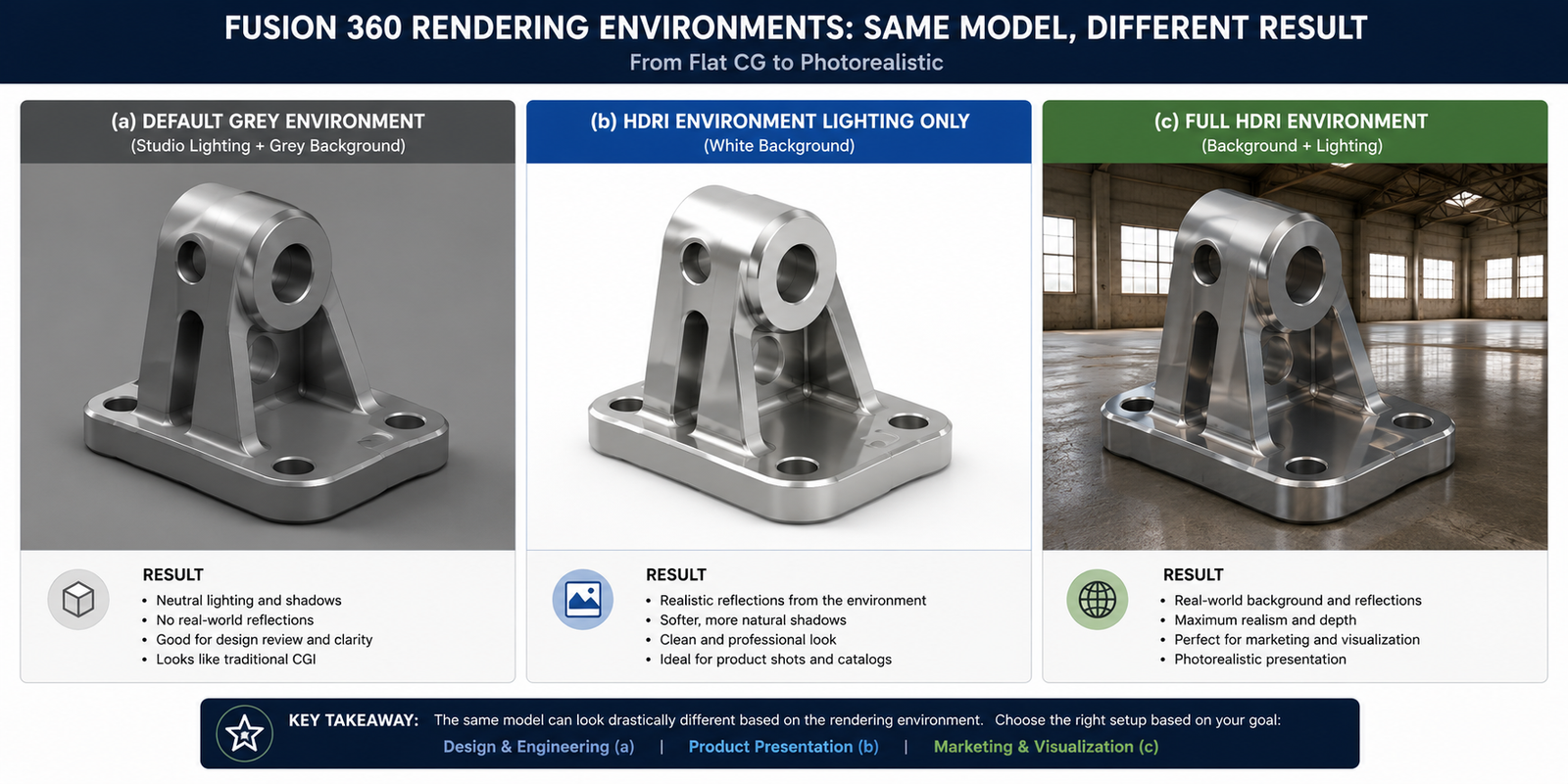
    Fusion 360 HDRI rendering comparison showing default grey environment versus HDRI lighting with white background versus full HDRI environment background

    In Fusion 360’s Render workspace, this matters for two fundamental reasons:

    • Image-Based Lighting (IBL): The HDRI is projected as a sphere surrounding the 3D scene. Every pixel of the HDRI contributes light to the scene with its actual captured intensity, the bright sky region illuminates the top of the model, the darker ground region contributes fill light from below, and any light sources captured in the panorama (windows, lamps, the sun) create accurate highlights and shadows on the model’s surfaces. This is dramatically more realistic than placing manual point lights or spot lights, because the illumination comes from the same rich, spatially varied light distribution that exists in the real location where the HDRI was captured.
    • Surface Reflections: Metallic, glossy, and specular materials in Fusion 360 reflect their environment. When an HDRI is loaded, these reflections show the HDRI panorama rather than the default blank grey, which is the single biggest visual upgrade in product rendering. A brushed aluminium component reflecting a realistic studio environment looks immediately credible; the same component reflecting a blank grey void looks computer-generated at first glance.
    Rendering MethodLight QualityReflection QualitySetup EffortRealism Level
    Default environment (grey)Flat, directionless no shadowsBlank grey reflections no environment detailNoneLow obviously CG
    Manual lights only (point/spot)Controllable but artificial, hard shadowsReflects manual light positions, no environmentHigh, each light must be placed and adjustedMedium professional but not photorealistic
    HDRI environment lightingCaptured real-world illumination, natural shadows and gradientsFull environment reflected in all specular surfacesLow, load one file and adjust two slidersHigh, indistinguishable from product photography
    HDRI + manual lights combinedHDRI fills the scene; manual lights add key light emphasisHDRI provides environment; manual lights add specular highlightsMedium, HDRI setup plus light placementHighest, full professional studio control

    How Fusion 360 Uses HDRI Files: The Render Engine Explained

    Fusion 360’s Render workspace uses a physically based rendering (PBR) engine that models how light interacts with materials according to real physics. In this engine, all materials are defined by their physical properties, base colour, roughness, metalness, reflectivity, emission. and the render engine calculates how light from all sources in the scene interacts with those properties to produce the final pixel colours.

    The Two Roles of the HDRI in Fusion 360

    Fusion 360 separates the HDRI’s two functions into independently controllable parameters:

    • Environment Light Intensity: Controls how much light the HDRI contributes to the scene illumination. Increasing this makes the entire scene brighter; reducing it darkens the scene without changing the background appearance.
    • Background Visibility: Controls whether the HDRI panorama is visible as the scene background behind the model, or whether the background is replaced by a flat colour or remains transparent for compositing in post-production.

    This separation is powerful and frequently misunderstood. It means you can use a bright, high-contrast HDRI to light the scene realistically while showing a clean white or transparent background, a common product photography look used in e-commerce and marketing. Alternatively, you can show the full HDRI panorama as the background to place the product in a visible real-world environment (a studio, an outdoor location, an industrial setting) while the same image simultaneously provides accurate lighting.

    Supported HDRI File Formats in Fusion 360

    FormatExtensionBit DepthFusion 360 SupportNotes
    Radiance HDR.hdr32-bit floatFull supportMost common format for HDRI downloads, recommended for Fusion 360
    OpenEXR.exr16-bit or 32-bit floatFull supportProfessional VFX format, excellent quality but larger file size
    JPEG.jpg8-bit integerSupported (background only)Not a true HDR format, no IBL capability; use only for flat background images, not lighting
    PNG.png8-bit or 16-bit integerSupported (background only)Not a true HDR format limited to background image use
    Critical Note:  Only true HDR formats (.hdr, .exr) provide image-based lighting in Fusion 360. Loading a standard JPEG as your environment will display it as a background image but will not provide IBL illumination, the scene will still be lit only by the default ambient light. Always use genuine .hdr or .exr files for environment lighting.

    Step-by-Step: Loading an HDRI Environment in Fusion 360

    The following workflow applies to Fusion 360 version 2.0.17000 and later. The Render workspace UI has been consistent across recent versions, but menu locations may differ slightly in older builds.
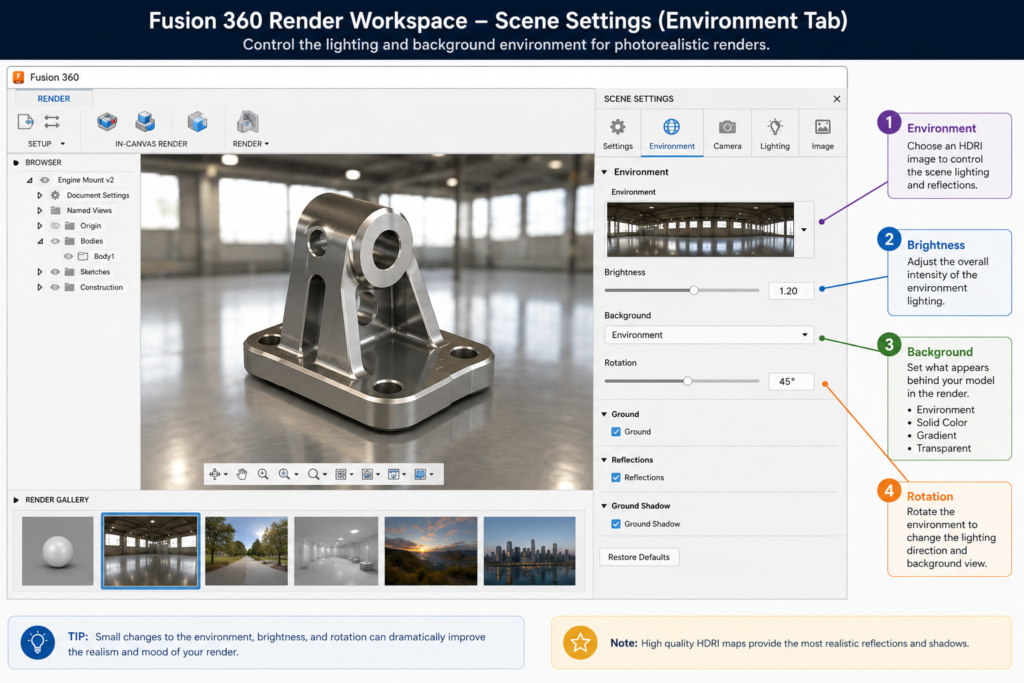
    Fusion 360 Scene Settings Environment panel annotated screenshot showing HDRI controls including environment thumbnail brightness background and rotation settings

    Step 1: Enter the Render Workspace

    1. Open your Fusion 360 model.
    2. Click the workspace selector dropdown at the top-left of the toolbar (it will show the current workspace name, e.g., ‘Design’).
    3. Select Render from the dropdown list. The toolbar will change to show Render-specific tools and the canvas will show the current environment preview.

    Step 2: Open the Scene Settings Panel

    1. In the Render toolbar, click Scene Settings (the sun/environment icon). The Scene Settings panel will open on the right side of the screen.
    2. The panel contains three tabs: Environment, Camera, and Effects. Ensure you are on the Environment tab.

    Step 3: Load Your HDRI File

    1. In the Environment tab, locate the Environment thumbnail at the top. This shows the currently active environment (default is a grey gradient).
    2. Click the environment thumbnail. A dropdown appears showing Fusion 360’s built-in environment presets.
    3. To load your own HDRI file: click the Import Environment option (folder icon) at the bottom of the dropdown.
    4. Navigate to your .hdr or .exr file and click Open. Fusion 360 will import and process the HDRI, which may take 5-30 seconds depending on file size.
    5. The viewport will update to show the new environment. Your model is now being illuminated by the HDRI.
    Tip:  If your HDRI appears very bright or very dark immediately after loading, do not adjust the model’s materials yet. First set the Environment Light Intensity (see next section) to expose the scene correctly, then evaluate material appearance. Most HDRI issues are exposure problems, not material problems.

    Step 4: Preview the Result

    1. Click Render Preview in the Render toolbar to generate a quick local render preview. This is faster than a full render and sufficient for evaluating the HDRI and exposure settings.
    2. Review the preview image. Check: Is the model correctly exposed? Do reflections in metallic or glossy surfaces show the environment? Does the background look correct?
    3. Adjust Environment settings as needed (see next section) and regenerate the preview until satisfied.

    Controlling the HDRI Background vs. Lighting Relationship

    The most important concept in Fusion 360 HDRI rendering is the independent control of what the HDRI does visually (background) versus what it does physically (lighting). These are controlled by two separate parameters in the Scene Settings Environment tab.

    ParameterLocation in UIWhat It ControlsTypical RangeWhen to Adjust
    Environment Light IntensityScene Settings > Environment > Brightness sliderThe luminance multiplier applied to the HDRI when calculating scene lighting. Does not affect background appearance.0.1 (dark, moody) to 3.0 (bright studio)When model is too dark or too bright regardless of material settings
    Background ModeScene Settings > Environment > Background dropdownWhether the HDRI panorama, a solid colour, or transparency appears as the scene background behind the modelHDRI / Solid Colour / TransparentWhen you want a clean white background but HDRI lighting, or full environment background
    Background BrightnessScene Settings > Environment > Background Brightness (visible when Background Mode = HDRI)Scales the visual brightness of the HDRI background without affecting the lighting contribution0.5 to 2.0When background appears over- or under-exposed relative to the model
    Environment RotationScene Settings > Environment > Rotation slider (degrees)Rotates the HDRI panorama around the vertical axis, changing which part of the HDRI illuminates and reflects in the model0 to 360 degreesTo control the primary light direction and the reflections visible in the model’s surfaces

    The Three Most Useful Background Configurations

    Clean White Background + HDRI Lighting (Most Common for Product Photography):

    • Set Background Mode to Solid Colour
    • Set Solid Colour to white (RGB 255, 255, 255)
    • Leave Environment Light Intensity at desired level
    • Result: Model is lit by the HDRI with accurate reflections, but background is clean white, ideal for e-commerce, datasheets, and presentations

    Full HDRI Environment (Context Placement):

    • Set Background Mode to HDRI
    • Adjust Background Brightness independently from lighting if needed
    • Result: Model appears placed in the real environment captured by the HDRI, ideal for lifestyle renders, architectural visualisations, and contextual product shots

    Transparent Background (Compositing):

    • Set Background Mode to Transparent
    • Render in PNG format (supports alpha channel transparency)
    • Result: Model is lit by HDRI but background is transparent in the output PNG, ideal for compositing into other images in Photoshop or other post-production tools

    Read Related article on How AI Is Changing Engineering Design: Real vs Hype 2026

    Adjusting HDRI Environment Settings: Rotation, Brightness, and Scale

    Environment Rotation: Controlling Light Direction

    Rotating the HDRI environment is the primary way to control the directional quality of the scene lighting without changing the HDRI file. Because the HDRI is a spherical panorama, rotating it around the vertical axis changes which part of the captured environment faces the front of the model, moving the brightest region of the panorama (typically the sky or a studio light source captured in the HDRI) to different positions relative to the model changes the shadow direction, highlight position, and the visible reflections in specular surfaces.

    Rotation GoalWhat to DoEffect on Render
    Three-quarter lighting (most flattering for product shots)Rotate until the brightest region is approximately 45 degrees to the left or right of the model’s primary faceCreates a strong key light from one side with fill from the HDRI wrap, producing modelling and depth on the product form
    Frontal lighting (flat, even, detail emphasis)Rotate until the brightest region faces the model directly from the frontReduces shadows, emphasises surface colour and detail, minimises form depth, useful for documentation renders
    Rim/backlight (dramatic silhouette)Rotate until the brightest region is behind the modelCreates a bright rim around the model edges and reduces frontal light, produces dramatic effect; combine with a manual key light for visibility
    Natural outdoor feelAlign the sun or sky region of the outdoor HDRI with the model’s intended ‘top’Produces natural top-down sun illumination consistent with how outdoor products are lit in real photography

    Brightness and Exposure Calibration

    After loading an HDRI and setting rotation, calibrate exposure using the following workflow:

    1. Generate a Render Preview at default settings.
    2. Evaluate the overall brightness of the model surfaces. Is the model correctly exposed, detail visible in both highlights and shadows?
    3. If the model is too dark: Increase Environment Light Intensity in 0.5 increments until correctly exposed.
    4. If the model is too bright / blown out: Decrease Environment Light Intensity. Also check if the model has an Emission material accidentally applied.
    5. If background is too bright or too dark relative to model: Adjust Background Brightness independently (this does not affect lighting).
    6. Regenerate Render Preview and repeat until satisfied.
    Professional Tip:  A common mistake is to set Environment Light Intensity very high to make the model look bright, which then blows out the background and any light-coloured surfaces. Instead, keep Environment Light Intensity in the 1.0-2.0 range and adjust the model’s material properties (reflectivity, base colour value) if specific surfaces need to be lighter or darker. Let the physically-based material system do the work, the HDRI intensity should represent a realistic light level, not compensate for incorrect material setup.

    Adding a Solid or Custom Background Behind Your Model

    The Clean White Background with HDRI Lighting combination is the industry standard for professional product renders. Here is the precise workflow:

    1. In Scene Settings > Environment, set Background to Solid Colour.
    2. Click the colour swatch that appears and set it to pure white (R:255, G:255, B:255) for a studio look, or any brand colour required by the project.
    3. Set Environment Light Intensity to your calibrated lighting level (typically 1.0-2.0 for studio HDRIs).
    4. Render Preview to verify. If the model appears to float with no ground contact, add a ground plane or use the Ground Shadow feature in Scene Settings.

    Ground Shadow: Grounding the Model

    When using a solid background, the model can appear to float unrealistically. Fusion 360’s Ground Shadow feature in Scene Settings adds a subtle shadow beneath the model that grounds it visually without requiring a physical ground plane geometry. Enable it via Scene Settings > Environment > Ground Shadow toggle. Adjust the ground shadow opacity (0-100%) to control how prominent the shadow is, typically 40-70% for a natural look.

    Sourcing Free High-Quality HDRI Files for Product Rendering

    The quality of your render is directly limited by the quality of your HDRI. A poorly captured, low-resolution, or poorly tone-mapped HDRI will produce flat, unconvincing lighting regardless of your other settings. The following sources provide professional-quality HDRIs that are free for commercial use.
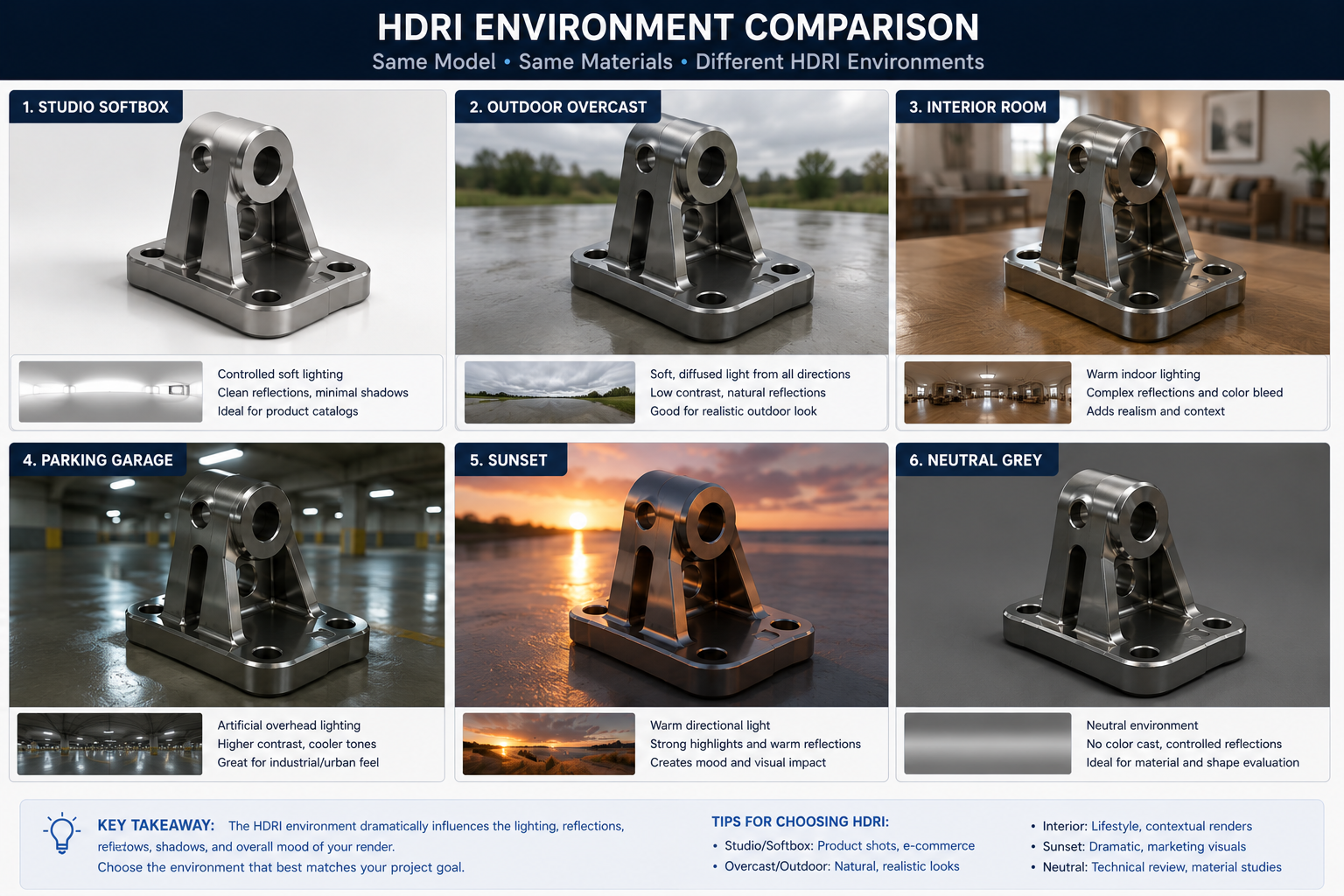
    Fusion 360 HDRI comparison grid showing same product rendered under studio softbox outdoor overcast interior room parking garage sunset and grey HDRIs
    SourceURLSpecialityResolutionLicence
    Poly Havenpolyhaven.com/hdrisOutdoor environments, studios, interior spaces, best overall quality and variety for product renderingUp to 8K .hdr and .exrCC0, fully free, commercial use, no attribution required
    HDRI Haven (now Poly Haven)polyhaven.comOriginal HDRI Haven collection now merged into Poly HavenUp to 16KCC0
    Pixar RenderMan HDRIsrenderman.pixar.com/resource/rmanAssetsStudio lighting setups optimised for product and character renderingHigh resolutionFree for non-commercial; commercial licence available
    ambientCGambientcg.comFocus on material textures but includes a growing HDRI libraryUp to 8KCC0
    Greg Zaal HDRIsAvailable via Poly HavenOutdoor and architectural HDRIs, highly regarded qualityVariesCC0

    Choosing the Right HDRI for Your Product Type

    Product TypeRecommended HDRI CategoryWhyExample HDRI from Poly Haven
    Precision mechanical / industrialStudio HDRIs (softbox setup)Controlled, even lighting emphasises surface finish and form without distracting reflections from outdoor environments‘Studio Small’ or ‘Studio 1’ from Poly Haven
    Consumer electronics / techInterior studio or product photography setupClean reflections in black and dark surfaces; controlled highlight shapes on glossy surfaces‘Studio Softbox’ or ‘Indoor Office’ HDRIs
    Outdoor / sporting equipmentOutdoor sky HDRIs (overcast or partly cloudy)Matches intended use environment; natural light direction appropriate for product context‘Kloofendal 48d Partly Cloudy’ from Poly Haven
    Automotive / transportationOutdoor or carpark HDRIsLarge horizontal surfaces need horizon-level environment reflection for credible side-panel reflections‘Parking Garage’ or ‘Suburban Road’ HDRIs
    Jewellery / luxury goodsStudio or bright interior HDRIsMultiple bright reflection sources create the multi-highlight sparkle characteristic of jewellery photography‘Studio Small 05’ or bright interior HDRIs
    Medical / scientific instrumentsNeutral studio or clinical interiorClean, shadowless look consistent with product photography standards in regulated sectors‘Studio Neutral’ or ‘Lab’ HDRIs

    Render Settings That Work With Your HDRI

    HDRI quality is only realised through sufficient render quality settings. An HDRI rendered at low sample count will show visible noise, particularly in specular highlights and glossy reflections, the exact areas that the HDRI is most responsible for.

    SettingLocationRecommended Value for HDRI RendersEffect
    Render QualityRender > Render Settings > QualityFinal (not Draft or Preview)Draft mode significantly under-samples HDRI contribution; Final quality is required for clean HDRI lighting
    Sample Count / PassesRender > Render Settings > PassesMinimum 128 passes; 256+ for complex reflective materialsMore passes = less noise in HDRI reflections and caustics; fewer passes = grainy highlights
    Anti-AliasingRender > Render SettingsHighSmooths edges in the background HDRI panorama and on the model silhouette
    Ray Tracing ReflectionsRender > Render Settings > Reflections depth2-4 bounces minimumControls how many times a ray can bounce between reflective surfaces; HDRI reflections require at least 2 bounces for accuracy
    Output ResolutionRender > In-Canvas Render > Output SizeMinimum 2000px wide for professional use; 4000px for printHigher resolution reveals more of the HDRI environment detail in reflections
    File FormatRender > Render Settings > OutputPNG (for transparency) or JPEG (for white backgrounds)PNG preserves transparency channel for compositing; JPEG smaller file for white background outputs
    Render Time Reality Check:  High-quality HDRI renders with reflective materials can take 5-30 minutes locally on a mid-range workstation. If render time is a constraint, use Fusion 360 Cloud Rendering (see next section) which offloads computation to Autodesk’s render servers and completes in the background while you continue working. Cloud rendering also applies the same HDRI and settings used in local rendering.

    Cloud Rendering vs. Local Rendering With HDRI in Fusion 360

    Fusion 360 offers two rendering paths, both of which fully support HDRI environments:

    FeatureLocal (In-Canvas) RenderCloud Render
    HDRI supportFull, uses loaded HDRI environmentFull, uploads HDRI with model to cloud servers
    Render time5-60+ minutes depending on hardware and settingsTypically 10-30 minutes; runs in background
    Hardware requirementUses your CPU/GPU, impacts workstation performance during renderNo local hardware impact, runs on Autodesk cloud
    CostFree (uses local compute)Uses Fusion 360 cloud credits (included in subscription)
    Output resolutionLimited by local memoryUp to 4000 x 4000px standard
    Best forQuick previews, iterative testingFinal production renders, high-resolution outputs
    HDRI file handlingHDRI stays on local diskHDRI is uploaded to Autodesk cloud with the render job
    To use Cloud Rendering: in the Render workspace, click Render in the toolbar (not In-Canvas Render). The Render dialog opens. Configure resolution, quality, and output format, then click Render. The job is submitted to Autodesk’s servers. The notification bell icon in Fusion 360 will alert you when the render is complete and available for download in the Fusion 360 render gallery.

    Troubleshooting: Common HDRI Problems in Fusion 360

    ProblemCauseFix
    HDRI loaded but scene appears same grey as beforeLoaded a JPEG instead of a true .hdr or .exr file; JPEG provides background only, no IBLRe-import using a genuine .hdr or .exr file. Verify file extension before importing.
    Background shows HDRI but model looks plastic / flatEnvironment Light Intensity is too low, or model materials lack reflectivity (roughness too high)Increase Environment Light Intensity to 1.5-2.0. Check material roughness, reduce to 0.2-0.4 for more visible reflections.
    HDRI background appears blurry in final renderOutput resolution too low, or HDRI source file is low resolution (below 2K)Increase render output resolution to 2000px+. Download a higher resolution HDRI (4K or 8K) from Poly Haven.
    Model too dark despite high Environment Light IntensityHDRI is a dark interior/nighttime panorama with insufficient luminance; or model material is very dark (near-black base colour)Switch to a brighter studio or outdoor HDRI. Alternatively, add a manual directional light as a key light to supplement the HDRI.
    Noisy / grainy reflections in metal surfacesSample count too low for the complexity of the HDRI environment reflectionsIncrease render passes to 256+. Use Final quality setting, not Draft.
    HDRI rotation not changing light directionModel materials may be too rough to show directional lighting changes; or rotation was set in preview mode which does not update liveReduce material roughness to see rotation effect. Generate a new Render Preview after changing rotation.
    White background shows grey gradient instead of pure whiteBackground Brightness slider is set below 1.0, or the HDRI light is causing bloom on the white backgroundSet Solid Colour background to RGB 255,255,255. Ensure Background Brightness is 1.0.
    HDRI file fails to import (error message)File is corrupt, in an unsupported bit depth, or the .exr file uses a compression codec Fusion 360 does not supportRe-download the HDRI from source. Try the .hdr version instead of .exr. Ensure the HDRI is a standard equirectangular panorama, not a cubemap.

    HDRI Best Practices for Different Product Types

    Mechanical and Industrial Components

    For machined metal components, precision instruments, and industrial products, the goal is to show surface finish quality accurately. Use a studio softbox HDRI with a white solid background. Set material roughness between 0.1 (polished) and 0.4 (brushed) to differentiate surface finishes. Use Environment Rotation to position the main softbox reflection as a long, horizontal highlight across the widest face of the component. This mimics professional engineering product photography used in catalogues and technical datasheets.

    Consumer Electronics and Gadgets

    Dark, reflective surfaces (black plastic, glass screens, chrome accents) need an HDRI with distinct, well-separated bright regions to create controlled highlight shapes. A studio interior HDRI with window light typically works well. Set the background to a neutral dark grey or gradient for dark products, or white for lighter devices. Use 256+ render passes to avoid grainy reflections in dark surfaces, black materials render much more slowly than light ones because of the contrast between the dark surface and bright highlights.

    Architectural Models and Furniture

    Large, room-scale models benefit from interior architecture HDRIs that simulate the light distribution inside a real room, combined floor-level windows, ceiling lights, and wall bounce. Use the full HDRI background (not solid colour) to place the furniture or architectural element in a visible environment. Set Environment Rotation to ensure windows in the HDRI appear at realistic positions relative to the model (e.g., windows should not appear below the floor line of the model).

    Organic and Sculptural Forms

    For organic designs, sculptural products, or any form where the shape itself is the primary subject, use an overcast sky HDRI. Overcast conditions provide extremely even, wrap-around illumination with no hard shadows, which is ideal for communicating complex 3D form because it preserves subtle surface curvature variation that a hard studio light would flatten or burn out.

    Frequently Asked Questions (FAQ)

    What is an HDRI background in Fusion 360?

    An HDRI background in Fusion 360 is a 360-degree High Dynamic Range Image loaded into the Render workspace as the scene environment. It serves two functions simultaneously: providing image-based lighting (IBL) that illuminates the 3D model using real-world captured light data, and providing a photorealistic background environment that appears in the scene and reflects in the model’s surfaces. HDRI files in .hdr or .exr format are loaded through Scene Settings > Environment in the Render workspace.

    Can I use my own HDRI file in Fusion 360?

    Yes. Fusion 360 supports importing custom HDRI files in .hdr (Radiance) and .exr (OpenEXR) formats. In the Render workspace, open Scene Settings, click the Environment thumbnail, and select Import Environment to browse for your .hdr or .exr file. The HDRI is then available in your current Fusion 360 session and can be saved with the project. Free professional-quality HDRIs suitable for product rendering are available from Poly Haven (polyhaven.com) under a CC0 licence.

    How do I make the background white but keep HDRI lighting in Fusion 360?

    In Scene Settings > Environment, set the Background option to Solid Colour and choose pure white (RGB 255, 255, 255). Leave the Environment (HDRI) loaded and set Environment Light Intensity to your desired level. This configuration uses the HDRI to illuminate the model with physically accurate IBL lighting while displaying a clean white background, the standard setup for product photography renders. The model will still show HDRI environment reflections in its surfaces.

    Why does my Fusion 360 HDRI render look grainy?

    Grainy renders in Fusion 360 are caused by insufficient sample count (render passes). HDRI-lit scenes with reflective materials require more samples than flat-lit scenes because the render engine must calculate many light bounces through the HDRI contribution. To fix: in Render Settings, ensure Quality is set to Final (not Draft), and increase the Passes count to 256 or higher. Renders with polished metal or glass materials may need 512+ passes for a clean result.

    How do I rotate the HDRI environment in Fusion 360?

    In the Render workspace, open Scene Settings > Environment. The Rotation slider controls the horizontal rotation of the HDRI panorama around the vertical axis, expressed in degrees (0-360). Dragging the slider rotates which part of the HDRI faces the model, changing the primary light direction, shadow angle, and the reflections visible in specular surfaces. Generate a Render Preview after each rotation adjustment to see the effect, as the viewport preview may not update fully in real time.

    What is the best HDRI for product rendering in Fusion 360?

    For most product rendering purposes, a studio softbox HDRI from Poly Haven (polyhaven.com) is the best starting point. Studio HDRIs simulate professional photography lighting equipment and produce clean, controlled highlights without distracting environment reflections. For outdoor or lifestyle products, outdoor sky HDRIs (overcast or partly cloudy) work best. Download 4K or higher resolution files for sharp background quality. The CC0 licence on all Poly Haven HDRIs means they can be used commercially without restriction.

    Does Fusion 360 cloud rendering support HDRI environments?

    Yes. Fusion 360 cloud rendering fully supports HDRI environments. When a cloud render job is submitted, Fusion 360 automatically uploads the HDRI file along with the model and all scene settings to Autodesk’s render servers. The cloud render uses identical lighting and environment settings to a local render. Cloud rendering is particularly useful for high-resolution HDRI renders because it frees your local workstation from the compute load and completes in the background while you continue working.

    Why is my HDRI not lighting the scene in Fusion 360?

    The most common cause is loading a standard JPEG or PNG image as the environment instead of a true .hdr or .exr file. JPEG and PNG are 8-bit formats and do not contain high dynamic range data, Fusion 360 will display them as background images but they do not provide image-based lighting. Re-import your environment using a genuine .hdr or .exr file. If you already have an .hdr file loaded and lighting appears absent, check that Environment Light Intensity in Scene Settings is not set to zero or near zero.

    Conclusion

    HDRI backgrounds in Fusion 360 transform the Render workspace from a basic visualisation tool into a professional product photography system. The core workflow is straightforward: load a quality .hdr or .exr file, set the background mode to match your output goal (full environment, white studio, or transparent), calibrate exposure with the Environment Light Intensity slider, and set Environment Rotation to control the light direction. The technical foundation, image-based lighting, surface reflections, physically based materials, handles the rest.

    The single most common mistake engineers and designers make is not using HDRI at all, defaulting to the flat grey environment because the Render workspace feels unfamiliar. The second most common mistake is using a low-resolution or JPEG environment that looks incorrect and is abandoned as ‘not working’. Both problems are solved by downloading a free 4K .hdr file from Poly Haven and following the workflow in this guide.

    Fusion 360’s render engine rewards investment in environment quality. A five-minute workflow change, swap the default environment for a proper studio HDRI and set the background to white, produces results that would be genuinely mistaken for product photography by non-technical reviewers. For engineering teams that need to communicate design intent to clients, investors, or manufacturing partners, that visual credibility has real commercial value.
  • 3D Modeling in CAD: Complete Guide 2026

    3D Modeling in CAD: Complete Guide 2026

    3D modeling in CAD is the technical discipline at the heart of modern engineering and design. Every car that drives, every aircraft that flies, every medical device that saves a life, and every building that stands was first created as a precise 3D digital model before a single physical component was manufactured or a foundation was dug. The 3D CAD model is where engineering creativity becomes engineering reality.

    Yet despite its central importance, 3D modelling in CAD is one of the least well-explained topics in engineering education. Most tutorials cover how to use a specific tool’s commands. Very few explain what is actually happening mathematically when you extrude a profile, why parametric modelling works the way it does, when surface modelling is the right approach versus solid modelling, how to plan a model structure so it remains editable under future design changes, or how to validate a 3D model before releasing it for manufacture.

    This pillar guide closes all of those gaps. It covers 3D modelling in CAD from first principles through to advanced professional practice: the five modelling paradigms and their underlying mathematics, the complete 3D modelling workflow from concept to verified model, assembly modelling and large assembly management, advanced techniques including topology optimisation and generative design, industry-specific workflows across six engineering disciplines, model quality and validation, the best tools for each type of 3D modelling work, the integration of 3D models with simulation and manufacturing, and the AI-driven changes reshaping the discipline in 2026.

    Quick Definition:  3D modeling in CAD is the process of creating a complete three-dimensional digital representation of a physical object or system using computer-aided design software. The resulting 3D model defines the object’s geometry with engineering precision, it can be measured, analysed, modified, used to generate manufacturing instructions, and used as the basis for structural or fluid dynamic simulation. It is the primary method by which engineering designs are created, communicated, and verified in the modern engineering profession.

    What Is 3D Modeling in CAD? Foundations and Purpose

    3D modeling in CAD is the creation of a mathematically defined three-dimensional digital object within a computer-aided design software environment. Unlike a 2D drawing, which represents an object through multiple flat views and relies on the reader to reconstruct the 3D form mentally, a 3D CAD model is a complete, unambiguous representation of the object that exists in three-dimensional coordinate space with exact geometric definition.

    The fundamental difference between a 3D CAD model and a 3D model created in general-purpose software (such as Blender or 3D Studio Max for visual effects) is engineering precision. A 3D CAD model is defined in real-world measurement units (millimetres, inches, metres) with exact dimensional values. Every face, edge, and vertex has a precise mathematical location in the coordinate system. The model can be interrogated to return mass, volume, centre of gravity, moments of inertia, and surface area, properties that are essential for engineering analysis.

    Why 3D Modeling Changed Engineering Practice

    Before 3D CAD modeling became mainstream in the 1990s, engineers designed products entirely in 2D: producing multiple orthographic views of each component and mentally synthesising them into an understanding of the 3D form. This process was slow, error-prone (particularly for complex geometry), and made it extremely difficult to detect interference between components in an assembly before physical prototypes were built.

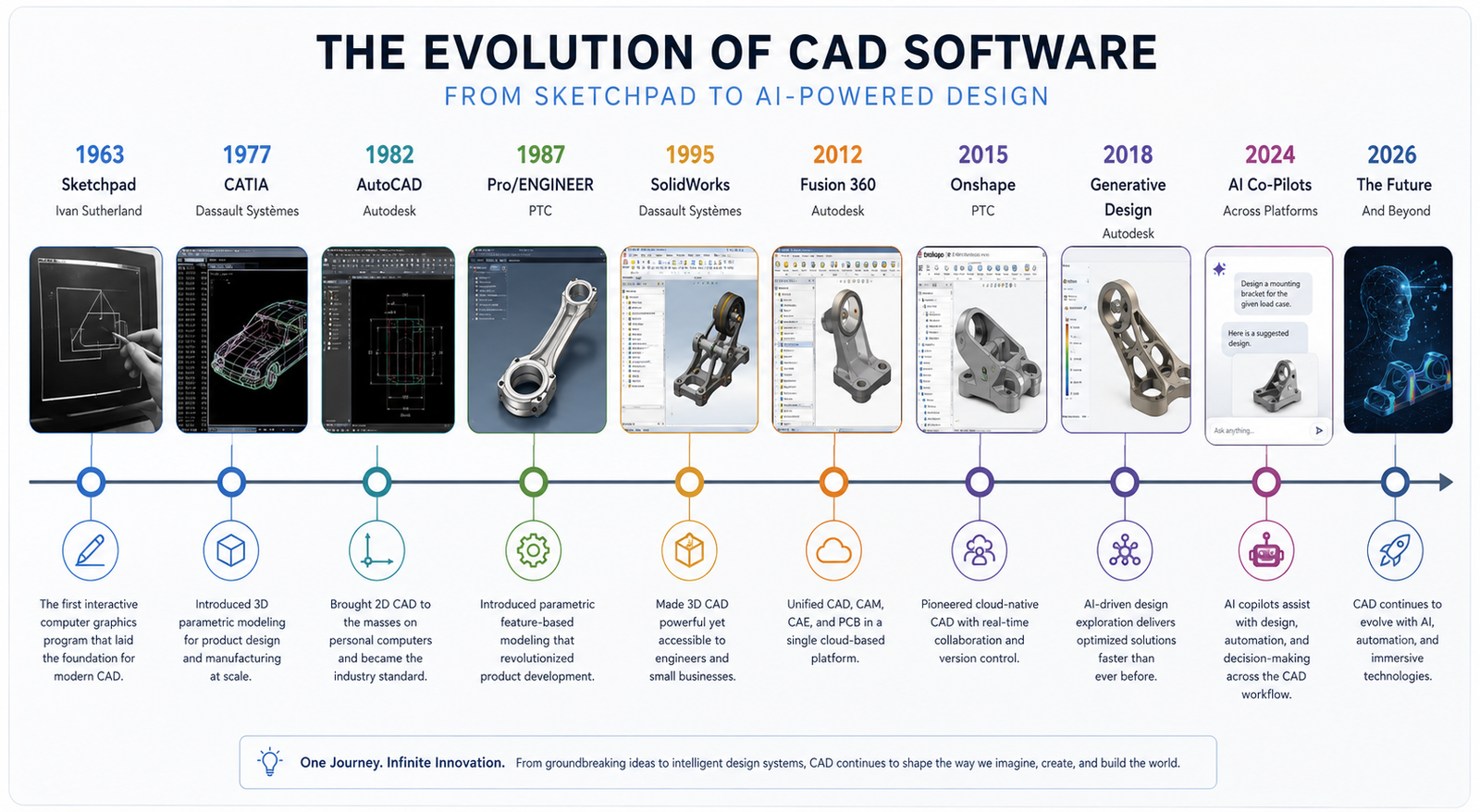
    The introduction of parametric 3D solid modelling, pioneered by Pro/ENGINEER in 1987 and brought to the mass market by SolidWorks in 1995, transformed this workflow. Engineers could now design in 3D directly, visualise the product from any angle, detect clashes automatically, generate all 2D views simultaneously from the single 3D master model, and hand the model directly to simulation software for analysis and to CAM software for manufacturing programming.

    According to Aberdeen Group research, companies that use 3D CAD modeling reduce time-to-market by an average of 50 percent compared to 2D design workflows, reduce manufacturing errors by 65 percent, and reduce the cost of design changes by up to 90 percent when changes are made in the 3D model rather than after physical production.

    Benefit of 3D CAD ModelingSpecific AdvantageIndustry Impact
    Spatial visualisationDesign can be viewed from any angle, rotated, sectioned, and animatedDramatically reduces interpretation errors between designers and manufacturers
    Automatic 2D drawing generationOrthographic views, sections, and details generated automatically from the 3D modelEliminates the manual drawing board workflow; drawing updates automatically when model changes
    Interference and clash detectionSoftware automatically identifies where two components physically overlap in an assemblyPrevents manufacturing of components that cannot be assembled, historically discovered only at first physical build
    Mass properties calculationWeight, centre of gravity, moments of inertia calculated directly from the solid model geometryEnables structural analysis, balance calculations, and manufacturing cost estimation without physical prototypes
    Simulation input3D geometry used directly as input for FEA stress analysis, CFD, and thermal simulationReduces physical prototype testing cycles; finds structural or thermal issues before manufacture
    Manufacturing programmingCNC toolpaths generated directly from the 3D model surface geometryEliminates manual programming for complex 3D machined surfaces; reduces errors in manufacturing instructions
    Product visualisation and renderingPhotorealistic images and animations produced before physical product existsEnables client approval and marketing before tooling investment

    The Five 3D Modeling Paradigms Explained

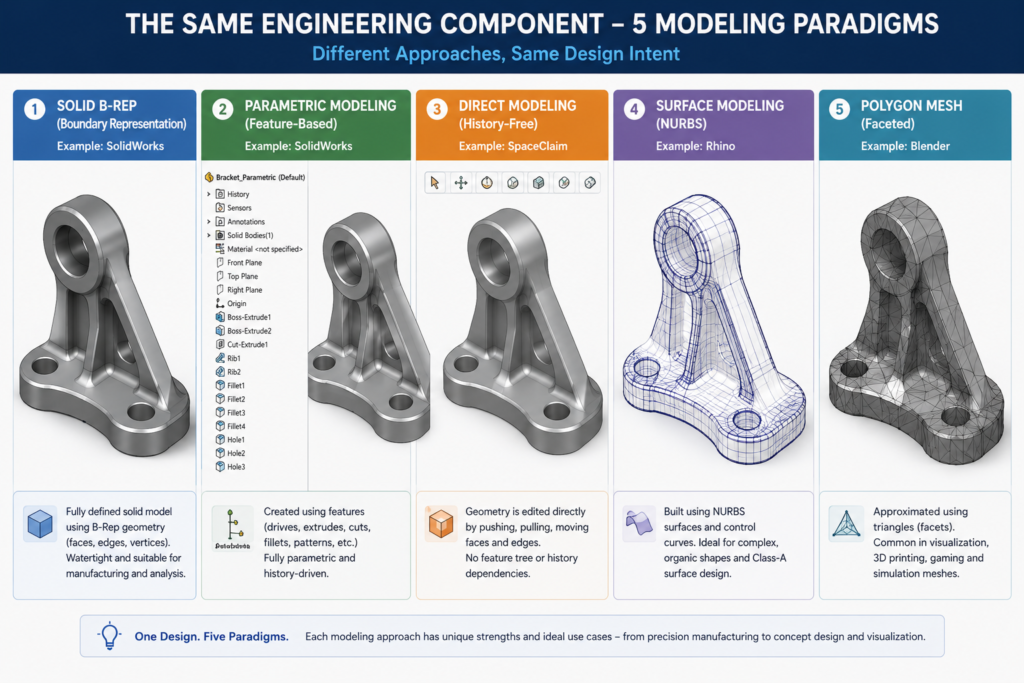
    3D modeling in CAD is not a single methodology. It encompasses five distinct paradigms, each based on different mathematical representations of geometry and each suited to different design tasks. Understanding all five, and knowing when to apply each, is what separates a proficient 3D modeller from an expert one.

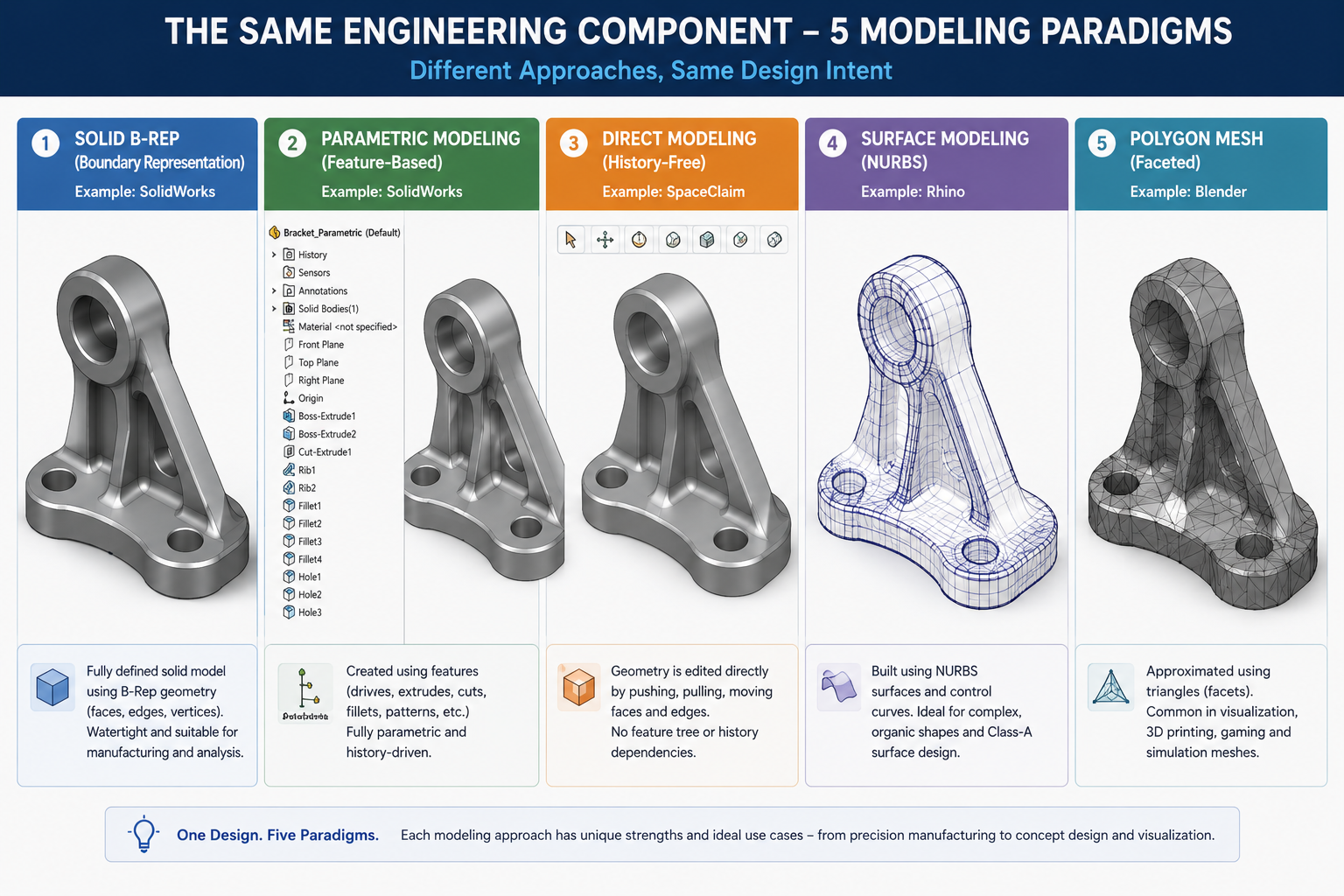
    Five 3D CAD modeling paradigms comparison showing solid modeling, parametric feature tree, direct modeling, NURBS surface modeling, and polygon mesh representing the same engineering component
    ParadigmMathematical FoundationPrimary StrengthPrimary LimitationBest Application
    Solid Modeling (B-rep)Boundary Representation: solid defined by closed set of faces, edges, verticesPhysically complete, mass properties calculable, FEA-ready, Boolean operationsLess suited to organic free-form shapesMechanical engineering, product design, any manufactured component
    Parametric Feature-BasedFeature history tree + constraint solving on top of B-rep geometryDesign intent preserved, intelligent model updates, family-of-parts designRequires careful model structure planning; edit order mattersProduction mechanical design, repeated design families, any design requiring multiple iterations
    Direct (Explicit) ModelingDirect geometry manipulation of B-rep without stored historyFast, flexible, works on imported geometry with no feature treeNo design intent stored; changes do not propagate intelligentlyConcept modelling, imported geometry repair, simulation model preparation
    Surface Modeling (NURBS)Non-Uniform Rational B-Splines: surfaces defined by control points and weightsPerfect curvature control, Class A surfaces, complex organic shapesSurfaces must be manually stitched; steeper learning curveAutomotive styling, aerospace aerodynamics, premium consumer products
    Mesh / Polygon ModelingTriangulated or quadrilateral polygon mesh approximating surfaceHandles complex organic shapes, fast for visualisation, 3D printing compatibleNot dimensionally precise; not manufacturing-ready without conversion3D printing, visual rendering, scan-to-CAD, game assets, organic forms

    Paradigm 1: Solid Modeling (B-rep)

    Solid modeling using Boundary Representation (B-rep) is the foundational paradigm of engineering CAD. A B-rep solid is a complete, closed, watertight volumetric object defined by the mathematical surfaces that bound it, faces, edges (where faces meet), and vertices (where edges meet). The geometric kernel (Parasolid or ACIS in most commercial tools) maintains the topological relationships between all these elements to ensure the model is always a valid, manifold solid.

    What B-rep Solid Modeling Enables

    The completeness of the B-rep representation, the fact that the solid is fully enclosed with no gaps or self-intersections, is what enables mass properties calculation (the kernel can integrate over the enclosed volume to compute mass, centre of gravity, and inertia tensor), Boolean operations (precisely cutting one solid from another using the mathematical intersection of their boundary surfaces), and automatic generation of 2D section views (cutting the solid with a plane to produce a precise cross-sectional profile).

    Boolean Operations in Solid Modeling

    The three fundamental Boolean operations in solid modeling are mathematically equivalent to set operations applied to the volumetric regions bounded by the solids:

    • Union (A U B): Creates a new solid that encloses all points inside either solid A or solid B. Used to combine separate solid features into one body.
    • Intersection (A n B): Creates a new solid that encloses only points inside both solid A and solid B simultaneously. Used to find the overlapping volume of two solids.
    • Difference (A – B): Creates a new solid that encloses points inside solid A but not inside solid B. This is the mathematical foundation of the SUBTRACT command, cutting a hole, pocket, or channel.
    Engineering Context:  When an engineer subtracts a cylinder from a box to create a hole, the CAD software is computing the set difference A – B between the B-rep solid of the box and the B-rep solid of the cylinder, then rebuilding the resulting boundary surface topology. This is why the hole has perfectly cylindrical interior walls that are tangent to the box faces, the result is geometrically exact, not an approximation.

    Paradigm 2: Parametric Feature-Based Modeling

    Parametric feature-based modeling extends B-rep solid modeling by adding two critical layers: a feature history that records the sequence of operations used to build the model, and a constraint system that maintains the geometric relationships between elements. Together, these layers encode the engineer’s design intent, the rules that govern how the model should change when parameters are modified.

    The Feature History Tree

    The feature tree (model tree or design tree) is a chronological record of every operation applied to the model. It might read: Base Extrusion > Fillet > Through Hole > Hole Pattern > Chamfer > Thread. Each entry in the feature tree is a parametric feature, an operation defined not just by the geometry it produces but by the parameters that govern it (extrusion depth, fillet radius, hole diameter, pattern count and spacing).

    When a parameter is changed, for example, the extrusion depth is increased from 50mm to 75mm, the CAD system rebuilds the model from that feature downward in the feature tree. The fillet, hole, pattern, chamfer, and thread all update automatically, because they are defined relative to the base extrusion geometry that has just changed. This automatic propagation is design intent in action: the engineer specified that the fillet is on the top edge of the base extrusion, so wherever the top edge goes, the fillet follows.

    Sketches and 2D Profiles as Parametric Foundations

    Most parametric features begin with a 2D sketch, a constrained 2D profile drawn on a reference plane or an existing face. Sketches contain geometric constraints (horizontal, vertical, coincident, tangent, perpendicular) and dimensional constraints (length = 100mm, angle = 45 degrees). When the sketch is fully constrained, it has no remaining degrees of freedom: every point is exactly located.

    The rule for healthy parametric models is: always work from fully constrained sketches. An under-constrained sketch has degrees of freedom, elements can move in unintended ways when other parameters change. An over-constrained sketch has conflicting constraints and will fail to rebuild. Fully constrained sketches rebuild predictably and make the model robust to design changes.

    Model Planning: The Forgotten Skill in Parametric Modeling

    The most important and least taught skill in parametric 3D modeling is model planning, deciding the structure of the feature tree before building a single feature. The sequence in which features are created determines how the model can be edited later. A poorly planned feature tree can become rigid and fragile: changing a fundamental parameter causes dozens of downstream feature failures. A well-planned feature tree is resilient: any reasonable design change updates predictably with zero failures.

    Model Planning PrincipleWhat It MeansWhy It Matters
    Start with the dominant formCreate the primary shape that defines most of the component’s volume firstAll subsequent features reference the base, if the base is wrong, everything is wrong
    Use symmetry featuresMirror geometry about symmetry planes rather than modelling each half separatelySymmetric changes (fillet radius, pocket depth) update on both sides automatically
    Parametrise key dimensionsLink related dimensions through equations or global variablesChanging one dimension updates all related dimensions consistently, eliminates inconsistency errors
    Group related featuresPlace functionally related features (all holes in a bolt circle, all cosmetic chamfers) close together in the treeMakes the tree readable and makes design changes easier to locate and apply
    Avoid circular referencesNever reference a feature’s own output as its inputCircular references cause rebuild failures and are extremely difficult to diagnose
    Use design tables for familiesDefine multiple configurations of a part using a spreadsheet-driven design tableAllows one model to represent all sizes in a component family without separate files

    Paradigm 3: Direct (Explicit) Modeling

    Direct modeling (also called explicit modeling or history-free modeling) manipulates 3D geometry directly, pushing faces, pulling edges, adjusting surfaces, without a parametric feature history constraining those manipulations. The CAD system operates on the current state of the B-rep geometry rather than on a recorded history of how it was built.

    When Direct Modeling Is the Right Approach

    Direct modeling is not a simpler or less capable alternative to parametric modeling, it is a different paradigm suited to different tasks. The two situations where direct modeling is clearly superior:

    • Working with imported geometry: Files from other CAD systems arrive as ‘dumb’ B-rep solids with no feature history. Direct modeling tools (Ansys SpaceClaim, Fusion 360 direct mode) allow efficient modification of this imported geometry, removing fillets for FEA simulation, simplifying holes, adjusting features, without needing to rebuild the model parametrically.
    • Early-stage concept exploration: When the design is still in flux and the engineer needs to explore forms quickly without being constrained by a parametric feature structure, direct modeling allows rapid shape exploration without the overhead of maintaining feature tree integrity.
    TaskParametric ModelingDirect Modeling
    Rapid early concept explorationSlower, feature tree requires upfront planningFaster, push/pull any face immediately
    Repeated design iterations on production partsSuperior, parameters update entire model intelligentlyLimited, each change is independent, no propagation
    Working with imported STEP filesFails, no feature history to referenceIdeal, operates directly on B-rep without needing history
    Preparing simulation geometryInefficient, parametric changes to simplify model require feature understandingIdeal, SpaceClaim and similar tools optimised for this task
    Family of parts (multiple sizes)Superior, design tables, configurationsNot suitable, each variant requires manual recreation
    Concept modelling / form explorationAcceptable but constrainedSuperior, maximum geometric freedom

    Paradigm 4: Surface Modeling (NURBS)

    Surface modeling represents 3D geometry as a collection of smooth mathematical surfaces rather than as a closed volumetric solid. Where solid modeling is the CAD equivalent of sculpting a clay block, surface modeling is the CAD equivalent of working with sheets of flexible material, bending, stretching, and joining them to create the desired exterior form.

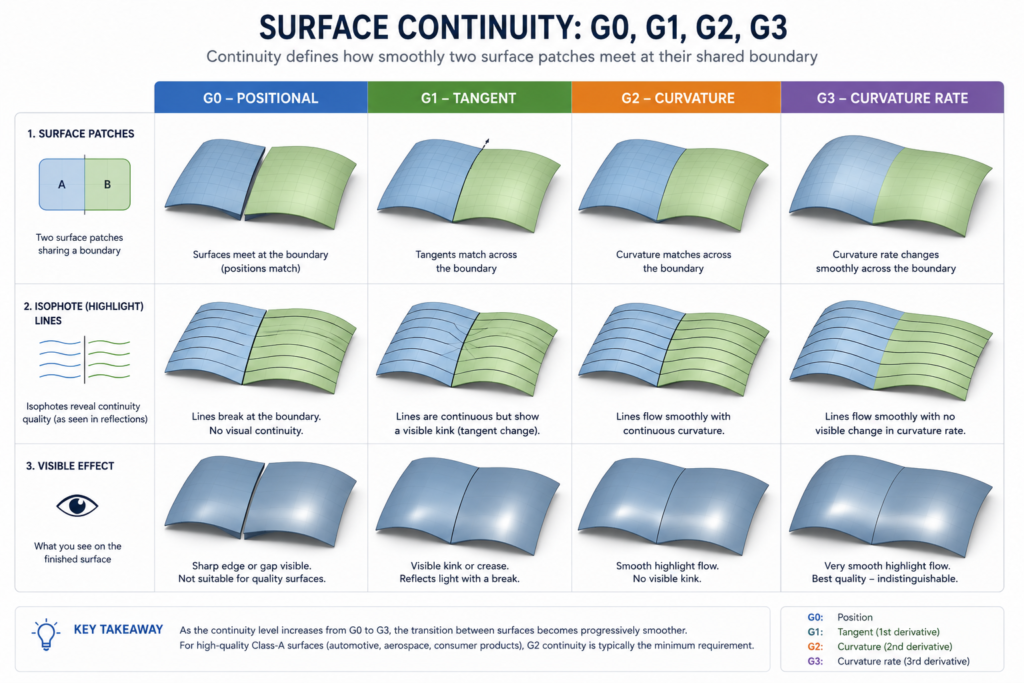
    Surface continuity diagram comparing G0 position G1 tangent G2 curvature and G3 continuity at a shared boundary between two NURBS surface patches with highlight line quality comparison

    NURBS Mathematics Explained Accessibly

    NURBS (Non-Uniform Rational B-Splines) are the mathematical foundation of professional surface modeling. A NURBS curve is defined by a set of control points and weights, the curve is attracted toward each control point with a strength proportional to its weight. Moving a control point changes the curve shape smoothly across a region, not just at a single point.

    NURBS surfaces extend this to two dimensions: a grid of control points in (u, v) parameter space defines a smooth surface in 3D coordinate space. The mathematical properties of NURBS ensure that the resulting surface is smooth to any required degree of continuity, can represent exact conic sections (circles, ellipses) as well as complex free-form shapes, and can be evaluated at any parameter value to return the exact 3D point, tangent vector, and normal vector at that location.

    Surface Continuity: G0, G1, G2, G3

    The most important concept in professional surface modeling is surface continuity, the smoothness with which two adjacent surface patches meet at their shared boundary. Continuity is classified by degree:

    Continuity GradeWhat It MeansVisual TestWhere Required
    G0 (Position continuity)The surfaces meet with no gap, they share the same boundary curveNo visible gapMinimum requirement for any watertight model, gaps are structural failures
    G1 (Tangent continuity)The surfaces share the same tangent direction at the boundary, they meet without a visible angle kinkNo sharp edge at boundaryMost manufacturing surfaces; visible joins without sharp creases
    G2 (Curvature continuity)The surfaces share the same curvature at the boundary, rate of direction change is identical on both sides of the joinReflection lines flow smoothly across boundaryRequired for automotive body panels and any surface judged by reflection quality
    G3 (Curvature rate of change)The rate of change of curvature is also matched, the smoothest mathematically achievable joinNo visible disturbance in highlight lines even under point light sourcesPremium consumer products, aerospace intake geometries, highest-quality automotive
    Why Continuity Matters in Manufacturing:  On an automotive body panel, a G1 boundary (tangent but not curvature-continuous) creates a highlight line distortion, a subtle but visible kink in the reflection of light across the surface. Under direct sunlight or in a showroom, this defect is immediately visible to the eye and is unacceptable on a premium vehicle. Class A surfacing requires G2 continuity at all joins as an absolute minimum standard. The environmental reflection test, viewing the model under a simulated lined environment (isophotes), is the standard method for detecting continuity violations.

    Paradigm 5: Mesh and Polygon Modeling

    Mesh modeling represents 3D surfaces as a network of flat polygonal faces, typically triangles or quadrilaterals, that approximate the desired surface. Unlike NURBS (which defines surfaces mathematically exactly) or B-rep (which defines solids precisely), a mesh model is an approximation: the more polygons (higher polygon count), the smoother and more accurate the approximation, at the cost of larger file size and slower processing.

    When Mesh Modeling Is Used in Engineering

    • 3D printing and additive manufacturing: STL format (the universal 3D printing format) is a triangulated mesh. All 3D printing workflows convert solid or surface models to mesh for slicing and printing.
    • Reverse engineering (scan-to-CAD): Structured light or laser scanners produce point clouds that are converted to polygon meshes. Engineers work with these scan meshes to create reference geometry for redesign.
    • FEA mesh generation: FEA solvers internally convert B-rep solid geometry to finite element meshes for the solver. The mesh quality (element size, aspect ratio) directly affects simulation accuracy.
    • Organic and sculptural design: Forms that are difficult to define parametrically (shoe soles, ergonomic grip surfaces, character models, terrain) are efficiently modelled as subdivision surface meshes.
    • Visualisation and rendering: All real-time 3D rendering (game engines, VR, interactive visualisation) uses polygon meshes, the GPU renders triangles, not mathematical surfaces.
    Mesh vs Solid for Manufacturing:  Mesh models are not dimensionally accurate, they are approximations of the true geometry. For manufacturing inspection purposes, a solid B-rep model defines tolerances exactly. A mesh model printed on a 3D printer will reproduce the faceted approximation, not the mathematically exact surface. For high-precision manufactured components, always start from B-rep solid or NURBS surface geometry and convert to mesh only as the final output step for the specific application (printing, rendering, FEA) that requires it.

    The Mathematics Behind 3D CAD Modeling

    Understanding the mathematical foundations of 3D CAD modeling is not required to use CAD software productively, but it is what separates engineers who use CAD intuitively from those who understand it fundamentally. The following concepts underpin everything that happens when a 3D model is created, modified, and analysed.

    Coordinate Systems and Vectors

    Every point in a 3D CAD model is defined by three coordinates (x, y, z) in a Cartesian coordinate system. Directions and orientations are represented as unit vectors, vectors of magnitude 1 pointing in the direction of interest. The surface normal vector at any point on a face, the axis of a cylindrical feature, and the direction of gravity for mass properties calculations are all unit vectors.

    Coordinate transformations (rotations, translations, scales) are represented as 4×4 transformation matrices in homogeneous coordinates. When you move an assembly component, rotate a sketch plane, or define a User Coordinate System, the CAD kernel applies a transformation matrix to convert between coordinate frames. Understanding this explains why the order of transformations matters (rotation then translation produces a different result from translation then rotation) and why the UCS must be set correctly before drawing.

    Geometric Tolerancing in 3D Models: GD&T

    Geometric Dimensioning and Tolerancing (GD&T) is the engineering language for defining the permitted variation in manufactured geometry. In modern 3D modeling practice, GD&T is increasingly applied directly to the 3D model as 3D annotations (also called Product Manufacturing Information, PMI) rather than only to 2D drawings. The ASME Y14.5 and ISO 1101 standards define the complete GD&T symbol set, including:

    • Form tolerances: Flatness, straightness, circularity, cylindricity, controlling the shape of individual features
    • Orientation tolerances: Angularity, perpendicularity, parallelism, controlling the angle of features relative to datum references
    • Location tolerances: True position, concentricity, symmetry, controlling where a feature is relative to datum references
    • Profile tolerances: Profile of a line, profile of a surface, controlling the form, orientation, and location of complex surfaces simultaneously
    • Runout tolerances: Circular runout, total runout, controlling the variation of rotating surfaces relative to a datum axis

    The Complete 3D Modeling Workflow: From Concept to Verified Model

    Professional 3D CAD modeling follows a structured workflow that ensures the model is correct, complete, and usable for its intended purpose. Skipping stages in this workflow is the most common cause of models that look right visually but fail in manufacturing, assembly, or simulation.

    StageActivityKey Questions to AnswerOutputsCommon Mistakes
    1. Requirements captureUnderstand what the model must achieve: function, manufacturing process, assembly context, tolerancesWhat is this part for? How is it made? What does it connect to? What are the critical dimensions?Requirements list, envelope drawing, reference geometryStarting to model without understanding manufacturing process or assembly context
    2. Concept sketchingRough 2D sketches or direct-mode 3D exploration to establish overall formWhat is the simplest shape that meets requirements? Where are the key features?Concept sketches, rough 3D formsOver-detailing at concept stage, spend time on concept, not detail
    3. Model planningDecide the feature tree structure before building anythingWhat is the base feature? What references what? Where is the symmetry? What parameters will change?Feature tree plan, parameter list, sketch plane decisionsSkipping this stage, leads to fragile models that fail under design changes
    4. Base feature creationBuild the dominant 3D form using EXTRUDE or REVOLVE from a fully constrained sketchIs the sketch fully constrained? Does the extrusion depth come from a reference dimension?Base solid or surface bodyUnder-constrained sketches that drift when other features change
    5. Secondary featuresAdd form-defining features: additional extrusions, cuts, revolves, lofts, sweepsDoes each new feature reference the correct geometry? Are all sketches fully constrained?Complex solid formReferencing geometry that might be removed or modified, fragile parent-child relationships
    6. Detail featuresAdd manufacturing details: fillets, chamfers, threads, knurls, textAre fillet radii from the drawing? Are threads the correct standard size?Fully detailed solidAdding fillets too early, they complicate subsequent features and can cause rebuild failures
    7. Model verificationCheck geometry quality, mass properties, feature rebuild successDoes the model rebuild cleanly? Are mass properties reasonable? Are there any geometric errors?Verified model with mass properties reportReleasing a model without verification, geometry errors discovered in manufacturing are very expensive
    8. DocumentationGenerate 2D drawings, 3D PMI annotations, BOM entriesAre all critical dimensions shown? Is GD&T complete? Is the BOM linked to the correct part numbers?Engineering drawings, 3D annotated model, BOMDrawing dimensions that disagree with model, always dimension from the model, not manually

    Assembly Modeling and Large Assembly Management

    Assembly modeling in CAD places multiple individual part models into a common coordinate space, defines the geometric relationships between them (mates or constraints), and allows the assembled system to be visualised, analysed for interference, and used to generate assembly documentation.

    Assembly Mates and Constraints

    The geometric relationships between parts in an assembly are defined by mates (SolidWorks) or assembly constraints (CATIA/NX/Inventor). Common mate types include:

    • Coincident: Two planar faces share the same infinite plane. The most commonly used mate.
    • Concentric: Two cylindrical or conical faces share the same axis. Used for aligning holes with bolts, shafts with bores.
    • Distance: Two planar faces maintain a specified distance between them, a gap between parts.
    • Angle: Two planar faces maintain a specified angle relative to each other, for hinged or angled joints.
    • Tangent: A curved surface is tangent to a plane or another curved surface.
    • Gear / Rack-and-Pinion / Screw: Kinematic mates that define the mechanical relationship between moving components.

    Large Assembly Management

    Large assemblies, those containing hundreds or thousands of components, place significant demands on CAD system performance. Most CAD tools provide specific large assembly management strategies:

    StrategyWhat It DoesWhen to UseAvailable In
    Lightweight componentsLoads only the visual representation (shell geometry) of components rather than full parametric dataWhen reviewing or documenting an assembly without needing to edit individual partsSolidWorks, CATIA, NX, Inventor
    SpeedPak (SolidWorks)Creates a simplified configuration of an assembly with only the outer faces visible, dramatically reduces memoryWhen referencing a supplier assembly in your design and only need its external envelopeSolidWorks
    Level of Detail (LOD) representationsStores multiple assembly configurations at different detail levels (full, simplified, bounding box)Large assemblies viewed at different zoom levels or in different design contextsCATIA, NX
    Envelope componentsReplaces a sub-assembly with a simplified box or shape representing its space claimEarly design stages when exact sub-assembly geometry is not neededAll major parametric CAD tools
    Out-of-context editingOpens and edits individual components within the assembly context without loading the full assemblyEditing a part while being able to reference neighbouring components for fitSolidWorks, Inventor
    Assembly sectioningCuts through the assembly with a section plane to inspect internal fit without disassemblingChecking bore-shaft fits, seal groove geometry, internal component clearancesAll major CAD tools

    Advanced 3D Modeling Techniques

    Topology Optimisation

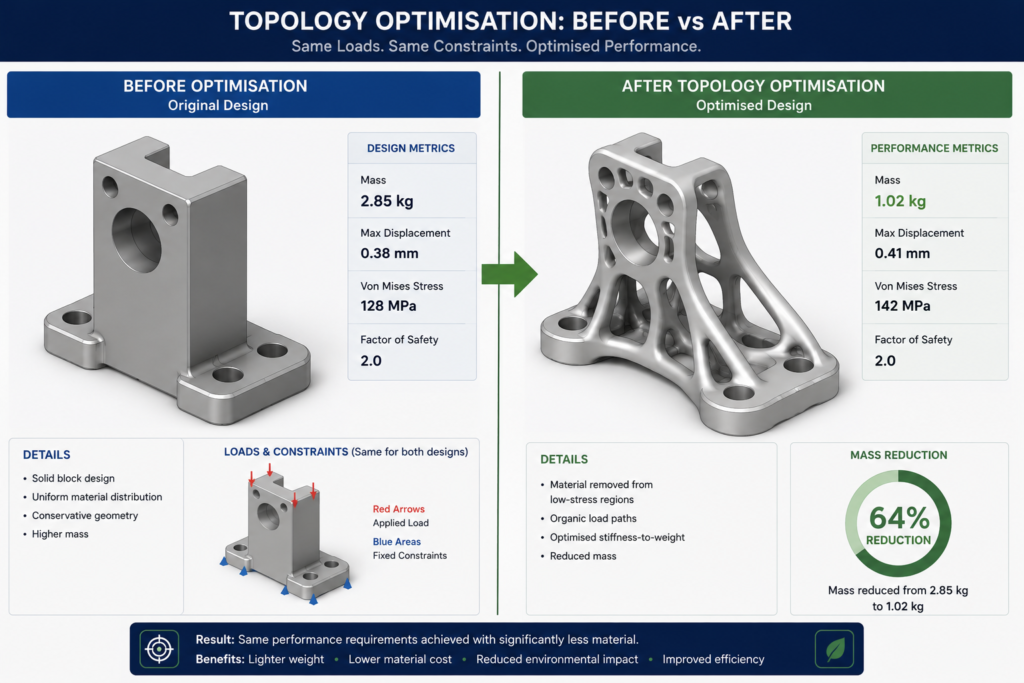
    Topology optimisation is a numerical optimisation technique that determines the optimal material distribution within a defined design space for a given set of loading conditions, boundary conditions, and performance objectives. Starting from a solid block filling the maximum allowable volume, the algorithm iteratively removes material from regions where stress is low (material that is not contributing significantly to carrying the applied loads) until a target mass reduction or stiffness target is achieved.

    Topology optimisation result comparison showing original solid CAD model versus AI-optimised organic lattice structure with 45% mass reduction for additive manufacturing

    The results of topology optimisation are characteristically organic and lattice-like, the algorithm produces structures that look biologically inspired because they follow the same efficiency principles that evolution applies to natural load-bearing structures. Modern CAD tools including SolidWorks Topology Study, Fusion 360 Generative Design, ANSYS Topology, and nTop provide integrated topology optimisation. The resulting geometries are typically manufacturable only by additive manufacturing (3D printing) or casting, as they have internal voids and organic surfaces that cannot be machined.

    Lattice Structures and Infill Design

    Lattice structures are internal geometric architectures that provide structural support with significantly lower mass than solid material. They are particularly relevant to additive manufacturing, where internal lattice infill can be printed within a solid outer shell to reduce part weight while maintaining structural integrity.

    Tools including nTop (nTopology), Materialise Magics, and Autodesk Netfabb provide dedicated lattice design capabilities. Lattice parameters including cell size, strut diameter, and topology (body-centred cubic, face-centred cubic, octet truss) can be varied across the part volume based on the local stress distribution from an FEA result, placing denser lattice where stresses are high and lighter lattice where they are low.

    Multi-Body Solid Modeling

    Multi-body solid modeling allows a single part file to contain multiple separate solid bodies that can be designed together in context before being split into individual part files. This is particularly useful for designing parts that are machined from a common blank, parts that are cast together and then separated, and parts that must be designed together for fit but are separate manufactured components.

    Freeform Surface Sculpting (T-Splines)

    T-Splines are a hybrid surface technology that combines the smooth continuity of NURBS surfaces with the flexibility of polygon subdivision surfaces. They allow organic, sculptural forms to be created by pushing and pulling control points (like mesh modeling) while maintaining smooth NURBS-quality surfaces. Fusion 360’s Form workspace uses T-Splines for organic design, allowing engineers and designers to create ergonomic product shapes that are then converted to B-rep solids for analysis and manufacturing.

    Industry-Specific 3D Modeling Workflows

    IndustryPrimary Modeling ParadigmKey Workflow CharacteristicsCritical Modeling RequirementsPrimary Tools
    Mechanical Engineering (product design)Parametric feature-based solid modelingPart file -> Assembly -> Drawing. Design tables for variants. Sheet metal and weldment specialists.Fully constrained sketches, correct feature order, design intent encoded, GD&T annotationsSolidWorks, CATIA, NX, Creo, Inventor
    Aerospace StructuresParametric solid + surface modeling, FEA-drivenAerostructure geometry from external aerodynamic surfaces. Composite layup definition. Weight-criticality drives topology optimisation.Class A surfaces for aerodynamic surfaces. Accurate material properties for FEA. Manufacturing process (RTM, AFP) constraints.CATIA, NX, SolidWorks, ANSYS
    Automotive Body DesignClass A surface modeling, then solid modelingExterior styled surfaces (Class A) created first by stylists, then structured into engineering solid geometry by CAE engineers.G2 or G3 continuity at all surface joins. Manufacturing feasibility (stamp formability). Panel split line definition.CATIA (surface styling), Alias (surfacing), NX (engineering)
    Architecture and Construction (BIM)Parametric object-based BIMBuilding objects (walls, slabs, beams) rather than pure geometry. Multi-discipline coordination in federated model.Object data completeness (material, fire rating, structural properties). IFC export compliance. Coordination with MEP, structure.Revit, ArchiCAD, Allplan, Vectorworks
    Consumer Product DesignDirect modeling + parametric + surface + renderingForm-driven design. Ergonomics. Brand language. Manufacturability (injection moulding, thermoforming).Parting lines for moulding. Draft angles. Wall thickness uniformity. CMF (colour, material, finish) definition.Fusion 360, SolidWorks, Rhino (form exploration), KeyShot (rendering)
    Medical Device EngineeringParametric solid + FEA + biocompatibility verificationExtreme dimensional precision. Regulatory (FDA, MDR) traceability. Sterile packaging consideration. Human anatomy interface.Tolerances matched to manufacturing capability. Material biocompatibility data in model metadata. Verification and validation documentation.SolidWorks, CATIA, NX, ANSYS

    3D Model Quality, Validation, and Release

    A 3D model is only as valuable as it is accurate. Releasing a model with geometry errors, non-manifold topology, or incorrect mass properties can cause manufacturing failures, assembly problems, or simulation inaccuracies that cost orders of magnitude more to fix than the original modeling error. Systematic model quality checks before release are not optional, they are a professional obligation.

    Geometric Quality Checks

    • Check for zero-thickness geometry: Faces with zero area or edges with zero length indicate degenerate geometry that will cause problems in downstream processes.
    • Check for non-manifold geometry: A manifold solid has exactly two faces meeting at every edge. Non-manifold geometry (more than two faces at an edge, or T-intersections) indicates a topologically invalid solid.
    • Check for self-intersecting faces: Faces that cross each other within the model create regions of ambiguous inside/outside, the solid is undefined in those regions.
    • Check watertightness: The model should have no gaps between faces. Any gap means the solid is not enclosed, mass properties will be wrong and manufacturing outputs will be unreliable.
    • Verify rebuild success: Force a complete rebuild (Edit > Rebuild All in most parametric tools) and confirm zero errors in the feature tree.

    Mass Properties Verification

    After building any new model, always calculate mass properties (mass, volume, centre of gravity, moments of inertia) and perform a sanity check. Estimate the expected mass based on the material density and approximate volume before running the calculation. If the calculated mass differs by more than a few percent from the estimate, investigate why, common causes include incorrect material assignment, double-counting of solid bodies, or a geometry error that has inflated or deflated the enclosed volume.

    Design Review Checklist Before Model Release

    CheckMethodPass Criterion
    Feature tree rebuilds cleanlyForce Rebuild All (Ctrl + Q in SolidWorks)Zero errors and zero warnings in feature tree
    Model is fully constrainedCheck sketch status, all sketches show as fully definedNo under-defined or over-defined sketches
    Mass properties verifiedEvaluate > Mass PropertiesMass within 5% of hand-calculated estimate using material density x volume
    Interference check passedEvaluate > Interference Detection (for assemblies)Zero interferences between components in assembly
    Critical dimensions verifiedSmart Dimension check on key featuresAll critical dimensions match the engineering requirement exactly
    GD&T annotations completeReview 3D annotation tree or drawing annotationAll toleranced features have GD&T callouts; all datums defined
    File saved in correct formatFile > Save As (check format and version)Saved in company standard format (native + STEP for neutral exchange)
    Model checked in to PDMPDM/PLM check-in workflowModel stored under version control, not in local working copy only

    3D CAD Model Integration with Simulation and Manufacturing

    From 3D Model to FEA Simulation

    The path from a 3D CAD model to a Finite Element Analysis (FEA) simulation involves several preparation steps that directly affect simulation accuracy and reliability. Many engineers skip these steps and wonder why their simulation results are unreliable or why the mesher fails on their geometry.

    1. Geometry simplification: Remove cosmetic features (logos, decorative chamfers, very small fillets) that do not affect structural behaviour but create problematic small elements in the FEA mesh. SpaceClaim, Fusion 360’s simplify tools, and the ANSYS SpaceClaim integration are designed for this.
    2. Defeaturing: Remove irrelevant features (thread geometry, knurling, fine surface texture) that add mesh complexity without contributing to the structural result. A bolt hole of diameter 8mm does not need the thread helix modelled for a linear static analysis.
    3. Assign materials: Assign correct material properties (Young’s modulus, Poisson’s ratio, density, yield strength) from validated material databases. Material assignment errors are one of the most common sources of incorrect FEA results.
    4. Define boundary conditions: Apply loads (forces, pressures, thermal loads) and constraints (fixed faces, symmetry planes) that represent the real-world operating condition being analysed.
    5. Mesh and solve: The FEA solver meshes the geometry and solves the governing equations. Review mesh quality metrics (aspect ratio, Jacobian) before accepting results.

    From 3D Model to CNC Manufacturing

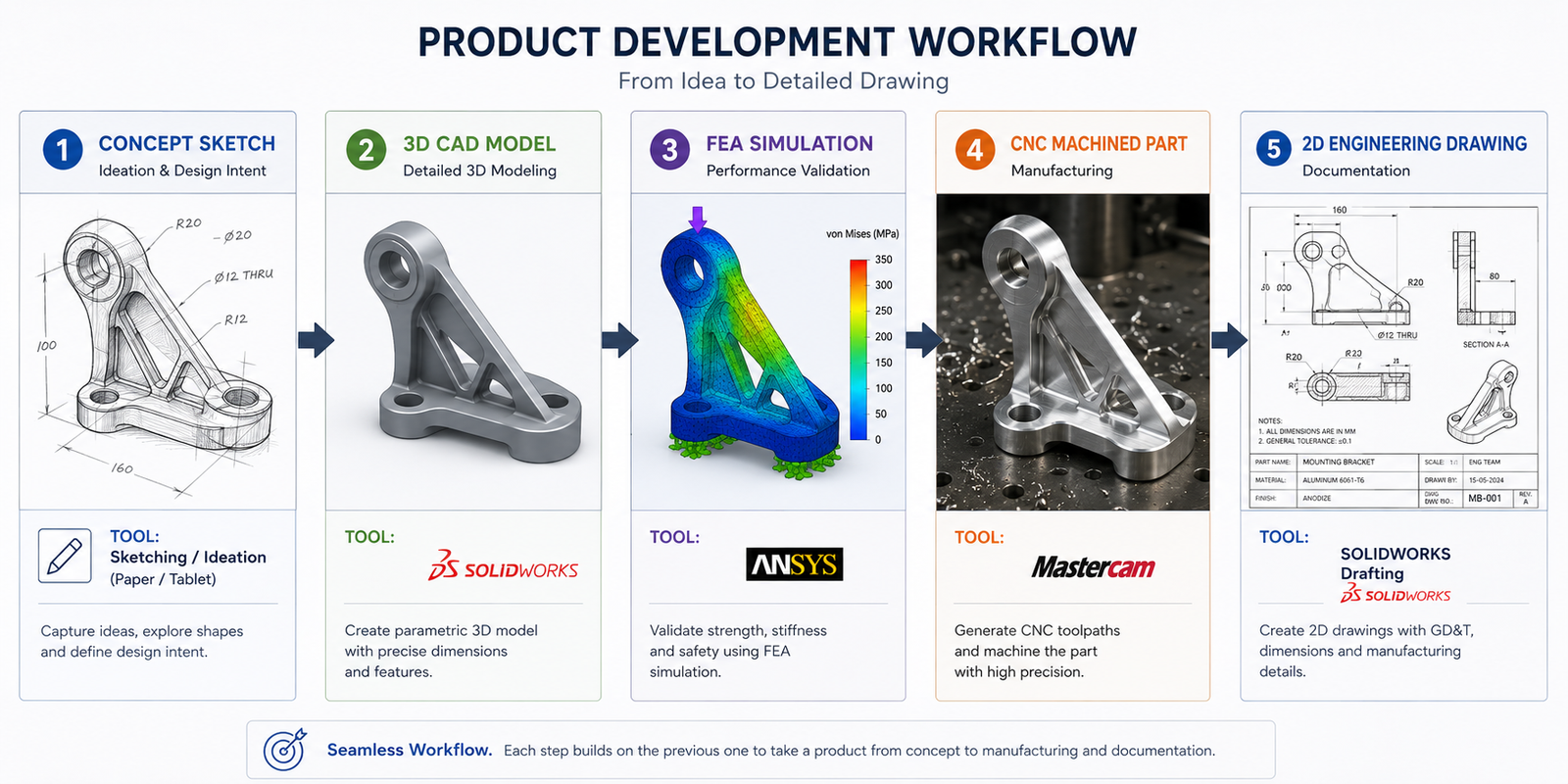
    The path from a 3D CAD model to CNC machined part involves the CAM (Computer-Aided Manufacturing) workflow. The 3D solid model defines the finished part geometry; the CAM system generates the toolpaths that cut away material from a blank workpiece to leave the desired form.

    • Import model: Load the 3D solid model into the CAM environment. Fusion 360 integrates CAD and CAM; Mastercam and NX CAM import from external CAD tools via STEP.
    • Define stock: Define the starting blank (billet size and material) from which the part will be machined.
    • Set up WCS: Define the Work Coordinate System, the reference origin for the CNC machine. Typically at a corner or face of the part that is easy to locate on the machine.
    • Select cutting strategy: Choose appropriate toolpaths for each feature: adaptive clearing for roughing, contour for finishing walls, surface finishing for complex 3D surfaces.
    • Select tools: Choose cutting tool geometry (diameter, flute count, corner radius), material (carbide, HSS), and cutting parameters (speed, feed, depth of cut) for each operation.
    • Simulate and verify: Run the machining simulation to detect collisions between the tool/holder and the workpiece/fixture, and verify the final machined form matches the design.
    • Post-process: Generate machine-specific G-code using a post-processor configured for the specific CNC controller.

    Best CAD Tools for 3D Modeling by Use Case

    Use CaseTop Tool RecommendationWhyAlternative
    Parametric mechanical part design (mid-market)SolidWorksIndustry-dominant, largest ecosystem, most employer-required, excellent sheet metal and weldment toolsAutodesk Inventor, PTC Creo
    Enterprise aerospace / automotive designCATIA or Siemens NXMandated by major OEMs, Class A surface capability, large assembly management at scaleCATIA for Airbus/Dassault; NX for Boeing/GM/BMW
    Integrated CAD + CAM (machining)Autodesk Fusion 360Best integrated CAD+CAM at accessible price point; generative design; cloud collaborationMastercam (standalone CAM), NX (enterprise)
    Class A automotive surface designAutodesk AliasIndustry standard for automotive exterior styling; NURBS surface quality; Class A analysis toolsCATIA FreeStyle, Rhino (for early concept)
    Organic and sculptural formsRhinoceros 3D (Rhino)Best NURBS surface tool for complex free-form design; Grasshopper parametric add-on; wide industry useFusion 360 Form workspace (T-Splines)
    Architecture and BIMAutodesk RevitMarket-leading BIM platform; multi-discipline coordination; IFC export; largest AEC user baseGraphisoft ArchiCAD (strong in Europe)
    Budget-conscious 3D modelingAutodesk Fusion 360 (free tier)Free for personal/startup use below $100k revenue; capable parametric solid + surface + mesh + CAMFreeCAD (fully free, open source)
    FEA simulation geometry prepAnsys SpaceClaim / DiscoveryPurpose-built for rapid geometry defeaturing and simplification for simulation; direct modeling optimisedFusion 360 simplify tools, NX Synchronous Technology
    3D printing designFusion 360 or nTop (nTopology)Fusion 360 for general designs; nTop for lattice structures, topology-optimised AM designsFreeCAD, PrusaSlicer (for direct STL manipulation)
    Product design / consumer goodsFusion 360 or SolidWorksFusion 360 for integrated design-to-manufacture; SolidWorks for production environments with supplier ecosystemRhino + SolidWorks for hybrid form/engineering

    AI and Generative Design in 3D Modeling

    Artificial intelligence is actively reshaping 3D modeling in CAD in 2026, with changes ranging from incremental productivity tools to potentially fundamental shifts in how 3D geometry is created.

    Generative Design: AI-Optimised 3D Geometry

    Generative design uses AI optimisation algorithms to explore thousands of potential design configurations based on engineering constraints defined by the engineer. Rather than the engineer creating each geometric feature manually, the algorithm generates the geometry that optimally satisfies the specified constraints: load cases, support conditions, manufacturing method, material, and mass or stiffness targets.

    The resulting generative design geometries are characteristically organic, lattice-like, or branching, forms that look inspired by bone structure, tree root systems, or coral because they follow the same structural efficiency principles as these biological systems. Autodesk Fusion 360’s generative design workspace, nTop’s field-driven design tools, and SolidWorks Topology Study all provide generative capabilities with increasing maturity.

    Published case studies demonstrate generative design outcomes of 30 to 60 percent mass reduction for aerospace bracket designs, 40 to 70 percent manufacturing cost reduction for consolidated assemblies, and 20 to 40 percent stiffness improvements for automotive structural components, all without sacrificing structural performance requirements.

    AI Co-Pilots and Natural Language CAD

    The 2024-2026 generation of AI-assisted CAD tools has introduced co-pilot interfaces that allow engineers to interact with CAD software using natural language:

    • SolidWorks Aura (2026): AI assistant embedded in SolidWorks that answers design questions, suggests features, explains error messages, and assists with model creation through conversational interaction in natural language.
    • Autodesk AI in Fusion 360: Command autocomplete, AI-suggested design alternatives, and automated drawing creation features being progressively rolled out.
    • Siemens NX AI: AI-powered design guidance, automated feature recognition for imported models, and intelligent process automation in the NX environment.

    Physics-Informed Neural Networks (PINNs) in Simulation

    Physics-Informed Neural Networks are AI models trained to solve the governing partial differential equations of physics (Navier-Stokes for fluid flow, Cauchy equations for solid mechanics) at computational speeds orders of magnitude faster than traditional FEA and CFD solvers. Research publications from 2023-2026 demonstrate PINNs solving structural problems in milliseconds that traditional FEA would take hours to compute.

    The commercial implication is real-time simulation during 3D model creation, the designer moves a feature and sees the stress distribution update immediately, rather than setting up a simulation run that takes minutes or hours. Ansys is actively developing PINN-based real-time simulation tools. This capability, when it reaches production readiness, will be as transformative to the design workflow as parametric modeling was in 1987.

    3D Modeling File Formats and Data Exchange

    FormatTypePreservesLosesBest Use
    STEP (.stp)Open 3D neutral (ISO 10303)B-rep solid geometry, assembly structure, some metadata and GD&T (STEP AP242)Parametric feature history, feature treeUniversal 3D solid model exchange, the best neutral 3D format for engineering
    IGES (.igs)Open 3D neutral (older)B-rep surfaces and solids, some assembly dataParametric history, some topology reliability issues in older implementationsLegacy 3D exchange, particularly for surface-heavy data; STEP preferred for new work
    Parasolid (.x_t / .x_b)Geometric kernel neutralFull B-rep solid geometry, assemblyFeature historyHigh-fidelity solid exchange between tools using Parasolid kernel (SolidWorks, NX, Solid Edge)
    STL (.stl)3D printing meshTriangle mesh approximation of surfaceExact geometry, parametric data, units (must be set on export)3D printing only, not suitable for engineering inspection or manufacturing drawings
    OBJ (.obj)Mesh / visualisationPolygon mesh, materials, texture coordinatesDimensional accuracy, solid topology, parametric dataVisualisation, rendering, game engines, not for engineering
    SLDPRT / SLDASMNative SolidWorksFull parametric feature history, mates, configurations, design tablesOnly readable in SolidWorksWorking within SolidWorks; sharing between SolidWorks users
    CATPART / CATProductNative CATIAFull CATIA parametric data, surfaces, assemblies, 3D annotationsOnly readable in CATIA environmentsWorking within CATIA / 3DEXPERIENCE ecosystem
    JT (.jt)Lightweight visualisation (Siemens)Lightweight visual representation of geometry and some metadataFull parametric data (though can embed STEP)Large assembly visualisation, downstream review without full CAD access
    3MF (.3mf)3D printing (modern)Mesh, materials, print settings, part orientation, supportsParametric dataModern 3D printing, superior to STL for containing complete print job information
    GLTF / GLBWeb 3D / AR/VRMesh, materials, textures, animationsParametric data, engineering precisionWeb-based 3D visualisation, AR/VR product experiences, digital twins for display

    3D Modeling Career Paths and Certifications

    Proficiency in 3D CAD modeling is one of the most valuable and transferable technical skills in engineering and design. The career paths built on 3D modeling expertise span from technical specialist roles to engineering management, and the skill premium for certified 3D CAD proficiency is consistently documented across all major engineering job markets globally.

    Career RolePrimary 3D Modeling SkillsKey CertificationsIndustriesSalary Range (US Mid-Career)
    Mechanical Design EngineerParametric solid modeling, assembly modeling, GD&T, drawing generationCSWP (SolidWorks Certified Professional)Product design, manufacturing, consumer goods, medical devices$85,000 – $115,000
    Aerospace Structural DesignerParametric solid + surface modeling, composite design, FEA-driven modelingCATIA Certified Associate/Professional, NX certificationAerospace OEMs, defence, space$95,000 – $135,000
    Automotive Styling EngineerClass A surface modeling (NURBS), curvature analysis, digital clayAlias Automotive certification, CATIA surface credentialsAutomotive OEMs, Tier 1 styling studios$90,000 – $125,000
    CAE / Simulation EngineerSimulation-ready geometry preparation, defeaturing, mesh qualityANSYS certification, SolidWorks Simulation ProfessionalAll engineering industries$90,000 – $130,000
    Product Designer (Industrial)Freeform/T-spline modeling, rendering, manufacturing feasibilityFusion 360 certification, Rhino certificationConsumer products, furniture, electronics, footwear$75,000 – $110,000
    Manufacturing / CNC EngineerCAD model interpretation, CAM programming from 3D models, DFM reviewAutodesk CAM certification, Mastercam certificationManufacturing, aerospace machining, medical devices$75,000 – $105,000
    BIM Modeller / CoordinatorObject-based parametric BIM modeling, multi-discipline coordinationAutodesk Certified Professional (Revit)Architecture, construction, infrastructure$70,000 – $100,000
    Additive Manufacturing EngineerTopology optimisation, lattice design, print-ready model preparationnTop certification, Autodesk Fusion 360 AMAerospace, medical, motorsport, defence$80,000 – $115,000
    Certification ROI:  The highest-return certification investment for most mechanical engineers in 2026 is the SOLIDWORKS Certified Professional (CSWP), it is independently validated, employer-recognised, and consistently associated with salary premiums of 15 to 25 percent. For engineers in aerospace or automotive targeting CATIA or NX roles, employer-provided training is usually available once hired. Pursue the CSWP while job-seeking; pursue CATIA or NX certification once in an employer environment that uses those tools.

    Frequently Asked Questions (FAQ)

    What is 3D modeling in CAD?

    3D modeling in CAD is the process of creating a mathematically precise three-dimensional digital representation of a physical object or structure using computer-aided design software. The resulting 3D model defines all faces, edges, and vertices of the object in a 3D coordinate space with real-world units. It can be measured, interrogated for mass properties, used as input for structural simulation, used to generate CNC machining instructions, and used to automatically create 2D engineering drawings. It is the central activity in modern mechanical, aerospace, automotive, and product design engineering.

    What are the different types of 3D modeling in CAD?

    The five main types of 3D modeling in CAD are: (1) Solid modeling (B-rep), representing objects as closed volumetric solids using boundary representation; (2) Parametric feature-based modeling, solid modeling with stored design intent and parametric update capability; (3) Direct (explicit) modeling, geometry manipulation without feature history, for flexibility and working with imported geometry; (4) Surface modeling (NURBS), creating complex smooth curved surfaces for aerodynamics and styling; (5) Mesh/polygon modeling, triangulated approximations of surfaces for 3D printing, rendering, and scanning.

    What is the difference between solid modeling and surface modeling in CAD?

    Solid modeling represents an object as a complete, closed volumetric solid, it has defined inside and outside, calculable mass and volume, and is directly usable for structural simulation and manufacturing. Surface modeling represents an object as a collection of smooth mathematical surfaces (NURBS) without enclosing a volume. Surface modeling excels at creating complex organic and aerodynamic shapes with precise curvature continuity (Class A surfaces) that solid modeling struggles to produce. In most workflows, surface modeling is used to create the exterior form, which is then stitched and converted to a solid for manufacturing documentation and analysis.

    What is parametric 3D modeling?

    Parametric 3D modeling is a 3D modeling approach where the model stores not just geometry but design intent, the relationships, constraints, and governing dimensions that define how features relate to each other. When a parameter changes (such as a hole diameter or an extrusion depth), the entire model rebuilds automatically: all features that reference the changed feature update accordingly. The feature history tree records every modeling operation and allows engineers to go back and edit any feature, with all subsequent features updating to reflect the change. Parametric tools include SolidWorks, CATIA, NX, Creo, and Inventor.

    What is direct modeling in CAD?

    Direct modeling in CAD (also called explicit or history-free modeling) manipulates 3D geometry directly, pushing faces, pulling edges, blending surfaces, without a parametric feature history constraining those operations. Each edit applies to the current geometry state; changes do not propagate automatically to related features. Direct modeling is superior to parametric modeling for: working with imported geometry (STEP files) that has no feature history, rapid concept exploration where freedom is more important than update propagation, and preparing simulation geometry by removing irrelevant details from a model. Ansys SpaceClaim and Fusion 360’s direct mode are the leading direct modeling tools.

    What is NURBS in 3D CAD modeling?

    NURBS (Non-Uniform Rational B-Splines) is the mathematical representation used by professional CAD surface modeling tools to define smooth curves and surfaces. NURBS surfaces are controlled by a grid of control points, moving a control point smoothly changes the surface shape across a region. NURBS can represent both simple analytic shapes (exact circles, cylinders, planes) and complex free-form aerodynamic or organic shapes with the same mathematical formulation, and they can be evaluated at any point to give exact position, tangent direction, and surface normal. CATIA, Rhino, Autodesk Alias, and SolidWorks all use NURBS for surface modeling.

    What is the best software for 3D modeling in CAD?

    The best 3D CAD modeling software depends on the application: SolidWorks is the best parametric solid modeler for mid-market mechanical engineering; CATIA or Siemens NX for aerospace and automotive OEM-level design; Autodesk Fusion 360 for integrated design+CAM at accessible cost; Rhino 3D for complex NURBS surface modeling; Autodesk Revit for BIM-based building design; and FreeCAD as the best free parametric alternative. For beginners, Fusion 360 (free personal tier) provides the most complete introduction to professional 3D CAD workflows at no cost.

    What is topology optimisation in 3D modeling?

    Topology optimisation is a numerical optimisation technique that automatically determines the most efficient material distribution within a defined design space for a given set of loads and boundary conditions. Starting from a solid block of material, the algorithm iteratively removes material from low-stress regions until a target mass or stiffness criterion is met. The results are characteristically organic and lattice-like, resembling bone structure or tree root systems, because they follow the same structural efficiency principles found in nature. Available in SolidWorks Topology Study, Fusion 360 Generative Design, ANSYS, and nTop. The resulting geometries are typically manufactured by additive manufacturing (3D printing) because their internal structure cannot be machined.

    How does a 3D CAD model connect to manufacturing?

    A 3D CAD model connects to manufacturing through two primary pathways. (1) 2D engineering drawings: the 3D model generates orthographic views, sections, and details automatically, which are annotated with dimensions and tolerances to produce the manufacturing specification document. (2) CAM programming: the 3D solid geometry is used directly as the reference geometry for CNC toolpath generation (in Fusion 360, Mastercam, NX CAM, or similar tools), generating the G-code that controls the CNC machine. For additive manufacturing, the 3D model is converted to STL or 3MF format and sliced into layers for printing. Modern model-based definition (MBD) practice embeds GD&T tolerances and specifications directly in the 3D model as 3D annotations (PMI), reducing dependency on separate 2D drawings.

    What is 3D model quality validation in CAD?

    3D model quality validation is the process of verifying that a 3D CAD model is geometrically correct, physically meaningful, and suitable for its intended downstream use before it is released for manufacturing, simulation, or construction. Key checks include: verifying the feature tree rebuilds with zero errors, checking for non-manifold or degenerate geometry, verifying mass properties match expected values, confirming fully constrained sketches throughout, checking assembly interference detection passes with zero clashes, and verifying all GD&T annotations are complete and correctly applied. Many engineering organisations implement formal model review checklists and require independent verification before a model is released to production.

    Conclusion and Supporting Resources

    3D modeling in CAD is the technical discipline that bridges engineering creativity and manufacturing reality. Understanding it at the level of this guide, not just how to use commands, but why different modeling paradigms exist, what they do mathematically, how to plan a model structure for robustness, how to validate quality before release, and how AI is beginning to reshape the entire workflow, is what distinguishes a proficient CAD user from an expert engineering practitioner.

    The five modeling paradigms (solid B-rep, parametric feature-based, direct, NURBS surface, and mesh) are not competing approaches. They are complementary tools, each optimal for specific design tasks, and the most capable engineers know when to apply each. A complex automotive body panel begins as NURBS Class A surfaces in Alias, is converted to a solid in CATIA for structural analysis, is simplified using direct modeling tools for FEA preparation, and is finally represented as a mesh for rendering and visualisation. All five paradigms serve the same ultimate goal: bringing an engineering design from concept to verified physical reality with the least time, cost, and risk.

    The coming integration of AI and real-time simulation with 3D CAD modeling will not replace the engineer’s judgment, it will amplify it. The engineer who understands the underlying geometry, physics, and manufacturing constraints well enough to specify good design intent, recognise good generative solutions, and validate AI-generated results will be the most valuable engineering professional of the next decade.

  • Best CAD Software for Engineers: 2026 Complete Guide

    Best CAD Software for Engineers: 2026 Complete Guide

    Choosing the best CAD software for engineers is one of the most consequential technical decisions a professional, a team, or a company makes. The wrong choice does not just cost money, it costs time, efficiency, compatibility, and career development. Switching between major CAD platforms mid-career or mid-project is painful and expensive. Getting the decision right from the start matters.

    The problem is that most CAD software comparison guides are either too generic (a list of tools with brief descriptions), too narrow (focused on one engineering discipline), or openly biased (written by a CAD vendor or a site earning commission on software referrals). None of them answer the questions engineers actually need answered: Which CAD tool is dominant in my specific industry? What does it actually cost for a small team? Which tools will make me more employable? When does it make sense to use free software rather than paid? What does each tool genuinely do badly?

    This guide answers all of those questions honestly. It covers the 10 most important CAD software tools for engineers in 2026, with an industry-specific recommendation matrix across 8 engineering disciplines, a verified pricing comparison table, an honest assessment of each tool’s weaknesses alongside its strengths, career and job market data, a free vs paid decision guide, and a full FAQ section. No affiliate links. No vendor influence. Just the data.

    Quick Recommendations by Use Case:  Mechanical/product design: SolidWorks (mid-market) or CATIA/NX (enterprise). 2D drafting and documentation: AutoCAD. Startups and budget-conscious teams: Fusion 360. Aerospace and automotive: CATIA or Siemens NX. Civil and infrastructure: AutoCAD Civil 3D or Bentley MicroStation. Free alternative: FreeCAD or Onshape (free tier). The full guide below explains why.

    How to Choose CAD Software: The Four Deciding Factors

    Before evaluating individual tools, clarifying four fundamental factors eliminates most of the complexity in choosing CAD software for engineers. Most engineers who end up with the wrong tool failed to prioritise these questions before starting their evaluation.

    Factor 1: Industry and Employer Standard

    The single most important factor is not which CAD tool is objectively best, it is which tool dominates your target industry and the employers you want to work for. Aerospace companies overwhelmingly use CATIA or NX. Automotive OEMs use CATIA, NX, or Creo depending on geography. Most mechanical engineering product development companies use SolidWorks. Civil and infrastructure projects use AutoCAD Civil 3D or Bentley. Knowing your industry’s standard tool and prioritising proficiency in it is the most career-efficient approach in almost every case.

    Factor 2: 2D Documentation vs 3D Parametric Modelling vs Both

    Many engineers, particularly those working in construction, infrastructure, or traditional manufacturing, primarily need 2D technical drawing and documentation capability. For them, AutoCAD or AutoCAD LT is sufficient and appropriate. Engineers involved in product development, component design, or manufacturing process design almost always need 3D parametric modelling capability (SolidWorks, Fusion 360, NX, CATIA, Creo). Some roles require both, in which case AutoCAD for documentation combined with a parametric 3D tool for modelling is a common workflow.

    Factor 3: Team Size and Budget

    CAD software costs vary by a factor of 20 to 30 across the tools in this guide. Enterprise tools (CATIA, NX) are priced at $10,000 to $80,000+ per seat per year and are designed for large engineering organisations with IT infrastructure, PLM integration, and dedicated CAD administration. They deliver exceptional value at scale but are completely impractical for individuals or small teams. Mid-market tools (SolidWorks, Creo, Inventor) are priced at $2,000 to $10,000 per seat per year. Accessible tools (Fusion 360, Onshape) are priced at $500 to $2,000 per seat per year and are available free for qualifying users. Matching the tool to the budget reality is as important as matching it to the technical requirement.

    Factor 4: Collaboration Model (Desktop vs Cloud)

    Traditional desktop CAD tools (AutoCAD, SolidWorks, CATIA, NX, Creo) require local installation and a dedicated hardware workstation. They offer maximum performance and the most mature feature sets, but file sharing and version control require PDM/PLM infrastructure. Cloud-native tools (Onshape, Fusion 360, Shapr3D) store all data in the cloud and allow real-time collaboration without additional infrastructure. They work on any modern computer and allow mobile access. The trade-off is that they require reliable internet connectivity and have some limitations in handling very large assemblies or complex simulations compared to desktop tools.

    CAD Software Pricing Comparison Table 2026

    The following pricing data is sourced from official vendor pricing pages and publicly available subscription information as of 2026. Enterprise pricing for CATIA and NX is highly variable based on contract size and varies significantly by configuration, ranges are indicative only.

    CAD software comparison radar chart comparing AutoCAD SolidWorks Fusion 360 CATIA and Siemens NX across 2D drafting 3D modelling simulation collaboration price and industry acceptance
    CAD SoftwareEntry Price (per seat/year)Full ProfessionalStudent / EducationFree Tier Available?Deployment
    AutoCAD$2,230/year or $195/monthSame (single product)Free via Autodesk Education30-day trialDesktop + Web + Mobile
    AutoCAD LT$570/year or $55/monthSame (2D only)Free via Autodesk Education30-day trialDesktop + Web
    SolidWorks (Standard)~$2,620/year (subscription)SolidWorks Premium ~$5,500+/yearSOLIDWORKS for Students (low cost)No (trial only)Desktop
    Autodesk Fusion 360$545/year (Personal/Startup)~$795/year (commercial)Free for students/educatorsYes, personal/startup free tierCloud + Desktop
    CATIA (3DEXPERIENCE)$10,000-$80,000+/year (enterprise, varies)Configured per enterprise contractAcademic access via institutionsNoDesktop + Cloud (3DX)
    Siemens NX$8,000-$70,000+/year (enterprise, varies)Configured per enterprise contractNX for Students (free)No (30-day trial)Desktop
    PTC Creo$2,500-$15,000+/year (varies by module)Creo Advanced or UltimatePTC Education licenceNo (30-day trial)Desktop
    Autodesk Inventor$2,545/year (subscription)Included in Product Design SuiteFree via Autodesk Education30-day trialDesktop
    Onshape$1,500/year (Standard)Professional: $2,100/yearFree for students/educatorsYes, free public planCloud-native (browser)
    Bentley MicroStation~$3,500/year (subscription)Enterprise via Bentley contractAcademic/student licences availableNoDesktop
    FreeCADFree (open source)Free (open source)FreeYes, fully freeDesktop (cross-platform)
    Note: Pricing is indicative based on publicly available information as of 2026. Enterprise contracts for CATIA, NX, and Creo are negotiated individually and typically include volume discounts, support, training, and PLM integration. Always verify current pricing directly with vendors before budgeting.

    Industry-Specific Recommendation Matrix

    This matrix reflects real industry adoption data based on job posting frequency, employer survey data, and engineering community usage patterns as of 2026. The Primary Tool is the tool most commonly required by employers in that sector. The Secondary Tool is a strong alternative or complement.

    CAD software recommendation matrix for engineers by industry showing AutoCAD SolidWorks CATIA Fusion 360 NX suitability across 8 engineering disciplines
    Engineering DisciplinePrimary CAD ToolSecondary ToolWhy This Tool DominatesKey Reason to Learn It
    Mechanical / Product DesignSolidWorksAutodesk Inventor or Fusion 360Market-leading parametric 3D tool for product development. Required in over 65% of mechanical engineering job postings.Most in-demand parametric CAD skill globally for mid-market mechanical engineering roles
    Aerospace and DefenceCATIA (Dassault)Siemens NXAirbus, Boeing, Dassault Aviation, and most global aerospace OEMs standardise on CATIA or NX. Deep surface modelling and systems engineering capability.Essential for careers in commercial aerospace, space vehicles, and high-end defence engineering
    Automotive (OEM)CATIA or Siemens NXCreo (PTC)European and Asian OEMs (BMW, VW, Toyota) use CATIA; GM uses NX. Body-in-white, surface design, and digital mockup drive tool selection.Automotive OEM and Tier 1 supplier roles require enterprise CAD proficiency
    Civil and InfrastructureAutoCAD Civil 3DBentley MicroStationAutoCAD Civil 3D dominates road, drainage, and site design. Bentley is the standard in large-scale infrastructure (rail, highways, utilities).Most civil engineering employers require AutoCAD proficiency at minimum
    Architecture and Construction (MEP)AutoCAD / RevitAutoCAD MEP toolsetAutoCAD for documentation; Revit for BIM coordination. HVAC engineers use AutoCAD MEP toolset or MicroStation.AutoCAD is baseline; Revit adds BIM value for coordination roles
    Structural EngineeringAutoCAD / Tekla StructuresSolidWorks (for steel connections)Structural steelwork: Tekla Structures dominant. Reinforced concrete detailing: AutoCAD widely used.AutoCAD proficiency expected; Tekla adds specialist steel detailing value
    Electrical EngineeringAutoCAD ElectricalEPLAN (not CAD per se, but dominant)AutoCAD Electrical toolset for wiring diagrams, panel layouts, and schematics is the primary choice for electrical designers.AutoCAD Electrical is the most employer-requested electrical CAD tool
    Manufacturing EngineeringSolidWorks or Fusion 360Siemens NX (with CAM)Product design uses SolidWorks; CNC machining benefits from Fusion 360’s integrated CAM. Process-heavy manufacturing uses NX.Fusion 360’s CAD+CAM integration is uniquely valuable for manufacturing engineers who also oversee machining

    Tool 1: AutoCAD, The Universal Standard for Documentation

    AutoCAD has been the global standard for technical drawing and documentation for over 40 years, and in 2026 it remains the most widely deployed CAD software in the world by active users. Its DWG file format is the universal language of engineering drawings, readable by virtually every other CAD system ever made.

    What AutoCAD Does Best

    • 2D technical drafting: No other tool matches AutoCAD for 2D drawing production speed, precision, and compatibility across disciplines.
    • Drawing documentation and annotation: Dimensions, tables, text, hatching, and plotting workflows are more mature than any competing platform.
    • Universal compatibility: DWG file format compatibility with every other CAD tool, CNC machine, fabricator, and engineering system.
    • Industry toolsets: The AutoCAD subscription includes specialist toolsets for Architecture, Mechanical, Electrical, Civil, MEP, Plant, and Map 3D at no extra cost.

    Where AutoCAD Falls Short

    • 3D parametric modelling: AutoCAD’s 3D solid modelling is functional but non-parametric. It cannot match SolidWorks or Fusion 360 for feature-based part design or assembly management.
    • Simulation and analysis: No built-in FEA or CFD capability. Engineers needing simulation must use separate tools (ANSYS, SolidWorks Simulation, Fusion 360 Simulation).
    • Cost: At $2,230/year, AutoCAD is expensive for 2D-only work when AutoCAD LT ($570/year) or free alternatives may suffice.
    Best For:  Civil engineers, architects, structural detailers, electrical designers, MEP engineers, manufacturing documentation engineers, and any professional whose primary output is 2D technical drawings. The single most employable CAD skill across the broadest range of engineering disciplines.

    Tool 2: SolidWorks, The Mechanical Engineering Workhorse

    SolidWorks by Dassault Systemes is the dominant parametric 3D CAD tool in the mid-market mechanical engineering sector. It holds approximately 30 percent of the global CAD market by paid seats and is the most frequently required 3D CAD skill in mechanical engineering job postings globally.

    What SolidWorks Does Best

    • Feature-based parametric 3D modelling: SolidWorks’ parametric modelling engine is mature, stable, and highly efficient for mechanical component design. Changes propagate automatically through part, assembly, and drawing.
    • Assembly management: Large assembly tools (SpeedPak, Lightweight mode, Assembly Visualize) allow engineers to work with complex multi-component products efficiently.
    • Integrated simulation (SolidWorks Simulation): FEA structural analysis, fluid flow, thermal analysis, and drop test simulation are available as integrated add-ons, reducing the need for separate simulation tools.
    • Sheet metal and weldment design: Dedicated sheet metal and weldment workflows are among the best in class for manufacturing-focused mechanical engineers.
    • Ecosystem depth: PDM (Product Data Management), Inspection, Plastics, and Electrical add-ons provide a comprehensive product development platform.

    Where SolidWorks Falls Short

    • Cost for small teams: At ~$2,620/year per seat for Standard, SolidWorks is not the most budget-friendly option for freelancers or very small teams. Fusion 360 provides substantial capability at a fraction of the cost.
    • Cloud and collaboration: Traditional desktop-first architecture. Real-time collaboration requires additional PDM/PLM infrastructure investment.
    • Surface modelling for Class A surfaces: SolidWorks’ surfacing tools are good but not as sophisticated as CATIA or NX for consumer product aesthetics and Class A automotive surfaces.
    • 3DEXPERIENCE transition: Dassault’s push toward the 3DEXPERIENCE platform (cloud-based SolidWorks) has created some user confusion and concerns about transition costs.
    Best For:  Mechanical engineers, product designers, manufacturing engineers, tooling designers, R&D engineers in product development companies, and any engineer whose primary work involves 3D mechanical component and assembly design at the mid-market level.

    Tool 3: Autodesk Fusion 360, Best All-in-One for Smaller Teams

    Autodesk Fusion 360 occupies a unique and increasingly important position in the CAD market: it is the only platform that provides integrated 3D CAD, CAM (computer-aided manufacturing), CAE (simulation), electronics PCB design, and generative design in a single cloud-based subscription, at a price point accessible to startups, small businesses, and individual engineers.

    What Fusion 360 Does Best

    • Integrated CAD + CAM: Fusion 360 is the most capable integrated CAD+CAM platform available at its price point. Engineers who both design components and programme their machining (CNC routing, turning, milling) in a single workflow gain significant productivity advantages.
    • Generative design: Fusion 360 includes generative design tools that use AI to explore optimised geometries based on engineering constraints, a capability that typically requires much more expensive enterprise software.
    • Cloud collaboration: All project data lives in Autodesk cloud. Team members can access, view, and comment on designs from any device without PDM infrastructure.
    • Price-to-capability ratio: At ~$545/year (or free for qualifying personal/startup use), Fusion 360 provides more integrated capability than any comparable subscription at this price.

    Where Fusion 360 Falls Short

    • Large assembly performance: Fusion 360 struggles with assemblies above ~1,000 components compared to desktop tools like SolidWorks or NX.
    • Industry acceptance: Fusion 360 is well-accepted in manufacturing, consumer products, and startups, but is rarely seen in aerospace, automotive OEM, or large industrial engineering environments where enterprise tools are mandated.
    • Offline capability: While Fusion 360 can work offline, its cloud-dependency means reduced functionality without internet access.
    • Drawing documentation maturity: Fusion 360’s 2D drawing creation is improving but still less mature than AutoCAD or SolidWorks for complex drawing documentation.
    Best For:  Startups, product development startups, small manufacturing businesses, engineers who both design and machine parts, hobbyists and makers wanting professional-grade tools, and engineers in roles where CAD+CAM integration is more valuable than enterprise assembly management.

    Tool 4: CATIA, Enterprise Aerospace and Automotive Standard

    CATIA (Computer-Aided Three-Dimensional Interactive Application) by Dassault Systemes is the most powerful and comprehensive CAD platform in the world for complex surface modelling, large-scale assembly management, and systems engineering. It is the primary CAD tool at Airbus, Boeing (partially), Dassault Aviation, Renault, PSA Peugeot-Citroen, and dozens of other major aerospace and automotive OEMs.

    What CATIA Does Best

    • Class A surface modelling: CATIA’s FreeStyle and Generative Shape Design workbenches are the gold standard for creating mathematically perfect curvature-continuous surfaces for aerospace exteriors, automotive body panels, and premium consumer products.
    • Large-scale digital mockup: CATIA handles assemblies of tens of thousands of components (entire aircraft or vehicle programs) efficiently through dedicated DMU Navigator and interference checking tools.
    • Knowledge-based engineering (KBE): CATIA’s product knowledge base and engineering rules engine allow companies to encode design standards, automate repetitive design tasks, and ensure design compliance at scale.
    • Systems engineering (SysML/MBSE): Through 3DEXPERIENCE platform integration, CATIA supports model-based systems engineering for complex multidisciplinary products.

    Where CATIA Falls Short

    • Cost and accessibility: CATIA is priced for large enterprises and is effectively inaccessible to individuals, small businesses, or companies without a significant CAD budget. Student access is limited.
    • Learning curve: CATIA has the steepest learning curve of any mainstream CAD tool. The workbench-based interface and the breadth of modules require significant dedicated training investment.
    • Overkill for most mechanical engineering: For the vast majority of mechanical engineering work, CATIA’s power is far beyond what is needed and its complexity is a productivity cost rather than a benefit.
    Who Should NOT Use CATIA:  Small and medium-sized engineering businesses, individual engineers, and anyone outside aerospace, automotive OEM, or complex industrial systems engineering. SolidWorks provides 90 percent of CATIA’s utility for typical mechanical engineering at a fraction of the cost and complexity.

    Tool 5: Siemens NX, The High-End Manufacturing Platform

    Siemens NX (formerly Unigraphics NX) is Siemens Digital Industries Software’s flagship CAD/CAM/CAE platform, competing directly with CATIA at the enterprise end of the market. NX is the CAD standard at General Motors, BMW, Volkswagen (partially), Lockheed Martin, and many Tier 1 automotive suppliers.

    What Siemens NX Does Best

    • Integrated CAD/CAM/CAE at scale: NX provides seamlessly integrated 3D design, advanced manufacturing programming, and simulation within a single platform, eliminating the file translation issues that occur when using separate tools for each stage.
    • Advanced manufacturing: NX CAM is one of the most powerful and widely used CNC programming environments for 5-axis machining, turning, and EDM in high-precision manufacturing.
    • Convergent modelling: NX’s Convergent Modelling technology allows engineers to work directly with mesh (scan) data alongside B-rep models, useful for reverse engineering and as-built modelling.
    • PLM integration (Teamcenter): NX integrates natively with Siemens Teamcenter PLM, the most widely deployed PLM system in manufacturing industry.
    Best For:  Automotive OEM and Tier 1 suppliers, precision manufacturing companies, aerospace and defence companies using Siemens infrastructure, and large industrial equipment manufacturers requiring integrated CAD-CAM-PLM workflows.

    Tool 6: PTC Creo, Strong in Industrial and IoT Engineering

    PTC Creo (formerly Pro/ENGINEER) is PTC’s parametric 3D CAD platform, historically strong in industrial machinery, consumer products, and medical devices. Creo is particularly notable for its advanced surfacing capabilities, its model-based definition (MBD) tools, and its ThingWorx IoT integration for smart connected products.

    What Creo Does Best

    • Industrial machinery and heavy equipment: Creo’s robust assembly management and mechanism simulation tools make it particularly well-suited for complex industrial machinery design.
    • Model-Based Definition (MBD): Creo’s MBD tools for embedding 3D annotations (GD&T, tolerances, surface finish) directly in the 3D model as replacements for 2D drawing views are among the most mature in the industry.
    • IoT and smart product design: Creo’s integration with PTC’s ThingWorx IoT platform is unique among CAD tools, allowing engineers to design products and their IoT connectivity simultaneously.
    Best For:  Industrial machinery, heavy equipment, oil and gas equipment, medical devices, and companies with existing PTC Windchill PDM infrastructure.

    Tool 7: Autodesk Inventor, SolidWorks Alternative Within the Autodesk Ecosystem

    Autodesk Inventor is Autodesk’s parametric 3D mechanical CAD tool, occupying a similar market position to SolidWorks but with the advantage of native compatibility with AutoCAD DWG files and the rest of the Autodesk product suite. It is particularly strong in the UK, Australia, and markets where AutoCAD adoption is high and a natural upgrade path to 3D is valued.

    Inventor is often bundled with AutoCAD in the Autodesk Product Design and Manufacturing Collection ($3,155/year), providing both 2D and 3D capability at a cost that is competitive with standalone SolidWorks. For companies already using AutoCAD and considering a move into 3D, Inventor is a natural and cost-efficient choice.

    Inventor vs SolidWorks Decision:  If your team already uses AutoCAD and the Autodesk ecosystem, Inventor is the logical 3D upgrade, shared licensing, native file interoperability, and familiar UI patterns. If your industry partners and clients standardise on SolidWorks files, SolidWorks is the better choice for compatibility and ecosystem depth.

    Tool 8: Onshape, The Cloud-Native Challenger

    Onshape is the most mature cloud-native parametric CAD platform available. Founded by SolidWorks’ original development team, Onshape runs entirely in a web browser with no local installation required, provides real-time multi-user collaboration (multiple engineers editing the same model simultaneously), and uses a built-in version control system instead of traditional PDM software.

    What Onshape Does Best

    • Real-time collaboration: Multiple engineers can edit the same model simultaneously with conflict resolution, similar to Google Docs for CAD. This is genuinely unique among all CAD platforms.
    • Version control without PDM: Onshape’s branching and merging version control is built in, no Vault, Workgroup PDM, or Teamcenter installation required.
    • Zero IT infrastructure: No server installation, no licence management, no IT administration. Particularly valuable for small teams and remote workforces.
    • Access from any device: Full CAD functionality on any computer with a modern browser, including tablets with a native Onshape app.
    Best For:  Remote engineering teams, startups without IT infrastructure, hardware companies needing Google Docs-style collaboration, companies wanting to eliminate PDM infrastructure costs, and engineers who work across multiple devices or locations.

    Tool 9: Bentley MicroStation, Infrastructure and Civil Engineering

    Bentley MicroStation is the primary alternative to AutoCAD for large-scale infrastructure and civil engineering projects. It is the standard CAD platform for many national highway agencies, rail operators, utilities, and large infrastructure consultancies, particularly in projects where the scale and geographic scope exceed AutoCAD’s comfort zone.

    MicroStation handles very large geographically referenced files more efficiently than AutoCAD, supports 3D infrastructure modelling with OpenRoads and OpenBridge, and integrates with Bentley’s broader infrastructure digital twin platform (iTwin). It is standard at Highways England, Network Rail (UK), TfNSW, and many large European infrastructure clients.

    Who Should Learn MicroStation:  Civil, structural, and transportation engineers targeting large infrastructure projects, national highway and rail operators, utilities, and water industry companies. If your target employers use MicroStation, proficiency in it adds significant value that AutoCAD training alone does not provide.

    Tool 10: FreeCAD, The Best Free CAD for Engineers

    FreeCAD is the most capable free, open-source parametric 3D CAD tool available in 2026. It has advanced significantly in capability over the past three years, particularly with the FreeCAD 1.0 release, which resolved many of the topological naming instability issues that had previously limited its usefulness for professional work.

    What FreeCAD Does Well

    • Parametric 3D solid modelling: FreeCAD’s Part Design workbench provides feature-based parametric modelling comparable in workflow to SolidWorks for straightforward parts.
    • FEA simulation (FEM workbench): FreeCAD includes a FEM workbench based on Calculix and Elmer, providing basic structural FEA at zero cost.
    • Python scripting and customisation: FreeCAD’s full Python API makes it highly extensible for users who need custom workflows or automated design tasks.
    • Total cost: Zero. Free for all use cases including commercial.

    Where FreeCAD Falls Short

    • Large assembly handling: FreeCAD struggles with assemblies above ~200-300 components and lacks the dedicated large assembly management tools of commercial platforms.
    • Drawing documentation: The TechDraw workbench for generating 2D drawings is functional but less capable and less reliable than AutoCAD or SolidWorks drawing environments.
    • Industry acceptance: FreeCAD is not accepted as a deliverable format by most engineering clients or manufacturers. Files must be exported to neutral formats (STEP, DXF) for sharing.
    • Sheet metal and weldment tools: Less mature than commercial tools for fabricated structural and sheet metal design.
    Best For:  Students learning parametric CAD, researchers, engineers on tight budgets who need basic 3D modelling for personal or prototype projects, open-source hardware projects, and engineers who need basic FEA capability without budget for commercial simulation tools.

    Desktop vs Cloud-Native CAD: Honest Comparison

    CriterionDesktop CAD (AutoCAD, SolidWorks, NX, CATIA)Cloud-Native CAD (Onshape, Fusion 360, Shapr3D)
    Performance with large assembliesSuperior, local processing, no bandwidth limitationLimited, large assemblies slow down cloud rendering
    Collaboration and version controlRequires PDM/PLM infrastructure investmentBuilt-in real-time collaboration and version control
    Hardware requirementHigh-spec workstation or laptop required (GPU, RAM)Any modern computer with browser; no high-spec requirement
    Offline workingFull functionality offlineReduced functionality without internet; limited offline mode
    Data securityData stays on company servers/local machinesData lives on vendor cloud, critical for IP-sensitive sectors
    Feature maturityMost mature feature sets, decades of refinementRapidly improving but some gaps vs desktop tools
    Initial setup costHigher, software, hardware, IT infrastructure, PDMLower, subscription only, no server infrastructure
    Industry acceptanceRequired by most large engineering clients and employersGrowing acceptance; not yet standard in aerospace, automotive OEM
    Best forEnterprise engineering, aerospace, automotive, large infrastructureStartups, small teams, remote workers, education, rapid iteration

    Free CAD Software for Engineers: When It Makes Sense

    Free CAD tools are genuinely appropriate in specific situations, and the growth in quality of free options (FreeCAD, Onshape free tier, Fusion 360 personal use, AutoCAD Web free functionality) means the case for paying for software is weaker than it once was for some use cases.

    SituationFree Tool RecommendationWhy It WorksWhen to Upgrade to Paid
    Student learning parametric 3D CADFreeCAD or Onshape (free) or SolidWorks/AutoCAD via education licenceEducation licences for SolidWorks and AutoCAD are free and functionally identical to commercial versionsWhen entering employment, commercial proficiency is required
    Personal/hobby engineering and makingFusion 360 (personal free tier) or FreeCADFusion 360 personal free tier provides excellent CAD+CAM capability for non-commercial useWhen commercialising, Fusion 360 free tier prohibits commercial use above $1,000/year revenue
    Startup below $100k revenueFusion 360 (Startup free tier, < $100k revenue) or Onshape (free public plan)Fusion 360 offers full professional capability free for qualifying startupsAt startup’s first funding round, professional licensing is expected
    Viewing and reviewing CAD files (no creation)Autodesk DWG TrueView, eDrawings, Onshape viewerFree viewers are sufficient for review-only workflows without any CAD creation needNever, if creation is not needed, paid tools have no value
    Basic 2D drafting for personal useAutoCAD Web (free limited tier) or LibreCAD (free)For occasional 2D documentation tasks, free tiers are sufficientWhen professional documentation output or collaboration is required

    CAD Software and Career Impact: Job Market Data

    The CAD software skill listed on a job posting is one of the most reliable indicators of which tool dominates a given industry. The following data reflects analysis of engineering job postings on LinkedIn, Indeed, and sector-specific job boards across the UK, US, Germany, and Australia in 2024-2026.

    Bar chart showing CAD software frequency in engineering job postings 2026 with AutoCAD SolidWorks Fusion 360 CATIA NX and Civil 3D ranked by employer demand
    CAD SoftwareJob Posting FrequencyIndustries With Highest DemandTypical Salary Premium vs No CAD SkillCertification Available?
    AutoCADHighest, appears in more engineering job postings than any other single toolAll engineering disciplines, architecture, construction, civil+10 to 20% for verified proficiency; Autodesk Certified Professional (ACP) valuedYes, Autodesk Certified User (ACU) and Professional (ACP)
    SolidWorksVery high, most common 3D CAD requirement in mechanical engineeringMechanical, product design, manufacturing, medical devices+15 to 25% for CSWP/CSWE certification holders vs uncertifiedYes, SOLIDWORKS Certified Professional (CSWP) and Expert (CSWE), highly valued
    Fusion 360Growing rapidly, most common in startups and manufacturing SMEsProduct design startups, CNC manufacturing, consumer products+10 to 15%; Autodesk Certified User level availableYes, Autodesk Certified User in Fusion 360
    CATIAModerate overall; very high in aerospace/automotive specificallyAerospace, automotive OEM, defence, premium consumer products+20 to 35% in specialist aerospace/automotive roles; scarcity premiumYes, Dassault Systemes certified associate and professional levels
    Siemens NXModerate overall; very high in automotive/precision manufacturingAutomotive OEM, Tier 1 suppliers, precision manufacturing, defence+20 to 35% in specialist roles; high scarcity premiumYes, Siemens NX Certified Associate and Professional levels
    AutoCAD Civil 3DHigh in civil/infrastructure sectorCivil engineering, transportation, land development, water infrastructure+15 to 20% vs AutoCAD-only in civil sectorYes, Autodesk Certified Professional in Civil 3D
    OnshapeGrowing; common in hardware startups and mechatronicsHardware startups, mechatronics, IoT device design+10 to 15%; emerging tool with growing employer baseYes, PTC Onshape certification available
    FreeCADLow in commercial job postings (open-source, less employer-required)Academia, open-source hardware, personal projectsMinimal employer premium; primarily valuable for self-developmentNo formal certification
    Career Strategy Insight:  The highest-value CAD investment for most mechanical engineers is SolidWorks proficiency plus CSWP certification. CSWP is employer-recognised, independently validated, and consistently associated with a salary premium of 15 to 25 percent over uncertified peers. For civil and multi-discipline engineers, AutoCAD ACP certification provides the broadest career coverage. For aerospace and automotive-targeting engineers, CATIA or NX proficiency (gained through employer training) is the primary differentiator.

    Frequently Asked Questions (FAQ)

    What is the best CAD software for mechanical engineers?

    For most mechanical engineers, SolidWorks is the best CAD software: it is the most widely used parametric 3D CAD tool in the global mid-market mechanical engineering sector, required in over 65% of mechanical engineering 3D CAD job postings, and has the deepest ecosystem of simulation, sheet metal, and manufacturing tools. For smaller teams and budget-conscious engineers, Autodesk Fusion 360 provides excellent integrated CAD+CAM capability. For aerospace and automotive OEM roles, CATIA or Siemens NX are the industry-mandated standards.

    What CAD software do most engineers use?

    The most widely used CAD software across all engineering disciplines is AutoCAD for 2D drafting and documentation (used in architecture, civil, structural, electrical, mechanical, and MEP engineering). For 3D parametric mechanical design, SolidWorks is the most common tool in the mid-market. For aerospace, CATIA and Siemens NX are the standards. For startups and small teams, Fusion 360 is increasingly common. The tool that appears in the most engineering job postings globally remains AutoCAD by a significant margin.

    Is AutoCAD or SolidWorks better for engineers?

    They serve fundamentally different purposes, so the comparison depends on the engineering role. AutoCAD is best for 2D technical drawing, documentation, and multi-discipline drafting across architecture, civil, structural, and electrical engineering. SolidWorks is best for 3D parametric mechanical design, assembly modelling, simulation, and product development. Many mechanical engineers use both: SolidWorks for 3D design work and AutoCAD for 2D drawing production and documentation.

    What is the best free CAD software for engineers?

    The best free CAD software for engineers depends on use case. Fusion 360 offers the best free professional capability for qualifying personal/startup users (free for non-commercial use and for startups below $100k revenue). FreeCAD is the best fully open-source parametric 3D CAD with no usage restrictions. Onshape (free public plan) provides cloud-native collaboration at zero cost. For 2D drafting, AutoCAD Web has a limited free tier and LibreCAD is fully free and open-source.

    Is Fusion 360 good for professional engineering?

    Yes, Fusion 360 is a professional-grade engineering tool for many applications. It is particularly strong for product design startups, CNC manufacturing engineering, consumer products, and any workflow benefiting from integrated CAD+CAM capability. Its limitations are in large assembly handling (above ~1,000 components), industry acceptance in aerospace and automotive OEM environments (where CATIA and NX are mandated), and drawing documentation maturity compared to SolidWorks or AutoCAD. For the price point ($545/year commercial or free for qualifying use), it offers exceptional value.
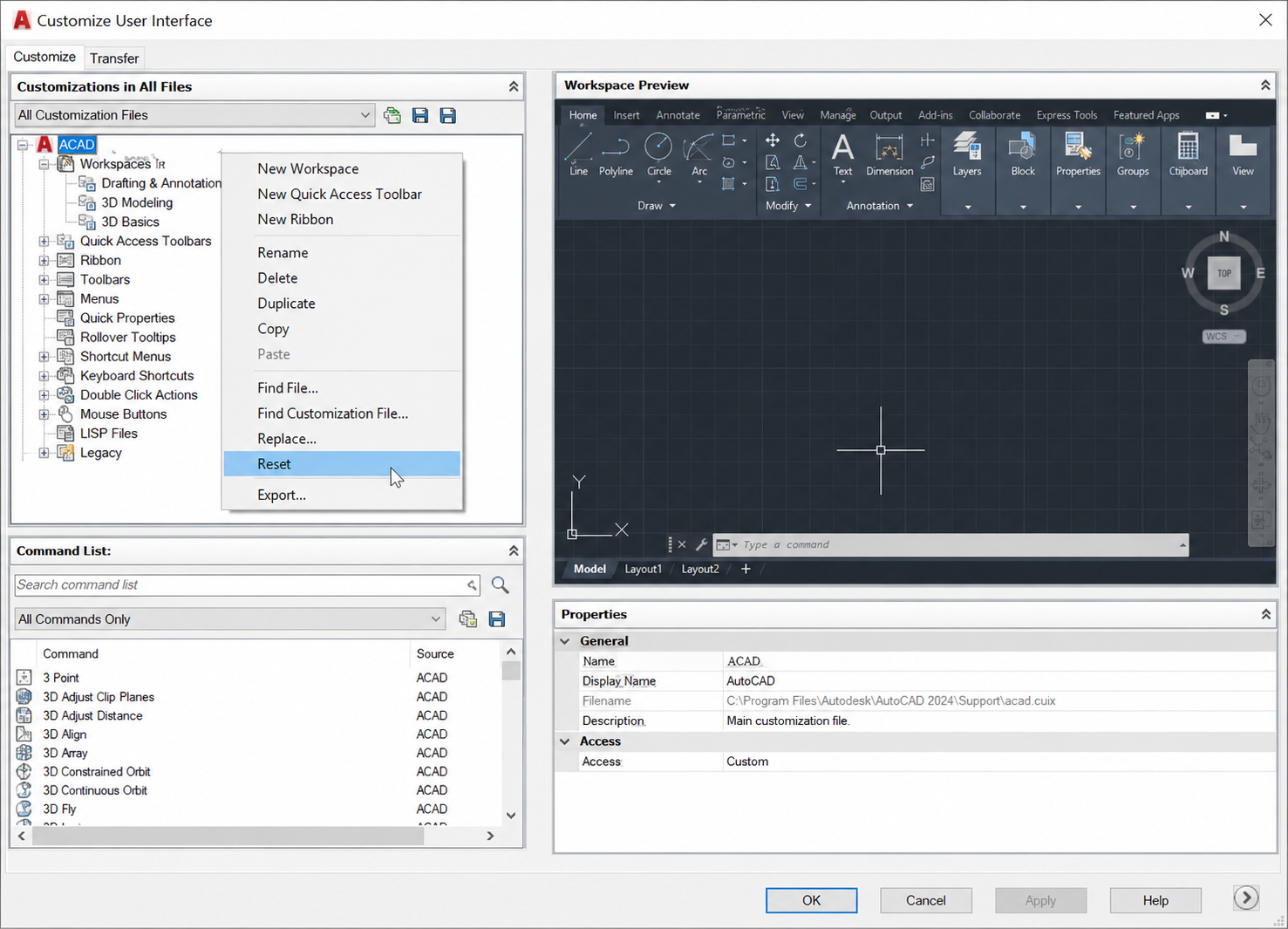
    What CAD software is used in aerospace engineering?

    Aerospace engineering primarily uses CATIA (Dassault Systemes) and Siemens NX. Airbus, Dassault Aviation, many European aerospace OEMs, and major defence contractors standardise on CATIA. Boeing, General Motors, Lockheed Martin, and their supply chains typically use NX. CATIA is valued for Class A surface modelling, large digital mockup, and knowledge-based engineering. NX is valued for its integrated CAD/CAM/CAE capability and Teamcenter PLM integration. Both have steep learning curves and are priced for enterprise deployment.

    How long does it take to learn CAD software?

    Learning time varies by tool and target proficiency level. For AutoCAD, productive 2D proficiency typically takes 4 to 8 weeks of regular practice. For SolidWorks, productive 3D modelling competence typically takes 3 to 5 months. For Fusion 360, 2 to 4 months for CAD proficiency, longer to master the CAM workflows. For enterprise tools like CATIA or NX, initial productivity typically takes 6 to 12 months of dedicated training and practice. All tools offer much shorter learning curves if you already have proficiency in a similar competing tool.

    Which CAD software certification is most valuable for engineering careers?

    The most career-valuable CAD certifications for engineers are: SOLIDWORKS Certified Professional (CSWP) for mechanical engineers, consistently associated with 15 to 25% salary premiums; Autodesk Certified Professional (ACP) in AutoCAD for the broadest multi-discipline engineering recognition; and Autodesk Certified Professional in Civil 3D for civil and infrastructure engineering roles. CATIA and NX certifications are valuable but are typically obtained through employer training programs rather than independent self-study.

    Conclusion: How to Make the Final Decision

    The best CAD software for engineers is always context-dependent, and any guide that names a single universal winner is oversimplifying a genuinely complex decision. The frameworks in this guide are designed to cut through that complexity.

    Start with your industry and target employers. If they use SolidWorks, learn SolidWorks. If they use CATIA, that is what matters. If you are a civil engineer, AutoCAD Civil 3D is not optional, it is the baseline. The most common mistake engineers make is choosing a tool based on marketing, price, or personal preference rather than industry and employer alignment.

    Once you have identified the right tool for your industry, the second most important decision is certification. A validated, externally recognised certification (CSWP for SolidWorks, ACP for AutoCAD, Professional for Civil 3D) adds salary premium, recruitment signal, and professional credibility that self-reported proficiency does not.

    For students and early-career engineers: use your free education access to develop genuine proficiency in the tool your industry uses. For established professionals: the investment in one additional CAD certification in a high-demand area (CSWP if you have not done it, Civil 3D ACP if you are in infrastructure) has one of the fastest returns of any professional development investment available.


    Further reading recommendation: Monograph Best Engineering Design Software

    Explore the broader CAD landscape: read CAD Software Explained: Types, Uses, and Best Tools for the complete overview, or deep-dive into AutoCAD Tutorials for Beginners and Professionals to start building the most universally applicable CAD skill in engineering.

  • CAD Software Explained: Types, Uses, and Best Tools 2026

    CAD Software Explained: Types, Uses, and Best Tools 2026

    Computer-Aided Design (CAD) software is one of the most transformative technologies in the history of engineering, architecture, and manufacturing. In four decades it has replaced every drawing board, eliminated most of the calculation errors that cost lives in engineered structures, compressed product development timelines from years to months, and made it possible to design objects of extraordinary geometric complexity with precise dimensional control.

    And yet, for all its ubiquity, CAD software is profoundly misunderstood , even by many of the engineers, architects, and designers who use it daily. Most people know the name of the tool they use. Far fewer understand the category that tool belongs to, why that category exists, how it relates to other CAD categories, or what the technology actually does under the surface to enable the work it supports.

    This pillar guide closes that gap. It explains CAD software from first principles: what it is, where it came from, how it is categorised into distinct types, what each type does and why it was invented, how the major tools within each type compare, how CAD fits into the broader product development and construction workflow, what file formats it uses and why they matter, how the technology is changing with AI and cloud computing, and what career paths are built on it. It is the most comprehensive, readable, and practically useful guide to CAD software available outside of a university textbook.

    Quick Definition:  CAD software (Computer-Aided Design software) is any software application used to create, modify, analyse, and document designs with a precision and efficiency that manual drawing cannot match. It ranges from 2D drafting programs that produce technical drawings to parametric 3D solid modelling tools, architectural BIM platforms, aerodynamic simulation environments, and AI-assisted generative design systems.

    What Is CAD Software? A Complete Definition

    CAD software is a category of computer application that enables engineers, architects, designers, and technicians to create precise digital representations of physical objects, structures, and systems. The word “design” in Computer-Aided Design encompasses both the creative act of conceiving a new object and the analytical act of verifying that it will perform as required , making CAD simultaneously a creative and an engineering tool.

    At the most fundamental level, a CAD software application provides a digital environment in which geometric objects (lines, curves, surfaces, solids) can be created, positioned, dimensioned, and modified with precision measured to fractions of a millimetre or micron. Unlike a general-purpose drawing application (such as Adobe Illustrator or Microsoft PowerPoint), CAD software models geometry in actual physical coordinates , every object has a precise location, dimension, and relationship to every other object, defined in the same units of measurement (millimetres, inches, metres) that the physical object will eventually be produced in.

    What Makes CAD Different from General Drawing Software

    FeatureCAD SoftwareGeneral Drawing / Illustration Software
    Coordinate precisionExact geometric coordinates , objects are positioned to engineering precisionApproximate pixel or point positions , not dimensionally accurate
    UnitsReal-world measurement units (mm, in, m) throughoutArbitrary canvas units , not calibrated to physical dimensions
    Object relationshipsGeometric constraints and parametric relationships between objectsObjects are independent , no geometric relationships
    Dimensional accuracyDimensions are exact and queryable , DIST, AREA, MASS PROPERTIES commandsDimensions are approximations , not guaranteed accurate
    Manufacturing outputProduces drawings and data directly usable for manufacturing, fabrication, and constructionProduces artwork for visual communication, not manufacturing
    File formatsEngineering formats: DWG, DXF, STEP, IGES, STL, IFCGraphic formats: AI, PDF, SVG, PSD, PNG

    The Three Core Uses of CAD Software

    All CAD software serves three fundamental purposes, which together define what computer-aided design means in practice:

    • Design and modelling: Creating the geometric representation of a product, structure, or system , the digital model from which everything else flows.
    • Analysis and verification: Confirming that the design meets its requirements , structurally sound, thermally stable, manufacturable, collision-free , before anything physical is built.
    • Documentation and communication: Producing the drawings, specifications, bills of materials, and data files that communicate the design to manufacturers, fabricators, constructors, and clients.
    Scale of Impact:  According to Grand View Research, the global CAD software market was valued at $12.0 billion in 2024 and is projected to reach $17.5 billion by 2030, growing at a CAGR of 6.5%. Architectural CAD software alone is projected to reach $30.17 billion by 2026, driven by cloud-based BIM adoption, AI-assisted design, and global construction digitisation. CAD is no longer a specialist engineering tool , it is infrastructure for the entire built environment, product manufacturing, and energy systems industries.

    The History of CAD Software: From Drawing Boards to AI

    The history of CAD software is one of the most important stories in the history of technology. It is the story of how an entire profession was transformed from pencil-and-paper craft into digital engineering in less than 50 years.

    CAD software history timeline from 1963 Sketchpad to 2026 AI-assisted design showing AutoCAD SolidWorks CATIA Fusion 360 and cloud CAD milestones

    1960s: The Birth of Computer-Aided Design

    The concept of computer-aided design was born in 1963 when Ivan Sutherland, a PhD student at MIT, presented Sketchpad , the first interactive computer graphics system , in his doctoral thesis. Sketchpad allowed users to draw geometric shapes on a CRT display using a light pen and introduced fundamental CAD concepts including constraints, object hierarchies, and parametric editing that are still central to modern CAD software 60 years later.

    Sutherland’s work inspired automotive and aerospace companies to explore computer graphics for engineering design. General Motors partnered with IBM to develop DAC-1 (Design Augmented by Computer) for automobile body design in 1963. Lockheed Aviation developed CADAM (Computer Augmented Design and Manufacturing) in the late 1960s. These early systems ran on room-sized mainframe computers and cost millions of dollars , accessible only to the largest industrial corporations.

    1970s: Proprietary Workstation CAD

    The 1970s brought the first commercial CAD systems. CATIA was developed by Dassault Systemes (originally for Dassault Aviation) beginning in 1977. CADAM was acquired by Lockheed and commercialised. Unigraphics (the predecessor to Siemens NX) and Pro/ENGINEER (the predecessor to PTC Creo) were both developed in this decade. These systems ran on dedicated engineering workstations costing $50,000 to $150,000 per seat , still expensive, but beginning to be accessible to mid-sized engineering firms.

    The critical innovation of this era was the introduction of 3D wireframe and surface modelling: the ability to represent the full three-dimensional form of an object in the computer rather than just its 2D projections. This transformed CAD from an expensive drafting tool into a genuine design tool, enabling engineers to visualise, analyse, and refine 3D geometry before physical prototypes were built.

    1982: AutoCAD and the Personal Computer Revolution

    The most consequential event in the history of CAD software was the release of AutoCAD by Autodesk on 1 December 1982 at COMDEX in Las Vegas. AutoCAD was the first fully functional CAD program to run on a personal computer. At an initial price of $1,000 (compared to $50,000+ for competing workstation CAD systems), it democratised CAD access and within a decade had become the global standard for technical drawing, destroying the commercial drawing board market entirely.

    AutoCAD’s introduction did more than make CAD affordable. It established the DWG file format as the universal language of engineering drawings, created the concept of a command-line interface for precision CAD input, and set the user interaction paradigm that most 2D CAD tools still follow today.

    1987-1995: The Parametric Revolution

    The next transformational shift came with the introduction of parametric feature-based 3D solid modelling. PTC released Pro/ENGINEER in 1987, the first commercially successful fully parametric 3D CAD system. Pro/ENGINEER’s fundamental innovation was that every feature in a 3D model was defined not just by its geometry but by its parameters (dimensions, constraints, relationships to other features) and its creation intent (this boss is on the top face of this body, at this offset from this edge).

    This meant that changing a parameter automatically updated the entire model: change the hole diameter and every related feature updated accordingly. The parametric approach was a profound shift from direct geometry manipulation , it encoded the engineer’s design intent into the model rather than just its current geometry. SolidWorks launched in 1995 with a Windows-native interface and significantly lower cost, bringing parametric 3D CAD to the mainstream mechanical engineering market.

    2000s: Integration, Simulation, and PLM

    The 2000s brought the integration of CAD with simulation (CAE), manufacturing programming (CAM), and product lifecycle management (PLM). ANSYS, MSC Nastran, and SolidWorks Simulation brought finite element analysis to the design engineer’s desktop. Mastercam, Fusion 360 (CAM), and NX CAM integrated manufacturing programming with the design model. Dassault’s 3DEXPERIENCE platform and Siemens’ Teamcenter provided the PLM backbone to manage complex multi-disciplinary product data across engineering organisations.

    2010s-Present: Cloud, Collaboration, AI, and Generative Design

    The defining developments of the current era are the shift to cloud-native CAD (Onshape launched 2015, Fusion 360 hybrid cloud launched 2013), the integration of AI and generative design (Autodesk introduced generative design in Fusion 360 in 2018), and the rapid growth of BIM (Building Information Modelling) as the standard for construction project design and coordination. In 2024-2026, conversational AI interfaces (CAD assistants, natural language design query tools, AI-powered topology optimisation) are beginning to reshape the daily workflow of CAD practitioners for the first time since the introduction of parametric modelling.

    How CAD Software Works: The Core Technology Concepts

    Understanding what happens inside a CAD software application when you draw a line, extrude a profile, or run a simulation makes the entire landscape of CAD types and tools more logical. Most of the distinctions between CAD tools trace back to fundamental differences in the underlying technology.

    Geometric Kernels: The Mathematical Engine

    Every 3D CAD tool is built on a geometric kernel , a mathematical library that handles the representation and manipulation of 3D geometry. The two dominant commercial geometric kernels are Parasolid (owned by Siemens) and ACIS (owned by Spatial Corporation / Dassault). SolidWorks, NX, Solid Edge, and many others use Parasolid. AutoCAD 3D solid modelling, Inventor, and some others use ACIS. CATIA uses its own proprietary kernel.

    The geometric kernel determines what types of geometry the CAD tool can represent, how accurately it handles complex operations like Boolean intersections and filleting, and what output formats it can produce. This is why files exported from one CAD tool often need to be translated through a neutral format (STEP, IGES) when moving to a different tool , the underlying geometry representations are different.

    Feature Trees and Parametric History

    Parametric 3D CAD tools maintain a feature tree (also called a model tree or design tree) , a chronological record of every operation performed to create the 3D model. The feature tree is the model’s construction history: it records that the base extrusion came first, then a fillet was applied, then a hole was added, then a pattern of holes was created.

    The feature tree is what makes parametric CAD models editable by intent rather than by geometry. Changing the diameter of the original hole also updates the pattern of holes, because the pattern references the parent hole’s geometry. Parametric models can be updated by editing parameters anywhere in the feature tree, and the model rebuilds from that point downward.

    Constraint Solving

    2D CAD sketches and 3D assembly positions are governed by constraint solvers , mathematical engines that enforce geometric relationships between objects. A coincident constraint forces two points to occupy the same location. A tangent constraint forces a line to be tangent to a circle. A perpendicular constraint forces two lines to meet at 90 degrees. When constraints are fully satisfied, the sketch or assembly is fully constrained: it cannot move or deform except by changing the parameters or constraints themselves. Constraint solving is the foundation of parametric design intent.

    The 8 Types of CAD Software Explained

    CAD software is not a single technology. It is a family of distinct types, each developed to address a specific design, analysis, or documentation problem. Understanding the eight primary types of CAD software is the conceptual foundation for understanding the entire CAD landscape.

    Diagram showing the 8 types of CAD software and their relationships including 2D CAD, 3D solid modelling, parametric, direct modelling, surface modelling, BIM, CAM, and CAE simulation
    TypePrimary PurposeOutput ProducedKey TechnologiesRepresentative Tools
    2D CADTechnical drawing and documentationEngineering drawings, construction plans, schematicsVector geometry, layers, annotation, plottingAutoCAD, AutoCAD LT, LibreCAD, QCAD
    3D Solid ModellingCreating 3D volumetric models for design and manufacturing3D solid models, assembly models, rendered visualisationsB-rep solid geometry, feature trees, Boolean operationsSolidWorks, Inventor, Solid Edge
    Parametric CADIntelligent design with parametric relationships and constraintsParametric models that update intelligently when changedFeature history, constraint solving, parametric equationsSolidWorks, CATIA, NX, Creo, Fusion 360
    Direct ModellingFast, flexible geometry manipulation without history constraints3D models editable without feature history dependenciesDirect geometry manipulation, face pushing/pullingSpaceClaim, Fusion 360 (direct mode), Creo (Flexible Modelling)
    Surface ModellingComplex curved surface design for aesthetics and aerodynamicsClass A surfaces, organic shapes, complex curvature-controlled formsNURBS surfaces, continuity analysis, curvature-based toolsCATIA FreeStyle, NX Freeform, Rhino, Alias
    BIM (Building Information Modelling)Integrated building design with intelligent building elementsMulti-discipline building models with embedded dataObject-based parametric building components, IFCRevit, ArchiCAD, Vectorworks, Allplan
    CAD/CAMConnecting design models to manufacturing machine programmingCNC toolpaths, machining simulations, G-codeToolpath algorithms, machine kinematics, material databasesFusion 360 (CAM), Mastercam, NX CAM, Siemens NX
    CAD/CAE (Simulation)Analysing design performance under simulated conditionsStress results, thermal distributions, fluid flow results, factor of safetyFEA solvers (Nastran, Calculix), CFD solvers (Fluent, OpenFOAM)ANSYS, SolidWorks Simulation, COMSOL, Abaqus

    Type 1: 2D CAD Software , Technical Drafting and Documentation

    2D CAD software produces flat technical drawings: engineering drawings, architectural plans, structural layouts, electrical schematics, and construction documents. It is the direct digital successor to the manual drawing board and remains the primary output format for technical communication between engineers, architects, and construction and manufacturing trades.

    Despite the growth of 3D CAD and BIM, 2D CAD drawings remain the primary legally binding deliverable in most engineering, construction, and manufacturing contracts globally. Fabricators, contractors, and manufacturers work from 2D drawings. Building permits are issued on the basis of 2D plans. Quality inspection is conducted against 2D engineering drawings. The 3D model is increasingly the design tool; the 2D drawing remains the communication and contract instrument.

    What 2D CAD Produces

    • Engineering drawings: Component drawings with dimensions, tolerances, surface finish, and GD&T callouts for manufacturing
    • Assembly drawings: Multi-part drawings showing how components fit together with part references and bill of materials
    • Architectural plans: Floor plans, sections, elevations, and construction details for building projects
    • Electrical schematics: Circuit diagrams, wiring diagrams, and panel layouts for electrical systems
    • Civil engineering plans: Site plans, road layouts, drainage networks, and utility routing drawings
    • P&ID diagrams: Piping and instrumentation diagrams for chemical processes and industrial plants

    The undisputed leader in 2D CAD is AutoCAD, with over 4 million active subscribers globally and a market share in 2D engineering drawing that no competitor comes close to matching. Its DWG file format is the universal standard for 2D technical drawing exchange. AutoCAD LT ($570/year) provides the full 2D drafting capability without 3D modelling for users who only need documentation.

    Type 2: 3D Solid Modelling CAD

    3D solid modelling is the representation of physical objects as mathematically defined volumetric solids in a three-dimensional coordinate space. A solid model has mass, volume, surface area, and centre of mass , it is a complete digital representation of a physical object that can be interrogated, modified, and used to generate manufacturing instructions.

    Solid models use boundary representation (B-rep) , the solid is defined by its bounding surfaces (faces, edges, and vertices) and the mathematical relationships between them. The Parasolid and ACIS geometric kernels use B-rep to represent solids, as does every major commercial 3D CAD tool.

    What 3D Solid Modelling Enables

    • Interference checking: Automatically detecting whether two components in an assembly physically overlap (clash) , critical for verifying assembly feasibility before manufacturing
    • Mass properties: Calculating weight, centre of gravity, moments of inertia , essential for structural analysis and balance calculations
    • Automated drawing generation: Creating 2D orthographic views, sections, and details automatically from the 3D model , far faster than drawing views manually
    • Visualisation and rendering: Producing photorealistic images of the product before any physical prototype exists
    • Simulation input: Providing the geometry for FEA stress analysis, CFD fluid simulation, and thermal analysis
    • Manufacturing instructions: Generating toolpaths for CNC machining directly from the solid model geometry

    Type 3: Parametric CAD Software

    Parametric CAD is not a separate type of CAD so much as a design methodology , the most important methodology in modern engineering CAD. A parametric CAD model encodes the design intent as well as the geometry: relationships between features, governing dimensions, and the logical order in which features are created are all part of the model definition.

    The defining characteristic of parametric CAD is that changing a parameter value automatically propagates through the entire model, updating all dependent features according to the design intent encoded when the model was built. A parametric model of a bolt pattern does not just record where the holes are , it records that the holes are equally spaced around a bolt circle of a specified diameter, so changing the bolt circle diameter automatically repositions all holes correctly.

    Parametric vs Non-Parametric CAD

    AspectParametric CADNon-Parametric (Direct) CAD
    Change propagationChanges to parameters automatically update entire modelChanges apply only to the selected geometry; no automatic propagation
    Design intent storageDesign intent encoded in feature tree and constraintsGeometry only , no stored design intent
    Edit flexibilityStructured: edits must respect feature dependenciesFlexible: any face or edge can be moved freely
    Best forProduction design, repeated design iterations, family-of-parts designConcept modelling, imported geometry repair, quick shape exploration
    Learning curveSteeper: must plan feature structure to edit reliablyFaster to start: no upfront structural planning required
    Major toolsSolidWorks, CATIA, NX, Creo, InventorSpaceClaim, Fusion 360 (direct), Creo Flexible Modelling Extension

    Type 4: Direct Modelling (Explicit) CAD

    Direct modelling (also called explicit modelling or history-free modelling) is an approach where the engineer manipulates geometry directly , pushing faces, pulling edges, blending surfaces , without a parametric feature history constraining those manipulations. Each edit acts on the current state of the geometry rather than on a record of how it was built.

    Direct modelling has two primary use cases: fast concept exploration (where the freedom to modify without feature history constraints accelerates early-stage design) and working with imported geometry (where files from other CAD systems arrive as dumb solids without feature history). Tools like Ansys SpaceClaim (now SpaceClaim Engineer) are specifically optimised for the latter , preparing imported CAD geometry for FEA simulation by simplifying, repairing, and modifying solids that have no parametric history.

    Type 5: Surface Modelling CAD

    Surface modelling creates 3D shapes as collections of mathematical surfaces rather than as volumetric solids. Where solid modelling is analogous to sculpting a clay block, surface modelling is analogous to bending and joining sheets of material , building the outer skin of an object face by face.

    Surface modelling is essential for any design where the precise shape and curvature of the exterior surface is itself the primary design criterion: automotive body panels (where surface curvature affects aerodynamics, water runoff, and visual reflection quality), aircraft fuselage and wing skins (where aerodynamic performance is surface-quality dependent), and premium consumer product casings (where the visual and tactile quality of the surface is a primary differentiator).

    NURBS: The Mathematics of CAD Surfaces

    Most CAD surface modelling is based on NURBS (Non-Uniform Rational B-Splines) , a mathematical representation that can define smooth curves and surfaces of arbitrary complexity with a compact set of control points and weights. NURBS surfaces can represent everything from a perfect cylinder to a complex organic aerodynamic shape, and they export to neutral formats (IGES, STEP) without losing surface quality.

    Class A Surfaces

    The highest standard of surface quality in automotive and consumer product design is called Class A surfaces: surfaces that are not just smooth but have mathematically perfect curvature continuity across all joins. Class A is the standard for automotive exterior body panels and is tested by analysing how light and environment reflections behave across the surface , any discontinuity in curvature shows up as a visible distortion in the reflection. CATIA FreeStyle and Autodesk Alias are the primary tools for Class A surface creation.

    Type 6: Building Information Modelling (BIM) Software

    BIM software represents the application of CAD technology to the architecture, engineering, and construction (AEC) industry, with a fundamental difference from conventional CAD: in BIM, the model is not just a collection of geometric shapes but a database of intelligent building objects , walls, doors, windows, beams, pipes, ducts , each containing geometric, physical, and functional data about the real building element it represents.

    A BIM model of a building knows that the object labelled ‘Wall Type A’ is a 200mm thick load-bearing concrete wall with specific thermal properties, fire rating, and finish specifications. When a door is placed in that wall, the BIM software automatically creates the opening in the wall geometry, adjusts the wall area calculations, and records that the wall has a door of a specific type. This intelligence enables automatic generation of schedules, quantity takeoffs, energy analyses, and clash detection reports from a single coordinated model.

    BIM Levels of Development

    BIM LevelWhat It MeansKey Capability Enabled
    LOD 100 (Conceptual)Approximate size, shape, location, and orientationSite planning, massing studies, conceptual energy analysis
    LOD 200 (Schematic)Approximate geometry with generic object types, quantities, and systemsPreliminary clash detection, approximate cost estimating, coordination between disciplines
    LOD 300 (Design Development)Specific geometry, size, shape, location, orientation with real object typesDetailed clash detection, accurate quantity takeoff, construction coordination, permit drawings
    LOD 350 (Construction)Full construction detail with interface information for adjacent elementsComplete construction coordination, fabrication drawings, MEP coordination
    LOD 400 (Fabrication)Full fabrication and assembly detail , as-built representationOff-site fabrication, assembly sequencing, shop drawings
    LOD 500 (As-Built)Model verified on-site to actual conditionsFacilities management, maintenance planning, digital twin

    The dominant BIM software tool globally is Autodesk Revit, which holds approximately 60 to 70 percent of the BIM market for architectural and structural design. Graphisoft ArchiCAD is a strong competitor, particularly in Europe. Bentley’s OpenBuildings Designer is used for large infrastructure projects. The open exchange format for BIM data is IFC (Industry Foundation Classes), developed by buildingSMART International, which allows different BIM tools to exchange building model data without proprietary format dependency.

    Type 7: CAD/CAM Software , Design to Manufacture

    CAD/CAM software (Computer-Aided Design / Computer-Aided Manufacturing) combines 3D design tools with manufacturing programming tools in a single integrated workflow. The “manufacturing” part (CAM) generates the machine instructions , typically CNC toolpaths and G-code , needed to produce the designed component on a CNC milling machine, lathe, router, plasma cutter, or other computer-controlled manufacturing equipment.

    The fundamental advantage of an integrated CAD/CAM workflow is that the same geometric model used for design is used directly for manufacturing programming , there is no need to recreate or import geometry into a separate CAM package. Any change to the design model automatically updates the associated toolpaths when the CAM program is regenerated, reducing the risk of manufacturing from outdated geometry.

    What CAM Software Does

    • Toolpath generation: Calculates the precise path the cutting tool must follow to remove material from a workpiece and produce the designed geometry
    • Machine simulation: Simulates the complete cutting process to verify toolpaths, check for collisions between the tool/holder and workpiece/fixture, and estimate machining time
    • G-code output: Generates the machine-specific numerical control code (G-code) that is loaded into the CNC machine controller
    • Setup documentation: Produces setup sheets describing workholding, tool selection, cutting parameters, and operation sequence for the machinist

    The most significant CAD/CAM development for everyday engineers in recent years is Autodesk Fusion 360’s integrated CAD+CAM workflow. Fusion 360 provides fully capable 2.5-axis, 3-axis, 4-axis, and 5-axis milling, turning, and wire EDM programming alongside its 3D design tools in a single subscription at a price accessible to small manufacturers and individual engineers.

    Type 8: CAD/CAE Software , Simulation and Analysis

    CAD/CAE software (Computer-Aided Engineering) uses the geometry of a CAD model as the input for numerical simulation , predicting how a design will perform under real-world conditions before any physical prototype is built. The economic and safety value of this capability is enormous: finding that a bracket will fail under load in a simulation takes minutes and costs nothing to fix; finding it in a physical test takes weeks and may require costly tooling changes; finding it in service may cost lives.

    The Primary Types of CAE Simulation

    • Finite Element Analysis (FEA): Predicts structural stress, strain, deflection, and failure in solid components under mechanical, thermal, or dynamic loading. The most widely used simulation type in mechanical engineering.
    • Computational Fluid Dynamics (CFD): Simulates fluid flow (liquid or gas) around or through a 3D geometry , predicting aerodynamic drag, lift, pressure drops, heat transfer, and flow distributions.
    • Thermal analysis: Predicts temperature distributions through conduction, convection, and radiation , critical for electronics cooling, engine thermal management, and HVAC system design.
    • Modal analysis / dynamics: Predicts natural frequencies and vibration mode shapes of structures , essential for avoiding resonance failures.
    • Multi-physics simulation: Couples multiple physics domains (structural + thermal + fluid) in a single simulation , used for complex coupled problems like thermal expansion causing structural stress.

    The dominant CAE platform globally is ANSYS, which provides FEA, CFD, thermal, electromagnetic, and multi-physics simulation tools. SolidWorks Simulation provides integrated FEA within the SolidWorks environment. COMSOL Multiphysics specialises in coupled multi-physics problems. Autodesk Nastran and MSC Nastran are the aerospace and automotive standard for structural analysis.

    The Three Modelling Paradigms: Solid, Surface, and Mesh

    Within 3D CAD, three distinct mathematical paradigms are used to represent geometry. Understanding them explains why different CAD tools are used for different types of design work.

    ParadigmHow Geometry Is RepresentedBest ForStrengthsLimitations
    Solid Modelling (B-rep)Closed volumetric solids defined by bounding surfaces, edges, and verticesMechanical engineering, product design, structural components, anything that will be manufacturedMathematically complete, mass properties calculable, Boolean operations, FEA-readyLess suited to organic/sculptural shapes; requires watertight geometry
    Surface Modelling (NURBS)Collections of smooth mathematical surfaces without enclosing a volumeAutomotive styling, aerospace aerodynamics, consumer product aesthetics, complex curved shapesPerfect curvature control, Class A surfaces achievable, handles organic shapes wellSurfaces must be manually stitched and made watertight for manufacturing
    Mesh / Polygon ModellingGeometry approximated by a mesh of flat polygonal faces (triangles or quads)Game assets, visual rendering, 3D printing of organic shapes, reverse engineering from scan dataHandles highly complex organic shapes, fast for visualisation, compatible with 3D printingNot dimensionally precise, limited manufacturing suitability, large file sizes for complex models

    Modern professional CAD tools are increasingly hybrid, supporting multiple modelling paradigms within the same environment. SolidWorks supports both solid and surface modelling. CATIA and NX support all three. Fusion 360 integrates solid, surface, and mesh (T-spline) modelling. The ability to move fluidly between paradigms , starting with surface forms, solidifying them for structural analysis, and exporting mesh for visualisation , is increasingly a defining capability of enterprise-class CAD platforms.

    How CAD Fits into the Product Development Workflow

    CAD software does not exist in isolation. It sits within a structured product development or construction workflow that defines how design intent is captured, developed, verified, documented, and communicated from initial concept through to finished product or built structure. Understanding where each type of CAD fits in this workflow clarifies why different tools are used at different stages.

    Product development workflow diagram showing how CAD software types are used at each stage from concept design through 3D modelling FEA simulation and CNC manufacturing to 2D documentation
    Workflow StagePrimary ActivityCAD Type UsedTypical ToolsOutput
    Concept and IdeationSketching, form exploration, initial proportioningDirect modelling, sketch tools, mesh modellingFusion 360, SketchUp, Shapr3D, BlenderConcept sketches, rough 3D form studies
    Schematic DesignEstablishing spatial layout, system routing, design intent2D CAD, BIM, schematic toolsAutoCAD, Revit (BIM), Visio (schematics)Schematic drawings, layout plans, system diagrams
    Detail DesignFully detailed 3D models with all geometry, tolerances, and materialsParametric 3D CAD, surface CAD (for Class A)SolidWorks, CATIA, NX, Creo3D solid models, assembly models
    Analysis and SimulationVerifying structural integrity, fluid performance, thermal behaviourCAE simulation softwareANSYS, SolidWorks Simulation, COMSOL, FluentFEA stress results, CFD flow fields, factor of safety reports
    Manufacturing DocumentationCreating drawings, specifications, BOM, NC programs2D CAD, CAD/CAMAutoCAD, SolidWorks Drawing, Fusion 360 CAMEngineering drawings, bills of materials, CNC toolpaths, G-code
    Fabrication and ConstructionProducing the physical object or structure2D drawings, CAM G-code, BIM modelsFactory equipment, CNC machines, construction sitePhysical product or built structure
    Operations and MaintenanceManaging the built asset throughout its service lifeDigital twin, BIM (facilities), PLMBentley AssetWise, IBM Maximo, Autodesk TandemAs-built models, maintenance records, performance data

    CAD File Formats Explained

    CAD file formats are one of the most practically important topics for working engineers and designers. The choice of file format for exchanging CAD data between tools, teams, and organisations determines what information is preserved, what is lost, and what compatibility problems will arise.

    FormatTypeWhat It PreservesBest Used ForLimitations
    DWGNative (Autodesk)Full 2D drawing content: all AutoCAD objects, layers, styles, blocks, attributesSharing between AutoCAD users; universal 2D drawing exchangeProprietary format with version compatibility issues across AutoCAD versions
    DXFOpen interchange2D geometry, layers, blocks , simplified vs DWGSending 2D drawings to non-AutoCAD tools, CNC machines, laser cuttersComplex AutoCAD objects simplified or lost; older versions lose newer features
    STEP (.stp/.step)Open 3D neutralFull solid geometry, B-rep, assembly structure, some metadataGold standard for 3D solid model exchange between different CAD toolsDoes not preserve parametric history or feature trees
    IGES (.igs/.iges)Open 3D neutral (older)Surfaces, solids (B-rep), some assembly dataLegacy 3D exchange, particularly for surface-heavy aerospace/automotive dataOlder standard; STEP is generally preferred for new work
    STL3D printing / meshTriangle mesh approximation of 3D surface , no solid data3D printing, rapid prototyping, reverse engineering, visualisationNo exact geometry (faceted approximation), no parametric data, no units
    SLDPRT / SLDASMNative (SolidWorks)Full parametric feature history, assembly structure, matesWorking within SolidWorks environment; sharing with other SolidWorks usersOnly readable in SolidWorks (or with SolidWorks viewer)
    IFCOpen BIMFull BIM model: building objects, geometry, metadata, relationships, schedulesExchanging BIM models between Revit, ArchiCAD, and other BIM toolsNot all tools implement IFC equally; some data loss common across platforms
    FBXVisualisation / animationMesh geometry, materials, textures, animation data3D rendering, visualisation, game engine importNot suitable for engineering manufacturing
    Parasolid (.x_t)Geometric kernel neutralFull B-rep solid geometry without feature historyTransferring solid geometry between tools sharing Parasolid kernelLimited tool support compared to STEP
    OBJMesh / visualisationPolygon mesh, materials, texture coordinates3D visualisation, rendering, web 3D, game assetsNo engineering precision, no solid data, no dimensions
    File Format Decision Rule:  For 3D solid model exchange between different CAD tools: use STEP (.step). It is the most universally supported neutral 3D format and preserves solid geometry with the least data loss. For 2D drawing exchange with non-AutoCAD users or fabrication services: use DXF (R14). For 3D printing: use STL. For BIM model exchange: use IFC. Always keep your native format (.sldprt, .dwg, .rvt) as the master file.

    Desktop CAD vs Cloud-Native CAD: Architecture and Trade-offs

    The fundamental architecture of CAD software , whether it runs on a local workstation or lives in the cloud , is one of the most consequential decisions in modern CAD adoption. This is not just a technical question. It affects security, collaboration, hardware cost, IT overhead, and the long-term direction of the engineering workflow.

    DimensionDesktop CADCloud-Native CAD
    Data locationLocal hard drive or company serverVendor cloud (AWS, Google, Azure infrastructure)
    ProcessingLocal CPU/GPU , performance limited by workstation specHybrid: geometry solving local, storage and collaboration cloud
    CollaborationPDM/PLM required (Vault, Teamcenter, Windchill)Built-in real-time collaboration without PDM infrastructure
    Version controlManual (naming conventions) or PDM-managedAutomatic, branching/merging model similar to git
    Offline workingFull functionalityReduced , most operations require internet
    Hardware costHigh-spec workstation required ($2,000-$8,000+)Any modern computer with web browser
    IT overheadSignificant , installs, updates, licence servers, PDM adminMinimal , vendor manages infrastructure
    Data security / IPData under company controlData on vendor infrastructure , IP risk consideration
    Large assembly performanceBetter , local processing not network-limitedLimited , large assemblies can be slow over network
    Feature maturityMost mature , decades of developmentImproving rapidly , some gaps vs desktop at extremes
    Best forEnterprise engineering, large assemblies, aerospace, automotive, any IP-sensitive sectorStartups, SMEs, remote teams, hardware companies, rapid product development

    The CAD Software Ecosystem: Point Tools vs Integrated Suites

    The CAD software ecosystem is structured into three distinct categories that reflect different approaches to the relationship between design, simulation, manufacturing, and data management:

    Point Tools

    Point tools are software applications designed to do one thing exceptionally well. AutoCAD is a point tool for 2D drafting. ANSYS Fluent is a point tool for CFD. Mastercam is a point tool for CAM. Point tools offer the deepest capability in their specific domain and are often the preferred choice of specialists, but they require file translation workflows when moving data between stages of the development process.

    Integrated Suites

    Integrated suites combine multiple CAD, simulation, and data management capabilities within a single platform and data model. Siemens NX integrates CAD, CAM, and CAE. Autodesk Fusion 360 integrates CAD, CAM, and simulation. Dassault 3DEXPERIENCE integrates SolidWorks/CATIA, simulation, and PLM. Integrated suites eliminate file translation between stages and ensure that the analysis model is always in sync with the design model, at the cost of less depth in any individual domain compared to the best specialist point tools.

    Platform Ecosystems

    The largest CAD vendors have evolved from selling software tools to building platform ecosystems that connect CAD tools with PDM, PLM, ERP, simulation, generative design, IoT, and digital twin technologies. Autodesk’s Platform Services (formerly Forge) and Construction Cloud, Dassault’s 3DEXPERIENCE Marketplace, Siemens’ Xcelerator portfolio, and PTC’s ThingWorx IoT + Windchill PLM all represent attempts to expand the value of CAD from a design tool into the connective tissue of the entire product lifecycle.

    Best CAD Software by Engineering and Design Discipline

    DisciplinePrimary CAD ToolAlternative / Specialist ToolKey Reason
    Mechanical Engineering (Product Design)SolidWorksAutodesk Inventor or Fusion 360Dominant market share, largest ecosystem, most employer-required parametric 3D tool in mid-market
    Mechanical Engineering (Enterprise/Aerospace)CATIA or Siemens NXPTC CreoMandated by major aerospace and automotive OEMs; only tools with the scale for complex programs
    Civil EngineeringAutoCAD Civil 3DBentley MicroStation / OpenRoadsDominant for road, drainage, and site design; Bentley for large infrastructure networks
    Architecture (Documentation)AutoCADMicroDraft, VectorWorksUniversal standard for architectural technical drawings and construction documentation
    Architecture (BIM)Autodesk RevitGraphisoft ArchiCADMarket-leading BIM platform for architectural design and multi-discipline coordination
    Structural EngineeringAutoCADTekla Structures (structural steel)AutoCAD for detailing; Tekla for 3D structural steel fabrication modelling
    Electrical EngineeringAutoCAD ElectricalEPLAN (EDA, not traditional CAD)AutoCAD Electrical toolset for wiring diagrams; EPLAN for complex panel design
    Manufacturing / CNCFusion 360 (CAD+CAM)Mastercam, NX CAMFusion 360’s integrated CAD+CAM at competitive price; Mastercam for advanced multi-axis
    Product Design / Industrial DesignFusion 360 or Rhino 3DSolidWorks, Alias (styling)Fusion 360 for functional design; Rhino for complex form; Alias for automotive Class A styling
    3D Printing / AdditiveFusion 360 or nTopSolidWorks, FreeCADFusion 360 has best generative/lattice design for AM; nTop (nTopology) for advanced lattice structures

    AI and the Future of CAD Software

    Artificial intelligence is beginning to transform CAD software at a pace that is accelerating in 2024 and 2026. The changes range from incremental productivity improvements to potentially fundamental shifts in how engineering design is done.

    Generative Design

    Generative design uses AI optimisation algorithms to explore thousands of design configurations based on engineering constraints defined by the engineer: load cases, material constraints, manufacturing method, mass targets, and performance objectives. The resulting geometries are often organic in form , mathematically optimised rather than intuitively designed , and frequently achieve the same structural performance as conventional designs at 20 to 50 percent lower mass.

    Autodesk’s generative design tools (in Fusion 360 and Inventor) are the most widely deployed. nTop (nTopology) specialises in lattice and field-driven generative structures for additive manufacturing. SOLIDWORKS AI Topology Study provides topology optimisation within the SolidWorks environment.

    AI-Assisted Design Workflows

    • SOLIDWORKS Aura (2026): An AI co-pilot embedded in SolidWorks that answers design questions, suggests features, and assists with model creation through conversational interaction.
    • Autodesk AI (Fusion 360 / AutoCAD): AI-powered command autocomplete, design suggestions, and automated drawing creation features being rolled out across Autodesk products.
    • Physics-Informed Neural Networks (PINNs): Research-stage AI that can solve FEA and CFD problems at speeds orders of magnitude faster than traditional solvers, enabling real-time simulation during design.
    • Automated drawing creation: AI tools that automatically generate 2D drawing views, add dimensions, and create title blocks from 3D models, reducing documentation time significantly.

    The Long-Term Trajectory

    The convergence of AI, generative design, and digital twin technology is moving CAD software toward a future where the engineer’s role shifts from geometry creation toward design intent specification: defining the problem (loads, materials, constraints, cost targets) and evaluating the AI-generated solutions rather than manually creating every geometric feature. This is not imminent for most engineering work , the complexity and safety criticality of most engineered products ensures that human engineering judgement will remain central for decades. But the direction of travel is clear and the pace is accelerating.

    CAD Software Career Paths and Certifications

    Proficiency in CAD software is not a career in itself , it is a foundational skill that amplifies the value of engineering, architecture, and design expertise. The career paths built on CAD proficiency span roles from CAD technician through to engineering director, and the salary premium for certified CAD proficiency is consistently documented across all major engineering job markets.

    Career PathPrimary CAD ToolsKey CertificationsTypical Entry Salary (US)Senior Potential
    Mechanical Design EngineerSolidWorks or NX/CATIACSWP, CSWE (SolidWorks)$65,000-$80,000$110,000-$150,000+
    Civil/Infrastructure EngineerAutoCAD Civil 3D, MicroStationAutodesk ACP Civil 3D$60,000-$75,000$95,000-$130,000
    Structural EngineerAutoCAD, Tekla, RevitAutodesk ACP, Tekla certification$60,000-$72,000$90,000-$125,000
    Architectural DesignerAutoCAD, RevitAutodesk ACP AutoCAD/Revit$55,000-$70,000$85,000-$120,000
    Manufacturing/CNC EngineerFusion 360, Mastercam, NXAutodesk CAM certification$60,000-$75,000$90,000-$120,000
    CAE/Simulation EngineerANSYS, SolidWorks Simulation, AbaqusANSYS certification programmes$70,000-$90,000$115,000-$155,000
    BIM Manager / CoordinatorRevit, Navisworks, Civil 3DAutodesk Certified Professional (Revit)$65,000-$80,000$95,000-$130,000
    Aerospace Structural EngineerCATIA, NX, ANSYS NastranCATIA/NX certificates, PE licence$80,000-$100,000$130,000-$180,000+
    Certification Strategy:  The highest-return CAD certification investment for most engineers in 2026 is the SOLIDWORKS Certified Professional (CSWP) , independently validated, widely recognised by employers, and consistently associated with 15 to 25 percent salary premiums. For multi-discipline engineers, the Autodesk Certified Professional (ACP) in AutoCAD provides the broadest career coverage. Both can be achieved through self-study and tested at Autodesk/Dassault-authorised testing centres globally.

    Frequently Asked Questions (FAQ)

    What is CAD software?

    CAD software (Computer-Aided Design software) is a category of computer application used to create, modify, analyse, and document designs of physical objects, structures, and systems with engineering-level precision. It ranges from 2D technical drafting programs (AutoCAD) to 3D parametric solid modelling tools (SolidWorks, CATIA), architectural BIM platforms (Revit), simulation software (ANSYS), and integrated CAD/CAM manufacturing programming systems (Fusion 360). CAD software replaced manual drawing boards across engineering, architecture, and manufacturing, and is used by over 10 million professional engineers, architects, and designers globally.

    What are the main types of CAD software?

    The eight main types of CAD software are: (1) 2D CAD for technical drawing and documentation (AutoCAD); (2) 3D Solid Modelling CAD for creating volumetric product models (SolidWorks, Inventor); (3) Parametric CAD for intelligent models that update by design intent (SolidWorks, CATIA, NX); (4) Direct Modelling CAD for flexible geometry manipulation without history (SpaceClaim); (5) Surface Modelling CAD for complex curved forms (CATIA FreeStyle, Rhino, Alias); (6) BIM software for intelligent building design (Revit, ArchiCAD); (7) CAD/CAM software for design-to-manufacture (Fusion 360, Mastercam); (8) CAE/Simulation software for design analysis (ANSYS, SolidWorks Simulation).

    What is parametric CAD?

    Parametric CAD is a 3D CAD approach where the model captures design intent , the relationships, constraints, and governing dimensions that define how the design is meant to work , alongside the geometry. When a parameter is changed (for example, a dimension or a constraint), the entire model updates automatically to reflect the change throughout all dependent features. Parametric CAD tools include SolidWorks, CATIA, Siemens NX, PTC Creo, and Autodesk Inventor. It contrasts with direct modelling, where geometry is manipulated freely without stored parametric history.

    What is BIM and how is it different from CAD?

    BIM (Building Information Modelling) is a specific type of CAD for the construction industry where the model contains not just geometry but intelligent building objects , walls, doors, beams, pipes , each containing physical, functional, and material data about the real building element they represent. Unlike standard CAD (which produces geometric shapes), BIM models automatically generate schedules, cost estimates, energy analyses, and clash detection reports because the objects are data-rich. The most widely used BIM tool is Autodesk Revit. BIM is a form of CAD, but with intelligence, data, and multi-discipline coordination capabilities that standard CAD tools do not provide.

    What is the difference between CAD, CAM, and CAE?

    CAD (Computer-Aided Design) creates the 3D model or 2D drawing of the product or structure. CAM (Computer-Aided Manufacturing) uses the CAD model to generate the machine instructions (CNC toolpaths, G-code) needed to manufacture the part on computer-controlled equipment. CAE (Computer-Aided Engineering) uses the CAD model as input for numerical simulation (FEA, CFD, thermal analysis) to verify that the design will perform as required before physical testing. These three disciplines represent the progression from design through analysis to manufacture, and modern integrated tools like Fusion 360 and NX combine all three in a single platform.

    What is the best CAD file format for sharing with other software?

    The best CAD file format for sharing 3D solid models between different CAD tools is STEP (.step or .stp) , it is an open, internationally standardised format that preserves complete B-rep solid geometry and assembly structure with minimal data loss across all major CAD platforms. For 2D drawing exchange, DXF (R14) is the most widely compatible format, readable by virtually every CAD tool and fabrication system. For 3D printing, use STL. For BIM model exchange, use IFC. Always retain your native format file as the master document.

    What CAD software is best for beginners?

    The best CAD software for beginners depends on the target discipline. For general engineering and the widest career applicability: AutoCAD (free student licence) for 2D drafting and Fusion 360 (free for students/personal use) for 3D modelling are the most accessible starting points. Both have large communities, abundant tutorials, and free access for learners. For those targeting architecture, Revit’s student version is the appropriate starting tool. For mechanical engineering specifically, SolidWorks student licences provide access to the industry’s most widely used professional tool at low cost.

    How is AI changing CAD software?

    AI is changing CAD software in several important ways in 2026: Generative design algorithms explore thousands of design configurations based on constraints, producing optimised geometries at lower mass; AI co-pilots (SolidWorks Aura, Autodesk AI) embed conversational AI assistance directly into the design workflow; Physics-Informed Neural Networks are beginning to accelerate FEA and CFD simulation by orders of magnitude; and automated drawing creation tools are reducing documentation time. The long-term trajectory moves the engineer’s role from geometry creation toward design intent specification and AI-generated solution evaluation.

    What is the difference between 2D CAD and 3D CAD?

    2D CAD produces flat technical drawings on a 2D plane , engineering drawings, floor plans, schematics , that describe an object’s shape through multiple views (front, top, side) and dimensions. It is the direct digital replacement for the drawing board. 3D CAD creates a complete three-dimensional digital model of an object in a 3D coordinate space. The 3D model has volume, mass, and surface area, can be viewed from any angle, can be used for simulation and interference checking, and can automatically generate 2D drawing views. Most modern engineering workflows use 3D CAD for design and 2D CAD drawings for manufacturing documentation.

    What is NURBS in CAD?

    NURBS (Non-Uniform Rational B-Splines) is the mathematical representation used by most professional CAD tools to define smooth curves and surfaces. NURBS surfaces can describe anything from a simple flat plane to a complex aerodynamic fuselage shape with perfect mathematical continuity. They are defined by control points and weights that determine how the surface is pulled toward each control point. NURBS is the standard representation for surface modelling in tools like CATIA, Rhino, Autodesk Alias, and SolidWorks. The STEP and IGES file formats preserve NURBS surface data for exchange between tools.

    Conclusion

    CAD software is not a single technology. It is a diverse family of tools, each evolved to address a specific aspect of the design, analysis, documentation, and manufacturing workflow. Understanding the landscape , what each type of CAD is for, how the types relate to each other, how the major tools within each type compare, and how the whole ecosystem fits together , is the foundation for making intelligent decisions about which tools to learn, which to deploy, and which to commission.

    The history of CAD is a history of progressive democratisation: from room-sized mainframes accessible only to the largest aerospace corporations in the 1960s, to personal computer tools accessible to any engineering firm by the 1990s, to cloud-native tools accessible to any individual engineer for free today. Each wave of democratisation has expanded the population of people who design and engineer things, and the current wave, AI-assisted generative design and cloud collaboration, will continue that expansion.

    For students and early-career engineers, the practical implication is clear: invest in genuine proficiency in the tools that matter for your industry (not the tools with the best marketing), obtain recognised certifications where available, and stay alert to the AI-driven changes that are beginning to reshape what CAD proficiency means in practice. The engineer who can specify design intent, evaluate AI-generated solutions, and communicate effectively with manufacturing and construction teams , amplified by deep CAD toolset knowledge, will be the most valuable engineering professional of the next decade.

    Explore the full CAD Software cluster: Best CAD Software for Engineers , our comprehensive tool-by-tool comparison with pricing, industry fit, and career impact. Or begin building your foundational CAD skills with AutoCAD Tutorials for Beginners and Professionals.

  • Dynamic Block Lookup Tables in AutoCAD Explained (2026)

    Dynamic Block Lookup Tables in AutoCAD Explained (2026)

    AutoCAD’s dynamic blocks are one of the most powerful productivity tools in the software, allowing a single block definition to represent dozens or even hundreds of variations through parameters and actions. But even among experienced AutoCAD users who are comfortable with stretch, scale, and visibility parameters, lookup tables remain one of the least understood and most underused features of the dynamic block system.

    A lookup table takes a dynamic block to a completely different level of usability. Instead of users having to manipulate grips, type specific values, or know the exact dimensions of a component they are placing, a lookup table presents them with a simple dropdown list: select ‘M8 Bolt’, or ‘Type A Door’, or ‘600mm Wide Desk’, and the block automatically sets all associated parameters to the correct values simultaneously. One selection drives everything.

    This guide explains AutoCAD dynamic block lookup tables from the ground up. It covers what they are and why they are useful, the conceptual building blocks (lookup parameters versus lookup actions), how to create a single-parameter lookup table step by step, how to build a multi-parameter lookup that drives multiple block properties from one dropdown, the Allow Reverse Lookup setting that confuses almost every user who first encounters it, how to extract lookup data for bills of materials and parts lists, and a full troubleshooting reference for every common problem.

    Quick Answer:  A dynamic block lookup table in AutoCAD is a table inside a dynamic block definition that maps a named entry (e.g. ‘M10 Bolt x 50mm’) to a specific set of parameter values (e.g. Diameter = 10, Length = 50, Head Height = 6.4). When a user selects that entry from the block’s grip dropdown, AutoCAD automatically applies all associated parameter values simultaneously. It is created in the Block Editor using a Lookup Parameter and a Lookup Action.

    What Is a Dynamic Block Lookup Table and Why Use One?

    In the context of AutoCAD dynamic blocks, a lookup table is a structured internal table that associates named text entries (the list items a user sees in the dropdown) with corresponding values for one or more block parameters. It is the mechanism that converts a block from something a user manipulates by dragging grips to something a user selects from a predefined list.

    Think of a lookup table as the dynamic block equivalent of a product catalogue. A block representing a structural steel section might have a lookup table containing every standard section size: UC203x203x60, UC203x203x71, UC254x254x89, and so on. The user selects the section from the dropdown, and the block instantly updates to the correct flange width, depth, and web thickness , all values set simultaneously from a single selection.

    The Problem Lookup Tables Solve

    Without a lookup table, a dynamic block user faces one of two sub-optimal workflows. Either they drag grips and hope they snap to the correct values, or they type exact values into the Properties palette manually. Both approaches are slow and error-prone, especially when blocks represent components with manufacturer-standard dimensions that must be exact.

    A lookup table eliminates both problems. It constrains the block to only valid, predefined configurations and presents those configurations in a human-readable named list. The user never needs to know the exact numeric values , they just pick the configuration they need.

    Read related article on How to Sort Tables in AutoCAD

    When to Use a Lookup Table vs Other Dynamic Block Features

    SituationBest ApproachWhy
    Block has 2-3 continuous size variations that users need to set to any valueLinear/scale parameter with value sets or incrementLookup table adds unnecessary complexity for simple continuous size changes
    Block has a fixed catalogue of named configurations (e.g. standard hardware, furniture sizes)Lookup tableBest: presents named options, ensures only valid configurations are used, drives multiple parameters at once
    Block needs to show/hide different geometry based on a selectionVisibility statesVisibility states are specifically designed for geometry show/hide. Lookup tables control parameter values, not direct visibility.
    Block has named configurations AND geometry differences (e.g. door type with different swing geometry)Lookup table + Visibility states combinedUse lookup for dimensions, visibility states for geometry changes, link them via the lookup table
    Block configuration depends on 3+ parameters that all change togetherLookup table with multiple property columnsOnly a lookup table can drive multiple parameters simultaneously from one selection

    Lookup Parameter vs Lookup Action: Understanding the Two-Part System

    The single most common source of confusion for users learning dynamic block lookup tables is not understanding the relationship between the Lookup Parameter and the Lookup Action. These are two separate objects placed in the Block Editor, and both are required. Neither works without the other. Understanding what each one does makes the entire workflow logical.

    ObjectWhat It IsWhat It DoesVisible to User?
    Lookup ParameterA parameter added from the Parameters tab of the Block Authoring PaletteProvides the grip (dropdown handle) that users see and interact with when the block is inserted. It holds the currently selected lookup value name (e.g. ‘M10 Bolt x 50mm’). The parameter itself has no values until connected to a Lookup Action.Yes , the grip appears as a small arrow or diamond on the inserted block
    Lookup ActionAn action added from the Actions tab of the Block Authoring PaletteContains the actual lookup table: the rows of data mapping named entries to parameter values. The Lookup Action reads the current value of the Lookup Parameter and sets all other block parameters to the corresponding row values in its table.No , the action is invisible in the drawing. It is a background engine.

    The workflow is therefore always in this order: (1) Set up the block parameters that will be controlled by the lookup table (length, width, visibility state, etc.). (2) Place the Lookup Parameter in the Block Editor. (3) Place the Lookup Action and attach it to the Lookup Parameter. (4) Open the Lookup Table inside the Lookup Action and populate the rows with named entries and corresponding parameter values.

    The Most Common Mistake:  Placing a Lookup Action without first setting up the parameters it will control. A Lookup Action is only useful if there are already named parameters in the block (linear parameters, visibility states, rotation parameters, etc.) whose values the action will set. If you open the Lookup Table and the ‘Add Properties’ button produces an empty list, it means no controllable parameters are available , go back and add the required parameters first.

    Prerequisites: What Your Dynamic Block Needs Before Adding a Lookup Table

    Before adding a lookup table, the dynamic block must already have the parameters whose values the lookup table will control. Here is what must be in place before entering the Block Editor to add lookup functionality:

    • At least one controlling parameter: A Linear parameter (for size), Rotation parameter (for angle), Visibility parameter (for geometry variants), or any other named parameter that can hold a value. The lookup table will set the values of these parameters.
    • Parameters must be named: Each parameter should have a clear, descriptive name (e.g. ‘Width’, ‘Height’, ‘Leg Style’) so you can identify it when adding columns to the lookup table.
    • For multi-parameter lookups: All parameters you want the lookup to control must be present in the block before adding the Lookup Action. You cannot add parameters to the lookup table that do not yet exist in the block.
    • The block should be tested without the lookup: Verify that the parameters and their associated actions (Stretch, Scale, Visibility) work correctly by testing the block with grip manipulation before adding the lookup layer on top.

    Step-by-Step: Creating a Single-Parameter Lookup Table

    This walkthrough creates a lookup table for a bolt block that already has a Linear parameter named ‘Length’ controlling the bolt body geometry via a Stretch action. The lookup table will let users select bolt lengths from a named list (M8x20, M8x25, M8x30, M8x40) rather than dragging a grip.

    Step 1: Open the Block Editor

    1. Double-click the inserted block to open it, or type BEDIT and press Enter, then select the block definition from the list.
    2. The Block Editor opens. The Block Authoring Palettes panel should be visible on the left. If not, go to Block Editor tab > Manage panel > Authoring Palettes to show it.

    Step 2: Place the Lookup Parameter

    1. In the Block Authoring Palettes, click the Parameters tab.
    2. Scroll down to find Lookup in the parameter list and click it.
    3. AutoCAD prompts: Specify parameter location:. Click a location on the block where the grip (dropdown handle) will appear when the block is inserted. A good position is just to the side of the block, away from functional grips.
    4. AutoCAD prompts for the number of grips: accept the default of 1 and press Enter.
    5. A Lookup grip appears at the specified location, labelled ‘Lookup’ by default. In the Properties palette (Ctrl + 1), rename the parameter to something descriptive, such as ‘Bolt Size’ or ‘Select Size’. This name appears as the label next to the grip when the block is in use.
    AutoCAD Block Editor showing Lookup Parameter being placed in the Block Authoring Palette for a bolt dynamic block lookup table

    Step 3: Place the Lookup Action

    1. In the Block Authoring Palettes, click the Actions tab.
    2. Click Lookup in the action list.
    3. AutoCAD prompts: Select parameter:. Click the Lookup Parameter you placed in Step 2 (the grip labelled ‘Bolt Size’).
    4. The Property Lookup Table dialogue opens automatically. This is the actual lookup table where you define the rows of data.

    Step 4: Build the Lookup Table

    1. In the Property Lookup Table dialogue, click Add Properties.
    2. A list of the block’s controllable parameters appears. Select ‘Length’ (the parameter you want to control). Click OK. A ‘Length’ column appears in the table.
    3. The table now has two columns: Lookup Name (the dropdown text the user will see) and Length (the parameter value AutoCAD will set).
    4. Click in the first empty row of the Lookup Name column and type the first entry name (e.g. ‘M8 x 20mm’). Press Tab to move to the Length column and type the corresponding value: 20.
    5. Press Enter or click the next row. Continue adding rows for each size:
    Lookup Name (User Sees)Length (Parameter Value)
    M8 x 20mm20
    M8 x 25mm25
    M8 x 30mm30
    M8 x 40mm40
    M8 x 50mm50
    1. In the Lookup name column at the bottom of the table (the last row with a dropdown), set the Input Properties setting to Allow Reverse Lookup. This setting is critical , see the next section for a full explanation.
    2. Click OK to close the Property Lookup Table dialogue.
    3. Go to Block Editor tab > Close panel > Save Block and then Close Block Editor.

    Step 5: Test the Lookup Table

    1. Insert or select the block in the drawing.
    2. Click the Lookup grip (the dropdown handle you placed). A dropdown list appears with the names you entered: M8 x 20mm, M8 x 25mm, M8 x 30mm, etc.
    3. Select any entry. The block’s Length parameter updates to the corresponding value and the block geometry stretches to match.
    Verification Step:  After testing, open the Properties palette (Ctrl + 1) with the block selected. The palette should show the Lookup Parameter name and its current value. Check that the Length parameter value matches the number you entered in the lookup table for the selected entry. If it does not match, revisit the Lookup Action and verify the correct parameter column is mapped to the correct value.
    AutoCAD dynamic block with lookup table dropdown showing named desk configurations including L-shape options available for selection

    More guide on How to Use DXF Files in AutoCAD

    Step-by-Step: Creating a Multi-Parameter Lookup Table

    The real power of AutoCAD dynamic block lookup tables becomes apparent when driving multiple parameters simultaneously from a single dropdown selection. This worked example creates a lookup table for a desk block with three parameters: Width (linear), Depth (linear), and Style (visibility state for standard vs L-shaped desk geometry).

    Block Setup Before Adding the Lookup

    This block already has:

    • Linear Parameter ‘Width’ , controlling the desk width with a Stretch action
    • Linear Parameter ‘Depth’ , controlling the desk depth with a Stretch action
    • Visibility Parameter ‘Desk Style’ , with two visibility states: ‘Standard’ (rectangular desk) and ‘L-Shape’ (L-shaped desk geometry)

    Adding the Multi-Parameter Lookup

    1. Open the Block Editor (BEDIT) for the desk block.
    2. Add a Lookup Parameter from the Parameters tab, placed at a convenient grip location. Name it ‘Select Desk’ in the Properties palette.
    3. Add a Lookup Action from the Actions tab, clicking the Lookup Parameter you just placed.
    4. The Property Lookup Table dialogue opens. Click Add Properties.
    5. Select Width, Depth, and Desk Style from the parameter list. All three are now columns in the table.
    6. Fill in the table with all required desk configurations:
    Lookup NameWidthDepthDesk Style
    600 x 600 Standard600600Standard
    800 x 600 Standard800600Standard
    1000 x 600 Standard1000600Standard
    1200 x 600 Standard1200600Standard
    1200 x 800 Standard1200800Standard
    1400 x 800 Standard1400800Standard
    1200 x 1200 L-Shape12001200L-Shape
    1400 x 1400 L-Shape14001400L-Shape
    1600 x 1600 L-Shape16001600L-Shape
    1. Set the Input Properties for the last table row to Allow Reverse Lookup.
    2. Click OK, save the block, and close the Block Editor.
    3. Test the block: clicking the ‘Select Desk’ grip should show a dropdown of all nine configurations. Selecting ‘1200 x 1200 L-Shape’ should simultaneously set Width to 1200, Depth to 1200, and switch the visibility state to L-Shape geometry.
    Multi-Parameter Power:  Notice that one selection from the dropdown drove three separate parameters at the same time. Without a lookup table, a user would need to set Width, Depth, and Desk Style separately , three operations instead of one. As the number of parameters and configurations grows, the time savings from a lookup table multiply significantly.

    Allow Reverse Lookup vs Read Only: The Most Misunderstood Setting

    The Input Properties setting at the bottom of the lookup table (the dropdown in the final row of the table) is one of the most confusing aspects of dynamic block lookup tables. Almost every user who first builds a lookup table wonders why it is not working , and the answer is almost always this setting.

    AutoCAD Property Lookup Table dialogue showing multi-parameter lookup table with Allow Reverse Lookup setting selected
    SettingWhat It DoesVisible in Dropdown?When to Use It
    Allow Reverse LookupAllows the lookup table to work in both directions: the user can select from the dropdown (lookup name → parameter values) AND AutoCAD can determine the current lookup name by reading the current parameter values. The dropdown list of named entries IS visible to the user.YES , user sees the named entries and can select from themAlmost always. This is the standard setting for any lookup table where users need to select from a dropdown list. If the lookup dropdown appears empty or shows no entries, this setting is almost certainly missing.
    Read OnlyThe lookup table only works in one direction: parameter values → lookup name. The current lookup name updates to reflect parameter values set by other means (grip manipulation), but the user CANNOT select from the dropdown , it is read-only. Named entries are NOT visible for selection.NO , no selectable entries in the dropdownOnly in rare specialist cases where the lookup name is used purely as a display label that tracks parameter values without allowing user selection. Not appropriate for standard dropdown-selection workflows.
    The Single Most Common Lookup Table Problem:  You build a lookup table, close the Block Editor, insert the block, click the grip, and the dropdown appears but shows no entries , or shows ‘Custom’ and nothing else. The cause is almost always Input Properties set to ‘Read Only’ instead of ‘Allow Reverse Lookup’. Open the Block Editor, double-click the Lookup Action, open the Property Lookup Table, and change the Input Properties dropdown at the bottom of the table from Read Only to Allow Reverse Lookup. Save and test. This fixes the problem in virtually every case.

    The Custom Entry: Why It Appears and What It Means

    When you insert a dynamic block with a lookup table and click the Lookup grip, you may see ‘Custom’ as an entry in the dropdown list, sometimes with a checkmark beside it. This confuses almost every user who encounters it for the first time.

    What ‘Custom’ Means

    ‘Custom’ is AutoCAD’s way of telling you that the block’s current parameter values do not match any named entry in the lookup table. It appears as a checkmarked entry when the block is in a state that falls outside the defined catalogue of configurations.

    This most commonly happens in three situations: when the block has just been inserted before any lookup selection has been made (the block is in its default state which may not match any lookup entry); when a user has manually set parameter values by dragging grips or typing in the Properties palette to a value not listed in the lookup table; or when the block has been copied from a version with different parameter defaults.

    Should You Worry About ‘Custom’?

    Not necessarily. ‘Custom’ is informational , it tells the user the block is currently in a non-catalogued state. To remove ‘Custom’ from the dropdown entirely: ensure that the block’s default parameter values (set in the Block Editor) match one of the entries in the lookup table. If the default Width is 800 and the lookup table has an ‘800 x 600 Standard’ entry with Width = 800, the block will start in that named state and ‘Custom’ will not appear.

    Real-World Use Cases for Dynamic Block Lookup Tables

    The following examples represent the most common and valuable applications of dynamic block lookup tables across engineering, architecture, and design disciplines.

    IndustryBlock ExampleLookup Table EntriesParameters Controlled
    Mechanical EngineeringStandard bolt or fastener blockM6x20, M6x25, M8x20, M8x25, M8x30, M10x30, M10x40…Shaft diameter, length, head height, thread length , all from one selection
    Mechanical EngineeringStructural steel section blockUC203x203x46, UC203x203x60, UC254x254x73, UB254x102x25…Section depth, flange width, web thickness, mass/metre label visibility
    ArchitectureDoor blockSingle 762, Single 838, Single 914, Double 1524, Double 1676…Door width, door height, single/double visibility state, swing direction
    ArchitectureWindow block600 Fixed, 900 Casement, 1200 Casement, 1800 Fixed…Opening width, frame depth, fixed/casement visibility state
    Electrical EngineeringElectrical cabinet / switchboard block200H x 400W, 400H x 400W, 600H x 600W, 800H x 600W…Overall height, overall width, number of circuit rows visibility
    Interior Design / FF&EOffice chair blockTask Chair, Executive Chair, Meeting Chair, Bar Stool…Seat height, back height, armrest visibility, star base/bar base visibility
    Civil EngineeringManhole block450 Dia, 600 Dia, 900 Dia, 1200 Dia, 1500 Dia…Chamber diameter, cover diameter, cover type visibility
    Manufacturing / WorkshopStandard channel section25x25x3, 40x40x5, 50x50x6, 75x50x6…Width, height, wall thickness , all simultaneously from standard size list

    Extracting Lookup Table Data for Bills of Materials and Parts Lists

    One of the most powerful and least-known capabilities of dynamic block lookup tables is that the lookup name value , the text that appears in the dropdown , can be extracted from the drawing as part of a Data Extraction, exactly like a block attribute. This allows a drawing containing multiple dynamic block instances to automatically generate a parts list, bill of materials, or schedule showing the lookup name for each block.

    How Lookup Data Appears in Data Extraction

    When you run DATAEXTRACTION on a drawing containing dynamic blocks with lookup tables, the lookup parameter name and its current value (the selected lookup name) appear in the property list on Page 3 of the wizard (Select Properties). Select the lookup parameter property to include it in the extraction, and the generated table will show the selected lookup entry for each block instance.

    Step-by-Step: Extracting Lookup Table Data

    1. Ensure all dynamic blocks in the drawing have their lookup selections set correctly.
    2. Type DATAEXTRACTION and press Enter.
    3. On Page 2 (Define Data Source), select Drawings/Sheet Set and check that the current drawing is included.
    4. On Page 3 (Select Objects), select the block definition you want to extract data from. Tick Display all object types if the block does not appear in the initial list.
    5. On Page 3 (Select Properties), scroll through the property list to find the Lookup Parameter name (e.g. ‘Bolt Size’, ‘Select Desk’). Tick it along with any other block properties or attributes you want in the extraction.
    6. Continue through the wizard, set up the output table format, and insert the extracted table. The resulting table shows each block instance with its selected lookup name.
    Practical Application:  A structural engineer places 47 instances of a steel section dynamic block throughout a drawing, selecting different section sizes from the lookup dropdown for each. Running DATAEXTRACTION generates a full steel schedule automatically , showing section designation, quantity, and total length for each section size. Updating any block’s selection and refreshing the Data Extraction table updates the schedule instantly.

    Editing and Updating an Existing Lookup Table

    Adding new entries, changing values, or removing rows from an existing lookup table is straightforward. All changes happen inside the Block Editor.

    1. Type BEDIT and select the block definition to edit.
    2. In the Block Editor, locate the Lookup Action (it appears as a yellow lightning bolt action icon near the Lookup grip). Double-click the Lookup Action icon.
    3. The Property Lookup Table dialogue opens showing the existing table.
    4. To add a new row: click in an empty row at the bottom of the table and type the new Lookup Name and parameter values.
    5. To edit an existing value: click the cell and type the new value.
    6. To delete a row: select the row and press Delete.
    7. To add a new parameter column: click Add Properties, select the new parameter from the list, and fill in values for each row.
    8. Click OK to close the dialogue. Save the block and close the Block Editor.
    9. All instances of the block in the drawing update immediately to reflect the revised lookup table.

    Lookup Tables vs Visibility States: Choosing the Right Approach

    Both lookup tables and visibility states allow users to switch between named configurations of a dynamic block from a dropdown. Understanding the distinction between them prevents the common mistake of using one when the other would be more appropriate.

    FeatureLookup TableVisibility States
    Primary purposeControl numeric parameter values (dimensions, angles) and optionally visibility states from one dropdownShow or hide specific geometry (objects) within the block based on the selected state
    User interactionLookup Parameter grip , presents a dropdown of named entriesVisibility Parameter grip , presents a dropdown of named states
    What changes on selectionParameter values (Width, Height, Angle, etc.) and optionally Visibility stateWhich objects are visible/hidden within the block
    Can control dimensions?Yes , primary purposeNo , dimensions must be changed separately or via a lookup table linked to the visibility state
    Can show/hide geometry?Yes , if a Visibility Parameter is included as a column in the lookup tableYes , primary purpose
    Best forCatalogue-based selection of standard sizes; anything where exact numeric values must be enforcedBlocks with fundamentally different geometric forms (e.g. different valve types, door swings, electrical symbols)
    Can be used together?Yes , include a Visibility parameter as one column in the lookup table to drive both dimensions and geometry simultaneouslyYes , use alongside a lookup table for complete control over both geometry and dimensions

    Dynamic Block Lookup Table Troubleshooting

    ProblemRoot CauseFix
    Lookup dropdown appears but shows no named entries (empty list)Input Properties is set to ‘Read Only’ instead of ‘Allow Reverse Lookup’Open BEDIT, double-click the Lookup Action, open the Property Lookup Table, change the Input Properties dropdown at the bottom from Read Only to Allow Reverse Lookup. Save and test.
    Lookup dropdown only shows ‘Custom’ and nothing elseSame as above , Read Only setting prevents forward lookup. Alternatively, lookup table has no rows filled in.Change to Allow Reverse Lookup. Also verify the table has populated rows , scroll through the Property Lookup Table to confirm entries exist.
    ‘Add Properties’ shows an empty list when building the lookup tableNo controllable parameters exist in the block yet. Lookup Action was added before the block parameters it should control.Cancel, exit the Block Editor, and set up the required parameters (Linear, Visibility, Rotation, etc.) first. Then re-enter the Block Editor and add the Lookup Parameter and Action.
    Selecting a lookup entry does not change the block geometryThe parameter controlled by the lookup table has no associated action (Stretch, Scale, etc.) driving the geometryVerify that the parameters listed in the lookup table columns have associated actions. A parameter with no action holds a value but changes nothing visually.
    Lookup grip does not appear on the inserted blockLookup Parameter was placed inside the block but the block definition was not saved before closing the Block EditorRe-open BEDIT, verify the Lookup Parameter is present, and use Save Block (not just Close) before closing the Block Editor.
    All instances of the block show the same lookup selection regardless of what was chosenBlock was placed as a block reference that was then copied , all copies share the same dynamic block state if the block was not properly inserted as independent instancesUse INSERT to place each block independently, or use the Properties palette to change the lookup value on each selected instance individually.
    Lookup table values appear correct but Data Extraction shows wrong or missing lookup namesData Extraction property filter does not include the Lookup Parameter property, or the lookup name is being extracted as a block attribute rather than a dynamic propertyRe-run DATAEXTRACTION. On Page 3 (Select Properties), scroll carefully to find the Lookup Parameter name in the property list and tick it specifically.
    Lookup entry names are correct but the block geometry looks wrong after selectionParameter values in the lookup table rows do not match the values expected by the block’s actions, or the parameter was renamed after the lookup table was set upOpen BEDIT, double-click the Lookup Action, verify each row’s parameter values are correct. Check that parameter names in the table match the current parameter names in the block.

    Frequently Asked Questions (FAQ)

    What is a dynamic block lookup table in AutoCAD?

    A dynamic block lookup table in AutoCAD is an internal data table within a dynamic block definition that maps named text entries to specific parameter values. When a user selects an entry from the block’s dropdown grip (such as ‘M10 Bolt x 50mm’), the lookup table automatically sets all associated block parameters (diameter, length, head height) to the corresponding values. It is created in the Block Editor using a Lookup Parameter (which provides the dropdown grip) and a Lookup Action (which contains the table data).

    How do I create a lookup table in an AutoCAD dynamic block?

    To create a lookup table in an AutoCAD dynamic block: (1) Open the block in the Block Editor (BEDIT). (2) Add the parameters you want to control (Linear, Visibility, etc.) if not already present. (3) Place a Lookup Parameter from the Parameters tab of the Block Authoring Palette. (4) Place a Lookup Action from the Actions tab, clicking the Lookup Parameter. (5) In the Property Lookup Table dialogue, click Add Properties, select the parameters to control, and fill in named entries and their corresponding parameter values. (6) Set Input Properties to Allow Reverse Lookup. (7) Click OK, save the block, and close the Block Editor.

    Why does my AutoCAD dynamic block lookup dropdown show no entries?

    If the lookup dropdown shows no entries (or only shows ‘Custom’), the most common cause is that the Input Properties setting in the lookup table is set to ‘Read Only’ instead of ‘Allow Reverse Lookup’. To fix: open the Block Editor (BEDIT), double-click the Lookup Action icon, open the Property Lookup Table, and change the Input Properties dropdown at the bottom from Read Only to Allow Reverse Lookup. Save the block and test. This resolves the empty dropdown in the vast majority of cases.

    What is the difference between Allow Reverse Lookup and Read Only in AutoCAD?

    In an AutoCAD dynamic block lookup table, Allow Reverse Lookup makes the named entries visible in the dropdown list so the user can select them. The block reads the selection and sets parameter values accordingly. Read Only makes the lookup table work only in the reverse direction: it displays the lookup name that corresponds to the current parameter values (set by other means), but the user cannot select entries from the dropdown. For standard dropdown-selection workflows, always use Allow Reverse Lookup.

    What does ‘Custom’ mean in an AutoCAD dynamic block lookup dropdown?

    ‘Custom’ appears in a dynamic block lookup dropdown when the block’s current parameter values do not match any named entry in the lookup table. It means the block is in a non-catalogued state , either its default values do not correspond to any lookup entry, or a user has manually set parameter values outside the predefined options. To prevent ‘Custom’ appearing on insertion, ensure the block’s default parameter values in the Block Editor match one of the rows in the lookup table.

    Can a dynamic block lookup table control multiple parameters at once?

    Yes. An AutoCAD dynamic block lookup table can control multiple parameters simultaneously from a single dropdown selection. In the Property Lookup Table dialogue, click Add Properties and select all the parameters you want the lookup to control. Each selected parameter becomes a column in the table. You then fill in values for each parameter in each row , one selection from the dropdown sets all column values at once. This is one of the most powerful features of the lookup table system.

    How do I extract lookup table data from dynamic blocks for a parts list?

    To extract lookup table data for a parts list: run the DATAEXTRACTION command and work through the wizard. On Page 3 (Select Properties), select the block definition and scroll through the property list to find the Lookup Parameter name (the descriptive name you gave the lookup parameter, e.g. ‘Bolt Size’ or ‘Select Desk’). Tick this property along with any block attributes and other properties needed for the parts list. Complete the wizard and insert the table. The table will show the selected lookup entry for each block instance in the drawing.

    Conclusion

    Dynamic block lookup tables are one of the most productivity-transforming features in AutoCAD’s block system. They take the power of dynamic blocks , already a significant step up from standard static blocks, and add a layer of usability and reliability that makes them suitable for professional production environments where accuracy and consistency are non-negotiable.

    Once you understand that the system has two parts (a Lookup Parameter for the grip, a Lookup Action for the data), that Allow Reverse Lookup is almost always the correct setting, and that any number of parameters can be driven simultaneously from a single dropdown, the rest of the workflow falls into place logically.

    The real returns come when lookup tables are combined with Data Extraction: a drawing full of properly configured dynamic blocks with lookup tables becomes a living document where the geometry and the parts list stay in perfect sync, updating automatically as design decisions change. That is the end state that makes the investment in building lookup table-equipped blocks worthwhile.

    Continue building your AutoCAD expertise: read How to Sort Tables in AutoCAD for working with the data you extract, or return to the complete AutoCAD Tutorials for Beginners and Professionals guide.

  • How to Sort Tables in AutoCAD: All Methods (2026)

    How to Sort Tables in AutoCAD: All Methods (2026)

    AutoCAD tables are among the most useful but underappreciated tools in the software. A well-built table can serve as a revision schedule, a parts list, a door schedule, a material takeoff, or a bill of materials directly inside your drawing. But the moment you need to sort that table alphabetically, numerically, or by a specific column AutoCAD’s behaviour can be confusing, inconsistent, and in some versions seemingly broken.

    The frustration usually looks like one of three things: the table appears to have no sort option at all; the sort works but puts 1, 11, 12, 2, 3 instead of 1, 2, 3; or the sort works in the Data Extraction preview but the inserted table does not update. Each of these has a specific cause and a specific fix but only if you know which of AutoCAD’s four distinct sorting approaches you are actually using.

    This guide covers all four methods for sorting tables in AutoCAD with complete numbered steps: the built-in column header sort for manually created tables, the Data Extraction wizard sort for attribute and object data tables, the free SORTTABLE LISP utility for tables where the built-in sort is greyed out or insufficient, and the Excel data link round-trip for users who need full spreadsheet-style sort control. It also explains the alphanumeric sort issue, how to fix it, and when to use each method.

    Quick Answer:  To sort a manually created AutoCAD table: click inside the table to select it, then right-click a column header and choose Sort Column Ascending or Sort Column Descending. If this option is greyed out or missing, the table was created via Data Extraction re-open the Data Extraction wizard to sort (see Method 2), or use the free SORTTABLE LISP utility (see Method 3).

    Understanding AutoCAD Tables and Why Sorting Is Complex

    To understand why sorting tables in AutoCAD requires knowing which method to use, it helps to understand that AutoCAD tables are not all the same type of object. There are four distinct types of AutoCAD table, and they each sort differently or do not sort natively at all.

    Table TypeHow CreatedBuilt-In Sort Available?Best Sort Method
    Manually created tableTABLE command, drawn row by row with typed cell contentYes, right-click column header for sort options (AutoCAD 2008+)Method 1: Built-in column sort
    Data Extraction tableDATAEXTRACTION wizard pulls attribute data or object properties from drawingPartial sort available in the wizard during creation; re-sorting after insertion requires re-running the wizardMethod 2: Data Extraction wizard re-sort
    Excel-linked tableINSERT > Data Link live link to an Excel spreadsheetSort in Excel, then update the link in AutoCAD not sortable directly in AutoCADMethod 4: Sort in Excel, update link
    Any table (alternative method)Any of the aboveYes, SORTTABLE LISP utility works on all table typesMethod 3: SORTTABLE LISP utility

    The key practical implication: if you right-click a Data Extraction table in AutoCAD and find the sort option greyed out or missing, you are not doing anything wrong. AutoCAD genuinely does not provide native re-sorting for Data Extraction tables after insertion. Your options are Method 2 (re-open the wizard) or Method 3 (LISP utility).

    Method Chooser: Which Sorting Method Do You Need?

    Your SituationRecommended MethodWhy
    You have a manually typed AutoCAD table and need a quick sortMethod 1: Built-in column sortFastest, no setup needed, works directly in AutoCAD 2008 and later
    Your table was created by the Data Extraction wizard and sort is greyed outMethod 2: Re-open Data Extraction wizardThe only way to re-sort a Data Extraction table using AutoCAD’s native tools
    You need to sort any table type including Data Extraction tables, and want a simpler workflowMethod 3: SORTTABLE LISP utility (free)Works on all table types, simpler than re-running Data Extraction wizard, one free download
    Your table is linked to an Excel spreadsheetMethod 4: Sort in Excel then update linkExcel provides full spreadsheet-level sort control; update propagates to AutoCAD automatically
    You need to sort a large table repeatedly and want full controlMethod 4 (Excel) or Method 3 (LISP) depending on data sourceExcel for maximum flexibility; LISP for tables that live purely in AutoCAD
    Numbers are sorting as 1, 11, 12, 2, 3 instead of 1, 2, 3See the Alphanumeric Sort Fix section belowThis is a text-versus-number data type issue requiring a specific solution

    Method 1: Built-In Column Header Sort for Manual Tables

    AutoCAD has a built-in table sort feature for manually created tables, available from AutoCAD 2008 onwards. It allows you to sort a table alphabetically or numerically by any column, in ascending or descending order. It is fast, requires no additional tools, and works directly in the drawing environment.

    Important Prerequisite: The Table Must Have a Header Row

    The built-in sort works through column header interaction. For the sort option to appear, the table must have a header row with content. If your table has no header row (all rows are data rows), you can still sort by right-clicking any cell in the column you want to sort by.

    Full Step-by-Step: Built-In Column Sort

    1. Click anywhere inside the table to select it. The table grips appear and the Table contextual ribbon tab becomes active.
    2. Move your cursor over the column header cell of the column you want to sort by. The column header highlights.
    3. Right-click the column header cell. A context menu appears.
    4. Look for Insert > Sort or directly for Sort Column Ascending / Sort Column Descending in the menu.
    5. Select Sort Column Ascending (A to Z, or 1 to 9) or Sort Column Descending (Z to A, or 9 to 1) as required.
    6. AutoCAD reorders all data rows in the table based on the content of the selected column. The header row remains in place at the top.

    Multi-Column Sorting

    To sort a table by a primary column and then by a secondary column for rows with identical primary values:

    1. Right-click the column header and look for Sort Column Advanced or Table > Sort in the context menu (availability depends on AutoCAD version).
    2. In the sort dialogue, set the primary sort column and direction.
    3. Add a secondary sort column for tie-breaking.
    4. Click OK to apply the multi-level sort.
    Version Note:  The built-in table sort via right-click column header was introduced in AutoCAD 2008. If you are using AutoCAD 2007 or earlier, this option does not exist. Use Method 3 (LISP utility) instead. In AutoCAD 2014 and later, the Table ribbon tab when a table is selected provides additional table management options including a Sort button in the Table panel.

    Accessing Sort from the Table Ribbon Tab

    In AutoCAD 2014 and later, clicking inside a table activates the Table contextual ribbon tab. This tab includes a Sort button in the Rows panel (or Table panel depending on version). Clicking Sort opens a dedicated sort dialogue where you can select the column to sort by, the sort direction, and whether to include or exclude header rows from the sort operation.

    Method 2: Sorting Tables Generated by Data Extraction

    When an AutoCAD table is generated by the Data Extraction wizard (DATAEXTRACTION command), it is linked to a data extraction definition stored in a .dxe file. The sort order of this type of table is controlled inside the wizard, not in the table itself after insertion. Right-clicking a Data Extraction table column and looking for sort options will often find them greyed out or absent.

    Sorting During Data Extraction Creation

    The best time to set sort order is during the Data Extraction wizard workflow, specifically on Page 5 of 8: Refine Data. At this stage, the data is displayed in a preview grid and you have full sorting control before the table is inserted:

    1. Run the DATAEXTRACTION command (or go to Insert tab > Linking and Extraction panel > Extract Data).
    2. Work through the wizard pages: data source, objects, properties, and so on.
    3. When you reach Page 5 (Refine Data), the data appears in a preview grid.
    4. Click any column header to sort the data by that column. Click once for ascending order, again for descending.
    5. For multi-column sort: right-click a column header and look for Sort Column Options. This opens a sort settings dialogue where multiple columns can be prioritised.
    6. Once sorted correctly, continue through the wizard to insert the table. The inserted table reflects the sort order set in the wizard.

    Re-Sorting an Existing Data Extraction Table

    If the table has already been inserted and you need to change its sort order:

    1. Select the Data Extraction table in the drawing.
    2. Right-click and look for Update Table or Edit Data Extraction. Alternatively, type DATAEXTRACTION in the command line and press Enter.
    3. Choose Edit an existing data extraction and browse to or select the .dxe file associated with the table.
    4. Click Next through the wizard until you reach Page 5 (Refine Data).
    5. Re-sort the columns by clicking the column headers as described above.
    6. Continue to the end of the wizard and select Update the existing table. Click Finish.
    7. AutoCAD updates the table in the drawing with the new sort order.
    Data Extraction Sort Limitation:  Once a Data Extraction table is inserted in the drawing, its sort order is frozen unless you re-run the wizard. This is a significant limitation compared to Excel or a manually typed table. If you need a table that can be re-sorted frequently without re-running the wizard, consider using Method 4 (Excel link) or Method 3 (LISP utility) instead.

    Read related article on How to Use DXF Files in AutoCAD: Complete 2026 Guide

    Method 3: SORTTABLE LISP Utility Free and Reliable

    The SORTTABLE LISP routine is a free utility that adds proper table sorting capability to AutoCAD for any table type manually created tables, Data Extraction tables, or any other AutoCAD table object. It is the simplest universal solution for table sorting and is the recommended approach when Method 1 is greyed out.

    There are two main versions: the original SortTable utility from CAD Forum (cadforum.cz) and the more feature-rich JTB Sort Table from JTB World (jtbworld.com). The CAD Forum version is fully free. The JTB version has a 30-day free trial and a paid licence for ongoing use.

    Step 1: Download the LISP File

    1. Go to cadforum.cz and search for ‘SortTable’ in the download section, or search ‘SortTable LISP AutoCAD cadforum’ to find the download page directly.
    2. Download the SortTable.lsp file and save it to a stable permanent location on your computer (e.g. C:\AutoCAD-Tools\SortTable.lsp).

    Step 2: Load the LISP File into AutoCAD

    1. In AutoCAD, type APPLOAD and press Enter to open the Load/Unload Applications dialogue.
    2. Click Browse and navigate to the SortTable.lsp file.
    3. Click Open, then click Load. The command line should confirm: SortTable.lsp successfully loaded.
    4. To load automatically on every AutoCAD start: click Startup Suite Contents in APPLOAD, add SortTable.lsp, and click Close.
    AutoCAD table with right-click context menu showing Sort Column Ascending option for built-in table sorting

    Step 3: Using the SORTTABLE Command

    1. Type SORTTABLE in the command line and press Enter.
    2. AutoCAD prompts you to select a table. Click anywhere on the AutoCAD table you want to sort.
    3. A dialogue or command line prompt appears asking which column to sort by. Enter the column number (1 = first column, 2 = second column, etc.) or click the column header if the dialogue supports it.
    4. Select the sort direction: Ascending (A to Z, 1 to 9) or Descending (Z to A, 9 to 1).
    5. AutoCAD reorders the table rows according to the selected column and direction.
    Why SORTTABLE Is Often the Best Choice:  SORTTABLE works on all table types including Data Extraction tables where the built-in sort is greyed out. It is free, installs in under two minutes, and once loaded into the Startup Suite, is always available. For most professional AutoCAD users who work with tables regularly, adding SORTTABLE to the Startup Suite is a one-time investment that pays for itself immediately.

    Method 4: Excel Data Link Round-Trip for Full Sort Control

    For the most flexible and powerful table sorting capability in AutoCAD, the answer is to not sort in AutoCAD at all. Instead, maintain the data in an Excel spreadsheet, sort it there, and link the Excel file to AutoCAD using a Data Link. The table in the drawing updates automatically when the Excel source changes.

    Setting Up an Excel Data Link in AutoCAD

    1. Create and populate your table data in an Excel spreadsheet (e.g. a parts list, material schedule, or door schedule).
    2. In AutoCAD, go to Insert tab > Linking and Extraction panel > Data Link Manager (or type DLINKMANAGER).
    3. Click Create a new Excel Data Link, give it a descriptive name, and browse to the Excel file.
    4. Select the specific sheet and range of cells to link.
    5. Set link options: allow writing back to Excel, allow reading changes from Excel, and set the cell formatting options.
    6. Click OK to create the data link.
    7. In AutoCAD, type TABLE and press Enter. In the Insert Table dialogue, select From a data link and choose the data link you just created.
    8. Click OK and place the table in the drawing. The Excel data populates the AutoCAD table automatically.

    Sorting the Linked Table

    1. Open the Excel file directly and sort the data using Excel’s full sorting capabilities (Data > Sort, with multiple levels and custom sort orders).
    2. Save the Excel file.
    3. In AutoCAD, go to Insert tab > Linking and Extraction panel > Update Data Links (or type DLUPDATEFROMEXTERNAL).
    4. The AutoCAD table updates immediately to reflect the sorted Excel data.
    Data Link Advantages:  The Excel data link approach provides complete spreadsheet-level sort control including multi-column sorts, custom sort orders, case-sensitive sorts, and sorting by colour or icon. It also means your data has a single source of truth in Excel, reducing the risk of discrepancies between the spreadsheet and the AutoCAD table.

    The Alphanumeric Sort Problem: Why 1, 11, 12, 2, 3 Happens and How to Fix It

    One of the most commonly reported AutoCAD table sorting issues is that numbers sort as 1, 11, 12, 13, 2, 3, 4 rather than the expected 1, 2, 3, 4, 11, 12, 13. This is not a bug in AutoCAD it is the entirely predictable result of sorting text values rather than numeric values.

    AutoCAD table sort comparison showing text sort producing 1 10 11 12 2 3 4 versus numeric sort producing 1 2 3 4 10 11 12 after Number data format applied

    Why This Happens

    When AutoCAD table cells contain text entries (even if those entries look like numbers), the sort algorithm compares them character by character from left to right, as text. In text sorting, “1” comes before “2” regardless of whether what follows makes the number larger. So “11” starts with “1”, which sorts before “2”, placing it before “2”, “3”, and “4” even though 11 is numerically larger.

    This is the same behaviour you see in Microsoft Excel when numbers are stored as text. It is not specific to AutoCAD.

    Fix 1: Use Leading Zeros for Consistent Width

    The simplest fix is to format all numbers with the same number of digits using leading zeros. If your parts list has numbers 1 through 99, format them as 01, 02, 03… 09, 10, 11. Text sorting then produces the correct order because all entries have the same character width and the leading zeros ensure proper sequence.

    For part numbers with prefixes (e.g. P1, P2, P11), use P01, P02, P11 or P001, P002, P011 if numbers go above 99. This approach is also professional practice in manufacturing and engineering drawing standards where consistent part number formats are required.

    Fix 2: Use the Data Type Setting in Table Cells

    In AutoCAD 2010 and later, table cells can be formatted with a specific data format that tells AutoCAD to treat cell content as a number rather than text. To set this:

    1. Double-click inside the table to enter editing mode.
    2. Select the cells in the column that contains numeric values.
    3. Right-click and choose Data Format.
    4. In the Table Cell Format dialogue, change the data type from Text to Number.
    5. Click OK. The cells are now formatted as numbers.
    6. Sort the column again. AutoCAD now performs a numeric sort (1, 2, 3… 10, 11, 12) rather than a text sort.

    Fix 3: Sort in Excel

    If the table is linked to Excel or can be exported to Excel, perform the sort in Excel where numeric sorting always works correctly regardless of cell formatting. Use the Method 4 Excel link workflow to maintain the sorted data in AutoCAD.

    The Root Cause Summary:  If AutoCAD is sorting numbers as text (1, 11, 12, 2, 3), the cells are formatted as Text data type rather than Number. The fixes in order of simplicity: (1) Use leading zeros for consistent digit width. (2) Change cell data format to Number. (3) Sort in Excel using a data link. All three produce the correct numeric sequence.

    Sorting a Parts List Table: Complete Worked Example

    To tie together the methods above, here is a complete workflow for creating and sorting a mechanical parts list table in AutoCAD.

    AutoCAD parts list table comparison showing unsorted rows versus alphabetically sorted by Part Name column
    StepActionCommand / Method
    1Create the parts list table: go to Home > Annotation > Table, set 5 columns (Item No., Part Name, Part Number, Material, Qty), set appropriate number of rows for the parts listTABLE command
    2Enter header row labels in the first row: Item No., Part Name, Part Number, Material, QtyDouble-click cells to enter edit mode
    3Enter all part data row by row. For Item No. column, use leading zeros: 01, 02, 03 etc.Type directly in cells; Tab to move between cells
    4Format the Qty column cells as Number data type: select the Qty cells, right-click > Data Format > NumberRight-click > Data Format
    5To sort alphabetically by Part Name: right-click the Part Name column header > Sort Column AscendingBuilt-in sort (Method 1)
    6To sort by Item No. numerically: right-click the Item No. column header > Sort Column Ascending (leading zeros ensure correct order)Built-in sort (Method 1)
    7If sort is greyed out (Data Extraction table): load SORTTABLE LISP, type SORTTABLE, select table, choose column 2 (Part Name), choose AscendingSORTTABLE LISP (Method 3)
    8Export the parts list to Excel for further manipulation: right-click the table > Export > browse to save location as .xlsxRight-click > Export

    Using Table Styles to Organise and Manage Your Tables

    A well-designed Table Style makes AutoCAD tables easier to read, sort, and maintain. Table Styles define the formatting for each row type (title row, header row, data rows) including font, size, alignment, background colour, and border style. Setting up a Table Style before creating tables ensures consistency across all tables in a drawing and makes sorted tables visually clear.

    Creating a Table Style

    1. Type TABLESTYLE and press Enter (or go to Home > Annotation panel dropdown > Table Style).
    2. Click New and give the style a descriptive name (e.g. PARTS-LIST or REVISION-SCHEDULE).
    3. Configure each row type (Title, Header, Data) separately:
    • Title row: Bold, centred, larger font size, solid background fill for visual distinction
    • Header row: Bold, centred, lighter background fill to differentiate from data rows
    • Data rows: Regular weight, left-aligned for text columns, right-aligned for numeric columns
    1. Click OK to save the style. Select it as the current table style before creating new tables.
    Professional Tip:  Create separate table styles for different table types: one for parts lists (with enough column width for part names), one for revision schedules (narrower columns, more rows), and one for door/window schedules (wider for description columns). Save these in your company drawing template file so they are available in every new drawing automatically.

    AutoCAD Table Sorting Compared to Excel: What Is and Is Not Possible

    FeatureAutoCAD Built-In SortAutoCAD LISP SortExcel via Data Link
    Sort by single column ascending/descendingYesYesYes
    Sort by multiple columns (primary + secondary)Limited AutoCAD 2014+ onlyDepends on LISP versionYes, full multi-level sort
    Numeric sort (1, 2, 3 not 1, 11, 12)Yes if cells formatted as Number data typeDepends on LISP versionYes, always numeric when cells are numbers
    Sort alphabetically (case-insensitive)YesYesYes
    Sort Data Extraction tables after insertionNo, greyed outYes, works on all table typesNot applicable
    Custom sort order (e.g. not A-Z or 1-9)NoNoYes, custom lists in Excel
    Sort by cell colour or iconNoNoYes, Excel 2007+ feature
    Sort preserves merged cellsLimitedYes (JTB version)N/A, Excel handles merges differently
    Sort requires additional softwareNoFree LISP downloadExcel required
    Re-sort without re-running any wizardYes (manual tables)Yes (all table types)Yes (sort in Excel, update link)

    Common Table Sorting Problems and Fixes

    ProblemCauseFix
    Sort option is greyed out in right-click menuTable was created by Data Extraction wizard native sort is not available after insertionUse Method 3 (SORTTABLE LISP) or re-open Data Extraction wizard (Method 2)
    Numbers sort as 1, 11, 12, 2, 3 instead of 1, 2, 3Table cells are formatted as Text data type, not NumberChange cell data format to Number (right-click > Data Format > Number), or use leading zeros, or sort in Excel
    Sort works but header row gets sorted into the data rowsTable sort is treating the header row as a data rowRe-run sort and look for a setting to exclude header rows. In SORTTABLE LISP, confirm that the header rows selection is set correctly
    Right-click on table shows no table options at allClicking outside the table border rather than inside it, or the table is lockedClick precisely inside a table cell. Check the Properties panel (Ctrl+1) to see if the table or individual rows are locked unlock them if so
    Sort resets after reopening the drawingSort was applied but the drawing was not savedSave the drawing immediately after sorting. For Data Extraction tables, ensure the .dxe file is also saved with updated sort settings
    Table export to Excel loses sort orderExcel file is created fresh from the current table state this should preserve sort orderVerify the table is in the correct sort order before exporting. The exported Excel file will reflect the table’s current state
    SORTTABLE LISP fails to load or SORTTABLE command not foundLISP file path has changed, or APPLOAD did not load it successfullyType APPLOAD, verify the LISP file path is still valid. Re-load the file if needed. Check the Startup Suite is pointing to the correct file location

    Frequently Asked Questions (FAQ)

    How do you sort a table in AutoCAD?

    To sort a manually created table in AutoCAD, click inside the table to select it, right-click the column header of the column you want to sort by, and choose Sort Column Ascending or Sort Column Descending. AutoCAD reorders all data rows based on that column’s content. If this option is greyed out (common with Data Extraction tables), use the free SORTTABLE LISP utility: download from cadforum.cz, load with APPLOAD, then type SORTTABLE, select the table, and choose the sort column and direction.

    Why is the sort option greyed out on my AutoCAD table?

    The sort option is greyed out on AutoCAD tables when the table was created by the Data Extraction wizard (DATAEXTRACTION command). AutoCAD does not support native re-sorting of Data Extraction tables after they have been inserted into the drawing. The solutions are: (1) Re-open the Data Extraction wizard, navigate to Page 5 (Refine Data), and resort the preview data before reinserting the table. (2) Use the free SORTTABLE LISP utility which works on all table types including Data Extraction tables.

    How do I sort an AutoCAD table numerically (1, 2, 3 not 1, 11, 12)?

    AutoCAD sorts numbers as text by default when cells contain text-formatted data, producing 1, 11, 12, 2, 3 instead of 1, 2, 3. To fix this: (1) Select the cells containing numbers, right-click and choose Data Format > Number to format them as numeric data — AutoCAD will then sort numerically. (2) Use leading zeros in your number entries (01, 02, 03… 09, 10, 11) so text sorting produces the correct sequence. (3) Sort in Excel using a Data Link, where numbers are always sorted numerically when the cells are formatted as numbers.

    How do I sort a Data Extraction table in AutoCAD?

    To sort a Data Extraction table in AutoCAD: (1) Re-run the Data Extraction wizard by selecting the table, right-clicking, and choosing Edit Data Extraction, or by typing DATAEXTRACTION and choosing to edit the existing extraction. Navigate to Page 5 (Refine Data) and click column headers to sort. Complete the wizard and choose to update the existing table. (2) Alternatively, download and load the free SORTTABLE LISP utility from cadforum.cz, type SORTTABLE, click the table, and specify the sort column.

    What is the SORTTABLE command in AutoCAD?

    SORTTABLE is a command provided by a free LISP (AutoCAD programming language) utility that adds proper table sorting capability to AutoCAD. It is not a built-in AutoCAD command it must be downloaded from CAD Forum (cadforum.cz) as a .lsp file and loaded using the APPLOAD command. Once loaded, SORTTABLE works on all AutoCAD table types including manually created tables and Data Extraction tables, allowing sort by any column in ascending or descending order.

    Can I sort an AutoCAD table alphabetically?

    Yes. To sort an AutoCAD table alphabetically: click inside the table to select it, right-click the column header of the text column you want to sort by, and choose Sort Column Ascending for A to Z order or Sort Column Descending for Z to A order. If the sort option is greyed out (Data Extraction table), load the SORTTABLE LISP utility and use the SORTTABLE command instead. The sort is case-insensitive in most AutoCAD versions.

    How do I link an AutoCAD table to Excel?

    To link an AutoCAD table to Excel: (1) Create your data in an Excel spreadsheet. (2) In AutoCAD, go to Insert > Linking and Extraction > Data Link Manager, create a new Excel data link pointing to your file, and select the cell range. (3) Create a new table (TABLE command) and choose ‘From a data link’, selecting the link you just created. (4) To update the AutoCAD table after making changes in Excel: go to Insert > Update Data Links or type DLUPDATEFROMEXTERNAL. Sorting in Excel and then updating the link keeps the AutoCAD table sorted without needing any in-AutoCAD sort tools.

    Conclusion

    Sorting tables in AutoCAD is not difficult once you understand which type of table you are working with and which method applies to it. The built-in column sort handles most manually created tables in seconds. Data Extraction tables require re-running the wizard or using the free SORTTABLE LISP utility. Excel data links provide full spreadsheet-level sort control for complex or frequently updated tables.

    The alphanumeric sort issue (1, 11, 12, 2, 3) is the single most common frustration with AutoCAD table sorting, and it has a straightforward fix once you understand that it results from cells being formatted as text rather than numbers. Applying Number data format to numeric columns, or using leading zeros, resolves it immediately.

    With the four methods in this guide and the troubleshooting table covering every common failure mode, you have everything needed to sort any AutoCAD table correctly regardless of how it was created or what data it contains.

    Continue exploring AutoCAD: read Dynamic Block Lookup Tables Explained for the next related topic, or return to the complete AutoCAD Tutorials for Beginners and Professionals guide.

  • How to Use DXF Files in AutoCAD: Complete 2026 Guide

    How to Use DXF Files in AutoCAD: Complete 2026 Guide

    DXF files (Drawing Exchange Format) are the universal passport of the CAD world. Where the native DWG file format is AutoCAD’s proprietary drawing file, DXF is the open, interoperable format that allows AutoCAD drawings to be shared with virtually any other CAD software, CNC machine, laser cutter, vinyl cutter, or fabrication system in existence.

    If you have ever needed to send a drawing to a laser cutting shop, share geometry with a client using different CAD software, import a survey from GIS software, or get an AutoCAD drawing into a 3D modelling tool like Rhino or SolidWorks, DXF is almost certainly the format that bridges that gap. Understanding how to open, import, export, and prepare DXF files correctly in AutoCAD is one of the most practically valuable skills in the professional CAD toolkit.

    This guide covers everything: what DXF files actually are, the three different ways to bring them into AutoCAD (and why they are different), how to export DXF files at the correct version for your recipient, how to prepare a clean DXF for CNC and fabrication use, how to fix the most common DXF problems, and a complete comparison of DXF versus DWG to help you decide which format to use in any situation.

    Quick Answer:  To open a DXF file in AutoCAD: go to File > Open, change the file type filter to DXF (*.dxf), navigate to the file, and click Open. AutoCAD opens the DXF as a new drawing. To import DXF into an existing drawing: type DXFIN in the command line (only works on a blank new drawing) or use INSERT > Attach to insert the DXF as a block reference. To export as DXF: go to File > Save As and select AutoCAD DXF (*.dxf) from the format dropdown.

    What Is a DXF File? Understanding the Format

    DXF stands for Drawing Exchange Format (also sometimes called Drawing Interchange Format). It was developed by Autodesk in 1982, the same year AutoCAD was first released, specifically to allow AutoCAD drawings to be shared with and used by other software programs without requiring a licensed copy of AutoCAD.

    At its core, a DXF file is a text-based (ASCII) or binary file that describes the contents of a CAD drawing in a structured, documented format. Unlike the proprietary DWG format (which is encoded and undocumented by Autodesk), the DXF format has a publicly documented specification, which means any software developer can write code to read and write DXF files correctly. This is why DXF has become the universal interchange standard across the entire CAD and fabrication industry.

    What a DXF File Contains

    A DXF file stores the same fundamental drawing data as a DWG file, but with some important limitations:

    • Geometric entities: Lines, arcs, circles, polylines, splines, ellipses, and all standard 2D and 3D drawing objects.
    • Layer structure: Layer names, colours, linetypes, and visibility states are preserved in DXF files.
    • Blocks: Block definitions and insert references are stored, though complex dynamic blocks may be simplified or lost depending on the DXF version.
    • Dimensions and annotations: Dimension objects and text are included, though font rendering may differ between applications.
    • Hatching: Hatch patterns are stored, though complex pattern types may not transfer correctly to all DXF readers.
    • NOT included in DXF: Complex parametric constraints, AutoCAD-specific object types (dynamic block properties, data links, point clouds), and some rendering and visualisation data are lost or simplified when saving to DXF.
    Historical Note:  Autodesk introduced DXF in 1982 specifically because early AutoCAD users needed to share drawings with other software. As AutoCAD evolved, the DXF format evolved with it, with new versions (R12, R14, 2000, 2004, 2007, 2010, 2013, 2018) supporting increasingly complex features. However, older DXF versions remain widely used because many fabrication machines and older CAD systems cannot read newer DXF versions. Choosing the right DXF version for your recipient is one of the most important practical decisions in DXF workflow.

    Read The related Blog on AutoCAD Tutorial for Beginners and Professionals 2026

    DXF vs DWG: When to Use Each Format

    Understanding when to use DXF versus DWG is one of the most practical decisions in professional CAD work. The two formats serve different purposes, and choosing the wrong one causes unnecessary compatibility problems.

    CriterionUse DWGUse DXF
    Working with other AutoCAD usersYes — DWG is AutoCAD’s native format. Preserves all AutoCAD-specific features.Not necessary — DXF adds no benefit when both parties use AutoCAD.
    Sharing with users of other CAD software (SolidWorks, Rhino, Revit, Fusion 360)Sometimes — many modern CAD tools read DWG. Check recipient first.Yes — DXF has broader support across non-Autodesk tools and older software.
    Sending to CNC machines, laser cutters, vinyl cutters, or waterjet machinesRarely — most fabrication software and controllers prefer DXF.Yes — DXF R14 or R2000 is the near-universal fabrication format.
    Preserving all AutoCAD features (dynamic blocks, parametric constraints, xrefs)Yes — DWG preserves all native features. DXF may lose or simplify them.Not ideal — complex features are simplified or lost in DXF.
    Sending to clients who only need to view geometry (not edit)DWG or PDF are both suitable options.DXF works but PDF is simpler for view-only distribution.
    Importing into GIS, mapping, or survey softwareSometimes supportedYes — DXF is widely supported by ArcGIS, QGIS, and survey software.
    Archiving drawings for long-term storageYes — DWG with ETRANSMIT to bundle all dependent files.Not ideal for archiving — DXF may lose some data versus DWG.
    Compatibility with very old software (pre-2000)DWG compatibility may be limited for very old versions.Yes — DXF R12 is readable by virtually any CAD application ever made.
    Rule of Thumb:  Use DWG as your primary working format and for sharing with other AutoCAD users. Use DXF as your delivery format when the recipient uses non-Autodesk software, when sending to fabrication or CNC services, or when maximum compatibility with unknown software is required. Never use DXF as your internal working format — always keep a DWG master and export DXF from it as needed.

    Three Ways to Open or Import a DXF File in AutoCAD

    There are three distinct methods for bringing a DXF file into AutoCAD, and they produce meaningfully different results. Choosing the right method depends on whether you want the DXF content to become your working drawing, to merge into an existing drawing, or to be referenced without permanently adding to the drawing database.

    MethodCommand / AccessWhat It DoesBest For
    Open as New DrawingFile > Open > change file type to DXF, or drag-and-drop DXF onto AutoCADOpens the DXF as a standalone new drawing. Full geometry, layers, and blocks are preserved and editable.When the DXF IS the drawing you want to work on and edit directly
    DXFIN CommandType DXFIN in command line (must be used on a blank/new drawing only)Imports the entire DXF file into the current drawing. Current drawing must be a new blank drawing — DXFIN fails if the drawing already contains objects.When you need to import DXF content into a freshly created drawing before adding your own geometry
    INSERT / ATTACH (as a block reference)Type INSERT or ATTACH > browse to DXF file and change filter to *.dxfInserts the DXF content as a block reference at a specified insertion point, scale, and rotation. The DXF geometry is treated as a single block object.When you need to reference DXF geometry in an existing drawing without merging it permanently — for example, importing a site plan or background reference

    Method 1: Opening a DXF File as a New Drawing — Step by Step

    1. Launch AutoCAD.
    2. Go to File > Open (or press Ctrl + O).
    3. In the Open dialogue, change the Files of type dropdown to DXF (*.dxf).
    4. Navigate to your DXF file and click it to select it.
    5. Click Open. AutoCAD opens the DXF as a new drawing. The title bar shows the DXF filename.
    6. Immediately after opening, type ZOOM and press Enter, then type E and Enter (Zoom Extents) to fit the imported geometry to the screen.
    7. Check units immediately (see the Units section below). A newly opened DXF may use different units from your AutoCAD default.

    Method 2: DXFIN Command — Step by Step

    1. Open a new blank drawing in AutoCAD (File > New). This is essential — DXFIN will fail if the current drawing already has any objects.
    2. Type DXFIN and press Enter.
    3. In the file selection dialogue that opens, navigate to the DXF file and click Open.
    4. AutoCAD reads the DXF and populates the blank drawing with all geometry, layers, and blocks from the file.
    5. Type ZOOM > E to fit the imported geometry to screen.

    Method 3: INSERT / ATTACH — Step by Step

    1. Open your existing drawing where you want to add the DXF reference.
    2. Type ATTACH and press Enter (or go to Insert tab > Reference panel > Attach).
    3. In the Select Reference File dialogue, change the file type filter to DXF (*.dxf) and browse to your file.
    4. Click Open. The Attach External Reference dialogue opens.
    5. Set the insertion point, scale, and rotation as needed. For a reference drawing in the same coordinate system, use 0,0,0 as the insertion point and 1 as the scale.
    6. Click OK. The DXF is inserted as a block reference in your drawing.
    7. To explode the block and make the DXF geometry fully editable within your drawing, select it and type X (EXPLODE), then Enter.
    DXFIN Limitation:  The DXFIN command is the original AutoCAD method for importing DXF files, but it only works on completely blank new drawings. If you try to use DXFIN on a drawing that already has any objects, AutoCAD will display an error. In modern AutoCAD (2010 onwards), simply opening a DXF with File > Open is almost always the better approach — it is more reliable and has no blank-drawing restriction.

    How to Export a Drawing as a DXF File from AutoCAD

    Exporting a DXF from AutoCAD is straightforward, but choosing the correct DXF version and preparing the drawing correctly before exporting makes the difference between a DXF that works first time and one that causes problems for the recipient.

    AutoCAD Save As dialogue showing DXF file type selected and DXF version R14 chosen in options for fabrication export

    Method A: Save As DXF (Full Drawing Export)

    1. Ensure your drawing is in the state you want to export (correct layers visible, model space or paper space as appropriate).
    2. Go to File > Save As (or press Ctrl + Shift + S).
    3. In the Save As dialogue, change the Files of type dropdown from DWG to AutoCAD DXF (*.dxf).
    4. Click the Tools > Options button in the Save As dialogue (not the main AutoCAD Options) to access DXF format settings.
    5. Select the appropriate DXF version (see the version selection table below). The default is the current AutoCAD version — change it if the recipient needs an older format.
    6. Enter the filename and navigate to the save location.
    7. Click Save. The DXF file is created.

    Method B: DXFOUT Command

    1. Type DXFOUT in the command line and press Enter.
    2. In the Save Drawing As dialogue, the file type is automatically set to DXF.
    3. Set the filename and click Save. The DXF is exported using the most recently used DXF version setting.

    Method C: Export Selected Geometry Only

    To export only specific geometry (not the entire drawing) as a DXF:

    1. Select the geometry you want to export.
    2. Type WBLOCK (Write Block) and press Enter.
    3. In the Write Block dialogue, select Objects and ensure the selected geometry is referenced.
    4. Set the File name and path and change the file type to DXF.
    5. Click OK. Only the selected geometry is exported to the DXF file.

    Choosing the Right DXF Version When Exporting

    This is the single most important and most commonly neglected aspect of DXF file export from AutoCAD. AutoCAD offers multiple DXF versions when saving, and choosing the wrong one causes geometry to be missing, simplified, or unreadable by the recipient’s software or machine.

    DXF VersionAutoCAD ReleaseBest Used ForLimitations
    DXF R12 (AC1009)AutoCAD Release 12 (1992)Maximum compatibility: CNC controllers, older plotters, vintage CAD systems, any unknown recipientNo true arc support in some readers; no true ellipses; polylines only; blocks simplified; no true colours; no modern lineweights
    DXF R14 (AC1014)AutoCAD Release 14 (1997)CNC machines, laser cutters, vinyl cutters, most fabrication software. The fabrication industry standard.Limited true colour support; no plot styles; no sheet sets; dynamic blocks not supported
    DXF 2000 / 2000i / 2002 (AC1015)AutoCAD 2000/2002Sharing with slightly older CAD software; good balance of compatibility and feature supportLimited advanced annotation support; no parametric constraints
    DXF 2004 / 2005 / 2006 (AC1018)AutoCAD 2004-2006Sharing with CAD software from mid-2000s. Good general-purpose compatibility.No dynamic blocks in full; no parametric; still limited 3D solid support
    DXF 2007 / 2008 / 2009 (AC1021)AutoCAD 2007-2009Sharing with modern CAD tools that support DXF 2007. Better 3D and spline support.Not supported by older machines and controllers
    DXF 2010 / 2011 / 2012 (AC1024)AutoCAD 2010-2012Modern CAD software exchange, 3D model data, full spline and surface supportMany CNC and fabrication systems cannot read this version
    DXF 2013-2018 (AC1027/AC1032)AutoCAD 2013-presentSharing with current AutoCAD versions and modern design software onlyLimited compatibility; many systems cannot read it; not suitable for fabrication
    Fabrication Industry Standard:  When sending a DXF to a laser cutting service, CNC router, waterjet cutter, plasma cutter, or vinyl cutter, always use DXF R14 (AC1014). If R14 causes any issues (rare), try R12. These two versions are readable by virtually every fabrication machine and controller ever manufactured. Never send a 2010 or later DXF to a fabrication service without first confirming they can read it.

    Checking and Fixing Units After Importing a DXF

    Unit mismatch is the most common problem after importing a DXF file, and it is one that goes unnoticed until dimensions are measured or the drawing is used for fabrication. A drawing that was created in millimetres but opens in AutoCAD set to inches will appear to be the correct shape but all dimensions will be wrong by a factor of 25.4.

    AutoCAD Drawing Units dialogue showing Insertion Scale set to Millimeters for correct DXF import unit verification

    How to Check Units After Importing

    1. After opening or importing a DXF, type UNITS (or UN) and press Enter.
    2. The Drawing Units dialogue opens. Check the Length Type and Insertion Scale settings.
    3. If the units are incorrect, change the Insertion Scale to the correct unit (Millimeters or Inches as appropriate).
    4. Click OK.
    5. Draw a known dimension — a line you know should be, for example, 100mm long — and use DIST (Measure Distance) to verify it measures correctly.

    Rescaling a Drawing That Was Imported at the Wrong Units

    If a drawing was imported at the wrong scale (for example, a millimetre drawing that AutoCAD interpreted as inches), rescale the entire drawing:

    1. Type SCALE (or SC) and press Enter.
    2. Type ALL and press Enter to select all objects, then press Enter to confirm.
    3. Click any point as the base point (0,0 is safest).
    4. Enter the scale factor. For a millimetre drawing incorrectly shown in inches, the scale factor is 25.4 (to scale up from inches to mm). For an inches drawing shown in millimetres, use 0.03937 (1/25.4).
    5. Press Enter. All geometry is rescaled. Verify dimensions with DIST.

    Layer Management When Working with DXF Files

    Layer information is generally preserved in DXF files, but the way layers transfer depends on the DXF version, the sending software, and how the DXF was prepared. Understanding what to expect prevents layer confusion on import.

    What Layer Information DXF Preserves

    • Layer names: Preserved in all DXF versions.
    • Layer colours (by colour index): Preserved. True colour (RGB) values preserved in DXF 2000 and later only.
    • Linetype names: Layer linetype names are stored, but the actual linetype definition may need to be loaded manually if it is not a standard AutoCAD linetype.
    • Layer on/off and frozen state: Preserved in most DXF versions.
    • Layer lineweight: Preserved in DXF 2000 and later. May be lost in R14 and earlier.

    Managing Layers After Import

    After importing a DXF, open the Layer Properties Manager (LA) to review the imported layer structure. Common issues:

    • Unexpected layer names: Some CAD applications use non-standard layer naming conventions. Rename layers using the Layer Properties Manager to match your drawing standards.
    • Missing linetypes: If layers reference linetypes that are not loaded in the current drawing, objects may display with a continuous line. Use LINETYPE > Load to load the required linetypes from AutoCAD’s standard linetype library.
    • All geometry on one layer: Some DXF exporters flatten all geometry to a single layer. If this happens, inspect the imported geometry and manually reassign objects to appropriate layers.

    Preparing a Clean DXF for CNC, Laser Cutting, and Fabrication

    Sending a raw AutoCAD DXF to a fabrication service without preparing it properly is one of the most common and costly mistakes in engineering and design work. Fabrication machines and their CAM software have specific requirements for DXF files that are very different from the requirements of a standard design drawing. A DXF that looks perfect in AutoCAD can produce cut paths with errors, skipped features, double cuts, or incorrect dimensions at the machine.

    Comparison of raw AutoCAD drawing versus clean fabrication-ready DXF with only closed polyline cut profiles and no annotations

    The following preparation workflow produces a clean, fabrication-ready DXF that meets the requirements of virtually any CNC, laser, waterjet, or vinyl cutting service.

    Step 1: Work Only in Model Space for Fabrication DXFs

    Fabrication machines read only the geometry in model space. Paper space layouts, viewports, and title blocks should not be included in a fabrication DXF. Ensure that your cut profiles are in model space at 1:1 scale before beginning the export preparation.

    Step 2: Ensure All Profiles Are Closed Polylines

    Most fabrication CAM software requires that cut profiles are closed polylines rather than individual line and arc segments. Use PEDIT > Join to combine all segments forming each cut profile into closed polylines. Use BOUNDARY to auto-detect and create closed polylines from complex boundary areas. Verify each profile by clicking it — if it highlights as one object, it is a single polyline.

    Step 3: Remove Duplicate and Overlapping Lines

    Overlapping geometry causes double-cut passes at the machine, wasting material and potentially damaging the workpiece or cutting tool. Run the OVERKILL command (type OVERKILL, Enter, select all, Enter) to automatically delete duplicate and overlapping geometry. After OVERKILL, zoom into complex areas to verify no accidental geometry was removed.

    Step 4: Remove All Non-Geometry Content

    Fabrication DXFs should contain cut geometry only. Remove or move to a separate non-plotted layer:

    • Dimensions and annotations
    • Title blocks and borders
    • Centre lines and reference lines
    • Hatch patterns
    • Text labels
    • Construction geometry

    Step 5: Explode All Blocks

    Most fabrication CAM software cannot process AutoCAD block references correctly. Type EXPLODE (X) and select all geometry, then Enter. This converts all blocks into their constituent geometry. Run OVERKILL again after exploding to remove any duplicate geometry created by the explosion.

    Step 6: Purge the Drawing

    Type PURGE (PU) and select purge all. This removes all unused layer definitions, block definitions, text styles, and dimension styles from the drawing, reducing file size and eliminating potential compatibility issues.

    Step 7: Verify Units and Scale

    Confirm that the drawing units are set correctly and that all geometry is at 1:1 real-world scale. Many laser cutting services work in millimetres. Type UNITS and verify that Insertion Scale is set to Millimeters (or the correct unit for the fabrication service). Measure a known dimension with DIST to confirm.

    Step 8: Export as DXF R14

    Save As DXF using DXF R14 (AC1014) format. This is the fabrication industry standard. If the service specifically requests R12, use that instead. Avoid any DXF version newer than R2000 unless the service explicitly confirms they can read it.

    Pro Tip for Laser Cutting:  Many laser cutting services also require that profiles be organised by operation type (e.g. cut, engrave, score) into different layers with specified colours. For example: red layer for outer cuts, blue for inner cuts, green for engraving. Check the specific requirements of your fabrication service before preparing the DXF — most publish a DXF preparation guide on their website.

    Using DXF Files with Other CAD and Design Software

    SoftwareDXF Import SupportDXF Export SupportBest DXF Version to UseNotes
    SolidWorksYes — full 2D and 3D DXFYes — sheet metal flat patterns to DXFDXF 2007 or DXF R14 for 2DSolidWorks imports DXF well for sketch geometry. 3D DXF geometry imports as imported bodies.
    Fusion 360Yes — 2D and 3D DXFYes — sketches and drawings to DXFDXF 2007 or 2010Fusion 360 handles modern DXF versions well. For sketch import, use 2D DXF.
    Rhino 3DExcellent — full supportYes — DXF export well-supportedDXF 2007 or 2010Rhino’s DXF translator is one of the most reliable available. Named UCS imports as CPlane.
    Illustrator / InkscapeYes — 2D geometry onlyYes — vector paths to DXFDXF R14 or 2000Only 2D geometry transfers. Text may need converting to curves/outlines before export.
    Laser Cutting Software (LightBurn, etc.)Yes — 2D geometryNot applicable (machine software)DXF R14 or R12Requires closed polylines. Remove all non-geometry content before sending.
    CNC CAM Software (Mastercam, Fusion CAM)Yes — 2D and 3D geometryDXF export for documentationDXF R14 for 2D profilesMastercam works best with clean closed polylines. Run OVERKILL before export.
    QGIS / ArcGISYes — geometry and layersYes — vector features to DXFDXF R14 or 2000Layer names are used as feature attributes. Coordinate system must be set correctly.

    DXF File Troubleshooting: Common Problems and Fixes

    ProblemMost Likely CauseFix
    DXF opens but drawing area appears blank (nothing visible)Geometry exists but is very far from the origin, or drawing was saved with wrong units making objects too small or large to see at default zoomType ZOOM > E (Zoom Extents) immediately after opening to fit all geometry to screen. Then check units with UNITS command.
    Geometry appears but dimensions are completely wrong (e.g. 100x too large or small)Unit mismatch: DXF was created in millimetres but AutoCAD interpreted it as inches or vice versaUse SCALE command to rescale all geometry by the correct factor (25.4 for mm to inch correction, 0.03937 for inch to mm). Then reset UNITS correctly.
    Some geometry is missing after importMissing geometry was on a layer that was turned off or frozen in the source drawing, or the geometry uses object types not supported by the DXF versionType LA to open Layer Properties Manager and turn on all layers. Check if missing geometry is of a type not supported by the DXF version used.
    Blocks appear as empty outlines or are missing after importDXF was saved with an older version that simplified or excluded block definitionsAsk the sender to re-export using a newer DXF version (2000 or later), or ask them to EXPLODE all blocks before exporting
    DXFIN fails with ‘Drawing not empty’ errorDXFIN requires a completely empty new drawing — the current drawing has objects in itOpen a new blank drawing first (File > New), then run DXFIN
    DXF sent to fabricator causes double cuts or missed geometryDuplicate/overlapping lines, open polylines, or non-geometry content (dimensions, text) included in the DXFRun OVERKILL to remove duplicates. Use PEDIT Join to close open profiles. Remove all annotations and non-cut geometry. Re-export as DXF R14.
    Linetypes appear as continuous (solid) lines after importLinetype definitions from the DXF are not loaded in the current drawingType LINETYPE > Load, browse the AutoCAD linetype library (acad.lin or acadiso.lin), and load the required linetypes. Then REGEN to update display.
    Hatching appears incorrectly or as solid fill after importHatch pattern type not supported by the DXF version, or hatch scale is incompatible with current unitsRe-apply hatch in AutoCAD using the HATCH command on the imported boundary. Delete and recreate any hatch that transferred incorrectly.
    DXF file cannot be opened at all (error on open)DXF file is corrupted, or was generated by software with a non-standard DXF implementationOpen the DXF in a text editor to verify it is a valid ASCII file starting with ‘0SECTION’. If corrupted, ask sender to re-export. Try RECOVER command in AutoCAD.

    Batch Converting DWG Files to DXF

    When you need to convert multiple DWG files to DXF format simultaneously, AutoCAD provides two approaches: the built-in Batch Plot utility and the DWG Trueview/Autodesk Batch Utility (a free tool from Autodesk).

    Using the Autodesk Batch Conversion Utility

    1. Download and install Autodesk DWG TrueView (free from Autodesk) which includes a built-in batch conversion tool.
    2. Open DWG TrueView and go to Tools > Batch Convert.
    3. Add the DWG files you want to convert using the Add Files button.
    4. Set the output format to DXF and select the DXF version.
    5. Set the output folder and click Convert. All files are converted to DXF in the output folder.

    Using AutoLISP for Batch DXF Export Within AutoCAD

    For advanced users who need to batch convert files with specific settings from within AutoCAD, a simple AutoLISP script can be used to open each DWG and save it as DXF automatically. This approach allows full control over DXF version, layer filtering, and preparation steps as part of the conversion batch.

    Frequently Asked Questions (FAQ)

    How do I open a DXF file in AutoCAD?

    To open a DXF file in AutoCAD, go to File > Open (or press Ctrl + O). In the Open dialogue, change the Files of type dropdown to DXF (*.dxf). Navigate to the DXF file and click Open. AutoCAD opens the DXF as a new drawing. After opening, type ZOOM > E (Zoom Extents) to fit the geometry to the screen, then check the drawing units with the UNITS command to confirm the correct measurement units are set.

    How do I export a DXF file from AutoCAD?

    To export a DXF file from AutoCAD, go to File > Save As. In the Save As dialogue, change the Files of type dropdown to AutoCAD DXF (*.dxf). Click Tools > Options in the dialogue to select the DXF version (use DXF R14 for fabrication, DXF 2007 for modern CAD software exchange). Enter the filename and click Save. Alternatively, type DXFOUT in the command line and press Enter.

    What is the difference between DXF and DWG in AutoCAD?

    DWG is AutoCAD’s proprietary native file format that stores all AutoCAD-specific features including dynamic blocks, parametric constraints, and xrefs. DXF (Drawing Exchange Format) is an open, documented format designed for maximum compatibility with other CAD software, CNC machines, and fabrication systems. Use DWG as your working format and for sharing with other AutoCAD users. Use DXF when sharing with non-AutoCAD software, CNC and laser cutting services, or any recipient where compatibility with their system is uncertain.

    What DXF version should I use for CNC and laser cutting?

    For CNC machines, laser cutters, waterjet cutters, and most fabrication services, use DXF R14 (also known as AC1014). This version is readable by virtually every fabrication machine and controller ever manufactured. If R14 causes issues, try DXF R12 for maximum compatibility. Avoid DXF versions newer than 2000/2002 for fabrication — many machines cannot read them.

    Why does my DXF file look wrong after importing into AutoCAD?

    The most common reasons a DXF looks wrong after import are: (1) Blank screen — type ZOOM > E to fit geometry to screen. (2) Geometry at wrong scale — unit mismatch between sender and AutoCAD. Type UNITS to check and SCALE to correct by factor 25.4 (mm to inch) or 0.03937 (inch to mm). (3) Missing geometry — open the Layer Properties Manager (LA) and turn on all layers. (4) Blocks appearing empty — ask the sender to re-export with a newer DXF version or explode blocks before export.

    How do I import a DXF into an existing AutoCAD drawing?

    To import a DXF into an existing drawing, use the INSERT or ATTACH command rather than DXFIN (DXFIN only works on blank new drawings). Type ATTACH, change the file filter to DXF, browse to the file, and click Open. Set the insertion point, scale, and rotation. After inserting, if you want the DXF geometry to be fully editable (not a block), select the inserted reference and type X (EXPLODE) to break it into individual objects.

    How do I prepare a DXF for laser cutting from AutoCAD?

    To prepare a clean DXF for laser cutting from AutoCAD: (1) Work in model space at 1:1 scale. (2) Use PEDIT > Join to ensure all cut profiles are closed polylines. (3) Run OVERKILL to remove duplicate lines. (4) Delete or move all non-geometry content (dimensions, text, hatches, title blocks) to a No Plot layer or delete them. (5) EXPLODE all blocks. (6) Run PURGE (PU) to clean unused definitions. (7) Verify units with UNITS command. (8) Save As DXF R14. Organise geometry into colour-coded layers if the cutting service requires it (check their DXF preparation guide).

    What is the DXFIN command in AutoCAD?

    DXFIN is an AutoCAD command that imports a DXF file into the current drawing. It can only be used on a completely new blank drawing — if the current drawing contains any objects, DXFIN will fail with an error. In modern AutoCAD (2010 onwards), simply opening a DXF with File > Open is almost always preferable to DXFIN, as it has no blank-drawing restriction and is more reliable with complex DXF files.

    Conclusion

    DXF files are the universal currency of CAD interoperability. Mastering how to import, export, clean, and troubleshoot them in AutoCAD opens up seamless communication with virtually every other CAD platform, fabrication service, and manufacturing system in the industry.

    The most important lessons from this guide are: always verify units after importing a DXF; always choose the right DXF version when exporting (R14 for fabrication, 2007 for modern CAD software); always prepare a clean, geometry-only file before sending to a fabricator; and always keep your DWG master file as the source of truth, using DXF only as a delivery format.

    The troubleshooting table in this article covers every common DXF failure mode. Most problems trace back to unit mismatches, overlapping geometry, or an incorrect DXF version choice — and all three are easily fixed once you know what to look for.

    Return to the full guide: AutoCAD Tutorials for Beginners and Professionals. Continue with: How to Sort Tables in AutoCAD or Dynamic Block Lookup Tables Explained.

  • How to Make a 3D Solid from Profile Outlines in AutoCAD

    How to Make a 3D Solid from Profile Outlines in AutoCAD

    You have drawn a 2D outline in AutoCAD. Maybe it is the cross-section of a mechanical part. Maybe it is an architectural wall layout, a swept path profile, or the silhouette of a component from an engineering drawing. Now you need to turn that flat outline into a 3D solid with actual volume, mass, and surfaces. This is one of the most fundamental workflows in AutoCAD 3D modelling, and it is also one of the most commonly broken.

    The breaking point is almost always the same: the profile outline. AutoCAD’s solid creation commands — EXTRUDE, REVOLVE, LOFT, SWEEP — all have one non-negotiable requirement: the profile must be a closed, valid 2D boundary. A profile that looks closed visually is not always closed geometrically. Individual lines and arcs that appear to touch often have tiny gaps between their endpoints. Profiles drawn with separate line segments rather than a single polyline frequently fail silently, producing surfaces instead of solids or generating an error message that gives no useful guidance on how to fix it.

    This guide covers the complete workflow from profile outline to finished 3D solid: how to create profiles correctly from scratch, how to diagnose and fix problem profiles that refuse to extrude, which command to use for which type of profile, how to handle complex profiles with holes and nested shapes, and a full troubleshooting reference for every common failure mode. It is the guide that should exist at the start of every AutoCAD 3D modelling tutorial but usually does not.

    Quick Answer:  To make a 3D solid from a profile outline in AutoCAD: (1) Ensure the profile is a single closed polyline or REGION. Use PEDIT > Join to combine separate lines/arcs, or BOUNDARY to auto-detect and create a closed polyline from intersecting geometry. (2) Set the correct UCS so the profile is on the right plane. (3) Type EXT (EXTRUDE), select the profile, press Enter, and enter the depth. AutoCAD creates the 3D solid.

    What Is a Profile in AutoCAD 3D Modelling?

    In AutoCAD 3D modelling, a profile is a 2D geometric boundary that defines the cross-section, outline, or path of a 3D feature. The profile is the foundation: it defines the shape, and the solid creation command (EXTRUDE, REVOLVE, LOFT, or SWEEP) gives it depth, revolution, or direction to produce a 3D solid.

    Understanding profiles correctly is the single most important prerequisite for successful 3D modelling in AutoCAD. Nearly every 3D modelling failure at the beginner and intermediate level traces back to a profile problem: the profile is not closed, it is not on the right plane, it contains multiple overlapping objects, or it is made up of separate line segments rather than a unified boundary.

    The relationship between a profile and the 3D solid it produces is direct and deterministic: change the profile and the solid changes with it. This is why getting the profile exactly right before invoking any solid creation command is essential. It is always faster to spend an extra two minutes verifying the profile than to debug a solid that has extruded incorrectly and needs to be rebuilt.

    Profile Types: What AutoCAD Accepts and What It Rejects

    Not all 2D objects can serve as profiles for solid creation commands. The following table defines exactly what each major solid creation command accepts, what it rejects, and the consequence of using an invalid profile.

    Profile Object TypeValid for EXTRUDE?Valid for REVOLVE?Valid for LOFT?Valid for SWEEP?Result if Open
    Closed POLYLINE (single object)YesYesYes (cross-section)YesN/A – polyline must be closed first
    Open POLYLINEYes (creates surface)Yes (creates surface)Yes (creates surface if all open)Yes (creates surface)Creates a surface, not a solid
    REGION (from closed boundary)YesYesYesYesN/A – REGIONs are always closed
    CIRCLEYes (always closed)YesYesYesN/A – circles are always closed
    RECTANGLE (drawn with REC command)Yes (always closed)YesYesYesN/A – rectangles are closed polylines
    ELLIPSEYes (always closed)YesYesYesN/A – ellipses are always closed
    SPLINE (closed)YesYesYesYesCreates surface if open
    Individual LINES forming a shapeNo (extrude fails)NoNoNo (individual lines only)Individual lines cannot be used directly — must be joined first
    Individual ARCS forming a shapeNo (extrude fails)NoNoNoIndividual arcs cannot be used — must be joined into polyline or REGION
    Mixed LINES and ARCS (separate)NoNoNoNoMust be joined via PEDIT or converted to REGION
    The Most Important Rule:  AutoCAD’s solid creation commands require either a single closed object (closed polyline, circle, ellipse, closed spline, region) or a set of cross-sections for LOFT. They do not accept multiple separate objects that form a shape. The single most common reason EXTRUDE fails or creates a surface instead of a solid is that the profile consists of individual line and arc segments that look connected but are separate objects. The fix is always the same: join them first.

    Method 1: Drawing a Profile Correctly from Scratch

    The cleanest, most reliable way to create a profile for 3D solid creation is to draw it as a single closed polyline from the beginning. A polyline drawn with the POLYLINE (PL) command is a single object whose segments are internally connected, making it inherently valid for extrusion without any post-processing.

    Drawing a Straight-Sided Profile with POLYLINE

    1. Type PL (POLYLINE) and press Enter.
    2. Set the UCS correctly first: type UCS > W for World UCS to draw on the standard XY plane, or set the UCS to align with a specific face of an existing solid using UCS > F.
    3. With ORTHO on (F8), click the first corner of the profile.
    4. Type each side dimension and press Enter, changing direction at each corner. For a 100mm x 60mm rectangle: type 100, Enter (draws first horizontal segment); type 60, Enter (draws vertical); type 100, Enter (draws second horizontal); type C and Enter to close the polyline back to the starting point.
    5. The polyline is now a single closed object ready for EXTRUDE.

    Drawing a Profile with Arcs and Straight Segments

    Many engineering profiles mix straight edges with rounded corners or arcs. The POLYLINE command handles this with sub-options that switch between line and arc mode without ending the command:

    1. Type PL and Enter. Click the start point.
    2. Draw straight segments as normal. When you reach a segment that needs to be an arc, type A and press Enter to switch to Arc mode.
    3. In Arc mode, click the endpoint of the arc (AutoCAD creates a tangent arc by default). Type L and Enter to switch back to Line mode for the next straight segment.
    4. Continue alternating between arc and line mode as required by the profile shape.
    5. When back at the start point, type C and Enter to close. AutoCAD closes with a straight line or arc segment as appropriate.
    Pro Tip:  For profiles with consistent fillets (rounded corners), it is usually faster to draw the profile with sharp corners as a closed polyline first, then use FILLET (F) in polyline mode to apply fillets to all corners at once. Type F (FILLET), type R and the fillet radius, press Enter, then type P and click the polyline. AutoCAD fillets every eligible corner simultaneously.

    Method 2: Fixing an Existing Profile with PEDIT Join

    PEDIT (Polyline Edit) is the command used to repair, modify, and combine existing 2D geometry into a valid profile. Its Join option is one of the most useful tools in the entire AutoCAD 3D toolkit: it takes a collection of separate connected line and arc segments and welds them into a single closed polyline.

    AutoCAD profile comparison showing separate line segments versus unified closed polyline after PEDIT Join for 3D extrusion

    Use PEDIT Join whenever you are working with an existing 2D drawing where the profile was built from individual lines and arcs (as most 2D engineering drawings are) rather than a single polyline. Autodesk’s official guidance on converting lines to solids

    Read Supporting Article: How to Draw a Line from Its Midpoint in AutoCAD

    Full Step-by-Step: PEDIT Join

    1. Type PEDIT (or PE) and press Enter.
    2. AutoCAD prompts: Select polyline or [Multiple]:. If working with multiple separate objects, type M and press Enter to use Multiple mode.
    3. Select all the line and arc segments that make up your profile. Press Enter to confirm the selection.
    4. AutoCAD asks whether to convert non-polyline objects. Type Y and press Enter to convert all selected lines and arcs to polyline segments.
    5. AutoCAD prompts with edit options. Type J (Join) and press Enter.
    6. AutoCAD prompts: Specify fuzz distance or [Jointype]:. The fuzz distance is the maximum gap between segment endpoints that AutoCAD will bridge to join them. For clean drawings, the default (0 or a very small value) is fine. For drawings with tiny gaps, type a small value such as 0.001 and press Enter.
    7. AutoCAD joins the segments and reports how many segments were joined. Press Enter to accept and exit PEDIT.
    8. Type C (Close) as an additional PEDIT option if the joined polyline is not yet explicitly closed back to its start point.

    What the Fuzz Distance Does:  The fuzz distance in PEDIT Join defines the maximum gap between two segment endpoints that AutoCAD considers close enough to join. If two lines appear to meet but have a 0.5mm gap because OSNAP was off when they were drawn, setting the fuzz distance to 1 will bridge that gap. Setting it too high (e.g. 100) will join segments that were never meant to connect. Start with a small value and increase only if the join fails at a lower value.

    Verifying the Join Was Successful

    After PEDIT Join, click anywhere blank to deselect, then click the profile once. If it highlights as a single object (the entire outline becomes selected at once), the join was successful. If individual segments highlight separately, some joins were not made. Run PEDIT Join again on the un-joined segments, or investigate why those endpoints are not connecting using the endpoint OSNAP to check for gaps.

    Method 3: Using REGION to Create a Profile from Any Closed Boundary

    The REGION command converts any collection of connected objects that form a closed boundary — regardless of whether they are lines, arcs, polylines, splines, or a mix — into a single flat 2D region object. A region is essentially a solid surface with zero thickness. It is always treated as a closed boundary by AutoCAD’s solid creation commands, making it an extremely reliable alternative to polyline profiles.

    When to Use REGION Instead of PEDIT

    Use REGION when the profile boundary is made up of many different object types that cannot be easily joined with PEDIT (for example, a mix of splines, arcs, and lines). Also use REGION when you need to create profiles with holes (islands) — REGION supports Boolean operations between regions to create complex profiles with internal cutouts before extruding. This is covered in detail in the islands section below.

    Full Step-by-Step: REGION Command

    1. Ensure all the objects forming the closed boundary are genuinely connected at their endpoints. Use OSNAP endpoint markers to verify that each connection is precise.
    2. Type REGION (or REG) and press Enter.
    3. Select all objects that form the closed boundary. Press Enter.
    4. AutoCAD reports: 1 loop extracted. 1 Region created. (The number will vary depending on how many closed loops you selected.)
    5. The selected objects are converted into a flat region object. The original line and arc geometry is replaced by the region.
    6. The region is now ready for EXTRUDE, REVOLVE, LOFT, or SWEEP.
    Important: REGION Replaces the Original Objects:  When you run REGION, the original lines, arcs, and polylines are deleted and replaced by the region object. If you need to keep the original 2D geometry, copy it to a separate layer before running REGION, then set that layer to No Plot or freeze it after the region is created.

    Method 4: Using BOUNDARY to Auto-Detect Closed Areas

    The BOUNDARY command is AutoCAD’s most automated profile creation tool. It works like the HATCH boundary detection algorithm: you click inside a closed area and AutoCAD automatically traces the boundary of that area, creating a new polyline or region on top of the existing geometry. The original geometry is preserved, and the new profile object is placed precisely on top of it.

    BOUNDARY is particularly useful when you have a complex drawing with overlapping geometry and you want to create a clean profile from a specific enclosed area without manually selecting and joining all the boundary segments.

    Full Step-by-Step: BOUNDARY Command

    1. Type BOUNDARY (or BO) and press Enter. The Boundary Creation dialogue opens.
    2. Under Object Type, choose Polyline (for a closed polyline profile) or Region (for a region profile). Polyline is the default and usually the better choice.
    3. Click Pick Points in the dialogue.
    4. Click inside the enclosed area whose boundary you want to trace. AutoCAD analyses the geometry and highlights the detected boundary.
    5. Press Enter to confirm. AutoCAD creates the new polyline or region object precisely on top of the detected boundary.
    6. The new profile is now a separate, clean, closed polyline or region ready for extrusion.
    BOUNDARY vs PEDIT Join — When to Use Each:  Use PEDIT Join when you have a clearly defined set of connected segments that form your profile and you want to weld them into one polyline. Use BOUNDARY when the profile area is defined by intersecting geometry (lines that cross each other, overlapping shapes) and you want AutoCAD to auto-detect the enclosed area. BOUNDARY is faster and less error-prone for complex overlapping geometry.

    Validating Your Profile Before Extruding

    Before invoking any solid creation command, always validate the profile. This five-step check takes under a minute and prevents the frustration of discovering problems after the solid has been generated incorrectly.

    Validation CheckHow to Perform ItWhat It Confirms
    Check object countClick the profile once. Only ONE object should highlight. If multiple separate segments highlight, PEDIT Join or REGION is needed.Profile is a single unified object, not multiple separate segments
    Check closureType PEDIT, select the polyline. If the option ‘Close’ appears (rather than ‘Open’), the polyline is not explicitly closed. Type C to close it.Profile endpoint connects back to start point — the polyline is geometrically closed
    Check planarityType LIST, select the profile, press Enter. Check that all vertex Z coordinates are identical. If any differ, the profile is not flat and will extrude unpredictably.Profile lies entirely on a single flat plane — no accidental Z deviations
    Check for self-intersectionsZoom in and orbit around the profile. Look for any segments that cross each other within the boundary.Profile boundary does not cross itself, which prevents solid creation
    Test extrude directionIn the isometric viewport, check the UCS icon orientation. The extrusion will go perpendicular to the current UCS XY plane. Confirm this is the intended direction.Extrusion will go in the correct direction relative to the profile plane

    Choosing the Right Solid Creation Command for Your Profile

    If Your Profile Is…Use This CommandWhy
    A cross-section that is the same all the way through the depth of the partEXTRUDEPushes the profile perpendicular to its plane by a specified depth. Best for prismatic parts, plates, beams, and any constant cross-section shape.
    A half-section of a rotationally symmetric part (shaft, cylinder, cone, bowl)REVOLVERotates the profile around a specified axis through any angle. Creates perfectly symmetric solids of revolution without needing a full cross-section profile.
    A cross-section that changes shape from one end of the part to the otherLOFTBlends between two or more cross-section profiles placed at different positions. Correct for tapered parts, transitions, and organic shapes.
    A consistent cross-section that follows a curved or custom pathSWEEPFollows the profile along any drawn path (arc, polyline, spline, circle). Correct for pipe bends, handrails, extruded mouldings, and curved extrusions.
    A flat face on an existing solid that needs a boss or pocket addedPRESSPULLDetects enclosed regions on solid faces and directly adds (pull) or removes (press) material. Fastest for adding features to existing solids.

    EXTRUDE: Straight, Tapered, and Path-Based Profiles

    EXTRUDE is the most commonly used solid creation command for profile-based 3D modelling. It takes a closed profile and creates a solid by sweeping it perpendicular to its plane for a specified distance.

    AutoCAD EXTRUDE workflow showing closed polyline profile, extrusion preview, and completed 3D solid in three stages

    Standard EXTRUDE: Step-by-Step

    1. Prepare and validate the profile (closed polyline, circle, ellipse, or region).
    2. Type EXT (EXTRUDE) and press Enter.
    3. Select the profile. Press Enter.
    4. Type the extrusion height (depth) value and press Enter. Positive value extrudes in the positive Z direction of the current UCS; negative extrudes in the negative Z direction.
    5. The 3D solid appears. Inspect in isometric view.

    EXTRUDE with Taper Angle

    A taper angle makes the profile shrink or expand as it extrudes, creating a draft angle. Essential for injection moulded parts, castings, and components that need release angles.

    1. Type EXT, select profile, press Enter.
    2. Type T (Taper angle) and press Enter.
    3. Enter the taper angle in degrees. Positive tapers inward (profile shrinks toward the top), negative tapers outward.
    4. Enter the extrusion height. The solid tapers along its length.

    EXTRUDE Along a Path

    Instead of extruding perpendicular to the profile plane, EXTRUDE with the Path option follows a drawn curve:

    1. Draw the path (a line, arc, polyline, or spline) in the drawing.
    2. Type EXT, select the profile, press Enter.
    3. Type P (Path) and press Enter.
    4. Click the path object. The profile extrudes along the full length of the path.

    REVOLVE: Profiles That Rotate Around an Axis

    REVOLVE creates a 3D solid by rotating a profile around a defined axis. Use it for any rotationally symmetric component: shafts, bolts, cylinders, cones, flanges, bottles, and turned parts.

    Creating the Correct Profile for REVOLVE

    The profile for REVOLVE is the half-section cross-section: draw only the right half of the outline (from the centre axis outward). The profile does not need to be closed if it lies entirely on one side of the intended rotation axis — AutoCAD will close the revolution automatically. However, a closed half-profile produces more predictable results.

    Full Step-by-Step: REVOLVE

    1. Draw the half-section profile as a closed polyline or as connected lines/arcs.
    2. Optionally draw an axis line along the centre of revolution, or note which edge of the profile will be the axis.
    3. Type REV (REVOLVE) and press Enter.
    4. Select the profile. Press Enter.
    5. At Specify axis start point: click the first point of the revolution axis.
    6. Click the second axis point, or type X, Y, or Z to revolve around the corresponding world axis.
    7. Enter the angle of revolution. Type 360 for a complete solid, or a partial angle for a sector.

    LOFT: Multiple Profiles Blended into One Solid

    LOFT creates a 3D solid that transitions smoothly between two or more cross-section profiles. Each profile defines the shape of the solid at that cross-sectional location, and LOFT blends between them.

    Setting Up Profiles for LOFT

    All profiles used in LOFT must be either all closed (to produce a solid) or all open (to produce a surface). You cannot mix closed and open profiles in a single LOFT operation. Each profile must lie on its own plane and the planes should generally be parallel for predictable results (though they do not have to be).

    Full Step-by-Step: LOFT

    1. Draw at least two cross-section profiles at different positions along the intended axis of the solid.
    2. Type LOFT and press Enter.
    3. Select the profiles in order from one end to the other. Selecting out of sequence produces twisted results. Press Enter when all profiles are selected.
    4. At the Loft Options prompt, press Enter for Cross-sections only (the default, which produces the smoothest blend).
    5. In the Loft Settings dialogue, choose Smooth Fit for organic blends, Ruled for linear face transitions, or Normal to start and end sections for blends that are perpendicular to the end profiles.
    6. Click OK. The lofted solid appears.

    SWEEP: Profiles Along a Curved or Custom Path

    SWEEP extrudes a cross-section profile along any defined path object: a line, arc, circle, polyline, ellipse, or spline. Unlike EXTRUDE (which always goes perpendicular), SWEEP follows the geometry of the path exactly, making it ideal for curved extrusions such as pipe bends, architectural mouldings, and spiral springs.

    Profile and Path Placement for SWEEP

    The profile does not need to be drawn at the start of the path, but it must lie on a plane perpendicular to the path at the start point. AutoCAD automatically relocates the profile to the start of the path when SWEEP is run. If the profile and path are on the same plane, SWEEP handles the orientation automatically.

    Full Step-by-Step: SWEEP

    1. Draw the closed 2D cross-section profile (the shape that will be swept).
    2. Draw the path the profile will follow (line, arc, polyline, or spline).
    3. Type SWEEP and press Enter.
    4. Select the profile. Press Enter.
    5. Select the path object. AutoCAD sweeps the profile along the full path length, creating the 3D solid.

    Handling Nested Profiles and Profiles with Islands (Holes)

    Many mechanical components have profiles with holes or internal cutouts — a plate with mounting holes, a hollow tube cross-section, or a washer outline. These are called profiles with islands. AutoCAD handles them differently depending on whether you use the direct EXTRUDE approach or a REGION Boolean approach.

    Method A: EXTRUDE Then SUBTRACT (Most Reliable)

    The most straightforward and reliable method for profiles with holes:

    1. Extrude the outer profile as normal to create the solid body.
    2. Create separate solid cutters for each hole (cylinders for round holes, boxes for rectangular pockets). Position them at the correct locations.
    3. Use SUBTRACT to cut the cutter solids from the body solid.

    Method B: REGION Boolean Operations Before Extruding

    If you prefer to define the complete profile including holes before extruding, use REGION Boolean operations:

    1. Create a REGION from the outer boundary.
    2. Create separate REGIONs from each hole or cutout boundary.
    3. Type SU (SUBTRACT), select the outer region as the body, press Enter, then select all inner regions as cutters, press Enter.
    4. The result is a single region with holes already cut into it.
    5. Extrude this compound region. The extruded solid will have holes running through it.
    Which Method Is Better?  Method A (EXTRUDE then SUBTRACT) is simpler and less prone to errors. Method B (REGION Boolean then EXTRUDE) is useful when you want to verify the 2D profile visually before extruding, or when the profile shape changes because of the holes (e.g., thin walls between adjacent holes require careful profile validation before extruding).

    Converting Existing Objects to Solids (CONVTOSOLID and THICKEN)

    Sometimes you have existing AutoCAD objects that are not profiles but need to become solids. Two commands handle specific conversion scenarios:

    CONVTOSOLID: Converting Meshes and Polyfaces

    CONVTOSOLID converts AutoCAD mesh objects, polyface meshes, and zero-width closed polylines with thickness into 3D solids. Type CONVTOSOLID, select the object, press Enter. If the conversion is possible, AutoCAD creates a solid from the selected object. This is useful when working with imported mesh geometry from older files or from other software.

    THICKEN: Converting Surfaces to Solids

    THICKEN converts a 2D surface object (created by EXTRUDE or LOFT on an open profile) into a 3D solid by adding thickness. Type THICKEN, select the surface, press Enter, enter the thickness value. AutoCAD creates a solid of the specified thickness from the surface. This is particularly useful when you have created a complex surface shape using LOFT or SWEEP on open profiles and then need to give it physical thickness for manufacturing purposes.

    Profile Troubleshooting: Why Won’t AutoCAD Extrude My Profile?

    This section is the one that most AutoCAD tutorials skip entirely and that users search for most desperately. Here is a complete reference for every common profile-to-solid failure mode, what causes it, and exactly how to fix it.

    Error or SymptomRoot CauseDiagnosis MethodFix
    EXTRUDE creates a surface instead of a solidProfile is an open polyline or open spline rather than a closed boundaryClick profile. Type PEDIT, check if ‘Close’ option appears (means it is open)Type PEDIT > Close to close the polyline, or use REGION to convert the boundary to a closed region
    EXTRUDE gives error: ‘Object is not a closed loop’Profile consists of separate line and arc segments that are not joined into a single objectClick profile. If individual segments highlight separately, they are not joinedUse PEDIT > Multiple > Join to weld all segments into one polyline. Set fuzz distance to 0.001 if needed.
    Profile appears closed visually but EXTRUDE still creates a surfaceTiny gap between two segment endpoints invisible at normal zoomZoom in extreme (type Z, E for extents then zoom in 10x) to the endpoint area and check for gaps with endpoint OSNAPMove one endpoint to exactly meet the other using MOVE and endpoint OSNAP, or use PEDIT Join with a small fuzz distance
    EXTRUDE fails with ‘Object is not a region or 2D curve’Profile is a 3D object or has Z-coordinate variation across its pointsType LIST on the profile. Check if any vertex Z values differ from the othersUse FLATTEN command (or set all vertices to Z=0 manually with PEDIT) to make the profile truly planar
    LOFT creates a twisted solid between profilesProfiles were selected out of sequential orderInspect the solid. Twisting indicates profiles were joined in the wrong orderUndo and repeat LOFT. Select profiles strictly from one end to the other in order
    REVOLVE creates a surface with a gap rather than a closed solidProfile crosses the revolution axis or the axis is positioned inside the profileVisually check profile position relative to axis lineMove the profile so its edge aligns with but does not cross the intended axis, or use an axis defined by two points that lies exactly along the profile edge
    SWEEP produces an unexpected shape or the profile appears tiltedProfile is not perpendicular to the path at the sweep start pointCheck the angle between the profile plane and the path start tangent in isometric viewRotate the profile 90 degrees to align its plane perpendicular to the path direction before sweeping
    BOUNDARY detects wrong area or does not closeBackground geometry has overlapping or unclosed segments near the picked pointUse ZOOM to inspect the area closely. Look for stray lines or unclosed segments nearbyClean up the background geometry. Delete stray lines and close any open segments before running BOUNDARY again

    Frequently Asked Questions (FAQ)

    How do you make a 3D solid from a profile outline in AutoCAD?

    To make a 3D solid from a profile outline in AutoCAD: (1) Ensure the profile is a single closed object — a closed polyline, circle, ellipse, or REGION. Use PEDIT > Join to combine separate lines and arcs, or BOUNDARY to auto-detect a closed boundary. (2) Confirm the profile is on the correct UCS plane. (3) Type EXT (EXTRUDE), select the profile, press Enter, and type the extrusion depth. For rotationally symmetric parts, use REVOLVE; for profiles following a curve, use SWEEP; for profiles that blend between shapes, use LOFT.

    Why does AutoCAD create a surface instead of a solid when I use EXTRUDE?

    AutoCAD creates a surface instead of a solid when the profile passed to EXTRUDE is an open polyline, arc, or spline rather than a closed boundary. EXTRUDE requires a completely closed profile to produce a solid. To fix it: type PEDIT, select the polyline, choose Close to close it if its start and end points are the same location but not explicitly connected. If the profile consists of separate segments with gaps between them, use PEDIT > Join with a small fuzz distance, or use REGION to convert the entire closed boundary to a region object.

    What is the PEDIT Join command in AutoCAD?

    PEDIT Join (Polyline Edit Join) is an AutoCAD command that converts a collection of separate connected line and arc segments into a single unified polyline. It is the primary method for preparing profile outlines for 3D extrusion. To use it: type PEDIT, type M for Multiple mode, select all the segments forming the profile boundary, press Enter, type Y to convert to polylines, type J (Join), set a fuzz distance (0 for clean drawings, a small value like 0.001 for drawings with tiny gaps), and press Enter. The result is a single closed polyline ready for EXTRUDE.

    What is the difference between REGION and a closed polyline in AutoCAD?

    Both are valid profile types for 3D solid creation commands, but they have different properties. A closed polyline is a 1D curve that traces a closed boundary. A REGION is a flat 2D planar object that has area and is treated as a filled surface. REGIONs support Boolean operations (SUBTRACT, UNION, INTERSECT) between each other, allowing complex profiles with holes to be defined before extruding. Closed polylines cannot be Booleans-operated before extrusion. For simple solid profiles, either works. For complex profiles with internal cutouts, REGION is often more efficient.

    What is the BOUNDARY command in AutoCAD?

    The BOUNDARY command (BO) in AutoCAD automatically detects and traces the boundary of any closed area in the drawing. You click inside the area and AutoCAD creates a new polyline or region object following the exact perimeter of that enclosed space. The original geometry is preserved and the new profile object is created on top of it. BOUNDARY is faster than PEDIT Join for complex areas defined by intersecting geometry, and it preserves all the original drawing lines and arcs unchanged.

    How do I extrude a profile with holes in AutoCAD?

    To extrude a profile with holes in AutoCAD, use one of two methods. Method 1 (simpler): extrude the outer profile to create the body solid, then create cylinder or box solids at the hole positions and use SUBTRACT to cut them from the body. Method 2 (pre-extrusion): create a REGION from the outer boundary, create REGIONs from each hole boundary, use SUBTRACT to subtract the hole regions from the outer region, then EXTRUDE the resulting compound region. The extruded solid will have the holes built in.

    Why does AutoCAD extrude in the wrong direction?

    AutoCAD extrudes perpendicular to the current UCS XY plane in the positive Z direction by default. If the extrusion goes in the wrong direction, either the UCS is oriented incorrectly for the operation, or you entered a positive depth when a negative value was needed (or vice versa). To fix: type UCS > W to reset to World UCS, verify the UCS icon X and Y directions in your viewport match your expected orientation, then re-run EXTRUDE. Enter a negative depth value to extrude in the opposite direction from default.

    Conclusion

    Making a 3D solid from a profile outline in AutoCAD is fundamentally a two-stage process: get the profile right, then choose the right creation command. Of those two stages, getting the profile right is the one that determines whether the operation succeeds or fails, and it is the stage that most tutorials skip entirely.

    A correctly prepared profile — a single closed polyline, a circle, an ellipse, or a REGION — will extrude, revolve, loft, or sweep reliably and produce exactly the solid you intended. A poorly prepared profile will fail silently, produce a surface instead of a solid, or extrude in the wrong direction. The four preparation methods in this guide (POLYLINE from scratch, PEDIT Join, REGION, and BOUNDARY) cover every scenario from clean new drawings to complex imported geometry.

    The troubleshooting table at the end of this guide covers every common failure mode. Bookmark it and use it as a reference whenever a profile refuses to extrude as expected. In most cases the diagnosis takes less than a minute and the fix takes less than two.

    Continue learning AutoCAD 3D: read How to Create a 3D Model from 2D Views for the complete orthographic-to-solid workflow, or return to the complete AutoCAD Tutorials for Beginners and Professionals guide.

  • How to Draw a Line from Its Midpoint in AutoCAD

    How to Draw a Line from Its Midpoint in AutoCAD

    AutoCAD’s default LINE command draws from a start point to an end point. That covers the vast majority of drafting tasks. But regularly, engineers and designers need something more specific: starting a new line precisely at the midpoint of an existing one, drawing a line whose own centre sits on a specific reference point, or positioning a centre mark that extends equally in both directions.

    This comes up constantly in real drawing work. Placing centre lines through bolt holes. Drawing a symmetrical cut indicator across a component. Bisecting a wall opening. Positioning a slot centred on a datum. AutoCAD does not have a single dedicated button for this workflow, but it has four efficient methods that professional users rely on daily. Knowing which method to reach for in each situation is what separates fast, accurate drafters from those who resort to workarounds.

    This guide covers all four practical methods for drawing a line from its midpoint in AutoCAD. Each method has full numbered steps, a clear explanation of when to use it, and a real engineering context. A method-chooser table at the top lets you identify the right approach before you start. Common mistakes and their fixes are covered at the end.

    Quick Fix:  Fastest method for most situations: activate the LINE command (L + Enter). When prompted for the first point, type MID and press Enter. Hover over the line or object whose midpoint you want. When the midpoint triangle marker appears, click. AutoCAD snaps your line start precisely to that midpoint. Specify the endpoint as normal.

    Understanding the Two Different Midpoint Situations

    Before choosing a method, it helps to be clear about which of two distinct situations you are in:

    SituationDescriptionBest Method
    Start a new line AT the midpoint of an existing objectYou want to snap the start point of your new line to the exact midpoint of an existing line, arc, or polyline segmentMethod 1: OSNAP MIDpoint Override
    Draw a line whose OWN midpoint sits on a specific locationYou want a line to grow symmetrically from a clicked point, with equal length on each side, the clicked point becomes the line’s own centreMethod 4: LISP (LMP), or Method 2 with tracking
    Start from a point offset from a midpoint by a known distanceYou need to begin drawing a specific distance away from a midpoint reference rather than at the midpoint itselfMethod 3: FROM Command
    Draw from a derived midpoint with no existing object at that locationThe midpoint you need is between two objects but not on either one, you want to track from both and draw from their midpoint intersectionMethod 2: Object Snap Tracking

    Misidentifying which situation you are in is the most common reason users apply the wrong method and produce lines that look approximately correct but are not precisely positioned. Taking ten seconds to identify your situation before starting saves significant correction time.

    Method Chooser: Which Approach Fits Your Situation?

    MethodBest ForSkill LevelSpeedProduces Exact Symmetry?Extra Setup Needed?
    1: OSNAP MIDpoint OverrideStarting any line from the midpoint of an existing objectBeginnerVery fast (seconds)No, starts at midpoint, ends where you chooseNone
    2: Object Snap TrackingDrawing from derived midpoints; symmetrical constructions; positions not on existing objectsIntermediateFast once practisedYes, with ORTHO or POLAR onOSNAP + Tracking must both be on (F3 + F11)
    3: FROM CommandStarting a line at a precise measured offset from a midpointIntermediateModerateNot directlyNone
    4: LISP Utility (LMP)True symmetrical lines centred on a clicked point; automated midpoint-centred drawingAny levelVery fast once loadedYes, specifically designed for thisOne-time LISP file download and load

    Method 1: OSNAP MIDpoint Override, Fastest for Existing Objects

    The OSNAP MIDpoint override instructs AutoCAD to snap the very next point you pick to the midpoint of whichever object the cursor is hovering over. It is a one-time override that works during any drawing or modifying command that asks for a point. It is instantaneous, requires no setup, and is accurate to full drawing precision.

    AutoCAD LINE command showing midpoint OSNAP triangle snap marker on a horizontal line for drawing a line from its midpoint

    When to Use This Method

    Use Method 1 any time you need to start a new line (or any other object) precisely at the midpoint of an existing line, arc, or polyline segment. Common real-world uses: drawing a perpendicular bisector from the middle of a structural member, snapping a leader line to the midpoint of a component edge, starting a centre line from the midpoint of a wall, or connecting geometry to the exact centre of a part boundary.

    Full Step-by-Step

    1. Verify that Object Snap (OSNAP) is active. Press F3 to toggle it on. The OSNAP button in the status bar should appear highlighted.
    2. Type L and press Enter to start the LINE command. AutoCAD displays the prompt: Specify first point:
    3. At this prompt, type MID and press Enter. This activates a one-time midpoint OSNAP override for the next pick only.
    4. Move your cursor over the line, arc, or polyline segment you want to start from. Watch for the midpoint triangle marker (a small yellow triangle) to appear at the object’s midpoint.
    5. When the triangle marker appears, click to confirm. AutoCAD snaps the line start precisely to that midpoint.
    6. Move your cursor to specify the direction and distance of the new line. Type an exact distance and press Enter, or click a second snap point.
    7. Press Enter or Esc to end the LINE command.

    Enabling Midpoint as a Running OSNAP (Always On)

    If MIDpoint is already enabled in your running OSNAP settings, you do not need to type MID at all. The triangle marker appears automatically whenever your cursor is near the midpoint of any object. To enable it:

    1. Right-click the OSNAP button in the status bar.
    2. Select Object Snap Settings.
    3. In the Drafting Settings dialogue, tick Midpoint and click OK.
    Running OSNAP vs One-Time Override:  Use the running OSNAP setting (always on) when you regularly need midpoint snaps during a drawing session. Use the MID one-time override when you need to force a midpoint snap on a specific object while there are other OSNAP points nearby that might otherwise take priority. The override always wins over the running setting for that one pick.

    Method 2: Object Snap Tracking from a Midpoint

    Object Snap Tracking is one of AutoCAD’s most powerful precision tools and one of the most underused. It lets you project alignment paths outward from acquired OSNAP points and draw from positions derived from those points, even when no object exists at the target location. For midpoint work, it enables you to draw from any position that is horizontally, vertically, or angularly aligned with a midpoint.

    AutoCAD Object Snap Tracking showing intersection of two midpoint tracking paths at the geometric centre of a rectangle

    When to Use This Method

    Use Method 2 when the position you want to draw from is not on an existing object but is derived from one or more midpoints. Examples: drawing from the geometric centre of a rectangle (intersection of horizontal and vertical midpoint tracking paths), finding the midpoint along a path between two existing objects, or projecting a line from the mid-height of a wall without an explicit object at that height.

    Required Settings

    • OSNAP on: Press F3 (must be active).
    • Midpoint ticked in OSNAP settings: Right-click OSNAP > Object Snap Settings > tick Midpoint.
    • Object Snap Tracking on: Press F11 to toggle on, or click the tracking icon in the status bar.

    Full Step-by-Step

    1. Type L and press Enter to start the LINE command.
    2. Move your cursor slowly over the midpoint of your reference object. Pause for one second until the midpoint triangle marker and a small + sign both appear. Do not click, just hover. The + sign confirms the point is acquired for tracking.
    3. Move your cursor away from the reference object. A dotted tracking path will extend from the acquired midpoint along the alignment direction.
    4. Position your cursor along the tracking path at the desired distance. The dynamic tooltip shows the tracked distance from the midpoint.
    5. Click to place the start point of your line at this tracked position.
    6. Specify the endpoint of the line as normal.
    Quick Overview:  The process of creating a 3D model from 2D views in AutoCAD has five stages: (1) Read and understand the 2D orthographic views to mentally reconstruct the 3D shape. (2) Set up the 3D Modelling workspace and configure visual styles. (3) Draw 2D profiles on the correct planes using the UCS. (4) Use solid creation commands (EXTRUDE, REVOLVE, LOFT, SWEEP, PRESSPULL) to generate 3D geometry from those profiles. (5) Use Boolean operations (UNION, SUBTRACT, INTERSECT) to combine and cut geometry to produce the final form.

    Method 3: The FROM Command with Midpoint Offset

    The FROM command is a transparent command in AutoCAD that lets you specify any drawing point as an offset from a reference point rather than as an absolute or relative coordinate. It is one of the most useful precision tools for situations where your start point is a known distance away from a reference snap point.

    When to Use This Method

    Use Method 3 when you need to start drawing at a specific measured distance from a midpoint. Examples: starting a slot 30mm to the right of the midpoint of a plate edge, drawing a feature 15mm above the midpoint of a horizontal reference line, or positioning a hole offset a calculated distance from a centre point.

    Full Step-by-Step

    1. Type L and press Enter.
    2. At the Specify first point: prompt, type FROM and press Enter.
    3. AutoCAD prompts: Base point:. Type MID and press Enter to activate the midpoint OSNAP override for the base point selection.
    4. Hover over and click the object whose midpoint you want to use as the reference. AutoCAD acquires this midpoint as the FROM base point.
    5. AutoCAD prompts: <Offset>:. Type a relative coordinate using the @ prefix. Examples:
    • @30,0: 30 units to the right of the midpoint
    • @-30,0: 30 units to the left of the midpoint
    • @0,15: 15 units above the midpoint
    • @0,-15: 15 units below the midpoint
    1. Press Enter. AutoCAD places the start point at the offset position from the midpoint.
    2. Specify the endpoint of the line as normal.
    Worked Example:  You have a 200mm horizontal line and need to draw a perpendicular line starting 60mm to the right of its midpoint. Activate LINE. Type FROM, Enter. Type MID, Enter. Click the 200mm line. When AutoCAD prompts for Offset, type @60,0 and press Enter. Your line now starts at exactly 160mm from the left end of the reference line (60mm right of the midpoint at 100mm). No calculation, no construction geometry needed.

    Method 4: The LineMidPoint LISP Utility (LMP)

    For situations where you genuinely need a line whose own midpoint sits on a specific clicked point the line grows equally outward in both directions simultaneously the most direct solution is the free LineMidPoint LISP routine (command: LMP). Originally created by Kent Cooper and extended by Lee Mac with OSNAP support and a fixed-distance mode, it makes AutoCAD behave like a circle command but for lines.

    When to Use This Method

    Use Method 4 when you want to draw a line by specifying its midpoint first rather than its endpoints. The line grows symmetrically from the clicked point. Ideal for: placing bisector lines on engineering drawings, drawing centre lines that extend equally beyond a feature, creating symmetric construction lines, and any situation where equal extension on both sides of a reference point is the primary requirement.

    Step 1: Download and Load the LISP File

    1. Download LineMidPoint.lsp from the CAD Forum (cadforum.cz) search for LineMidPoint or from Lee Mac’s extended version in the Autodesk Community forum thread ‘Draw a line from its midpoint’.
    2. Save the file to a stable permanent location (e.g. C:\AutoCAD-Tools\LineMidPoint.lsp).
    3. In AutoCAD, type APPLOAD and press Enter.
    4. In the Load/Unload Applications dialogue, click Browse and navigate to LineMidPoint.lsp.
    5. Select it and click Load. The command line should confirm: LineMidPoint.lsp successfully loaded.
    6. Click Close.

    Load Automatically on Every AutoCAD Start:  To avoid reloading the file each session, click Startup Suite Contents in the APPLOAD dialogue, add LineMidPoint.lsp, and click Close. The LMP command will then be available automatically every time AutoCAD opens, no manual loading needed.

    Step 2: Using the LMP Command

    1. Type LMP and press Enter.
    2. AutoCAD prompts for the midpoint of the line. Click the point you want to be the centre of the new line, or type MID and click an existing object to snap to its midpoint.
    3. A dynamic preview of the line appears, extending symmetrically in both directions from the picked midpoint as you move the cursor.
    4. Move the cursor to define the direction the line should extend (use ORTHO with F8 for horizontal/vertical, or POLAR for angled lines).
    5. For an exact total length: press D and Enter to enter distance mode. Type the total line length (not half-length) and press Enter, then confirm direction by clicking.
    6. Click to confirm. AutoCAD draws the line with the specified centre point as its exact midpoint.

    How to Draw a Line of Exact Length Centred on a Point

    A very common mechanical engineering drawing task is producing a line of exact total length whose midpoint lands precisely on a reference point, for example, an 80mm centre line centred on the axis of a 40mm diameter hole. Here are two solid methods without needing the LISP file.

    AutoCAD symmetrical centre line comparison showing 80mm line created by mirror method versus LMP LISP utility with midpoint marked at centre

    Approach A: Draw Half, Then Mirror

    1. Activate LINE (L, Enter).
    2. Snap to the reference point using MID OSNAP or Object Snap Tracking.
    3. With ORTHO on (F8), draw in one direction to exactly half the required total length. For an 80mm line, type 40 and Enter.
    4. Press Esc to end LINE.
    5. Type MI (MIRROR) and Enter. Select the half-line. Press Enter.
    6. Define the mirror line by snapping to the original reference point and specifying a perpendicular direction (type @0,1 for vertical axis, @1,0 for horizontal axis).
    7. Type N (No) when asked to delete source objects. Both halves now form a perfectly centred line of the required total length.

    Approach B: Draw Full Length, Then Move to Centre

    1. Draw the full-length line anywhere using LINE and direct distance entry.
    2. Type M (MOVE) and Enter. Select the line. Press Enter.
    3. For the base point, type MID and Enter, then click the line itself to snap the base point to the line’s own midpoint.
    4. For the destination, click or snap to the reference point where the line midpoint should land.
    5. Press Enter. The line is now positioned with its own midpoint exactly at the reference location.
    Which is Faster?  Approach B (draw then MOVE to midpoint) is faster for single lines. Approach A (half then MIRROR) produces two separate line objects, which is useful if you need to trim or extend each half independently later. For repeated midpoint-centred line drawing throughout a session, Method 4 (LMP) is always the most efficient choice.

    Drawing Centre Lines Through Circles, Arcs, and Rectangular Features

    In mechanical engineering drawing, centre lines must pass precisely through the geometric centre of holes, shafts, arcs, and symmetric features. AutoCAD does not auto-generate centre lines like parametric CAD tools do, so they are drawn manually using precise snapping.

    Centre Line Through a Circle or Arc

    1. Set the current layer to your centre line layer (red or similar, CENTER2 linetype). Type LA to open Layer Manager.
    2. Type L and Enter to activate LINE.
    3. Type CEN and Enter (Centre OSNAP override). Click the circle. AutoCAD snaps to its exact centre.
    4. With ORTHO on (F8), move the cursor horizontally. Type the extension distance beyond the circle edge and press Enter. A typical extension is 3 to 5mm beyond the circumference.
    5. Press Esc. Activate LINE again, type CEN, Enter, click the circle again, this time move vertically and type the same extension distance for the crossing centre line.

    Centre Line Bisecting a Rectangular Feature

    1. Activate LINE.
    2. Type MID and Enter. Click the bottom edge of the rectangle.
    3. With ORTHO on, move the cursor straight upward toward the top edge.
    4. Type MID and Enter. Click the top edge.
    5. Press Enter to end LINE. The result is a perfectly centred vertical line bisecting the rectangle.

    Common Mistakes and How to Avoid Them

    MistakeWhat HappensHow to Avoid It
    OSNAP is off when attempting a midpoint snapThe cursor does not snap to any object points. The line starts at a random near-midpoint location that is not precisely accuratePress F3 before any precision snap work to confirm OSNAP is active. Check the OSNAP button in the status bar is highlighted blue.
    Midpoint not ticked in running OSNAP settingsThe midpoint triangle marker never appears when hovering over a line midpoint, even with OSNAP onRight-click the OSNAP button > Object Snap Settings > tick Midpoint. Or type MID as a one-time override before any individual midpoint pick.
    Clicking before the midpoint snap marker is visibleThe start point is placed near but not exactly at the midpointSlow down your hover. Wait for the yellow midpoint triangle to appear clearly before clicking. Never rush OSNAP picks.
    Object Snap Tracking not acquiring the reference pointNo dotted tracking path appears when moving the cursor away from a reference midpointYou must hover over (not click) the OSNAP point and pause until the small + sign appears alongside the snap marker. That + confirms the point is acquired for tracking.
    Forgetting ORTHO when drawing symmetrical or bisecting linesThe line extends at an unintended angle, producing a visually symmetric but geometrically incorrect resultPress F8 to toggle ORTHO on before specifying direction whenever horizontal or vertical precision is required. Use POLAR (F10) for consistent angled lines.
    Drawing centre lines on the wrong layerCentre lines appear as solid continuous lines instead of the dashed centre-line patternAlways set the correct layer current before drawing. Click the layer dropdown in the Home ribbon or type LA and set the centre line layer current before activating the LINE command.

    Frequently Asked Questions (FAQ)

    How do you draw a line from its midpoint in AutoCAD?

    To draw a line starting from the midpoint of an existing object in AutoCAD, activate the LINE command (type L, Enter). At the Specify first point prompt, type MID and press Enter. Hover over the object whose midpoint you want. When the midpoint triangle snap marker appears, click. AutoCAD starts the line precisely at that midpoint. Then specify the endpoint as normal. This OSNAP MIDpoint override works for lines, arcs, polyline segments, and splines.

    How do I snap to the midpoint of a line in AutoCAD?

    Two methods: (1) Enable Midpoint in running OSNAP settings, right-click the OSNAP button in the status bar, select Object Snap Settings, tick Midpoint. The midpoint triangle marker then appears automatically when the cursor is near any object’s midpoint. (2) Use the MID one-time override, during any command that prompts for a point, type MID and press Enter to force the next pick to snap to the nearest midpoint, overriding all other running OSNAP settings for that single pick.

    How do I draw a symmetrical line centred on a point in AutoCAD?

    The most direct method is the free LineMidPoint LISP utility (LMP command). Download LineMidPoint.lsp from cadforum.cz, load it with APPLOAD, then type LMP and Enter. Click the centre point (or snap to a midpoint), move the cursor to set direction, press D for an exact total length, and confirm. Without the LISP file, draw a half-length line from the reference point, then MIRROR it to create the symmetric other half.

    What is the FROM command in AutoCAD?

    The FROM command is a transparent AutoCAD command that lets you specify any drawing point as a relative offset from a reference point. During any command that prompts for a point, type FROM and Enter. AutoCAD asks for a Base point (where you can use any OSNAP override, including MID). After picking the base point, AutoCAD asks for the Offset: type @X,Y values to specify the displacement from the base point. The command then starts the drawing operation at the calculated offset position.

    How does Object Snap Tracking work for finding midpoints not on existing objects?

    With OSNAP on (F3), Midpoint ticked, and Object Snap Tracking on (F11): during any drawing command, hover over (do not click) a reference object’s midpoint until a + sign appears. This acquires the midpoint for tracking. Move the cursor away and a dotted alignment path extends from the acquired point. To find a position that is the midpoint between two objects, acquire both reference midpoints and move the cursor toward their intersection. When both tracking paths cross, an X marker confirms the intersection position. Click to draw from that derived point.

    Can AutoCAD automatically draw centre lines through circles and holes?

    Standard AutoCAD does not automatically generate centre lines the way parametric CAD tools like SolidWorks or CATIA do. Centre lines must be drawn manually using the LINE command with CEN (Centre) and MID (Midpoint) OSNAP snaps on the correct centre-line layer. The AutoCAD Mechanical toolset (included with the full AutoCAD subscription) does include an automated centre mark and centre line tool for mechanical drawings. If you regularly draw mechanical components with many holes and arcs, the Mechanical toolset is worth enabling through the workspace switcher.

    Conclusion

    Drawing a line from its midpoint in AutoCAD is a recurring need in engineering and architectural drawing, and it becomes effortless once you know the right tool for each situation. The OSNAP MIDpoint override handles the everyday case of starting from an existing object’s midpoint in seconds. Object Snap Tracking extends this to derived positions with no existing geometry at the target. The FROM command covers offset-from-midpoint positioning with precision. And the LMP LISP utility delivers true symmetrical lines centred on a picked point, the one thing the standard LINE command genuinely cannot do natively.

    Each method uses tools already built into AutoCAD or freely available. Practise each one on a simple test drawing and you will find they become instinctive within a single session. The common mistakes table covers the errors that slow most users down, and avoiding them from the start keeps your drawing accurate and your workflow efficient.

    Return to the full guide: AutoCAD Tutorials for Beginners and Professionals. Continue with: How to Create a 3D Model from 2D Views in AutoCAD.

  • How to Create a 3D Model from 2D Views in AutoCAD

    How to Create a 3D Model from 2D Views in AutoCAD

    Most AutoCAD users start their careers working in 2D: drawing lines, arcs, and polylines on a flat plane. At some point, the need arises to take those 2D drawings, whether they are orthographic views from a hand drawing, a scanned technical sketch, or an existing 2D CAD file, and construct a proper 3D solid model from them. This is the fundamental skill that bridges 2D drafting and 3D engineering design.

    It is also, honestly, one of the tasks that AutoCAD tutorials handle poorly. Most guides either teach 3D modelling from scratch without explaining how to interpret existing 2D views, or they explain how to generate 2D drawings FROM an already-completed 3D model. Neither of those answers the question most engineers and students are actually asking: I have a set of 2D orthographic drawings and I need to build the 3D solid from them. Where do I start?

    This guide answers that question from beginning to end. It covers the complete workflow: understanding orthographic projection, setting up the AutoCAD 3D modelling workspace, configuring the User Coordinate System (UCS) for each operation, building the 3D solid using EXTRUDE, REVOLVE, LOFT, SWEEP, and PRESSPULL, adding features using Boolean operations, and finally generating professional 2D drawing views from the completed 3D model using FLATSHOT and VIEWBASE. Every section includes numbered steps and practical guidance that works in the real drawing environment.

    Quick Overview:  The process of creating a 3D model from 2D views in AutoCAD has five stages: (1) Read and understand the 2D orthographic views to mentally reconstruct the 3D shape. (2) Set up the 3D Modelling workspace and configure visual styles. (3) Draw 2D profiles on the correct planes using the UCS. (4) Use solid creation commands (EXTRUDE, REVOLVE, LOFT, SWEEP, PRESSPULL) to generate 3D geometry from those profiles. (5) Use Boolean operations (UNION, SUBTRACT, INTERSECT) to combine and cut geometry to produce the final form.

    Understanding Orthographic Projection: Reading 2D Views Correctly

    Before touching AutoCAD, the most important skill for creating a 3D model from 2D views is the ability to read orthographic projection drawings correctly. Orthographic projection is the system used to represent a 3D object on a 2D drawing sheet using multiple flat views, each showing the object from a different direction.

    First angle versus third angle orthographic projection diagram showing view arrangement and projection symbols for engineering drawing interpretation

    First Angle vs Third Angle Projection

    There are two projection systems used globally, and confusing them leads to completely wrong 3D models:

    Projection TypeUsed InView ArrangementSymbol
    First Angle (European)UK, Europe, Asia (except USA/Canada/Australia)The front view is in the centre. The right-side view is placed to the LEFT of the front view. The top view is placed BELOW the front view.Circle with a truncated cone pointing left
    Third Angle (American)USA, Canada, AustraliaThe front view is in the centre. The right-side view is placed to the RIGHT of the front view. The top view is placed ABOVE the front view.Circle with a truncated cone pointing right

    Always check which projection system a drawing uses before modelling. The projection symbol is usually located in the title block. Building from the wrong projection system produces a mirror-image or incorrectly oriented 3D model.

    The Three Standard Views and What Each Shows

    • Front View (Elevation): Shows the height and width of the object as seen from the front. This is almost always the most informative view and the starting point for 3D modelling.
    • Top View (Plan): Shows the width and depth of the object as seen from above. Reveals the footprint and any features on the top surface.
    • Side View (Right or Left): Shows the height and depth of the object. Reveals the profile of the side face and any features not visible from the front.
    The golden rule of orthographic reading: any dimension that appears in two adjacent views refers to the same feature. Width is shared between the front view and the top view. Height is shared between the front view and the side view. Depth is shared between the top view and the side view. When a feature is visible in all three views, it is fully defined: you know its exact position, shape, and size in 3D space.

    Hidden Lines and Centre Lines in 2D Views

    On engineering drawings, hidden lines (dashed lines) indicate edges and features that exist behind the visible surface being shown. These are critically important when 3D modelling: they reveal holes, channels, recesses, and internal features that are not visible in the current view but must be represented in the 3D solid. Centre lines (dashed-dot lines) indicate the axis of symmetry, the centre of circular features, and the position of holes. Always account for every hidden line in your 3D model.

    Read pillar content: AutoCAD tutorials for beginners and professionals

    Setting Up the AutoCAD 3D Modelling Workspace

    AutoCAD organises its tools into workspaces. The default Drafting and Annotation workspace is configured for 2D work and hides the 3D tools. Before any 3D modelling, switch to the dedicated 3D environment.

    AutoCAD 3D modelling four-viewport layout showing top, front, right, and isometric views of a 3D bracket model simultaneously

    Switching to the 3D Modelling Workspace

    1. Click the Workspace Switching icon in the bottom-right of the status bar (gear icon).
    2. Select 3D Modelling from the menu. The ribbon updates to show 3D-specific tabs and panels: Home (with 3D tools), Solid, Surface, Mesh, Visualize, and others.

    Setting Up the Visual Style

    AutoCAD’s visual style controls how 3D geometry is displayed on screen. For most 3D modelling work, the ideal visual style is Conceptual or Shades of Gray: these display solid faces with shading that makes the 3D form clearly visible while keeping edges defined.

    1. In the View tab > Visual Styles panel, click the dropdown and select Conceptual or Shades of Gray.
    2. Alternatively, type VSCURRENT in the command line, press Enter, and type C for Conceptual.

    Setting Up Multiple Viewports

    Working in 3D is significantly easier when you can see the model from multiple directions simultaneously. Setting up a four-viewport layout (Top, Front, Right, Isometric) at the start of any 3D session is strongly recommended.

    1. Go to View tab > Viewports panel > Named Viewports.
    2. Select Four: Equal from the standard viewports list and click OK.
    3. Click in each viewport and use the View Cube (top-right corner) or type VIEW to set each viewport to a different view direction: Top, Front, Right/Left, and SE Isometric.
    Professional Habit:  Before starting 3D work, set your 3D coordinate system to World UCS by typing UCS and pressing Enter, then W and Enter. This resets the UCS to the standard X (right), Y (up), Z (toward you) orientation. All subsequent modelling operations will reference a known, consistent coordinate base.

    Understanding the User Coordinate System (UCS) in 3D

    The User Coordinate System (UCS) is the single most important concept to understand in AutoCAD 3D modelling. Every drawing operation in AutoCAD happens relative to the current UCS. In 2D work, the UCS is always flat on the screen and most users never think about it. In 3D, you must actively control the UCS to draw profiles on the correct planes.

    Think of the UCS as a movable drawing board. When you draw a 2D profile to extrude, AutoCAD draws it on the current XY plane of the UCS. If the UCS is oriented with its XY plane aligned to the front face of your model, you will draw the front profile correctly. If you need to draw on the top face, you rotate or move the UCS so its XY plane aligns to the top. Getting the UCS wrong is the most common cause of 3D profiles appearing in the wrong position or orientation.

    Key UCS Commands

    Command / OptionWhat It DoesWhen to Use It
    UCS > W (World)Resets UCS to the default World coordinate system: X right, Y up, Z toward viewerAt the start of any modelling session and whenever you want to return to the global reference system
    UCS > F (Face)Aligns the UCS XY plane to a selected face of a 3D solidWhen you need to draw on or extrude from a specific face of an existing solid
    UCS > V (View)Aligns the UCS to the current view direction (XY plane perpendicular to the view)When you need to draw text or 2D annotation flat to the current view
    UCS > 3P (3 Points)Defines the UCS using three picked points: origin, X direction, Y directionWhen you need to define a custom inclined or angled plane not aligned to any standard view
    UCS > X / Y / ZRotates the current UCS around the specified axis by a defined angleWhen you need to tilt the drawing plane by a known angle from its current orientation
    UCSMAN (UCS Manager)Opens the UCS Manager dialogue to save, restore, and manage named UCS configurationsIn complex models where you use many different UCS orientations and need to switch between them reliably
    The Most Common UCS Mistake:  Drawing a 2D profile for extrusion without first verifying the current UCS orientation. If you draw what you think is a front-face profile but the UCS is still set to Top view orientation, the profile will be flat on the ground plane and the extrusion will go sideways rather than forward. Always check the UCS icon orientation before drawing. The X arrow should point in the direction you expect, and the Y arrow should point upward (for front-face profiles).

    Step 1: Draw Your 2D Profiles in the Correct Planes

    The foundation of AutoCAD 3D modelling is a correctly drawn 2D profile. A profile is a closed 2D shape (polyline, region, or a closed boundary of lines and arcs) that defines the cross-section or outline of a 3D feature. The accuracy of your 3D model depends entirely on the accuracy of these profiles.

    Rules for Profiles That Work Reliably

    • Profiles must be closed: A polyline must have its last segment connecting back to its first point. Use PEDIT > Close to close an open polyline, or REGION to convert a set of connected objects into a closed region.
    • Profiles must be on the correct plane: Set the UCS before drawing. Draw all profile geometry while the UCS XY plane is aligned to the intended extrusion plane.
    • Profiles must be drawn at true scale: Draw dimensions exactly as stated on the 2D drawing. Use the exact dimensions from the front, top, or side view as appropriate. Do not scale or approximate.
    • Use OSNAP for all intersections: Ensure endpoints connect precisely. Use PEDIT > Join to combine separate line segments into a single closed polyline before extruding.
    • One profile per closed region: If your profile has nested closed shapes (for example, an outer rectangle with a circular hole), you can create both as separate closed profiles and then subtract the inner from the outer after extrusion.

    Drawing a Profile from a 2D Front View

    1. Set the UCS to World (type UCS, Enter, W, Enter).
    2. In your isometric or front viewport, type PL (POLYLINE) and Enter.
    3. Draw the outline of the front view profile using the dimensions from the 2D drawing, using ORTHO (F8) to constrain to horizontal and vertical.
    4. When the polyline is closed back to the start point, type C and Enter to close it exactly. Verify closure with PEDIT > Close if needed.
    5. To include arcs within a polyline profile, switch between line and arc mode within the POLYLINE command using the A (Arc) and L (Line) sub-options.

    Step 2 EXTRUDE: Pushing a 2D Profile into a 3D Solid

    EXTRUDE is the most fundamental and widely used 3D solid creation command in AutoCAD. It takes a closed 2D profile and pushes it a specified distance perpendicular to its plane, generating a 3D solid with the cross-section of the profile.

    When to Use EXTRUDE

    Use EXTRUDE for any component that has a consistent cross-section along one axis: prismatic parts, beams, channels, frames, extruded aluminium profiles, panels, plates with cutouts, and most architectural elements. It is the right command when the front view and side view are different but the top view shows a uniform shape.

    Full Step-by-Step: EXTRUDE Command

    1. Draw your closed 2D profile on the correct UCS plane (see Step 1).
    2. Type EXT (EXTRUDE) and press Enter.
    3. Select the closed profile (polyline or region). Press Enter to confirm selection.
    4. AutoCAD prompts: Specify height of extrusion or [Direction/Path/Taper angle/Expression]:
    5. For a straight extrusion to a specific depth, type the depth dimension from your 2D side view and press Enter. The profile extrudes perpendicular to its drawing plane.
    6. The 3D solid appears. Use the orbit tool (type 3DORBIT or press Shift + middle mouse button) to inspect the result from different angles.

    EXTRUDE Advanced Options

    • Direction: Specify two points to define the direction vector of the extrusion instead of the default perpendicular. Allows diagonal extrusions.
    • Path: Extrude the profile along a drawn path (line, arc, polyline, or spline). Produces tapered or curved extrusions following the path. Similar to SWEEP (covered next).
    • Taper angle: Adds a draft angle to the extrusion walls. Positive angle tapers inward, negative angle tapers outward. Used for injection moulded parts and castings requiring draft.
    Best Practice:  After extruding, immediately check the result in the isometric viewport. The depth of the extrusion should match the depth dimension shown in the top view of your 2D drawing. If the solid looks correct in the front viewport but wrong from above, the extrusion direction may need to be reversed. Type EXTRUDE, select the profile, and enter a negative depth value to extrude in the opposite direction.

    Step 3 REVOLVE: Creating Solids of Revolution

    The REVOLVE command creates a 3D solid by rotating a 2D profile around a specified axis. It is the correct command for any object that is radially symmetric: shafts, bolts, cylinders, cones, pipes, flanges, turned components, and any part whose cross-section, when rotated 360 degrees around its centre axis, produces the complete 3D form.

    Identifying Parts That Require REVOLVE

    On 2D orthographic drawings, parts suited to REVOLVE are easy to identify: the front view and side view are identical or nearly identical (circular symmetry), and the top view shows a circle or concentric circles. The 2D profile for REVOLVE is drawn as a half-section: the right half of the cross-sectional outline from the centre axis outward.

    Full Step-by-Step: REVOLVE Command

    1. Draw the half-profile of the component as a closed polyline or region. Draw it on the side you want to revolve: one edge of the profile must lie exactly on the intended axis of revolution.
    2. Draw the axis line for the revolution, or identify that the profile’s straight edge will serve as the axis.
    3. Type REV (REVOLVE) and press Enter.
    4. Select the closed profile. Press Enter.
    5. AutoCAD prompts: Specify axis start point or define axis by [Object/X/Y/Z]:. Click the first point of the revolution axis.
    6. Click the second point of the revolution axis, or type X to revolve around the X axis, Y for Y axis, or Z for Z axis.
    7. AutoCAD prompts: Specify angle of revolution:. For a complete solid, type 360 and press Enter. For a partial revolution (e.g. a half-pipe or swept arc), enter the angle.

    Step 4 LOFT: Blending Between Two or More Profiles

    The LOFT command creates a 3D solid or surface that blends smoothly between two or more cross-section profiles located at different positions along the model. It is the correct command when a component changes shape from one cross-section to another: tapered housings, aircraft fuselage shapes, transitions between square and round ducts, and any component whose profile varies along its length.

    Full Step-by-Step: LOFT Command

    1. Draw at least two closed 2D profiles at different positions along the intended axis of the solid. Each profile defines the cross-section of the solid at that location.
    2. Type LOFT and press Enter.
    3. Select the cross-section profiles in order from one end of the solid to the other. Press Enter after selecting all profiles.
    4. AutoCAD prompts with options: Guides / Path / Cross-sections only / Settings. For most cases, press Enter to accept cross-sections only and AutoCAD creates the lofted solid.
    5. In the Loft Settings dialogue, choose Smooth Fit for organic shapes or Ruled for a linear (flat-faceted) transition between profiles.

    Step 5 SWEEP: Extruding a Profile Along a Path

    The SWEEP command extrudes a 2D profile along any drawn path: a line, arc, polyline, circle, ellipse, or spline. Unlike EXTRUDE (which always extrudes perpendicular to the profile plane), SWEEP follows the geometry of the path. It is the correct command for curved parts: pipe bends, handrails, spiral springs, cam profiles, and any component with a consistent cross-section following a curved or complex path.

    Full Step-by-Step: SWEEP Command

    1. Draw the cross-section profile (the shape you want to sweep). This must be a closed polyline or region.
    2. Draw the path that the profile will follow (a line, arc, polyline, circle, or spline).
    3. Type SWEEP and press Enter.
    4. Select the cross-section profile. Press Enter.
    5. AutoCAD prompts: Select sweep path or [Alignment/Base point/Scale/Twist]:. Click the path object.
    6. AutoCAD sweeps the profile along the entire path, generating the 3D solid.

    Step 6 PRESSPULL: The Fastest Way to Add or Remove Material

    PRESSPULL is one of the most intuitive and fastest tools for modifying 3D solids in AutoCAD. It detects closed bounded regions on the surface of a solid or within a 2D drawing and either pushes (removes material) or pulls (adds material) those regions to create features. It works like a physical push-and-pull action: click inside a bounded area and drag to add or subtract a boss or pocket.

    Full Step-by-Step: PRESSPULL Command

    1. Type PRESSPULL and press Enter.
    2. Move the cursor over the bounded region you want to press or pull (a face of a solid, a closed polyline on a solid face, or a 2D closed boundary in model space). The region highlights.
    3. Click inside the highlighted region.
    4. Move the cursor upward to pull (add material) or downward to press (remove material). The solid face deforms dynamically.
    5. Type the exact distance and press Enter, or click a second point to define the depth of the press or pull.
    PRESSPULL vs EXTRUDE:  PRESSPULL is best for quickly adding or removing features on an existing solid (adding a boss, cutting a pocket, pushing a hole). EXTRUDE is better for creating the initial solid from a flat profile or for complex extrusions with taper or path options. In practice, most engineers use EXTRUDE or REVOLVE to create the base solid and PRESSPULL to add or remove features.

    Step 7 Boolean Operations: Combining and Cutting Solids

    Boolean operations are the fundamental tools for combining, cutting, and intersecting 3D solids to create complex forms from simpler ones. In AutoCAD, the three Boolean commands are UNION, SUBTRACT, and INTERSECT. Together they form the backbone of constructive solid geometry (CSG) modelling, the approach underlying most 3D solid modelling workflows.

    AutoCAD SUBTRACT Boolean operation diagram showing 3D solid body and cylinder cutter before and after subtraction to create a through hole

    UNION: Combining Two or More Solids

    UNION merges two or more overlapping or touching 3D solids into a single combined solid object. Use it to combine separate solid features into one complete component.

    1. Type UNION and press Enter.
    2. Select all the 3D solid objects you want to combine. Press Enter.
    3. AutoCAD merges all selected solids into one unified solid.

    SUBTRACT: Cutting One Solid from Another

    SUBTRACT removes the volume of one solid from another. It is used to create holes, pockets, slots, recesses, and any feature that removes material. The workflow is: create the solid body first, then create the cutting solid (a cylinder for a hole, a box for a rectangular pocket), then subtract the cutter from the body.

    1. Create the body solid (the part from which material will be removed).
    2. Create the cutter solid (the shape of the material to be removed: a CYLINDER for a hole, BOX for a rectangular pocket, etc.). Position it precisely where the hole or pocket needs to be.
    3. Type SU (SUBTRACT) and press Enter.
    4. Select the body solid (the one you are cutting FROM). Press Enter.
    5. Select the cutter solid (the one being subtracted). Press Enter.
    6. AutoCAD removes the cutter volume from the body, creating the hole or pocket.

    INTERSECT: Keeping Only the Overlapping Volume

    INTERSECT retains only the volume where two or more solids overlap, discarding everything outside the intersection. It is useful for complex shapes that can be defined as the intersection of two simpler shapes, and for checking whether components clash in an assembly.

    1. Type INTERSECT and press Enter.
    2. Select the two or more solids to intersect. Press Enter.
    3. AutoCAD keeps only the overlapping volume.

    Step 8: Adding Holes, Fillets, and Chamfers to the 3D Model

    After the primary 3D form is established using EXTRUDE, REVOLVE, LOFT, or SWEEP and combined using Boolean operations, most mechanical components require additional features: holes, fillets (rounded edges), and chamfers (bevelled edges). These are added directly to the 3D solid.

    Adding Holes Using SUBTRACT

    To add a hole to a 3D solid: type CYLINDER and press Enter. Specify the centre of the hole (snap to the exact position using OSNAP and the dimensions from the 2D drawing), the radius (from the drawing), and the height (at least as deep as the solid thickness). Then use SUBTRACT: select the body solid, Enter, select the cylinder, Enter. The hole is cut.

    Adding Fillets Using the 3D FILLET Command

    The FILLET command works on 3D solid edges as well as 2D objects. Type FILLET (or F) and press Enter. Select the edge(s) of the 3D solid you want to round. Type the fillet radius from the engineering drawing and press Enter. AutoCAD rounds the selected edges.

    Adding Chamfers Using the 3D CHAMFER Command

    Similarly, the CHAMFER command (CHA) works on 3D solid edges. Select the base surface first (AutoCAD may highlight a face), confirm the correct face, select the edge to chamfer, and specify the chamfer distances. Chamfers on external edges of machined components are common and necessary to represent accurately for manufacturing.

    Step 9: Generating 2D Drawing Views from the 3D Model

    Once the 3D model is complete, the final step in the workflow is generating professional 2D drawing views from it for documentation, manufacturing, or client delivery. AutoCAD provides two main approaches: FLATSHOT for quick 2D projections directly in model space, and VIEWBASE/VIEWPROJ for full paper space drawing view management.

    Method A: FLATSHOT Quick 2D Projections

    FLATSHOT creates a flat 2D projection of all visible geometry from the current view direction, placing the result as a block in model space. It is fast and simple, ideal for quickly generating a front, top, or side view outline.

    1. Set the current view to the direction you want to flatten (e.g. Front View using the View Cube).
    2. Type FLATSHOT and press Enter.
    3. In the Flatshot dialogue, set visible lines to a solid line and hidden lines to the HIDDEN linetype (or no hidden lines if not required).
    4. Click Create. AutoCAD asks where to insert the resulting block.
    5. Click a location in model space to place the 2D view. Scale it to your requirements.

    Method B: VIEWBASE Professional Drawing Views in Paper Space

    VIEWBASE generates intelligent, associative 2D drawing views from a 3D model directly in a paper space layout. These views update automatically if the 3D model is modified, making VIEWBASE the professional standard for generating 2D documentation from AutoCAD 3D models.

    1. Switch to a Layout tab (paper space).
    2. Go to Layout tab > Create View panel > Base > From Model Space.
    3. In the Drawing View Creation tab that appears, set the view orientation (Front, Top, etc.) and scale.
    4. Click to place the base view on the layout sheet.
    5. AutoCAD automatically prompts you to add projected views. Click to the right of the base view to add a right-side view, above for a top view, and diagonally for an isometric view.
    6. Press Esc when all required views are placed.
    7. Add dimensions, annotations, and title block as normal. If you later modify the 3D model, all views update automatically.

    Complete Worked Example: Bracket from Orthographic Views

    To tie all of the above together, here is a complete step-by-step workflow for building a typical mounting bracket from a three-view orthographic drawing. The bracket is an L-shaped plate with two mounting holes and a fillet on the internal corner.

    StageWhat You DoCommands Used
    1. Read the drawingIdentify front, top, and side views. Note the L-shape in the front view, the depth dimension in the side view, and the hole positions in the top view.None, analysis only
    2. Set up workspaceSwitch to 3D Modelling workspace. Set visual style to Conceptual. Set up 4 viewports (Top, Front, Right, Isometric). Type UCS > W to reset to World.VSCURRENT, VPORTS, UCS
    3. Draw base profileOn World UCS (XY = front plane), draw closed polyline of the L-shape from the front view dimensions. Include the inner corner at exact coordinates.PL (POLYLINE), ORTHO (F8)
    4. Extrude baseSelect the L-profile, type EXT, press Enter. Enter the bracket thickness (depth from side view). 3D L-shape solid appears.EXT (EXTRUDE)
    5. Add fillet to internal cornerType F (FILLET), select the internal vertical edge of the L-solid, enter fillet radius from drawing.F (FILLET)
    6. Create hole cuttersType CYLINDER, snap to hole centre positions (from top view dimensions), enter hole radius and full height through bracket. Create one cylinder per hole.CYLINDER, OSNAP
    7. Subtract holesType SU (SUBTRACT). Select the L-solid (body). Press Enter. Select all cylinders (cutters). Press Enter. Holes are cut.SU (SUBTRACT)
    8. Inspect the modelUse 3DORBIT to rotate and inspect all faces. Check holes appear in correct positions, fillet is correct, proportions match the drawing.3DORBIT, ZOOM
    9. Generate 2D viewsSwitch to Layout tab. Use VIEWBASE > From Model Space to place Front, Top, Right, and Isometric views at correct scale in paper space.VIEWBASE, VIEWPROJ
    10. Add dimensions and annotationsDimension all views using DIMLINEAR, DIMRADIUS, etc. Add surface finish, GD&T, and title block information.DLI, DRA, MTEXT

    Common Mistakes When Creating 3D Models from 2D Views

    MistakeWhat HappensHow to Avoid It
    Drawing profiles without setting the UCS firstThe profile is created on the wrong plane, and the extrusion goes in the wrong direction or appears at an unexpected locationAlways type UCS > W (World) to reset first. Then reorient the UCS to the correct face before drawing any profile.
    Open polyline profileEXTRUDE fails with ‘Object is not a closed loop’ error, or creates a surface instead of a solidBefore extruding, type PEDIT, select the polyline, choose Close. Or use REGION to convert connected line objects into a closed region.
    Not checking projection type (First vs Third Angle)The side view is placed on the wrong side, leading to an incorrectly mirrored or rotated 3D modelAlways check the projection symbol in the title block before reading any orthographic drawing.
    Extruding in the wrong directionThe solid extrudes toward the viewer instead of into the screen, or vice versaAfter extruding, inspect in the isometric viewport. If depth is wrong, use EXTRUDE with a negative value, or use MOVE to reposition the solid.
    Forgetting to account for hidden linesThe 3D model represents only the visible features, missing internal channels, recesses, or holes shown by dashed lines in the 2D viewsGo through every dashed line in every view before starting the model. Create a checklist of features represented by hidden lines.
    SUBTRACT selecting objects in wrong orderThe wrong object gets subtracted, leaving the cutter solid and removing the body insteadSUBTRACT: first click selects the body (what you cut FROM). Second click selects the cutter (what you remove). Always confirm which is body and which is cutter before pressing Enter.
    Not verifying dimensions against all three viewsA feature looks correct in one view but is the wrong size or position when checked against another viewAfter completing each feature, check it against all three views. The object must read consistently from front, top, and side.

    Frequently Asked Questions (FAQ)

    How do you create a 3D model from 2D views in AutoCAD?

    To create a 3D model from 2D views in AutoCAD: (1) Read the orthographic projection views to understand the 3D shape. (2) Switch to the 3D Modelling workspace and set the visual style to Conceptual. (3) Set the UCS (User Coordinate System) to align with the plane you want to draw on. (4) Draw closed 2D profiles representing the cross-sections of the component. (5) Use EXTRUDE, REVOLVE, LOFT, or SWEEP to generate 3D solids from those profiles. (6) Use UNION and SUBTRACT to combine and cut solids. (7) Add fillets, chamfers, and holes. (8) Use VIEWBASE to generate 2D drawing views from the completed model.

    What is the EXTRUDE command in AutoCAD?

    The EXTRUDE command (EXT) in AutoCAD takes a closed 2D profile (polyline or region) and pushes it a specified distance perpendicular to its plane, creating a 3D solid with that profile’s cross-section. It is the most commonly used 3D modelling command for prismatic parts, plates, frames, and any component with a consistent cross-section. It supports tapered extrusions (with a draft angle) and path-following extrusions.

    What is the difference between EXTRUDE and REVOLVE in AutoCAD?

    EXTRUDE creates a 3D solid by pushing a 2D profile straight in one direction (or along a path). It is used for prismatic parts with a constant cross-section. REVOLVE creates a 3D solid by rotating a 2D profile around a specified axis, producing a radially symmetric solid. It is used for turned parts, shafts, cylinders, flanges, and any component that is symmetric around an axis of rotation. If the front and side views are identical in shape, REVOLVE is almost certainly the right command.

    What is the UCS in AutoCAD 3D and why does it matter?

    The User Coordinate System (UCS) defines the orientation of the drawing plane in AutoCAD 3D. All drawing operations happen relative to the current UCS’s XY plane. In 3D modelling, you must actively manage the UCS to ensure profiles are drawn on the correct face or plane of the model. If the UCS is on the wrong plane, your 2D profiles will be in the wrong position and your extrusions will go in the wrong direction. Type UCS > W to reset to World UCS, or UCS > F to align to a specific face of an existing solid.

    How do I generate 2D drawings from a 3D model in AutoCAD?

    AutoCAD provides two main methods. FLATSHOT creates a quick 2D projection from the current view direction directly in model space as a block. VIEWBASE (in a paper space layout) creates intelligent, associative drawing views that update automatically if the 3D model changes. VIEWBASE is the professional standard: switch to a Layout tab, go to Layout > Create View > Base > From Model Space, place the base view, then add projected views (right, top, isometric) using VIEWPROJ. Annotate with dimensions in the layout as normal.

    What are Boolean operations in AutoCAD 3D?

    Boolean operations are commands that combine or modify 3D solids by performing mathematical set operations on their volumes. UNION merges two or more solids into one. SUBTRACT removes one solid’s volume from another (used to cut holes, slots, and pockets). INTERSECT keeps only the overlapping volume of two solids. Together, these three commands allow complex 3D forms to be built from combinations of simpler solid primitives (boxes, cylinders, cones) and profile-based solids (extruded or revolved shapes).

    Can I create a 3D model from a scanned 2D drawing in AutoCAD?

    Yes, with some preparation. Insert the scanned 2D drawing as an image (use INSERT > Attach or the IMAGEATTACH command) and scale it to the correct dimensions using a known reference length. Then trace the 2D profiles over the image using POLYLINE with OSNAP. Once you have accurate traced profiles, delete or turn off the image reference and use EXTRUDE, REVOLVE, or other solid creation commands as normal. This method works well for relatively simple parts. For complex components, redrawing the profiles from the scanned dimensions (rather than tracing) typically produces more accurate results.

    Conclusion

    Creating a 3D model from 2D views in AutoCAD is the skill that completes the engineering CAD workflow. It transforms flat orthographic drawings into solid models that can be inspected from any angle, analysed, modified, and documented to manufacturing standards. The workflow is logical and methodical: read and understand the 2D views, set up the 3D environment correctly, draw accurate profiles on the right planes, build the solid geometry using the appropriate creation commands, combine and cut using Boolean operations, and generate professional 2D drawing output.

    The UCS is the key that unlocks everything in AutoCAD 3D. Getting comfortable with setting and re-setting the UCS to align with different faces and planes is the single skill that most transforms a beginner’s 3D modelling ability. Every other concept in this guide builds on it.

    Practise the worked example in this guide using a simple bracket or plate, then progress to more complex parts. The same workflow read, profile, extrude/revolve, boolean, document applies whether you are modelling a simple bracket or a multi-feature mechanical component.

    Continue building your AutoCAD 3D skills: read How to Make a 3D Solid from Profile Outlines for a deeper dive into profile-based modelling, or return to the full guide: AutoCAD Tutorials for Beginners and Professionals.