Author: Adeeba Shah

  • FEA Explained: How Finite Element Analysis Is Used in Structural Engineering Design

    $41.3 billion  FEA software market value in 2026, growing at 13.5% CAGR through 2031 (Mordor Intelligence)
    55.8%  of FEA software usage attributed to structural analysis as of 2025
    57%  of new FEA users now preferring cloud-based SaaS platforms for remote collaboration

    Introduction: Why Structural Engineers Cannot Afford to Ignore FEA

    In 2026, a structural engineer who relies entirely on hand calculations for complex geometry is working with one hand tied behind their back. Not because hand calculations are wrong, but because there are problems they simply cannot solve with the tools available to them without making assumptions that introduce unacceptable risk.

    Finite element analysis in structural engineering is the method that removes those restrictions. It handles irregular geometry, multiple simultaneous load types, material behaviour past yield, dynamic response, contact between surfaces, and hundreds of other conditions that closed-form equations cannot address without significant simplification.

    This guide explains what FEA is, how it actually works under the hood, what types of structural FEA analysis exist, how to approach meshing correctly, which software platforms are used in practice, and the specific mistakes that turn a technically impressive model into a result no engineer should trust.

    If you are a structural engineer who wants to understand FEA more deeply, a project engineer reviewing an FEA report, or a graduate trying to build a practical foundation in simulation, this guide is written directly for you.

    Quick answer:  Finite element analysis (FEA) is a numerical method that divides a structure into small elements, solves the governing equations for each element, and assembles the results to predict how the whole structure responds to loads. It gives engineers a detailed stress and deformation map of any geometry, under any loading, before physical construction begins.

    Image 1: FEA Stress Result on a Steel Connection with Mesh Visible

    FEA Stress Result on a Steel Connection with Mesh Visible

    A von Mises stress plot on a steel bracket or bolted connection, with the mesh visible as a wireframe overlay. The colour scale runs from blue (low stress) through green and yellow to red (peak stress at the stress concentration). Show the mesh refinement at the fillet and hole edges. Include a colour legend and key result annotations: peak stress value, location, and scale bar. Place directly after the introduction. This is the most searched FEA image type and immediately establishes visual credibility with a technical audience.

    What Is Finite Element Analysis? The Clear Explanation

    Start with the name itself. Finite element analysis has three words that each carry meaning.

    • Finite: the structure is divided into a large but countable number of pieces, not an infinite continuum.
    • Element: each piece is a simple geometric shape, typically a tetrahedron, hexahedron, or triangular shell, with known mathematical behaviour.
    • Analysis: the solver applies physics equations to each element, assembles the global system, and solves for displacements, stresses, strains, temperatures, or other quantities.

    The genius of the method is that equations which are unsolvable analytically for a complex shape become tractable when that shape is broken into thousands of simple pieces. Each simple element has a known stiffness relationship between its nodes. Assemble all of those relationships and you have a global stiffness matrix that, once inverted or iteratively solved, gives you the displacement at every node in the model.

    From displacements, the solver calculates strains. From strains, using the material’s constitutive law, it calculates stresses. The result is a full-field picture of how the structure behaves, not just a worst-case value at a pre-selected point.

    The Glass Box Analogy

    Imagine filling a complex structural shape with a dense mesh of tiny Lego bricks. Each brick connects to its neighbours at the corners. Apply a load to the top and the bricks transmit force through the network down to the supports. The more bricks you use, the more accurately the network represents the smooth behaviour of the real material. FEA analysis works exactly like that, except the bricks are mathematical elements whose force-displacement behaviour is precisely defined.

    FEA vs Traditional Structural Analysis

    The decision about when to use FEA in structural engineering versus hand calculation is not about capability, it is about appropriateness.

    FactorHand CalculationFinite Element Analysis
    Geometry complexityBest for simple shapesHandles any geometry
    Time to resultHours to days for complex casesMinutes once model is built
    Stress concentrationEstimated with stress factorsDirectly visualised at node level
    Design iterationsSlow, recalculate from scratchFast, change geometry and rerun
    Dynamic loadingSimplified assumptionsFull modal and transient analysis
    Material nonlinearityManual approximationBuilt into solver directly
    Confidence for sign-offStrong for standard casesRequired for complex structures
    Audit trailCalculation sheetsModel file plus report
    Who checks itPeer review of calcsPeer review of model and results
    Stage 1: Solid Modeling for the Structural Casing
    Practical rule:  If your structure is regular geometry with standard loading and standard boundary conditions, a well-executed hand calculation is faster and just as reliable. Use FEA when the geometry is complex, the loading is non-standard, the failure mode is not covered by your code’s simplified rules, or when the consequences of being wrong are high.

    How Finite Element Analysis Works: Step by Step

    Understanding the process from problem definition to signed-off result is what separates engineers who use FEA confidently from those who run the software and hope for the best. Here is the full workflow.

    Step 1: Define the Problem and the Objective

    Before opening any software, answer three questions. What loading does this structure carry? What failure modes are you checking? And what result do you need to make a design decision?

    This step is where most poorly executed FEA goes wrong. Engineers open the software, import geometry, apply loads, and run the solver without being explicit about what they are trying to learn. A stress check for a static load case is a fundamentally different model to a buckling check or a fatigue assessment. The objective defines everything that follows.

    Step 2: Prepare and Simplify the Geometry

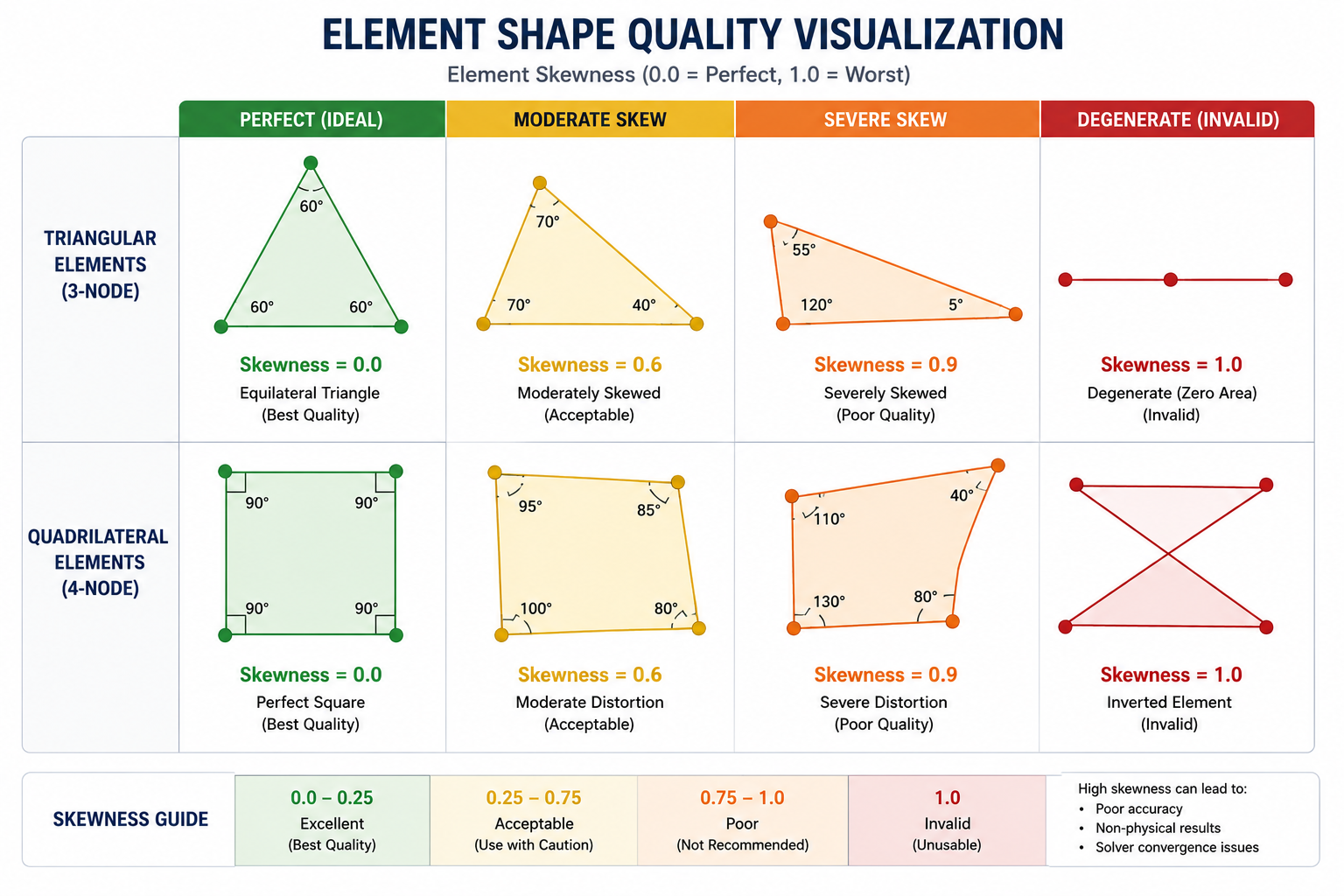
    Real CAD geometry is almost never suitable for direct FEA meshing. It contains small features such as chamfers, fillets smaller than your mesh density, bolt threads, and cosmetic details that create a poor mesh without improving accuracy.

    Geometry preparation means removing features that do not affect the structural response in the region of interest, defeaturing areas away from the critical zone, and adding idealised representations of connections and supports. This step takes significant engineering judgment. Removing the wrong feature changes the answer. Leaving in unnecessary detail wastes computation time without improving accuracy.

    Step 3: Define Materials

    Every element in the model needs a constitutive model: the mathematical relationship between stress and strain for that material. For linear elastic analysis, this is simply Young’s modulus (E) and Poisson’s ratio (nu). For nonlinear work, you add yield strength, hardening behaviour, fracture properties, or time-dependent creep parameters.

    Common error:  Accepting default material properties from the software’s library without verifying they match your actual material grade and condition. The difference between a generic steel and a specific S355 J2 in the post-yield regime can produce structurally significant errors in a nonlinear analysis.

    Step 4: Apply Boundary Conditions and Loads

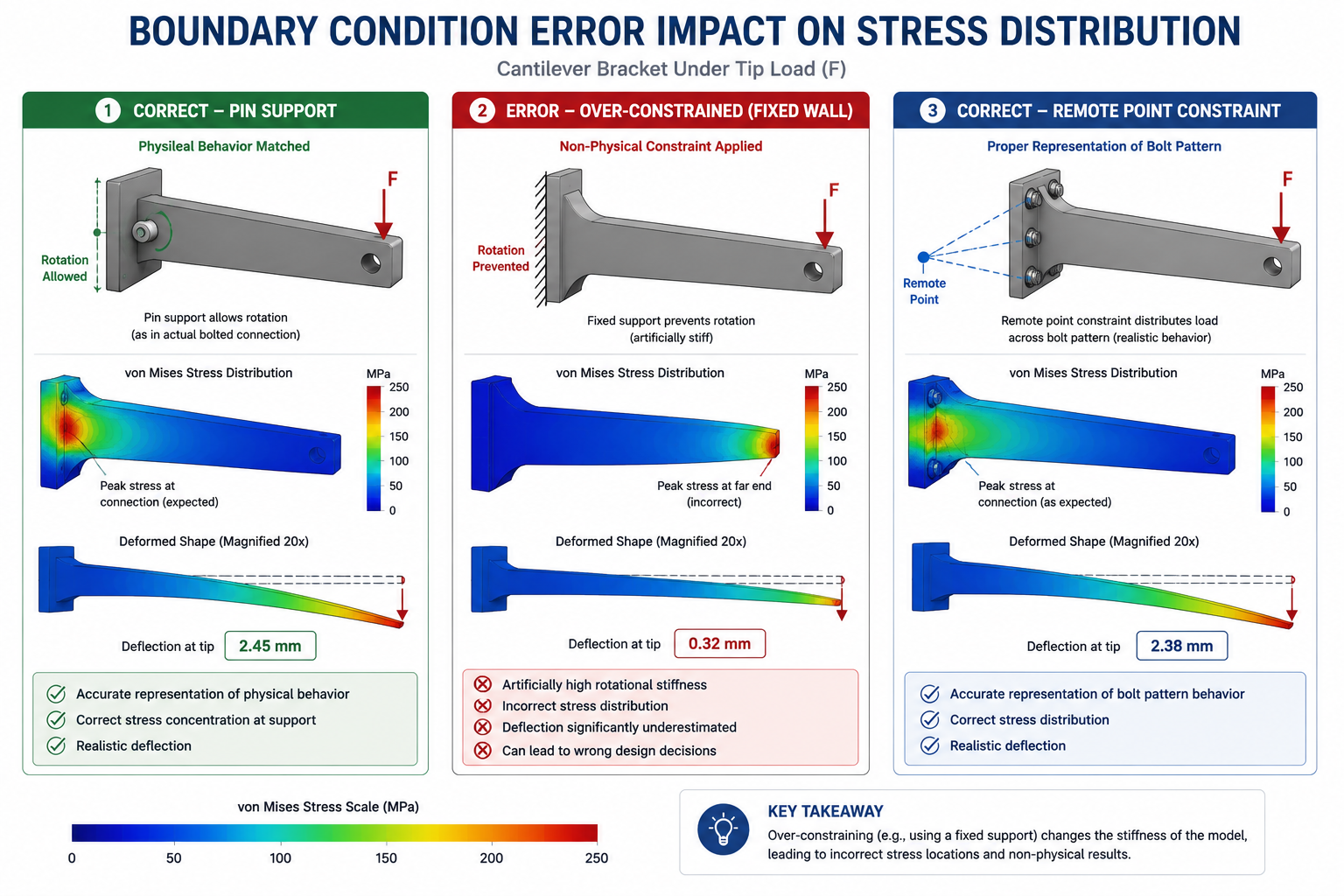
    Boundary conditions define how the structure is supported. A fixed support prevents all displacement and rotation at its nodes. A pinned support prevents displacement but allows rotation. A roller prevents displacement in one direction only. Getting boundary conditions wrong is the single most impactful error you can make in structural FEA because they fundamentally change the load path and stress distribution throughout the entire model.

    Loads are applied as forces, pressures, accelerations, or thermal conditions. The key principle is to represent how loads actually enter the structure in physical reality. Applying a large point force to a single node creates an artificial stress singularity at that node because a real concentrated force is always distributed over a finite contact area.

    Step 5: Generate the Mesh

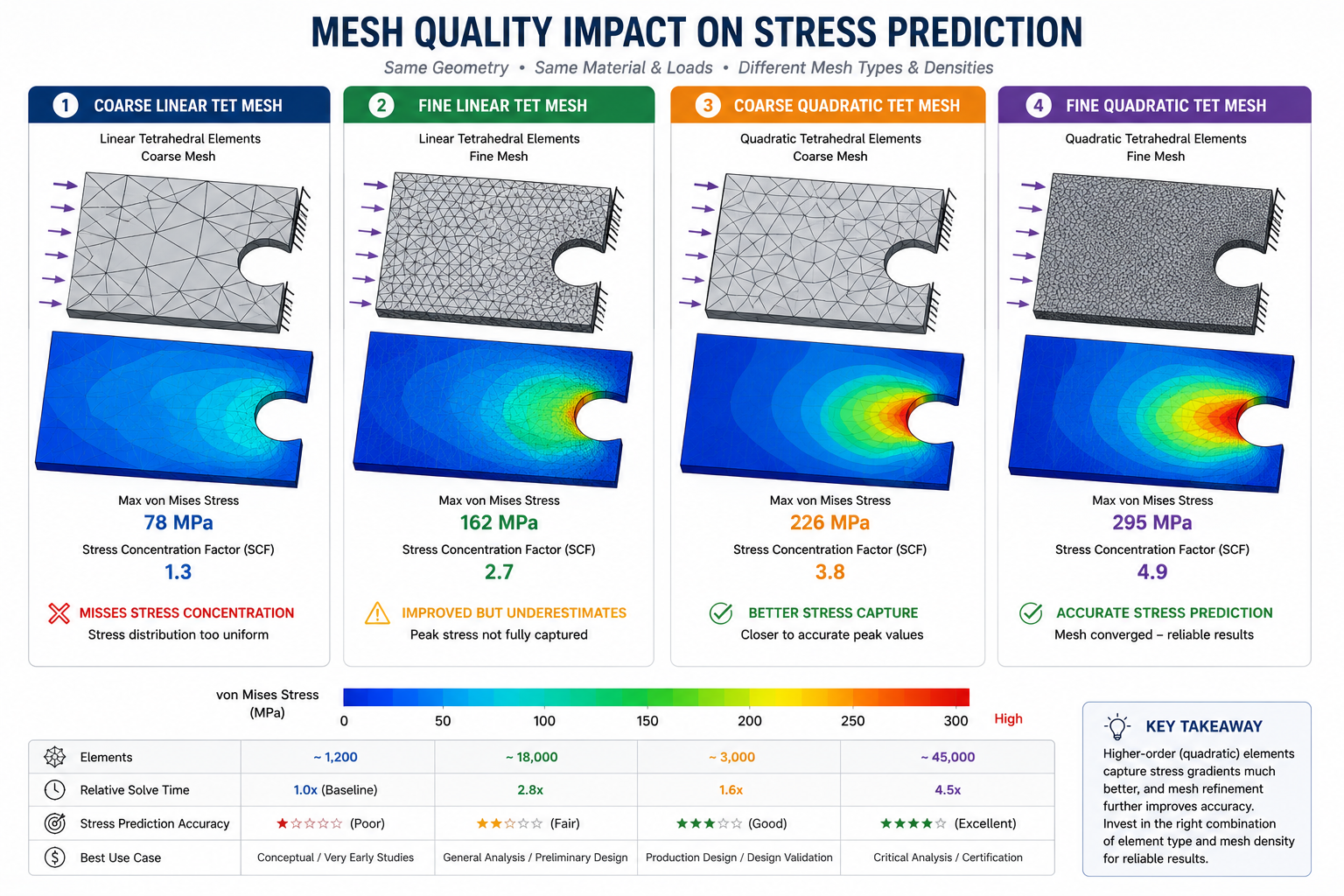
    Meshing divides the geometry into the finite elements that the solver will calculate. The mesh density drives both the accuracy of the result and the computational cost. Too coarse and peak stresses are underestimated. Too fine everywhere and the model takes hours to solve for no practical gain in accuracy in the regions that matter.

    The engineering approach to meshing is to allocate element density based on the gradient of the stress field. Regions where stress changes rapidly, around holes, welds, fillets, and connections, need a fine mesh. Regions with uniform stress distribution, the middle of a long beam span for example, can use a coarser mesh with no loss of accuracy.

    Mesh Convergence Study Graph Stress vs Element Size in FEA Analysis by simutecra
    Without a convergence study, there is no evidence the mesh is fine enough to trust the result.’

    Step 6: Mesh Convergence Study

    This step is not optional if you want results that can be defended. A mesh convergence in FEA study involves running the same model at progressively finer mesh densities in the critical regions and checking whether the peak result changes.

    The standard protocol:

    1. Run the model with a baseline mesh. Record peak stress and critical displacement.
    2. Refine the mesh density in the critical region by approximately 50 percent. Rerun.
    3. Compare results. If they differ by more than 5 to 10 percent, the original mesh was too coarse.
    4. Continue refining until the results change by less than 5 percent between successive runs.
    5. That final stable result is your converged solution. Everything before it was a coarse approximation.

    A minimum of four to five mesh density iterations is recommended for rigorous convergence studies. Two or three data points are insufficient to establish whether a true plateau has been reached or whether the curve is still descending.

    Why this matters in practice:  A model that deflects realistically may still produce unsafe design forces. Displacement results converge with much coarser meshes than stress results do. An engineer who verifies only deflection and assumes stress is also converged is drawing the wrong conclusion from partial evidence.

    Step 7: Run the Solver and Post-Process Results

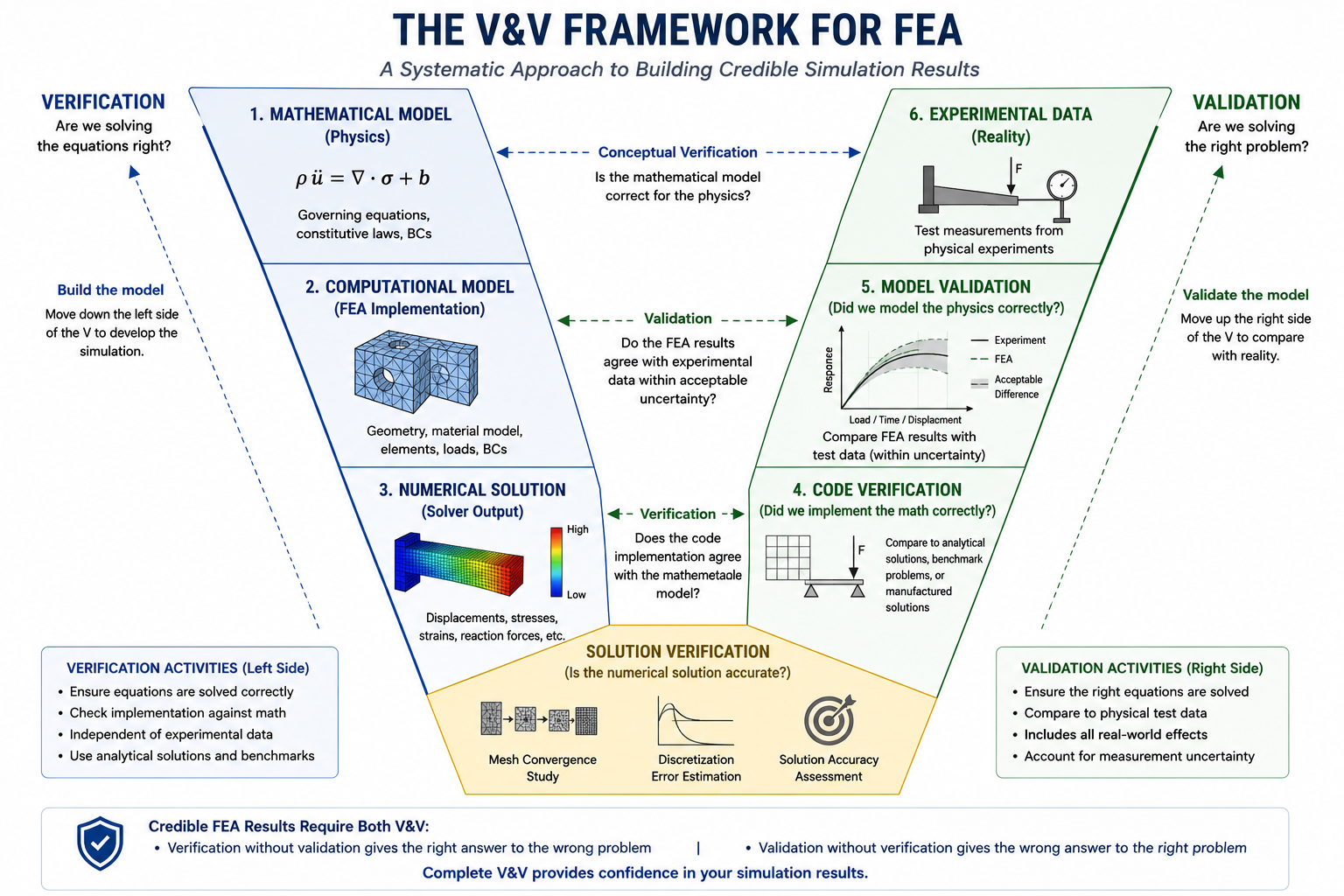
    The solver assembles the global stiffness matrix, applies the boundary conditions and loads, and solves the resulting system of equations for nodal displacements. From those displacements, element stresses and strains are calculated at integration points and extrapolated to the nodes for display.

    Post-processing is where engineering judgment returns. The solver produces numbers. The engineer decides what those numbers mean. Check reaction forces and verify they match the applied loads in equilibrium. Confirm the deformed shape makes physical sense. Look at the stress distribution and ask whether it follows the load path you would expect. If anything looks unexpected, investigate before accepting the result.

    Von Mises stress is the most commonly used output for ductile metals because it combines the three principal stresses into a single equivalent stress that can be compared directly against yield strength. For brittle materials, principal stress or maximum tensile stress criteria are more appropriate.

    Types of FEA Analysis Used in Structural Engineering

    Different structural problems require different types of analysis. Using linear static when nonlinearity is significant is as wrong as using a transient dynamic solver for a structure that only sees static loads. Here is the full range of FEA analysis types used in structural engineering practice.

    Analysis TypeWhat It ChecksTypical Use Case in Structural Engineering
    Linear staticStress and deformation under constant loadsBeams, columns, frames under dead and live loads
    Nonlinear staticBehaviour beyond elastic limitsConnections, rubber components, post-yield design
    Modal analysisNatural frequencies and mode shapesTowers, bridges, floors subject to vibration
    Transient dynamicTime-varying load responseBlast, impact, seismic time-history
    Buckling analysisCritical load for instabilitySlender columns, thin-shell structures, offshore legs
    Thermal analysisTemperature distributionFire performance, thermal bridge assessment
    Fatigue analysisCumulative damage under cyclesWelded joints, crane girders, dynamic machinery
    Contact analysisForce transfer between surfacesBolted connections, base plates, bearing pads

    When Linear Static Is Not Enough

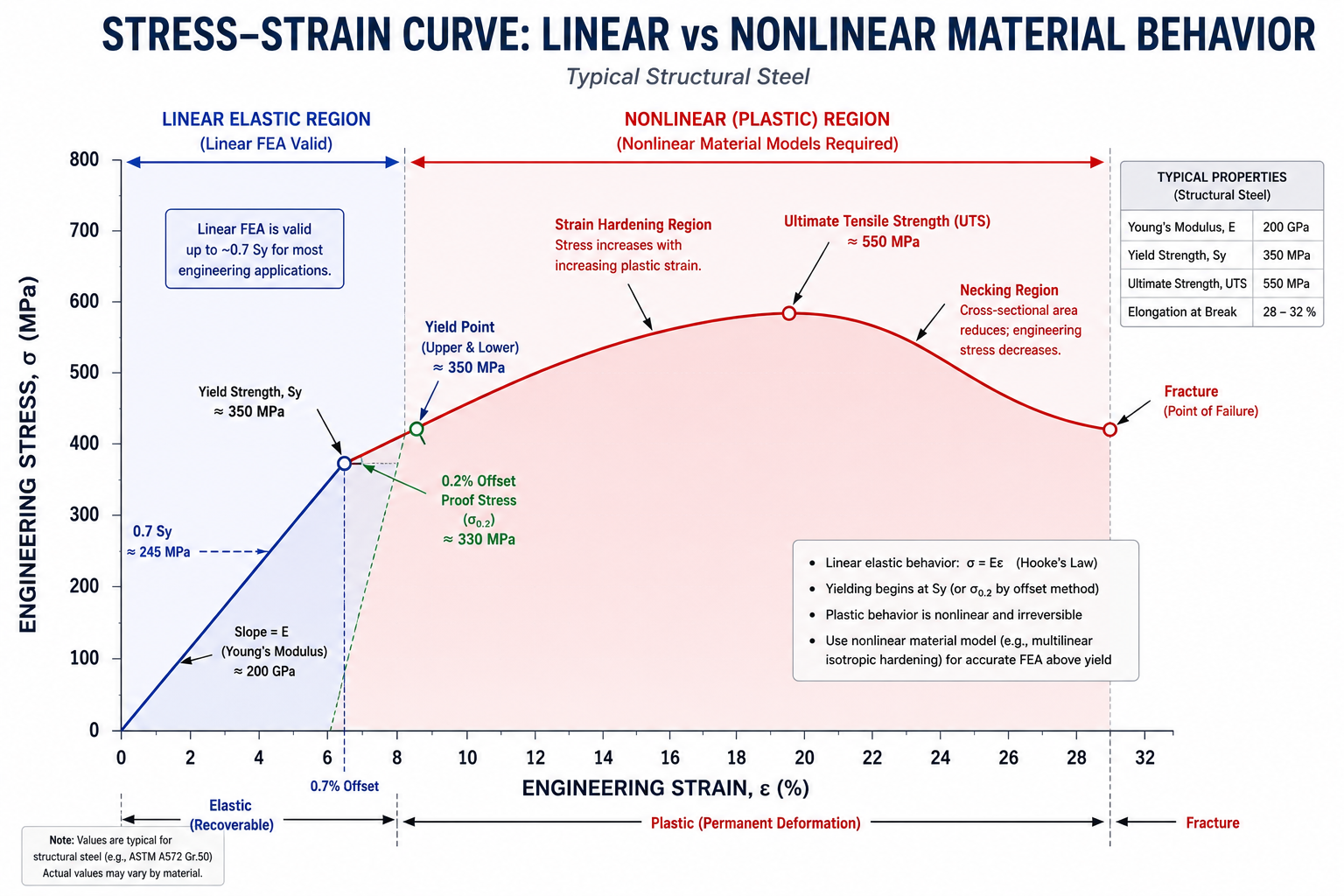
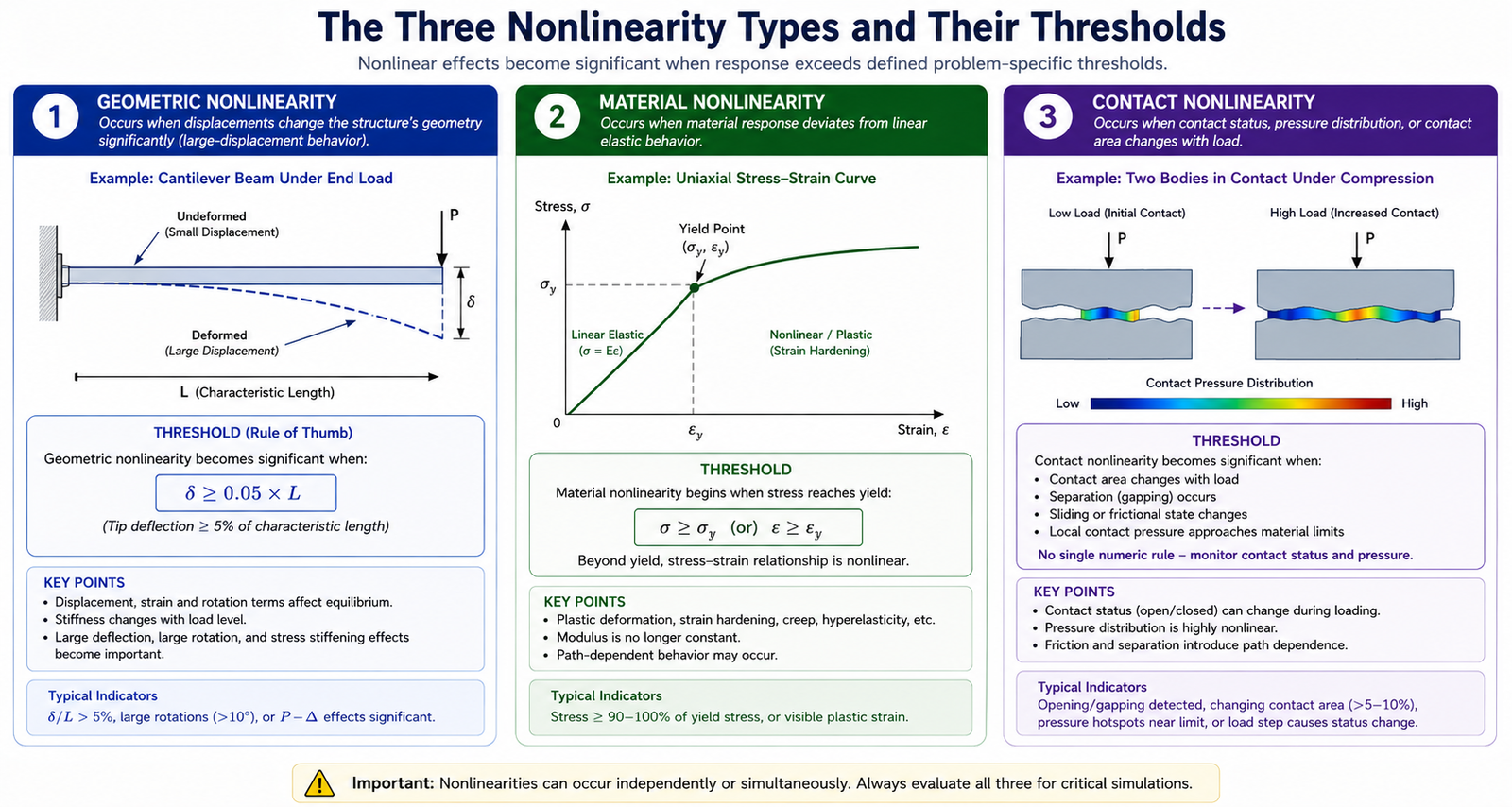
    Linear static analysis assumes small deformations, linear elastic material behaviour, and loads that do not change over time. For the majority of routine structural checks, these assumptions are reasonable and linear static gives accurate results efficiently.

    The assumptions break down when: deformations are large enough to change the load path (geometric nonlinearity), material behaviour goes past the elastic limit (material nonlinearity), or the structure is subject to loads that vary in magnitude or direction over time. In these cases, a nonlinear or dynamic solver is required.

    The practical test: if your applied loads exceed approximately 30 percent of the material’s yield strength at the critical point, or if deflections are comparable to the cross-section depth, linear static alone is insufficient and nonlinear analysis should be considered.

    Image 3: FEA Workflow Diagram: Problem Definition Through to Design Decision

    FEA Workflow Diagram Problem Definition Through to Design Decision

    A vertical process flow diagram showing the seven steps of an FEA workflow. Steps: (1) Define objective, (2) Prepare geometry, (3) Define materials, (4) Apply boundary conditions and loads, (5) Generate mesh, (6) Run convergence study, (7) Post-process and validate. Use colour coding: steps 1 and 2 in blue (pre-processing), step 3 in teal (materials), steps 4 and 5 in blue, step 6 in amber (critical quality step), step 7 in green (output). Add a feedback arrow from step 7 back to step 5 labelled ‘refine if not converged’. Place this in the step-by-step section as the visual summary of the entire process.

    FEA Mesh and Element Types: What Every Structural Engineer Should Know

    The mesh is not just the visual representation of your model. It is the mathematical approximation of your structure’s geometry. The type of element you choose and the density of the mesh in critical regions are two of the most consequential technical decisions in any FEA in engineering project.

    Element TypeGeometryWhen to UseWatch Out For
    TET4 (linear tet)4-node tetrahedronQuick concept checks onlySlow convergence, shear locking
    TET10 (quad tet)10-node tetrahedronGeneral solid, complex geometryHigher compute cost than TET4
    HEX8 (brick)8-node hexahedronRegular geometry, high accuracyHard to mesh curved features
    SHELL (thin plate)2D element in 3DPlates, walls, flanges under bendingAvoid for thick sections
    BEAM element1D in 3D spaceFrames, trusses, rebar in concreteCannot capture local stress detail
    CONTACT elementInterface pairConnections, base plates, bearingsRequires careful stiffness setup

    The TET4 Problem

    Linear tetrahedral elements (TET4) are the default automatic mesh type in many FEA packages because they can be generated quickly on any geometry without user intervention. They are also among the least accurate element types available for structural stress analysis.

    TET4 elements are excessively stiff in bending-dominated problems due to shear locking, and they converge slowly, meaning you need very large numbers of them to approach the true solution. In practice, a model built entirely from TET4 elements should be treated with significant scepticism unless an explicit convergence study has confirmed the result is stable. The better default for solid geometry is TET10, which adds mid-side nodes to improve accuracy substantially without requiring geometric regularity.

    Shell Elements for Plates and Walls

    When a structural element’s thickness is significantly smaller than its other dimensions, a solid mesh wastes degrees of freedom representing the thickness direction. Shell elements replace the through-thickness behaviour with a mathematical formulation based on thin plate theory, allowing plates, walls, flanges, and pressure vessels to be modelled with a single layer of elements.

    The critical judgment is the thickness-to-span ratio. When thickness exceeds approximately one-tenth of the shortest in-plane span, thin-shell assumptions become increasingly inaccurate and a solid element mesh should be considered instead.

    How FEA Is Applied in Structural Engineering Practice

    Building Structures

    In building design, FEA supplements rather than replaces code-based design methods. It is used for irregular structures where simplified frame analysis does not capture the actual load distribution, for transfer structures where loads are redirected in complex ways, for connection design where standard code tables do not cover the geometry, and for assessment of existing structures where as-built conditions differ from the original design.

    Seismic design increasingly uses nonlinear FEA for performance-based earthquake engineering assessments. A linear response spectrum analysis gives maximum forces under code-prescribed spectra. A nonlinear time-history analysis shows the actual sequence of yielding, the distribution of plastic deformation, and the residual state of the structure after the earthquake passes. The second approach requires more time and expertise but gives a fundamentally more realistic picture of structural performance.

    Bridge Engineering

    Bridge structures use FEA for deck behaviour under moving vehicle loads, fatigue assessment at welded details in steel bridges, thermal analysis for bearing and expansion joint design, and global analysis of cable-stayed and suspension bridges where geometric nonlinearity dominates the structural response under dead load.

    The fracture-critical nature of bridge structures means that FEA models for bridge assessment are subject to particularly rigorous peer review and validation requirements. An FEA result for a bridge fracture-critical member is not accepted without explicit convergence documentation and hand calculation verification of the global response.

    Offshore and Industrial Structures

    Offshore platforms, wind turbine foundations, and industrial process plant use FEA extensively for fatigue life assessment, where the cumulative damage from millions of load cycles at welded connections must be evaluated across a detailed stress transfer function. The combination of complex geometry, corrosive environment, dynamic loading, and significant consequence of failure makes hand calculation alone inadequate.

    The FEA software market for this sector is valued at USD 7.82 billion in 2026 and growing at 13.49 percent annually, reflecting the expanding use of simulation across the full asset lifecycle from design through inspection planning and fitness-for-service assessment.

    AI and Digital Twins in FEA

    The integration of AI in structural simulation is moving from research into production workflows in 2026. Topology optimisation, which uses iterative FEA to remove material from low-stress regions while maintaining structural performance, is now a standard feature in ANSYS, Abaqus, and SolidWorks Simulation. What previously required a research specialist is now a menu option.

    Digital twin applications connect live sensor data from instrumented structures to calibrated FEA models, enabling real-time structural health monitoring. A bridge instrumented with strain gauges and accelerometers feeds data to a continuously updated FEA model that flags anomalous behaviour before it becomes visible as cracking or deflection. One published Middle East refinery case study reported an 18 percent reduction in turbine downtime by linking vibration sensor feeds to FEA modal signatures.

    FEA Software for Structural Engineers: Honest Comparison

    The FEA software landscape in 2026 is dominated by a handful of commercial platforms, with a growing ecosystem of open-source alternatives for engineers and organisations where enterprise licensing costs are prohibitive. The top five vendors control 61 percent of market sales, but the best tool for a given project depends on the analysis type, budget, and the engineer’s existing skills.

    SoftwareDeveloperBest ForSolver StrengthAccess Model
    ANSYS MechanicalANSYS Inc.All structural typesMultiphysics, nonlinearCommercial, enterprise
    AbaqusDassault/SimuliaNonlinear, geotechnicalContact, soil plasticityCommercial, high-end
    NASTRANMSC/SiemensAerospace, large assembliesLinear, aeroelasticCommercial, aerospace
    STAAD.ProBentleyCivil structural framesCode checking integrationCommercial, civil
    SAP2000CSIBuildings and bridgesDynamic, pushoverCommercial, civil
    CalculiXOpen sourceGeneral structural FEALinear and nonlinearFree, ABAQUS-compatible
    Code_AsterEDF/openNuclear, civil, mechanicalNonlinear, fatigueFree, French standard

    Why Open Source FEA Is Growing

    Enterprise FEA seats cost between USD 30,000 and USD 150,000 per seat with annual maintenance fees exceeding 18 percent of the license cost. That economics model excludes roughly 70 percent of engineering firms with fewer than 50 engineers. The move of Fusion 360 Simulation to subscription-only licensing prompted 38 percent of surveyed users to explore open-source alternatives according to market research published in 2026.

    CalculiX, which uses an ABAQUS-compatible input format, and Code_Aster, developed by EDF for nuclear and civil applications, are the two strongest open-source structural FEA solvers. Both produce results comparable to commercial codes for linear and nonlinear structural problems and are actively maintained. The learning curve is steeper than commercial software with GUI interfaces, but the technical capability is genuine.

    8 Common FEA Mistakes That Invalidate Structural Results

    FEA is capable of producing a beautifully rendered, professionally coloured stress plot that is completely wrong. The software will not tell you when the inputs are bad. It will solve whatever you give it and produce a result. The engineering judgment that determines whether that result is trustworthy lives entirely with the analyst. These are the mistakes that most frequently produce unreliable output.

    MistakeWhat Goes WrongHow to Avoid It
    Mesh too coarse at stress risersPeak stress underestimated by 30-50%Refine mesh at holes, fillets, welds. Run convergence study.
    Wrong boundary conditionsResults bear no relation to realitySketch the real support condition. Pin vs fixed changes everything.
    Ignoring nonlinearityLinear model misses yield and bucklingCheck if loads exceed 30% of yield. Add geometric or material NL.
    Single mesh density, no checkNo evidence the result is convergedRun at least three mesh densities. Plot stress vs element size.
    Skipping hand calculation checkErrors go undetectedAlways sanity-check reaction forces and peak stress against a simple calc.
    Over-constraining the modelModel is artificially stiffApply only the constraints that physically exist. Review reaction forces.
    Applying loads to single nodesArtificial stress singularityDistribute load over area. Use coupling or surface pressure instead.
    Using default material propertiesWrong stiffness and strengthAlways verify E, nu, yield strength, density from your actual material.

    The Validation Principle

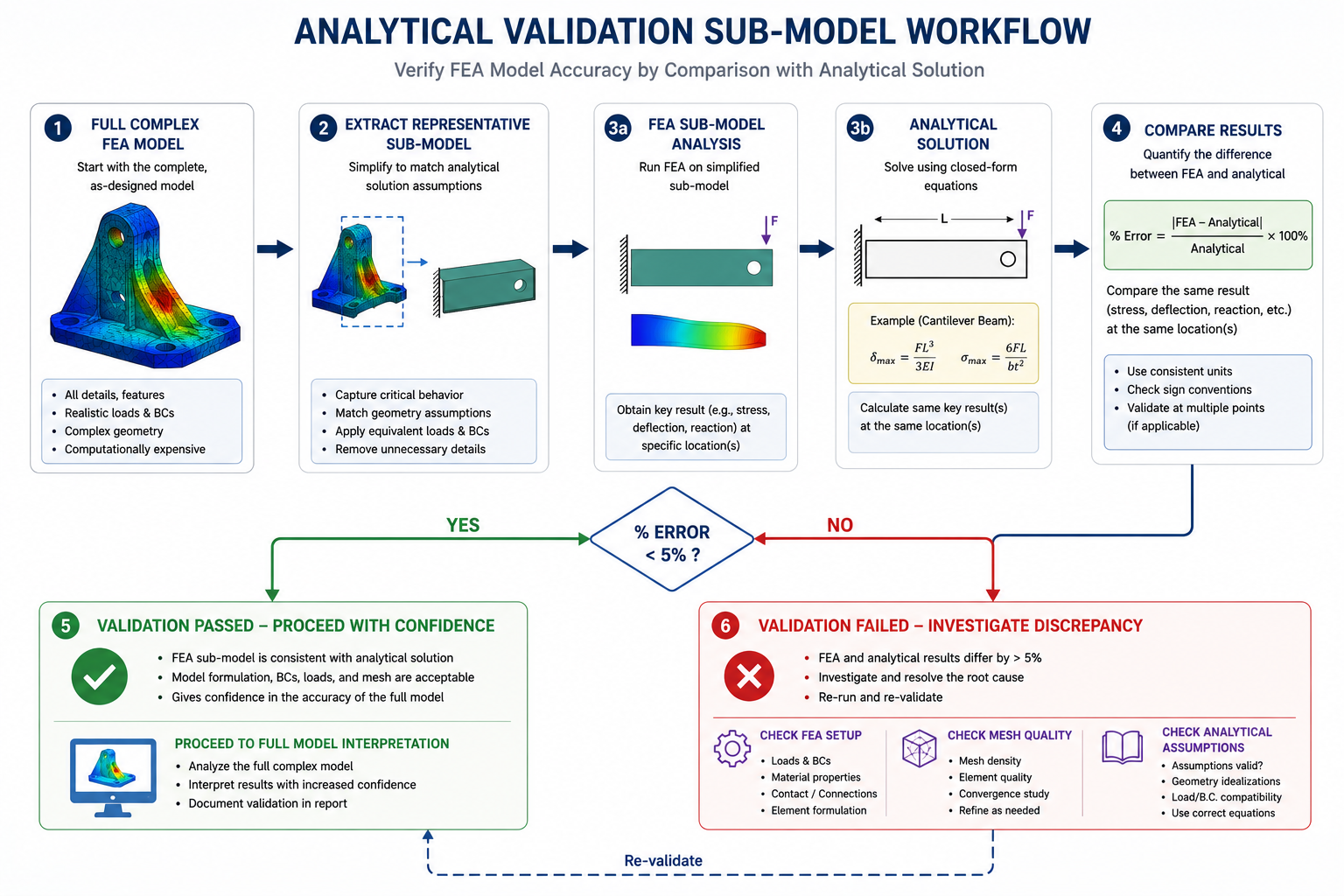
    Every FEA analysis result used for a design decision should be validated against at least one independent check. This does not mean running the same model twice. It means comparing the FEA result against a hand calculation for a simplified version of the same problem, against published benchmark data, against strain gauge measurements from physical testing, or against established code-based methods for an equivalent standard case.

    If the FEA result and the independent check agree within a reasonable margin, you have evidence the model is working correctly. If they disagree, you have an obligation to understand why before using either result for design.

    The auditable standard:  Without documented convergence and validation checks, simulation results cannot be considered defensible in a regulatory audit, a failure investigation, or a professional liability context. The technical standard for structural FEA is not ‘the model ran without errors.’ It is ‘the model has been demonstrated to produce a converged, validated result for the stated loading condition.’

    NAFEMS publishes the industry benchmark cases used to validate FEA software and the professional guidelines for simulation quality.

    What a Good FEA Structural Analysis Report Contains

    An FEA result that cannot be understood, verified, or reproduced by a peer reviewer is not engineering evidence. It is a picture. A properly structured FEA structural analysis report gives the reviewer everything needed to audit the analysis independently.

    • Scope and objective: what was analysed, why, and what design decision it supports
    • Model description: geometry assumptions, simplifications made, coordinate system
    • Material properties: source and values used for E, nu, yield strength, density
    • Boundary conditions: how the structure is supported, with diagrams of constraint locations
    • Load cases: each load case defined with magnitude, direction, application method
    • Mesh description: element types, density, and rationale for refinement in critical regions
    • Convergence study: table or graph showing results at multiple mesh densities
    • Results: stress, displacement, and any other relevant quantity with full-field plots and critical values identified
    • Validation: comparison against hand calculation or benchmark for a simplified equivalent
    • Conclusions: whether the design passes, what the governing failure mode is, and what margin remains

    For engineers who use AI tools to assist with FEA report writing, tools like Claude can take structured result data from your solver and generate a well-formatted technical report document. The engineering judgment, the validation, and the conclusions remain the engineer’s responsibility. The documentation layer, which is time-consuming and does not require further analysis, is where AI tools add legitimate value.

    Conclusion:

    There is a version of finite element analysis in structural engineering that gives engineers tremendous confidence in their designs. It is the version where the model has been built with clear objectives, appropriate geometry, verified material properties, realistic boundary conditions, a converged mesh, and validated results.

    And there is a version that produces beautiful colour plots attached to a design that later fails, because the mesh was not converged, the boundary conditions were wrong, or the result was never checked against anything independent. The software is identical in both cases. The difference is the engineering process around it.

    The engineers who use structural FEA most effectively are not the ones who know the most software features. They are the ones who ask the right questions before running the analysis, validate their results rigorously, and document their work in a way that a peer reviewer can audit without needing to rebuild the model from scratch.

    FEA does not replace engineering judgment. It amplifies whatever judgment you bring to it.

    Frequently Asked Questions

    What is finite element analysis (FEA)?

    Finite element analysis (FEA) is a numerical method that breaks a structure into thousands of small elements, calculates how each element behaves under applied loads, and assembles the results to show how the whole structure responds. It tells engineers where stress concentrations form, how much a structure deflects, and whether the design is safe, all before anything is physically built or tested.

    What is FEA used for in structural engineering?

    FEA in structural engineering is used to verify designs against code requirements, identify failure modes, analyse vibration and seismic response, check buckling in slender members, assess fatigue life at weld details and connections, and optimise material use. It applies to buildings, bridges, offshore platforms, towers, retaining walls, and any structure where hand calculation cannot adequately capture the geometry or loading complexity.

    How is FEA different from traditional structural analysis?

    Traditional structural analysis uses simplified closed-form equations that assume regular geometry and standard boundary conditions. FEA removes those geometric restrictions. It models any shape, any load combination, material nonlinearity, large deformations, and contact between surfaces. Hand calculation gives a single worst-case value. FEA gives the full stress distribution across the entire structure, showing exactly where critical regions are.

    What is mesh convergence and why does it matter?

    Mesh convergence is the process of checking that your FEA results do not change significantly when you refine the mesh. If results shift by more than 5 to 10 percent between mesh refinements, the mesh is too coarse and the answer is not reliable. Always run at least three mesh densities in critical regions and confirm the result has stabilised before using the output for design decisions.

    Which FEA software is best for structural engineering?

    For general structural engineering, SAP2000 and STAAD.Pro are the most widely used because they combine FEA solvers with built-in code checking for steel, concrete, and timber. For advanced nonlinear or multiphysics problems, ANSYS Mechanical and Abaqus are the industry benchmarks. CalculiX and Code_Aster are strong open-source alternatives for engineers with programming confidence.

    Can AI be used in FEA workflows?

    Yes. AI tools are being adopted in FEA workflows for automated mesh optimisation, AI-driven topology optimisation that generates material-efficient geometries, and natural language documentation of analysis reports. Tools like Claude can assist with writing FEA technical reports, structuring simulation briefs, interpreting result summaries, and converting raw solver output into formal engineering documentation, which significantly reduces the time spent on the communication layer of an analysis project.

  • What Is BIM (Building Information Modeling)and How Does It Work with CAD? 2026 Guide

    What Is BIM (Building Information Modeling)and How Does It Work with CAD? 2026 Guide

    Introduction: The Question Every Engineer and Architect Faces

    At some point in your career in construction, architecture, or civil engineering, someone has asked you about BIM. Maybe your firm just mandated it. Maybe a client put it in the project specification. Maybe you have been using AutoCAD for a decade and you are trying to understand what all the noise is about.

    The short version: Building Information Modeling is not just a software upgrade. It is a fundamentally different way of thinking about what a design file is supposed to do. A CAD drawing shows what a building looks like. A BIM model knows what a building is made of, how much it costs, when each piece gets installed, and how it should be maintained for the next 50 years.

    That distinction has enormous practical consequences for how projects are designed, coordinated, built, and operated. This guide walks through exactly how BIM works, where it overlaps with CAD software, where the two serve different purposes, and what this means for engineers and architects working on real projects today.

    Quick definition:  BIM (Building Information Modeling) is a digital process that creates an intelligent, data-rich model of a building or infrastructure project. Unlike CAD which stores geometry, BIM stores information about materials, costs, schedules, and specifications linked directly to every element in the model.
    What Is BIM (Building Information Modeling)and How Does It Work with CAD? 2026 Guide

    What Is BIM? A Clear, No-Jargon Explanation

    BIM stands for Building Information Modeling. Each word matters.

    • Building: It covers not just buildings but infrastructure, bridges, tunnels, roads, utilities, and any constructed asset.
    • Information: Every element in the model carries data. A wall knows its material, fire rating, acoustic performance, cost, and the date it is scheduled for installation.
    • Modeling: The representation is three-dimensional and parametric, meaning changes to the model propagate intelligently across all views and documentation.

    The result is a living, coordinated digital asset that serves the entire project team, from design and engineering through construction and facility management. That is what BIM is in practice.

    BIM Is a Process, Not Just Software

    This is the part most people miss when they first encounter BIM. Buying a Revit license does not mean you are doing BIM. BIM methodology is about how information flows between disciplines, who owns which part of the model, how changes are communicated, and how the model is used after the building is constructed.

    A project team that uses Revit but still coordinates via emailed PDFs and resolves clashes on site is using BIM software without a BIM workflow. The software is only the tool. The process is the point.

    What Information Does a BIM Model Actually Contain?

    This is what separates BIM from geometry-only CAD approaches:

    • Physical properties: dimensions, material, weight, volume
    • Performance data: thermal resistance, fire rating, acoustic value, structural capacity
    • Cost data: unit rates, estimated totals, procurement status
    • Schedule data: installation sequence linked to the construction programme
    • Supplier information: manufacturer, product code, lead time, warranty
    • Maintenance data: service intervals, replacement parts, expected lifespan
    • Regulatory information: compliance with building codes and environmental standards

    When all of this sits inside the model rather than in disconnected spreadsheets and specification documents, the information stays coordinated and current as the design evolves. That is the fundamental value proposition of BIM in construction.

    BIM Dimensions Explained: From 3D to 7D

    You will often see BIM described in terms of dimensions: 3D BIM, 4D BIM, 5D BIM, and so on. Each dimension adds a layer of information to the model. Here is what each one means in practice.

    BIM DimensionWhat It AddsPractical meaning for your project
    3DGeometry and spaceVisual model, clash detection, spatial coordination
    4DTime / scheduleConstruction sequencing linked to model elements
    5DCost / quantitiesQuantities auto-extracted, cost tracking per element
    6DSustainabilityEnergy analysis, carbon footprint, material lifecycle
    7DFacility managementOperations data, maintenance schedules, asset tracking

    Which Dimensions Matter Most on Real Projects?

    3D BIM is now standard on any serious construction project. 4D and 5D BIM are increasingly required on large public sector and infrastructure projects, particularly in the UK, Australia, and Scandinavia where government mandates have pushed adoption. 6D and 7D are growing fastest in the data center, healthcare, and commercial real estate sectors where whole-life cost and facility operations justify the upfront investment in richer data.

    BIM vs CAD: What Is the Actual Difference?

    This is the most commonly searched question in this space and it deserves a direct, honest answer. The difference between BIM and CAD is not about 2D versus 3D. It is about what the file contains.

    AspectTraditional CADBIM
    Core output2D drawings or 3D geometryIntelligent data-rich model
    Information storedLines, arcs, dimensionsMaterials, costs, schedules, specs
    CollaborationFile-sharing, version confusionShared model environment
    Design changesManual redraw across sheetsModel updates propagate everywhere
    Clash detectionManual review, often missedAutomated, real-time detection
    Lifecycle coverageDesign and drafting phase onlyDesign through demolition
    Stakeholder accessEngineers and architects onlyAll disciplines, owners, FM teams
    Data intelligenceNone embedded in geometryEach element carries rich metadata
    Primary toolsAutoCAD, MicroStationRevit, ArchiCAD, OpenBIM tools

    The Wall Analogy

    Here is the clearest way to understand the distinction. Draw a wall in AutoCAD. You have drawn two parallel lines with some hatching between them. The file knows nothing else. It does not know it is a wall. It does not know what it is made of, whether it meets fire rating requirements, or how much it costs.

    Model a wall in Revit. The model element knows it is a wall. It knows its type, its layers, the material of each layer, the thermal properties of each material, the cost per square meter, the fire rating, and the structural load it can carry. Change the wall type and every drawing that includes that wall updates automatically. The wall is not a drawing element. It is an intelligent object.

    That is not a small difference. That is a different category of tool serving a different purpose. Understanding this is the foundation of understanding how BIM and CAD work together rather than treating them as competitors.

    Key point:  BIM does not make CAD obsolete. It changes where CAD fits in the workflow. CAD handles precision detailing and fabrication documentation. BIM handles model coordination, information management, and lifecycle data.

    How BIM Works: The Workflow Step by Step

    Understanding how BIM works in practice requires looking at how a typical project progresses through the BIM process. This is not the theory. This is the actual workflow on a coordinated BIM project.

    How BIM Works step by step workflow

    Step 1: Setting Up the BIM Execution Plan

    Before any modeling begins, the project team establishes a BIM Execution Plan (BEP). This defines the BIM standards for the project: which software will be used, what level of detail is required at each stage, who owns which model, how files will be shared, and what the Common Data Environment (CDE) platform will be.

    Getting this right at the start is critical. Projects that skip the BEP and jump straight into modeling almost always create coordination problems later when different disciplines are using incompatible file formats, naming conventions, and coordinate systems.

    Step 2: Developing Discipline Models

    Each discipline builds its own model. The architect models walls, floors, roofs, doors, and windows in Revit Architecture. The structural engineer models the frame, columns, beams, and foundations in Revit Structure or a structural analysis tool. The MEP engineer models ductwork, pipework, cable trays, and equipment in Revit MEP.

    Each model is developed to the required Level of Development (LOD) for that project stage. LOD 100 is a conceptual massing model. LOD 400 is fabrication-ready with construction-level detail. The LOD framework gives the entire team a shared language for how much information each element should contain at each stage.

    Step 3: Model Coordination and Clash Detection

    The discipline models are federated (combined) in a coordination platform such as Navisworks or BIM Collaborate Pro. The coordination team runs clash detection in BIM to identify where elements from different models intersect or conflict.

    A duct from the mechanical model passing through a structural beam. A drainage pipe conflicting with a foundation element. A lighting fixture too close to a sprinkler head. These are the clashes that cost money to fix on site and pennies to resolve on screen. Clash detection is one of the highest-value outputs of a properly coordinated BIM process.

    Step 4: Drawing Production from the BIM Model

    Here is where CAD and BIM most directly intersect. Floor plans, sections, elevations, and details are generated directly from the BIM model as drawing views. Because the views are driven by the model, they update automatically when the model changes. No more updating the plan and forgetting to update the section.

    Complex fabrication details, specialist trade drawings, and certain annotation-heavy documents are still often completed in AutoCAD or exported to CAD format for specialist contractors. The BIM model produces the coordinated geometry. CAD tools add the fabrication-level detail.

    Step 5: Quantity Takeoffs and Cost Planning

    One of the most immediately valuable BIM benefits for construction is automated quantity extraction. Because every element in the model has material and dimensional properties, the software can generate a complete schedule of quantities directly from the model. Concrete volume, reinforcement weight, number of windows by type, area of external cladding by material: all of it extracted in minutes rather than days.

    Cost planners and quantity surveyors connect these schedules to cost databases to produce early-stage estimates that are directly tied to design decisions. Change the structural system and the cost updates. That feedback loop accelerates decision-making significantly.

    Step 6: Construction and Site Integration

    During construction, the BIM model is used for site coordination, progress tracking, and as-built recording. 4D BIM links model elements to the construction programme so the site team can visualize construction sequencing and identify logistical clashes before they happen on site.

    Mobile BIM viewers allow site engineers and foremen to access the model on tablets directly on site, comparing as-built conditions to the design model and recording issues for resolution.

    Step 7: Handover and Facility Management

    At project completion, the BIM model is handed over to the building owner or facilities management team as an as-built record. The BIM for facilities management use case is arguably the most valuable and the most underutilized. The model contains equipment schedules, maintenance intervals, warranty information, and spare parts data that FM teams need for the entire operational life of the building.

    When BIM handover is done properly, the FM team receives a digital twin of the building they can use to plan maintenance, simulate changes, and manage assets through the building’s entire life.

    How BIM and CAD Work Together on Real Projects

    The framing of BIM vs CAD as a competition misrepresents how most projects actually operate. In practice, the two coexist and complement each other throughout the project lifecycle.

    Where BIM Leads

    • Multidiscipline coordination and clash detection
    • Automated quantity takeoffs and schedule generation
    • Design change management and drawing coordination
    • Energy analysis and building performance simulation
    • Construction sequencing and programme integration
    • Asset data management and FM handover packages

    Where CAD Still Leads

    • Complex fabrication drawings for specialist subcontractors
    • Site engineering and setting-out drawings
    • Detailed civil and infrastructure drawings where BIM tools are less mature
    • 2D annotation-heavy documentation like drainage networks and road layouts
    • Disciplines and regions where BIM adoption has not yet reached standard
    • Export to DWG format for contractors and consultants outside the BIM environment

    The IFC Bridge Between BIM and CAD

    IFC (Industry Foundation Classes) is the open standard that allows different BIM software platforms and CAD tools to share data without being locked to one vendor. An architect working in ArchiCAD can share an IFC model with a structural engineer using Tekla Structures and an MEP consultant using Revit, without any of them needing to own the same software.

    IFC is the file format equivalent of DWG in the CAD world: the common language that makes cross-platform collaboration possible. Understanding OpenBIM and IFC is increasingly important for anyone working in a multidiscipline project environment.

    BIM Software: Key Platforms and What They Do

    The BIM software market is dominated by a few major platforms, each with particular strengths for different disciplines and project types.

    SoftwareTypeBest forBIM standardCAD output
    Autodesk RevitFull BIMArchitecture / MEPIndustry-wideDWG, IFC, NWC
    AutoCADCAD / 2DDrafting, documentationLimitedDWG universal
    ArchiCADFull BIMArchitectureOpenBIM / IFCDWG, IFC, BCF
    NavisworksBIM reviewClash detectionCoordinationNWD, NWF
    Civil 3DBIM + CivilInfrastructureGrowingDWG, LandXML
    Bentley AECOsimFull BIMLarge infrastructureISO standardsDGN, IFC
    OpenBIM / IFCStandardCross-platform shareISO 16739IFC (open)

    Autodesk Revit: The Market Standard

    Autodesk Revit is the most widely adopted BIM software for architects and MEP engineers globally. It handles architectural modeling, structural framing, and building services in a single environment with strong interoperability within the Autodesk ecosystem. Its dominance in the UK, US, Australia, and most of Europe makes Revit proficiency effectively mandatory for BIM practitioners in those markets.

    Navisworks: Coordination and Clash Detection

    Navisworks is not a modeling tool. It is a coordination and review platform that aggregates models from different software packages into a single federated model for clash detection, 4D construction simulation, and project review. Most major BIM projects use Navisworks at the coordination stage regardless of which modeling tools the disciplines use.

    ArchiCAD: The OpenBIM Alternative

    Graphisoft ArchiCAD has a strong following particularly in Europe and Australasia. Its commitment to OpenBIM and IFC export is more mature than Revit’s historically, making it a strong choice for projects involving international teams or public clients requiring vendor-neutral data exchange. The BCF (BIM Collaboration Format) standard for issue tracking also originated in the ArchiCAD ecosystem.

    BIM Dimensions Infographic 3D Through 7D

    BIM Maturity Levels: Where Your Project or Organisation Sits

    BIM adoption does not happen all at once. The BIM maturity levels framework describes the stages of adoption from paper-based working to fully integrated digital delivery.

    BIM Level 0

    No digital collaboration. Paper-based or 2D CAD only with no data sharing. Still found in smaller firms and specialist trades in some markets but increasingly rare on commercial projects.

    BIM Level 1

    CAD use in 2D or 3D but with no shared model environment. Files are shared by email or FTP. Each discipline works in isolation. The drawing set is the primary coordination mechanism. Most construction firms operated at Level 1 through most of the 2000s and 2010s.

    BIM Level 2

    The current UK government mandate and the target standard for major infrastructure and public sector construction globally. Disciplines produce their own BIM models and share them in a Common Data Environment (CDE). Models are federated for coordination. The client receives a data-rich handover package at project completion. BIM Level 2 is where most large commercial and public sector construction projects currently operate.

    BIM Level 3 (OpenBIM / iBIM)

    A single, integrated, cloud-based model shared across all disciplines in real time. Full lifecycle data integration from design through demolition. True digital twin capability where the model reflects the actual state of the built asset continuously. Level 3 is the direction the industry is moving but is not yet standard practice on most projects in 2026.

    AI in BIM Workflows: What Is Actually Changing in 2026

    Artificial intelligence is starting to have a measurable impact on how BIM workflows operate, and it is worth understanding where the real value is showing up rather than the hype.

    Automated Clash Detection and Resolution

    Traditional clash detection flags every geometric conflict and asks the coordination team to resolve them one by one. AI-assisted clash detection is beginning to prioritize clashes by severity and suggest standard resolutions for common conflict types, reducing the time coordination teams spend on routine issues.

    Generative Design in BIM

    Autodesk’s generative design tools within the 3DEXPERIENCE platform and integrated with Revit can explore thousands of design configurations against performance constraints such as structural efficiency, daylighting, energy consumption, and cost. The engineer or architect sets the constraints. The AI generates the options. The human selects and refines the most promising direction. This is a genuine workflow change, not a demonstration feature.

    AI for BIM Documentation

    This is where tools like Claude have a direct and practical application. BIM models produce enormous amounts of structured data: quantity schedules, room data sheets, equipment schedules, material specifications, inspection records. Turning that data into readable technical documents, reports, and handover packages has historically been a significant manual effort.

    Using AI for BIM documentation and AI workflow engineering principles, engineers and BIM managers can now prompt an AI tool with structured BIM data exports and receive formatted technical reports, FM handover documentation, specification clauses, and RFI responses in minutes rather than days. The BIM model supplies the data. AI handles the communication layer.

    Natural Language Queries on BIM Data

    Emerging tools are connecting natural language interfaces directly to BIM databases, allowing project team members to ask questions like ‘show me all the doors in the building that are not fire rated to the required standard’ or ‘what is the total volume of concrete in the ground floor slab’ without needing to build custom schedules or run database queries.

    For engineers and architects who want to understand how AI tools fit into technical workflows more broadly, the  is the authoritative reference for BIM standards including IFC, BCF, and the full OpenBIM specification suite.

    BIM Mandates and Industry Adoption: Where the World Stands in 2026

    Government and institutional mandates have been the most powerful driver of BIM adoption globally. Understanding where mandates exist helps engineers and firms prioritize their investment in BIM capability.

    • United Kingdom: BIM Level 2 has been mandatory on all UK government-funded construction projects since 2016. The UK is now moving toward ISO 19650 compliance as the new standard framework, which builds on Level 2 and provides an internationally aligned methodology.
    • Europe: The EU’s public procurement directive encourages BIM on public projects, and countries including Finland, Norway, the Netherlands, Denmark, and Germany have active BIM mandates or strong government-backed adoption programs.
    • United States: The GSA (General Services Administration) has required BIM on major federal projects since 2007. State-level and sector-specific mandates vary but adoption is high in commercial construction, healthcare, and education.
    • Australia: BIM is required on major federal infrastructure projects and is increasingly standard in state government construction programs. Australian standards largely follow the UK and ISO 19650 framework.
    • Middle East: The UAE, Saudi Arabia, and Qatar have driven significant BIM adoption through major infrastructure programs. Dubai’s BIM mandate for buildings above a certain scale has made Revit proficiency a standard requirement for firms working in the region.

    Common BIM Mistakes and How to Avoid Them

    • Treating BIM as a software purchase rather than a process change. Buying Revit licenses without changing coordination workflows produces expensive, poorly managed models. The process redesign is harder than the software training.
    • Skipping the BIM Execution Plan. Without an agreed BEP, each discipline makes different assumptions about coordinate systems, naming conventions, model ownership, and file sharing. The coordination model becomes unusable.
    • Over-modeling at early stages. Adding LOD 400 detail at a concept stage wastes time and creates a model that is too rigid to accommodate the design changes that inevitably come in early project phases.
    • Ignoring the handover requirement. Many project teams build excellent BIM models during design and construction and then hand over a PDF set at completion. The client receives none of the operational value that BIM makes possible.
    • Not training the full team. BIM coordination only works if all disciplines on a project are producing compatible models. A project where the architect uses Revit but the structural engineer sends DWG files is a coordination project, not a BIM project.

    Who Benefits Most from BIM and Who Still Needs CAD

    BIM Is the Right Tool If You Are:

    • An architect or designer on commercial, healthcare, education, or public sector buildings
    • An MEP engineer coordinating services across multiple disciplines on a large project
    • A structural engineer working on projects where digital coordination with architect and MEP is required
    • A main contractor managing subcontractor coordination and construction programming
    • A facilities manager responsible for a complex building asset over its operational life
    • A client or owner investing in infrastructure who wants digital asset data at handover

    CAD Remains the Right Tool If You Are:

    • A specialist subcontractor producing fabrication shop drawings in a trade-specific tool
    • A civil engineer working on roads, drainage, and utilities where BIM tool maturity is still developing
    • A small design practice on residential or small-scale commercial work where BIM overhead is not justified
    • An engineer in a sector or region where BIM is not yet the coordination standard
    • Producing detailed annotation-heavy drawings for regulatory submission where CAD workflow is faster

    Conclusion: BIM and CAD Are Better Together Than Either Is Alone

    The question ‘what is BIM‘ has a technical answer and a practical answer. Technically: it is a data-rich parametric modeling process where every element carries structured information about what it is, not just what it looks like. Practically: it is the infrastructure that allows complex building projects to be designed, coordinated, built, and operated without the information loss and rework that has characterized the construction industry for decades.

    BIM does not replace CAD. It changes where CAD belongs in the process. CAD tools handle precision detailing, specialist fabrication documentation, and disciplines where BIM tool maturity has not yet reached the same level. BIM handles coordination, information management, lifecycle data, and the intelligent model that the whole project team works from.

    The engineers and architects who understand how to operate effectively in both environments, who know when to use Revit for BIM coordination and when to use AutoCAD for detailed documentation, and who are beginning to incorporate AI tools to handle the documentation and data communication layer, are the ones who will do the most valuable work on the most complex projects in the years ahead.

    Learn the process first. The software follows from understanding the workflow.

    Frequently Asked Questions

    What is BIM in simple terms?

    BIM stands for Building Information Modeling. It is a process of creating and managing a digital representation of a building or infrastructure project that contains not just geometry but also data such as materials, costs, schedules, and specifications. Unlike a CAD drawing that shows what something looks like, a BIM model contains information about what it is and how it behaves throughout its entire lifecycle.

    What is the difference between BIM and CAD?

    CAD produces geometry: lines, arcs, and surfaces that represent a design visually. BIM produces intelligent models where every element carries embedded data. A wall in AutoCAD is a set of lines. The same wall in Revit knows its material, thermal resistance, cost, fire rating, and structural load. BIM enables automatic quantity takeoffs, clash detection, and lifecycle management that CAD cannot support.

    Does BIM replace CAD?

    BIM does not fully replace CAD. CAD tools like AutoCAD remain essential for 2D documentation, detailed fabrication drawings, and disciplines where BIM tools are not yet standard. In practice, most large construction projects use both: BIM platforms for coordination and model management, and CAD tools for detailed drawing production and specialist trade work.

    What software is used for BIM?

    The most widely used BIM software includes Autodesk Revit (dominant in architecture and MEP), Navisworks (clash detection and coordination), ArchiCAD, Bentley AECOsim, and Civil 3D for infrastructure. The IFC open standard allows different BIM tools to share data across platforms without being locked to one vendor.

    What are the levels of BIM?

    BIM maturity is described in levels: Level 0 is paper-based drawing with no collaboration. Level 1 is basic CAD in 2D or 3D without data sharing. Level 2 is collaborative BIM with data-rich models shared between disciplines, currently the UK government mandate standard. Level 3 is fully integrated, cloud-based BIM with a single shared model across the entire project lifecycle, often called OpenBIM or iBIM.

    Can AI be used in BIM workflows?

    Yes. AI tools are being used in BIM workflows for automated clash detection, generative design exploration, energy performance prediction, and natural language documentation. Tools like Claude can assist with BIM documentation, specification writing, quantity takeoff interpretation, and structuring the data outputs from BIM models into readable technical reports, making the information layer of BIM significantly faster to produce and communicate.


    buildingSMART International: BIM standards and OpenBIM specifications’

  • What Is 3D Solid Modeling in Engineering? Solid vs Surface Modeling Explained | SimuTecra

    What Is 3D Solid Modeling in Engineering? Solid vs Surface Modeling Explained | SimuTecra

    If you have ever asked a CAD engineer to model a part and received a file that looks perfect on screen but causes errors the moment you try to run an analysis or send it to a machine shop, there is a reasonable chance the model was built as surfaces rather than solids. The difference is invisible to the eye and critical in practice.

    3D solid modeling and 3D surface modeling are two fundamentally different approaches to representing geometry in a CAD environment. Most engineers working in product design and manufacturing use 3D solid modeling as their primary method. Surface modeling is a specialist technique that solves problems solid modeling cannot. Understanding the difference, what each approach actually is, how each one is built, and what it can and cannot do, makes you a better client, a better collaborator, and a better decision-maker when 3D CAD is involved in your project.

    What Is 3D Solid Modeling?

    A solid model is a complete, closed, mathematically watertight representation of a three-dimensional object. When you build a solid model of a steel bracket, the CAD system does not just know the shape of its outer surfaces, it knows that the bracket has volume, that it is enclosed on all sides, and that every point in space is either inside the part or outside it. There is no ambiguity.

    This matters because it means the CAD system can calculate mass properties from the model directly. Volume, mass, centre of gravity, moments of inertia, all of these flow automatically from a 3D solid modeling given a material density. It also means the model can be used directly for finite element analysis, for generating manufacturing drawings with proper section views, and for producing toolpaths for CNC machining without any intermediate conversion steps.

    3d solid modeling in engineering cad deisgn

    In most modern CAD platforms, SolidWorks, CATIA, NX, Creo, Inventor, solid models are built parametrically. This means the model is constructed as a sequence of features: a base extrusion, then a cut, then a fillet, then a pattern of holes. Each feature is driven by a sketch with defined dimensions. Change a dimension in the sketch and the model updates automatically throughout. This is what engineers mean when they talk about a parametric solid model, the geometry is defined by parameters, and the parameters are editable.

    A parametric solid model is not just a shape. It is a design with editable intent. The dimensions that define the model can be changed, and the entire model updates to reflect them. This is what makes 3D solid modeling the backbone of professional product development, the design can evolve without being rebuilt from scratch.

    Most manufactured parts, machined components, sheet metal parts, injection moulded housings, structural steel members, castings, are modeled as solids. If you are commissioning a 3D model for a part that will be manufactured, a solid model is almost always the right output.

    What Is 3D Surface Modeling?

    A surface model is built from individual surface patches, mathematical representations of curved or flat surfaces that have no thickness and no volume on their own. Think of it as modeling the skin of an object without any concern for what is inside. Each surface exists independently. The model only becomes a closed solid if all the surfaces are stitched together without gaps or overlaps to form a watertight shell, and that process is often a deliberate additional step, not an automatic one.

    Surface modeling gives designers a level of control over complex curves and freeform geometry that solid modeling tools struggle to match. When the shape itself is the primary engineering requirement, the curvature of a car door, the aerodynamic profile of a wing, the ergonomic sweep of a consumer product, surface modeling allows that shape to be defined precisely, adjusted smoothly, and analysed for curvature continuity in ways that parametric solid features cannot easily achieve.

    3D surface modeling in mechanical engineering | cad design | 3d cad

    The tools most associated with surface modeling are Rhino3D (widely used in product design and architecture), Autodesk Alias (the industry standard for automotive exterior design), and the surfacing workbenches within CATIA and SolidWorks. These tools prioritise control over complex geometry rather than the feature-history structure of parametric solid modeling.

    Surface modeling is not a simpler version of solid modeling. It is a different discipline with different tools, different workflows, and different outputs. A designer who is highly skilled in SolidWorks solid modeling may have limited experience with advanced surface modeling, and vice versa. When you need complex surface work done, specify it explicitly.

    The Real Difference: What Each Approach Can and Cannot Do

    3d solid modeling vs 3d surface modeling in engineering drafting

    The practical distinction between solid and surface modeling comes down to what you can do with each model after it is built. This is where the choice becomes consequential for manufacturing, analysis, and downstream engineering work.

    A solid model can be handed directly to a manufacturing engineer. They can derive 2D detail drawings from it with section views, dimensions, and GD&T callouts. They can run finite element analysis on it. They can generate CNC toolpaths from it. They can check interference with adjacent components in an assembly. They can 3D print it immediately by exporting to STL. All of this works because the model is defined as a closed volume.

    A surface model, in its raw form, cannot do most of those things. You cannot run FEA on an open surface, the analysis requires a closed volume to apply boundary conditions and calculate stress distribution through a material. You cannot derive a useful section view from a surface model that has no interior. CNC machining is possible but requires the surfaces to be closed and watertight. 3D printing requires the model to be converted to a solid first.

    This does not mean surface models are less useful, it means they serve a different stage of the workflow. In many high-end product development processes, the design starts as a surface model (defining the shape and aesthetics precisely), and that surface model is then used as a reference to build a solid model underneath it. The surface defines the intent; the solid enables the engineering.

    Solid Modeling vs Surface Modeling: Side-by-Side

    PropertySolid ModelingSurface Modeling
    What it definesClosed, watertight volume with massOpen or closed surfaces with no implied volume
    Mass propertiesYes, volume, mass, centre of gravity calculableNo, surfaces have no inherent volume or mass
    FEA / simulationYes, directly usable for structural and thermal analysisRequires conversion to solid first
    Manufacturing outputFull manufacturing drawings, toolpaths, GD&TToolpaths possible but requires watertight closure first
    Typical useMechanical parts, structural components, assembliesAerodynamic shapes, consumer product aesthetics, complex curves
    Parametric editingYes, feature-based history in most platformsYes, but surface tools are more freeform and less constrained
    Common toolsSolidWorks, CATIA, NX, Creo, InventorRhino, Alias, CATIA Freestyle, SolidWorks surfacing tools
    File outputSTEP, native CAD, STL (for printing)STEP (surfaces), IGES, native CAD, STL requires watertight closure

    A Real-World Example: Designing an Industrial Pump Casing

    Consider the design of an industrial pump casing, a component that needs to contain pressurised fluid, mount to a motor face, and connect to inlet and outlet pipework. This is exactly the kind of part where both approaches touch the project, for different reasons.

    Stage 1: Solid Modeling for the Structural Casing
    The casing body, its wall thickness, mounting flanges, bolt hole pattern, and internal fluid passages, is built as a parametric solid model in SolidWorks. This allows the engineer to run a pressure vessel FEA to verify that the wall thickness is adequate under operating pressure. They can derive manufacturing drawings with proper section views showing the internal passage geometry. The solid model feeds directly into the CNC machining workflow for the external features and the turning programme for the bore. Mass properties are calculated automatically to check that the casing weight is within the installation limit.
    Stage 2: Surface Modeling for the Volute ProfileThe internal volute, the spiral passage that converts fluid velocity to pressure, requires a precisely controlled curved surface that solid feature tools cannot define accurately enough. The fluid dynamics team defines the volute geometry as a surface model, optimising the curvature for hydraulic efficiency. This surface is then imported into the solid model and used as a cutting reference to create the internal passage geometry. The surface defined the shape; the solid model used it for manufacturing.

    The same product. Two modeling approaches. Each used where it was the right tool for the specific requirement. This is how experienced engineering teams think about it, not as an either/or choice, but as a question of which approach serves each part of the design problem.

    When to Use Solid Modeling and When to Use Surface Modeling

    For most mechanical engineering and manufacturing projects, solid modeling is the right approach. If the primary questions about a part are how strong it is, how it is manufactured, how it assembles with adjacent components, and whether it can be dimensioned and toleranced for production, solid modeling answers all of those questions directly.

    Surface modeling becomes the right choice, or a necessary complement, in specific situations:

    • The shape itself is the primary engineering requirement. Aerodynamic profiles, hydrodynamic surfaces, ergonomic consumer product forms, and automotive exterior panels all require surface modeling tools to define and control the geometry with the precision the design demands.
    • The geometry cannot be created with standard solid features. Some complex organic shapes, smooth multi-tangent blends, and continuously curved transitions are simply not achievable with extrusions, revolves, and sweeps. Surface modeling gives the designer the tools to define these geometries explicitly.
    • The project involves styling or industrial design as a precursor to engineering. Many product development processes start with a styling model built in surfacing tools, which is then handed to the engineering team to develop into a solid model for manufacturing. The surface model defines the visual and ergonomic intent; the solid model delivers the engineering.
    • You are working with imported geometry that has surface errors. When a STEP or IGES file arrives with gaps, overlaps, or missing faces, surface modeling tools are used to repair and close the geometry before it can be used as a solid.
    If you are asking a CAD engineer to model a machined component, a fabricated assembly, or a structural part, request a solid model. If you are asking them to define a complex freeform shape, an aerodynamic profile, or a consumer product exterior, discuss surface modeling explicitly and confirm whether the output will be a surface or a closed solid suitable for manufacturing.

    What This Means When You Commission a 3D Model

    The modeling approach directly affects what you can do with the output. Before commissioning 3D CAD work, it is worth being clear on three questions:

    • What will the model be used for? If the answer is manufacturing drawings and FEA, you need a solid. If the answer is a rendering for a client presentation, a surface model may be sufficient. If the answer is both, you need a solid built to manufacturing standards.
    • Will the model need to be edited later? A parametric solid model built with proper feature structure can be modified efficiently as the design evolves. A surface model, or a solid model built without parametric discipline, may need to be substantially rebuilt to accommodate changes.
    • What file formats will be delivered? A STEP file from a solid model and a STEP file from a surface model are not equivalent. Confirm whether the delivered geometry is a closed solid body or a collection of surfaces, particularly if you are passing the file to a machine shop or running it through simulation software.

    These are not difficult questions to ask, but they are ones that frequently go unasked, and the answers have a direct impact on whether the model you receive is fit for purpose at the next stage of your project.

    As of 2026, the choice between solid and surface modeling depends heavily on the intended application, with specialized software leading in each category

    Auto Desk Forum

    Frequently Asked Questions

    Is solid modeling always better than surface modeling?

    No. Solid modeling is better for manufacturing-focused work, structural parts, machined components, assemblies, anything that needs FEA or manufacturing drawings. Surface modeling is better for complex freeform geometry where controlling the precise curvature of a surface is the primary design requirement. Many professional workflows use both, with surface modeling defining the shape and solid modeling delivering the engineering.

    Can a surface model be converted to a solid model?

    Yes, if the surfaces form a completely closed, watertight shell with no gaps or overlaps. Most CAD platforms have tools to stitch surfaces into a solid automatically when the geometry allows it. When surfaces have errors, small gaps, mismatched edges, or overlapping patches, they must be repaired manually before the conversion is possible. Receiving a STEP file of surfaces from an external source and converting it to a usable solid is a common but sometimes time-consuming task.

    What does ‘parametric’ mean in solid modeling?

    A parametric solid model is built from features that are driven by editable dimensions and relationships. If you change the diameter of a hole from 10 mm to 12 mm, the model updates, along with any features that reference that hole. Parametric modeling is the foundation of efficient design iteration: changes propagate through the model automatically rather than requiring manual rebuilds. Non-parametric models, sometimes called dumb solids, have correct geometry but no editable feature structure. They can be modified by pushing and pulling faces, but they do not carry the original design intent.

    Does 3D printing need a solid model or a surface model?

    3D printing requires the model to be exported as an STL file, which is a mesh representation. To produce a valid STL, the underlying geometry must be a closed, watertight solid, or at minimum, a closed set of surfaces with no holes. A solid model exports to a valid STL reliably. An open surface model will produce an invalid STL that slicing software cannot process correctly. If your model has been built as open surfaces, it must be closed before 3D printing.

    What CAD software is used for solid modeling vs surface modeling?

    SolidWorks, CATIA, NX (Siemens), Creo, and Autodesk Inventor are the dominant platforms for parametric solid modeling in manufacturing and mechanical engineering. For surface modeling, Rhino3D and Autodesk Alias are the specialist tools, Alias is the standard in automotive exterior design. CATIA and NX both include advanced surfacing workbenches used in aerospace and high-end automotive work. SolidWorks also includes a surfacing module for users who need surface capabilities alongside their solid modeling workflow.

    The Bottom Line

    Solid modeling and surface modeling are not competing methods, they are complementary tools that solve different problems. Solid modeling is the foundation of mechanical engineering and manufacturing: it defines closed volumes, enables analysis, and drives manufacturing documentation. Surface modeling is the specialist’s tool for complex geometry where the precise control of curvature matters more than the structural properties of the result.

    For the majority of engineering and manufacturing projects, a parametric solid model is what you need. When the geometry becomes complex enough that solid features cannot define it accurately, or when the shape itself is the primary design deliverable, surface modeling becomes necessary. Understanding which you are working with, and which you need, means your 3D CAD work is fit for its purpose from the moment the file is delivered.

    Need 3D Models Built the Right Way for Manufacturing?
    At Simutecra Engineering Services, we build parametric solid models and surface models depending on what your project actually requires, not just what is quickest to produce. Every model is built with downstream use in mind: whether that is FEA analysis, CNC machining, sheet metal fabrication, or full manufacturing drawing production.
    Share your project brief and we will advise on the right modeling approach from the start.
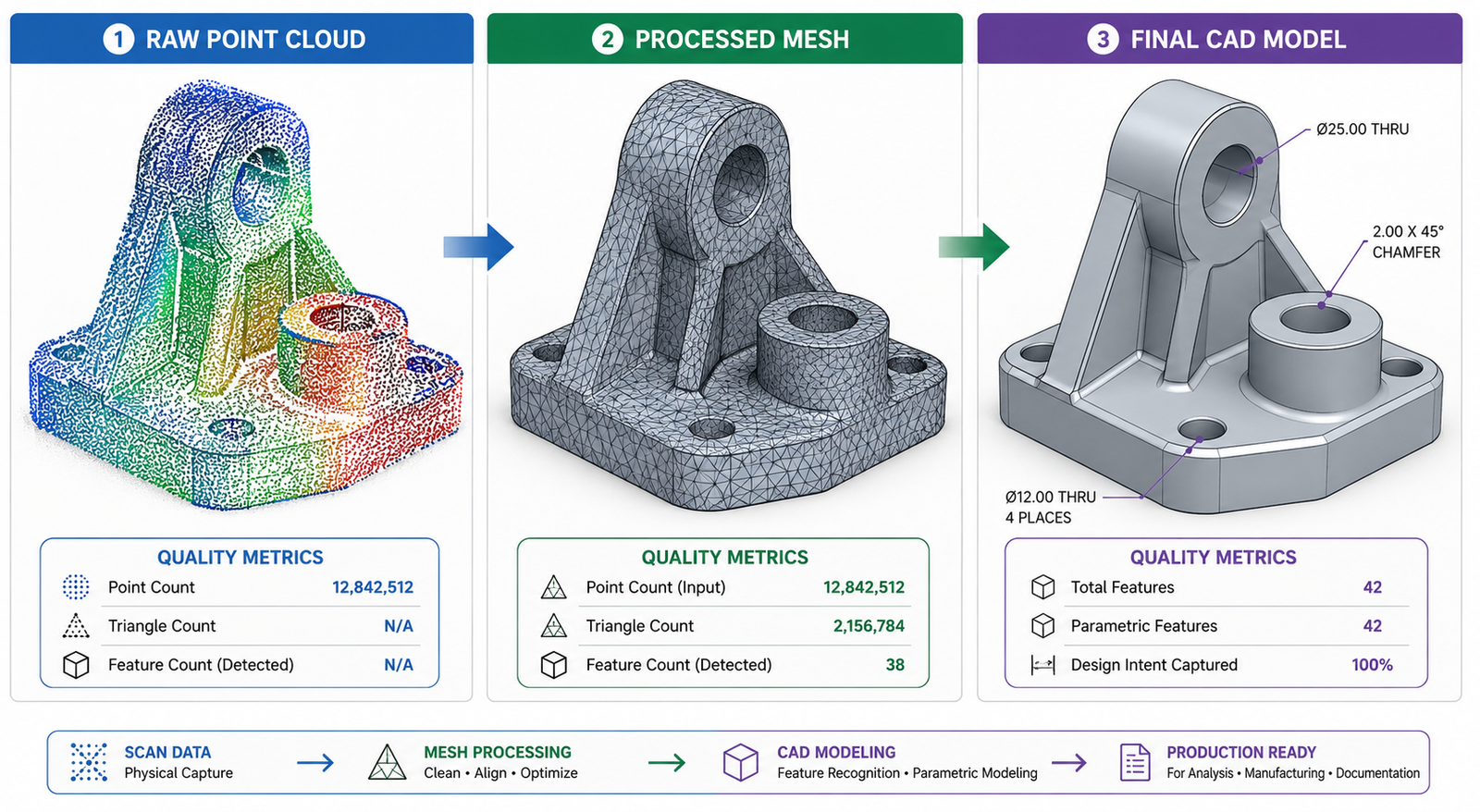
  • AutoCAD vs SolidWorks vs CATIA: which CAD software is right for your project in 2026?

    AutoCAD vs SolidWorks vs CATIA: which CAD software is right for your project in 2026?

    Introduction: Why This Comparison Actually Matters

    If you have ever searched ‘AutoCAD vs SolidWorks vs CATIA‘ you have probably landed on articles that list features without telling you anything useful. This is not that article.

    The truth is that picking the wrong CAD tool costs real money. Not just the license fee. The bigger cost is time spent learning a tool that is not standard in your industry, delivering drawings in a format your clients cannot open, or trying to manage an aerospace assembly in software built for 2D floor plans.

    This guide gives you a straight CAD software comparison with a clear verdict for each situation. We cover the technical differences, the industry fit, the learning curve, the cost reality, and where AI in CAD design is starting to change the picture for all three platforms.

    By the end you will know exactly which tool belongs in your workflow and why.

    AutoCAD vs SolidWorks vs CATIA
    Quick answer:  AutoCAD is best for 2D drafting and architecture. SolidWorks is best for 3D mechanical product design and manufacturing. CATIA is best for aerospace, automotive, and large complex assemblies. The right choice depends on your industry, project complexity, and team size.

    What Each CAD Tool Actually Does

    AutoCAD: The 2D Drafting Standard

    AutoCAD has been in engineering offices since 1982. It is the industry-standard CAD software for 2D technical drawings and has earned that reputation through decades of refinement and near-universal adoption across architecture, civil engineering, MEP, and construction.

    AutoCAD does have 3D capabilities, and those have improved significantly in recent years. But it is not a parametric solid modeler. If you change a dimension in AutoCAD, you are not driving geometry the way you would in SolidWorks. You are editing lines and arcs. That distinction matters enormously when you are doing iterative mechanical design.

    Where AutoCAD genuinely excels:

    • 2D technical drawings and construction documentation
    • DWG format compatibility across the entire industry
    • Discipline-specific toolsets: AutoCAD MEP, AutoCAD Electrical, AutoCAD Civil 3D
    • Annotation, title blocks, sheet sets, and drawing management
    • Scripting and automation with LISP, Python, and the newer AutoCAD API

    SolidWorks: Parametric 3D Modeling for Mechanical Engineers

    SolidWorks is the dominant 3D CAD software for mechanical engineers in general manufacturing, consumer products, industrial equipment, and medical devices. It uses a feature-based parametric approach: your model is driven by a sequence of features, each controlled by dimensions and relationships. Change a dimension and the entire model updates.

    That parametric approach is what makes SolidWorks so efficient for iterative design. You are not redrawing geometry when the spec changes. You are updating a value in the feature tree.

    SolidWorks core strengths:

    • Parametric part and assembly modeling with full design intent
    • Sheet metal design with bend tables, K-factors, and flat pattern output
    • Weldments, structural frames, and pipe routing
    • Built-in simulation with SolidWorks Simulation (FEA) and Flow Simulation (CFD)
    • PhotoView 360 rendering and SolidWorks Visualize for product presentations
    • BOMs, drawing views, and tight integration with manufacturing workflows

    CATIA: Engineering at Scale for Complex Programs

    CATIA is in a different category from the other two. It is not just a professional CAD software for individual engineers, it is a full product lifecycle platform used by engineering organizations running programs with hundreds of contributors, millions of parts, and tolerance requirements measured in fractions of a millimeter.

    Boeing, Airbus, Dassault Aviation, BMW, Ferrari, and most major automotive and aerospace OEMs run CATIA. Not because it is the easiest tool in the room, but because at the scale of an A380 or a new vehicle platform, nothing else handles the complexity with the same reliability.

    What sets CATIA apart:

    • Class-A surface modeling for automotive body design
    • Extremely large assembly management without performance collapse
    • Generative Shape Design for complex aerodynamic surfaces
    • Deep integration with ENOVIA for PLM, change management, and multi-site collaboration
    • Systems engineering capabilities that go beyond pure geometry
    • Kinematics, tolerancing, ergonomics, and manufacturing simulation in one environment
    Which CAD Tool Dominates Which Sector AutoCAD, SolidWorks, CATIA

    AutoCAD vs SolidWorks vs CATIA: Feature-by-Feature Breakdown

    Here is the honest breakdown across the criteria that matter most when choosing a CAD platform.

    FeatureAutoCADSolidWorksCATIABest For
    Primary use2D drafting / 3D3D mechanicalComplex assembliesDepends on project
    Learning curveModerateModerateSteepAutoCAD / SolidWorks
    Parametric modelingLimitedExcellentExcellentSolidWorks / CATIA
    Large assembliesNot idealGoodIndustry-leadingCATIA
    Sheet metalBasicVery strongStrongSolidWorks
    Simulation (FEA/CFD)MinimalBuilt-in (basic)AdvancedCATIA
    Industry standard inArchitecture / MEPMfg / ConsumerAerospace / AutoVaries by sector
    Licensing costSubscriptionMid-highHigh / enterpriseAutoCAD (entry)
    File collaborationDWG universalPDM / VaultENOVIA / PLMCATIA (enterprise)
    AI / automationBasic scriptingGrowingGrowingWatch this space

    Parametric Modeling: Where SolidWorks and CATIA Pull Ahead

    AutoCAD is not a parametric modeler in the mechanical engineering sense. If you need parametric CAD modeling where geometry is driven by fully constrained sketches, feature trees, and dimensional relationships, you are in SolidWorks and CATIA territory. Both handle this well. CATIA goes further with knowledge-based engineering where design rules and formulas can drive geometry automatically.

    Assembly Management: CATIA Wins at Scale

    For assemblies with hundreds of components, SolidWorks handles it well but can slow down on very large models even with lightweight mode enabled. CATIA’s architecture was specifically built for massive assemblies. It manages hundreds of thousands of parts with multi-site collaboration through ENOVIA without the performance degradation you would see in SolidWorks at that scale.

    For most mechanical engineering projects, SolidWorks assembly management is more than adequate. The CATIA advantage only becomes critical at aerospace or automotive program scale.

    Simulation Capabilities

    AutoCAD’s simulation story is minimal. SolidWorks includes a built-in FEA package (SolidWorks Simulation) that covers linear static, thermal, fatigue, frequency, and drop test analysis. It is solid for most manufacturing applications. For more advanced nonlinear or coupled physics problems, you would typically export to ANSYS or Abaqus regardless of which CAD tool you are using.

    CATIA includes more advanced simulation capabilities through its Simulia integration, but the real advantage is workflow: simulation is tightly linked to the geometry model and the PLM data, which matters in programs where design changes need to be tracked and re-simulated systematically.

    Learning Curve: Honest Assessment

    This is one of the most common questions in any SolidWorks vs CATIA vs AutoCAD discussion, and the honest answer is:

    • AutoCAD: Moderate. The interface is logical for 2D work. 3D adds complexity. Most people are productive in basic AutoCAD within 2 to 4 weeks of focused learning.
    • SolidWorks: Moderate to steep depending on depth. Basic part modeling: a few weeks. Assemblies, drawings, simulation, and advanced features: several months to use fluently. Very well documented with a large community.
    • CATIA: Steep. The interface is less intuitive than SolidWorks. The sheer number of workbenches and modules is overwhelming at first. Expect months before you are productive, and years before you are truly proficient.
    Key insight:  Learning curve should be weighed against industry fit. CATIA’s steep curve is worth it if your career target is aerospace or automotive. If you are designing consumer products or machine components, SolidWorks gives you more output per hour of learning time.

    Cost and Licensing

    AutoCAD runs on a subscription model starting at roughly $255/month or $2,031/year for a single license in 2025/2026. The industry-specific toolsets are included in the higher-tier subscriptions.

    SolidWorks pricing varies by reseller and region but a SolidWorks Standard license typically runs $3,000 to $4,000 per year for subscription. SolidWorks Professional and Premium add simulation, rendering, and PDM tools at higher cost tiers.

    CATIA is enterprise-priced and typically sold through Dassault Systemes resellers or directly to large organizations. Expect $10,000 to $40,000+ per seat annually depending on the configuration and modules. Individual licenses for independent engineers are not the typical model, though the 3DEXPERIENCE platform has introduced more flexible options.

    Budget reality:  For independent engineers, startups, and small teams: AutoCAD or SolidWorks. CATIA economics only make sense in an organizational context where the PLM and collaboration value justifies the per-seat cost.

    Which CAD Software Is Right for Your Industry

    Aerospace and Defense

    CATIA is the dominant platform and has been for decades. If you are targeting a career at Boeing, Airbus, Lockheed, Northrop Grumman, or any major aerospace tier-one supplier, learning CATIA is not optional. CATIA for aerospace engineering is effectively an industry requirement at the program level. SolidWorks appears at smaller aerospace firms and in prototyping contexts, but at the OEM level, CATIA and its ecosystem are the standard.

    Automotive

    CATIA again, particularly for body design, powertrain, and chassis systems. Class-A surfacing for exterior body panels requires CATIA’s Generative Shape Design capabilities. However, SolidWorks is used extensively at tier-two and tier-three automotive suppliers for component design where the complexity level does not require CATIA’s full capability.

    General Manufacturing and Industrial Equipment

    This is SolidWorks territory. Machine design, industrial automation equipment, pumps, valves, conveyors, presses, custom machinery: SolidWorks handles all of it with an efficiency that justifies the learning investment. The integration with manufacturing toolchains (CAM software like HSMWorks, GibbsCAM, and Mastercam) is strong and the DXF/DWG interoperability with AutoCAD for 2D drawings is good.

    Consumer Product Design

    SolidWorks is the most common choice for consumer product development because it handles the full workflow: concept modeling, detailed design, sheet metal enclosures, injection molding geometry with draft angles and parting surfaces, rendering for marketing, and BOM generation for procurement. SolidWorks for product design is a well-established workflow that most product development agencies have standardized on.

    Architecture, Construction, and MEP

    AutoCAD is the standard here, supplemented by Autodesk Revit for BIM workflows. An architect or construction professional asking whether to learn SolidWorks for building design is asking the wrong question. The AutoCAD ecosystem, particularly AutoCAD Architecture and AutoCAD MEP, has the discipline-specific tools, the DWG-based collaboration standard, and the contractor integration that the construction industry runs on.

    Medical Device Engineering

    SolidWorks is the most common choice in medical device development, particularly for Class I and Class II devices. The SolidWorks PDM system handles the design history and approval workflows that FDA submissions require. Some complex implant geometry and medical robotics programs use CATIA, but for most medical device companies, SolidWorks covers the need at a more accessible cost.

    cad software flowchart autocad, solidworks, catia

    Quick Project-to-Tool Reference

    Use this table to find your situation and get a direct recommendation.

    Your project typeBest CAD softwareWhy
    Architecture / constructionAutoCADDWG standard, 2D-first workflow
    Consumer product designSolidWorksParametric ease, sheet metal, rendering
    Aerospace componentsCATIAHandles complex surfaces, tight tolerances
    Automotive body designCATIAClass-A surfacing, OEM integration
    Small machine shop partsSolidWorksAffordable, fast CAM integration
    Construction MEPAutoCAD MEPDiscipline-specific toolsets
    Large multi-team programsCATIAPLM / ENOVIA data management
    Startup / solo engineerSolidWorksBest balance of power and cost

    AI in CAD Design: How It Changes the Picture in 2026

    All three platforms are incorporating AI capabilities, and understanding where those capabilities are heading matters when you are making a long-term tool investment. AI in CAD design is no longer theoretical: it is showing up in generative design, automated drawing creation, simulation setup, and natural language interfaces.

    AutoCAD and AI

    Autodesk has been rolling out AI features across its platform including intelligent block insertion, automated linework cleanup, and early natural language tools through Project Bernini and related research. The AutoCAD API also integrates well with external AI tools for scripting and workflow automation. For engineers interested in AI workflow engineering in a drafting context, AutoCAD’s scripting layer is accessible and well-documented.

    SolidWorks and AI

    Dassault Systemes has been building AI into the 3DEXPERIENCE platform. SolidWorks Topology Optimization is already an AI-adjacent tool that optimizes part geometry against load conditions and manufacturing constraints. The platform is moving toward more intelligent design suggestions, automated simulation setup, and natural language-driven design assistance. This is where prompt engineering for CAD starts to have a direct workflow application.

    CATIA and AI

    CATIA’s AI integration is primarily through the 3DEXPERIENCE platform at the program level: AI-assisted configuration management, automated rule-based design checks, and intelligent assembly guidance. The focus is less on individual productivity and more on managing program-level complexity. For large organizations, this is where AI delivers the most measurable return.

    SolidWorks official blog on CAD and AI design trends

    The bigger picture:  Regardless of which CAD tool you use, AI assistants like Claude can dramatically accelerate your specification writing, simulation setup documentation, technical reporting, and design review preparation. The CAD tool handles the geometry. AI handles the language layer around it. Learning to use both effectively is the 2026 engineering advantage.

    For engineers who want to go deeper on this topic, the  regularly covers how 3D CAD workflows are evolving alongside AI and simulation tools, with practical case studies from real engineering projects.

    Should You Learn More Than One CAD Tool?

    This question comes up a lot, especially from engineering students. The practical answer: go deep on one first, then build familiarity with others as your career demands it.

    The core skills of parametric modeling, assembly management, GD&T, and drawing interpretation transfer across platforms. An engineer who is genuinely proficient in SolidWorks will pick up CATIA fundamentals faster than someone starting from zero, because the underlying thinking is similar. The command names differ; the logic is the same.

    Where multiple tool knowledge becomes genuinely valuable: consulting roles where you work across different client environments, careers that span both concept design (often SolidWorks) and production program support (often CATIA), and roles at suppliers who serve multiple OEMs with different CAD standards.

    • Start with: the tool most used in your target industry or your current employer’s environment
    • Add later: whichever tool appears most in the job listings you want to be qualified for in three to five years
    • Do not spread thin: surface-level knowledge of five tools is less valuable than genuine proficiency in two

    Common Mistakes When Choosing CAD Software

    • Choosing by what your university taught. Universities teach what they have licenses for, not necessarily what industry uses. Always check the job listings in your target sector before defaulting to the tool you learned in school.
    • Picking based on YouTube tutorials rather than workflow fit. The most popular tutorials are for the most popular tools. That is not the same as the right tool for your project type.
    • Underestimating CATIA’s complexity. Engineers who have used SolidWorks extensively sometimes assume CATIA is a straightforward step up. It is not. Budget serious time for CATIA onboarding.
    • Overestimating AutoCAD’s 3D capability. AutoCAD 3D is not equivalent to parametric solid modeling. If your work involves mechanical assemblies with design intent and simulation, you need SolidWorks or CATIA.
    • Ignoring the ecosystem. The CAD tool is only part of the decision. The PDM/PLM system, the CAM integration, the simulation tool, and the collaboration workflow all connect to your CAD choice. Evaluate the full stack.

    Conclusion: Make the Decision Based on Your Actual Work

    The AutoCAD vs SolidWorks vs CATIA question does not have a universal winner. It has a right answer for each engineering context, and now you have the information to find yours.

    If you are in architecture, construction, or civil engineering: AutoCAD is your tool. If you are in mechanical product design, manufacturing, or medical devices: SolidWorks is your tool. If you are in aerospace, automotive, or large-scale multi-discipline programs: CATIA is the standard you need to meet.

    Whichever platform you choose, the skills around it matter as much as the tool itself. Knowing how to write a complete design specification, structure a simulation correctly, document a design decision clearly, and communicate technical intent accurately: these are the skills that AI tools like Claude can help you develop faster and execute more consistently.

    Choose the right tool for the work in front of you. Go deep. Then build outward.

    Frequently Asked Questions

    1. Which is better: AutoCAD, SolidWorks, or CATIA?

    There is no single best option. AutoCAD is best for 2D drafting and architecture. SolidWorks is best for mechanical product design and manufacturing. CATIA is best for aerospace, automotive, and large-scale complex assemblies. The right choice depends entirely on your industry, project type, team size, and budget.

    2. Is SolidWorks easier to learn than CATIA?

    Yes, SolidWorks has a significantly shorter learning curve than CATIA. Most mechanical engineers become productive in SolidWorks within weeks. CATIA is a deeper, more complex platform designed for large engineering organizations and typically requires months of structured training to use effectively.

    3. Can AutoCAD do 3D modeling like SolidWorks?

    AutoCAD has basic 3D modeling tools but it is not a parametric solid modeler. SolidWorks uses a feature-based parametric approach where dimensions drive geometry. For serious 3D mechanical design with design intent, simulation, and BOMs, SolidWorks is significantly more capable than AutoCAD.

    4. Which CAD software is used in aerospace?

    CATIA is the dominant CAD software in the aerospace industry. Boeing, Airbus, and most major aerospace OEMs use CATIA for design, assembly management, and systems engineering. Its ability to handle extremely large assemblies, surface complexity, and integration with PLM systems like ENOVIA makes it the aerospace industry standard.

    5. Is CATIA worth learning for mechanical engineers?

    CATIA is worth learning if you plan to work in aerospace, automotive, or large defense programs. If your career target is general mechanical product design, manufacturing, or consumer goods, SolidWorks is more practical and widely used. Check the job listings in your target sector and choose based on what employers are asking for.

    6. Can I use prompt engineering to improve my CAD workflow in any of these tools?

    Yes. Prompt engineering techniques, particularly with AI tools like Claude, can significantly improve how you document designs, generate specifications, set up simulation inputs, and write technical reports, regardless of whether you use AutoCAD, SolidWorks, or CATIA as your primary modeling tool.

  • CAD File Formats Explained: DWG vs DXF vs STEP vs IGES and When Each Matters

    CAD File Formats Explained: DWG vs DXF vs STEP vs IGES and When Each Matters

    A supplier sends back a file you cannot open. A manufacturer returns a model with geometry errors that were not in your original design. A client cannot view the drawing you emailed them. In each of these cases, there is a good chance the format was wrong, not the content. CAD file formats are one of the most misunderstood and most consequential decisions in any engineering workflow, and getting them wrong costs time at every stage of a project.

    This guide explains the most common CAD file formats, what each one actually is, what it carries, what it cannot carry, and when to use or request it. Whether you are an engineer managing a design handover, a project manager coordinating with suppliers, or a buyer receiving deliverables from a CAD partner, understanding file formats means fewer errors, fewer delays, and fewer frustrating email chains about why a file will not open.

    Quick Reference: CAD File Formats at a Glance

    FormatTypeBest ForWorks WithAvoid When
    DWGNative / Proprietary2D drafting, AutoCAD workflows, drawing exchange between AutoCAD usersAutoCAD, BricsCAD, NavisworksSharing with non-Autodesk tools, compatibility issues are common
    DXFOpen Exchange2D drawing exchange across different CAD platforms and older softwareAlmost any CAD or CNC toolTransferring 3D geometry, DXF 3D support is inconsistent
    STEPOpen Neutral3D model exchange between different CAD systems, supplier collaborationSolidWorks, CATIA, NX, Creo, Fusion 360When you need full parametric feature tree, STEP is non-parametric
    IGESOpen Neutral (legacy)Surface geometry transfer, legacy systems, aerospace/defence workflowsMost major CAD platformsNew projects, STEP is the modern replacement in most cases
    STLMesh / Output3D printing, additive manufacturing, rapid prototypingAll 3D printers and slicing softwarePrecision engineering or machining, no dimensions, no tolerances
    PDFVisual ReferenceClient approvals, drawing review, non-editable distributionAny PDF viewerActive design collaboration, cannot be edited back to CAD
    CAD File Formats DWG, DXF, STEP, IGES, STL, PDF

    Why CAD File Formats Matters More Than Most People Realise

    A CAD file is not just a container for geometry. Depending on the format, it may carry, or fail to carry, parametric feature history, assembly structure, tolerances and GD&T callouts, material properties, layer information, and metadata. When a file is converted from one format to another, some of that information is always lost. The question is which information, and whether that loss matters for the next stage of the workflow.

    This is why format is a workflow decision, not just a technical preference. The right format depends on who receives the file, what they intend to do with it, and what tools they are using. A STEP file that works perfectly for a supplier machining your part tells you nothing about whether it is the right format for a client doing a design review, a 3D printing bureau producing a prototype, or a structural analyst running an FEA simulation.

    There is no single best CAD file formats. There is only the right format for the specific recipient, tool, and purpose. The most common and costly mistake in CAD file exchange is sending whatever format is convenient rather than what the downstream workflow actually requires.

    2D Drawing Formats: DWG and DXF

    DWG and DXF are the two dominant formats for 2D engineering drawings. They share a common origin, both were created by Autodesk for AutoCAD, but they serve different purposes and have meaningfully different compatibility profiles.

    DWG (.dwg) is AutoCAD’s native binary file format. It is the working format for AutoCAD and the broader Autodesk ecosystem, including Inventor, Civil 3D, and Revit in some workflows. DWG files are compact and preserve all AutoCAD-specific features: layers, blocks, line types, dimension styles, layouts, and drawing scale settings. The limitation is compatibility: while many CAD tools claim to support DWG, the format is proprietary and Autodesk updates its specification with each AutoCAD release. Files created in a newer version of AutoCAD may not open correctly, or at all, in older versions or non-Autodesk tools.

    DXF (.dxf), Drawing Exchange Format, was also created by Autodesk but as an open format, specifically to allow other CAD tools to read AutoCAD geometry. Because DXF is ASCII-based (in its standard form), it is readable by an enormous range of software including most CNC controllers, laser cutters, plasma cutters, and virtually every CAD platform on the market. It is the most universally compatible 2D format in engineering.

    2D Drawing Formats DWG and DXF CAD file formats

    DWG vs DXF: Side-by-Side Comparison

    PropertyDWGDXF
    Format typeProprietary binary format owned by AutodeskOpen ASCII or binary exchange format
    Primary useNative working format for AutoCAD and Autodesk toolsCross-platform 2D drawing exchange
    CompatibilityBest with AutoCAD family; variable with other toolsNear-universal, works with almost any CAD or CNC software
    3D supportYes, solid and surface geometryLimited, 3D data transfer is inconsistent
    File sizeCompact binary formatLarger (ASCII version); binary DXF is more compact
    Parametric dataNoNo
    When to request itYour supplier or client uses AutoCAD as their primary toolYou need to share drawings with a different CAD platform or CNC machine

    For practical purposes: if both parties are using Autodesk tools, share DWG. If the recipient uses a different CAD platform, a CNC machine, or any tool outside the Autodesk ecosystem, DXF is the safer and more reliable choice. When in doubt, send both.

    3D Neutral Formats: STEP and IGES

    When you need to transfer a 3D model, a solid body, a surface model, or an assembly, between different CAD systems, you need a neutral format. Native CAD files (SolidWorks .sldprt, CATIA .CATPart, NX .prt, Creo .prt) are proprietary and require the originating software to open. STEP and IGES are the two dominant neutral formats that work across the industry.

    STEP (.stp or .step), Standard for the Exchange of Product model data, is the current international standard, governed by ISO 10303. It is the most widely used neutral format for 3D model exchange in manufacturing today. STEP carries solid geometry, surface geometry, and assembly structure accurately across different CAD environments. A STEP file generated in SolidWorks will open cleanly in CATIA, NX, Creo, Fusion 360, FreeCAD, or any other modern CAD platform. This is as close to a universal 3D format as the engineering industry has.

    IGES (.igs or .iges), Initial Graphics Exchange Specification, is STEP’s predecessor. Developed in the 1980s under ANSI, IGES was the dominant neutral format for decades and remains in active use in aerospace, defence, and some government procurement programmes that have not transitioned to STEP. IGES handles surface and wireframe geometry well but is less reliable for solid body transfer and often loses assembly structure on import.

    3D Neutral Formats STEP and IGES SImutecra

    STEP vs IGES: When to Use Each

    PropertySTEP (.stp / .step)IGES (.igs / .iges)
    StandardISO 10303, current international standardANSI Y14.26M, established 1980, still maintained
    Format typeNeutral open standardNeutral open standard (older)
    3D geometrySolid bodies, surfaces, assemblies, metadataSurfaces and wireframe geometry primarily
    Assembly supportYes, full assembly structure preservedLimited, assembly data often lost on import
    Parametric dataNo, geometry only, no feature historyNo, geometry only
    Industry adoptionCurrent standard, used across manufacturing globallyLegacy, still required in some aerospace and defence programmes
    Recommended forAll new 3D model exchange between different CAD systemsLegacy system compatibility or where STEP is explicitly not supported
    The most important limitation of both STEP and IGES is that neither carries parametric feature history. When a supplier or partner imports your STEP file, they receive geometry, not an editable feature tree. If future modification of the model is required, the native CAD file formats must be provided alongside the STEP. This is non-negotiable in any long-term design relationship.

    Other Formats You Will Encounter: STL, PDF, and Native Files

    Beyond the four main formats, three others appear regularly in engineering workflows and are worth understanding clearly.

    STL (.stl), stereolithography, is a mesh format that represents 3D geometry as a collection of triangular faces. It is the standard input format for 3D printers and additive manufacturing equipment. STL files carry no dimensional accuracy, no tolerances, no material data, and no parametric information, they are output files for fabrication, not engineering documents. Sending an STL to a CNC machine shop is not appropriate. Sending a STEP to a 3D printing bureau is also not appropriate unless they specifically ask for it. Each format belongs to its process.

    PDF (.pdf) is not a CAD format in the engineering sense, but it is the most widely used format for drawing distribution and approval. A 2D engineering drawing exported to PDF is universally readable, non-editable, and appropriate for client review, manufacturing reference, and project archiving. PDF should accompany every drawing deliverable, it is the human-readable record of what the CAD file formats contains. It is not a substitute for a proper CAD file formats in any active design workflow.

    Native CAD files (.sldprt, .CATPart, .prt, .ipt, etc.) are the working formats specific to each CAD platform. They contain the full parametric feature tree, design history, configurations, and all information that allows a model to be meaningfully edited. Native files should always be retained and should be requested as a deliverable alongside STEP and PDF in any outsourced CAD engagement. Receiving only a STEP from a CAD partner means any future modification requires rebuilding the model from scratch.

    Real-World Example: A Product Sent to Three Different Destinations

    A mechanical assembly is designed in SolidWorks, a housing, an internal shaft, four fasteners, and two seals. The design is complete and ready for fabrication and review. Three different destinations require the same data in three different formats.

    Destination 1: The Machine Shop
    The machinist needs to manufacture the housing and shaft. They use their own CAD tool to verify geometry and their CNC software to generate toolpaths. They request STEP for the 3D geometry and DXF for the 2D detail drawings. The STEP gives them an accurate solid body to check fit and clearances. The DXF feeds directly into their CNC controller. A PDF of the detail drawings is sent alongside as a manufacturing reference.
    Destination 2: The Client for Design Approval
    The client has no CAD software. They need to review the design, confirm dimensions, and sign off before manufacturing begins. A PDF of the general assembly drawing and a set of rendered views are sent. The client can mark up the PDF, review dimensions, and approve, without needing to install or understand any CAD tool.
    Destination 3: The 3D Printing Bureau for a Prototype
    Before committing to machined parts, a prototype of the housing is required. The 3D printing bureau requests an STL file. The SolidWorks model is exported to STL at high resolution. The bureau loads it into their slicing software, checks wall thickness and orientation, and prints. The STL carries no engineering dimensions, it is geometry only, which is all the printer needs.

    Three destinations, three CAD file formats, all from the same original SolidWorks model. The format decision was made based on the recipient’s tool and purpose, not based on what was easiest to export.

    Which CAD File Formats to Request From Your Engineering Partner

    One of the most practical questions in any outsourced CAD engagement is what file formats to specify in your brief. The answer depends on your downstream workflow. Use this as a reference when writing your CAD specification or RFQ:

    ScenarioRequest This FormatWhy
    Sending 2D drawings to a machine shopDXF or PDFDXF for CNC-ready files; PDF as a readable reference. Always send both if possible.
    Sharing a 3D model with a supplier using different CADSTEP (.step)STEP is the universal neutral format, almost every modern CAD tool imports it cleanly.
    Handing off a model for 3D printingSTL3D printers and slicing software require mesh format, not solid CAD file formats.
    Getting a design reviewed by a client or stakeholderPDFNon-editable, universally readable, no CAD software required on the client’s end.
    Collaborating with an Autodesk-based teamDWGNative format for the entire Autodesk ecosystem, no translation loss.
    Working with a legacy aerospace or defence supplierIGES or STEPCheck their specification, some legacy programmes still mandate IGES. Default to STEP otherwise.
    Receiving deliverables from your CAD partnerNative + STEP + PDFNative file for future editing; STEP for cross-platform use; PDF for approval and archiving.

    As a general rule: always request the native CAD file formats as a standard deliverable, regardless of what else you ask for. It is the only format that preserves full editability. The STEP and PDF are for distribution, the native file is for retention and future work.

    Frequently Asked Questions

    1. What is the difference between DWG and DXF?

    DWG is AutoCAD’s native binary format, compact, feature-rich, and best shared between Autodesk tools. DXF is an open exchange format originally created by Autodesk to allow other software to read AutoCAD files. DXF works across almost any CAD or CNC platform but has limited and inconsistent 3D support. For 2D drawing exchange outside the Autodesk ecosystem, DXF is the more reliable choice for CAD file formats.

    What is a STEP file and why is it the standard for 3D exchange?

    STEP (Standard for the Exchange of Product model data) is an ISO-standardised neutral file format that carries 3D solid geometry, surfaces, and assembly structure between different CAD systems without being tied to any single vendor. It is the current international default for 3D model exchange because it is widely supported, geometry-accurate, and preserves assembly relationships. Its main limitation is that it does not carry parametric feature history, the model arrives as geometry, not as an editable feature tree.

    Is IGES still used in engineering?

    Yes, but primarily in legacy and regulated environments. IGES (Initial Graphics Exchange Specification) predates STEP and was the dominant neutral format for decades. It is still required by some aerospace, defence, and government programmes that have not migrated to STEP. For new projects with no legacy system constraint, STEP is the better choice, it handles solid geometry and assemblies more reliably than IGES. CAD file formats

    Can I convert a STEP file back to native CAD with full parametric features?

    No. STEP files carry geometry, solid bodies and surfaces, but not parametric feature history. When a STEP file is imported into SolidWorks, CATIA, or any other parametric CAD tool, it arrives as a dumb solid: you can modify it by pushing and pulling faces, but you cannot access the original feature tree, sketches, or design intent. If you need a fully editable parametric model, you need the native CAD file formats from the originating software.

    What CAD file formats should I ask for from my engineering partner?

    For a complete and future-proof deliverable, request three formats: the native CAD file formats (in whatever software was used, SolidWorks .sldprt, CATIA .CATPart, etc.) for future editing; a STEP file for cross-platform 3D exchange; and a PDF of all 2D drawings for approval, archiving, and manufacturing reference. For 2D-only work, request DXF alongside the PDF as a CAD file formats.

    What is the difference between STL and STEP?

    STEP is an engineering format that represents precise solid geometry, it is accurate to the mathematical definition of the model and suitable for manufacturing. STL is a mesh format that approximates surfaces with triangles, it loses precision and carries no dimensional, tolerance, or material information. STL is used exclusively for 3D printing and additive manufacturing. Never send an STL to a machine shop expecting CNC-accurate results for CAD file formats.

    The Bottom Line

    CAD file formats are not a technical afterthought. They are a workflow decision that determines whether the right information reaches the right person in a form they can actually use. DWG and DXF carry 2D drawings. STEP carries 3D geometry between different CAD systems. IGES serves legacy and regulated environments. STL serves additive manufacturing. PDF serves human review and archiving. Native files serve future editability.

    The teams that get this right specify formats at the start of a project, in the brief, in the RFQ, in the supplier specification, not after a file arrives in a format no one can open. If you are outsourcing CAD work or receiving deliverables from an engineering partner, building a clear CAD file formats requirement into your specification is one of the simplest ways to prevent delays that have nothing to do with the quality of the design itself.

    Getting the Right Files the First Time
    At Simutecra CAD Drafting Services, every deliverable is packaged in the formats your team actually needs, native CAD files for editing, STEP for supplier exchange, and fully detailed PDFs for manufacturing reference and approval. We confirm file format requirements at the start of every project, not after the work is done.Tell us about your project and we will advise on the right format package for your workflow and manufacturing partners.
    Reach out to us today, Simutecra
  • How to Read Engineering Blueprints: A Practical Guide for Non-Engineers

    How to Read Engineering Blueprints: A Practical Guide for Non-Engineers

    A set of engineering blueprint drawings lands on your desk. You need to review them, approve them, or pass them to a fabricator. But the sheets are covered in symbols, numbers, dashed lines, and abbreviations that make no immediate sense. You are not alone, and this is not as complicated as it looks.

    Learning how to read engineering blueprints is a practical skill anyone can develop. You do not need an engineering degree to understand what a drawing is communicating. You need a clear framework for where to look and what each element means. This guide walks you through that framework in plain language, step by step.

    What is Engineering Blueprint?

    An engineering blueprint drawing is a technical document that communicates the exact geometry, dimensions, materials, tolerances and manufacturing requirements of a part or assembly. The name comes from the blue-tinted prints used in the 19th and 20th centuries. Today it refers to any formal technical drawing, whether printed or digital.

    Annotated Engineering Blueprint Drawing with Key Areas Labelled

    Step 1: Always Start with the Title Block

    Before you look at a single line of geometry, go to the title block. It sits in the bottom-right corner of every engineering blueprint drawing, in every industry, on every sheet. It is the drawing’s identity card. Everything else you read on the sheet depends on confirming this information first.

    Title Block FieldWhat It ContainsWhy Check It First
    Drawing TitleThe name of the part, assembly or system being drawnConfirms you have the right drawing for your project
    Drawing NumberA unique identifier in the document control systemUse this in all correspondence and purchase orders
    Revision LevelA letter or number such as Rev A, Rev B, or Rev 3Outdated revisions cause manufacturing errors
    ScaleThe ratio between drawing size and actual part sizeTells you whether dimensions can be read visually
    UnitsMillimetres, inches, or other unit systemMixing metric and imperial is a costly mistake
    DateWhen the drawing was created or last revisedCross-reference with your project timeline
    Drawn By / Approved ByNames and signatures of drafter and approving engineerConfirms the drawing went through a review process
    Company / ClientOrganisation that produced or commissioned the drawingConfirms which standards and formats apply

    Watch out:  The single most common and costly mistake when working with engineering drawings is using an outdated revision. Before reviewing any drawing in detail, confirm the revision level matches your project’s current issued document register. A drawing that looks fine might be three revisions behind the current design.

    Also in the Title Block: The Projection Symbol

    Look for a small symbol near the title block that shows a truncated cone viewed from two angles. This tells you which projection standard the mechanical engineering blueprint uses.

    • Third-angle projection (circle on the left, cone tip pointing right): Used in the United States, Canada, and Australia. Each view is placed on the same side as the direction you are looking from.
    • First-angle projection (circle on the right, cone tip pointing left): Used in Europe, Asia, and most of the rest of the world. Each view is placed on the opposite side to the direction you are looking from.

    Important:  If you read a first-angle drawing as if it were third-angle (or vice versa), the views appear mirrored. This leads to parts being built with holes, features, and interfaces in the wrong positions. Always check the projection symbol before reading the views.

    Step 2: Understand How the Views Work

    Engineering drawings show a 3D object as a series of flat 2D views, like photographs of the part from different directions. The standard set is a front view, a top view, and a side view. Together, these three views define the complete shape of the part.

    Think of it this way. If you placed a part inside a glass box and drew what you could see through each face, then unfolded the box flat onto paper, you would have an orthographic drawing. Each face of the box becomes one view on the sheet.

    View NameWhat It ShowsPosition on Sheet
    Front ViewThe most descriptive face of the part, chosen to show the most geometryCentre-left of the drawing sheet
    Top ViewLooking directly down onto the partDirectly above the front view
    Right Side ViewLooking at the right side of the partTo the right of the front view (third-angle)
    Section ViewA cut-open view showing internal geometry that would be hiddenAnywhere on sheet, labelled e.g. Section A-A
    Detail ViewAn enlarged view of a small or complex area at a larger scaleAnywhere on sheet, labelled e.g. Detail B
    Isometric ViewA 3D-like pictorial view showing length, width and depth, for referenceUsually top-right corner, marked NOT TO SCALE

    Tip:  When you first open a drawing sheet, identify all the views before you read any dimensions. Trace how each view relates to the others. The front view drives the layout and the other views align to it. Understanding this spatial relationship is the foundation for reading the rest of the drawing correctly.

    Step 3: Decode the Lines and Dimensions

    Not all lines on a mechanical engineering blueprint are the same. Each line type has a specific meaning, and misreading them is one of the most common errors for people new to technical drawings.

    Line TypeAppearanceWhat It Means
    Visible (object) lineSolid, thick continuous lineA real edge visible in this view. The actual boundary of the part.
    Hidden lineMedium-weight dashed lineA real edge that exists but is hidden behind another feature in this view.
    Centre lineThin alternating long-short dashThe axis or centre of a circular feature such as a hole or bore. Not a physical edge.
    Dimension lineThin line with arrowheads at each endIndicates the distance being measured. The value sits above or within the line.
    Extension lineThin line from part edgeConnects the part geometry to the dimension line and shows what is being measured.
    Section/cutting planeThick dash-dot line with arrowsShows where an imaginary cut is made for a section view. Arrows show viewing direction.
    Phantom lineThin long-short-short dashShows adjacent parts, alternate positions or motion paths. Not part of the actual component.
    Break lineThin wavy or zigzag lineIndicates a portion of the part has been omitted from the drawing to save space.

    Reading Dimensions

    Dimensions tell the manufacturer the exact size of every feature. Here are the main types you will encounter on any engineering blueprint drawing:

    • Linear dimensions: Straight-line measurements between two points, shown with a dimension line and a value. The most common type.
    • Angular dimensions: Measurements of angles between two surfaces or lines, shown in degrees.
    • Diameter dimensions: Shown with the diameter symbol (a circle with a diagonal line through it) before the number. Always applies to circular features.
    • Radius dimensions: Shown with R before the number. Applies to arcs, fillets and rounded corners. Measured from centre to edge.
    • Depth dimensions: Shown with a downward arrow symbol. Common on hole callouts to specify how deep the hole goes.

    Tolerances on Dimensions

    Dimensions carry tolerances, which are the allowable variation from the stated value. You will see these in three main forms:

    • Plus/minus values: For example, 25.00 plus or minus 0.10 means the finished dimension can be anywhere from 24.90 to 25.10.
    • Limit dimensions: The upper and lower limits are stated directly, such as 25.10 / 24.90.
    • GD&T controls: Feature control frames that define geometric variation in addition to or instead of size tolerances.

    Important:  Never measure directly off a printed engineering blueprint drawing to determine dimensions. Drawings are not printed at a guaranteed 1:1 scale and even minor printing variation makes direct measurement unreliable. Always read the dimension value written on the drawing.

    Step 4: Read the Engineering Blueprint Symbols, Notes, and Callouts

    Beyond dimensions and views, engineering blueprint symbols communicate requirements that would take several lines of text to describe in words. Knowing the most common ones means you can scan a drawing and understand what is being asked of the manufacturer without needing to ask an engineer to translate every callout.

    Symbol / NotationLooks LikeWhat It Means
    Surface finishTick mark with a number (Ra value)How smooth a surface must be. Ra 1.6 is smoother than Ra 6.3. Applies to mating and sealing surfaces.
    DiameterCircle with diagonal line before numberThe feature is circular. This is the full width through the centre, not the radius.
    RadiusR before a numberHalf the diameter. Used for arcs, rounded corners and fillets.
    CounterboreStepped circle symbolA larger flat-bottomed hole above the main hole. Used to recess bolt heads flush with the surface.
    CountersinkAngled V symbolA conical recess at the top of a hole for a flush countersunk screw head.
    Thread calloute.g. M12 x 1.75 or 1/2-13 UNCSpecifies the thread size, pitch and type for holes or external threads such as bolts and studs.
    TYP (Typical)Written after a dimension valueThis dimension applies to all identical features unless otherwise noted, not just the one it points to.
    REF (Reference)Written in brackets: (50) or 50 REFFor reference information only. Not to be used for inspection or manufacturing.
    NTS (Not to Scale)Written below a dimension or viewThis view or dimension is not drawn proportionally. Read the written number, do not measure visually.

    The General Notes Section

    Look for a notes section on the drawing, usually in the upper-left corner or near the title block. General notes apply to the entire drawing and cover things that cannot be expressed graphically: default tolerances for features without individual dimensions, surface treatment requirements, material standards, heat treatment specs, inspection requirements, and applicable regulatory or industry standards.

    A critical rule:  When a general note conflicts with a specific dimension or symbol shown on the drawing, the specific instruction takes precedence. The general note applies only where nothing more specific has been stated.
    Common Engineering Blueprint Symbols Reference Sheet

    Engineering Blueprint Examples: What You Actually See and What It Means

    Reading engineering blueprints is much easier when you have seen real examples of common callouts and know exactly what action to take. The table below covers the situations you are most likely to encounter when reviewing a mechanical engineering blueprint as a non-engineer.

    Think of this as a translation guide. Left column is what the drawing shows. Middle column is what it actually means. Right column is what you should do as the reviewer.

    What You See on the DrawingWhat It MeansWhat You Should Do
    50 +0.0 / -0.2 next to a circleA hole with diameter 50mm, but it can be 49.8mm minimum. The plus side has zero tolerance.This is a precision hole. Flag to the engineer if the tolerance seems tighter than usual for the application.
    M8 x 1.25 inside a circle with arrowAn M8 metric threaded hole with 1.25mm thread pitchConfirm the correct bolt or stud is specified in the BOM. Thread size must match the fastener.
    Dashed rectangle inside a solid outlineA hidden internal pocket or cavity not visible in this viewDo not assume the part is solid. Check the section view to understand the internal geometry.
    Section A-A with a line and arrowsA cut has been made along this line. Section view A-A shows what is inside.Find the section view labelled A-A on the sheet or on the referenced sheet.
    Ra 1.6 on a surface edgeThat surface must be machined smooth to 1.6 microns average roughnessSmoother surfaces cost more to machine. Verify this is genuinely required for the application.
    (75) in brackets near a dimensionThis is a reference dimension only. Not used for inspection.Do not use this number for manufacturing or checking. It is informational only.
    REV C in the title blockThis is the third revision of the drawingCheck your document register. Confirm Rev C is the currently issued version before proceeding.

    Real-World Example: Reviewing a Structural Steel Fabrication Package

    You are a project manager reviewing a structural steel fabrication drawing package before issuing it to a fabricator for pricing. You are not a structural engineer, but you need to confirm the package is complete and ready to issue.

    Here is exactly what you do:

    1. Confirm every sheet carries the same revision level. A mixed-revision package is a fabrication risk. If sheet 1 says Rev C and sheet 3 says Rev B, stop. Do not issue until the engineer confirms which sheets are current.
    2. Confirm the title block on each sheet references the correct project number and part descriptions. Mislabelled sheets cause real problems at a fabrication shop.
    3. Scan for revision clouds. These are the cloud-shaped borders around changed areas. If a revision cloud exists, check the revision table to confirm the change has been documented and signed off.
    4. Check for any RFI notations or open queries. An RFI marker means a question has been raised that has not been answered. Do not issue to fabrication with open RFIs.
    5. Confirm units are consistent across all sheets. If the drawing set uses millimetres throughout, every sheet should say mm. A single sheet using inches in a metric package causes manufacturing errors.

    You do not need to verify every dimension or tolerance callout. That is the engineer’s role. Your job is to confirm the package is administratively complete, internally consistent, and shows no outstanding issues before it leaves your hands.

    The Non-Engineer Blueprint Review Checklist

    Use this checklist every time a drawing set arrives for review, approval, or issue to a supplier. You do not need engineering expertise to complete it. These ten checks catch the administrative and structural problems that cause the most expensive mistakes downstream.

    Engineering Blueprint Reading Checklist Visual
    What to CheckWhy It Matters
    ☐  Confirm the revision level matches your project document registerOutdated drawings cause manufactured parts that do not match current design intent
    ☐  Verify the drawing number and title match the expected part or assemblyMislabelled drawings get issued to the wrong supplier or used for the wrong job
    ☐  Check that units are stated and consistent across all sheetsMetric/imperial confusion is one of the most costly errors in manufacturing
    ☐  Identify the projection method (first-angle or third-angle)Misreading the projection direction produces mirrored or inverted parts
    ☐  Confirm all views are present and labelled with section references matchingMissing or misreferenced views leave geometry undefined or ambiguous
    ☐  Scan for revision clouds. Have all flagged changes been resolved?Unresolved revision clouds indicate the design is not yet finalised
    ☐  Check for any RFI notations or open queries on the drawingOpen RFIs mean unresolved questions. Do not issue to fabrication.
    ☐  Confirm the general notes section is present and legibleMissing notes leave default tolerances, surface treatments and material specs undefined
    ☐  Verify the drawing has been signed or approved in the title blockUnapproved drawings have not been through a design review. Issuing them is a risk.
    ☐  Check the scale is stated and marked NTS where applicableUnstated or incorrect scale creates confusion about whether dimensions can be read visually

    External Resource:  For the international standard that governs engineering drawing practice, see ISO 128 (Technical Drawings: General Principles of Presentation) published by the International Organization for Standardization at iso.org. This is the foundational standard that defines line types, projection methods, and drawing conventions referenced in this guide.

    The Bottom Line

    Reading engineering blueprints does not require an engineering degree. It requires knowing where to look, what each element means, and what questions to ask when something is missing or unclear.

    The title block tells you what you are looking at and whether it is current. The projection symbol tells you how to read the views. The line types tell you what is real geometry and what is reference information. The engineering blueprint symbols and dimension callouts tell the manufacturer exactly what to build. The general notes fill in the requirements that cannot be shown graphically.

    Together, these elements give you enough information to review a mechanical engineering blueprint confidently, catch the issues that matter, and communicate clearly with the engineers and fabricators involved. The checklist in this guide covers the ten checks that catch the majority of drawing-related problems before they reach the shop floor. Use it every time a drawing set crosses your desk.

    Know where to look. Read what it says. Ask when something is missing.

    Working With Engineering Drawings and Need Support?
    Whether you need a new drawing set produced, an existing one reviewed and updated, or a legacy drawing converted to current CAD standards, SimuTecra’s team handles the full range of engineering drafting work. Every drawing we produce is structured to be read correctly the first time.
    Send us your project details and we will come back with a clear scope and timeline.
    Reach out to us today, Simutecra

    Frequently Asked Questions

    What is an engineering blueprint?

    An engineering blueprint is a technical drawing that communicates the exact dimensions, materials, tolerances and features of a part or assembly to a manufacturer. Today the term covers both traditional blue-line prints and modern CAD-produced engineering drawing blueprints. The purpose is the same: give the maker everything needed to build the part correctly the first time.

    What is the difference between first-angle and third-angle projection?

    Both methods show the same three views of a part but arrange them differently on the sheet. In third-angle projection (used in the US, Canada and Australia), each view is placed on the side you are looking from. In first-angle projection (used in Europe and Asia), each view is placed on the opposite side. A small projection symbol in the title block tells you which method is used. Reading one as the other produces mirrored parts.

    What does NTS mean on an engineering drawing?

    NTS stands for Not to Scale. It means the feature or view is not drawn at a reliable proportion. When you see NTS, always use the written dimension value and never try to measure the feature visually off the sheet.

    How do I know which dimension takes priority if values conflict?

    Specific dimensions shown directly on the drawing geometry always override general notes. If two dimensions appear to conflict with each other, that is a drawing error. Raise it as an RFI (Request for Information) and do not send the drawing to fabrication until the discrepancy is resolved in writing.

    What is a revision cloud on an engineering drawing?

    A revision cloud is a curved, cloud-shaped border drawn around an area that changed from the previous revision. It is a visual flag so reviewers can quickly spot what is new. The change is also recorded in the revision table with the revision letter, a brief description and the date.

    Do I need to understand GD&T symbols to review an engineering blueprint drawing?

    For an administrative review covering revision level, completeness and approval status, no. For a more thorough technical review, a basic understanding of GD&T helps you confirm that critical tolerances are properly specified. Our separate guide on GD&T covers the symbols in detail if you need to go further.

  • The Most Common Types of Engineering Drawings (And What Each One Is Actually For)

    The Most Common Types of Engineering Drawings (And What Each One Is Actually For)

    If you’ve ever handed a design to a manufacturer and gotten back something completely wrong, there’s a good chance the issue wasn’t the design, it was the drawing. Understanding the different types of engineering drawings isn’t just technical trivia; it’s the difference between a project that flows and one that bleeds time and money on avoidable revisions.

    Engineering drawings are the universal language of making things. From a steel bracket for a conveyor system to an entire building’s HVAC layout, every physical product or structure gets communicated through drawings before it ever becomes real. But not all engineering drawings are the same, and using the wrong type, or misunderstanding what a drawing is supposed to communicate, is one of the most common and costly mistakes in product development and manufacturing.

    This guide covers the four most common drawing types, what each one does, who reads it, and where teams typically go wrong, followed by a quick-reference table and an FAQ optimised for the questions engineers and manufacturing managers are actually searching for.

    Quick Reference: Engineering Drawing Types at a Glance

    Drawing TypePrimary PurposeKey ContentWho Reads It
    Detail DrawingDefine how to manufacture a single partDimensions, tolerances, material, surface finish, GD&TMachinists, CNC operators, fabricators
    Assembly DrawingShow how parts fit and connectExploded or assembled view, BOM balloon callouts, clearancesTechnicians, assembly teams, QA inspectors
    Schematic / DiagramCommunicate system function and flowStandardised symbols, logic connections, not to scaleElectrical, instrumentation, process engineers
    Layout / GA DrawingDefine spatial arrangement within an envelopeOverall dims, equipment placement, clearances, interfacesAll disciplines, clients, contractors, planners
    most common types of engineering drawings

    An article from ScienceDIrect says: “The modern engineering drawing has become a very sophisticated method of relaying information about the geometry of parts and assemblies.”

    Detail Drawings, The Blueprint for a Single Part

    If you only know one type of engineering drawing, make it this one. A detail drawing, sometimes called a part drawing, is a fully dimensioned, annotated drawing of a single component. Its entire job is to give a manufacturer or machinist every piece of information they need to produce that one part exactly as designed. Nothing more, nothing less.

    A complete detail drawing includes orthographic views (front, top, side), all critical dimensions, tolerances, material specifications, surface finish requirements, and any relevant notes about manufacturing processes. In environments using GD&T (Geometric Dimensioning and Tolerancing), the detail drawing is also where those callouts live, defining not just size, but shape, orientation, and location of every controlled feature.

    A detail drawing is not a sketch. It is a legal-grade manufacturing document. Manufacturers produce exactly what the drawing says, not what you meant. Every ambiguity on a detail drawing is a defect waiting to happen on the shop floor.

    What it’s for: Manufacturing a single, discrete part. If someone at a machine shop is going to cut, mill, turn, or fabricate something from your design, they need a detail drawing.

    A detail drawing is also the document that gets revised when a part changes. Version control on detail drawings is not optional in a serious engineering environment, it is what keeps the machinist, the inspector, and the assembly technician all working from the same revision.

    Where teams go wrong: Over-constraining the drawing with redundant dimensions that create closed loops, making it mathematically impossible to satisfy all tolerances simultaneously. Equally common is leaving tolerances out entirely and assuming the shop will apply sensible defaults. Neither approach ends well.

    Assembly Drawings, Showing How the Parts Come Together

    Once you have individual parts designed, someone needs to understand how they fit together. That is the job of an assembly drawing. Rather than describing how to manufacture each component, an assembly drawing shows the spatial relationships between components, which part connects to which, in what orientation, and how the complete unit looks when assembled.

    Assembly drawings typically show the product in an assembled state, with callout numbers (called balloons) that correspond to a parts list or Bill of Materials (BOM). They do not include manufacturing dimensions, that information lives in the detail drawings. What they do include is clearances, mating features, fastener locations, and sometimes assembly sequence instructions.

    There are two common sub-types:

    General assembly (GA) drawings show the complete, final assembly at a high level, useful for understanding the overall product and communicating with clients, procurement teams, or project managers who need a picture of the whole before the parts.

    Sub-assembly drawings focus on a specific module or section of a larger product. A complex machine might have dozens of sub-assemblies, each with its own drawing, before they all come together in the general assembly. This keeps individual drawings readable and reduces the risk of assembly errors on the floor.

    Real-World Example: A Hydraulic Pump Unit
    Consider a small hydraulic pump unit being built for an industrial client. The pump housing, shaft, seals, and end plates each have their own detail drawing. The assembly drawing is what the technician in the assembly shop refers to during build, it shows which seal goes where, the correct bolt torque sequence, and how the shaft aligns to the motor. Without the assembly drawing, those individual detail drawings are a pile of disconnected information. With it, the build is repeatable by any trained technician, every time.

    What it’s for: Communicating assembly instructions to technicians, verifying that components fit together correctly before manufacturing begins, and supporting procurement by identifying all required parts in one document.

    Schematic and Diagram Drawings, Communicating Systems, Not Shapes

    Not every engineering drawing is about physical geometry. A significant category of drawings deals with systems, how energy, fluid, or signals flow through a design. These schematic and diagram drawings use standardised symbols rather than realistic shapes to communicate function. They answer ‘how does it work?’ rather than ‘how is it shaped?’

    The most common types in this category:

    Electrical schematics show how electrical components are connected, resistors, switches, relays, power sources, using standardised IEC or ANSI symbols. They do not show where components are physically located on a board; they show how they are logically connected. A schematic for a motor control panel maps every contact, coil, and protection device without any concern for physical layout.

    P&ID drawings (Piping and Instrumentation Diagrams) are the backbone of process engineering, oil and gas, chemical plants, water treatment facilities. A P&ID shows all piping, instrumentation, valves, and control elements in a process system, along with their interconnections. It is not drawn to scale, and it does not tell you where a pipe physically runs in a building, it tells you what connects to what and how the system is controlled.

    Wiring diagrams are a step closer to physical reality than schematics, they show actual wire routing between components and are commonly used by electricians and field technicians during installation. When a schematic answers ‘what is connected to what?’, a wiring diagram answers ‘which wire goes where?’

    A P&ID is not the same as a general arrangement drawing. A schematic is not a wiring diagram. In industries like oil and gas or industrial electrical, using the wrong drawing type to communicate system information creates real-world errors, and those errors can be costly or dangerous.

    What they’re for: Designing, troubleshooting, and communicating how a system functions. In maintenance and operations, technicians rely on schematic and diagram drawings daily to diagnose faults, plan modifications, and verify that systems are correctly configured.

    Layout and General Arrangement Drawings, The Big Picture

    Sometimes you need to step back from individual parts and systems and show the whole picture. Layout drawings, also called general arrangement or GA drawings in a spatial context, communicate how everything fits within a physical space or envelope. They are the coordination document: the drawing that aligns mechanical, structural, electrical, and civil disciplines before anyone starts building.

    These drawings are common in three broad contexts:

    Facility and plant design, where equipment placement, access paths, maintenance clearances, and structural interfaces all need to be coordinated across multiple engineering disciplines before any steel is ordered or any concrete is poured.

    Engineering Drafting - Simutecra

    Structural engineering, where a GA drawing might show beam placements, column grid lines, and connection locations across an entire building level, giving the structural team, the architect, and the MEP engineers a shared spatial baseline.

    Product packaging and enclosure design, where a layout drawing shows how components fit inside a chassis, panel, or housing, ensuring that every PCB, connector, cooling element, and cable run actually fits before detailed design work begins on each individual part.

    A layout drawing answers ‘where does everything go?’, not ‘how is each part made?’ These are different questions that require different documents. When layout drawings start accumulating manufacturing dimensions, they become ambiguous and difficult to maintain.

    What it’s for: Spatial coordination, client approval, interdisciplinary design review, and installation planning. In construction and large-scale engineering projects, the layout drawing is often the first drawing reviewed in any project meeting, because it gives everyone in the room a shared spatial understanding of what is being built.

    What to watch out for: Layout drawings can become a crutch. Some teams try to include too much detail in a layout drawing, blurring it with detail drawings or assembly drawings. Keep your drawing types disciplined. The moment a layout drawing tries to be everything, it becomes useful to no one.

    Putting It All Together, Which Drawing Do You Actually Need?

    Before a design goes into production, a complete drawing package typically includes all four types working together. A practical way to decide which drawings your project needs:

    QuestionIf YesDrawing Type Needed
    Will someone manufacture this part from scratch?YesDetail Drawing
    Does someone need to assemble multiple parts together?YesAssembly Drawing (GA or Sub-Assembly)
    Does the product involve electrical, fluid, or gas systems?YesSchematic / P&ID / Wiring Diagram
    Does the design need to fit within a space or facility?YesLayout / General Arrangement Drawing
    Is this a complex product with all of the above?YesFull drawing package, all types working together

    Experienced engineers and CAD teams don’t think in terms of ‘just drawing something.’ They think in terms of what each drawing needs to communicate, and to whom. A detail drawing speaks to a machinist. An assembly drawing speaks to a technician. A schematic speaks to an instrumentation engineer. A layout drawing speaks to everyone in the room.

    The moment you start expecting one drawing type to do another’s job, the communication breaks down, and that breakdown shows up later as rework, delays, or parts that simply do not fit.

    A Note on Standards

    Engineering drawings do not exist in a vacuum. They follow international or regional standards that define everything from line weights and title block formats to how tolerances and symbols are expressed. The two most common frameworks are ASME Y14 (widely used in North America, especially in manufacturing and mechanical engineering) and ISO 128 (dominant in Europe and international projects).

    Understanding which standard your project or client uses matters. A drawing that is perfectly correct under one standard can be ambiguous or misread under another. When working with international suppliers or distributed manufacturing, always state the applicable standard in the title block of every drawing, and verify that all parties are reading from the same convention.

    Common Mistakes When Working With Engineering Drawing Types

    Getting drawing types right is half the battle. These are the most common errors seen when teams misapply or misunderstand their drawing package:

    MistakeWhat Goes WrongHow to Avoid It
    Using a layout drawing instead of a detail drawingThe manufacturer has spatial context but no dimensions, tolerances, or material specs. The part gets made wrong or the shop asks for a complete re-draw.Produce a detail drawing for every unique manufactured component. Layout drawings support coordination, they do not replace manufacturing documentation.
    Expecting one assembly drawing to cover everythingComplex products with dozens of sub-assemblies become unreadable when forced into one drawing. Technicians miss components or misread orientations.Break large assemblies into logical sub-assembly drawings. Each sub-assembly gets its own drawing. The general assembly references them all.
    Confusing a schematic with a wiring diagramA schematic shows logical connections. A wiring diagram shows physical routing. Using one when you need the other causes field installation errors.Use schematics for design and troubleshooting. Use wiring diagrams for physical installation. Produce both for complex electrical systems.
    Mixing drawing standards (ASME vs ISO) in one packageProjection angles, tolerancing conventions, and symbol interpretations differ between standards. Mixed packages create ambiguity that shows up as machined errors.Establish one standard per project and apply it throughout. State the applicable standard in the title block of every drawing.

    Frequently Asked Questions

    1. What is the difference between a detail drawing and an assembly drawing?

    A detail drawing defines how to manufacture a single part, it contains all dimensions, tolerances, and material specifications for that component in isolation. An assembly drawing shows how multiple parts fit together in the final product. It references detail drawings through a parts list but does not contain manufacturing dimensions itself.

    2. Do I need all types of engineering drawings for every project?

    No. The drawing package you need depends on the complexity of your product. A simple machined bracket might only need one detail drawing. A complete industrial machine will need detail drawings for every custom component, assembly drawings at sub-assembly and general assembly level, schematic drawings if it has electrical or pneumatic systems, and a layout drawing if it needs to be integrated into a facility.

    3. What is a P&ID drawing and when is it used?

    A P&ID (Piping and Instrumentation Diagram) is a type of schematic drawing used in process engineering, oil and gas, chemical processing, water treatment, and similar industries. It shows all piping, valves, instrumentation, and control systems in a process, along with how they are interconnected. It is not drawn to scale and does not show physical routing, it communicates system logic.

    4.What standards apply to engineering drawings?

    The two primary frameworks are ASME Y14 (used widely in North America, particularly in manufacturing and mechanical engineering) and ISO 128 (dominant in Europe and international projects). These standards govern projection method, line types, title block content, and tolerancing conventions. GD&T specifically follows ASME Y14.5 or ISO 1101. Always confirm which standard applies before producing or reviewing a drawing package.

    5. What is a general arrangement (GA) drawing?

    A general arrangement drawing, sometimes called a layout drawing, shows the overall spatial organisation of a product, system, or facility. It communicates where everything sits relative to everything else: overall envelope dimensions, major component positions, access clearances, and key interfaces. It is the coordination document used across engineering disciplines and with clients.

    The Bottom Line

    Engineering drawings are the contract between designers and builders. When they are done right, correct type, correct content, correct standard, they eliminate ambiguity and let production move with confidence. When they are done wrong or misunderstood, the costs show up in ways that are rarely traceable back to the drawing itself: defective parts, assembly failures, missed timelines.

    Whether you are building a single custom component or managing a complex multi-discipline project, getting your drawing types right from the start is not a formality. It is a foundation.

    Need Drawings That Work the First Time?
    At Simutecra Engineering Services, our engineering team handles CAD drafting and 3D modeling for mechanical and structural projects of all scales, from individual part drawings to full assembly and layout packages. We produce drawing sets that are correctly typed, correctly formatted, and correctly toleranced from the start.Share your project requirements and we will review your current drawing package or build a new one, the right drawing types, done correctly.
    Reach out to us today, Simutecra

  • AI Agents in Mechanical Engineering: Beyond Prompt Engineering

    AI Agents in Mechanical Engineering: Beyond Prompt Engineering

    The Tool You Are Using Right Now Might Already Be Obsolete

    Most engineering teams using AI today follow the same basic pattern. An engineer types a question. The AI responds. The engineer reads the answer, copies what is useful, and manually applies it. Then they type the next question.

    This is useful. It is also the first generation of AI agents engineering thinking, and in 2026 it is being rapidly surpassed by something more capable.

    AI agents in mechanical engineering do not wait for the next prompt. They execute multi-step workflows autonomously: read CAD geometry, check against your standards, run the review, flag the issues, and deliver a structured report. The engineer reviews findings and makes the decisions. The agent handles everything between.

    This article explains what agentic AI engineering is today, what it looks like in real engineering deployments, which tools lead the space, and how your team can start building agent workflows without overhauling what already works.

    Industry Data: AI Agents Engineering 2026 Survey
    DataCoLab survey of 250 engineering leaders (2025): 95% view AI adoption as essential over the next two years, with nearly half calling it a matter of survival. Only 3% report achieving transformational impact so far.
    SimScale State of Engineering AI 2025: 93% expect AI to deliver substantial productivity gains. The 10:1 expectation gap exists because most teams are deploying AI tools on top of outdated workflows rather than integrating agents deeply.
    Gartner 2026:
    50% of cross-functional supply chain management solutions will use intelligent agents to autonomously execute decisions by 2030. Engineering is among the fastest-moving sectors.
    McKinsey:
    AI-centric organisations are achieving 20-40% reductions in operating costs through automation, faster cycle times, and more efficient talent allocation.

    What Is an AI Agent and How Is It Different From a Chatbot

    The distinction matters enormously for engineering teams choosing tools. Here is how do AI agents work in engineering explained clearly.

    Definition: What Is an AI Agent in Mechanical Engineering
    what is an AI agent in engineering: An AI agent in mechanical engineering is a software system that uses an LLM as its reasoning engine, has direct access to engineering data (CAD models, drawings, standards, simulation outputs), and executes multi-step workflows autonomously. Unlike a chatbot that responds to one prompt at a time, an agent understands the goal, plans the steps, takes actions using real engineering data, checks results, and iterates until the task is complete.

    AI Agent vs Chatbot Engineering: The Difference at a Glance

    What MattersChatbot / LLM Prompt ToolAI Agent
    How it worksOne prompt, one response, waitagentic AI: plans and runs a full workflow
    What triggers itYou type a promptAn event: file upload, design request, review submission
    Data accessOnly what you paste inReads native CAD, drawings, PLM data, standards library
    ActionsGenerates text onlyTakes real actions: runs checks, flags issues, updates outputs
    OutputText you apply manuallyStructured report integrated into your engineering workflow
    MemorySession onlyPersistent across tasks, learns from your engineering context
    90%faster design reviewsEngineering teams using bananaz AI agents report completing design reviews up to 90% faster than their previous manual process (bananaz AI, 2026).
    3%achieving transformational resultsOnly 3% of hardware engineering companies report significant AI gains despite 95% viewing it as essential. The gap: most teams use AI as a chatbot, not as an agent. (CoLab survey, 250 engineering leaders, 2025)

    Five Types of AI Agents Already in Production in Engineering

    Not all AI agents in mechanical engineering do the same thing. Each agent type targets a specific workflow stage. Here are the five categories in production use in 2026, with the real tools behind each one.

    01CAD Copilot Agents: In-Software Automation
    What it does: Operate directly inside the CAD environment. Automate repetitive sequences (bulk exports, drawing templates, fillet updates across assemblies), suggest design improvements from assembly context, check standards compliance in real time, and execute multi-step operations that previously took dozens of manual clicks.
    Real tools: MecAgent (SolidWorks, Inventor, Fusion 360, Creo). Onshape AI Advisor (PTC). SolidWorks AURA (Dassault).
    CAD AI agent  x  MecAgent CAD copilot
    02Design Review Agents: Automated Drawing and CAD Checks
    What it does: Read native CAD geometry and 2D drawings. Check against your organisational standards and custom checklists. Flag DFM issues, identify cross-sheet inconsistencies, check title blocks and BOM consistency. Generate structured markup reports. Run the same checks identically every time, eliminating the variability of rotating human reviewers.
    Real tools: CoLab AutoReview (native CAD, DFM analysis, standards checklists). bananaz AI (model comparison, change tracking, 90% faster reviews).
    AI agent design review  x  CoLab AutoReview agent  x  autonomous CAD review
    03Simulation Setup Agents: Geometry to Ready-to-Run
    What it does: Interpret CAD geometry and simulation objectives. Recommend boundary conditions, configure mesh settings, set up load cases. Reduce FEA and CFD setup time from hours to minutes. Accessible to engineers without specialist simulation expertise.
    Real tools: SimScale AI (guided setup, automated meshing, cloud simulation). Ansys Discovery AI (real-time structural feedback during modelling). MecAgent (FEA prep from inside CAD).
    AI agents for FEA automation  x  AI agent simulation setup  x  SimScale agentic AI 2026
    04Generative Design Agents: Constraints to Geometry
    What it does: Accept engineering requirements (load paths, material grades, weight targets, manufacturing method) and autonomously generate and rank geometry candidates. Run the generative optimisation loop without requiring manual iteration.
    Real tools: Autodesk Fusion Generative Design. PTC Creo GDX (results returned as editable B-Rep). Siemens NX Generative Engineering. nTop (complex lattice and gyroid geometries for aerospace and medical).
    agentic AI for mechanical design  x  autonomous engineering AI
    05Workflow Orchestration Agents: Connecting the Full Pipeline
    What it does: Coordinate multiple specialist agents across the complete design-to-manufacturing workflow. Read requirements, trigger CAD generation, run simulation, check results, iterate the design, produce documentation. One goal triggers a coordinated multi-agent sequence across all engineering tools.
    Real tools: Synera (orchestrates across 76+ CAx and PLM tools. Deployed at NASA, automotive OEMs, Fortune 500 manufacturers. RFQ responses completed autonomously overnight).
    multi-agent engineering workflow  x  Synera AI engineering  x  AI agent RFQ automation
    AI agents in mechanical engineering five types CAD copilot design review simulation setup generative orchestration 2026

    What a Real Multi-Agent Workflow Looks Like: Synera at NASA

    Abstract descriptions of AI agents in mechanical engineering are useful up to a point. The Synera NASA deployment makes the capability concrete.

    Real Deployment: Synera AI Agents at NASA
    NASA deployed multiple Synera AI engineering agents to transform engineering requirements into validated part designs. A supervisor agent interprets goals and requirements. Specialist agents handle optical design, mechanical layout, structural validation, harnessing, and reporting. These agents coordinate like a virtual engineering team.
    Result:
    Hundreds of design iterations completed in an hour, meeting strict performance and safety requirements.
    The same platform handles commercial AI agent RFQ automation: when an urgent request arrives, Synera agents simulate performance, verify requirements, calculate cost, and compile a qualified response before the engineering team meets on Monday. A proposal workflow that previously took days runs autonomously overnight.

    Autonomous engineering AI at this level is not coming in 2030. It is working today at automotive OEMs, tier one suppliers, and aerospace manufacturers. The question is not whether this capability exists. It is whether your team is adopting it.

    What AI Agents Mean for Mechanical Engineers Day to Day

    The natural question is whether AI agents in mechanical engineering replace engineers. Every credible source, including CoLab, SimScale, McKinsey, and Gartner, gives the same answer: no.

    Agentic AI engineering automates high-volume, consistency-dependent, data-intensive work. Engineers focus on creative, judgmental, and safety-critical decisions. The ratio of interesting work to tedious work shifts dramatically in the engineer’s favour.

    Where Engineers Spend Less Time With Agents

    • Design reviews: The AI agent design review runs the full drawing and CAD check in minutes and delivers a structured markup report. The engineer reviews findings and decides on exceptions. From 2-3 hours to 15-20 minutes.
    • FEA setup: AI agents for FEA automation interpret geometry and configure simulation studies. The engineer validates the setup and interprets results.
    • CAD operations: MecAgent CAD copilot automates sequences that previously took dozens of clicks. Exporting 50 DXFs in 2 minutes instead of 2 hours, per verified user reports.
    • Documentation: Agents generate specifications, reports, and change notices from structured data. Engineers verify accuracy and approve.

    Where Engineers Remain Irreplaceable

    Engineering judgment on safety-critical design decisions. Customer and supplier relationships. Creative problem framing. Cross-discipline trade-off reasoning. Strategic product direction. These remain human responsibilities in every realistic agentic AI engineering deployment in 2026.

    AI agents mechanical engineering workflow before and after manual versus agentic automated design pipeline 2026

    Engineering AI Agent Tools 2026: Reference Table

    A concise reference for the most significant engineering AI agent tools 2026 available today:

    Agent / ToolStageAgent CapabilityBest Fit
    MecAgent CAD copilotCAD modellingIn-software task automation, standards compliance, sequencesSolidWorks, Inventor, Creo, Fusion 360
    CoLab AutoReview agentDesign reviewAI agent design review: DFM, drawing checks, checklistsHigh-volume drawing review teams
    bananaz AI mechanicalReview + changeModel comparison, 90% faster reviews, change trackingHardware product development
    SimScale agentic AI 2026FEA and CFDAI agent simulation setup: guided config, auto-meshTeams without CAE specialists
    Ansys Discovery AIReal-time FEALive structural feedback as geometry changesDesign engineers needing instant analysis
    Synera AI engineeringFull pipelinemulti-agent engineering workflow: req to outputEnterprise OEMs, aerospace, automotive

    How Engineering Teams Should Start With AI Agents

    The 3% of engineering teams achieving transformational AI impact share one characteristic: they deploy one agent against one bottleneck and measure the result before expanding.

    1. Identify the bottleneck. Where does work pile up most consistently? Design reviews, FEA setup, drawing exports, and BOM management are the most common answers for mechanical engineering teams.
    2. Choose workflow-specific agents. A CAD AI agent that reads native CAD geometry outperforms a general LLM prompted to help with CAD. Engineering agents built for engineering data produce engineering-grade outputs.
    3. Build the context layer first. Agents without your standards, materials, and checklist library produce generic outputs. AI agents in mechanical engineering work best when they have rich organisational engineering context loaded before they start.
    4. Define human checkpoints deliberately. Every autonomous engineering AI deployment needs explicit engineer review points. The agent executes. The engineer reviews flags and decides on exceptions.
    5. Measure before and after. Time the workflow before deployment. Time it after. The data builds internal buy-in and justifies expanding to the next workflow stage.

    Pro Tips for Engineering Teams Deploying AI Agents

    • Start with review agents. Design review and drawing check agents have the clearest ROI, the most mature tooling, and the lowest safety risk. They are the best entry point into AI agents engineering for most teams.
    • Integrate into existing tools. Agents that plug into your current CAD, PDM, and PLM systems get adopted. Agents requiring workflow changes get resisted. MecAgent CAD copilot and CoLab AutoReview agent both operate inside existing environments.
    • Capture organisational knowledge now. Your design standards, lessons learned, and supplier constraints are the training fuel for autonomous CAD review and simulation agents. Start structuring this knowledge before deployment.
    • Fix the workflow first. SimScale’s research found that the execution gap exists because teams bolt AI onto outdated workflows. Agents work best on clean, documented, consistent processes.
    • Plan for machine users in your software licensing. Gartner recommends negotiating pricing terms for machine users ahead of vendors standardising terms. agentic AI engineering creates a new software user category your existing licences may not cover.

    Where AI Agents in Engineering Are Going

    The AI agents in mechanical engineering landscape is accelerating fast. Here is the near-term trajectory based on tools and research already in development.

    Physics AI: Simulation Built Into the Design Environment

    Physics AI engineering tools embed physical reasoning directly into design tools. Autodesk’s 2025 foundation models reason about forces, materials, and motion as geometry changes. CMU’s TAG U-NET predicts stress fields in seconds. These become the prediction engines that make AI agents for FEA automation deliver near-real-time structural feedback during modelling, not just after it.

    Multi-Agent Pipelines Becoming Standard Practice

    The multi-agent engineering workflow that Synera pioneered at NASA and Fortune 500 manufacturers is becoming the template for full product development pipelines. Requirements agent, CAD generation agent, simulation agent, DFM review agent, documentation agent. A supervisor coordinates the sequence. This architecture is in production now. The question is when your team joins it.

    Context Engineering and Agent Capability Converging

    Context engineering (Blog 11) and agentic AI for mechanical design are two sides of the same system. Agents need structured engineering context to perform reliably and consistently. Teams that have built strong context systems will find agent deployment far more effective. Both skills are worth developing simultaneously.

    Conclusion:

    AI agents in mechanical engineering are in production today. CoLab AutoReview checks CAD drawings autonomously. MecAgent runs task sequences inside SolidWorks. Synera orchestrates full RFQ workflows overnight. bananaz delivers 90% faster design reviews.

    The gap between 3% with transformational results and 97% using AI as a chatbot is not a technology gap. It is a deployment gap. Workflow-specific agents, a rich context layer, and clear human checkpoints are what make the difference.

    That is the path from AI agents engineering as a concept to agentic AI engineering as a daily reality. One bottleneck. One agent. Measure the result. Build from there.

    Start Your AI Agent Journey in Engineering
    At Simutecra Engineering Services, we help engineering teams move from passive AI chat tools to active AI agent workflows. We design the agent architecture, build the context systems, and implement the pipelines that deliver real productivity gains.95% of engineering leaders say AI is essential. We help you be in the 3% that actually sees the results.
    Reach out to us today, Simutecra

    Frequently Asked Questions

    What is an AI agent in mechanical engineering?

    AI agents in mechanical engineering are systems that use an LLM as a reasoning engine, have access to engineering data (CAD, drawings, standards), and execute complete multi-step workflows autonomously. Unlike chatbots that respond to one prompt, agents plan, act, check results, and iterate without repeated prompting.

    How are AI agents different from chatbots for engineers?

    A chatbot responds to one prompt and waits. An AI agent CAD workflow tool executes a full workflow: reads your geometry, applies your standards, checks the drawing, flags issues, and delivers a report. No repeated prompting needed. The engineer reviews findings and makes decisions.

    What do AI agents actually do in CAD and engineering workflows?

    Agentic AI engineering tools automate design review checks, drawing validation, DFM analysis, simulation setup, bulk CAD operations, and documentation generation. CoLab AutoReview checks drawings autonomously. MecAgent automates CAD task sequences. SimScale AI configures simulations from geometry.

    Can AI agents replace FEA engineers?

    No. AI agents for FEA automation handle setup, meshing, and boundary conditions. Engineers validate the setup, interpret results, and own safety-critical decisions. Agents remove the expertise barrier to running simulations. They do not remove the need for engineering judgment.

    What is a multi-agent engineering workflow?

    A multi-agent engineering workflow coordinates specialist agents across a full pipeline: one for requirements, one for CAD, one for simulation, one for review, one for documentation. Synera AI engineering orchestrates this across 76+ CAx and PLM tools and has been deployed at NASA and major automotive OEMs.

    Which AI agent tools are best for mechanical engineers in 2026?

    The best engineering AI agent tools 2026 by use case: MecAgent CAD copilot for in-software automation. CoLab AutoReview agent for design review. SimScale agentic AI 2026 for FEA and CFD setup. bananaz AI mechanical for model comparison and change tracking. Synera AI engineering for enterprise multi-agent pipelines.

    How should an engineering team start deploying AI agents?

    Start with one high-volume, consistent workflow. Design review is the safest entry point. Choose a CAD AI agent that integrates with your existing tools. Build the context layer first (standards, checklists, materials). Define human review checkpoints. Measure before and after. Expand from the result.


    For production-grade research on AI agents in mechanical engineering including real workflow examples and how to evaluate agent maturity:

    AI Agents for Engineering Design: Real Examples, Capabilities, and How to Evaluate Them, CoLab Software (January 2026)  (Authoritative engineering-specific AI agent research, January 2026)

  • Context Engineering for CAD Systems: The Future of Prompting

    Context Engineering for CAD Systems: The Future of Prompting

    You Have Been Optimising the Wrong Thing

    If your AI-assisted CAD workflow produces inconsistent results, you have probably been trying to fix it the same way. You rewrite the prompt. You try a different phrasing. You add more detail or remove it. Sometimes it helps. Often it does not.

    Here is why: the prompt is not the problem. The problem is everything around the prompt. What the AI knows, what it remembers, what context it is operating in, and what information gets loaded before it generates an answer.

    This is the insight behind context engineering for CAD and why it is replacing basic prompt engineering as the core skill for engineers working with AI. In June 2025, Shopify CEO Tobi Lutke and former OpenAI researcher Andrej Karpathy publicly endorsed the term. By July 2025, Gartner declared that context engineering was in and prompt engineering was out. Anthropic published its own definition and framework shortly after.

    This article explains what context engineering 2025 actually means, why it matters specifically for CAD and engineering workflows, and how to start building it into the way you work with AI today.

    The 2025 Context Engineering Moment
    Gartner (July 2025): Gartner context engineering 2025: Declared that context engineering is in and prompt engineering is out, advising AI leaders to prioritise context-aware architectures with dynamic data pipelines over prompt optimisation.
    Anthropic (2025): Anthropic context engineering: Published a formal definition of context engineering as the set of strategies for curating and maintaining the optimal set of tokens during LLM inference, covering system prompts, retrieved documents, memory, tools, and conversation history.
    Tobi Lutke + Andrej Karpathy (June 2025):
    context engineering Tobi Lutke and context engineering Andrej Karpathy: Both publicly endorsed context engineering as the correct framing for production AI, triggering rapid adoption across the AI community within weeks.

    What Is Context Engineering and Why Do Engineers Need to Know It

    The cleanest way to understand context engineering vs prompt engineering is with a single contrast: prompt engineering focuses on what you say to the AI. Context engineering focuses on what the AI knows when you say it.

    A prompt is a single instruction. Context is the full environment the AI operates in: the system message that defines its role, the conversation history it carries, the relevant documents or data it can access, the tools it can call, and the constraints it operates under.

    Think of it this way. You can write the most perfectly crafted prompt in the world. But if the AI is receiving that prompt without knowing your design standards, your material library, your company tolerances, or which project you are working on, it will give you a generic answer. Context engineering for CAD is the practice of making sure the AI always has the right information loaded before it responds.

    Why Context Engineering Emerged in 2025

    The transition from prompt engineering limitations CAD to context engineering reflects how AI has changed. In 2023, most AI interactions were single-turn: ask a question, get an answer. Those interactions could be improved significantly by writing better prompts.

    By 2025, engineering teams started building multi-step AI workflows: design brief to CAD to FEA to documentation, with the AI involved at every stage. Single prompts were not sufficient. The AI needed persistent knowledge about the project, the constraints, the standards, and the decisions made in previous steps. That need for persistent, structured knowledge is exactly what context engineering 2025 is designed to address.

    What Is Context Engineering for Mechanical Engineers

    Definition: What Is Context Engineering for Mechanical Engineers
    what is context engineering for mechanical engineers: Context engineering is the practice of deliberately designing and managing all the information that an AI model has access to before and during an engineering task. This includes the role and rules you give the AI at the start of a session (the system prompt), the design standards and material specifications you load into the context window, the conversation history that carries design decisions forward, and any external data you retrieve from your parts library or PLM system. Rather than hoping a good prompt will compensate for missing information, context engineering ensures the AI always starts from a well-informed position.

    The Problem With Prompt-Only Approaches in CAD Workflows

    To understand why context engineering for CAD matters, you need to understand the three ways that prompt-only AI interactions fail in engineering environments.

    Problem 1: The AI Does Not Know Your Design Environment

    When you open a new Claude session and type a prompt about designing a bracket, the AI has no knowledge of your company standards, your preferred material grades, your tolerance conventions, the existing parts already in your library, or the design intent of the system this bracket will join. It answers from general engineering knowledge.

    This is not a prompting problem. You could write the most detailed prompt ever constructed and still not cover everything the AI would need to know to give you an expert-level, company-specific answer. CAD knowledge graph AI and structured context loading is the correct solution, not better prompting.

    Problem 2: Context Rot Across Multi-Step Workflows

    Context rot engineering is the gradual degradation of AI response quality as a conversation grows longer. Research from Stanford found that LLM accuracy drops by 24.2 percent when relevant information is buried in long contexts, even when the model has theoretically received all the necessary information.

    In a long CAD session, the design brief you wrote in turn one gradually loses influence as the context window fills with subsequent exchanges. By turn fifteen, the AI is less reliably grounded in the original constraints. CAD AI context window management means actively curating what stays visible and what gets summarised or removed.

    Problem 3: No Memory Between Sessions

    Every time you start a new Claude session, the AI has forgotten everything from the previous session. The design decisions, the material choices, the reasoning behind the configuration: all gone. Engineering projects span days or weeks. A prompt-only approach means re-explaining the project context every single time, which is exactly the kind of repetitive work AI is supposed to eliminate.

    Proper AI context for CAD design includes a persistent context document that carries project information forward across sessions, eliminating the re-explanation problem entirely.

    Context engineering for CAD vs prompt-only approach showing improved AI output quality with structured context design

    How to Use Context Engineering in CAD: Building Your Context System

    Here is the practical framework for how to use context engineering in CAD today. You do not need to build complex software systems. You need to be deliberate about what information the AI has before every engineering session.

    Layer 1: The System Prompt (Role and Rules)

    Every CAD AI session should start with a well-defined role and a set of operating rules. This is the foundation of AI system prompt CAD design. The system prompt tells the AI who it is, what standards it applies, what format it uses, and how it handles uncertainty.

    Example: Context-Engineered CAD System
    Prompt“You are a senior mechanical design engineer at [company name] working on [product type]. You apply the following standards to all design and documentation: SI units throughout, ISO 2768 medium general tolerance, ISO surface roughness notation, and internal material standards from the context document provided. You always ask for clarification before making design recommendations that affect safety-critical features. You flag any design choices that conflict with the loaded standards rather than silently overriding them.”
    ✔ What you get:
    A role-defined, standards-aware AI session that produces company-consistent outputs from the very first response.
    AI system prompt CAD  x  context engineering for CAD

    Layer 2: The Context Document (Persistent Knowledge)

    A context document is a short reference file (200 to 500 words) that captures everything the AI needs to know about a specific project, product, or design environment. You paste it into every session before starting work. This is the single most practical step in context engineering CAD workflow 2025, and it takes about 20 minutes to create the first time.

    What Goes Into a CAD Context Document

    • Project identity: Product name, project number, revision status, applicable standards
    • Material library: Approved materials with grades, yield strengths, and any substitution rules
    • Dimensional conventions: Unit system, preferred tolerance grades, critical fits and clearances
    • Design constraints: Weight limits, envelope limits, mounting interface requirements, safety classifications
    • Decisions already made: Key design choices from previous sessions, reasons for any non-standard approaches
    • Things to avoid: Specific materials, geometries, or approaches ruled out earlier in the project

    Layer 3: Session Memory Summary (Preventing Context Rot)

    At the end of each working session, ask the AI to generate a summary of the key decisions, dimensions, and constraints established during the session. Paste this summary into the context document before the next session. This prevents context rot engineering and ensures knowledge carries forward without the AI needing to re-derive everything from scratch.

    Prompt: End-of-Session Context Summary
    “Summarise the key engineering decisions, dimensions, constraints, and design choices we established in this session. Format as a structured context update I can add to my project context document. Flag any open items or unresolved decisions.”
    ✔ What you get:
    A clean, structured summary of session decisions that maintains the continuity of your context-aware CAD workflow across multiple sessions.
    context-aware CAD workflow  x  AI context management for engineering design

    Layer 4: Dynamic Context Retrieval (Advanced)

    The most advanced form of context engineering for CAD uses retrieval-augmented generation (RAG) to pull specific relevant information from a larger knowledge base into the context window on demand. Instead of manually loading everything, the system retrieves only what is relevant to the current task.

    For engineering teams, this means building a searchable library of design standards, test reports, approved material data sheets, and simulation results. When you ask a question about a specific material or design scenario, the system automatically retrieves the relevant sections and includes them in the context. This is RAG for engineering applied at the team level, and it is the direction that enterprise CAD AI tools like Siemens Teamcenter Copilot and PTC Windchill AI are already moving toward.

    Context engineering for CAD four-layer framework system prompt context document session memory dynamic retrieval

    Context Engineering vs Prompt Engineering: What Changes for CAD

    Here is a direct comparison of what context engineering vs prompt engineering means in day-to-day CAD and engineering AI work:

    What Prompt Engineering DoesWhat Context Engineering DoesWhy It Matters for CAD
    Optimises the words in a single instruction to get a better response in this sessionDesigns the entire information environment the AI operates in, across sessions and toolsAI prompt CAD systems: prompts alone cannot carry company standards or project memory
    Requires re-explaining context every session from scratchcontext-aware CAD workflow: persistent context documents carry project knowledge forward automaticallySaves 20-30 min per session not re-explaining project context
    Quality degrades when context window fills up (context rot)context rot engineering mitigation: regular session summaries keep context clean and relevantLonger sessions remain reliable without accuracy degradation
    Works well for isolated one-off taskscontext engineering CAD workflow 2025: designed for multi-step workflows where AI must retain design intent across stagesEssential for design-to-simulation-to-documentation pipelines
    No memory of design decisions made in previous sessionsAI context management for engineering design: structured session summaries create continuity across the project lifecycleAI builds on previous work rather than starting over every time

    Putting Context Engineering Into Practice: A CAD Session Workflow

    Here is exactly how to run a context engineering for CAD session using Claude or any similar AI tool. This workflow takes about five minutes to set up and produces consistently better outputs than cold-start prompting.

    1. Open a new session. Do not start with your question. Start by pasting your system prompt (Layer 1) to establish the AI role and operating rules.
    2. Load your context document. Paste your project context document immediately after the system prompt. This gives the AI everything it needs to know about the design environment before you ask a single question. This is AI context for CAD working as designed.
    3. Work normally. Ask your design questions, iterate on geometry, check calculations, generate documentation. The AI now responds with your specific standards, materials, and constraints in mind rather than general engineering knowledge.
    4. Maintain the window. If the session grows long (over 20 exchanges), ask the AI to summarise the decisions made so far and paste that summary as a new message at the top of the thread. This prevents context rot engineering and keeps the AI grounded.
    5. Close with a summary. At the end of each session, use the end-of-session prompt to generate a structured decisions summary. Add it to your context document. Your context-aware CAD workflow now carries forward seamlessly to the next session.

    Where Context Engineering for CAD Is Going

    What engineers are doing manually today with context documents and session summaries, CAD software will do automatically within the next two to three years. Context engineering CAD workflow 2025 is the leading edge of a shift that major platforms are already building toward.

    CAD Software Is Becoming Context-Aware

    AutoCAD 2026 introduced AI-powered Smart Blocks and an Autodesk Assistant that understands the project context within the design environment. SolidWorks AURA learns from user habits and project history to provide contextual suggestions. PTC Creo AI embeds context from PLM data directly into design assistance. These are all early implementations of context engineering for CAD at the platform level.

    The CAD Knowledge Graph Is Coming

    The next step is CAD knowledge graph AI: a structured representation of your entire design knowledge including parts, standards, materials, simulation results, and project history, all queryable by an AI in real time. Siemens Teamcenter Copilot already lets engineers query BOM structures and design documents using plain English. PTC Windchill AI identifies duplicate parts across the enterprise BOM. These are knowledge graph retrieval systems applied to engineering data.

    When these systems mature, context engineering for CAD will not require manual context documents. The platform will assemble the relevant context automatically from your PLM, PDM, and simulation data every time you start an AI-assisted design session.

    Multi-Agent CAD Pipelines

    The furthest edge of LLM context design for engineering is multi-agent CAD pipelines: networks of specialised AI agents where each agent has a carefully engineered context for its specific role. One agent holds the design intent context. Another holds the simulation constraints context. A third holds the manufacturing process context. They collaborate within a shared project knowledge environment.

    This is already emerging in research environments and early enterprise deployments. Teams that understand context engineering 2025 today are the ones best positioned to work effectively with these systems as they reach production.

    Context engineering for CAD timeline 2023 to future from prompt engineering to context-aware CAD AI systems

    Pro Tips for Context Engineering in Engineering Teams

    Practical Guidance for Engineering Teams Starting With Context Engineering

    • Start with one project context document. Pick your most active project and write a 300-word context document covering role, standards, materials, constraints, and current design status. Use it for every AI session this week. The quality difference will convince your team.
    • Keep context documents in version control. Your context documents are engineering artefacts. Store them alongside your drawings, specifications, and models. Update them when design decisions change. AI context management for engineering design is a discipline, not a one-time setup.
    • Make the system prompt a team standard. Write one shared system prompt for your engineering team that defines the AI role, applicable standards, and documentation conventions. Everyone who uses AI for CAD work starts from the same AI system prompt CAD baseline.
    • Use session summaries as meeting notes. End-of-session summaries are not just context management tools. They are a record of what the AI helped you decide in that session. Store them as project documentation.
    • Build your context library incrementally. Your first context document covers one project. Over six months, you build a library covering your common material grades, tolerance standards, manufacturing processes, and customer requirements. Each new project benefits from everything that came before. This compound effect is how context engineering for CAD becomes a team capability rather than an individual practice.

    Conclusion: The Engineers Who Master This Now Will Lead

    Context engineering for CAD is the natural evolution of how engineers work with AI. Prompt engineering was the first step: learning how to ask AI the right questions. Context engineering is the second step: learning how to build the right environment so AI can answer those questions well every time.

    Gartner declared in July 2025 that context engineering was in and prompt engineering was out. Anthropic formalised the practice. Andrej Karpathy and Tobi Lutke endorsed it publicly. CAD platforms like AutoCAD, SolidWorks, and PTC Creo are building it into their products. The shift is real and it is already underway.

    What engineers can do right now is begin the transition deliberately. Write the system prompt. Build the context document. Start a context-aware CAD workflow on one project. Within three sessions, the difference in output quality will be clear.

    The engineers who understand context engineering 2025 today will be the most effective users of the context-aware CAD platforms arriving over the next two years. That is the practical case for learning this now rather than later.

    Ready to Build a Smarter CAD Workflow With Context Engineering
    At Simutecra Engineering Services, e help engineering teams move beyond single-prompt interactions and build structured AI context systems for CAD, simulation, and documentation workflows. We design the context architecture so your AI always knows what it needs to know.
    Smarter context means better outputs, less rework, and more time on actual engineering.
    Reach out today at Simutecra

    Frequently Asked Questions

    Brief answers to the most common questions about context engineering for CAD.

    What is context engineering?

    Context engineering 2025 is the practice of designing and managing everything the AI model has access to during a task: the system prompt, relevant documents, conversation history, tools, and memory. It goes beyond writing better prompts by ensuring the AI always operates in a well-informed environment.

    How is context engineering different from prompt engineering?

    Context engineering vs prompt engineering: prompt engineering optimises a single instruction. Context engineering designs the entire information system around the AI. Prompt engineering is what you say. Context engineering is what the AI knows when you say it.

    Why does context engineering matter for CAD?

    CAD workflows are multi-step and project-specific. Context engineering for CAD ensures the AI knows your design standards, materials, constraints, and past decisions across every session. Without it, the AI answers from generic engineering knowledge instead of your specific engineering environment.

    What is a context document for CAD?

    A context document is a 200 to 500 word reference file covering your project identity, approved materials, dimensional conventions, design constraints, and current decisions. You paste it at the start of every AI session to give the AI the context it needs before you ask your first question.

    What is context rot in engineering AI?

    Context rot engineering is the gradual loss of accuracy as a long AI session grows. Earlier instructions and constraints get diluted by the volume of later exchanges. Managing the CAD AI context window with regular summaries prevents this.

    Is context engineering the same as RAG?

    No, but RAG is one component of it. RAG for engineering retrieves relevant documents into the context window at query time. Context engineering is the broader discipline that includes RAG, system prompt design, memory management, and tool use.

    How do I start using context engineering for CAD today?

    Start with two steps. Write a system prompt defining the AI role and your engineering standards. Create a context document for your current project covering materials, constraints, and design status. Paste both at the start of every AI context for CAD session. That is a working context-aware CAD workflow you can use immediately.

    External Reference

    For Anthropic’s official research and guidance on context engineering principles and agent context management:

    Effective Context Engineering for AI Agents, Anthropic Engineering Blog (anthropic.com)  (Official Anthropic source, primary research reference for context engineering)

  • Claude AI for Technical Documentation: Save 80% of Your Writing Time

    Claude AI for Technical Documentation: Save 80% of Your Writing Time

    The Writing You Were Not Hired to Do

    Every product engineer, mechanical designer, and technical specialist knows the feeling. You spent three days designing a part, running analysis, and solving problems that genuinely needed an engineering brain. Then you spend another three days writing about it.

    Technical documentation is not optional. User manuals, product spec sheets, installation guides, datasheets, engineering specifications, product descriptions for procurement: none of these can be skipped. But in 2025, a very large part of the writing work involved in creating them does not require your expertise. It requires structure, consistency, and clear language. Those are things Claude AI for technical documentation does exceptionally well.

    This guide shows you exactly how to use Claude to cut documentation time by up to 80%, with real prompts for every major technical document type an engineering team produces.

    Verified Real-World Results: Claude AI Documentation Productivity 2025TELUS:
    Saved over 500,000 hours using Anthropic Claude writing workflows across engineering and documentation tasks, shipping code and content 30% faster.
    Mintlify: Uses Mintlify Claude technical writing via Claude Code as their primary technical writing assistant for product documentation, reporting that Claude handles drafting, structure, and consistency better than any previous tool.
    Claude 200K context:
    Claude 200K context technical docs means Claude holds an entire product manual, specification set, or documentation suite in a single session without losing context between sections.
    80%documentation time savedEngineering teams using Claude for structured technical document drafting consistently report saving 70-80% of previous writing time. On a 40-hour week, that is 8-12 hours returned to engineering per writer per week.
    500K+hours saved by one companyTELUS saved over 500,000 hours using Claude-powered workflows across engineering, documentation, and development tasks in 2025, with 89% AI adoption across their entire organisation.

    What Claude AI Actually Does for Technical Writers and Engineers

    Claude AI for technical documentation is not a template filler or a grammar checker. It is a structured reasoning tool with a 200,000-token context window that can read, understand, and produce professional technical content across the full range of documentation an engineering team creates.

    Here is what makes it specifically suited to AI technical writing in engineering environments:

    Why Claude Works Particularly Well for Technical Documentation

    • Long-context coherence: Claude AI long-context documentation means Claude can read a 50-page product specification, understand the relationships between sections, and write documentation that is internally consistent across every page. No other general-purpose AI tool matches this for full-length technical documents.
    • Low hallucination rate in technical contexts: Independent benchmarks rate Claude as the lowest-hallucination general-purpose LLM for engineering-adjacent tasks. When you give Claude accurate source data, it produces accurate, reliable documentation drafts.
    • Consistency across documents: AI document consistency is one of the hardest things to maintain manually across a large documentation suite. Claude holds your style guide, terminology, and voice in context and applies them consistently across every section of a document or across multiple documents in a session.
    • Speed without quality loss: Claude produces structured, well-written technical prose faster than any human writer. Claude AI writing productivity gains come not from cutting corners but from removing the blank-page problem: Claude always starts from a well-structured draft.
    • Cross-document suite generation: For teams that need multiple coordinated documents (spec sheet, user manual, installation guide, and datasheet for the same product), Claude maintains coherence across all four in a single session because the context window holds all the relevant product information simultaneously.

    How to Use Claude AI for Technical Writing: The Core Framework

    The core principle of how to use Claude AI for technical writing is this: you are the subject-matter expert and the accuracy authority. Claude is the structure expert and the writing engine. Your job is to give Claude the technical substance it needs to draft accurately. Claude’s job is to turn that substance into professional, consistent, well-formatted technical prose.

    Step 1: Define the Document Purpose and Audience

    Every documentation prompt starts with purpose and audience. A product datasheet for procurement has a different vocabulary, depth, and structure than a user installation guide for field technicians. A material specification for manufacturing has different requirements than a product description for a sales catalogue. Claude AI for technical documentation adapts to each when you are specific about who will read it and what they need to do with it.

    Step 2: Provide the Technical Substance

    Give Claude the technical inputs for the document: product name and description, specifications, dimensions, materials, tolerances, operating conditions, installation requirements, safety considerations, or whatever applies to your document type. Claude does not invent these. They come from you, your CAD model, your test data, or your product knowledge.

    Step 3: Specify the Format and Standards

    Tell Claude the output format. Is this an ISO-compliant technical specification? A PDF-ready two-page datasheet? A numbered installation procedure? A table-format product comparison sheet? Should it follow your company style guide? Specifying the format ensures the AI technical document automation output fits directly into your existing documentation system without restructuring.

    Step 4: Review and Add the Numbers

    Review every AI-generated document for technical accuracy before it becomes an official record. Claude writes around the data you give it faithfully, but you should verify all quantitative values, tolerances, and safety specifications personally. This review step typically takes 10-20 minutes for documents that previously took 3-4 hours to write from scratch. That is the 80% saving in practice.

    Claude AI for technical documentation 4-step process framework engineering spec sheets user manuals

    The Documents Claude AI Writes Best: Eight Types With Ready-to-Use Prompts

    These are the eight technical document types where Claude AI for technical documentation delivers the most time savings for engineering and product teams. Each section includes the document type, when to use it, and a complete prompt you can fill in and use today.

    01Product Technical Specification Sheet
    A detailed technical document covering performance, dimensions, materials, tolerances, and standards for a product or component. Used for internal engineering records, procurement, and regulatory submissions.
    Claude AI spec sheet generator  x  technical spec automation
    Time saved~80%
    Prompt 1: Technical Specification Sheet
    You are a technical writer producing a formal product technical specification sheet for an engineering audience. Write a complete technical specification for the following product:Product name: [name]Product type and function: [description]Key performance parameters: [list values with units]Physical dimensions: [L x W x H, weight]Material specifications: [base material, surface finish, treatment]Operating conditions: [temperature range, pressure, load, environment]Applicable standards: [ISO, ASTM, DIN, BS etc.]Manufacturing method: [machining, casting, additive, etc.]Structure the document with: (1) Product Overview, (2) Technical Specifications table, (3) Performance Parameters, (4) Operating Conditions, (5) Materials and Finishes, (6) Applicable Standards and Compliance, (7) Ordering Information placeholder.Format for a two-page A4 technical document. Use SI units throughout.”
    ✔ What you get:
    A complete, publication-ready product specification sheet with all required sections, properly structured tables, and consistent technical language throughout.
    Claude AI spec sheet generator  x  AI product documentation
    02User Installation and Operation ManualStep-by-step instructions for installing, commissioning, operating, and maintaining a product or system. Used for field technicians, end users, and maintenance teams.AI user manual writing  x  AI for technical writersTime saved~75%
    Prompt 2: User Installation and Operation Manual Section
    “You are a technical writer creating a user manual for field technicians. Write a complete installation and commissioning section for the following product:Product: [name and brief description]Installation environment: [indoor/outdoor, temperature, IP rating requirement]Pre-installation requirements: [tools needed, services required, safety precautions]Installation steps: [describe the installation process in plain language; Claude will format into numbered steps]First-time commissioning procedure: [describe the startup sequence]Safety warnings: [list any relevant safety or hazard information]Common installation errors: [describe 2-3 frequent mistakes and how to avoid them]Format as an ISO-style installation procedure with: numbered steps, WARNING/CAUTION/NOTE callouts in the correct format, and a pre-installation checklist. Reading level: suitable for a qualified field technician without engineering degree.”
    ✔ What you get:
    A complete, field-ready installation manual section with numbered steps, safety callouts, a pre-installation checklist, and appropriate reading level for the intended audience.
    AI user manual writing  x  Claude AI documentation
    03Product DatasheetA concise one or two-page marketing-technical hybrid document covering key specifications, features, and ordering information. Used for sales catalogues, distributor materials, and customer-facing product pages.Claude AI datasheet generator  x  AI product documentationTime saved~85%
    Prompt 3: Product Datasheet
    Write a professional product datasheet for the following engineering product. The audience is technically literate customers and procurement engineers. Balance technical credibility with marketing clarity.Product: [name]Product category: [type]Key value proposition: [what problem does it solve / what makes it better]Core features: [list 4-6 key features]Key specifications: [most important performance specs]Dimensions and weight: [fill in]Materials and finishes: [fill in]Certifications and standards: [fill in]Ordering codes: [product codes or placeholder]Contact / company information: [placeholder]Format as a two-column A4 datasheet layout description. Include: product headline, features and benefits section (two columns), specifications table, ordering information, and a footer with company and compliance information. Write in present tense, active voice, third person.”
    ✔ What you get:
    A complete product datasheet with all sections written, specifications structured in table format, and marketing-technical balance calibrated for procurement and sales use.
    Claude AI datasheet generator  x  AI technical writing
    04Engineering Material SpecificationA formal material specification document defining approved materials, grades, treatments, and test requirements for a product family or manufacturing process. Used for procurement, quality control, and manufacturing.AI spec writer  x  technical spec automationTime saved~78%
    Prompt 4: Engineering Material Specification
    “Write a formal engineering material specification document for the following application:Application: [describe the component and its function]Service environment: [temperature, pressure, chemical exposure, load type]Required material properties: [key mechanical and physical properties needed]Approved material(s): [list grade/standard designations, e.g. SS316L, S275 EN10025]Forming/manufacturing method: [machining, casting, forging, additive]Required surface finish: [Ra values or descriptive finish requirements]Heat treatment requirements: [if applicable]Applicable standards: [material standards for testing and certification]Documentation required: [certificate of conformance, mill certificate, test reports]Substitution procedure: [how to request approved substitutes]Format as a formal controlled document with document number, revision, and approval signature placeholders. Include a scope statement, normative references, material requirements table, and inspection and certification requirements section.”
    ✔ What you get:
    A formally structured material specification document with normative references, material requirements table, inspection requirements, and document control fields ready for your quality management system.
    AI spec writer  x  Claude AI for technical documentation
    05Product Maintenance and Service ManualDetailed procedures for scheduled maintenance, inspection, fault diagnosis, and corrective actions. Used by maintenance teams, service engineers, and asset managers.AI-assisted product documentation  x  Claude AI documentationTime saved~72%
    Prompt 5: Maintenance Manual Section
    “Write a scheduled preventive maintenance procedure section for the following equipment:Equipment: [name and model]Maintenance interval: [daily / weekly / 500 hours / annually]Purpose of this maintenance: [what failure mode or degradation does this maintenance prevent]Required tools and consumables: [list]Safety precautions: [lockout/tagout, PPE, isolation requirements]Procedure steps: [describe what is inspected, measured, adjusted, lubricated, or replaced]Acceptance criteria: [how the technician knows the task is complete and correct]Recording requirements: [what must be logged and where]Format using: numbered procedure steps, safety callouts in standard WARNING/CAUTION/NOTE format, an inspection record table at the end, and estimated completion time. Comply with general ISO 9001 maintenance documentation requirements.”
    ✔ What you get:
    A complete preventive maintenance procedure section with numbered steps, safety callouts, acceptance criteria, and an inspection record table in ISO-compatible format.
    AI for technical writers  x  Claude AI for technical documentation

    Why Claude Outperforms Other AI Tools for Technical Documentation

    Not all AI writing tools are equal for engineering documentation. Here is a clear breakdown of why Claude AI for technical documentation outperforms general-purpose writing tools in this specific context:

    What Matters for Technical DocsClaude AIGeneric AI Writing Tools
    Context length for long documentsClaude 200K context technical docs: reads and writes entire manuals without losing contextTypically 4K to 32K tokens. Loses context mid-document on anything over 25 pages.
    Technical accuracy / hallucination rateLowest hallucination rate in independent engineering benchmarks. Accurate when given accurate input.Higher hallucination rates on technical specifications and engineering terminology. Needs more correction.
    Consistency across a document suiteAI document consistency: holds terminology, units, and voice across all sections of a sessionInconsistency between sections increases with document length and complexity.
    Format and standards complianceAdapts to ISO, IEC, DIN, ASME formats when specified in the prompt. Outputs structured tables, numbered steps.Generic formatting. Standards compliance requires significant human reformatting.
    Cross-document coherenceClaude AI documentation: single session can produce aligned spec sheet, manual, and datasheet from same product dataEach document is isolated. No context carries between documents. Manual alignment required.

    Advanced Tips: Getting Expert-Level Technical Documentation From Claude

    Pro Tips for Engineering Teams Using Claude AI Technical Documentation

    • Feed Claude your style guide at the start of every session. Paste your company’s documentation standards into the opening message. ‘All documents use SI units. Use ISO 80000 notation. Write in third person, present tense. Capitalise product names.’ Claude documentation will apply these rules consistently across every section.
    • Use a master product facts file. Build a short reference document containing all the technical facts about a product: dimensions, weights, materials, certifications, ordering codes. Paste this at the start of every documentation session. Claude uses it as the source of truth for every document generated, eliminating inconsistencies across your AI product documentation suite.
    • Generate related documents in a single session. After generating a spec sheet, ask Claude to produce the matching datasheet and then the installation guide in the same session. Because the context window holds all the product information, Claude AI for technical documentation maintains perfect consistency across all three documents without you having to re-enter the data.
    • Specify document version and revision control fields. Ask Claude to include document control fields as placeholders: Document Number, Revision, Date, Author, Approved By. This saves the formatting step and makes the document immediately ready for your document management system.
    • Use Claude to update existing documents, not just create new ones. Paste an existing out-of-date document into Claude and describe the changes that have been made to the product. Ask Claude to update every affected section. AI technical writing for revision tasks saves as much time as creation tasks, often more.
    • Ask Claude to flag any missing required sections. After generating a document, ask: ‘For a product of this type intended for industrial sale in the EU, what documentation sections am I missing?’ Claude AI documentation will identify regulatory and standards gaps proactively.
    • Build a prompt template library per document type. Prompts 1-5 in this guide are starting points. Refine each one for your specific product category, industry, and documentation standards. A team library of tested prompts is the foundation of a scalable AI documentation workflow that delivers consistent quality across every project.
    Claude AI for technical documentation prompt example generating engineering spec sheet with structured output

    What Claude Cannot Do in Technical Documentation

    An honest guide on Claude AI for technical documentation has to include the limits. Understanding them makes you a more effective user, not a less enthusiastic one.

    • Claude cannot verify your technical data. If you give Claude a yield strength of 250 MPa for a material that actually yields at 300 MPa, Claude will write 250 MPa into the document correctly and confidently. You are the accuracy authority. Always verify quantitative data before a document is released.
    • Claude cannot read your CAD files directly. Unless you are using a specialist integration, Claude does not have direct access to your CAD models. Dimensions, tolerances, and specifications need to come from you. Future integrations may change this, but today the engineer is the bridge between the model and the AI technical writing layer.
    • Claude does not know your proprietary standards. If your company has internal document templates, house style rules, or proprietary part numbering conventions, you need to describe them in the prompt or paste them in. Claude does not know your internal systems unless you tell it.
    • Claude is not a replacement for a qualified technical writer. For documents with legal, regulatory, or safety implications, a qualified engineer or technical writer must review and approve the output. Claude AI documentation dramatically reduces the writing burden. It does not remove the review responsibility.

    Conclusion: 80% Less Writing Time Is Not the Goal. Better Engineering Time Is.

    The 80% documentation time saving from Claude AI for technical documentation is not just a productivity number. It represents engineering hours that go back to design, analysis, problem-solving, and innovation. Hours that were previously spent formatting tables and structuring sections that follow the same pattern every single time.

    Claude is suited to AI technical writing for engineering environments specifically because it combines long-context coherence with technical accuracy and format flexibility. It produces consistent, professional documentation faster than any human writer. And when you own the accuracy review, the output is reliable.

    The five prompts in this guide cover the most common and most time-consuming technical document types. Start with the one your team writes most often. Use the prompt on your next product. See the output. The AI-assisted product documentation workflow builds from there.

    Your Team Deserves to Spend Less Time Writing and More Time Engineering
    At Simutecra Engineering Services, e help mechanical engineering and manufacturing teams build Claude AI documentation workflows that save real hours every week. From technical spec sheets and user manuals to FEA reports and product datasheets, we design and implement the prompts, templates, and review processes that make it work.We do not just tell you what is possible. We build it with you.
    Reach out to us today, Simutecra

    Frequently Asked Questions

    Real questions people ask about Claude AI for technical documentation and AI technical writing.

    What is Claude AI for technical documentation?

    Claude AI for technical documentation means using Anthropic’s Claude AI model to draft, structure, and format technical documents including product spec sheets, user manuals, datasheets, material specifications, and maintenance procedures. The engineer provides the technical substance and accuracy. Claude handles the writing, structuring, and formatting. The result is professional engineering documentation produced in 20 to 30 minutes instead of 3 to 4 hours. Claude documentation works across all standard engineering document types.

    How much time does Claude AI actually save on documentation?

    Verified data from Claude AI documentation productivity 2025 deployments shows consistent 70 to 80 percent time savings on documentation tasks. TELUS saved over 500,000 hours using Claude across their engineering and documentation workflows. Mintlify reports that Mintlify Claude technical writing handles their entire technical documentation drafting workflow. In engineering-specific contexts, teams typically report saving 2 to 4 hours per document on spec sheets, manuals, and datasheets.

    Can Claude AI write engineering spec sheets?

    Yes. Claude AI spec sheet generator prompts (like Prompt 1 in this guide) produce complete, structured technical specification sheets from your product data inputs. Claude generates all required sections including a specifications table, performance parameters, operating conditions, materials section, and applicable standards. You review for numerical accuracy and add your document control information. The result is a publication-ready AI product documentation output in under 30 minutes.

    Is Claude AI good for writing user manuals?

    Yes, particularly for structured procedural content. AI user manual writing with Claude is most effective for installation procedures, operation sequences, and maintenance procedures because these follow consistent numbered-step structures that Claude handles well. Claude adapts the reading level, technical depth, and format to your specified audience. It also correctly formats WARNING, CAUTION, and NOTE safety callouts in ISO-standard format when asked.

    How does Claude handle long technical documents without losing context?

    Claude 200K context technical docs means Claude can process and generate content for documents up to approximately 150,000 words in a single session without losing context between sections. This is the core technical advantage of Claude AI long-context documentation for engineering use. A 200-page product manual, a complete documentation suite for a product family, or a full specification set can all be handled in a single Claude session with consistent terminology, style, and cross-references throughout.

    Can I use Claude to update existing technical documents?

    Yes. Paste your existing document into Claude along with a description of the changes to the product. Ask Claude to update every section affected by the change and flag any sections it is uncertain about. This revision workflow is one of the most time-saving AI for technical writers applications because updating documentation after a design change is one of the most tedious tasks in engineering. AI technical writing for revisions typically saves as much time as creation, and often more when the existing document is long.

    Does Claude understand engineering standards like ISO and ASME?

    Claude has broad knowledge of major engineering standards including ISO, IEC, DIN, ASME, BS, and AS standards at the document structure and requirements level. When you specify a standard in your prompt, Claude structures the output to include the sections and elements that standard requires. However, Claude AI for technical documentation should not be relied upon as an authoritative source for the specific numeric requirements within a standard. Always verify standard-specific requirements against the current official publication, and have a qualified engineer confirm compliance.


    For verified enterprise case study data on Claude productivity in technical and engineering workflows, including the TELUS 500,000 hours saved case study, see Anthropic’s official resources:

    Eight Trends Defining How Software Gets Built in 2026, Anthropic (claude.com)