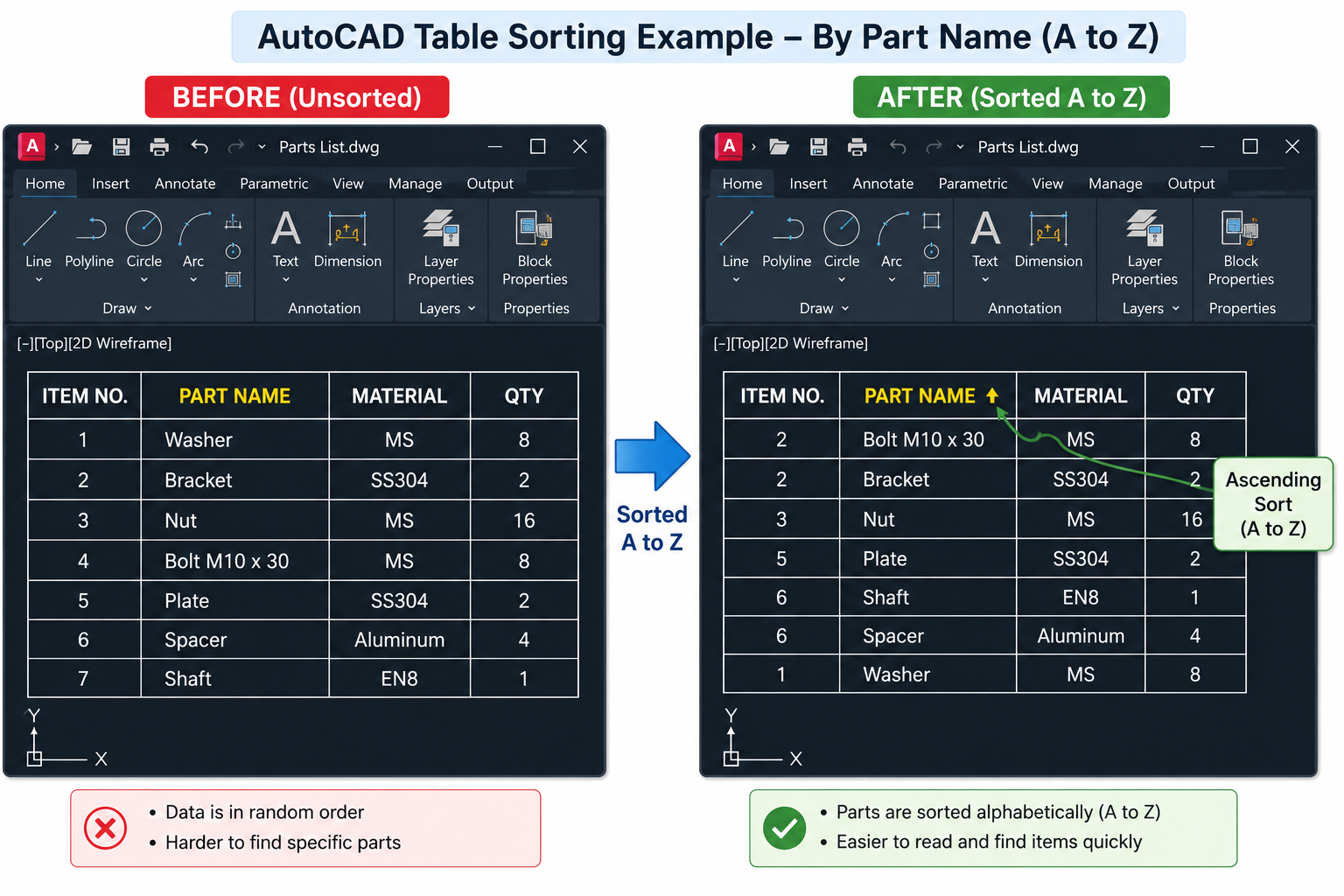
AutoCAD tables are among the most useful but underappreciated tools in the software. A well-built table can serve as a revision schedule, a parts list, a door schedule, a material takeoff, or a bill of materials directly inside your drawing. But the moment you need to sort that table alphabetically, numerically, or by a specific column AutoCAD’s behaviour can be confusing, inconsistent, and in some versions seemingly broken.
The frustration usually looks like one of three things: the table appears to have no sort option at all; the sort works but puts 1, 11, 12, 2, 3 instead of 1, 2, 3; or the sort works in the Data Extraction preview but the inserted table does not update. Each of these has a specific cause and a specific fix but only if you know which of AutoCAD’s four distinct sorting approaches you are actually using.
This guide covers all four methods for sorting tables in AutoCAD with complete numbered steps: the built-in column header sort for manually created tables, the Data Extraction wizard sort for attribute and object data tables, the free SORTTABLE LISP utility for tables where the built-in sort is greyed out or insufficient, and the Excel data link round-trip for users who need full spreadsheet-style sort control. It also explains the alphanumeric sort issue, how to fix it, and when to use each method.
| Quick Answer: To sort a manually created AutoCAD table: click inside the table to select it, then right-click a column header and choose Sort Column Ascending or Sort Column Descending. If this option is greyed out or missing, the table was created via Data Extraction re-open the Data Extraction wizard to sort (see Method 2), or use the free SORTTABLE LISP utility (see Method 3). |
Understanding AutoCAD Tables and Why Sorting Is Complex
To understand why sorting tables in AutoCAD requires knowing which method to use, it helps to understand that AutoCAD tables are not all the same type of object. There are four distinct types of AutoCAD table, and they each sort differently or do not sort natively at all.
| Table Type | How Created | Built-In Sort Available? | Best Sort Method |
| Manually created table | TABLE command, drawn row by row with typed cell content | Yes, right-click column header for sort options (AutoCAD 2008+) | Method 1: Built-in column sort |
| Data Extraction table | DATAEXTRACTION wizard pulls attribute data or object properties from drawing | Partial sort available in the wizard during creation; re-sorting after insertion requires re-running the wizard | Method 2: Data Extraction wizard re-sort |
| Excel-linked table | INSERT > Data Link live link to an Excel spreadsheet | Sort in Excel, then update the link in AutoCAD not sortable directly in AutoCAD | Method 4: Sort in Excel, update link |
| Any table (alternative method) | Any of the above | Yes, SORTTABLE LISP utility works on all table types | Method 3: SORTTABLE LISP utility |
The key practical implication: if you right-click a Data Extraction table in AutoCAD and find the sort option greyed out or missing, you are not doing anything wrong. AutoCAD genuinely does not provide native re-sorting for Data Extraction tables after insertion. Your options are Method 2 (re-open the wizard) or Method 3 (LISP utility).
Method Chooser: Which Sorting Method Do You Need?
| Your Situation | Recommended Method | Why |
| You have a manually typed AutoCAD table and need a quick sort | Method 1: Built-in column sort | Fastest, no setup needed, works directly in AutoCAD 2008 and later |
| Your table was created by the Data Extraction wizard and sort is greyed out | Method 2: Re-open Data Extraction wizard | The only way to re-sort a Data Extraction table using AutoCAD’s native tools |
| You need to sort any table type including Data Extraction tables, and want a simpler workflow | Method 3: SORTTABLE LISP utility (free) | Works on all table types, simpler than re-running Data Extraction wizard, one free download |
| Your table is linked to an Excel spreadsheet | Method 4: Sort in Excel then update link | Excel provides full spreadsheet-level sort control; update propagates to AutoCAD automatically |
| You need to sort a large table repeatedly and want full control | Method 4 (Excel) or Method 3 (LISP) depending on data source | Excel for maximum flexibility; LISP for tables that live purely in AutoCAD |
| Numbers are sorting as 1, 11, 12, 2, 3 instead of 1, 2, 3 | See the Alphanumeric Sort Fix section below | This is a text-versus-number data type issue requiring a specific solution |
Method 1: Built-In Column Header Sort for Manual Tables
AutoCAD has a built-in table sort feature for manually created tables, available from AutoCAD 2008 onwards. It allows you to sort a table alphabetically or numerically by any column, in ascending or descending order. It is fast, requires no additional tools, and works directly in the drawing environment.
Important Prerequisite: The Table Must Have a Header Row
The built-in sort works through column header interaction. For the sort option to appear, the table must have a header row with content. If your table has no header row (all rows are data rows), you can still sort by right-clicking any cell in the column you want to sort by.
Full Step-by-Step: Built-In Column Sort
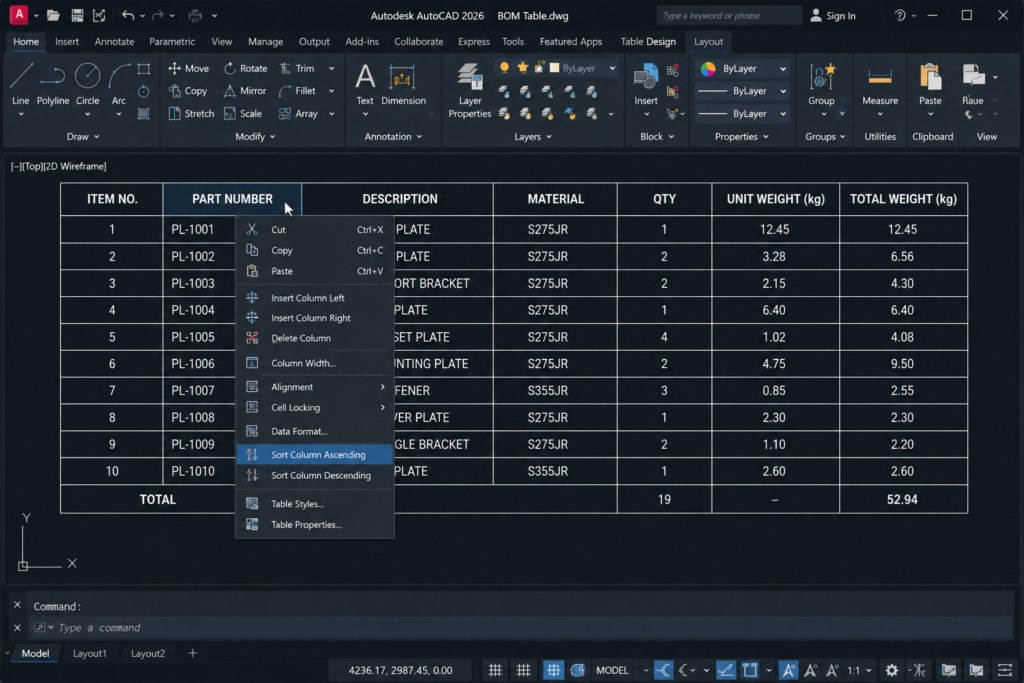
- Click anywhere inside the table to select it. The table grips appear and the Table contextual ribbon tab becomes active.
- Move your cursor over the column header cell of the column you want to sort by. The column header highlights.
- Right-click the column header cell. A context menu appears.
- Look for Insert > Sort or directly for Sort Column Ascending / Sort Column Descending in the menu.
- Select Sort Column Ascending (A to Z, or 1 to 9) or Sort Column Descending (Z to A, or 9 to 1) as required.
- AutoCAD reorders all data rows in the table based on the content of the selected column. The header row remains in place at the top.
Multi-Column Sorting
To sort a table by a primary column and then by a secondary column for rows with identical primary values:
- Right-click the column header and look for Sort Column Advanced or Table > Sort in the context menu (availability depends on AutoCAD version).
- In the sort dialogue, set the primary sort column and direction.
- Add a secondary sort column for tie-breaking.
- Click OK to apply the multi-level sort.
| Version Note: The built-in table sort via right-click column header was introduced in AutoCAD 2008. If you are using AutoCAD 2007 or earlier, this option does not exist. Use Method 3 (LISP utility) instead. In AutoCAD 2014 and later, the Table ribbon tab when a table is selected provides additional table management options including a Sort button in the Table panel. |
Accessing Sort from the Table Ribbon Tab
In AutoCAD 2014 and later, clicking inside a table activates the Table contextual ribbon tab. This tab includes a Sort button in the Rows panel (or Table panel depending on version). Clicking Sort opens a dedicated sort dialogue where you can select the column to sort by, the sort direction, and whether to include or exclude header rows from the sort operation.
Method 2: Sorting Tables Generated by Data Extraction
When an AutoCAD table is generated by the Data Extraction wizard (DATAEXTRACTION command), it is linked to a data extraction definition stored in a .dxe file. The sort order of this type of table is controlled inside the wizard, not in the table itself after insertion. Right-clicking a Data Extraction table column and looking for sort options will often find them greyed out or absent.
Sorting During Data Extraction Creation
The best time to set sort order is during the Data Extraction wizard workflow, specifically on Page 5 of 8: Refine Data. At this stage, the data is displayed in a preview grid and you have full sorting control before the table is inserted:
- Run the DATAEXTRACTION command (or go to Insert tab > Linking and Extraction panel > Extract Data).
- Work through the wizard pages: data source, objects, properties, and so on.
- When you reach Page 5 (Refine Data), the data appears in a preview grid.
- Click any column header to sort the data by that column. Click once for ascending order, again for descending.
- For multi-column sort: right-click a column header and look for Sort Column Options. This opens a sort settings dialogue where multiple columns can be prioritised.
- Once sorted correctly, continue through the wizard to insert the table. The inserted table reflects the sort order set in the wizard.
Re-Sorting an Existing Data Extraction Table
If the table has already been inserted and you need to change its sort order:
- Select the Data Extraction table in the drawing.
- Right-click and look for Update Table or Edit Data Extraction. Alternatively, type DATAEXTRACTION in the command line and press Enter.
- Choose Edit an existing data extraction and browse to or select the .dxe file associated with the table.
- Click Next through the wizard until you reach Page 5 (Refine Data).
- Re-sort the columns by clicking the column headers as described above.
- Continue to the end of the wizard and select Update the existing table. Click Finish.
- AutoCAD updates the table in the drawing with the new sort order.
| Data Extraction Sort Limitation: Once a Data Extraction table is inserted in the drawing, its sort order is frozen unless you re-run the wizard. This is a significant limitation compared to Excel or a manually typed table. If you need a table that can be re-sorted frequently without re-running the wizard, consider using Method 4 (Excel link) or Method 3 (LISP utility) instead. |
Read related article on How to Use DXF Files in AutoCAD: Complete 2026 Guide
Method 3: SORTTABLE LISP Utility Free and Reliable
The SORTTABLE LISP routine is a free utility that adds proper table sorting capability to AutoCAD for any table type manually created tables, Data Extraction tables, or any other AutoCAD table object. It is the simplest universal solution for table sorting and is the recommended approach when Method 1 is greyed out.
There are two main versions: the original SortTable utility from CAD Forum (cadforum.cz) and the more feature-rich JTB Sort Table from JTB World (jtbworld.com). The CAD Forum version is fully free. The JTB version has a 30-day free trial and a paid licence for ongoing use.
Step 1: Download the LISP File
- Go to cadforum.cz and search for ‘SortTable’ in the download section, or search ‘SortTable LISP AutoCAD cadforum’ to find the download page directly.
- Download the SortTable.lsp file and save it to a stable permanent location on your computer (e.g. C:\AutoCAD-Tools\SortTable.lsp).
Step 2: Load the LISP File into AutoCAD
- In AutoCAD, type APPLOAD and press Enter to open the Load/Unload Applications dialogue.
- Click Browse and navigate to the SortTable.lsp file.
- Click Open, then click Load. The command line should confirm: SortTable.lsp successfully loaded.
- To load automatically on every AutoCAD start: click Startup Suite Contents in APPLOAD, add SortTable.lsp, and click Close.
Step 3: Using the SORTTABLE Command
- Type SORTTABLE in the command line and press Enter.
- AutoCAD prompts you to select a table. Click anywhere on the AutoCAD table you want to sort.
- A dialogue or command line prompt appears asking which column to sort by. Enter the column number (1 = first column, 2 = second column, etc.) or click the column header if the dialogue supports it.
- Select the sort direction: Ascending (A to Z, 1 to 9) or Descending (Z to A, 9 to 1).
- AutoCAD reorders the table rows according to the selected column and direction.
| Why SORTTABLE Is Often the Best Choice: SORTTABLE works on all table types including Data Extraction tables where the built-in sort is greyed out. It is free, installs in under two minutes, and once loaded into the Startup Suite, is always available. For most professional AutoCAD users who work with tables regularly, adding SORTTABLE to the Startup Suite is a one-time investment that pays for itself immediately. |
Method 4: Excel Data Link Round-Trip for Full Sort Control
For the most flexible and powerful table sorting capability in AutoCAD, the answer is to not sort in AutoCAD at all. Instead, maintain the data in an Excel spreadsheet, sort it there, and link the Excel file to AutoCAD using a Data Link. The table in the drawing updates automatically when the Excel source changes.
Setting Up an Excel Data Link in AutoCAD
- Create and populate your table data in an Excel spreadsheet (e.g. a parts list, material schedule, or door schedule).
- In AutoCAD, go to Insert tab > Linking and Extraction panel > Data Link Manager (or type DLINKMANAGER).
- Click Create a new Excel Data Link, give it a descriptive name, and browse to the Excel file.
- Select the specific sheet and range of cells to link.
- Set link options: allow writing back to Excel, allow reading changes from Excel, and set the cell formatting options.
- Click OK to create the data link.
- In AutoCAD, type TABLE and press Enter. In the Insert Table dialogue, select From a data link and choose the data link you just created.
- Click OK and place the table in the drawing. The Excel data populates the AutoCAD table automatically.
Sorting the Linked Table
- Open the Excel file directly and sort the data using Excel’s full sorting capabilities (Data > Sort, with multiple levels and custom sort orders).
- Save the Excel file.
- In AutoCAD, go to Insert tab > Linking and Extraction panel > Update Data Links (or type DLUPDATEFROMEXTERNAL).
- The AutoCAD table updates immediately to reflect the sorted Excel data.
| Data Link Advantages: The Excel data link approach provides complete spreadsheet-level sort control including multi-column sorts, custom sort orders, case-sensitive sorts, and sorting by colour or icon. It also means your data has a single source of truth in Excel, reducing the risk of discrepancies between the spreadsheet and the AutoCAD table. |
The Alphanumeric Sort Problem: Why 1, 11, 12, 2, 3 Happens and How to Fix It
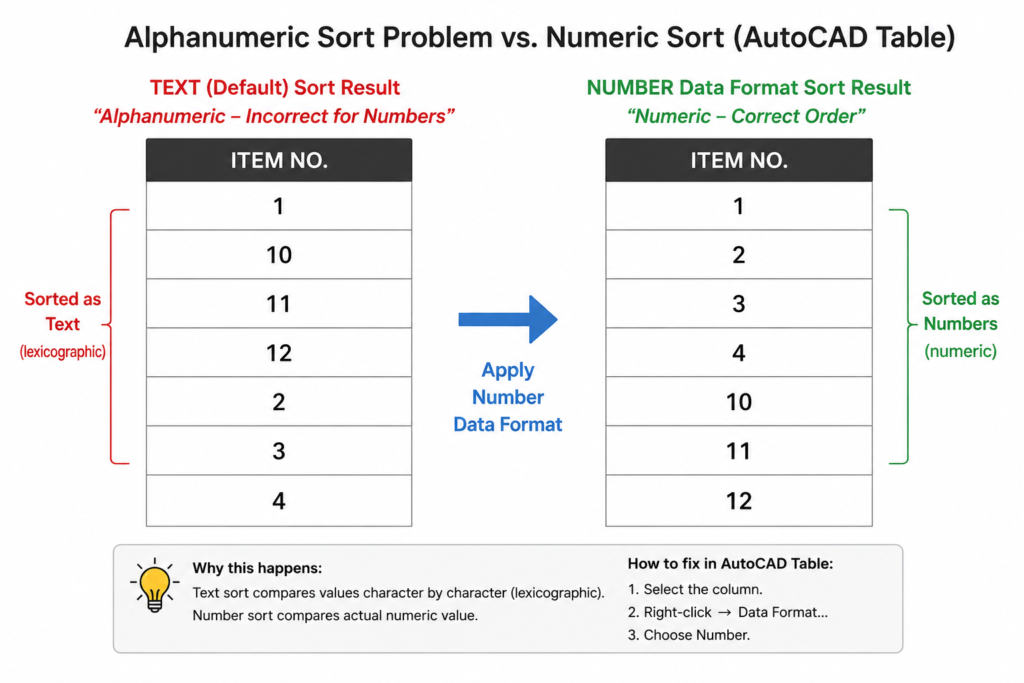
One of the most commonly reported AutoCAD table sorting issues is that numbers sort as 1, 11, 12, 13, 2, 3, 4 rather than the expected 1, 2, 3, 4, 11, 12, 13. This is not a bug in AutoCAD it is the entirely predictable result of sorting text values rather than numeric values.
Why This Happens
When AutoCAD table cells contain text entries (even if those entries look like numbers), the sort algorithm compares them character by character from left to right, as text. In text sorting, “1” comes before “2” regardless of whether what follows makes the number larger. So “11” starts with “1”, which sorts before “2”, placing it before “2”, “3”, and “4” even though 11 is numerically larger.
This is the same behaviour you see in Microsoft Excel when numbers are stored as text. It is not specific to AutoCAD.
Fix 1: Use Leading Zeros for Consistent Width
The simplest fix is to format all numbers with the same number of digits using leading zeros. If your parts list has numbers 1 through 99, format them as 01, 02, 03… 09, 10, 11. Text sorting then produces the correct order because all entries have the same character width and the leading zeros ensure proper sequence.
For part numbers with prefixes (e.g. P1, P2, P11), use P01, P02, P11 or P001, P002, P011 if numbers go above 99. This approach is also professional practice in manufacturing and engineering drawing standards where consistent part number formats are required.
Fix 2: Use the Data Type Setting in Table Cells
In AutoCAD 2010 and later, table cells can be formatted with a specific data format that tells AutoCAD to treat cell content as a number rather than text. To set this:
- Double-click inside the table to enter editing mode.
- Select the cells in the column that contains numeric values.
- Right-click and choose Data Format.
- In the Table Cell Format dialogue, change the data type from Text to Number.
- Click OK. The cells are now formatted as numbers.
- Sort the column again. AutoCAD now performs a numeric sort (1, 2, 3… 10, 11, 12) rather than a text sort.
Fix 3: Sort in Excel
If the table is linked to Excel or can be exported to Excel, perform the sort in Excel where numeric sorting always works correctly regardless of cell formatting. Use the Method 4 Excel link workflow to maintain the sorted data in AutoCAD.
| The Root Cause Summary: If AutoCAD is sorting numbers as text (1, 11, 12, 2, 3), the cells are formatted as Text data type rather than Number. The fixes in order of simplicity: (1) Use leading zeros for consistent digit width. (2) Change cell data format to Number. (3) Sort in Excel using a data link. All three produce the correct numeric sequence. |
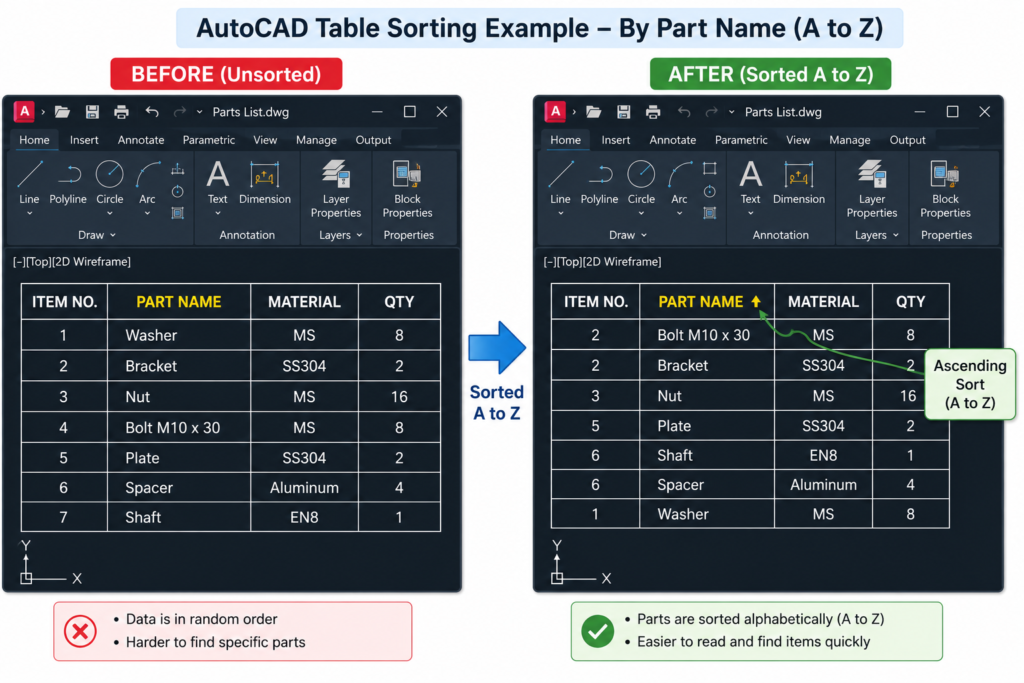
Sorting a Parts List Table: Complete Worked Example
To tie together the methods above, here is a complete workflow for creating and sorting a mechanical parts list table in AutoCAD.
| Step | Action | Command / Method |
| 1 | Create the parts list table: go to Home > Annotation > Table, set 5 columns (Item No., Part Name, Part Number, Material, Qty), set appropriate number of rows for the parts list | TABLE command |
| 2 | Enter header row labels in the first row: Item No., Part Name, Part Number, Material, Qty | Double-click cells to enter edit mode |
| 3 | Enter all part data row by row. For Item No. column, use leading zeros: 01, 02, 03 etc. | Type directly in cells; Tab to move between cells |
| 4 | Format the Qty column cells as Number data type: select the Qty cells, right-click > Data Format > Number | Right-click > Data Format |
| 5 | To sort alphabetically by Part Name: right-click the Part Name column header > Sort Column Ascending | Built-in sort (Method 1) |
| 6 | To sort by Item No. numerically: right-click the Item No. column header > Sort Column Ascending (leading zeros ensure correct order) | Built-in sort (Method 1) |
| 7 | If sort is greyed out (Data Extraction table): load SORTTABLE LISP, type SORTTABLE, select table, choose column 2 (Part Name), choose Ascending | SORTTABLE LISP (Method 3) |
| 8 | Export the parts list to Excel for further manipulation: right-click the table > Export > browse to save location as .xlsx | Right-click > Export |
Using Table Styles to Organise and Manage Your Tables
A well-designed Table Style makes AutoCAD tables easier to read, sort, and maintain. Table Styles define the formatting for each row type (title row, header row, data rows) including font, size, alignment, background colour, and border style. Setting up a Table Style before creating tables ensures consistency across all tables in a drawing and makes sorted tables visually clear.
Creating a Table Style
- Type TABLESTYLE and press Enter (or go to Home > Annotation panel dropdown > Table Style).
- Click New and give the style a descriptive name (e.g. PARTS-LIST or REVISION-SCHEDULE).
- Configure each row type (Title, Header, Data) separately:
- Title row: Bold, centred, larger font size, solid background fill for visual distinction
- Header row: Bold, centred, lighter background fill to differentiate from data rows
- Data rows: Regular weight, left-aligned for text columns, right-aligned for numeric columns
- Click OK to save the style. Select it as the current table style before creating new tables.
| Professional Tip: Create separate table styles for different table types: one for parts lists (with enough column width for part names), one for revision schedules (narrower columns, more rows), and one for door/window schedules (wider for description columns). Save these in your company drawing template file so they are available in every new drawing automatically. |
AutoCAD Table Sorting Compared to Excel: What Is and Is Not Possible
| Feature | AutoCAD Built-In Sort | AutoCAD LISP Sort | Excel via Data Link |
| Sort by single column ascending/descending | Yes | Yes | Yes |
| Sort by multiple columns (primary + secondary) | Limited AutoCAD 2014+ only | Depends on LISP version | Yes, full multi-level sort |
| Numeric sort (1, 2, 3 not 1, 11, 12) | Yes if cells formatted as Number data type | Depends on LISP version | Yes, always numeric when cells are numbers |
| Sort alphabetically (case-insensitive) | Yes | Yes | Yes |
| Sort Data Extraction tables after insertion | No, greyed out | Yes, works on all table types | Not applicable |
| Custom sort order (e.g. not A-Z or 1-9) | No | No | Yes, custom lists in Excel |
| Sort by cell colour or icon | No | No | Yes, Excel 2007+ feature |
| Sort preserves merged cells | Limited | Yes (JTB version) | N/A, Excel handles merges differently |
| Sort requires additional software | No | Free LISP download | Excel required |
| Re-sort without re-running any wizard | Yes (manual tables) | Yes (all table types) | Yes (sort in Excel, update link) |
Common Table Sorting Problems and Fixes
| Problem | Cause | Fix |
| Sort option is greyed out in right-click menu | Table was created by Data Extraction wizard native sort is not available after insertion | Use Method 3 (SORTTABLE LISP) or re-open Data Extraction wizard (Method 2) |
| Numbers sort as 1, 11, 12, 2, 3 instead of 1, 2, 3 | Table cells are formatted as Text data type, not Number | Change cell data format to Number (right-click > Data Format > Number), or use leading zeros, or sort in Excel |
| Sort works but header row gets sorted into the data rows | Table sort is treating the header row as a data row | Re-run sort and look for a setting to exclude header rows. In SORTTABLE LISP, confirm that the header rows selection is set correctly |
| Right-click on table shows no table options at all | Clicking outside the table border rather than inside it, or the table is locked | Click precisely inside a table cell. Check the Properties panel (Ctrl+1) to see if the table or individual rows are locked unlock them if so |
| Sort resets after reopening the drawing | Sort was applied but the drawing was not saved | Save the drawing immediately after sorting. For Data Extraction tables, ensure the .dxe file is also saved with updated sort settings |
| Table export to Excel loses sort order | Excel file is created fresh from the current table state this should preserve sort order | Verify the table is in the correct sort order before exporting. The exported Excel file will reflect the table’s current state |
| SORTTABLE LISP fails to load or SORTTABLE command not found | LISP file path has changed, or APPLOAD did not load it successfully | Type APPLOAD, verify the LISP file path is still valid. Re-load the file if needed. Check the Startup Suite is pointing to the correct file location |
Frequently Asked Questions (FAQ)
How do you sort a table in AutoCAD?
To sort a manually created table in AutoCAD, click inside the table to select it, right-click the column header of the column you want to sort by, and choose Sort Column Ascending or Sort Column Descending. AutoCAD reorders all data rows based on that column’s content. If this option is greyed out (common with Data Extraction tables), use the free SORTTABLE LISP utility: download from cadforum.cz, load with APPLOAD, then type SORTTABLE, select the table, and choose the sort column and direction.
Why is the sort option greyed out on my AutoCAD table?
The sort option is greyed out on AutoCAD tables when the table was created by the Data Extraction wizard (DATAEXTRACTION command). AutoCAD does not support native re-sorting of Data Extraction tables after they have been inserted into the drawing. The solutions are: (1) Re-open the Data Extraction wizard, navigate to Page 5 (Refine Data), and resort the preview data before reinserting the table. (2) Use the free SORTTABLE LISP utility which works on all table types including Data Extraction tables.
How do I sort an AutoCAD table numerically (1, 2, 3 not 1, 11, 12)?
AutoCAD sorts numbers as text by default when cells contain text-formatted data, producing 1, 11, 12, 2, 3 instead of 1, 2, 3. To fix this: (1) Select the cells containing numbers, right-click and choose Data Format > Number to format them as numeric data — AutoCAD will then sort numerically. (2) Use leading zeros in your number entries (01, 02, 03… 09, 10, 11) so text sorting produces the correct sequence. (3) Sort in Excel using a Data Link, where numbers are always sorted numerically when the cells are formatted as numbers.
How do I sort a Data Extraction table in AutoCAD?
To sort a Data Extraction table in AutoCAD: (1) Re-run the Data Extraction wizard by selecting the table, right-clicking, and choosing Edit Data Extraction, or by typing DATAEXTRACTION and choosing to edit the existing extraction. Navigate to Page 5 (Refine Data) and click column headers to sort. Complete the wizard and choose to update the existing table. (2) Alternatively, download and load the free SORTTABLE LISP utility from cadforum.cz, type SORTTABLE, click the table, and specify the sort column.
What is the SORTTABLE command in AutoCAD?
SORTTABLE is a command provided by a free LISP (AutoCAD programming language) utility that adds proper table sorting capability to AutoCAD. It is not a built-in AutoCAD command it must be downloaded from CAD Forum (cadforum.cz) as a .lsp file and loaded using the APPLOAD command. Once loaded, SORTTABLE works on all AutoCAD table types including manually created tables and Data Extraction tables, allowing sort by any column in ascending or descending order.
Can I sort an AutoCAD table alphabetically?
Yes. To sort an AutoCAD table alphabetically: click inside the table to select it, right-click the column header of the text column you want to sort by, and choose Sort Column Ascending for A to Z order or Sort Column Descending for Z to A order. If the sort option is greyed out (Data Extraction table), load the SORTTABLE LISP utility and use the SORTTABLE command instead. The sort is case-insensitive in most AutoCAD versions.
How do I link an AutoCAD table to Excel?
To link an AutoCAD table to Excel: (1) Create your data in an Excel spreadsheet. (2) In AutoCAD, go to Insert > Linking and Extraction > Data Link Manager, create a new Excel data link pointing to your file, and select the cell range. (3) Create a new table (TABLE command) and choose ‘From a data link’, selecting the link you just created. (4) To update the AutoCAD table after making changes in Excel: go to Insert > Update Data Links or type DLUPDATEFROMEXTERNAL. Sorting in Excel and then updating the link keeps the AutoCAD table sorted without needing any in-AutoCAD sort tools.
Conclusion
Sorting tables in AutoCAD is not difficult once you understand which type of table you are working with and which method applies to it. The built-in column sort handles most manually created tables in seconds. Data Extraction tables require re-running the wizard or using the free SORTTABLE LISP utility. Excel data links provide full spreadsheet-level sort control for complex or frequently updated tables.
The alphanumeric sort issue (1, 11, 12, 2, 3) is the single most common frustration with AutoCAD table sorting, and it has a straightforward fix once you understand that it results from cells being formatted as text rather than numbers. Applying Number data format to numeric columns, or using leading zeros, resolves it immediately.
With the four methods in this guide and the troubleshooting table covering every common failure mode, you have everything needed to sort any AutoCAD table correctly regardless of how it was created or what data it contains.
Continue exploring AutoCAD: read Dynamic Block Lookup Tables Explained for the next related topic, or return to the complete AutoCAD Tutorials for Beginners and Professionals guide.
Leave a Reply