Blog

  • Prompt Engineering for CAD Modeling: Write Better AI Prompts and Design Faster in 2026

    Prompt Engineering for CAD Modeling: Write Better AI Prompts and Design Faster in 2026

    The Skill Every CAD Engineer Needs Right Now

    You’ve probably heard about AI changing the engineering world. But here’s what most people don’t talk about: the quality of your results depends almost entirely on how you write your prompts.

    That’s what prompt engineering for CAD modeling is all about. It’s the skill of writing clear, specific instructions to an AI — like Claude — so it gives you exactly what you need for your CAD project, not a generic guess.

    Whether you’re working with AI prompts for CAD design in AutoCAD, generating geometry parameters in SolidWorks, or drafting technical specs — a well-written prompt is the difference between wasting 20 minutes and getting a perfect result in 30 seconds.

    This guide is for anyone using CAD AI tools today. Beginners, students, professionals — this one is for you.

    ⚡ Quick Answer
    Prompt engineering for CAD modeling means writing structured, specific instructions to an AI tool so it produces accurate CAD outputs — such as scripts, design parameters, technical documentation, or geometry calculations. A good AI prompt for CAD design includes: the part type, exact dimensions, material, software name (e.g. AutoCAD / SolidWorks), and desired output format. The better your prompt, the better your AI-assisted CAD workflow.

    What Is Prompt Engineering and Why Does It Matter for CAD?

    Prompt engineering is simply the art of writing good instructions for an AI. Think of it like this: when you search Google, you’ve learned to write better search queries over time. Prompt engineering is the same idea — but for AI systems like Claude, ChatGPT, or any other AI mechanical design assistant.

    In CAD modeling with AI, this matters enormously because:

    • A vague prompt gives a vague answer — useless for engineering work
    • A specific, structured prompt gives you working scripts, calculations, or design logic
    • The right natural language CAD commands unlock capabilities most engineers never discover
    • Good prompts turn a general AI into a focused AI CAD software assistant

    Here’s a simple example of the difference between a bad prompt and a great one:

    Weak Prompt:
    Create a part for me.”Result: Generic, unusable, requires 5 follow-up questions.
    Strong Prompt
    Write an AutoLISP script for AutoCAD that draws a steel bracket: 150mm x 80mm x 6mm wall thickness, with 4 x M8 bolt holes at 20mm from each corner. Output as a ready-to-run .lsp script.”Result: Working code, ready to paste and run.

    The 5 Elements of a Perfect AI Prompt for CAD Design

    After testing hundreds of AI prompts for CAD design, the best ones always include these five elements. Master these and your AI-assisted CAD workflow will transform overnight.

    Element 1: Role Definition

    Start your prompt with a role. This primes the AI to think like an expert. Example: “You are a senior mechanical engineer specializing in SolidWorks parametric design.” This simple step dramatically improves the precision of every Claude AI CAD modeling prompt you write.

    Element 2: Specific Context

    Tell the AI exactly what software, material, and constraints you’re working with. For best AI prompts for AutoCAD, always include: the AutoCAD version if relevant, the units (mm/inches), layer names, and drawing standards (ISO, ANSI, etc.).

    Element 3: Precise Dimensions and Parameters

    Never leave out numbers. Prompt engineering for CAD modeling fails most often when people say ‘make it big’ instead of ‘250mm x 180mm x 12mm.’ Always specify dimensions, tolerances, thread types, radii, and material grades.

    Element 4: Desired Output Format

    Tell the AI what you want back. Do you need an AutoLISP script? A table of parameters? A written specification? A step-by-step design plan? Specifying the output format is critical for CAD modeling with AI — otherwise the AI decides for you, and it often guesses wrong.

    Element 5: Constraints and Standards

    Include any real-world constraints: load limits, manufacturing method (CNC, 3D printing, casting), applicable standards (ISO 2768, ASME Y14.5), or client requirements. This is what separates a beginner prompt from a professional-grade AI prompt for mechanical drawing.

    Step-by-Step Guide: How to Write AI Prompts for SolidWorks, AutoCAD & More

    Let’s walk through the exact process for how to write AI prompts for SolidWorks, AutoCAD, and FreeCAD. The framework is the same for all three — only the software-specific details change.

    1. Open your AI tool (Claude at claude.ai, or your preferred platform) alongside your CAD software.
    2. Start with a role statement. Type: “You are an expert mechanical engineer working in [SolidWorks / AutoCAD / FreeCAD].”
    3. Add your context — project type, industry, drawing standard, and units.
    4. Describe the part or task in full detail — shape, dimensions, tolerances, material, and finish.
    5. Specify your output. ‘Give me a ready-to-run script,’ or ‘Give me a parameter table,’ or ‘Write the GD&T notes for this drawing.’
    6. Read the response carefully. If something is off, follow up: ‘Change the wall thickness to 8mm and add a 2mm fillet on all inside edges.’
    7. Test and apply. Paste scripts into your software. Validate the logic of any calculations.

    Real Prompt Example: AutoCAD AI Automation 2026

    Here is a full, working example of AutoCAD AI automation 2026 using Claude:

    💬 Full Prompt for AutoCAD (Copy & Use):“You are a senior AutoCAD drafter. Write an AutoLISP script that does the following: (1) Creates a new layer called STEEL_FRAME with color red. (2) Draws a rectangular frame 400mm x 250mm centered at 0,0. (3) Adds 4 circles of diameter 20mm at each corner, inset 25mm from each edge. (4) Adds the text FRAME-01 in the center at 10mm height. Output only the complete .lsp code with no explanation.”

    Result: Claude produces a clean, ready-to-run script in seconds. No syntax errors. No guessing.

    Real Prompt Example: How to Write AI Prompts for SolidWorks

    For how to write AI prompts for SolidWorks, the focus shifts from scripts to design parameters and feature logic:

    💬 Full Prompt for SolidWorks Parametric Design:“You are a SolidWorks expert. I am designing a plastic snap-fit enclosure for a PCB (120mm x 80mm). The enclosure must: use ABS plastic at 2mm wall thickness, have a snap-fit lid with 0.3mm interference fit, include 4 x M3 boss inserts at each PCB mounting corner, and meet IEC 60529 IP54 rating. List all the key parametric design features I need to model, with recommended dimensions for each feature

    Result: Claude returns a structured feature list with exact dimensions, ready to model directly in SolidWorks.

    Advanced Prompt Techniques: Generative CAD and Parametric Design with AI

    Once you have the basics down, these advanced techniques take your CAD AI tools usage to the next level.

    Chained Prompts for Complex Assemblies

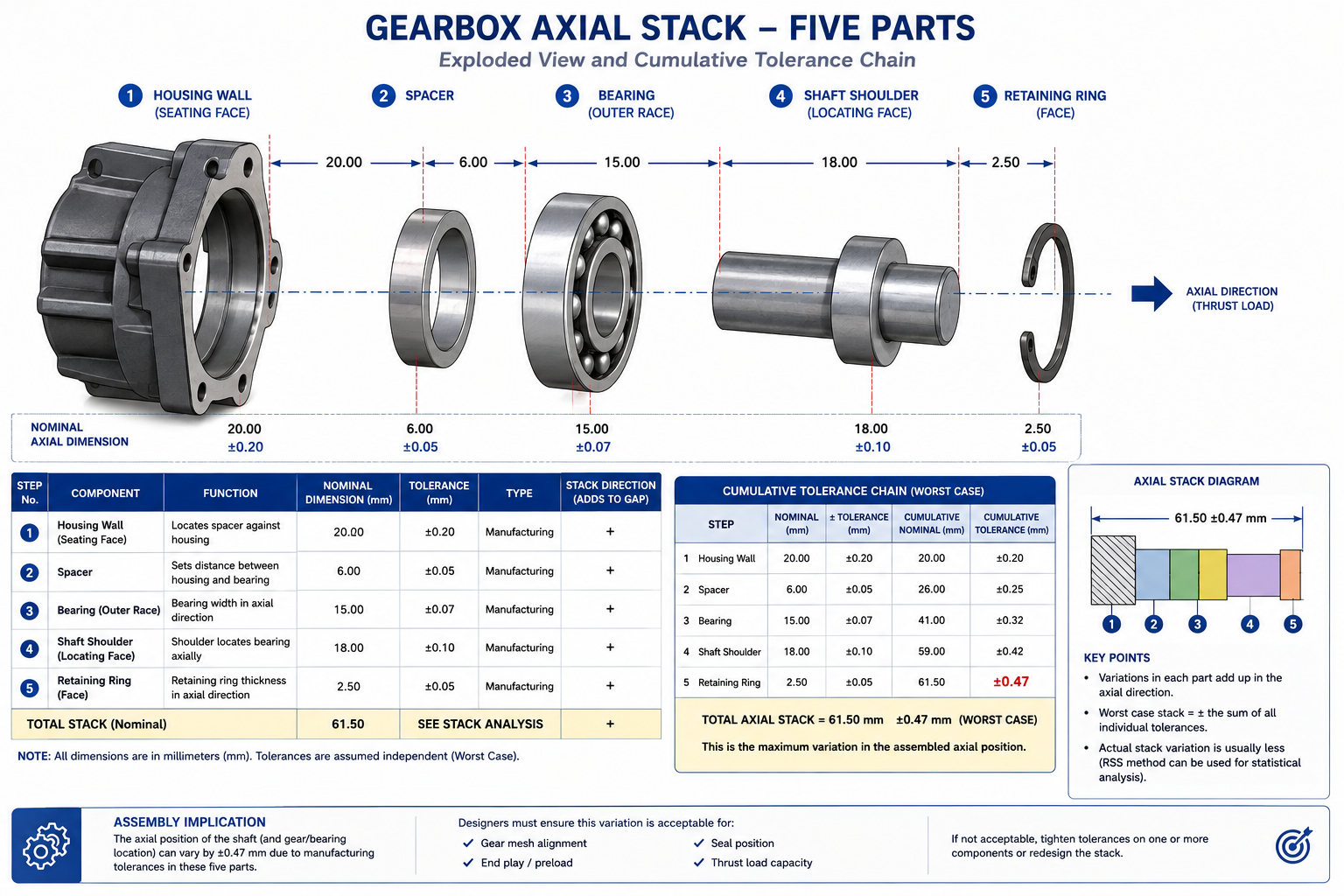
    Instead of trying to do everything in one prompt, break complex assemblies into a chain. First prompt: overall dimensions and material. Second prompt: fastener and joint specifications. Third prompt: GD&T and tolerance stack-up. This approach is the backbone of serious generative CAD design workflows.

    Using AI for Parametric Design Reviews

    Describe your parametric design with AI intent — for example, a gear train where the module changes drive the entire assembly — and ask Claude to flag potential interference issues or suggest which parameters should be driven vs. driving. This kind of logic review catches problems before you even open SolidWorks.

    Text-to-CAD AI Workflows

    The frontier of text-to-CAD AI is moving fast. Tools like Autodesk’s AI features, combined with a well-engineered prompt from Claude, can now produce rough geometry from a text description. While full automation is still maturing, using natural language CAD commands to generate parameter sheets and design intent documents is production-ready right now.

    Iterative Refinement — The Power Move

    The best AI-assisted CAD workflow professionals use iteration as a core strategy. They start with a broad prompt, review the output, then ask the AI to refine, tighten, or expand specific sections. Each round gets them closer to the exact output they need — far faster than traditional trial and error.

    a perfect prompt engineering for CAD modeling workflow with AI tools

    Benefits of Prompt Engineering for CAD Modeling — By User Type

    User TypeBenefit from AI Prompts for CAD DesignTime Saved Per Week
    Engineering StudentsLearn CAD faster with AI explanations and instant feedback on prompts3–5 hrs
    Freelance DraftersAutomate documentation, scripts, and client specs using CAD modeling with AI5–8 hrs
    Mechanical EngineersSpeed up calculations, tolerance reviews, and GD&T using AI-assisted CAD workflow4–7 hrs
    CAD Managers / TeamsStandardize prompt templates across the team for AutoCAD AI automation 20268–12 hrs
    Non-Engineers / PMsUnderstand drawing specs and design intent with plain-English AI explanations2–3 hrs

    Common Mistakes in AI Prompt Engineering for CAD (And How to Fix Them)

    Even experienced engineers make these mistakes when they first start using AI prompts for CAD design. Avoid these and you’ll be ahead of 90% of users.

    Mistake 1: Using Generic Prompts
    ‘Make me a CAD design’ tells the AI nothing. You get nothing useful back. Prompt engineering for CAD modeling starts with specificity. Always include software, dimensions, material, and output type.
    Mistake 2: Skipping the Role Statement
    Skipping ‘You are a senior mechanical engineer…’ means you get a generalist answer. Always set the role first. This single habit transforms your Claude AI CAD modeling prompts from average to expert-level.
    Mistake 3: Not Specifying Units
    In engineering, mm and inches are worlds apart. Any AI prompt for mechanical drawing must include the unit system explicitly — metric (ISO), imperial (ANSI), or both. Never leave this to the AI to guess.
    Mistake 4: One-and-Done Prompts
    The biggest mistake in CAD modeling with AI is expecting a single prompt to do everything. The most productive workflows are iterative. Write a prompt, review the output, refine. Each iteration gets you closer to the perfect result.
    Mistake 5: Not Validating AI Output
    Whether it’s an AutoLISP script or a calculation table, always review AI output before applying it. AI CAD software assistance is powerful, but it’s not infallible. A quick sanity check takes 2 minutes and saves hours of rework.

    Pro Tips: Expert-Level Prompt Engineering for CAD Modeling

    Pro Tips from the Field

    • Build a Prompt Library: Save your best AI prompts for CAD design in a shared document. A team prompt library is the fastest route to consistent results.
    • Use the ‘Explain Your Reasoning’ Trick: Add ‘Explain each decision’ to your prompt. This turns any AI mechanical design assistant into a learning tool — you understand the engineering, not just get an answer.
    • Combine Claude with AutoCAD AI Automation: Use Claude to write and debug your AutoCAD AI automation 2026 scripts, then run them inside AutoCAD. Best of both worlds.
    • Reference Drawing Standards: Mention ISO 2768, ASME Y14.5, or DIN standards in your prompt. This lifts your output to professional quality automatically.
    • Unlock Generative CAD Design: For complex assemblies, ask Claude to propose multiple generative CAD design alternatives with trade-offs. You get options, not just one answer.
    • Parametric First: When working in SolidWorks or Inventor, always ask Claude to structure outputs as parametric design with AI recommendations — driven dimensions, relations, and design intent — not just static values.
    • Use Structured Output Requests: End every complex prompt with ‘Format your answer as a table / numbered list / .lsp script.’ Clear format requests are the single biggest upgrade you can make to any CAD modeling with AI workflow.
    Annotated example of prompt engineering for CAD modeling in Claude AI showing all 5 prompt elements

    For the latest research on AI-assisted design and generative CAD design developments, see Autodesk’s official AI research hub: 

    Conclusion:

    Prompt engineering for CAD modeling is not a nice-to-have skill in 2026 — it’s the core skill that separates engineers who struggle with AI tools from those who use them to design faster, better, and smarter.

    You’ve now learned the five elements of a great AI prompt for CAD design, seen real working examples for both how to write AI prompts for SolidWorks and best AI prompts for AutoCAD, and picked up pro-level techniques for generative CAD design and parametric design with AI.

    The next step? Open Claude, write your first structured prompt, and see the results for yourself. Your AI-assisted CAD workflow starts today.

    Want the complete picture?
    Read our Pillar Guide: Prompt Engineering in Mechanical Engineering — Complete Guide — the ultimate resource for using AI across every part of your engineering workflow.

    Frequently Asked Questions

    These questions are based on real Google ‘People Also Ask’ queries for prompt engineering for CAD modeling.

    Q1. What is prompt engineering for CAD modeling?

    Prompt engineering for CAD modeling is the practice of writing structured, detailed instructions to an AI (like Claude) so it generates accurate CAD outputs — such as scripts, parameters, technical specs, or design logic. The more specific and well-structured your prompt, the better the output. It requires no coding — just clear, detailed writing about what you need.

    Q2. What are the best AI prompts for AutoCAD in 2026?

    The best AI prompts for AutoCAD always include: the software name (AutoCAD), the desired output (AutoLISP script / command sequence / macro), exact dimensions with units, layer specifications, and any drawing standards. Always add ‘Output only the ready-to-run code with no explanation’ for script requests. This is the core of AutoCAD AI automation 2026.

    Q3. How do I write AI prompts for SolidWorks?

    For how to write AI prompts for SolidWorks: start with a role statement (‘You are a SolidWorks expert’), then specify your part type, material, key dimensions, manufacturing method, and applicable standards. Ask for a parametric feature list or design intent document as your output. This structure works for any CAD modeling with AI platform.

    Q4. Is Claude AI good for CAD modeling prompts?

    Claude AI CAD modeling prompts work exceptionally well because Claude handles long, detailed technical instructions with high accuracy. It understands engineering terminology, material science, GD&T notation, and software-specific scripting. It also remembers context throughout a conversation, making it ideal for iterative AI-assisted CAD workflow sessions.

    Q5. What is generative CAD design and can AI help with it?

    Generative CAD design means using algorithms or AI to automatically generate design options based on goals and constraints — like minimizing weight while meeting load requirements. AI tools like Claude can help you define the parameters, explore trade-offs, and generate design intent documents that feed into software like Autodesk Fusion or SolidWorks Simulation.

    Q6. Do I need coding skills to use AI prompts for CAD design?

    No. AI prompts for CAD design require no coding knowledge. You write in plain English and the AI produces scripts, code, or calculations for you. If you want the output in a specific format (e.g. AutoLISP or a parameter table), just say so in your prompt. Natural language CAD commands via AI are accessible to complete beginners.

    Q7. How does text-to-CAD AI work alongside prompt engineering?

    Text-to-CAD AI tools take a text description and generate 3D geometry or 2D drawings directly. Prompt engineering for CAD modeling sits one layer upstream — it helps you write the right description to feed into these tools, or generates detailed parameter sheets and scripts when full text-to-CAD isn’t available. Together they form the most powerful AI CAD software workflow available in 2026.

  • Claude AI for CAD Drafting: The Smarter Way to Design Faster in 2026

    Claude AI for CAD Drafting: The Smarter Way to Design Faster in 2026

     Is CAD Drafting Taking Too Long?

    If you’ve ever spent hours drawing the same part over and over, writing technical notes, or searching for the right command in AutoCAD — you’re not alone.

    CAD drafting is powerful. But it’s also slow, repetitive, and frustrating, especially for beginners.

    That’s where Claude AI for CAD drafting comes in — a growing part of modern AI for CAD design workflows.

    Claude is an AI assistant made by Anthropic. It can help you write commands, generate design ideas, automate documentation, and even help you learn CAD faster — all through simple, plain-English conversation.

    You don’t need to be a tech expert. You don’t need to know coding. You just need to know what you want to build.

    Quick Answer
    Claude AI for CAD drafting means using Claude (an AI by Anthropic) to help you write CAD commands, generate design parameters, create technical documentation, and automate repetitive drawing tasks — all by typing simple prompts in plain English using natural language CAD commands.

    It works alongside tools like AutoCAD, SolidWorks, and FreeCAD to make your workflow faster and smarter as part of an AI CAD software ecosystem.

    What Is Claude AI and Why Should CAD Users Care?

    Claude is a large language model (LLM) built by Anthropic. Think of it as a very smart assistant that understands what you type and gives you helpful, detailed responses — making it one of the most practical AI CAD tools for engineers today.

    For CAD drafters, Claude is useful because:

    • It understands engineering language — tolerances, dimensions, material properties, GD&T
    • It can generate ready-to-use code scripts for AutoCAD (like AutoLISP or macros), supporting AutoCAD AI automation 2025
    • It explains complex design concepts in simple terms, helping with AI engineering design
    • It helps write professional technical documentation without starting from scratch using AI-assisted technical drawing
    • It suggests design improvements based on your description

    In short, Claude acts like a smart design partner sitting next to you — available 24/7, never tired, and always patient, enhancing your Claude AI mechanical design workflow.

    How Claude AI Helps With CAD Drafting — Practical Use Cases

    1. Generating AutoCAD Scripts and Macros

    One of the most time-saving things Claude can do is write AutoCAD scripts for you. Instead of spending an hour figuring out AutoLISP syntax, you just describe what you want using prompt engineering for designers.

    For example, you can type:

    💬 Example Prompt:
    “Write an AutoLISP script that draws a rectangle 200mm x 100mm at the origin and adds a center mark.”

    Claude will produce a working script. You paste it into AutoCAD and run it. Done.

    This works for batch renaming layers, setting up drawing templates, inserting title blocks, and much more — a core part of AI CAD tools for engineers.

    2. Creating Design Parameters and Calculations

    Let’s say you’re designing a steel bracket. You need to figure out wall thickness, load capacity, or material selection. Claude can help you reason through these decisions quickly — supporting AI engineering design workflows.

    Just describe your situation: the load, the material, the environment — and Claude will walk you through the engineering logic in simple steps.

    This is especially helpful for beginners who are still learning how to use Claude AI for CAD modeling.

    3. Writing Technical Documentation

    Every CAD project eventually needs documentation — drawing notes, revision histories, part descriptions, material call-outs.

    Claude can generate all of this from a short description. You tell it what the part does, and it writes clean, professional technical notes that you can paste right into your drawing — improving AI-assisted technical drawing efficiency.

    4. Learning CAD Commands Faster

    Stuck on a command? Don’t understand what a dimension constraint does? Instead of watching a 20-minute YouTube tutorial, ask Claude.

    Claude explains things in plain English. It gives examples. It adjusts its explanation if you ask it to simplify.

    It’s like having a patient teacher available every time you’re confused — making it easier to understand how to use Claude AI for CAD modeling.

    5. Reviewing and Suggesting Design Improvements

    You can describe your design to Claude and ask if there are any common problems or improvements. While Claude can’t see your actual CAD file, it can give general design guidance based on your description — enhancing your Claude AI mechanical design workflow.

    For example: “I’m designing a plastic enclosure that needs to snap together without screws. What design features should I include?” — Claude will give you a detailed, practical answer using principles from AI for CAD design.

    Step-by-Step Guide: Using Claude AI for Your CAD Drafting Workflow

    Here is a simple workflow you can start using today, even if you’re a complete beginner.

    1. Open Claude at claude.ai (free version available) in your browser alongside your CAD software.
    2. Describe your project clearly. Include dimensions, materials, and what the part needs to do — this is key to effective prompt engineering for designers.
    3. Ask for what you need — a script, a formula, documentation text, or design advice using natural language CAD commands.
    4. Review Claude’s output. Read it carefully and ask follow-up questions if anything is unclear.
    5. Paste or apply the output. Use scripts directly in AutoCAD, copy documentation into your drawing, or apply the design suggestion in your model.
    6. Iterate. Ask Claude to revise, expand, or simplify any output until it fits your needs exactly.

    That’s it. The whole process takes minutes — not hours — thanks to AI CAD software and automation.

    Step-by-step workflow using Claude AI alongside AutoCAD for mechanical CAD drafting

    Real-World Benefits of Using Claude AI for CAD Drafting

    Key Benefits at a Glance

    • Save 30–50% of time on repetitive documentation and scripting tasks using AutoCAD AI automation 2026
    • Reduce errors by checking your design logic with AI before finalizing
    • Learn CAD concepts faster through conversational explanations
    • Generate professional-quality technical text in seconds
    • Work through design challenges even when no colleague is available
    • Speed up onboarding for junior drafters and new team members
    • Improve drawing quality with AI-assisted technical drawing best practices

    These aren’t just theoretical benefits. Engineers are already using AI CAD tools for engineers to do more work in less time.

    Who Should Use Claude AI for CAD Drafting?

    Claude AI is useful across a wide range of users. Here’s a quick breakdown:

    User TypeHow Claude Helps
    Beginners / StudentsGet explanations, learn commands, understand design concepts without overwhelming documentation
    Freelance DraftersSpeed up documentation, script generation using AI for CAD design
    Mechanical EngineersAutomate calculations documentation and improve AI engineering design
    Architecture DraftersGenerate room schedules, material notes using AI-assisted technical drawing
    Non-Engineers / ManagersUnderstand drawings using natural language CAD commands
    Claude AI for mechanical CAD drafting before and after workflow comparison 2026

    Common Mistakes to Avoid When Using Claude for CAD

    Like any tool, Claude works best when you use it correctly. Here are the most common mistakes — and how to avoid them.

    Mistake #1: Vague Prompts
    BAD: “Draw a part for me.”
    GOOD: Use best AI prompts for AutoCAD drafting with clear details.

    Mistake #2: Trusting Output Without Review

    Always validate results, even when using advanced AI CAD software.

    Mistake #3: Trying to Replace CAD Completely

    Claude supports your workflow — it doesn’t replace AI CAD tools for engineers.
    Mistake #4: Not Iterating

    The real power comes from refining prompts — a core part of prompt engineering for designers.

    Pro Tips: Getting the Most Out of Claude AI for CAD Work

    Expert Insights

    • Use the “role” technique: Start your prompt with “You are an experienced mechanical engineer…”
    • Be specific with units
    • Ask Claude to explain its output
    • Save your best AI prompts for AutoCAD drafting
    • Combine Claude with CAD plugins for better results
    • Use Claude for reports and communication
    • Improve your Claude AI mechanical design workflow over time

    Conclusion:

    CAD drafting doesn’t have to be a slow, frustrating process.

    With Claude AI for CAD drafting, you have a powerful assistant that can help you write scripts, generate documentation, learn commands, and solve design problems — all through a simple conversation.

    Whether you’re a beginner or an experienced engineer, adopting AI for CAD design and AI engineering design tools will transform how you work.

    The best part? You can start for free, right now, at claude.ai.

    Want to go deeper?Read our complete Pillar Guide: Prompt Engineering in Mechanical Engineering — the ultimate resource for using AI in every part of your engineering workflow.

    Frequently Asked Questions (FAQ)

    Q1. Can Claude AI actually help with CAD drafting if I’m not an engineer?

    Yes — tools like AI CAD tools for engineers are beginner-friendly and designed for accessibility.

    Q2. Does Claude AI work directly inside AutoCAD or SolidWorks?

    Not directly, but it enhances workflows involving AI CAD software.

    Q3. Is Claude AI free to use for CAD drafting?

    Yes, and it’s one of the easiest ways to explore how to use Claude AI for CAD modeling.

    Q4. What is the difference between Claude AI and ChatGPT for CAD work?

    Both support AI engineering design, but differ in approach and strengths.

    Q5. Can Claude AI write AutoLISP scripts for AutoCAD?

    Yes — especially when using best AI prompts for AutoCAD drafting.

    Q6. Is it safe to use AI-generated CAD scripts in professional projects?

    Yes, but always validate outputs when working with AI CAD tools for engineers.

    Q7. What is prompt engineering and why does it matter for CAD drafting?

    It’s the process of writing better inputs to get better outputs — essential in prompt engineering for designers and modern AI for CAD design workflows.

  • Prompt Engineering in Mechanical Engineering: The Complete 2026 Guide

    Prompt Engineering in Mechanical Engineering: The Complete 2026 Guide

    Let me be honest with you. I’ve spent years watching engineers, smart, experienced people — spend 60% of their time on work that shouldn’t take that long. Redrawing the same shaft geometry with slightly different dimensions. Writing the same fatigue analysis report with different numbers plugged in. Setting up simulation boundary conditions that any trained model could handle in seconds.

    That’s not engineering. That’s data entry with better tools.

    In 2026, something shifted. AI in mechanical engineering stopped being a novelty that could write you a poem and started becoming genuinely useful in technical workflows. The engineers who understood this early aren’t working faster — they’re working on harder problems, because the repetitive layer is handled.

    The key skill that separates engineers who use AI effectively from those who don’t? Prompt engineering in mechanical engineering. Knowing how to write instructions that get you useful, technically accurate output — not vague summaries you’d never use on the shop floor.

    This guide covers CAD, simulation, documentation, and full AI pipelines, with real prompt examples you can actually use.

    What Is Prompt Engineering? (For Engineers)

    A prompt is an instruction to an AI model. That’s it. If you’ve ever written a CAD macro, defined a simulation load case, or written a test procedure, you already understand the concept: you’re giving a system a precise set of conditions and expecting a specific output. The difference is that AI works in natural language — but ‘natural’ doesn’t mean imprecise. The best prompts read more like engineering specifications than casual conversation.

    Think of it this way:

    • CAD command: EXTRUDE distance=50mm direction=Z material=SS316
    • Engineering prompt: “Create a cylindrical shaft, diameter 50mm, length 200mm, stainless steel 316. Add 2mm chamfers on both ends. Output dimensions in SI units.”

    Same precision. Different interface.

    Why Engineers Need Structured Prompts

    Here’s where most people go wrong. They treat AI like a search engine — throw in a vague query and hope for a useful answer.

    • Vague prompt: “Design a bracket.” → Generic, unusable output. No material. No load case. No mounting pattern.
    • Structured prompt: “Design a steel mounting bracket for a 5kg motor. Mounting surface: 120mm × 80mm. Bolt pattern: M8 bolts, 4-hole, 60mm × 40mm PCD. Expected load: 50N lateral, 20N vertical. Provide thickness recommendation with basic stress justification.” → Something you can take into a design review.

    The pattern: be specific, define constraints, use engineering language.

    Role of AI in Mechanical Engineering — The 2026 Shift

    Where AI Is Actually Being Used

    Stop reading about what AI might do someday. Here’s where AI in mechanical engineering is being used right now in real engineering teams:

    • CAD and product design — generating initial geometry, automating parametric variations, suggesting topology optimizations.
    • Simulation pre-processing — writing boundary condition setups, mesh strategy recommendations, interpreting FEA and CFD results in plain language.
    • Documentation — probably the biggest win. BOMs, inspection reports, SOPs, technical data sheets. Hours of writing, cut to minutes.
    • Manufacturing planning — DFM checks, tolerance stackup analysis, process selection recommendations.

    From Prompting to AI Workflows

    Single prompts are useful. But the real leverage comes from chained AI workflow engineering — where the output of one AI step becomes the input for the next. A design prompt generates a geometry description → that feeds a simulation setup prompt → simulation results feed a report generation prompt → report gets reviewed by the engineer. Each step is still engineer-directed. The AI doesn’t make the call — you do. But you’re making calls, not copying numbers into a template.

    Prompt Engineering for CAD & Product Design

    How AI Helps in the CAD Design Process

    Prompt Engineering for CAD & Product Design

    AI can’t open SolidWorks and move your mouse. Let’s be clear about that. What prompt engineering for CAD actually enables:

    • Generate parametric model descriptions that you or a CAD tool can execute
    • Suggest geometry based on functional requirements
    • Review your design intent and flag potential issues before you model anything
    • Automate repetitive variants — same component, twenty different sizes

    Real Prompt Example — CAD Design

    Create a 3D model specification for a cylindrical shaft with the following:

    - Outer diameter: 50mm

    - Length: 200mm

    - Chamfer both ends: 2mm x 45 degrees

    - Central keyway: 12mm wide, 5mm deep, 150mm long

    - Material: 316 stainless steel

    - Surface finish: Ra 0.8um on bearing seats

    - Tolerance: h6 on journal diameters

    Output: dimension table + GD&T callouts suitable for a manufacturing drawing

    Compare that to “design a shaft.” The structured version gives you something you can take into a design review.

    The Text-to-CAD Concept

    Text-to-CAD is still maturing, but the trajectory is clear. Tools are moving toward accepting engineering specifications in natural language and generating parametric geometry directly. The underlying skill — writing specifications that are complete and unambiguous — is the same skill that makes you a good engineer. Prompt engineering for CAD just gives it a new application.

    You may like: Claude AI for CAD Drafting: The Smarter Way to Design Faster in 2026

    Prompt Engineering for Simulation & Analysis

    Use Cases That Are Actually Ready

    Not everything in simulation is AI-ready. But these areas are solid for AI for simulation and documentation:

    • Structural analysis setup — defining loads, constraints, mesh strategy recommendations
    • Thermal analysis — boundary conditions, material properties, solver settings guidance
    • Results interpretation — explaining von Mises stress plots, identifying failure modes in plain language
    • Load combination generation — creating the matrix of cases for fatigue or safety factor checks

    Real Prompt Example — FEA Setup

    Set up a structural analysis for the following scenario:

    Component: steel I-beam (S275 grade)

    Geometry: 2000mm length, 200mm x 100mm x 8mm web, 10mm flanges

    Loading: 500N point load at midspan, applied vertically downward

    Boundary conditions: simply supported — pinned at both ends

    Required outputs:

      - Maximum bending stress

      - Mid-span deflection

      - Safety factor vs yield (target SF >= 2.5)

    Provide: hand calculation verification + recommended mesh density for FEA

    Prompt Engineering for Simulation & Analysis

    This is the kind of prompt that gets you something reviewable. Sanity check the hand calc, run the FEA, compare — and if they diverge, you know to look deeper.

    Benefits in Practice

    The time savings in simulation aren’t in the solver — it’s in the setup and interpretation. A junior engineer might spend half a day getting boundary conditions right and another half-day writing up what the results mean. A well-structured AI for simulation and documentation workflow cuts both significantly, freeing that engineer to spend time on decisions that require actual judgment.

    AI for Engineering Documentation — The Hidden Gold

    Nobody talks about this enough. Documentation is where AI pays for itself fastest.

    What Can Be Automated

    • Technical reports — test reports, design review summaries, failure analysis write-ups
    • Bills of Materials — formatted, cross-referenced, with material callouts
    • Standard Operating Procedures — step-by-step process docs from a rough description
    • Inspection plans — characteristic-by-characteristic inspection criteria from a drawing
    • Engineering Change Notices — structured change documentation with revision history

    Real Prompt Example — Technical Report

    Generate a technical report for the following mechanical assembly:

    Assembly: Pump impeller, centrifugal, single-stage

    Material: CA6NM stainless steel casting

    Manufacturing process: Investment casting + CNC machining of wearing surfaces

    Key dimensions: 320mm OD, 8 vanes, 45 degree vane angle

    Report must include:

    1. Material specification with relevant ASTM standard

    2. Manufacturing process description and key tolerances

    3. Surface finish requirements by zone

    4. Pressure test requirements (hydrostatic at 1.5x working pressure)

    5. Safety considerations for handling and installation

    6. Quality acceptance criteria

    Format: Section headings, metric units, formal engineering tone

    Draft in 30 seconds. Review and revise in 10 minutes. Compare that to writing from scratch.

    AI Workflows in Mechanical Engineering — The Real Game Changer

    Traditional Workflow vs AI Workflow

    traditional workflow vs AI assistance workflow

    Building a Real AI Workflow — Complete Example

    Here’s a complete AI workflow engineering example — a bracket design through to documentation:

    Step 1 — Design Prompt:

    Specify geometry for a cantilever bracket:

    – Wall-mounted, single bolt row, M10 x 4 bolts

    – 200mm projection

    – Supports 80kg static load (785N) at tip

    – Material: mild steel, S235

    Output: recommended plate thickness, weld size at wall

    Step 2 — Simulation Prompt (using output from Step 1):

    Verify the following bracket by hand calculation:

    – 10mm plate, 200mm cantilever, 785N tip load

    – Fixed at wall (full restraint)

    Calculate: maximum bending stress, tip deflection

    Compare against S235 yield (235MPa), target SF = 2.0

    Step 3 — Documentation Prompt:

    Write a one-page design verification note for the bracket described above.

    Include: design intent, load assumptions, stress calculations (insert values),

    safety factor achieved, material spec, weld inspection requirement.

    Format: engineering memo, signed/dated fields at footer.

    Three prompts. One coherent output. The engineer reviews each step, catches errors, and makes judgment calls — not the arithmetic.

    Claude AI vs Other AI Tools for Engineers

    Where Claude AI Engineering Workflows Excel

    Claude AI engineering workflows handle long, complex technical context better than most general-purpose models. If you’re writing a prompt that includes a full component specification, multiple load cases, material properties, and output formatting requirements — Claude maintains that context reliably through the response. It’s also strong on structured outputs — tables, numbered procedures, formatted reports — and it reasons through engineering problems step by step rather than jumping to answers, which matters when you need to audit the logic.

    When to Use Other Tools

    • CAD-specific AI tools (SolidWorks, Fusion) — better for direct geometry manipulation. They have direct API access to the CAD kernel.
    • Simulation software AI (ANSYS, Simcenter) — better for direct solver interaction.

    The pattern: use domain-specific tools for execution, use Claude AI engineering for reasoning, structuring, and documentation.

    Best Practices for Prompt Engineering — What Actually Works

    Five Rules That Matter

    1. Be specific about units, standards, and formats. “Metric units, SI, ASTM standards, decimal notation” should be in every engineering prompt.
    2. Define constraints before asking for output. Put loads, materials, geometry, and standards compliance before your question.
    3. Ask for justification, not just answers. Add “show the calculation” or “explain the reasoning” to any prompt where you need to audit the output.
    4. Use engineering vocabulary. “Von Mises stress,” “fixed-fixed boundary condition,” “h6 tolerance” — use correct terms. Vague language produces vague responses.
    5. Iterate deliberately. First output is rarely final. Treat it like a first draft from a junior engineer — review, identify gaps, write a refined prompt.

    Common Mistakes Engineers Make

    • Writing vague prompts and blaming AI. If your prompt doesn’t have enough constraints, the output can’t be better than random.
    • Ignoring units and standards. Imperial vs metric. ASTM vs BS vs DIN. This kills usability fast.
    • Expecting perfect output on the first try. AI is a first-pass tool, not a stamp-and-approve tool. Build review into your workflow.
    • Not verifying against hand calculations. Any structural or thermal result from AI should be sanity-checked analytically. You’re the engineer of record.
    • Using it in isolation. The power is in chained workflows. A full design-simulate-document pipeline saves hours.

    Future of Prompt Engineering in Mechanical Engineering

    What’s Coming That’s Actually Credible

    • AI agents for engineering tasks — systems that take a high-level objective and autonomously run geometry check, stress calc, documentation — flagging anything that needs engineer review.
    • Multimodal design — AI that reads your 2D drawings or 3D screenshots and responds to them. Some tools already do this; quality will improve significantly.
    • Context engineering — moving beyond single prompts to persistent engineering contexts. AI that knows your company’s standard materials, preferred suppliers, design standards, and past designs.
    • Autonomous simulation pre-processing — prompt-driven mesh generation, load case setup, and solver configuration that outputs directly to your FEA/CFD tool. The gap between “describing” and “running” a simulation is closing.

    Conclusion — Engineers Who Learn This Will Win

    Prompt engineering in mechanical engineering isn’t magic, and it doesn’t replace engineering judgment. What it does is eliminate the overhead — the time spent on setup, documentation, and repetitive analysis that adds no intellectual value to your work.

    The engineers who master AI workflow engineering in the next two years will have a significant competitive advantage. Not because they’re using AI, but because they’ll spend more time on the problems that actually require an engineer — the judgment calls, the creative design work, the decisions that carry consequences.

    Start with one workflow. Pick prompt engineering for CAD, simulation, or documentation — whichever eats the most of your time right now. Build a handful of well-structured prompts. Iterate them. Build a library. Then expand.

    The shift from manual to AI-assisted engineering doesn’t happen all at once. It happens one well-written prompt at a time.

    Frequently Asked Questions (FAQs)

    Q1: Can AI actually generate usable CAD models from text prompts?

    Text-to-CAD is improving rapidly. In 2026, tools like Autodesk’s AI integration and standalone text-to-3D platforms can generate geometry from structured prompts. Output quality scales directly with prompt precision. Complex assemblies still require significant engineer review and refinement — but the starting point is dramatically faster.

    Q2: Is prompt engineering a real skill worth learning for engineers?

    Yes — it’s becoming as foundational as knowing how to write a good test spec or engineering memo. Vague prompts return vague results. Engineers who invest in structured prompt techniques consistently get higher-quality, usable AI output compared to those who treat it like a search engine.

    Q3: Will AI replace mechanical engineers?

    No — and the reason is practical, not philosophical. Engineering involves accountability, judgment under uncertainty, and design decisions with safety consequences. AI accelerates the repetitive analytical layer. It doesn’t replace the engineer who signs off on the design. The risk: engineers who don’t learn AI tools may lose ground to those who do.

    Q4: Which AI is best for engineering documentation and simulation?

    For documentation, report writing, and analytical reasoning — Claude AI engineering workflows perform well due to strong context handling and structured output quality. For direct CAD manipulation and simulation execution, domain-specific tools embedded in ANSYS, SolidWorks, or Fusion 360 are better. Use them in combination, not competition.

    Q5: How do I start using prompt engineering in my current engineering role today?

    Start with documentation — it has the lowest risk and highest immediate payoff. Take your next inspection report, technical memo, or SOP and draft a structured prompt including the component description, key specifications, required sections, and output format. Review critically, iterate, and refine. Once you have two or three reliable prompt templates, move to simulation or design specification work.

  • GD&T Explained: How Geometric Dimensioning and Tolerancing Works in CAD

    GD&T Explained: How Geometric Dimensioning and Tolerancing Works in CAD

    Two machined parts are designed to fit together. The drawing shows a diameter of 25.00 mm with a plus/minus tolerance of 0.10 mm — but it says nothing about whether that bore is allowed to be oval, tapered, or tilted relative to the mating face. The parts are made to the numbers on the drawing. They still do not fit.

    This is the problem that Geometric Dimensioning and Tolerancing (GD&T) was developed to solve. Traditional plus/minus tolerancing defines size. GD&T defines shape, orientation, location, and form. It is the difference between telling a machinist how big to make a feature and telling them exactly how precise its geometry needs to be, in every dimension that matters functionally.

    This guide covers what GD&T is, how it works, the 14 core symbols, how to read a feature control frame, and the most common mistakes that drive up manufacturing cost unnecessarily.

    What Is GD&T and Why Does It Exist?

    GD&T stands for Geometric Dimensioning and Tolerancing. It is a standardised symbolic language applied to engineering drawings to define the allowable variation in the shape, size, orientation, and location of part features. In the United States, it is governed by ASME Y14.5-2018 (the most recent revision of the standard). Internationally, the equivalent is ISO 1101.

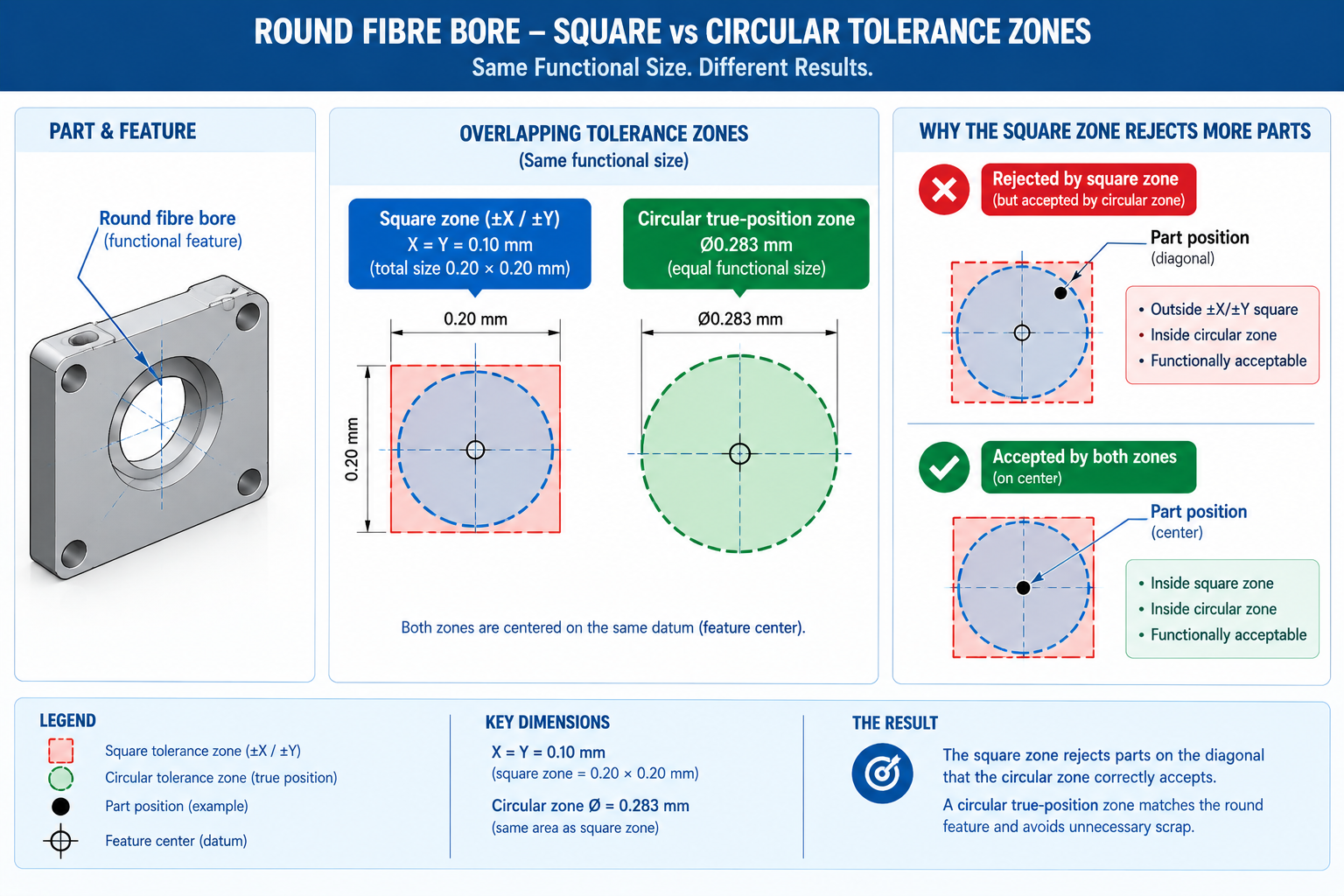
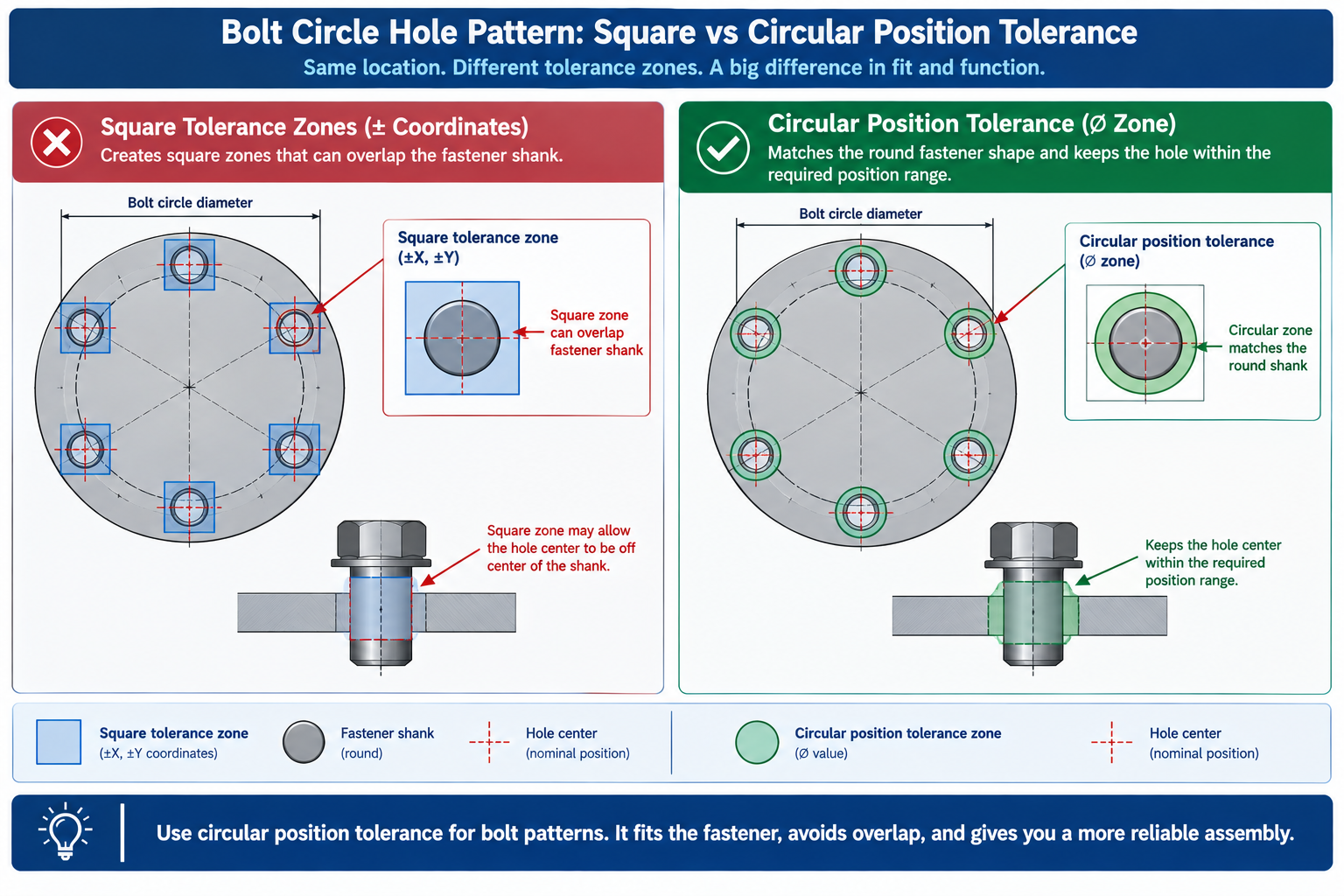
    The system exists because coordinate tolerancing — the older method of simply assigning plus/minus values to X, Y, and Z dimensions — is inherently limited. Consider a bolt hole pattern on a flange. A coordinate tolerance defines a square tolerance zone around each hole’s nominal position. GD&T’s True Position control defines a cylindrical tolerance zone centred on the exact theoretically perfect location. The cylindrical zone is 57% larger in area than the equivalent square zone for the same stated tolerance value — meaning more parts pass inspection without any compromise to the functional requirement. That directly reduces scrap and rework cost.

    GD&T does not make tolerances tighter. Used correctly, it makes tolerances more precisely matched to functional requirements — which often means they can be looser in areas that do not affect fit or function.

    Beyond the efficiency argument, GD&T eliminates ambiguity. A drawing annotated with GD&T controls is interpreted the same way by any engineer, machinist, or quality inspector who knows the standard — whether they are in your facility or a supplier facility on the other side of the world. That universality is essential when manufacturing is distributed across multiple suppliers or geographies.

    The 5 Categories of GD&T Controls

    5 Categories of GD&T Controls | ASME Y14.5 | ISO 1101 | MMC

    GD&T controls are grouped into five categories, each addressing a different aspect of geometric variation. Understanding these categories is the foundation for knowing which symbol to apply and when.

    CategoryControlsSymbols IncludedTypical Use Case
    FormShape of a surface or feature in isolation — no datum neededFlatness, Straightness, Circularity, CylindricitySealing faces, bearing bores, precision guide rails
    OrientationAngle of a feature relative to a datumParallelism, Perpendicularity, AngularityMating flanges, gearbox housings, mounting faces
    LocationPosition of a feature relative to a datum reference frameTrue Position, Concentricity, SymmetryBolt hole patterns, shaft centrelines, symmetric slots
    RunoutVariation of a surface as a part rotates about a datum axisCircular Runout, Total RunoutRotating shafts, pulleys, brake rotors
    ProfileShape and location of any surface or lineProfile of a Line, Profile of a SurfaceAerofoil sections, complex curves, cast/moulded surfaces

    The critical distinction between Form controls and all other categories is that Form controls — flatness, straightness, circularity, and cylindricity — do not reference a datum. They describe the shape of a feature in isolation. Every other control references at least one datum because it describes the relationship of a feature to something else.

    The 14 GD&T Symbols: A Complete Reference

    ASME Y14.5 defines 14 geometric characteristic symbols, one for each type of control. The table below provides the name, category, and a plain-English description of what each symbol controls. Keep this as a reference when annotating drawings or reviewing a drawing package from a supplier or design partner.

    14 GD&T Symbols | ASME Y14.5 | Simutecra
    Symbol NameCategorySymbol / Abbr.What It Controls
    FlatnessFormFlat symbolHow flat a surface is — all points must lie within two parallel planes
    StraightnessFormStraight symbolHow straight a line or axis is — applies to surface lines or feature axes
    CircularityFormCircle symbolHow round a circular cross-section is at any given point along its length
    CylindricityFormCylinder symbolCombines roundness and straightness — controls the full cylinder surface
    ParallelismOrientation// symbolControls a surface or axis to be parallel within a tolerance to a datum
    PerpendicularityOrientation90 deg symbolControls a surface or axis to be perpendicular within a tolerance to a datum
    AngularityOrientationAngle symbolControls a surface or axis to be at a specified angle to a datum
    True PositionLocationTarget symbolDefines the exact (theoretically perfect) location of a feature from datums
    ConcentricityLocationCircle-dotControls the axis of a feature to coincide with a datum axis (rarely used now)
    SymmetryLocation= symbolControls the median points of a feature to lie in a datum plane (rarely used)
    Circular RunoutRunoutSingle arrowControls surface variation at any single cross-section when part rotates
    Total RunoutRunoutDouble arrowControls cumulative variation across the entire surface as the part rotates
    Profile of a LineProfileArc open symbolControls the shape of a cross-sectional curve relative to a true profile
    Profile of a SurfaceProfileArc filled sym.Controls the shape of an entire surface relative to its true theoretic form

    Note on Concentricity and Symmetry: Both symbols are retained in ASME Y14.5-2018 but their use is now actively discouraged for most applications. They require median-point measurement, which is expensive and difficult to inspect reliably. In most cases, True Position with an appropriate material condition modifier achieves the same functional result and is far easier to measure. When you see these symbols on a drawing, it is worth questioning whether they are the right choice.

    How to Read a Feature Control Frame

    The feature control frame is the rectangular annotation box on a drawing that specifies a GD&T requirement. Every GD&T callout uses one. Reading it correctly is a fundamental skill for anyone working with engineering drawings.

    A feature control frame is divided into compartments read from left to right:

    Box 1Box 2Box 3Box 4 (optional)
    True Position symbolDiameter symbol + 0.5A  (primary datum)B  (secondary datum)
    Which geometric characteristic is being controlledThe tolerance value (and shape of the tolerance zone — diameter symbol = cylindrical zone)The primary datum this control referencesAdditional datums if needed (up to three)

    Worked example: A True Position callout reads as follows — the leftmost compartment shows the True Position symbol (a circle with crosshairs). The second compartment shows the diameter symbol followed by 0.5. The third compartment shows ‘A’. This means: the axis of this feature must fall within a cylindrical tolerance zone of diameter 0.5 mm, centred on the theoretically exact position defined relative to datum A. If a second datum ‘B’ appears in a fourth compartment, the position is also constrained relative to that secondary reference.

    Geometric Dimensioning and Tolerancing (GD&T) is governed by internationally recognized standards such as the ASME Y14.5 standard, which provides rules, symbols, and guidelines for interpreting engineering drawings accurately.

    Geometric Dimensioning and Tolerancing (GD&T)

    Understanding Datums

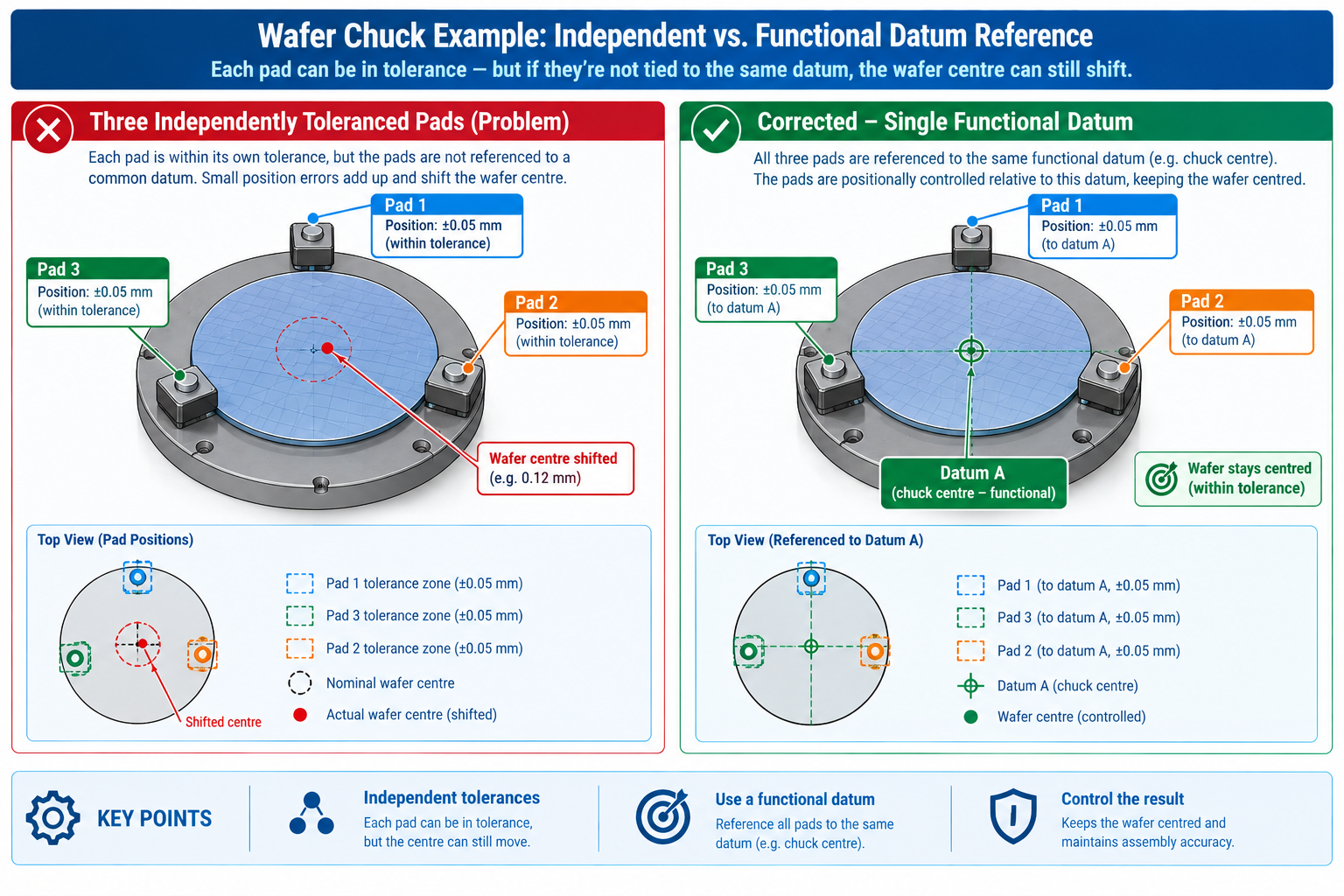
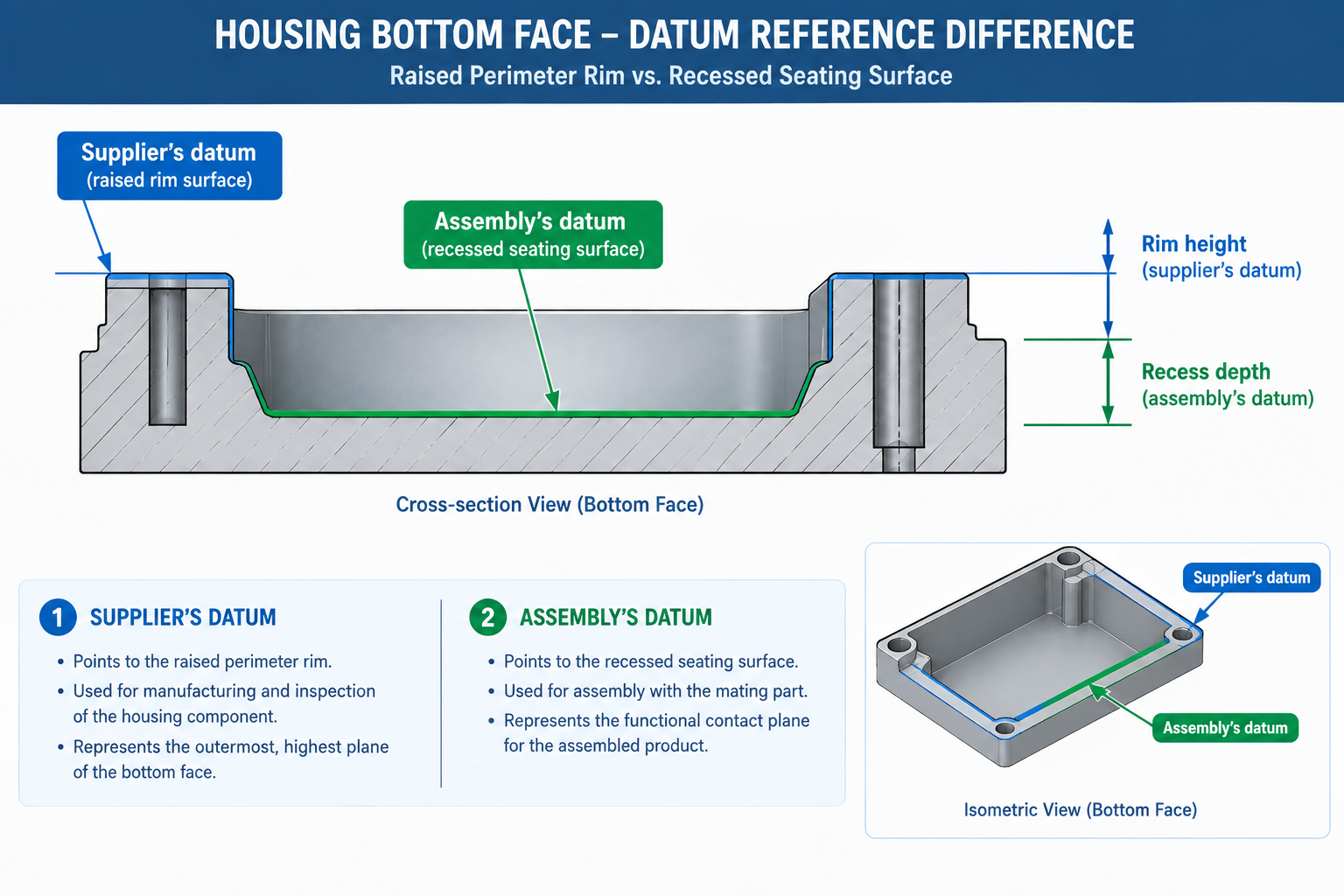
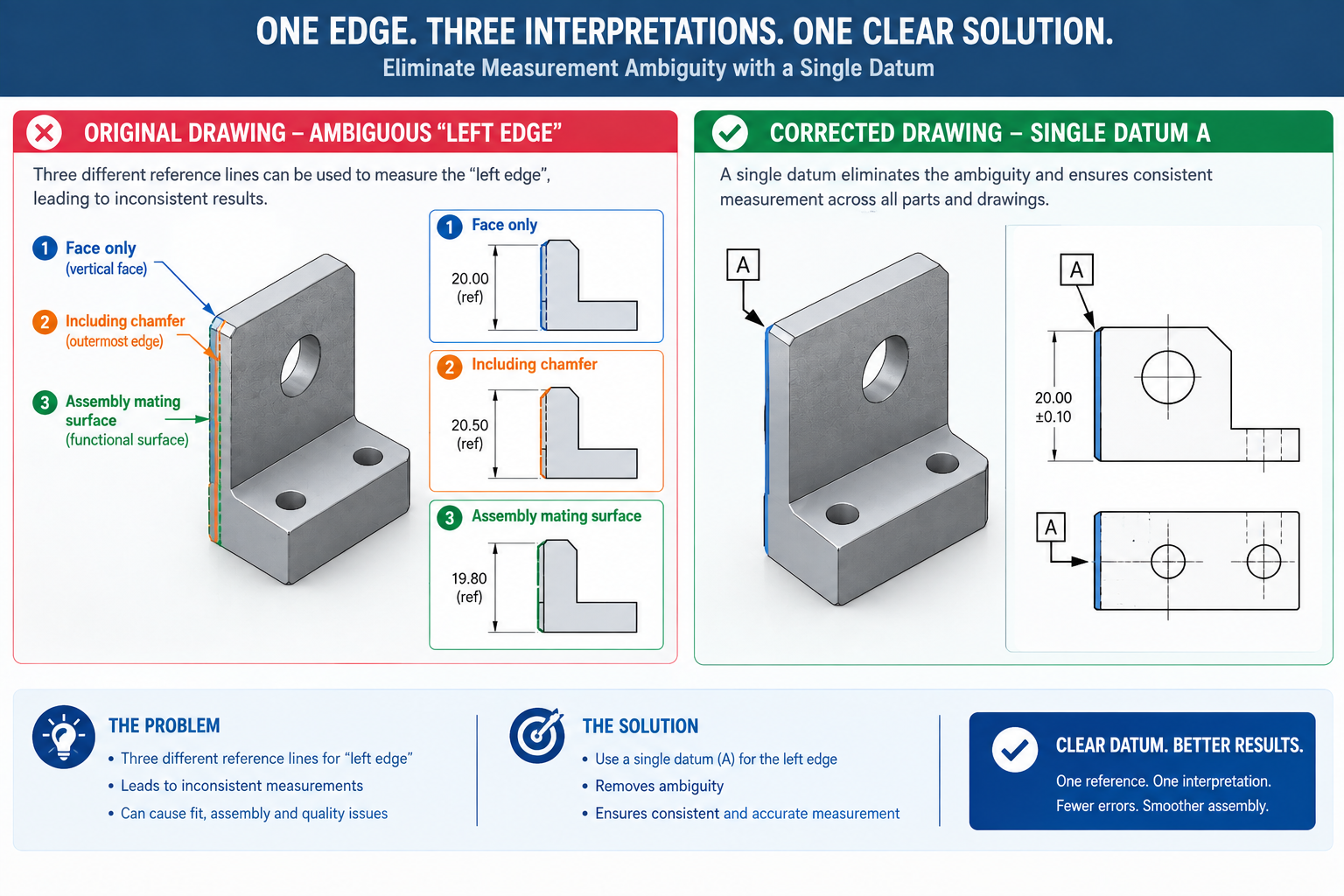
    A datum is a theoretically exact point, axis, or plane from which measurements on a drawing are taken. In practice, datums are established by physical contact with datum features — the real surfaces, bores, or faces on the actual part that approximate the theoretical datum.

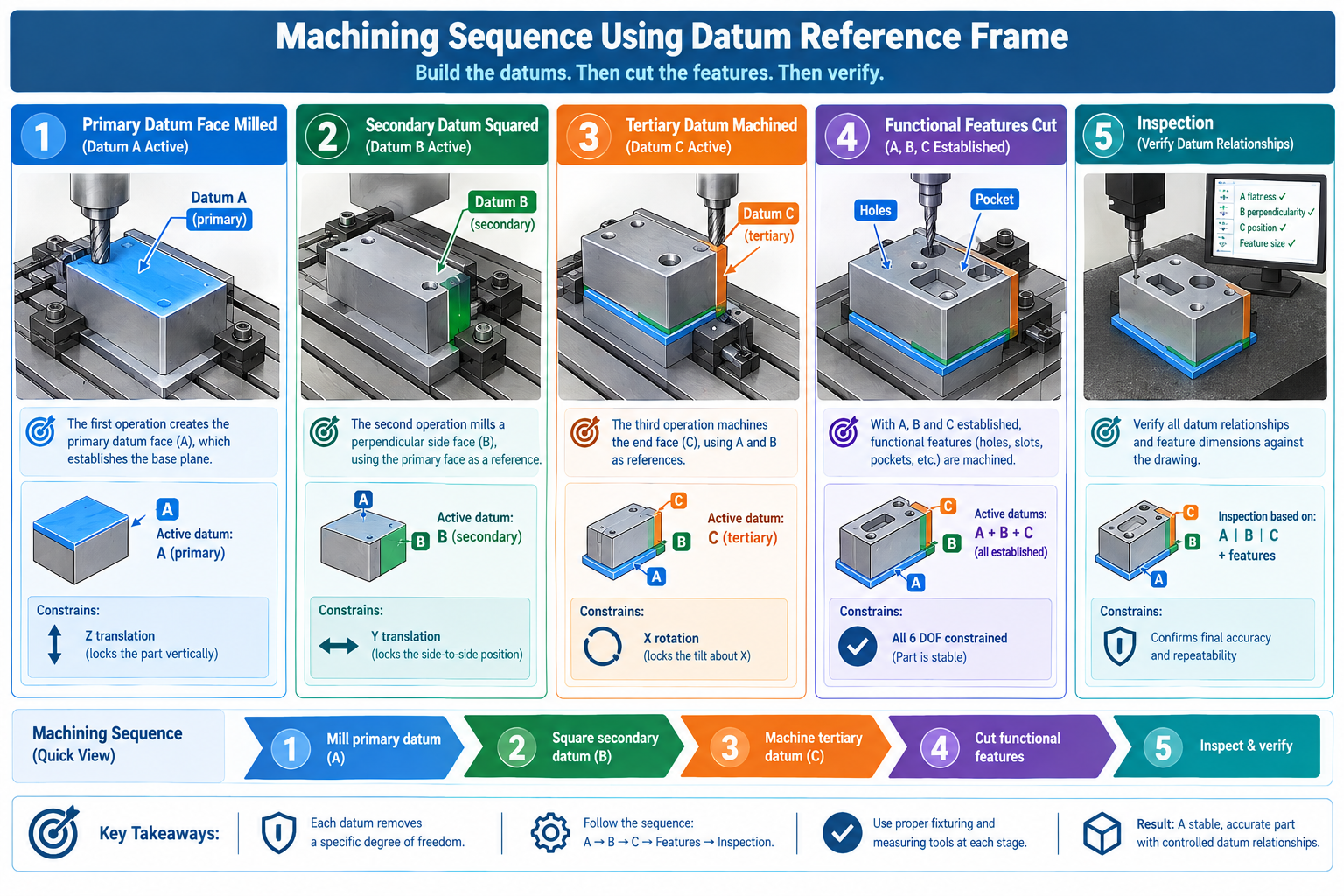
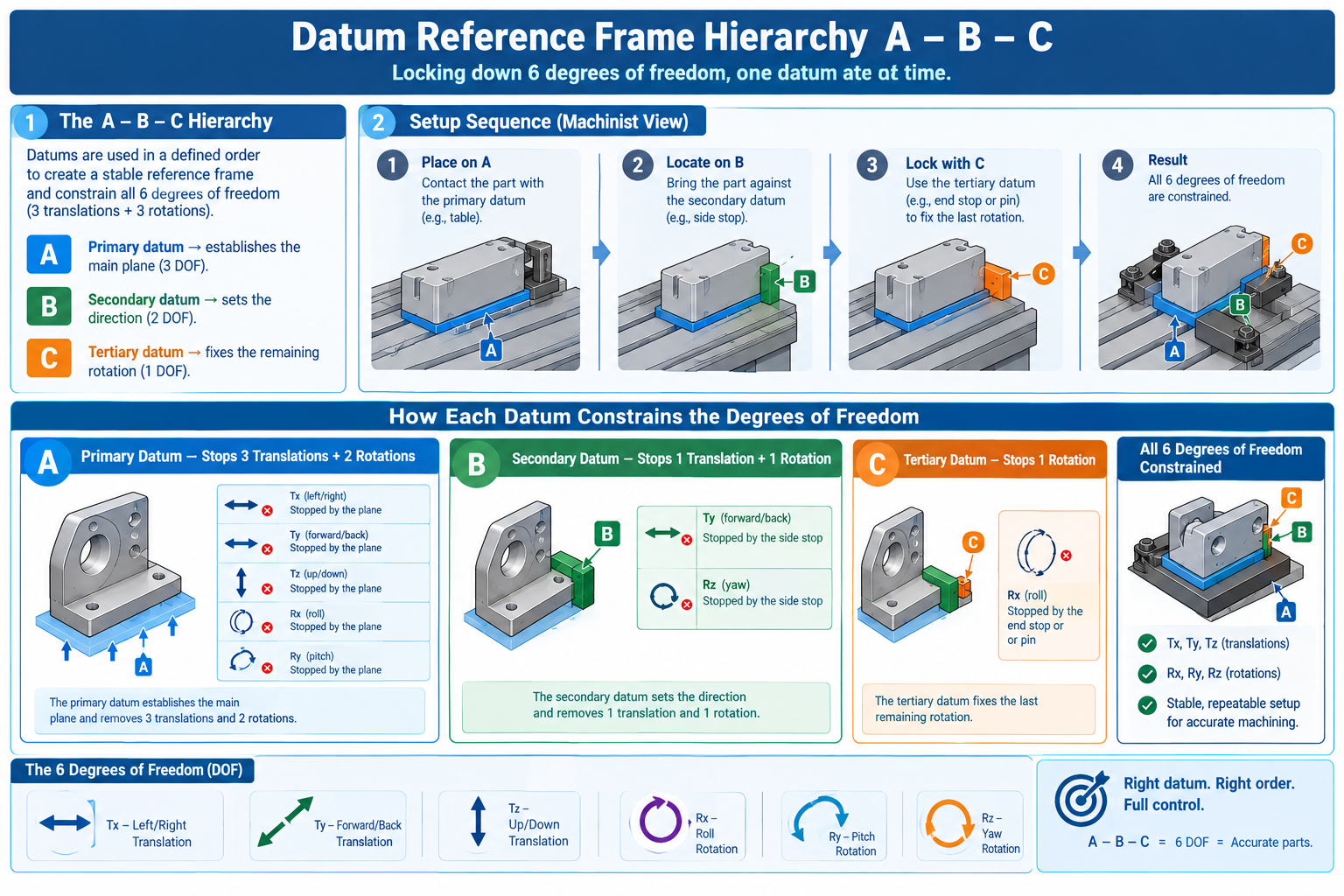
    Datums are hierarchical. The primary datum (A) constrains the most degrees of freedom — typically established by the largest flat surface, which removes three degrees of freedom in a Cartesian system. The secondary datum (B) constrains two more. The tertiary datum (C) constrains the final degree of freedom. Together, the three-datum reference frame fully defines where the part sits in space, making every measurement repeatable and unambiguous.

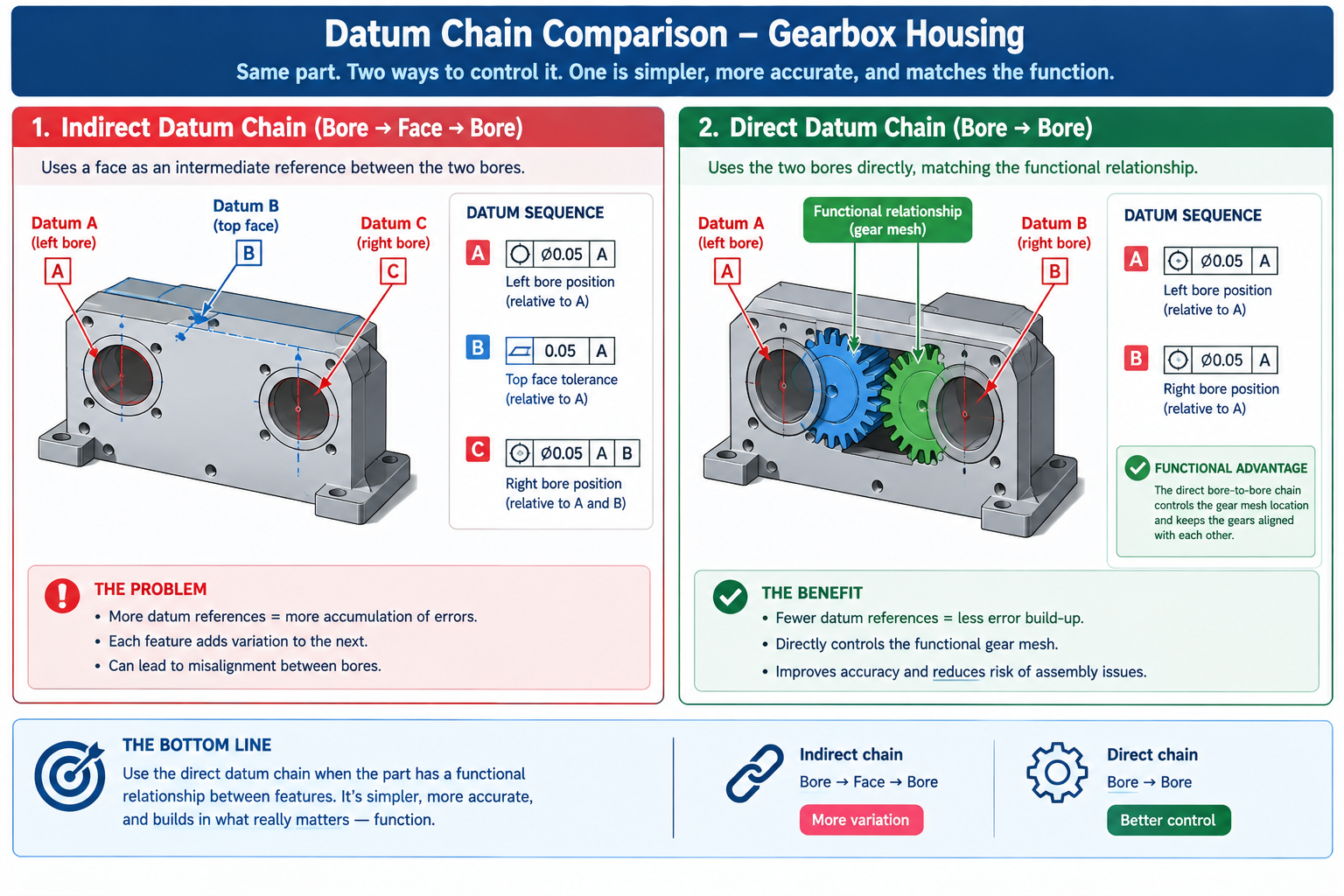
    The selection of datums is one of the most important decisions in applying GD&T. Datums should reflect the functional interface of the part — how it is located, constrained, and mated when it is in service. A datum chosen for manufacturing convenience rather than functional interface will produce parts that are easy to make but difficult to assemble correctly.

    Real-World Example: A Precision Pump Housing

    A pump housing has a central bore that must align accurately with the motor shaft axis. The mating face (the flat surface that bolts to the motor) is established as Datum A. The central bore of the housing is Datum B. The bolt hole pattern is controlled with True Position relative to Datums A and B.

    Without GD&T: the bolt holes are dimensioned from an edge with plus/minus tolerances. The machinist makes the holes to the numbers. But if the mating face is not perfectly square to the bore, the holes end up in the right coordinate positions but the housing does not align when assembled. The parts are technically within tolerance and still fail functionally.

    With GD&T: the perpendicularity of the bore axis to the mating face is controlled explicitly. The bolt hole positions are defined relative to the bore centreline. The machinist and the inspector both have unambiguous requirements. Parts made to the drawing will assemble correctly — not because they happened to be made well, but because the drawing required it.

    Common GD&T Mistakes That Drive Up Manufacturing Cost

    GD&T applied well reduces manufacturing cost by ensuring tolerances match functional requirements — no tighter, no looser. Applied poorly, it can make drawings unnecessarily expensive to manufacture and inspect. These are the most frequent errors seen in GD&T annotations:

    MistakeWhat Goes WrongHow to Avoid It
    Over-tolerancingEvery feature is given a very tight tolerance ‘just to be safe’. Machining costs skyrocket because tight tolerances require slower speeds, more passes, and inspection at every stage.Apply tight tolerances only where fit or function genuinely requires them. Most features can tolerate far more variation than designers assume.
    Missing datum referencesA positional or orientation tolerance is called out with no datum specified. The machinist has no reference frame — the control is unenforceable.Every location and orientation control requires at least one datum. Form controls (flatness, circularity) are the exception — they do not need datums.
    Redundant dimensionsDimensions are duplicated across views, creating a closed loop. When tolerances stack up, it becomes mathematically impossible to satisfy all of them simultaneously.Use reference dimensions (marked REF) for informational dimensions that already appear elsewhere. Never create a fully closed dimension chain.
    Ignoring material condition modifiersMMC (Maximum Material Condition) and LMC (Least Material Condition) modifiers allow tolerances to vary with feature size. Ignoring them means leaving allowable tolerance on the table, which raises manufacturing cost unnecessarily.Understand MMC and LMC for hole-shaft fits and bolt patterns. Apply the appropriate modifier when the function of the part allows it.
    Applying GD&T to the wrong featuresA surface finish control is applied to a non-functional surface that has no mating or sealing requirement. This adds inspection cost for no functional benefit.Apply controls only where they serve a functional purpose. Ask: ‘What breaks if this is out of specification?’ If nothing breaks, the control is unnecessary.

    GD&T in CAD Software

    Most professional 3D CAD platforms include GD&T annotation tools that apply feature control frames, datum labels, and tolerances directly to the model or to drawings generated from it. In SolidWorks, GD&T is added through the Annotations toolbar using the Geometric Tolerance dialog. CATIA uses its FT&A (Functional Tolerancing and Annotation) workbench. AutoCAD Mechanical includes a dedicated GD&T toolbar.

    Increasingly, manufacturers and OEMs are moving towards Model-Based Definition (MBD) — embedding all GD&T and drawing information directly in the 3D model rather than generating 2D drawings. Under MBD, the 3D model itself is the authoritative manufacturing document. While MBD is not yet universal, its adoption is accelerating in aerospace, automotive, and precision manufacturing sectors.

    Regardless of whether GD&T is applied to 2D drawings or 3D models, the underlying standard — and the functional thinking behind it — remains the same.

    Frequently Asked Questions

    1. Is GD&T required on all engineering drawings?

    No, Geometric Dimensioning and Tolerancing (GD&T) is not required on all drawings. It is only used when form, orientation, or location of a feature is functionally critical.
    For simple parts, coordinate tolerancing is usually sufficient. The key is to apply GD&T based on functional requirements, not habit.

    2. What is the difference between ASME Y14.5 vs ISO 1101?

    ASME Y14.5 and ISO 1101 are both GD&T standards, but they differ in rules and usage:

    • ASME Y14.5 → Common in the U.S., uses third-angle projection and specific rules for MMC, RFS
    • ISO 1101 → Used in Europe & Asia, has different symbols and interpretations

    👉 Always confirm the standard used in drawings to avoid misinterpretation.

    3. How does GD&T affect machining cost?

    GD&T directly impacts manufacturing cost:

    • Tighter tolerances = more machining time, tooling, and inspection
    • Proper GD&T reduces scrap, rework, and errors

    A well-defined GD&T drawing ensures precision only where needed, optimizing both cost and performance

    4. Can GD&T be applied in 3D CAD models?

    Yes. This is called Model-Based Definition (MBD).
    GD&T is embedded directly into 3D CAD models using tools like:

    • SolidWorks MBD
    • CATIA FT&A
    • NX PMI

    Benefits include a single source of truth, reduced errors, and improved engineering communication.

    5. What does MMC (Maximum Material Condition) mean?

    MMC (Maximum Material Condition) refers to the state where a feature contains the maximum amount of material:

    • Shaft → Largest diameter
    • Hole → Smallest diameter

    Using the MMC modifier allows bonus tolerance, increasing flexibility and reducing manufacturing rejection rates without affecting function.

    The Bottom Line

    GD&T is not an optional extra for complex parts — it is a precision tool for communicating exactly what a part needs to do geometrically, and exactly how much variation is acceptable before it stops doing it. Used correctly, it reduces manufacturing cost, eliminates inspection ambiguity, and prevents the most common class of fit-and-function failures: parts made to the right dimensions that still do not work when assembled.

    The investment in understanding GD&T — whether you are an engineer annotating drawings, a buyer reviewing a supplier’s documentation, or a quality manager setting up inspection criteria — pays back directly in fewer scrapped parts, fewer assembly problems, and fewer drawing revisions after the fact.

    If you are reviewing an existing drawing set and want a second opinion on whether the tolerances are appropriate, or if you need GD&T applied correctly to a new design, that is exactly the kind of review SimuTecra’s drafting team provides.

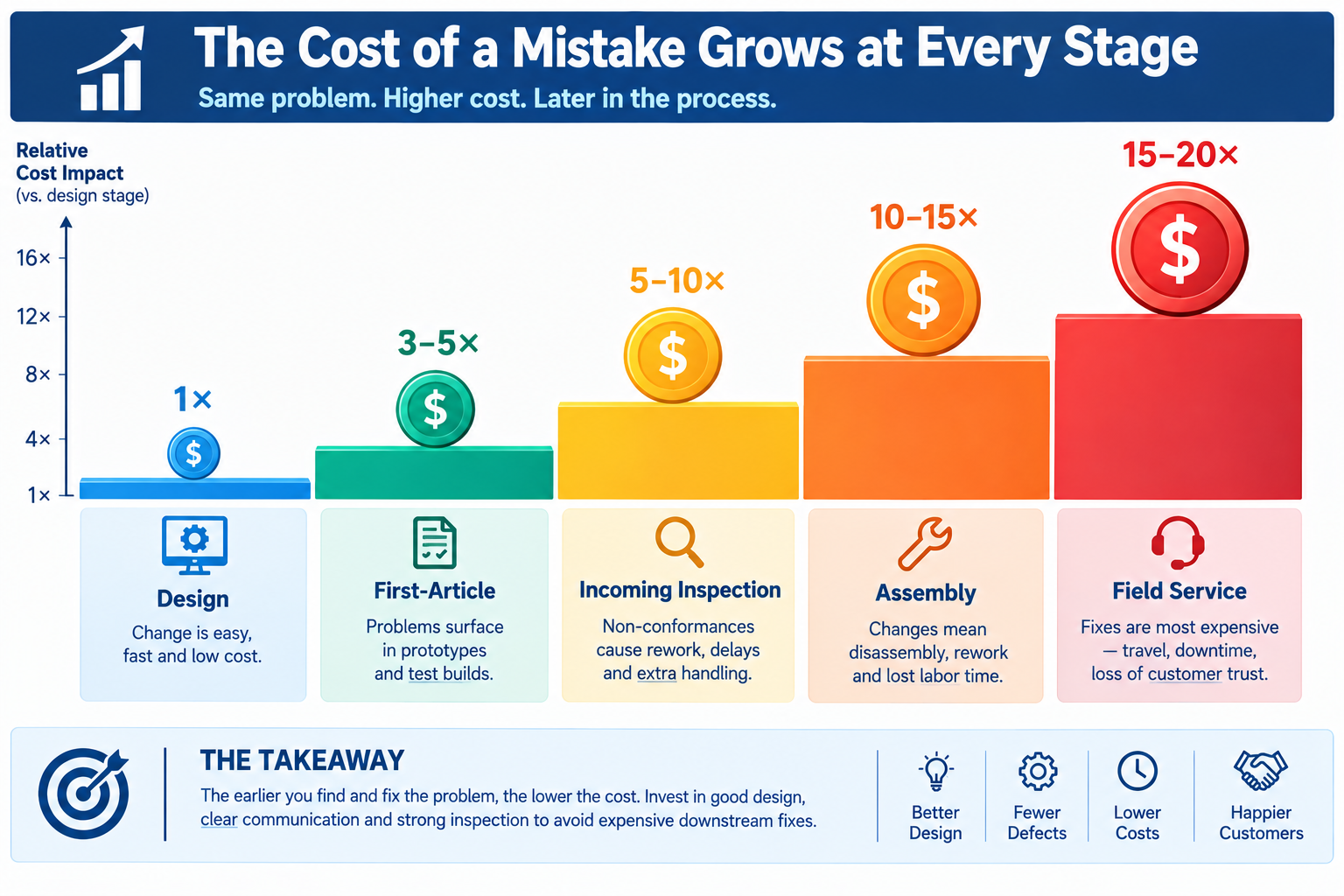
    Getting GD&T Right the First Time Saves Significant Cost

    SimuTecra’s drafters apply GD&T to ASME Y14.5-2018 and ISO 1101 standards. We review every tolerance callout against the functional requirements of your part — not just the geometry. That means your drawings are manufacturable, inspectable, and cost-appropriate.

    Share your part requirements and we will review your current drawing or produce a new one — correctly toleranced from the start.

  • How to Use Claude to Understand Engineering Drawings (A Guide for Non-Engineers)

    How to Use Claude to Understand Engineering Drawings (A Guide for Non-Engineers)

    You are in a project meeting. The engineer slides a drawing across the table — or emails you a PDF — and asks if you are happy with it. It is full of lines, numbers, symbols, and notations that mean nothing to you. You nod along, take a copy, and plan to figure it out later. This happens constantly in product development, procurement, and construction management, and it creates real risk: decisions made without understanding what is actually being decided.

    Claude AI gives non-engineers a practical way out of this situation. You do not need to learn to read engineering drawings from scratch. You need to be able to ask the right questions about a specific drawing in front of you — and get answers in plain language that let you make informed decisions. This guide shows you exactly how to do that.

    Why Engineering Drawings Are Hard to Read Without Training

    Engineering drawings use a standardised visual language developed over more than a century. Views that show the same object from multiple angles simultaneously. Dimension lines with tolerances expressed in notation most people never encounter outside an engineering context. Symbols for surface finish, geometric tolerancing, and material treatment that have precise technical meanings invisible to the untrained eye.

    Engineering drawings are the standardized,2D technical representations of 3D objects, essential for manufacturing and engineering communication. They are governed by international standards (ISO, ASME) and are critical, with roughly 70% of modern industrial product quality problems originating from drawing errors. 

    Source: Wikipedia — Engineering Drawing

    This language exists for good reason. It communicates information precisely and unambiguously between trained engineers and machinists around the world — without that precision, manufactured parts would not fit together reliably. But that same precision makes drawings opaque to anyone who did not spend years learning the notation.

    The gap this creates is significant. Project managers approve designs they cannot fully evaluate. Procurement teams sign off on drawing packages without knowing whether a tolerance is achievable or a specification is realistic. Founders receive deliverables from CAD partners without being able to verify they got what they paid for. Claude does not replace engineering knowledge — but it closes this gap meaningfully for the people who need it most.

    You do not need to become an engineer to have a useful conversation about an engineering drawing. You need to know what to ask and how to ask it. Claude handles the translation.
    engineering drawing explained for beginners | how to read technical drawing | engineering blueprint parts labelled

    What Claude Can Actually Help You Decode

    Before walking through the prompts, it helps to know what kinds of information are on a typical engineering drawing — and which of those Claude can explain in plain language when you describe or paste them in.

    The Title Block

    Every engineering drawing has a title block — usually in the bottom-right corner — that contains the part name, drawing number, revision level, material specification, scale, drawing standard (ASME or ISO), and the name of the engineer who created and approved it. This block tells you what you are looking at and whether the drawing is current. Claude can explain any field in the title block if you describe what you see.

    Views and Projections

    Engineering drawings typically show the same object from multiple angles — front, top, and side views — arranged in a standard layout. There may also be section views (which cut through the part to show internal features) and detail views (which zoom in on complex areas). Claude can explain why each view exists and what it is showing you.

    Dimensions and Tolerances

    Numbers on a drawing tell the manufacturer how big each feature is. The tolerance — shown as a plus/minus value or as a range — tells them how much variation is acceptable. When you see a dimension like ‘25.0 ±0.1’, Claude can explain what that means in practice: how precise the machinist needs to be, and what happens functionally if that tolerance is not met.

    GD&T Symbols

    Geometric Dimensioning and Tolerancing symbols are the most opaque part of a drawing for non-engineers. Small boxes containing geometric symbols and numbers define requirements for flatness, perpendicularity, position, and other geometric properties of features. Claude can translate these into plain language and explain why each control matters.

    Notes and Specifications

    Most drawings include a general notes section that specifies things like surface finish requirements, heat treatment, cleaning specifications, and drawing standards that apply across the whole part. Claude can explain any note you copy and paste in.

    The Prompts to Use — and When to Use Them

    These prompts are designed for the specific situations a non-engineer typically faces when dealing with engineering drawings. Use them directly in Claude — describe what you are seeing, paste text from the drawing where possible, and ask follow-up questions until you have clarity.

    When You Need to Understand the Drawing Overall

    PROMPT 1 — General Understanding
    I have received an engineering drawing and I am not an engineer. I will describe what I can see on it. Please explain each element in plain language — what it means, why it is there, and what a manufacturer needs to do with it.[Describe the drawing: how many views there are, what the part appears to be, what numbers and symbols you can see, what the title block says, any notes sections, anything else that stands out]

    This is your starting point when you are looking at an unfamiliar drawing for the first time. Claude will give you a structured explanation of what each part of the drawing communicates. Take notes on the things you want to follow up on.

    When You Need to Verify a Specific Dimension or Tolerance

    PROMPT 2 — Tolerance Check
    On this engineering drawing, there is a dimension that reads [describe the dimension exactly — e.g. ‘18.5 +0.0/-0.2 mm on a shaft diameter’]. Can you explain:1. What this means in plain language2. How precise the machinist needs to be3. Whether this is a tight tolerance or a loose one for this type of feature4. What would happen functionally if this tolerance was not met

    Use this when a specific dimension is being discussed in a meeting or when you want to understand whether a quoted tolerance is reasonable for the application. Claude’s answer gives you informed questions to ask your engineering team rather than having to take their answer on faith.

    Read more on Prompt Engineering for CAD Drafting and Engineering Design

    When You See a GD&T Symbol You Do Not Recognise

    PROMPT 3 — GD&T Symbol Explanation
    On this engineering drawing, there is a rectangular box with symbols in it. From left to right it shows: [describe what you see — e.g. ‘a circle with a cross inside it, then the diameter symbol and 0.5, then the letter A’].Please explain:1. What type of geometric control this is2. What it is requiring the manufacturer to achieve3. Why this control might be on this particular feature4. What would go wrong if this requirement was ignored

    GD&T symbols are the most intimidating part of a drawing for non-engineers. This prompt turns any symbol combination into a plain-language explanation. You do not need to know what the symbol is called — just describe what you see.

    When You Are Reviewing a Drawing Before Approving It

    PROMPT 4 — Pre-Approval Review
    I need to review and approve an engineering drawing before it goes to a manufacturer. I am not an engineer but I am responsible for sign-off.I will describe the drawing to you. Please help me:1. Identify the most important things to check before approving2. Flag any information that appears to be missing or incomplete3. Suggest questions I should ask the engineer before I sign off4. Highlight anything that seems unusual or worth querying[Describe the drawing in as much detail as you can]

    This prompt is for procurement leads, project managers, and technical directors who need to sign off on drawing packages without having the engineering background to evaluate them independently. Claude acts as a structured second pair of eyes — not verifying the engineering, but identifying gaps and generating informed questions.

    When You Want to Understand How the Part Is Made

    PROMPT 5 — Manufacturing Context
    Based on this engineering drawing, I want to understand how this part would typically be manufactured. The drawing shows [describe: the part shape, material noted, any surface finish callouts, any notes about manufacturing process].Please explain:1. What manufacturing process would most likely be used to make this part2. Which features are the most difficult or expensive to machine3. Whether the tolerances specified look typical or unusually tight for this type of part4. What I should understand about the manufacturing process when reviewing the timeline and cost estimate

    This is particularly useful when you are evaluating a quote from a manufacturer. Understanding which features drive cost and lead time means you can have a much more productive conversation about schedule and price — and spot if something in the quote does not add up.

    Claude AI explaining GD&T symbol | AI for engineering drawings | Claude technical drawing help

    What to Do With Claude’s Answers

    Claude gives you information and language. What you do with it determines the value. A few habits that make the most of Claude’s explanations in a real engineering context:

    • Write down the questions Claude’s answers generate. The goal is not to become an engineer overnight — it is to have better conversations with the engineers you work with. Use Claude to develop specific, informed questions and then take those questions to your engineering team or CAD partner.
    • Do not use Claude’s output as a substitute for engineering sign-off. Claude explains and interprets — it does not verify that a design is correct, that tolerances are achievable, or that a material is appropriate for the application. Those judgments require a qualified engineer.
    • Use the vocabulary Claude gives you. When Claude explains that the symbol on the drawing is a True Position control with a cylindrical tolerance zone referenced to Datum A, you now have the right terminology to ask your engineer a specific, targeted question. That changes the conversation.
    • Keep a running note of terms you have looked up. Engineering drawing vocabulary is consistent — once you have learned what a feature control frame is, that knowledge applies to every drawing you encounter. Build your own glossary as you go.

    Check our blog to get free 20 prompts every engineer should know

    The Limits of What Claude Can Do

    Claude works from descriptions. It cannot see images or PDFs directly — you need to describe what you are looking at in text. This means some nuance is inevitably lost: the exact geometry of a complex surface, the precise arrangement of views, the specific layout of a drawing that a trained engineer would read at a glance. For complex drawings, describing everything accurately enough to get a fully useful response takes effort.

    Claude also cannot tell you whether the engineering itself is correct. It can explain what a tolerance means but not whether that tolerance is achievable with the manufacturing process specified. It can explain what a material designation refers to but not whether that material is appropriate for the operating environment. It can tell you what questions to ask — not whether the answers are right.

    For high-stakes approvals — drawings that will go directly to manufacturing, structural components, pressure-containing parts — there is no substitute for a qualified engineering review. What Claude offers is the ability to participate meaningfully in that review process rather than being a passive spectator.

    Claude is the most useful engineering drawing tool you have access to if you are not an engineer. It is most valuable not as an answer machine, but as a question generator — giving you the language and confidence to have better conversations with the people who are.

    The Bottom Line

    Engineering drawings communicate with precision in a language most people never learn. That language barrier creates real risk in product development and procurement — decisions made by people who do not fully understand what they are deciding on. Claude does not eliminate that risk, but it reduces it meaningfully by giving non-engineers a way to engage with technical drawings in plain language.

    The five prompts in this guide cover the situations non-engineers encounter most often: understanding a drawing from scratch, checking a specific dimension, decoding a GD&T symbol, preparing for a sign-off review, and understanding the manufacturing implications of what is specified. Start there, follow up on anything that is not clear, and use what you learn to have better conversations with the engineers and CAD partners you work with.

    Working With Engineers But Not One Yourself?SimuTecra works with clients at every level of technical experience. Whether you are an engineer reviewing a complex drawing package or a project manager trying to understand what you are signing off on, our team communicates clearly and ensures you have the context you need at every stage of the project.Send us your drawings or your brief — we’ll take it from there.

  • Stop Wasting Claude AI: Prompt Guide for Engineers | Simutecra

    Stop Wasting Claude AI: Prompt Guide for Engineers | Simutecra

    Most people use Claude AI the same way they use a search engine — type a vague question, read the answer, move on. They get average results, conclude that AI is overrated, and miss the point entirely.

    Claude AI is not a search engine. It is a reasoning engine. And like any precision tool, the quality of output depends almost entirely on the quality of input. The engineers, drafters, and technical teams getting genuinely useful results from Claude AI for engineers are not smarter — they are writing better prompts.

    This is where prompt engineering Claude AI becomes critical.

    Specifically, they are writing Claude prompts for engineering that match how Claude processes information — which is fundamentally different from other tools. If you are learning how to use Claude AI effectively, understanding this difference is the starting point.

    This guide covers what makes Claude different, the techniques that unlock its real capability, and exactly how to apply prompt engineering Claude AI engineering design in real workflows.

    Claude AI chat interface by Anthropic showing a structured prompt input and response
    Claude AI by Anthropic is built differently from other AI models — and prompting it the same way you prompt ChatGPT leaves most of its capability unused.

    Why Claude Responds Differently — and Why It Matters for How You Prompt

    Understanding how Anthropic Claude works directly impacts how to write better prompts for Claude AI.

    Claude was built by Anthropic using Constitutional AI, a training approach that prioritises careful instruction-following, structured reasoning, and nuanced context understanding. The practical result: Claude treats your prompt like a contract. What you specify, it delivers. What you leave vague, it fills with reasonable assumptions — and those assumptions may not match what you actually need.

    That’s why structured prompts are essential.

    Two specific architectural features set Claude AI apart for technical and professional work:

    1. XML-native processing:

      Claude is designed to understand XML tags Claude structure natively.

      Using tags like:

      • <role>
      • <context>
      • <task>
      • <example>

      …helps create clear boundaries in your prompt. This is the foundation of any Claude AI XML tags tutorial and one of the biggest differences in Claude vs ChatGPT prompt engineering.

      This approach improves:

      • Accuracy
      • Consistency
      • Output formatting

      2. Massive context window:

      Claude models like Claude Sonnet and Claude Opus support extremely large context window sizes (up to ~200K tokens).

      This makes Claude ideal for:

      • Full engineering documents
      • Drawing notes
      • Large specifications

      This is where Claude AI for engineers clearly stands out in real workflows.

      Claude 4.x models also follow instructions more literally than previous versions. If you do not ask for something, you will not get it. This is a feature, not a bug — it means you get predictable, controllable outputs. But it requires you to be explicit. Vague prompts now produce vague results more reliably than ever.

      Anthropic publishes its own prompting best practices at docs.anthropic.com/en/docs/build-with-claude/prompt-engineering. It is worth reading directly — the official guidance is more useful than most third-party articles.

      The Claude-Specific Techniques That Actually Make a Difference

      These are not generic AI tips. These are techniques specific to how Claude processes prompts — techniques that do not work as well, or work differently, with ChatGPT or Gemini.

      1. Use XML Tags to Structure Complex Prompts

      This is the single highest-impact change most engineers can make to their Claude prompts. When your prompt has multiple distinct components — instructions, context, examples, variable inputs — wrap each in clearly labelled XML tags.

      <role>

      You are a structural engineer producing fabrication notes to AISC standards.

      </role>

      <context>

      The client is a steel fabricator in the US. They need material and weld notes

      for a 310UB46.2 floor beam, Grade 350 steel, connected via bolted end plates.

      </context>

      <task>

      Write 5 general notes for inclusion on the fabrication shop drawing.

      Cover: steel grade, weld standard, bolt specification, surface prep, inspection.

      </task>

      <format>

      Numbered list. Maximum 15 words per note. Plain language. No abbreviations.

      </format>

      Without XML tags, Claude treats the entire prompt as one undifferentiated block and has to guess how much weight to give each section. With tags, it processes each section independently — role informs tone, context informs accuracy, task defines the output goal, format controls structure. The result is more focused, more consistent, and far less likely to blend irrelevant information into the output.

      Pro tip: Use consistent tag names across all your prompts and save them as reusable templates. Once Claude has learned your tag structure from context, outputs become even more predictable across sessions.

      Structured XML-tagged prompt example showing role, context, task, and format sections for Claude AI
      XML tagging is Claude’s native structuring language — it creates clear semantic boundaries that produce dramatically more consistent outputs on complex, multi-part engineering tasks.

      2. Write Role Prompts with Specific Depth

      Role assignment works in all major AI models, but Claude responds to deeper specificity more reliably than most. The difference between ‘you are a structural engineer’ and ‘you are a structural engineer with 15 years of experience in industrial steel fabrication, familiar with AISC 360 and AWS D1.1, currently reviewing a drawing package before issue to a US fabricator’ is not cosmetic — it meaningfully shifts the accuracy and depth of the output.

      This improves accuracy in Claude prompts for engineering and ensures outputs match real-world standards.

      3. Activate Extended Thinking for Complex Problems

      Claude’s Extended Thinking mode allows the model to reason through a problem step by step before producing its final answer. For engineering tasks — load calculations, design decisions, drawing review, specification writing — this produces substantially better outputs than a single-pass response.

      To activate it in a prompt, you do not need special commands. Simply ask Claude to think through the problem before answering:

      Before writing the specification, work through the following:

      1. What are the key functional requirements for this part?

      2. Which tolerances are safety-critical vs non-critical?

      3. Which notes are mandatory vs informational?

      Then write the final specification based on your reasoning.

      This is particularly powerful for drawing reviews, where asking Claude to ‘check for completeness before summarising findings’ catches issues that a direct question would miss. It’s a core part of advanced prompt engineering workflows.

      4. Give Claude Positive Instructions, Not Just Prohibitions

      Claude 4.x models respond significantly better to positive framing than to prohibitions. ‘Only use data provided in the context below’ consistently outperforms ‘Do not make up information.’ ‘Use bullet points with one sentence each’ outperforms ‘Don’t write long paragraphs.’

      This is not a minor stylistic point — it is a documented pattern in how the model processes instructions. Every time you write ‘don’t do X’ in a prompt, reframe it as ‘do Y instead.’

      Avoid: Using aggressive capitalisation like ‘CRITICAL!’ or ‘YOU MUST NEVER’ in Claude prompts. According to practitioners and Anthropic’s own documentation, this overtriggers the model and produces worse outputs than calm, direct instructions. Just say what you want. Claude follows instructions precisely when they are clearly stated.

      5. Use Few-Shot Examples Inside <example> Tags

      When you need Claude to match a very specific format — a particular house style for drawing notes, a specific BOM layout, a client-specified specification format — provide one or two examples directly in the prompt wrapped in <example> tags.

      Example tags of prompt code in claude ai

      This technique eliminates most of the editing you would otherwise do after the fact. Claude matches the length, tone, structure, and technical register of your examples with high fidelity — because the tags signal clearly what is an instruction and what is a model to follow.

      Claude vs ChatGPT for Engineering Work: What’s Actually Different

      Both models are capable. Choosing the right one for the task saves time and produces better results than defaulting to one tool for everything. When comparing Claude vs ChatGPT for engineering tasks, the difference comes down to workflow needs.

      Task TypeClaude AdvantageChatGPT Advantage
      Long document analysis200K token context handles entire specification packages, full drawing sets, or long project histories in one sessionShorter documents where conversational back-and-forth refines the output
      Structured outputs (specs, notes, BOMs)XML tag structuring produces highly consistent, format-controlled outputs across multiple runsMore flexible when format requirements are loose or undefined
      Complex multi-step reasoningExtended Thinking mode excels at design reviews, multi-condition checks, and reasoned engineering decisionsChain-of-thought prompting works well but is less systematically consistent
      Following detailed instructionsLiteral instruction-following — what you specify is what you get, highly predictableMore forgiving of vague prompts, fills gaps with reasonable defaults
      Real-time web researchNo native web search in standard use — all context must be in the promptWeb search integration available — better for tasks requiring current data
      Creative, open-ended tasksStrong but benefits from explicit style/tone instructionsSlightly more natural for freeform creative output without heavy structuring

      The most productive professionals in 2026 do not pick one model and stick to it. They use Claude for structured, long-context, precision-critical tasks and ChatGPT when they need web access or conversational iteration. The right tool for the task — not loyalty to a brand.

      Claude prompts for engineers | AI engineering workflow | Claude AI CAD design

      Ready-to-Use Claude Prompt Templates for Engineering Tasks

      Copy, adapt, and save these. Each uses the XML structure and technique principles covered above — they are not hypothetical examples, they are the starting point for real engineering workflow tasks.

      TaskClaude Prompt Template (adapt for your project)
      Drawing general notes<role>Structural drafter, AISC standards, US projects.</role><task>Write 5 general notes for a steel fabrication drawing. Cover: steel grade (A992/A36), weld standard (AWS D1.1), bolt grade (ASTM A325), surface prep (SSPC-SP6), and inspection requirements.</task><format>Numbered list. Max 12 words per note. No abbreviations.</format>
      Design brief summary<role>Senior mechanical engineer.</role><task>Convert the requirements below into a one-paragraph engineering brief for a CAD outsource partner. Include: part function, key dimensions, material, tolerance class, and required file format.</task><context>[Paste your raw requirements here]</context><format>Max 120 words. Plain English. No jargon.</format>
      Drawing review checklist<role>Senior structural engineer reviewing a drawing package before issue to fabrication.</role><task>Review the following drawing notes and flag any issues. Check for: missing tolerances, unspecified materials, ambiguous weld callouts, missing revision references, conflicting dimensions.</task><context>[Paste drawing notes here]</context><format>Bullet list. Each issue: flag as HIGH/MED/LOW. One sentence per item.</format>
      Specification writing<role>Mechanical engineer, pressure vessel experience, ASME BPVC knowledge.</role><task>Write a material and fabrication specification for the component described in <context>. Think through key functional requirements first, then write the spec.</task><context>[Paste component description]</context><format>Numbered paragraphs. Max 200 words total. Reference ASME standards where relevant.</format>
      RFI response<role>Project structural engineer responding to a steel fabricator RFI.</role><task>Write a formal RFI response to the query in <context>. Be precise and conclusive. Reference the drawing number provided.</task><context>[Paste RFI text and drawing number]</context><format>Max 150 words. Professional tone. Conclude with a clear decision or instruction.</format>

      Save these as Projects in Claude: Claude’s Projects feature lets you save a system prompt that applies to every conversation in that project. Set your role, standards, and output format preferences once — and every task you bring to that project inherits them automatically. This is the single fastest way to eliminate repetitive prompt setup.

      Frequently Asked Questions

      1. What is prompt engineering for Claude AI?

      Prompt engineering Claude AI is the process of structuring instructions using techniques like XML tags Claude, role prompting, and constraints to get accurate outputs.

      2. What are XML tags in Claude AI?
      XML tags Claude
      are structured labels that separate instructions, context, and examples — improving clarity and output quality.

      3. What makes Claude different from ChatGPT?
      The key difference in Claude vs ChatGPT prompt engineering is:

      ChatGPT → flexible, conversational tasks

      Claude → structured, precise, long-context tasks

      4. How do I activate extended thinking in Claude?

      Ask Claude to reason through the problem step by step before giving its final answer. For Claude API users, there is also an extended_thinking parameter. In the chat interface, explicitly asking Claude to ‘think through’ a problem activates deeper reasoning.

      5. Can Claude read full engineering drawing packages?

      Yes — Claude supports up to 200,000 tokens of context (approximately 500 pages of text). You can paste full specification documents, drawing notes, or project histories and ask Claude to analyse, summarise, or cross-reference across all of it.

      6. What is the Claude Projects feature?

      Claude Projects lets you set a persistent system prompt that applies to every conversation in that project — your role, standards preferences, output format rules, and context. It eliminates repetitive setup and makes outputs more consistent across sessions.

      7. Do I need coding skills to use Claude for engineering tasks?

      No. XML tags look like code but require no programming knowledge — they are just labelled brackets around sections of your prompt. All the techniques in this guide work in plain text in the Claude.ai chat interface.

      8. How do I write better prompts for Claude AI?
      Learn how to write better prompts for Claude AI by using:

      • Structured inputs
      • Role definitions
      • Clear format instructions
      • Context-based prompting

      The Bottom Line

      Claude AI is genuinely one of the most capable tools available for professional engineering work in 2026 — for writing specifications, reviewing drawings, structuring technical documents, and reasoning through design decisions. But it rewards structured input. Vague prompts produce vague outputs.

      The techniques in this guide — XML tagging, specific role prompts, extended thinking, positive framing, and few-shot examples — are not advanced developer tricks. They are practical communication habits that take about a week to build and pay back every time you use Claude for a real task.

      Start with one change: the next prompt you write for Claude, add a <role>, a <task>, and a <format> tag. Compare that output to what you were getting before. The difference is usually immediate and obvious.

      Put Claude to Work on Your Engineering Projects — Without the Learning Curve

      SimuTecra uses Claude AI and other AI tools inside our drafting and design workflows — so the speed and accuracy benefits pass directly to you. Every drawing still goes through expert human review before delivery. You get faster turnaround without trading quality for it.

      Tell us about your project and we will come back with a clear scope and quote.

    1. Prompt Engineering for CAD Drafting and Engineering Design: A Practical Guide | SimuTecra

      Prompt Engineering for CAD Drafting and Engineering Design: A Practical Guide | SimuTecra

      The engineers getting the most out of AI tools right now are not the ones with the best software — they are the ones mastering prompt engineering for engineering design. In CAD drafting and design workflows, the difference between a useful AI output and a useless one often comes down to a single sentence.

      Prompt engineering for engineering design — the skill of writing precise, structured instructions that guide AI models — is rapidly becoming one of the most valuable technical skills. Whether you are using ChatGPT for engineers, working with AI prompts for CAD drafting, or experimenting with text-to-CAD tools, the quality of your prompt determines the quality of your result.

      This guide is written for engineers, CAD drafters, and technical managers who want to understand prompt engineering CAD workflows, improve efficiency, and use AI engineering tools 2026 effectively.

      This guide is written specifically for engineers, CAD drafters, and technical managers. It covers what prompt engineering is, why it matters for engineering workflows, how to write prompts that actually work for design and drafting tasks, and the common mistakes that waste time.

      What Is Prompt Engineering — and Why Should Engineers Care?

      Prompt engineering is the practice of designing structured inputs to generate accurate and useful outputs from AI systems. In the context of AI for CAD, this means giving detailed, technical instructions that align with real engineering requirements.

      For engineers, this matters because AI-assisted drafting and generative CAD tools are becoming part of daily workflows. Platforms like Autodesk AI, SolidWorks AI, and other CAD AI tools are enabling faster design iterations, automation, and even generative design prompts for complex parts.

      But these tools depend heavily on how well you communicate with them.

      None of these tools work well with vague instructions. Tell an AI to ‘design a bracket’ and you will get something generic that requires significant rework. Tell it to ‘design a steel mounting bracket for a 15 kg HVAC unit, bolted to a 150×150 RHS column, with four M12 bolt holes on a 100 mm bolt circle, material grade 350’ and you get something you can actually evaluate.

      Prompt engineering is not a skill reserved for software developers. Any engineer or drafter who uses AI tools is already doing it — the question is whether they are doing it well.

      According to the Prompt Engineering Guide — one of the most widely cited references in the field — the key principles are specificity, context, format instructions, and iterative refinement. All four apply directly to engineering AI tasks.

      This is where prompt engineering CAD becomes critical.

      The Anatomy of a Good Engineering Prompt

      Most engineers who are disappointed with AI outputs are writing prompts that are too short, too vague, or missing critical context. A well-structured engineering prompt has five components — and most poorly written prompts are missing at least three of them.

      ComponentWhat It DoesEngineering Example
      Role / contextTells the AI who it is and what domain it is working in“You are a structural engineer producing fabrication drawings to AISC standards.”
      TaskStates clearly what you want the AI to produce“Write a material specification note for a hot-dip galvanised steel handrail.”
      ConstraintsDefines the boundaries — standards, dimensions, format, word count“Use ASTM A123 for galvanising. Maximum 80 words. Use bullet points.”
      Context / inputsProvides the specific data, dimensions, or design parameters the AI needs“The handrail is 1100 mm high, 48.3 mm OD tube, Grade 350 steel, outdoor exposed environment.”
      Output formatTells the AI how to structure or present the result“Present as a numbered list suitable for inclusion in a drawing general notes section.”

      Weak Prompt vs Strong Prompt: Side-by-Side

      Weak PromptStrong Prompt
      Write a specification for a steel beam.You are a structural engineer. Write a material and fabrication specification note for a 310UB46.2 Grade 350 steel floor beam. Include: steel standard (AS/NZS 3678), surface preparation (Sa 2.5), primer coat (75 micron epoxy zinc phosphate), and web stiffener requirements at point load locations. Maximum 100 words. Format as numbered notes for inclusion on a shop drawing.
      Create a 3D model of a bracket.Generate a parametric 3D model of a flat plate mounting bracket. Plate dimensions: 150 mm x 100 mm x 8 mm thick. Four M10 clearance holes (11 mm diameter) at 20 mm from each corner. Material: mild steel, Grade 250. Two 10 mm radius fillets at the base. Output as a STEP file compatible with SolidWorks.
      Summarise this drawing.You are reviewing an engineering drawing for a pressure vessel flange. Summarise the following drawing notes in plain English for a non-technical project manager. Include: material grade, pressure rating, surface finish requirement, and any special inspection notes. Maximum 150 words.

      Key insight: The strong prompt takes about 30 seconds longer to write. The output it produces takes minutes less to rework. In a workflow where you run dozens of AI tasks per day, that ratio compounds quickly.

      You may also like 20 Best Claude Prompt Every Engineer Should Used

      Text-to-CAD AI software interface showing a natural language prompt input field and the resulting 3D CAD model geometry
      Text-to-CAD tools like Zoo Design Studio and Leo AI generate editable 3D models directly from structured text prompts — the quality of the prompt directly determines the usability of the output.

      Prompt Engineering Techniques That Work in Engineering Contexts

      Several well-established prompting techniques from the AI field translate directly into engineering and CAD workflows. These are not theoretical — they produce measurably better outputs on the kinds of tasks engineers do every day.

      1. Few-Shot Prompting

      Few-shot prompting means showing the AI one or two examples of exactly what you want before making your actual request. This is one of the most reliable techniques for enforcing a specific format or terminology standard.

      Engineering application: If you want drawing notes written in a specific house style, provide one or two examples of your existing notes before asking the AI to write the new one. The AI will match the format, tone, and structure precisely — saving significant editing time.

      2. Chain-of-Thought Prompting

      Chain-of-thought prompting asks the AI to reason through a problem step by step before giving a final answer. For engineering design decisions, this is particularly useful because it forces the AI to surface its assumptions — which you can then verify or correct.

      Engineering application: When using AI to evaluate whether a connection detail is appropriate, ask it to ‘first list the load conditions, then check the bolt capacity, then check the plate thickness, then give a pass/fail verdict.’ The step-by-step reasoning is far easier to audit than a single-sentence answer.

      3. Role Assignment

      Assigning the AI a specific expert role at the start of the prompt significantly improves output quality for technical tasks. ‘You are a mechanical engineer specialising in pressure vessels’ produces more technically accurate output than no role assignment at all — because it activates the relevant domain knowledge the model has been trained on.

      Engineering application: Use role assignment every time you need domain-specific accuracy — ‘You are a structural drafter working to AISC standards,’ ‘You are a civil engineer reviewing a drainage calculation,’ ‘You are a CAD technician producing a BOM from an assembly list.’

      4. Constraint Setting

      One of the most common prompt failures in engineering contexts is not setting explicit constraints on format, length, or standards compliance. Without constraints, the AI defaults to verbose, generic output. With them, you get precise, usable content.

      Engineering application: Always specify: the applicable standard (ASME, ISO, AISC, AS/NZS), the output format (bullet list, table, numbered notes, paragraph), the length limit (maximum 100 words, one sentence per item), and the audience (fabricator, project manager, inspecting engineer).

      5. Iterative Refinement

      Iterative prompting treats AI output as a draft, not a final answer. After the first output, follow up with specific correction instructions — ‘Change the bolt grade from 8.8 to 10.9,’ ‘Remove the reference to ISO and replace with ASME Y14.5,’ ‘Shorten the second note to one sentence.’ This is far faster than rewriting from scratch and gives you full control over the final result.

      Common mistake: Treating AI output as final without review. AI tools do not know your project-specific constraints, your client’s preferences, or your jurisdiction’s code requirements. Prompt engineering improves the starting point — human engineering judgment remains non-negotiable for review and sign-off.

      Real-World Prompt Engineering Use Cases in CAD and Engineering Design

      Here’s how engineers are applying prompt engineering for engineering design in real workflows:

      TaskAI Tool TypeExample Prompt Skeleton
      Generating drawing general notesChatGPT / Claude“You are a mechanical drafter. Write 5 general notes for a machined aluminium part drawing to ASME Y14.5. Include: material spec, surface finish default, deburring requirement, heat treatment, and inspection standard. Maximum 15 words per note.”
      Writing a design brief summaryChatGPT / Claude“Summarise the following design requirements into a one-paragraph engineering brief suitable for issuing to a CAD outsource partner. Include: part function, key dimensions, material, tolerance class, and delivery format. [Paste requirements below]”
      Generating 3D geometry from descriptionZoo / Leo AI / Fusion 360 AI“Generate a parametric 3D model of a [part name]. Dimensions: [list]. Material: [grade]. Key features: [holes, threads, fillets]. Output format: STEP AP214. Optimise for CNC machining.”
      Automating BOM descriptionsChatGPT / Claude“You are a structural drafter. Convert the following list of steel members into a formatted Bill of Materials table with columns: Mark, Description, Section Size, Grade, Length (mm), Qty, Finish. Apply consistent naming to AISC conventions. [Paste member list]”
      Reviewing a drawing for completenessChatGPT / Claude“You are a senior mechanical engineer reviewing a drawing for issue to fabrication. Check the following drawing notes for: missing tolerances, unspecified material, ambiguous surface finish callouts, and missing revision references. Flag each issue as HIGH / MEDIUM / LOW priority. [Paste drawing notes]”
      Drafting an RFI responseChatGPT / Claude“You are a structural engineer. Write a formal RFI response addressing the following query from a steel fabricator. Tone: professional and concise. Maximum 150 words. Reference the relevant drawing number. [Paste RFI query]”
      Engineer using AI-assisted CAD tools at a workstation, with design software and AI interface visible on screen
      Prompt engineering is now a practical daily skill for engineers who want to get faster, more accurate results from AI tools — without sacrificing technical quality.

      The Most Common Prompt Engineering Mistakes Engineers Make

      • Being too vague on dimensions and standards: ‘Design a structural connection’ gives the AI nothing to work with. Always specify member sizes, loads, applicable standard, and material grade.
      • Skipping the role assignment: Without a defined role, AI defaults to a generalist voice. Set the role in every prompt that requires domain-specific accuracy.
      • Asking multiple unrelated questions in one prompt: Break complex tasks into sequential prompts. Each prompt should have one clear output goal.
      • Not specifying the output format: If you need bullet points, say so. If you need a table, say so. If you need the output in 80 words for a drawing note, state the limit.
      • Accepting the first output: The first output is a draft. Use follow-up prompts to refine, correct, and shorten until the result meets your standard.
      • Assuming AI knows your project context: AI has no memory of your project unless you include it in the prompt. Paste the relevant context — drawing notes, specifications, design parameters — into every prompt that needs it.

      Frequently Asked Questions

      1. What is prompt engineering in simple terms?

      It’s the process of writing structured inputs for AI tools to improve outputs in engineering design, CAD drafting, and modeling.

      2. Can prompt engineering be used for CAD drafting?

      Yes — it’s widely used in AI prompts for CAD drafting, documentation, and text-to-CAD modeling.

      3. What AI tools do engineers use for CAD and design?

      The most widely used are ChatGPT and Claude for text tasks, Zoo Design Studio and Leo AI for text-to-CAD generation, DraftAid for automated drawing annotation, and Autodesk Fusion 360 AI and SolidWorks 2026 for AI-assisted modeling and drawing creation.

      4. Do I need coding skills for prompt engineering?

      No. Prompt engineering for most engineering tasks requires no coding — just clear, structured writing. Advanced applications like prompt chaining or API integration do benefit from coding knowledge, but everyday use does not.

      5. What is text-to-CAD?

      Text-to-CAD is a category of AI tools that generate 3D CAD models or 2D drawings from natural language text prompts. You describe the part, the AI generates the geometry as an editable CAD file.

      6. How do I write a good prompt for engineering drawings?

      Include: a role assignment (‘You are a structural drafter’), the specific task, the applicable standard, key dimensions and material, and the required output format. Be explicit — vague prompts produce generic outputs.

      7. Is AI replacing CAD engineers and drafters?

      No. AI tools handle repetitive, formulaic tasks faster — but engineering judgment, design problem-solving, and drawing review still require human expertise. AI makes skilled drafters faster, not redundant.

      The Bottom Line

      Prompt engineering is not a passing trend for engineers — it is a practical, learnable skill that directly improves the speed and quality of AI-assisted design and drafting work. The engineers who invest 20 minutes learning how to write a well-structured prompt are consistently getting better outputs from the same tools their colleagues are frustrated with.

      The five components of a good engineering prompt — role, task, constraints, context, and output format — apply whether you are writing drawing notes, generating 3D geometry, drafting specifications, or reviewing documentation. Build the habit of including all five, and the quality of your AI outputs will improve immediately.

      At SimuTecra, we have built AI-assisted workflows into our CAD drafting and engineering design services — which means clients get the speed benefits of AI tools without the learning curve or the quality risk of unreviewed outputs.

      Want AI-Ready Engineering Drawings Without the Learning Curve?

      SimuTecra’s engineering team combines deep CAD expertise with AI-assisted workflows to deliver faster, more accurate 2D drafting packages and 3D models. You get the output — without needing to master any prompting tools yourself.

      Share your project brief and get a clear quote — no obligation.

    2. What Is Engineering Drafting? A Beginner’s Guide to Technical Drawing

      What Is Engineering Drafting? A Beginner’s Guide to Technical Drawing

      Every physical object that has ever been manufactured — from a bolt to a skyscraper — started as a drawing. Engineering drafting is the discipline that turns design intent into the precise, standardised documents that make manufacturing possible.

      If you have ever received a set of technical drawings from an engineering firm, worked alongside a design team, or commissioned fabrication work, you have already interacted with engineering drafting — even if you did not know what to call it. This guide explains what engineering drafting actually is, what it produces, how it works, and why it still matters in an era of 3D modeling and digital manufacturing.

      What Is Engineering Drafting?

      Engineering drafting is the process of creating precise, standardised technical drawings that communicate the design of a part, structure, or system to the people responsible for building it. These drawings — sometimes called technical drawings, engineering drawings, or blueprints — define geometry, dimensions, tolerances, materials, and surface specifications in a format that leaves no room for interpretation.

      Unlike a sketch or a concept illustration, an engineering drawing carries legal and contractual weight. It is the document a manufacturer refers to when setting up a machine, a fabricator refers to when cutting and welding steel, and a contractor refers to when installing mechanical systems. If something is built incorrectly, the drawing is the reference against which the dispute is resolved.

      Engineering drafting sits at the intersection of engineering and communication. Its job is not to be beautiful — it is to be unambiguous.

      The shift from hand-drawn drafting to Computer-Aided Design (CAD) transformed the speed and accuracy of the process, but it did not change its fundamental purpose. Today, the vast majority of engineering drawings are produced using CAD software such as AutoCAD, SolidWorks, or CATIA — but the standards, conventions, and principles that govern what a drawing must contain have remained largely consistent for decades.

      Get the difference between 2D vs 3D CAD Drafting and when to used each

      Engineering Drafting vs Engineering Design: An Important Distinction

      These two terms are often used interchangeably, but they describe distinct activities. Engineering design is the process of solving an engineering problem — deciding how something should work, what it should be made of, and what form it should take. Engineering drafting is the process of documenting that solution in a precise, communicable format.

      In practice, the same person often does both. But understanding the distinction matters when you are commissioning work: if you have a resolved design and simply need it documented for manufacturing, you need drafting. If you need someone to help figure out the design itself, you need design engineering. SimuTecra provides both, which is why understanding where your project sits on that spectrum is the starting point of any engagement.

      What Does an Engineering Drawing Actually Contain?

      A well-produced engineering drawing is structured — not a freeform document. Every element has a defined purpose and a defined location. Here is what you will find on a standard engineering drawing and why each element exists:

      Drawing ElementWhat It ContainsWhy It Matters
      Title BlockPart name, drawing number, scale, revision, drafter, date, company nameIdentifies the drawing and confirms you have the correct, latest revision
      Revision TableHistory of changes: revision letter, description, date, approverTracks every change made to the drawing over its lifetime
      Orthographic ViewsFront, top, side, and section views of the partCommunicates shape and geometry from multiple angles without ambiguity
      DimensionsLinear, angular, radius, and diameter measurements with unitsTells the manufacturer exactly how large every feature needs to be
      TolerancesAllowable variation on each dimension (plus/minus, limits, or GD&T)Defines how precisely each feature must be made — controls fit and function
      Material CalloutMaterial specification, grade, and sometimes heat treatment or finishTells the manufacturer what to make the part from
      Surface FinishRa values, finish symbols, or text notes on specific surfacesControls how smooth or rough a surface needs to be for its function
      Notes SectionGeneral and specific notes: standards, treatments, inspection requirementsCaptures any requirement that cannot be expressed graphically
      BOM (assemblies)List of all components: part number, description, quantity, materialProvides a complete parts list for assembly drawings

      The level of detail included on any given drawing depends on its purpose. A detail drawing for a machined part will be heavily dimensioned with tight tolerances. A general arrangement drawing for a process plant might show only positional relationships and overall sizes, with the detail left to subordinate drawings. Both are equally valid — the question is always whether the drawing contains everything the reader needs to do their job.

      A Real-World Example: The Humble Pressure Vessel Flange

      Consider a standard pressure vessel flange — a circular steel fitting used to connect pipes in industrial systems. A complete drawing package for that flange includes a detail drawing specifying the exact outer diameter, bore, flange thickness, bolt hole circle diameter, number and size of bolt holes, and surface finish on the sealing face. It will call out the material grade (say, ASTM A105), specify any heat treatment, and reference the applicable standard (ASME B16.5).

      Without that drawing, the machinist is guessing. With it, the flange can be produced to the same specification anywhere in the world — by any competent machinist, in any country — and it will fit correctly when it arrives on-site. That universality is the entire point of engineering drafting.

      The Main Types of Engineering Drawings

      Engineering drawings are not one-size-fits-all. Different types of drawings serve different purposes at different stages of a project. The table below covers the most common types you are likely to encounter:

      Drawing TypeWhat It ShowsCommon Use
      Detail DrawingA single component in full — all dimensions, tolerances, materialMachined parts, fabricated components
      Assembly DrawingHow multiple parts fit together; includes BOMGearboxes, structural frames, product assemblies
      GA DrawingOverall layout and spatial arrangement of a systemPlant design, facilities, building services
      Fabrication DrawingWeld symbols, bend lines, cut profiles, material for fabricated itemsSteel structures, sheet metal, pressure vessels
      Schematic DrawingSystem logic using symbols — not physical layoutElectrical, hydraulic, pneumatic systems
      As-Built DrawingWhat was actually constructed, updated after installationFacilities management, renovation, maintenance
      Shop DrawingContractor-produced drawing showing how they intend to build or fabricateConstruction, steelwork, glazing, joinery

      Most projects require more than one drawing type. A new industrial facility, for example, might require general arrangement drawings for overall layout, fabrication drawings for structural steelwork, schematics for electrical and hydraulic systems, and as-built drawings once construction is complete. Each drawing type feeds into the next stage of the project.

      Drawing Standards: Why ASME, ISO, and DIN Exist

      Engineering drawings only work as a universal communication tool if everyone reading them interprets them the same way. That is the job of drawing standards — they define exactly how dimensions should be presented, what symbols mean, how tolerances are expressed, and how views should be arranged.

      Drawing Standards: Why ASME, ISO, and DIN Simutecra

      The three major standards frameworks you will encounter are:

      • ASME Y14.5 (American Society of Mechanical Engineers): The dominant standard in the United States and widely used in North America. Governs dimensioning, tolerancing, and GD&T notation. Most manufacturing and engineering firms in the US work to ASME standards unless a client specifies otherwise.
      • ISO 128 / ISO 1101 (International Organization for Standardization): The international standard used across Europe, Asia, and most of the rest of the world. Similar in intent to ASME but with some differences in projection method, GD&T notation, and symbology. When working with international suppliers or clients, knowing which standard applies is critical.
      • DIN (Deutsches Institut fur Normung): The German standard, now largely harmonised with ISO. Still referenced on drawings produced in Germany and sometimes seen in Central European manufacturing supply chains.

      When commissioning engineering drawings, always specify which standard you require. A drawing produced to ISO first-angle projection cannot be read correctly by someone trained only on ASME third-angle projection — the views appear mirrored.

      SimuTecra produces drawings to ASME, ISO, or client-specified standards. If you are not sure which applies to your project, the answer is usually determined by where the parts will be manufactured or which country the client is based in.

      What Does an Engineering Drafter Actually Do?

      The role of an engineering drafter is more than operating CAD software. A competent drafter interprets design intent from sketches, specifications, or engineer markups and translates it into precise drawings. They apply the correct dimensioning scheme, select appropriate tolerances based on fit and function requirements, add surface finish callouts, reference applicable material standards, and structure the drawing package so it can be read and used without ambiguity by the manufacturing team.

      They also manage revisions — when a design changes, the drafter updates affected drawings, increments the revision level, records the change in the revision table, and reissues the affected sheets. In a production environment, drawing control is as important as drawing quality. An outdated drawing in the hands of a machinist is a manufacturing defect waiting to happen.

      At SimuTecra, drafters work closely with engineers and clients through each revision cycle, maintaining a clear audit trail from concept through to final issued-for-construction drawings.

      Frequently Asked Questions

      QuestionAnswer
      Is engineering drafting still relevant with 3D modeling?Absolutely. 3D modeling is a powerful design tool, but a 2D drawing package remains the standard deliverable for manufacturing. Fabricators, machinists, and contractors work from 2D drawings because they define the legal specification of what is to be made. In most projects, 3D modeling and 2D drafting are used together — the model is the design environment, the drawing is the manufacturing document.
      What software do engineering drafters use?The most widely used tools are AutoCAD (2D drafting, all industries), SolidWorks (mechanical and product design), CATIA (aerospace and automotive), Autodesk Inventor (mechanical), and Revit (building and infrastructure, used alongside AutoCAD for MEP and structural work). The right tool depends on the industry and the complexity of the work.
      How long does it take to produce an engineering drawing?It depends entirely on complexity. A simple machined part detail drawing might take two to four hours. A complex assembly drawing with a full BOM could take two days. A full drawing package for a structural steel frame or a process plant module could take several weeks. The most reliable way to estimate is to share your scope with a drafting partner and request a breakdown.
      What industries use engineering drafting?Engineering drafting is used in virtually every industry that involves physical construction or manufacturing: mechanical and product engineering, civil and structural engineering, architecture, oil and gas, mining, aerospace, automotive, marine, HVAC and building services, electronics manufacturing, and more. The specific drawing types and standards vary by industry, but the underlying discipline is the same.
      What is the difference between a blueprint and an engineering drawing?Technically, ‘blueprint’ refers to an older reproduction process that produced white lines on a blue background. The term has stuck as a colloquial term for any engineering drawing, even though modern drawings are produced digitally and printed on white paper. In professional practice, ‘engineering drawing’ or ‘technical drawing’ is the correct term.

      The Bottom Line

      Engineering drafting is one of the oldest and most essential disciplines in engineering — and despite decades of technological change, its core purpose has not shifted: to communicate design intent precisely enough that anyone with the relevant skill can build the thing correctly, first time.

      Whether you are a project manager reviewing a drawing package, a business owner commissioning fabrication work, or an engineer looking to understand what your drafting team actually produces, the fundamentals covered in this guide give you the foundation to engage with technical drawings with confidence.

      The next step is learning how to read what is on them — which is exactly what the next article in this series covers.

      Need Engineering Drawings You Can Actually Build From?

      SimuTecra produces 2D drafting packages and 3D CAD models for manufacturing, fabrication, and construction clients worldwide. Every drawing is produced to your specified standard — ASME, ISO, or client-specific — and reviewed for accuracy before delivery.

      Send us your project details and get a clear scope and quote — no obligation.

    3. Claude Prompts for Engineers: 20 Ready-to-Use Prompts for CAD, Design, and Manufacturing

      Claude Prompts for Engineers: 20 Ready-to-Use Prompts for CAD, Design, and Manufacturing

      Engineers are not short of things to do. Documentation, drawing reviews, specification writing, supplier communication, tolerance analysis, DFM checks — the work that surrounds the actual engineering is substantial, and most of it follows repeatable patterns. Claude prompts for engineers handles repeatable patterns well.

      This is a working reference guide: 20 prompts across five categories, each one built for a specific engineering task. They are written to be used directly — copy, adapt to your context, and go. The goal is to save you time on the surrounding work so you can spend it on the engineering that actually requires your expertise.

      How to Get the Most Out of These Claude Prompts for Engineers

      Claude’s output quality scales directly with the context you give it. Every prompt below includes placeholder brackets — fill these with your actual project details before sending. A prompt with specifics gets a specific, usable answer. A vague prompt gets a generic one.

      A few principles that apply across all of these:

      • Tell Claude your role and context upfront. ‘I am a mechanical engineer reviewing a supplier’s drawing package for a precision machined housing’ gives Claude a framework it uses throughout the conversation.
      • Iterate. The first response is a starting point, not a final output. Push back, ask for more depth on a specific section, ask it to rewrite something in a different format.
      • Use Claude’s output as a first draft. Everything it produces — specifications, checklists, documentation — should be reviewed by a qualified engineer before it is used in production. Claude accelerates the writing; the engineering judgment is still yours.
      Claude engineering prompt categories | AI prompts CAD manufacturing | engineering AI use cases

      Category 1: Drawing Review and Documentation

      Drawing review and documentation are among the highest-value areas for Claude in an engineering context. The work is structured, the requirements are well-defined, and the output — checklists, review notes, revision summaries — is exactly the kind of writing Claude does well.

      Prompt 1 — Drawing Review Checklist

      DRAWING & DOCUMENTATION
      Generate a drawing review checklist
      I am reviewing a [2D detail drawing / assembly drawing / general arrangement drawing] for a [describe the part or assembly — e.g. ‘precision machined aluminium housing for an industrial pump’]. The drawing was produced to [ASME Y14.5 / ISO 128] standards.Generate a structured review checklist covering:1. Title block completeness2. View and projection correctness3. Dimensioning completeness and correctness4. Tolerance specification (GD&T and general)5. Material and surface finish callouts6. Notes and special requirements7. Drawing standard complianceFormat as a checklist I can work through during the review.

      Prompt 2 — Revision Description

      DRAWING & DOCUMENTATION
      Write a drawing revision description
      I need to write a revision description for an engineering drawing. The revision number is [e.g. Rev C]. The changes made from the previous revision are:[List the changes — e.g. ‘Added 2x M6 tapped holes on the top face, increased wall thickness from 4mm to 6mm on the side flanges, updated surface finish callout from Ra 3.2 to Ra 1.6 on the bore’]Write a concise, professional revision description suitable for the drawing title block revision history table. Maximum 3 sentences.

      Prompt 3 — Drawing Notes Section

      DRAWING & DOCUMENTATION
      Draft a general notes section
      I need to write the general notes section for a manufacturing drawing for a [describe the part — material, manufacturing method, any special requirements].Draft a complete general notes section covering:- Applicable drawing standard- Default tolerances for dimensions without explicit callouts- Surface finish unless otherwise specified- Material and heat treatment- Any special manufacturing or inspection requirements- Deburring and edge break requirementsUse professional engineering drawing language.

      Prompt 4 — Bill of Materials

      DRAWING & DOCUMENTATION
      Structure a Bill of Materials
      I need to create a Bill of Materials for an assembly. The assembly consists of:[List each component: description, quantity, material or part number if known — e.g. ‘1x aluminium housing (custom machined), 4x M8x25 cap head screws (ISO 4762), 2x lip seals (NBR, 25mm bore)’]Format this as a structured BOM table with columns for: Item No., Description, Quantity, Part Number / Standard Reference, Material, Notes. Flag any items where I have not provided enough information.

      Category 2: Design Review and DFM

      Design for Manufacturability (DFM) reviews and design checks are time-consuming when done from scratch. Claude helps you structure the review, generate the right questions, and document findings consistently.

      Prompt 5 — DFM Review

      DESIGN REVIEW & DFM
      Run a Design for Manufacturability check
      I need to conduct a DFM review on a [describe the part: geometry, material, manufacturing method — e.g. ‘injection moulded ABS housing with snap-fit clips and external ribbing’]. The part will be manufactured by [describe the process and any constraints — e.g. ‘a Tier 2 injection moulding supplier, target unit cost under £3 at 10,000 units per year’].Review the following DFM considerations and flag any potential issues:1. Wall thickness uniformity2. Draft angles3. Undercuts and mould release4. Gate location and sink mark risk5. Tolerance achievability for the process6. Feature accessibility for tooling7. Part consolidation opportunitiesI will provide additional geometry details as needed.

      Prompt 6 — Tolerance Stack-Up Explanation

      DESIGN REVIEW & DFM
      Explain a tolerance stack-up scenario
      I have a tolerance stack-up question. In my assembly:[Describe the assembly and the dimensional chain — e.g. ‘Part A has a length of 50mm ±0.1mm. Part B has a bore depth of 52mm ±0.15mm. These parts must interface so that Part A sits 2mm below the face of Part B with a tolerance of ±0.05mm’]Please:1. Explain whether the stated tolerances are compatible with the assembly requirement2. Show the worst-case tolerance calculation3. Identify which tolerances are driving the stack and which have the most room to relax4. Suggest options if the stack does not close

      Prompt 7 — Material Selection Comparison

      DESIGN REVIEW & DFM
      Compare material options for a specific application
      I am selecting a material for a [describe the part and its application — e.g. ‘bracket that will be exposed to outdoor weather, moderate mechanical load from vibration, needs to be painted, manufactured by laser cutting and bending’].Please compare the following materials for this application: [list your candidate materials — e.g. ‘mild steel (S275), 316 stainless steel, 6082-T6 aluminium’]Compare on: strength-to-weight, corrosion resistance, machinability/formability, relative material cost, weldability, and suitability for the manufacturing method. Recommend the best option and explain the tradeoffs.

      Prompt 8 — Design Change Impact Assessment

      DESIGN REVIEW & DFM
      Assess the impact of a proposed design change
      I am considering a design change on an existing part. The current design is [describe briefly]. The proposed change is [describe the change — e.g. ‘increasing the wall thickness from 3mm to 5mm on one face to improve stiffness under bending load’].Please assess the likely impact of this change on:1. Part mass2. Manufacturing cost (machining time, material use)3. Lead time4. Any adjacent features or assembly interfaces that may be affected5. Whether the change is likely to require a drawing revision or a full re-qualificationFlag any downstream effects I may not have considered.

      Category 3: Specification and Technical Writing

      Engineering specifications, inspection plans, test procedures, and technical reports follow consistent structures. Claude drafts these faster than starting from a blank page — and with the right prompt, the structure it produces is close to what you would write yourself.

      Prompt 9 — Incoming Inspection Plan

      SPECIFICATION WRITING
      Draft an incoming inspection plan
      I need to create an incoming inspection plan for a purchased component. The component is: [describe — material, dimensions, manufacturing method, critical features].The key quality requirements are: [list — e.g. ‘bolt hole position within 0.3mm, surface finish Ra 1.6 on sealing face, hardness 200-240 HB, no visible porosity on machined surfaces’].Draft an inspection plan with:- Inspection scope (100% or sample-based, with rationale)- Measurement method for each characteristic- Acceptance criteria- Non-conformance disposition instructionsFormat as a table I can use directly.

      Prompt 10 — Technical Specification Document

      SPECIFICATION WRITING
      Write a part or assembly specification
      I need to write a technical specification document for [describe the part or assembly]. This specification will be used by [describe the audience — supplier, internal manufacturing team, QA department].The specification must cover:[List the key requirements — dimensions, material, surface treatment, functional performance requirements, applicable standards, test requirements]Structure the document with: Scope, References, Material Requirements, Dimensional Requirements, Surface and Finish Requirements, Functional Requirements, Inspection and Test Requirements, Packaging and Marking.Write in formal technical language appropriate for a supplier-facing document.

      Prompt 11 — Engineering Change Notice

      SPECIFICATION WRITING
      Draft an Engineering Change Notice (ECN)
      I need to draft an Engineering Change Notice for the following change:- Part / Assembly affected: [name and number]- Drawing revision: from [Rev X] to [Rev Y]- Description of change: [describe what changed and why]- Reason for change: [technical issue, cost reduction, supplier change, customer requirement, etc.]- Effectivity: [when the change takes effect — e.g. ‘from serial number 1247’, ‘from batch date 01/06/2025’, ‘immediate’]- Impact on existing stock / WIP: [describe]Draft a complete ECN document in a format suitable for internal engineering records and supplier notification.
      Claude AI engineering documentation | AI specification writing engineer | Claude prompts technical writing

      Category 4: Supplier and Procurement Communication

      Supplier communication eats engineering time. RFQ preparation, technical queries, non-conformance documentation, and supplier evaluation all involve structured writing that follows established patterns. These prompts handle the structure so you can focus on the content.

      Prompt 12 — RFQ Technical Package

      SUPPLIER & PROCUREMENT
      Draft the technical section of an RFQ
      I am preparing a Request for Quotation for the manufacture of [describe the part — quantity, material, manufacturing method, key specifications].Draft the technical requirements section of the RFQ, covering:1. Part description and function2. Material specification and certification requirements3. Manufacturing process requirements4. Quality and inspection requirements5. Drawing and document requirements (what the supplier must confirm they have reviewed)6. Packaging and delivery requirements7. Supplier qualification requirementsWrite in formal, supplier-facing language.

      Prompt 13 — Non-Conformance Report

      SUPPLIER & PROCUREMENT
      Draft a supplier non-conformance report
      I need to raise a non-conformance report against a supplier. The details are:- Supplier name: [name]- Part: [part name and number]- Batch / delivery reference: [reference]- Nature of non-conformance: [describe what is wrong — e.g. ‘bore diameter measured at 24.85mm against a drawing requirement of 25.00 +0.00/-0.05mm on 6 of 20 parts inspected’]- Discovery point: [incoming inspection / during assembly / in field]- Disposition of affected parts: [return to supplier / scrap / use as-is with deviation / rework]Draft a formal NCR document requesting a corrective action response within [timeframe].

      Prompt 14 — Supplier Technical Query Response

      SUPPLIER & PROCUREMENT
      Draft a response to a supplier technical query
      A supplier has raised the following technical query on our drawing: [paste or describe the supplier’s query exactly].The correct technical answer is: [describe what the answer is — even if you are not sure how to phrase it formally].Draft a formal written response to the supplier that:1. Acknowledges their query clearly2. Provides the technical clarification3. Confirms whether a drawing revision is required or whether this is a clarification only4. States any action required from the supplier before proceeding

      Category 5: Technical Communication and Reporting

      Engineering findings, project updates, and technical reports are often written under time pressure and read by audiences with varying levels of technical background. These prompts help you communicate findings clearly without spending hours on the writing.

      Prompt 15 — Engineering Summary for a Non-Technical Audience

      TECHNICAL COMMUNICATION
      Translate engineering findings for a non-technical audience
      I need to explain the following engineering finding to a non-technical audience [e.g. senior management, a client, a procurement team]:[Describe the finding in technical terms — e.g. ‘FEA results show that the current bracket design experiences peak von Mises stress of 287 MPa at the fillet radius under the specified 5kN load, exceeding the yield strength of 6082-T6 aluminium at 260 MPa by 10%’]Rewrite this finding in plain language that:1. Explains what was found2. Explains why it matters (what will happen if unaddressed)3. States what the recommended action is4. Avoids engineering jargon without losing technical accuracy

      Prompt 16 — Lessons Learned Document

      TECHNICAL COMMUNICATION
      Document project lessons learned
      I need to document lessons learned from a recently completed engineering project. The project was [brief description]. Key issues that arose were:[List the issues — e.g. ‘tolerance stack-up not identified until assembly stage, causing rework on 30% of first-article parts; supplier changed material grade without notification; drawing revision control not enforced, resulting in manufacturer working from an outdated revision’]For each lesson, structure the entry as:- What happened- Root cause- Impact- Corrective action taken- Process change for future projectsWrite in a format suitable for an internal engineering knowledge base.

      Prompt 17 — Design Review Meeting Agenda

      TECHNICAL COMMUNICATION
      Draft a design review meeting agenda
      I am running a [Preliminary Design Review / Critical Design Review / Drawing Review] for [describe the project or product]. The review will be attended by [list attendees and their roles — e.g. ‘lead mechanical engineer, manufacturing engineer, QA manager, project manager, supplier representative’].Key topics to cover include: [list the main items — e.g. ‘design concept confirmation, material selection rationale, tolerance review, supplier capability assessment, outstanding design actions, timeline to first article’]Draft a structured agenda with time allocations, objectives for each agenda item, and a list of pre-read documents attendees should review before the meeting.

      Prompt 18 — Root Cause Analysis Framework

      TECHNICAL COMMUNICATION
      Structure a root cause analysis
      I need to conduct a root cause analysis for the following problem: [describe the problem clearly — what happened, when, on what product or process, and what the impact was].Please structure a 5-Why analysis for this problem, starting from the observable symptom and working back to the root cause. For each ‘Why’, provide the most likely answer based on the information I have given you, and flag where I need to gather additional data before the analysis can proceed with confidence.At the end, suggest a corrective action targeted at the root cause rather than the symptom.

      Prompt 19 — Progress Report to Client

      TECHNICAL COMMUNICATION
      Write a project progress report
      I need to write a progress report for a client on an engineering project. The project is [brief description]. This report covers [time period].Progress this period:[List what has been completed]Current status:[Describe where the project stands — on schedule / delayed / ahead]Issues and risks:[List any issues or risks and what is being done about them]Next steps:[List what will be completed in the next period]Write a concise, professional progress report suitable for sending directly to the client. Positive but honest in tone. No jargon.

      Prompt 20 — Technical Handover Document

      TECHNICAL COMMUNICATION
      Draft a design handover document
      I need to document a design handover for [describe the project — part, assembly, or system being handed over]. The handover is from [design team / CAD engineer / project engineer] to [manufacturing team / new engineer / client / supplier].The document should cover:1. Design overview and intent2. Key design decisions and their rationale3. Known constraints and limitations4. Critical features and why they are critical5. Outstanding actions or unresolved issues6. Document register (drawings, specifications, analysis reports)7. Contact information for technical queriesWrite in a format that a new team member with engineering background but no prior knowledge of this project can follow.

      The Bottom Line

      These 20 prompts cover the recurring writing and documentation tasks that surround engineering work — the ones that take time without requiring the engineering judgment that is actually your competitive advantage. Claude handles the structure; you supply the context and the technical calls.

      The best way to use this guide is not to work through it sequentially, but to bookmark it and come back to the relevant section when the task arises. The prompts will save you time most consistently when you use them as starting points for an ongoing conversation rather than one-shot generators — iterate, push back, and ask Claude to refine until the output is exactly what you need.

      When Claude Helps You Think — SimuTecra Handles the Execution

      Claude helps you think through problems, structure requirements, and make better decisions. SimuTecra’s engineering team handles the CAD drafting, 3D modeling, and structural analysis that turns those decisions into production-ready deliverables. Use the prompts in this guide to develop your brief — then send it to us.Tell us what you are building and we will take it from there.

    4. 2D vs 3D CAD Drafting: What’s the Difference and When to Use Each

      2D vs 3D CAD Drafting: What’s the Difference and When to Use Each

      2D vs 3D CAD drafting! A supplier just asked you to send over ‘the CAD files’ — and you’re not sure whether to hand them a 2D drawing package or a full 3D model. Get it wrong and you’re looking at delays, rework, and a bill for work you didn’t need.

      This is one of the most common points of confusion in engineering projects, especially for teams that work with outsourced design partners or are newer to commissioning technical drawings. The truth is that 2D and 3D CAD are not competing approaches — they solve different problems at different stages of a project. Knowing which one you need, and when, saves time and money.

      This guide breaks down the practical differences between 2D CAD drafting and 3D CAD modeling, explains the strengths of each, and gives you a clear framework for choosing the right approach on your next project.

      What Is 2D CAD Drafting?

      2D CAD drafting is the process of creating flat, precise technical drawings that communicate the geometry, dimensions, tolerances, and specifications of a part, structure, or system. Rather than showing an object as it looks in the real world, a 2D drawing presents multiple standardised views — typically a front view, a top view, and one or more side views — using a technique called orthographic projection.

      Think of it as a highly structured set of instructions. A machinist reading a 2D drawing knows the exact diameter of every hole, the tolerance on every dimension, the surface finish required on a mating face, and the material the part should be made from. Everything is defined — nothing is left to interpretation.

      2D CAD Drafting by Simutecra

      The dominant tool for 2D drafting is AutoCAD, developed by Autodesk and widely used across architecture, civil engineering, and manufacturing. Other commonly used platforms include DraftSight and BricsCAD. Drawings are typically delivered as DWG or DXF files, or as locked PDFs for review and approval.

      What a 2D Drawing Includes

      • Multiple orthographic views of the part (front, top, side, section views)
      • Fully annotated dimensions and tolerances
      • Material specification and surface finish callouts
      • GD&T symbols where geometric controls are required
      • A title block with part number, revision level, scale, and drafter information
      • A bill of materials (BOM) for assembly drawings

      2D drawings remain the universal language of manufacturing. Even when a 3D model is used during the design phase, a 2D drawing package is almost always required before a part goes into production — because it defines the legal and contractual specification of what is to be made.

      What Is 3D CAD Modeling?

      3D CAD modeling creates a digital solid or surface representation of a part or assembly in three dimensions. Rather than describing a shape through projected views, a 3D model IS the shape — a virtual object that can be rotated, measured, assembled with other parts, and analysed for stress, heat, or fluid flow.

      Most professional 3D CAD tools are parametric, which means every feature of the model is driven by dimensions and relationships rather than fixed geometry. Change the diameter of a shaft in SolidWorks, and every downstream feature — the shoulder, the thread, the associated drawings — updates automatically. This makes 3D modeling particularly powerful during the design and development phase, where changes are frequent.

      3D CAD Modeling by Simutecra

      The most widely used 3D CAD platforms include SolidWorks and Autodesk Inventor for mechanical and product design, CATIA for aerospace and automotive applications, and Fusion 360 for smaller teams and startups. Files are typically shared in STEP or IGES format for interoperability, or in native formats such as .sldprt (SolidWorks) and .ipt (Inventor) when working within the same software environment.

      What a 3D Model Enables

      • Full visualisation and rotation before anything is physically made
      • Automatic generation of 2D drawings from the 3D geometry
      • Assembly modeling — checking how parts fit together and detecting clashes
      • Finite Element Analysis (FEA) for structural stress and deflection testing
      • Computational Fluid Dynamics (CFD) for airflow and thermal analysis
      • Integration with BIM platforms for coordination on construction projects
      • Direct export to 3D printing (STL format) or CNC toolpath generation

      3D modeling shifts a significant amount of problem-solving earlier in the process. Issues that would previously surface on the shop floor — two pipes clashing inside a wall, a bracket that doesn’t have enough clearance for a fastener — are caught on-screen instead. That upstream investment typically pays for itself.

      2D vs 3D CAD Drafting: Key Differences at a Glance

      The table below summarises the most practically relevant differences between the two approaches. Keep this as a reference when briefing your design team or outsourcing partner on what deliverables you need.

      Feature2D CAD Drafting3D CAD Modeling
      OutputFlat technical drawings (orthographic views)Digital solid/surface model + auto-generated drawings
      DimensionalityLength and width (X, Y axes)Length, width, and depth (X, Y, Z axes)
      Primary toolsAutoCAD, DraftSight, BricsCADSolidWorks, Fusion 360, CATIA, Inventor
      File outputsDWG, DXF, PDFSTEP, IGES, native formats (.sldprt, .ipt)
      Best forShop drawings, permits, simple part fabricationNew product development, assemblies, FEA, visualisation
      ComplexityFaster for straightforward geometryBetter for complex, interdependent parts
      Cost to produceLower — fewer hours for standard partsHigher upfront; saves time in revisions and prototyping
      EditabilityManual updates to each viewChange one parameter; all views update automatically

      Important: these two approaches are not mutually exclusive. In most professional engineering workflows, a project begins in 3D and ends with 2D. The 3D model is the design tool; the 2D drawing package is the manufacturing deliverable.

      A Real-World Example: Designing a Custom Mounting Bracket

      A structural fabrication company needs to design a custom steel bracket for mounting industrial HVAC units to a rooftop frame. Here is how both approaches play out on the same project:

      Using 2D drafting only: The drafter produces a set of orthographic drawings showing the bracket geometry, hole positions, weld locations, and material callout (e.g. 50x50x5 RHS, Grade 350 steel). The fabricator quotes and builds directly from those drawings. This works perfectly well — the bracket is straightforward, the geometry is easy to convey in flat views, and the drawings take half a day to produce.

      Using 3D modeling first: For a complex variant of the same job — say, a bespoke bracket that interfaces with three different beam profiles and needs to accommodate variable HVAC unit sizes — the engineer builds a parametric 3D model first. The model allows the team to test fit across all configurations before committing, check that nothing clashes with the rooftop drainage, and automatically generate the 2D drawings for each bracket variant. What would have taken multiple drawing revisions is resolved in the model.

      The simple bracket warrants 2D. The complex multi-variant bracket warrants 3D. Same industry, same client, different choice — made based on geometry complexity and the cost of getting it wrong.

      When to Use 2D Drafting vs 3D Modeling: A Practical Decision Guide

      Choose 2D CAD Drafting When:

      • The geometry is straightforward. Parts with simple, well-understood shapes — flat plates, standard brackets, sheet metal panels — are faster and cheaper to document in 2D.
      • You are producing fabrication or shop drawings. The end deliverable for a fabricator, welder, or machinist is almost always a 2D drawing package. Even if you modelled in 3D, you will produce 2D drawings for manufacturing.
      • You need construction or permit drawings. Architectural and civil permit submissions, site plans, structural general arrangement drawings, and MEP coordination drawings are typically 2D.
      • You are updating legacy documentation. Existing drawing sets from older projects are in 2D. If you are revising rather than redesigning, maintaining the existing format is more efficient.
      • Speed and cost are the priority. For a single, clearly defined part with no complex interfaces, 2D is quicker to produce and cheaper to commission.

      Choose 3D CAD Modeling When:

      • You are developing a new product or assembly. When the design intent is not yet fully resolved, 3D lets you explore, test, and iterate far more efficiently than redrawing views manually.
      • Multiple parts need to fit together. 3D assembly modeling allows you to check every interface before anything is made. Clash detection on-screen is dramatically cheaper than discovering a fit problem after fabrication.
      • You need to run simulation or analysis. FEA for structural loads, CFD for airflow, thermal analysis — all of these require a 3D model. You cannot run meaningful simulation on a 2D drawing.
      • Your client needs to visualise the design. 3D renders and walkthroughs are far more effective communication tools than orthographic views for non-technical stakeholders, clients, and approval bodies.
      • The design will change. Parametric 3D models update automatically when dimensions change. If you anticipate multiple iterations, the upfront investment in a 3D model pays back quickly in time saved on revisions.

      Can You Use Both on the Same Project?

      Absolutely — and in most professional engineering environments, that is exactly what happens. The 3D model is produced first as the design tool. Once the design is locked, 2D drawings are generated directly from the model, complete with dimensions, tolerances, and annotations. The 2D drawing becomes the manufacturing and contractual document; the 3D model is the source of truth for geometry.

      This workflow eliminates a significant source of error: the mismatch between a manually drawn 2D document and the actual intended 3D geometry. When drawings are derived from a 3D model, they are always geometrically consistent.

      Frequently Asked Questions

      QuestionAnswer
      Is 3D CAD always better than 2D?Not at all. 3D is more powerful for complex design work, but 2D is faster and more cost-effective for simple parts, standard fabrication drawings, and permit submissions. The right choice depends entirely on the project requirements.
      Can a 3D model replace a 2D drawing for manufacturing?In some advanced manufacturing environments using Model-Based Definition (MBD), yes — all specifications are embedded directly in the 3D model. But the vast majority of fabricators, machinists, and contractors still work from 2D drawings. Until MBD is universally adopted, a 2D drawing package remains the standard manufacturing deliverable.
      What software produces both 2D drawings and 3D models?Most professional CAD platforms do both. SolidWorks, Inventor, CATIA, and Fusion 360 all allow you to create a 3D model and then generate fully annotated 2D drawings from it within the same environment. AutoCAD has 3D capabilities but is primarily used for 2D drafting.
      How do I know which format to request from my CAD provider?For manufacturing: request a 2D drawing package (PDF + DWG/DXF). For design review or simulation: request a 3D model in STEP format, which is readable by all major CAD platforms. For 3D printing: request an STL file. When in doubt, ask your provider — a good engineering partner will recommend the right format for your workflow.

      The Bottom Line

      2D and 3D CAD are not rivals — they are tools designed for different jobs. 2D drafting is the language of manufacturing: precise, standardised, and universally understood on the shop floor. 3D modeling is the language of design: powerful for exploring complex geometry, catching fit issues early, and communicating ideas to stakeholders.

      Most engineering projects benefit from both. The key is knowing at which stage to use each — and working with a drafting partner who can deliver the right format for where your project actually is.