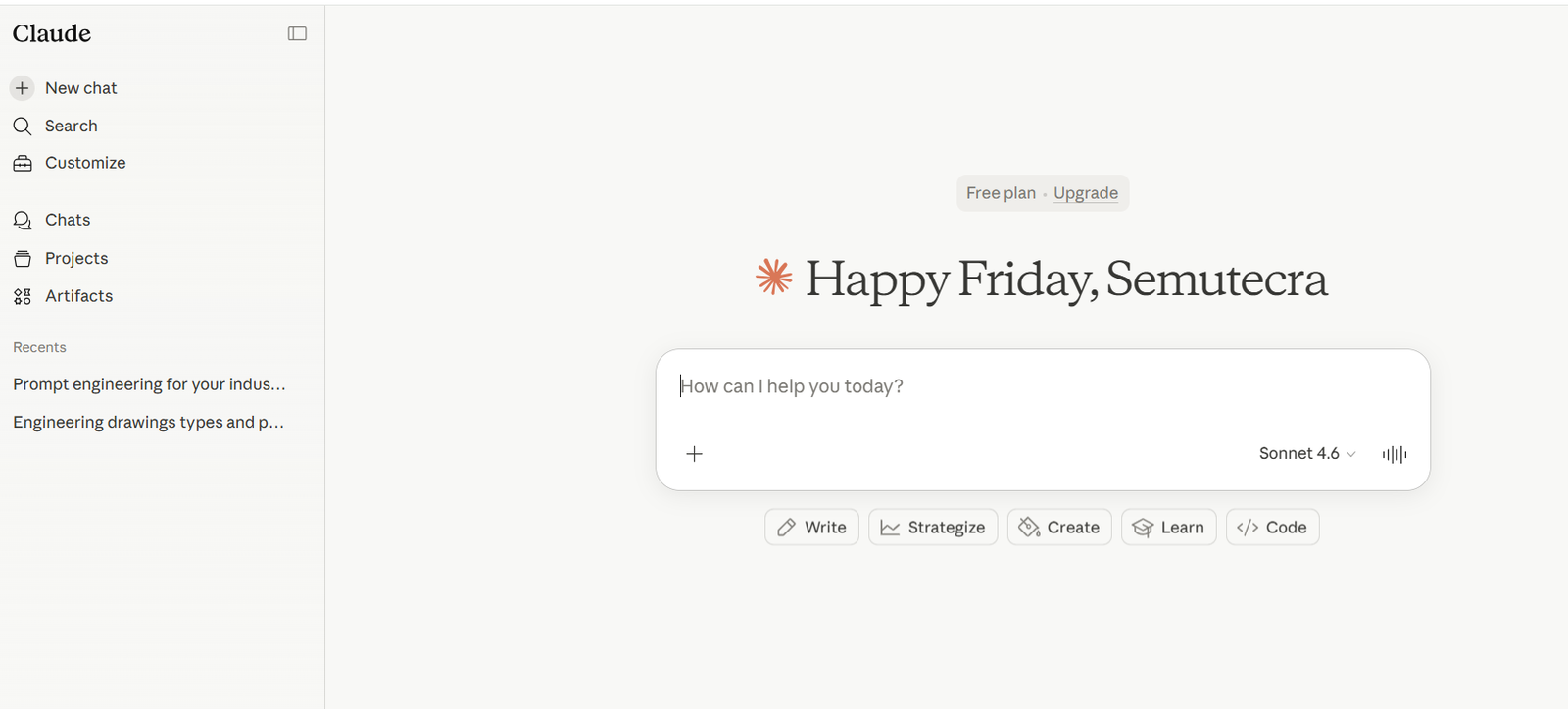
Most people use Claude AI the same way they use a search engine, type a vague question, read the answer, move on. They get average results, conclude that AI is overrated, and miss the point entirely.
Claude AI is not a search engine. It is a reasoning engine. And like any precision tool, the quality of output depends almost entirely on the quality of input. The engineers, drafters, and technical teams getting genuinely useful results from Claude AI for engineers are not smarter, they are writing better prompts.
This is where prompt engineering Claude AI becomes critical.
Specifically, they are writing Claude prompts for engineering that match how Claude processes information, which is fundamentally different from other tools. If you are learning how to use Claude AI effectively, understanding this difference is the starting point.
This guide covers what makes Claude different, the techniques that unlock its real capability, and exactly how to apply prompt engineering Claude AI engineering design in real workflows.
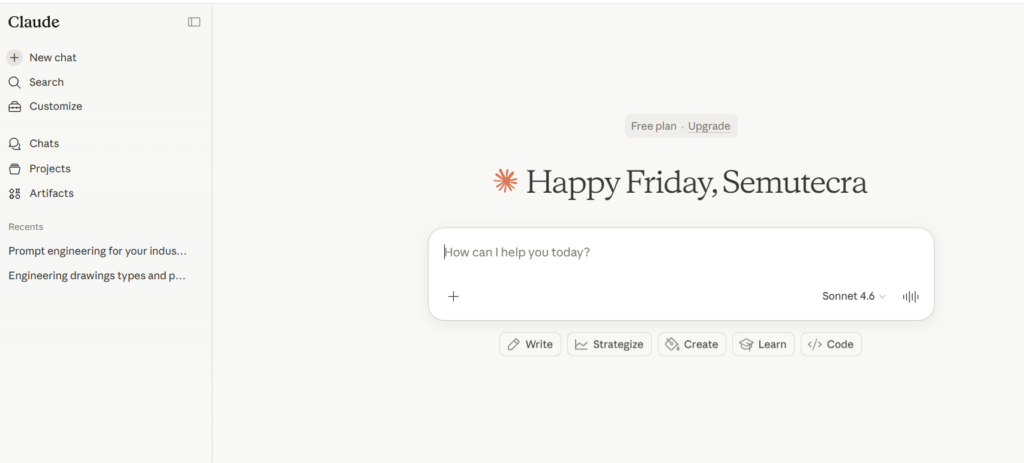
Why Claude Responds Differently, and Why It Matters for How You Prompt
Understanding how Anthropic Claude works directly impacts how to write better prompts for Claude AI.
Claude was built by Anthropic using Constitutional AI, a training approach that prioritises careful instruction-following, structured reasoning, and nuanced context understanding. The practical result: Claude treats your prompt like a contract. What you specify, it delivers. What you leave vague, it fills with reasonable assumptions, and those assumptions may not match what you actually need.
That’s why structured prompts are essential.
Two specific architectural features set Claude AI apart for technical and professional work:
1. XML-native processing:
Claude is designed to understand XML tags Claude structure natively.
Using tags like:
<role><context><task><example>
…helps create clear boundaries in your prompt. This is the foundation of any Claude AI XML tags tutorial and one of the biggest differences in Claude vs ChatGPT prompt engineering.
This approach improves:
- Accuracy
- Consistency
- Output formatting
2. Massive context window:
Claude models like Claude Sonnet and Claude Opus support extremely large context window sizes (up to ~200K tokens).
This makes Claude ideal for:
- Full engineering documents
- Drawing notes
- Large specifications
This is where Claude AI for engineers clearly stands out in real workflows.
Claude 4.x models also follow instructions more literally than previous versions. If you do not ask for something, you will not get it. This is a feature, not a bug, it means you get predictable, controllable outputs. But it requires you to be explicit. Vague prompts now produce vague results more reliably than ever.
Anthropic publishes its own prompting best practices at docs.anthropic.com/en/docs/build-with-claude/prompt-engineering. It is worth reading directly, the official guidance is more useful than most third-party articles.
The Claude-Specific Techniques That Actually Make a Difference
These are not generic AI tips. These are techniques specific to how Claude processes prompts techniques that do not work as well, or work differently, with ChatGPT or Gemini.
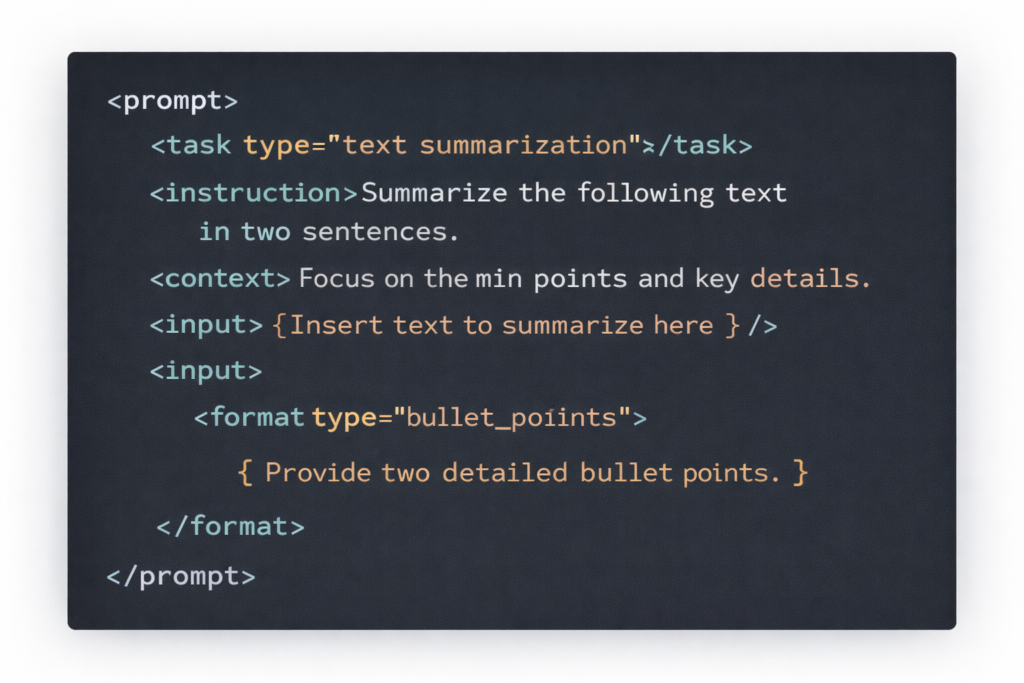
1. Use XML Tags to Structure Complex Prompts
This is the single highest-impact change most engineers can make to their Claude prompts. When your prompt has multiple distinct components instructions, context, examples, variable inputs, wrap each in clearly labelled XML tags.
<role>
You are a structural engineer producing fabrication notes to AISC standards.
</role>
<context>
The client is a steel fabricator in the US. They need material and weld notes
for a 310UB46.2 floor beam, Grade 350 steel, connected via bolted end plates.
</context>
<task>
Write 5 general notes for inclusion on the fabrication shop drawing.
Cover: steel grade, weld standard, bolt specification, surface prep, inspection.
</task>
<format>
Numbered list. Maximum 15 words per note. Plain language. No abbreviations.
</format>
Without XML tags, Claude treats the entire prompt as one undifferentiated block and has to guess how much weight to give each section. With tags, it processes each section independently role informs tone, context informs accuracy, task defines the output goal, format controls structure. The result is more focused, more consistent, and far less likely to blend irrelevant information into the output.
Pro tip: Use consistent tag names across all your prompts and save them as reusable templates. Once Claude has learned your tag structure from context, outputs become even more predictable across sessions.
2. Write Role Prompts with Specific Depth
Role assignment works in all major AI models, but Claude responds to deeper specificity more reliably than most. The difference between ‘you are a structural engineer’ and ‘you are a structural engineer with 15 years of experience in industrial steel fabrication, familiar with AISC 360 and AWS D1.1, currently reviewing a drawing package before issue to a US fabricator’ is not cosmetic, it meaningfully shifts the accuracy and depth of the output.
This improves accuracy in Claude prompts for engineering and ensures outputs match real-world standards.
3. Activate Extended Thinking for Complex Problems
Claude’s Extended Thinking mode allows the model to reason through a problem step by step before producing its final answer. For engineering tasks, load calculations, design decisions, drawing review, specification writing, this produces substantially better outputs than a single-pass response.
To activate it in a prompt, you do not need special commands. Simply ask Claude to think through the problem before answering:
Before writing the specification, work through the following:
1. What are the key functional requirements for this part?
2. Which tolerances are safety-critical vs non-critical?
3. Which notes are mandatory vs informational?
Then write the final specification based on your reasoning.
This is particularly powerful for drawing reviews, where asking Claude to ‘check for completeness before summarising findings’ catches issues that a direct question would miss. It’s a core part of advanced prompt engineering workflows.
4. Give Claude Positive Instructions, Not Just Prohibitions
Claude 4.x models respond significantly better to positive framing than to prohibitions. ‘Only use data provided in the context below’ consistently outperforms ‘Do not make up information.’ ‘Use bullet points with one sentence each’ outperforms ‘Don’t write long paragraphs.’
This is not a minor stylistic point, it is a documented pattern in how the model processes instructions. Every time you write ‘don’t do X’ in a prompt, reframe it as ‘do Y instead.’
Avoid: Using aggressive capitalisation like ‘CRITICAL!’ or ‘YOU MUST NEVER’ in Claude prompts. According to practitioners and Anthropic’s own documentation, this overtriggers the model and produces worse outputs than calm, direct instructions. Just say what you want. Claude follows instructions precisely when they are clearly stated.
5. Use Few-Shot Examples Inside <example> Tags
When you need Claude to match a very specific format, a particular house style for drawing notes, a specific BOM layout, a client-specified specification format, provide one or two examples directly in the prompt wrapped in <example> tags.
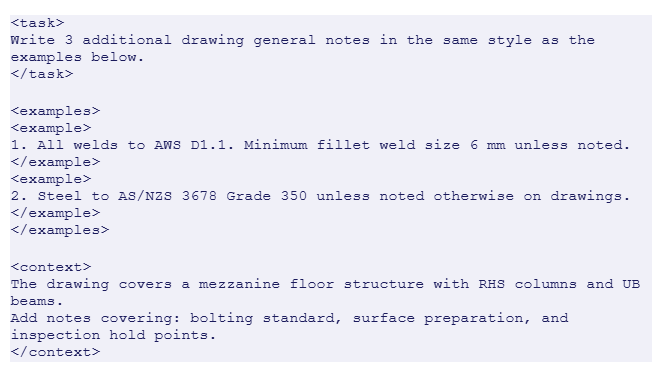
This technique eliminates most of the editing you would otherwise do after the fact. Claude matches the length, tone, structure, and technical register of your examples with high fidelity, because the tags signal clearly what is an instruction and what is a model to follow.
Claude vs ChatGPT for Engineering Work: What’s Actually Different
Both models are capable. Choosing the right one for the task saves time and produces better results than defaulting to one tool for everything. When comparing Claude vs ChatGPT for engineering tasks, the difference comes down to workflow needs.
| Task Type | Claude Advantage | ChatGPT Advantage |
|---|---|---|
| Long document analysis | 200K token context handles entire specification packages, full drawing sets, or long project histories in one session | Shorter documents where conversational back-and-forth refines the output |
| Structured outputs (specs, notes, BOMs) | XML tag structuring produces highly consistent, format-controlled outputs across multiple runs | More flexible when format requirements are loose or undefined |
| Complex multi-step reasoning | Extended Thinking mode excels at design reviews, multi-condition checks, and reasoned engineering decisions | Chain-of-thought prompting works well but is less systematically consistent |
| Following detailed instructions | Literal instruction-following, what you specify is what you get, highly predictable | More forgiving of vague prompts, fills gaps with reasonable defaults |
| Real-time web research | No native web search in standard use, all context must be in the prompt | Web search integration available, better for tasks requiring current data |
| Creative, open-ended tasks | Strong but benefits from explicit style/tone instructions | Slightly more natural for freeform creative output without heavy structuring |
The most productive professionals in 2026 do not pick one model and stick to it. They use Claude for structured, long-context, precision-critical tasks and ChatGPT when they need web access or conversational iteration. The right tool for the task, not loyalty to a brand.

Ready-to-Use Claude Prompt Templates for Engineering Tasks
Copy, adapt, and save these. Each uses the XML structure and technique principles covered above, they are not hypothetical examples, they are the starting point for real engineering workflow tasks.
| Task | Claude Prompt Template (adapt for your project) |
|---|---|
| Drawing general notes | <role>Structural drafter, AISC standards, US projects.</role><task>Write 5 general notes for a steel fabrication drawing. Cover: steel grade (A992/A36), weld standard (AWS D1.1), bolt grade (ASTM A325), surface prep (SSPC-SP6), and inspection requirements.</task><format>Numbered list. Max 12 words per note. No abbreviations.</format> |
| Design brief summary | <role>Senior mechanical engineer.</role><task>Convert the requirements below into a one-paragraph engineering brief for a CAD outsource partner. Include: part function, key dimensions, material, tolerance class, and required file format.</task><context>[Paste your raw requirements here]</context><format>Max 120 words. Plain English. No jargon.</format> |
| Drawing review checklist | <role>Senior structural engineer reviewing a drawing package before issue to fabrication.</role><task>Review the following drawing notes and flag any issues. Check for: missing tolerances, unspecified materials, ambiguous weld callouts, missing revision references, conflicting dimensions.</task><context>[Paste drawing notes here]</context><format>Bullet list. Each issue: flag as HIGH/MED/LOW. One sentence per item.</format> |
| Specification writing | <role>Mechanical engineer, pressure vessel experience, ASME BPVC knowledge.</role><task>Write a material and fabrication specification for the component described in <context>. Think through key functional requirements first, then write the spec.</task><context>[Paste component description]</context><format>Numbered paragraphs. Max 200 words total. Reference ASME standards where relevant.</format> |
| RFI response | <role>Project structural engineer responding to a steel fabricator RFI.</role><task>Write a formal RFI response to the query in <context>. Be precise and conclusive. Reference the drawing number provided.</task><context>[Paste RFI text and drawing number]</context><format>Max 150 words. Professional tone. Conclude with a clear decision or instruction.</format> |
Save these as Projects in Claude: Claude’s Projects feature lets you save a system prompt that applies to every conversation in that project. Set your role, standards, and output format preferences once, and every task you bring to that project inherits them automatically. This is the single fastest way to eliminate repetitive prompt setup.
Frequently Asked Questions
1. What is prompt engineering for Claude AI?
Prompt engineering Claude AI is the process of structuring instructions using techniques like XML tags Claude, role prompting, and constraints to get accurate outputs.
2. What are XML tags in Claude AI?
XML tags Claude are structured labels that separate instructions, context, and examples, improving clarity and output quality.
3. What makes Claude different from ChatGPT?
The key difference in Claude vs ChatGPT prompt engineering is:
ChatGPT → flexible, conversational tasks
Claude → structured, precise, long-context tasks
4. How do I activate extended thinking in Claude?
Ask Claude to reason through the problem step by step before giving its final answer. For Claude API users, there is also an extended_thinking parameter. In the chat interface, explicitly asking Claude to ‘think through’ a problem activates deeper reasoning.
5. Can Claude read full engineering drawing packages?
Yes, Claude supports up to 200,000 tokens of context (approximately 500 pages of text). You can paste full specification documents, drawing notes, or project histories and ask Claude to analyse, summarise, or cross-reference across all of it.
6. What is the Claude Projects feature?
Claude Projects lets you set a persistent system prompt that applies to every conversation in that project your role, standards preferences, output format rules, and context. It eliminates repetitive setup and makes outputs more consistent across sessions.
7. Do I need coding skills to use Claude for engineering tasks?
No. XML tags look like code but require no programming knowledge, they are just labelled brackets around sections of your prompt. All the techniques in this guide work in plain text in the Claude.ai chat interface.
8. How do I write better prompts for Claude AI?
Learn how to write better prompts for Claude AI by using:
- Structured inputs
- Role definitions
- Clear format instructions
- Context-based prompting
The Bottom Line
Claude AI is genuinely one of the most capable tools available for professional engineering work in 2026 for writing specifications, reviewing drawings, structuring technical documents, and reasoning through design decisions. But it rewards structured input. Vague prompts produce vague outputs.
The techniques in this guide, XML tagging, specific role prompts, extended thinking, positive framing, and few-shot examples, are not advanced developer tricks. They are practical communication habits that take about a week to build and pay back every time you use Claude for a real task.
Start with one change: the next prompt you write for Claude, add a <role>, a <task>, and a <format> tag. Compare that output to what you were getting before. The difference is usually immediate and obvious.
Put Claude to Work on Your Engineering Projects, Without the Learning Curve
SimuTecra uses Claude AI and other AI tools inside our drafting and design workflows, so the speed and accuracy benefits pass directly to you. Every drawing still goes through expert human review before delivery. You get faster turnaround without trading quality for it.
Tell us about your project and we will come back with a clear scope and quote.
Leave a Reply