| Xometry Aug 2025 tested seven AI text-to-CAD tools and found all required substantial engineering refinement before the output could be used for manufacturing 600 DPI minimum scan resolution for clean raster-to-vector conversion; below this threshold, noise interferes with line recognition in both manual and AI workflows Ragnar CAD February 2026 sketch-to-3D AI tool claims to close the gap between ‘I can see it’ and ‘I can model it’ for concept geometry from annotated sketches Gartner 2026 projects that a majority of digital design workflows will include some level of AI-assisted modelling, with sketch interpretation as a growing entry point |
Introduction:
Before any engineer opens CAD software, before any parametric model is built, before any drawing is dimensioned, there is usually a sketch. On the back of an envelope, on a whiteboard, on graph paper in a site meeting, on a napkin at a client conversation. The sketch is where the design intent lives in its earliest, most honest form.
The challenge is that a sketch, no matter how clear to the person who drew it, is not a manufacturing instruction. It has no scale guarantee, no tolerance definition, no projection convention, no standard symbol for surface finish or weld specification. A fabricator or machinist working from a hand sketch is working from engineering intent without the engineering rigour that turns that intent into a part.
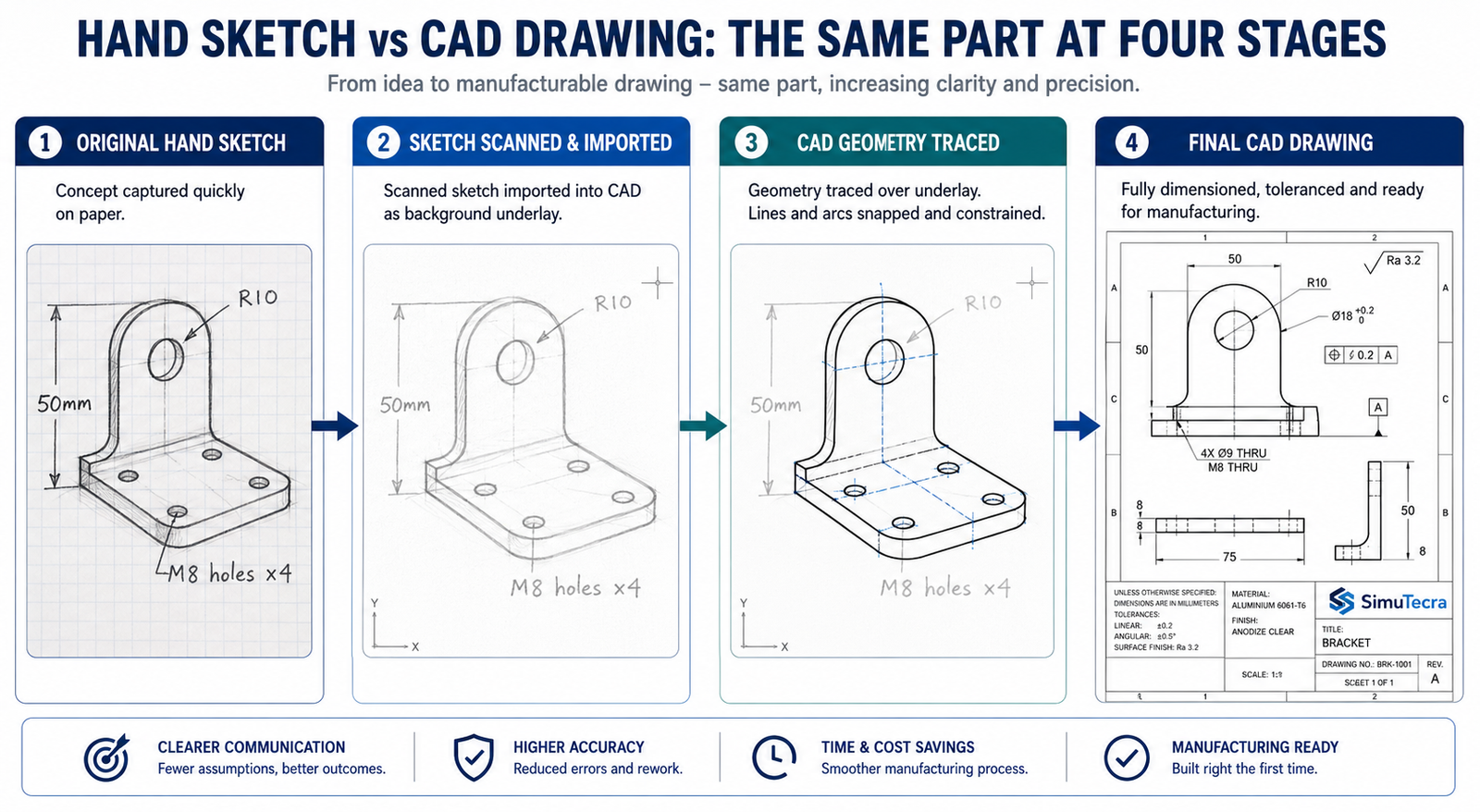
Converting a hand drawn sketch to CAD is the process that bridges that gap. It is not simply tracing lines. It is a structured engineering activity that takes the intent captured in the sketch and translates it into a document that carries enough information for a manufacturer to build the part correctly without needing to contact the engineer for clarification.
This guide covers the complete workflow for sketch to CAD conversion, from preparing the sketch before scanning to issuing the final drawing for manufacturing. It also covers where AI tools genuinely help in 2026, where they do not, and the mistakes that produce wrong geometry at every stage of the process.
| Quick answer: To convert a hand-drawn sketch into a CAD drawing: annotate the sketch with all critical dimensions before scanning, scan at 600 DPI minimum, import as a scaled underlay in your CAD software, trace geometry with geometric constraints applied, add dimensions from the sketch annotations, apply GD&T and manufacturing specifications, verify against the original sketch, and peer-review before issue. AI tools can assist with concept geometry but cannot yet produce manufacturing-ready drawings without engineering validation. |
Choosing Your Conversion Approach: Five Methods and When to Use Each
Before starting any CAD drawing from sketch work, the most important decision is which conversion method is appropriate for the output required. The method determines how much time the conversion takes, what quality of output it produces, and whether that output is suitable for its intended use.
| Approach | What It Involves | Best When |
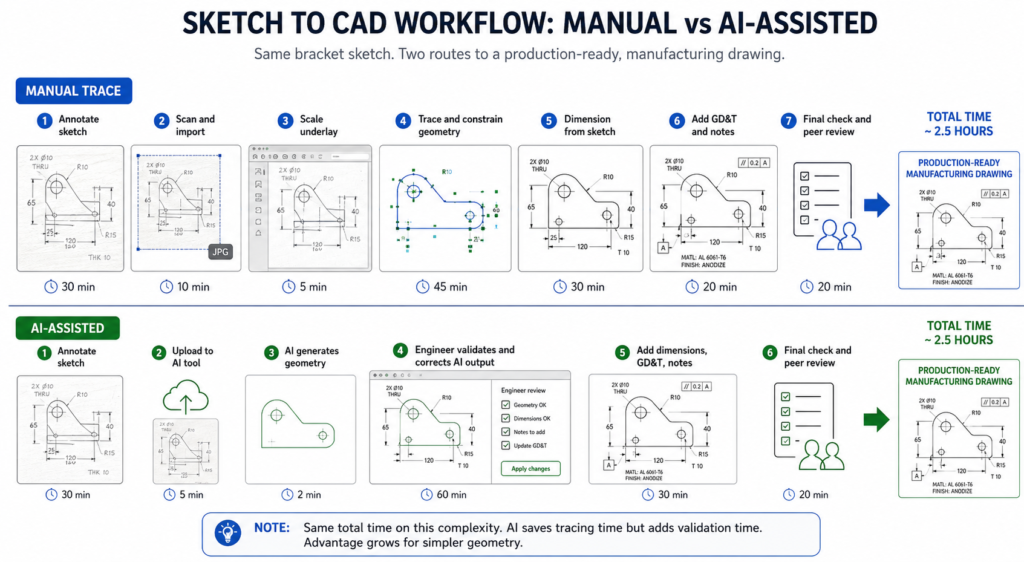
| Manual trace (2D CAD) | Engineer imports scanned sketch as underlay, traces lines manually, applies dimensions | Sketch is complex, requires GD&T, or is destined for a manufacturing drawing package |
| AI-assisted sketch conversion | Upload sketch to AI tool; AI generates geometry; engineer validates and refines | Simple geometry, concept visualisation, or getting a 3D starting point quickly |
| AutoCAD Markup Import | Import scanned or PDF sketch; AutoCAD interprets marks and suggests geometry | Existing AutoCAD workflow; sketch is relatively clean and line-based |
| Photogrammetry + CAD | Photograph physical object or model; import into CAD as reference mesh or point cloud | Part physically exists but no drawing exists; RE workflow supplements sketch |
| Outsourced sketch-to-CAD | Provide annotated sketch to a CAD specialist; they produce the drawing | Team lacks CAD capability; volume of conversions is high; deadline is tight |
The Honest Reality About AI Sketch Conversion in 2026
The AI sketch-to-CAD landscape in 2026 is significantly more active than it was two years ago. Ragnar CAD, launched in February 2026, describes itself as purpose-built to close the gap between seeing an idea and modeling it. AutoCAD Markup Import has been present since the 2023 release and handles line-based sketches reasonably well. Autodesk Raster Design converts scanned images to editable vector geometry in AutoCAD.
However, when Xometry, a major manufacturing marketplace, tested seven text-to-CAD and sketch-to-CAD tools in August 2025, the findings were consistent: all tools produced geometry that required significant engineering refinement before it could be used for manufacturing. The AI is interpreting visual patterns, not engineering intent. It does not know that a circle represents a through-hole of a specific standard size. It does not apply geometric constraints that would make two lines parallel. It does not understand that a tangent transition must be mathematically smooth.
This does not make AI tools useless. For concept geometry, early-stage visualisation, and getting a 3D starting point from an annotated sketch, tools like Ragnar CAD can save meaningful time. But the output requires validation, refinement, and the addition of all manufacturing information before it can be used as a production drawing. The engineer remains responsible for every dimension that appears on the final drawing, regardless of how it was generated.
| AI sketch conversion red flag: Any tool that claims to convert a hand sketch directly to a manufacturing-ready DWG or STEP file without engineering input is making a claim that current technology cannot support. A sketch has no tolerances, no GD&T, no datum structure, and no manufacturing specifications. None of these can be inferred from sketch geometry alone. They must be added by an engineer. The AI handles geometry interpretation. The engineer handles engineering. |
Preparing Your Sketch for CAD Conversion: The Step Most People Skip
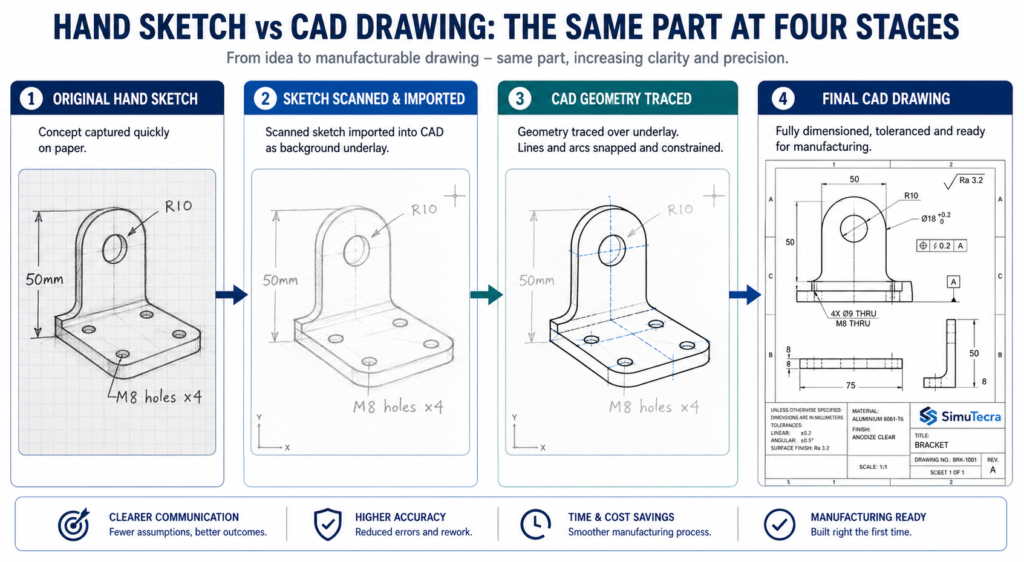
The quality of the CAD drawing you produce is determined before you open the software. A sketch that is fully annotated, clearly drawn, and systematically organised converts quickly and accurately. A sketch that is vague, proportionally distorted, and missing dimensions forces the CAD operator, whether that is you or an outsourcing partner, to make engineering decisions that should have been made by the designer.
The time spent annotating the sketch thoroughly before scanning pays back immediately in the conversion process and many times over if the drawing is being produced by a CAD specialist. Every query raised during conversion, every dimension that must be estimated rather than read, adds cost and delay and risks introducing errors that the original sketch did not contain.
| Sketch Element | What Makes It CAD-Ready | What Causes Problems at the CAD Stage |
| Line clarity | Bold, continuous lines; no broken strokes | Faint pencil lines that digitise as noise; overlapping smudged strokes |
| Dimension annotations | All critical dimensions written clearly next to features | Missing dimensions force CAD operator to guess or query; incorrect output guaranteed |
| Proportions | Sketch roughly to scale; major features proportionally correct | Wildly distorted proportions make the CAD baseline incorrect before any refinement |
| Feature identification | Each feature clearly bounded; circles closed; arcs labelled as arcs | Ambiguous lines that could be a tangency, a step, or a gap produce wrong geometry |
| Orthographic views | Front, top, and side views clearly labelled and positioned | Missing view or mislabelled projection produces 3D model with features on wrong faces |
| Reference planes | Centre lines, axis of symmetry, and datum planes marked | No reference planes forces CAD operator to assume datum structure; may be wrong |
| Notes and callouts | Material, finish, special requirements noted on the sketch | Undocumented requirements surface after CAD is complete; rework cycle begins |
| Scale reference | One known dimension or scale bar present | No scale reference means AI tools guess proportions; manual trace loses context |
The Annotation Checklist: What to Add Before You Scan
- All critical dimensions written in pen next to every feature. Length, width, height, hole diameter, radius, depth, thread specification. Not ‘approximately 50mm’. Exactly 50mm or the correct tolerance range.
- Orthographic view labels. Write ‘FRONT VIEW’, ‘TOP VIEW’, ‘RIGHT SIDE VIEW’ clearly next to each view. Label the projection method if you know it (first-angle or third-angle).
- Centre lines and axes of symmetry drawn as thin lines with alternating long-short dashes, or simply labelled ‘CL’ or ‘SYM’. These define the datum structure that the CAD model must reference.
- At least one scale reference. Either a dimensioned scale bar or one known dimension from which everything else can be scaled. Without this, the CAD operator has no way to set the underlay at the correct scale.
- Material and surface finish notes. Write the material grade and any surface finish requirement directly on the sketch. Add thread standards where relevant (M12x1.75, 1/2-13 UNC).
- Special requirements and constraints. If a feature must be concentric with another, write it. If a surface must be flat within a stated tolerance, note it. If there is a mating part, sketch the mating geometry or note the mating part number.
| The pre-scan annotation habit: Treat the annotation step as a design review of your own sketch. If you cannot write a dimension next to a feature because you do not yet know what the dimension should be, the design is not ready for CAD conversion. The sketch annotation step forces every engineering decision to be made before the drawing production starts, which is exactly when those decisions cost the least to change. |
Step-by-Step: Converting a Hand Sketch to a CAD Drawing
This is the complete workflow for converting a hand-drawn sketch into a professional CAD drawing in AutoCAD or SolidWorks. The same sequence applies for most CAD platforms. The tool names vary but the logic is the same.
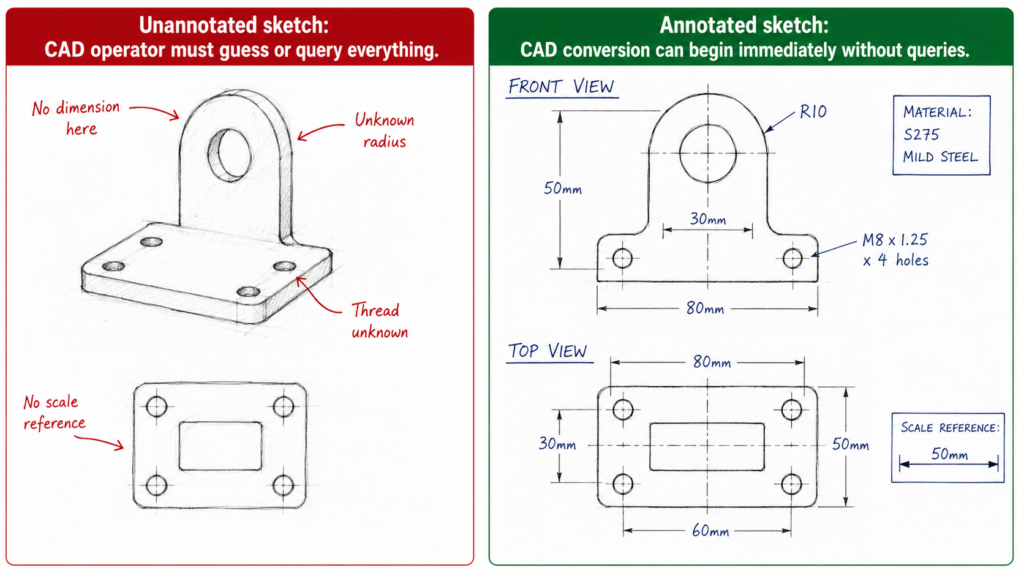
| Step | What Happens | Key Action Required | Common Error at This Step |
| 1. Prepare | Annotate sketch fully before scanning | Add all dimensions, labels, and reference marks to the physical sketch | Scanning first then trying to add annotation to the digital image |
| 2. Scan / photograph | Create a clean digital image of the sketch | 600 DPI minimum for scanning; good lighting for photography; no distortion | Low-resolution scan; angled photograph; shadow across sketch |
| 3. Import underlay | Bring the image into CAD as a reference underlay | Scale the underlay using a known dimension (INSUNITS + reference scale) | Importing without scaling; drawing on top of wrong-scale reference |
| 4. Set up drawing | Configure units, projection method, layers, and template | Use company drawing template before creating any geometry | Starting on Layer 0 with no template; default settings applied |
| 5. Trace 2D geometry | Draw CAD lines and arcs over the underlay | Use constraints to make geometry geometrically correct, not just visually close | Tracing visually without applying geometric constraints; drawing remains unconstrained |
| 6. Apply dimensions | Dimension every feature required for manufacture | Check every dimension against the sketch annotation; query anything unclear | Scaling dimensions from the underlay instead of reading the sketch annotation |
| 7. Add GD&T | Apply tolerances, datum structure, and surface finish callouts | Use the drawing standard appropriate to the manufacturing destination | Skipping GD&T entirely and relying on general tolerance for everything |
| 8. Add 3D model | Extrude or revolve 2D profile to create 3D solid if required | Verify every sketch profile is a closed loop before 3D operation | Open profiles that prevent extrusion; missing fillet or chamfer detail |
| 9. Final check | Overlay CAD drawing on original sketch to verify correspondence | Every feature in the sketch should be present in the CAD; every dimension should match | Missing features; dimensions that do not match the annotated sketch values |
| 10. Issue | Release drawing through normal review and approval process | Peer review against the drawing standard; title block complete | Issuing without peer review; reverting to the sketch as the production reference |
Step 1 to 3: Preparing and Importing the Sketch
The first three steps happen before you draw a single CAD line. Sketch annotation ensures every engineering decision is made before conversion starts. Scanning at 600 DPI minimum produces an image with enough resolution for clean line recognition, whether you are tracing manually or using an AI assist tool. Anything below 400 DPI produces a raster image where sketch lines are broken or blurred at the edges, making accurate tracing significantly harder.
Scaling the underlay correctly is the most technically critical step in the import process. The INSUNITS system variable in AutoCAD controls how the software interprets the scale of inserted content. If INSUNITS is set to millimetres and you import an image scanned at 96 DPI (standard screen resolution), the image will import at screen-pixel scale, not millimetre scale. Use the SCALE command with the reference option immediately after import: select the underlay, pick two points at either end of a known dimension on the sketch, and type the known dimension value. The software scales the underlay so that dimension matches exactly.
Step 4 to 6: Setting Up, Tracing, and Dimensioning
Setting up the drawing before tracing is not optional. Tracing on Layer 0 without a template is the single most common error in sketch-to-CAD conversion work. Layer 0 geometry cannot be managed by layer, cannot have line weights assigned correctly, and creates a drawing that does not meet any professional drawing standard. Open your company template file or create a new drawing with the correct layer structure, then import the underlay into that environment.
When tracing, work with geometric constraints active. Every relationship visible in the sketch that should be geometric, not just visual, must be applied as a constraint. Two lines that look parallel are not necessarily parallel until a parallel constraint is applied. A circle that appears tangent to a line may not be until a tangent constraint is set. Geometry that is visually approximate but not mathematically constrained produces a drawing that cannot be used reliably for manufacturing because the relationships it shows are not guaranteed to hold.
Dimensioning from the sketch annotation, not from the underlay geometry, is the rule that prevents scale errors from propagating into the drawing. The underlay is a reference image. Its geometric proportions may be accurate or may not, depending on how the original sketch was drawn. The annotations on the sketch are the engineering values. Always type the annotated value into the dimension, not the measured distance from the underlay.
Step 7 to 10: GD&T, 3D, Checking, and Issue
Adding GD&T from a sketch is a translation exercise. The sketch may show a circle with a note ‘concentric with boss’. The CAD drawing translates that into a position tolerance referenced to the appropriate datum axis. The sketch may show a surface with a note ‘flat, smooth surface’. The CAD drawing translates that into a flatness tolerance and an Ra surface finish callout. The sketch provides the design intent. The CAD drawing provides the engineering specification.
For 3D modeling from a sketch, the critical check is profile closure. Every 2D sketch profile that will be extruded, revolved, or used as a sweep path must be a closed loop with no gaps, overlaps, or branching lines. In SolidWorks, use the Sketch Doctor tool before any 3D operation to identify open contours. In Fusion 360, the extrude command will warn if the profile is not closed. In AutoCAD, the BOUNDARY command helps identify closed regions from traced geometry.
The final check is the overlay: place the completed CAD drawing alongside the original sketch and compare every feature. Every view that existed in the sketch should exist in the CAD drawing. Every dimension that was annotated on the sketch should appear on the CAD drawing with the correct value. Any feature present in the sketch that is absent from the CAD drawing is a missing element that must be added before issue.
Using AutoCAD Markup Import for Sketch Conversion
AutoCAD Markup Import, introduced in AutoCAD 2023 and developed further in subsequent releases, is Autodesk’s built-in tool for converting scanned drawings and markups into editable CAD geometry. It handles the most common use case for sketch to AutoCAD conversion: a sketch or marked-up drawing on paper, scanned to PDF or image, that needs to become editable DWG geometry.
How Markup Import Works
The workflow: import the scanned image or PDF markup into AutoCAD, which places it as a background reference. Markup Import’s AI analyses the image and identifies lines, arcs, circles, and text. It then overlays suggested geometry on the image, which the engineer accepts, rejects, or modifies. Accepted geometry becomes editable AutoCAD objects on specified layers.
The tool is genuinely useful for drawings with clear, clean lines, straight edges, and simple geometry. It struggles with freehand curves, overlapping lines, and complex connection points. It does not interpret engineering intent: a circle with four lines radiating from it at 90-degree intervals might be a bolt circle pattern, a wheel, a connection diagram, or a structural element. Markup Import will create a circle and four lines. Deciding what they mean is an engineering judgment that the tool does not make.
Autodesk Raster Design: The More Powerful Alternative
For organisations with more demanding raster-to-vector conversion requirements, Autodesk Raster Design (a free add-on for AutoCAD subscribers) provides more comprehensive raster image processing. It cleans image noise, straightens lines, converts raster arcs to vector arcs, and handles complex legacy drawing conversion more reliably than Markup Import alone.
Raster Design is particularly useful for converting large volumes of legacy scanned drawings to editable CAD, a common requirement in industries that have paper drawing archives from pre-CAD decades. For converting fresh hand sketches, Markup Import is usually sufficient.
AI Sketch-to-CAD Tools: What Actually Works in 2026
The AI sketch to CAD market in 2026 is loud and active. New tools appear regularly with significant marketing claims. The honest engineering assessment is that all current tools sit somewhere on the spectrum between ‘useful starting point for concept geometry’ and ‘requires complete engineering rebuild before manufacturing use’. None sits at ‘production-ready manufacturing drawing from sketch without engineering input’.
| Tool | Type | What It Actually Does | Best Realistic Use Case | Honest Limitation |
| Ragnar CAD | Sketch-to-3D AI | Interprets sketch geometry; generates 3D mesh or solid | Concept geometry from annotated sketch | Output needs significant refinement for manufacturing use |
| AutoCAD Markup Import | Drawing import | Recognises lines and shapes in scanned markup; suggests CAD geometry | Upgrading scanned 2D drawings to editable DWG | Does not understand engineering intent; produces dumb geometry |
| Autodesk Raster Design | Raster-to-vector | Converts scanned raster image to vector lines in AutoCAD | Existing AutoCAD workflow with scan input | Manual cleanup of noise and artefacts still required |
| Leo AI | Engineering AI | Searches existing CAD vault; assists with design intent; not sketch-to-CAD | Finding similar existing parts; reuse of previous designs | Not a sketch conversion tool; often mispositioned in marketing |
| Pixa / similar | AI image-to-visual | Generates technical-style visual from sketch image | Visualisation and presentation images | Not a CAD file; not manufacturable; not dimensioned |
| SketchUp | Manual 3D modeling | Simple push-pull 3D from 2D sketch input; not AI-driven | Architecture concept models from floor plan sketch | No engineering GD&T capability; not suitable for manufacturing |
| Traditional tracing | Manual CAD | Engineer manually traces sketch in AutoCAD or SolidWorks | Any application requiring a production-ready drawing | Slowest method; most reliable for manufacturing output |
The Xometry Test Results: What the Data Actually Shows
When Xometry tested seven AI sketch and text-to-CAD tools in August 2025, the findings were consistent across all tools: simple prismatic geometry was handled reasonably; complex geometry with multiple interacting features was inconsistent; none produced output with tolerances, GD&T, or manufacturing specifications; all required significant engineering review and refinement.
This is not a criticism of the tools. It reflects the fundamental challenge: interpreting sketch geometry is a different problem from understanding engineering intent. A sketch line that represents a wall might be 2mm thick, 20mm thick, or structural steel. The sketch looks the same. The engineering specification does not. Until AI tools can reliably infer engineering intent from visual sketch input, the engineer remains essential to every sketch-to-CAD workflow that produces a manufacturing deliverable.
Where AI Sketch Tools Add Genuine Value
- Concept geometry for client presentations. Getting a rough 3D view of a concept in minutes rather than days. The geometry does not need to be manufacturing-ready.
- Starting point acceleration. A reasonable first-pass geometry from Ragnar CAD or Markup Import gives the engineer a starting model to refine rather than building from a blank file.
- Legacy drawing digitisation at volume. Converting hundreds of scanned paper drawings to editable DWG where speed matters more than perfection on each individual drawing.
- Rapid iteration on proportions. Testing multiple layout interpretations of the same sketch quickly before committing to detailed CAD work.
Working in SolidWorks: Converting a Sketch to a Parametric 3D Model
When the end deliverable is a 3D parametric model rather than a 2D drawing, SolidWorks (or Creo, Inventor, or Fusion 360) is the appropriate tool. The workflow differs from AutoCAD in a fundamental way: instead of tracing the sketch as a 2D drawing, you trace it as a 2D sketch profile inside SolidWorks that will then be extruded, revolved, or used as a path sweep to create the 3D solid.
The SolidWorks Sketch Import Workflow
- Create a new part document using your company SolidWorks template.
- Insert the scanned sketch as a sketch picture on the front plane or the plane most representative of the primary view in the sketch.
- Scale the sketch picture by dragging the scale handle or entering a scale factor. Use the same reference dimension method: identify a known dimension on the sketch and scale until the measured distance in SolidWorks matches the annotated value.
- Trace the 2D profile over the sketch picture using sketch tools. Apply all geometric constraints. Every relationship in the sketch that should be mathematical must be a constraint, not an approximation.
- Verify closure before any 3D operation. Use Sketch Doctor or the profile highlighting that appears when you hover over the Extrude feature to confirm the sketch is fully closed.
- Apply driving dimensions from the sketch annotations. Make the sketch fully defined before extruding.
- Extrude or revolve to create the 3D body. Delete or hide the sketch picture underlay after the 3D model is complete.
- Create the 2D drawing from the 3D model using SolidWorks Drawing. The drawing views are generated from the model, ensuring the drawing and model are always consistent.
Why SolidWorks Produces a More Complete Output
The SolidWorks workflow produces two deliverables from one sketch: a parametric 3D model and a manufacturing drawing derived from that model. The drawing and model are linked: change the dimension in the drawing and the model updates; change the model and the drawing views update. This is significantly more valuable than a 2D AutoCAD drawing alone for parts that will be revised, analysed, or used as the basis for a part family.
For straightforward 2D applications (construction drawings, civil layouts, P&IDs, structural floor plans) AutoCAD is the more efficient route. For mechanical part design that will go through multiple iterations, SolidWorks or an equivalent parametric 3D platform produces an output that serves the full product development lifecycle, not just the initial manufacturing order.
Outsourcing Sketch-to-CAD Conversion: When and How
Sketch-to-CAD conversion is one of the most commonly outsourced engineering drawing activities, and for good reason. It is a well-defined scope of work with a clear input (the annotated sketch) and a clear output (the CAD drawing), and it benefits from specialists who do this type of work repeatedly and efficiently.
The conditions under which outsourcing sketch-to-CAD conversion makes sense: the volume of conversions is higher than in-house capacity can handle efficiently, the in-house team lacks CAD capability or CAD proficiency for the specific type of drawing required, the deadline is tighter than the in-house workflow can meet, or the drawing type (architectural floor plans, structural steel, MEP schematics) requires specialist CAD knowledge that the in-house team does not have.
What to Give an Outsourcing Partner for Sketch Conversion
- The annotated sketch: fully dimensioned, labelled, with material and finish notes, and at least one scale reference. If the sketch is inadequately annotated, the partner will query or guess. Both add cost and risk.
- The drawing specification: your drawing standard (ASME Y14.5 or ISO 1101), CAD software and version, file format required, layer naming convention, and title block template. Without these, the partner produces a technically competent drawing in their own style, not yours.
- Go-by drawings: two or three representative drawings from your existing archive that show your exact style, layer structure, line weights, and annotation conventions. A written specification and a visual example together eliminate virtually all style-related rework.
- A clear brief of any constraints not visible in the sketch: mating part requirements, assembly context, functional requirements that affect manufacturing priority. The sketch shows geometry. The brief provides the engineering context that the sketch cannot communicate.
Common Mistakes in Sketch-to-CAD Conversion
These are the errors that most consistently produce wrong output from sketch to CAD conversion, whether the work is done in-house or by an outsourcing partner.
| Mistake | What Goes Wrong | Prevention |
| Scanning sketch before annotating it | Digital image has no dimensions; guessing from proportions throughout | Complete all annotations on the physical sketch before scanning. Scanning is the last step in sketch preparation. |
| Importing at wrong scale (INSUNITS mismatch) | All traced geometry is at the wrong scale; dimensions incorrect | Set INSUNITS before import. Scale the underlay using one known dimension immediately after import. |
| Tracing visually without geometric constraints | Lines appear parallel but are not; circles appear tangent but are not | Apply constraints (parallel, perpendicular, tangent, concentric) to every geometric relationship in every sketch. |
| Using scale from underlay for dimensions | Dimensions reflect the scan proportions, not the design intent | Always read dimensions from the sketch annotation. Never scale from the underlay image. |
| Treating AI-generated geometry as production-ready | Mesh or approximated geometry sent to manufacturer; parts cannot be made | AI tools produce starting points. Every AI output requires engineering validation before manufacturing release. |
| Skipping the 3D profile closure check | Extrude fails or creates wrong solid because sketch profile is not closed | Check every sketch profile for closure before any 3D operation. Use the profile analysis tool before extruding. |
| No peer review before issue | Drawing released with errors that a second set of eyes would have caught | Apply the pre-release checklist. Require a second engineer to sign off before any drawing is issued from a sketch. |
| Losing the original sketch after CAD is complete | Conflict between sketch intent and CAD output cannot be resolved | Archive the annotated sketch alongside the CAD file as a permanent project record. |
| The final overlay check: The single most effective quality check in any sketch-to-CAD workflow is placing the finished CAD drawing alongside the original annotated sketch and comparing them feature by feature. Every view present in the sketch should be present in the CAD. Every annotated dimension should appear in the CAD with the correct value. Every note should be accounted for. This check takes five minutes and catches the majority of conversion errors before the drawing is issued. |
Conclusion:
A hand-drawn sketch is the most natural form of engineering communication. It is fast, flexible, and honest. It captures proportions, relationships, and intent in a way that talking around a table cannot. But it is not an engineering instruction. It is the raw material that an engineering drawing is made from.
The process of converting a hand drawn sketch to CAD is the process of translating that raw material into a precise, complete, and unambiguous manufacturing instruction. It requires engineering judgment at every step: which tolerances apply, which GD&T controls are needed, which dimensions govern assembly, and which features are critical versus general. These judgments cannot be made by tracing lines. They cannot be made by AI tools in 2026. They are made by the engineer who understood what the sketch was trying to say.
AI tools are genuinely useful for concept geometry, for getting a 3D starting point from an annotated sketch, and for converting large volumes of legacy scanned drawings. They are not yet useful for producing manufacturing-ready engineering drawings from sketches without engineering validation. The tools are evolving quickly. The engineering requirement remains constant.
Annotate the sketch fully. Import it correctly. Trace with constraints. Dimension from the sketch, not the underlay. Verify against the original. Then issue.
Frequently Asked Questions
How do you convert a hand-drawn sketch into a CAD drawing?
To convert a hand-drawn sketch into a CAD drawing, follow this sequence: annotate the sketch with all critical dimensions, notes, and labels before scanning; scan at a minimum of 600 DPI or photograph with good even lighting; import the image into your CAD software as an underlay; scale the underlay using a known reference dimension; set up your drawing template with correct units, layers, and projection method; trace the geometry over the underlay and apply geometric constraints to all relationships; add dimensions, GD&T, surface finish, and material callouts; verify the CAD output against the original sketch by overlaying; and peer-review before issuing the drawing for manufacturing.
Can AI tools convert a hand-drawn sketch to a CAD file automatically?
AI tools can interpret sketch geometry and generate a starting point for a CAD model, but they cannot currently produce manufacturing-ready drawings from sketches without significant engineering input. When Xometry tested seven text-to-CAD tools in August 2025, all required substantial refinement for engineering use. Tools like Ragnar CAD (February 2026) and AutoCAD Markup Import can accelerate the process for simple geometry. For production drawings requiring GD&T, tolerances, and manufacturing specifications, human engineering validation remains essential regardless of which AI tool is used.
What makes a hand-drawn sketch ready to convert to CAD?
A hand-drawn sketch is ready to convert to CAD when it includes: all critical dimensions written clearly next to every feature, orthographic views labelled by name (front, top, side), centre lines and axes of symmetry marked, a scale reference or at least one known dimension, all feature boundaries clearly closed with no ambiguous lines, material and surface finish notes where relevant, and any special requirements or constraints annotated on the drawing. A sketch without dimensions is not a CAD input. It is a visual concept that requires engineering decisions before CAD work can begin.
What is the difference between tracing a sketch in CAD and using AI conversion?
Manual tracing in CAD involves importing the sketch as an underlay, drawing lines and arcs over it with geometric constraints applied, dimensioning every feature from the sketch annotations, and adding GD&T and manufacturing specifications. The result is an engineering drawing with full design intent. AI conversion interprets sketch geometry automatically and generates geometry without manual input. It is faster for simple shapes but produces approximate geometry without constraints, tolerances, or manufacturing specifications. Manual tracing is required for any drawing that will be used for manufacturing. AI conversion is useful for concept visualisation and early-stage geometry.
How do I scale a hand-drawn sketch correctly in AutoCAD?
To scale a hand-drawn sketch correctly in AutoCAD: first set the INSUNITS variable to match the unit system of your drawing before importing the image. Import the scanned image using the IMAGEATTACH command. Identify one dimension on the sketch where you know the exact real-world value. Use the SCALE command with the reference option to scale the image so that the known dimension matches its correct value in the drawing. Once the underlay is correctly scaled, all traced geometry will automatically be at the correct scale provided your INSUNITS setting is correct.
Should I use AutoCAD or SolidWorks to convert a sketch to CAD?
The choice between AutoCAD and SolidWorks depends on the output required. For 2D manufacturing drawings, construction drawings, or any application where a flat drawing set is the deliverable, AutoCAD is the more efficient tool. The underlay workflow is well-established and the 2D output is directly usable. For parts that require a 3D parametric model, assembly checking, FEA, or a manufacturing drawing derived from a 3D model, SolidWorks is more appropriate. The sketch becomes the reference for a 2D sketch profile in SolidWorks, which is then extruded or revolved to create the solid body. For most engineering manufacturing applications, SolidWorks produces a more complete and useful output from a hand sketch.
‘Autodesk: how AutoCAD Markup Import converts scanned drawings and sketches to editable geometry‘
Leave a Reply