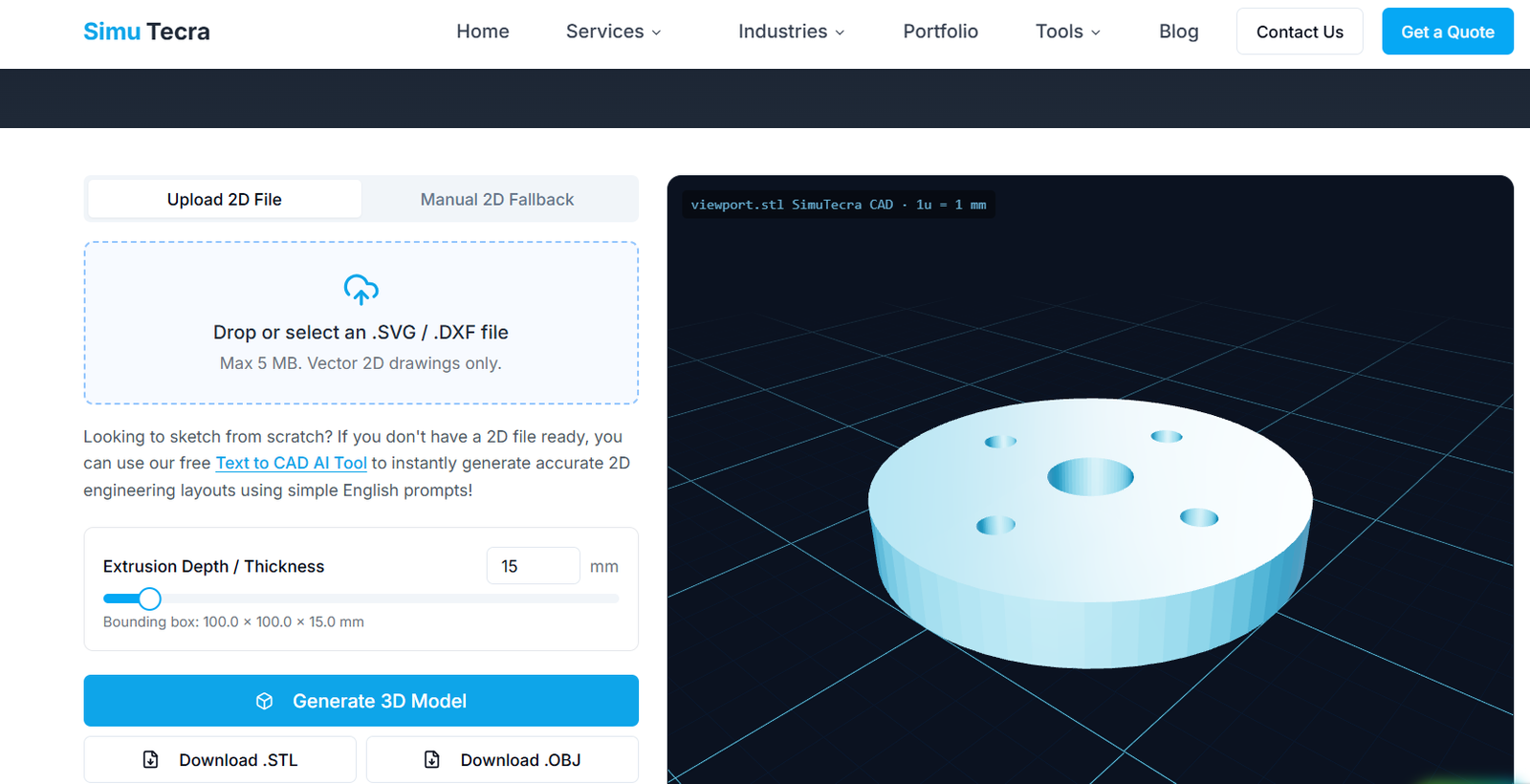
If you’re still manually rebuilding 3D models from old 2D drawings, you’re spending hours on work that modern tools can now do in minutes. Automating 2D to 3D CAD conversion for CNC machining means using software, rather than a person at a keyboard, to turn a flat drawing into a solid model a CAM program can actually machine from.
| QUICK ANSWER Yes, you can automate 2D to 3D CAD conversion using one of four methods: native CAD conversion wizards, dedicated conversion software, AI-based reconstruction, or custom API scripting. For CNC machining specifically, the output needs to be a true parametric STEP solid, not just a visual mesh, and it should always be checked for dimensional accuracy before it goes to CAM. |
This guide covers all four automation methods side by side, which file format actually works for CNC, how accurate automated conversion really is, and a step-by-step process to get from a flat drawing to a CNC-ready 3D model without wasting a machining run on a bad file.
What Does It Mean to Automate 2D to 3D CAD Conversion?
Automating 2D to 3D CAD conversion means letting software interpret a 2D drawing’s lines, arcs, and dimensions, and reconstruct it as a three-dimensional solid, without an engineer manually redrawing every feature by hand.
This matters specifically for CNC machining because CAM software doesn’t cut from a 2D drawing. It needs a 3D solid model to calculate toolpaths, cutter clearances, and machining operations. If your only source is an old drawing, a scanned PDF, or a customer sketch, automated conversion is what bridges that gap without a full manual rebuild.
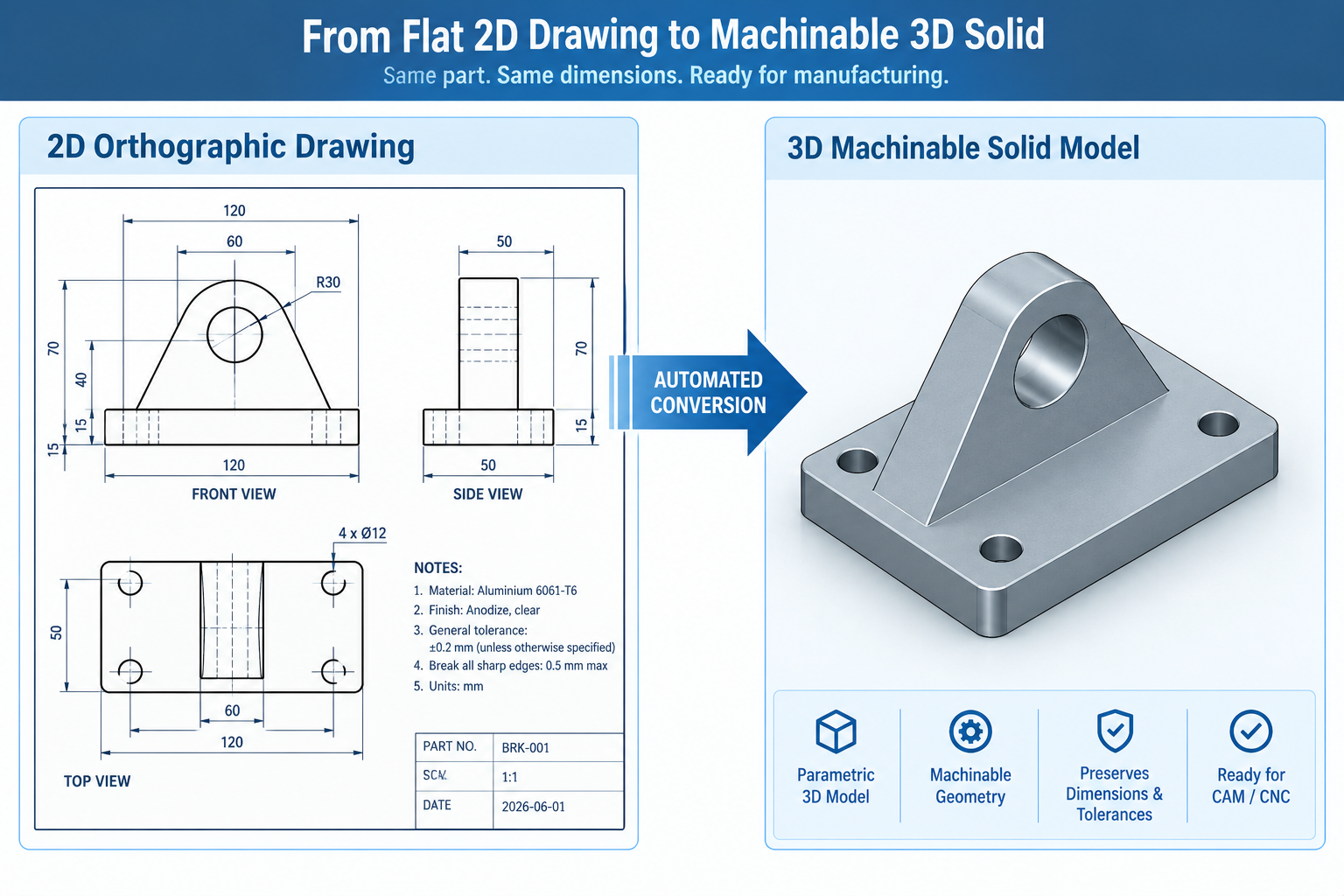
4 Ways to Automate 2D to 3D CAD Conversion
There isn’t one single tool that does this for everyone. The right method depends on your drawing volume, your budget, and how much accuracy you need. Here are the four real approaches used in production today.
| Automation Method | How It Works | Best For | Main Limitation |
| Native CAD conversion tools | Built-in wizards inside SolidWorks, Autodesk Inventor, Fusion 360, and Siemens NX that read a 2D DXF/DWG sketch and extrude, revolve, or auto-sequence it into a solid model | Teams already standardized on one CAD platform who need a fast, in-house way to rebuild simple to moderately complex parts | Struggles with parts that have implied features (fillets, complex holes) not explicitly drawn on every view |
| Dedicated CAD conversion software | Standalone tools such as Scan2CAD or Aspose.CAD that specialize in reading raster images, PDFs, or scanned drawings and outputting clean, editable vector or solid geometry, often with batch and API automation | Digitizing large archives of legacy paper drawings or scanned PDFs at scale, especially for spare-parts and MRO workflows | Output is typically a clean 2D vector file or basic solid, still needs review before it’s treated as production CAD |
| AI and deep-learning reconstruction | Machine learning models trained to recognize geometric features across multiple 2D views (or even photos) and infer a 3D shape, an active and fast-moving research area as well as a growing commercial category | Fast first-pass geometry when the original CAD file is lost but a drawing, PDF, or photo still exists, and speed matters more than final precision | Output is usually a mesh or an unverified solid: no GD&T, no material data, and dimensions that must be checked before machining |
| Scripting and API-driven automation | Custom scripts built on CAD APIs (NX Open, SolidWorks macros, Fusion 360’s Python API) that batch-process large sets of similar 2D drawings into 3D models using a repeatable, rule-based logic | Manufacturers with high volumes of similar, well-standardized drawings, such as a family of brackets or fasteners, where the same rules apply every time | Requires upfront engineering investment to build and maintain the script; not cost-effective for one-off or highly varied parts |
Feature Recognition vs. AI Mesh Generation: Know the Difference
This is the distinction most articles on this topic skip, and it’s the one that actually matters most. Feature recognition (used by native CAD tools and dedicated conversion software) analyzes geometric intent, holes, pockets, fillets, and rebuilds them as true, editable, dimensioned solid features.
AI mesh generation (used by many newer AI tools) predicts an approximate 3D shape from limited 2D input. The result often looks convincing on screen, but it’s typically a mesh with no feature history, no tolerances, and no guarantee the dimensions match the original drawing exactly. Recent peer-reviewed research on deep-learning-based reconstruction confirms this gap is a structural limitation of current methods, not just a rough edge that will disappear with the next software update (more on that in the accuracy section below).
Which File Format Actually Works for CNC Machining?
Automation only helps if the output file is something your CAM software can actually use. Here’s how the common formats stack up.
| File Format | Geometry Type | Good for CNC Machining? | Why |
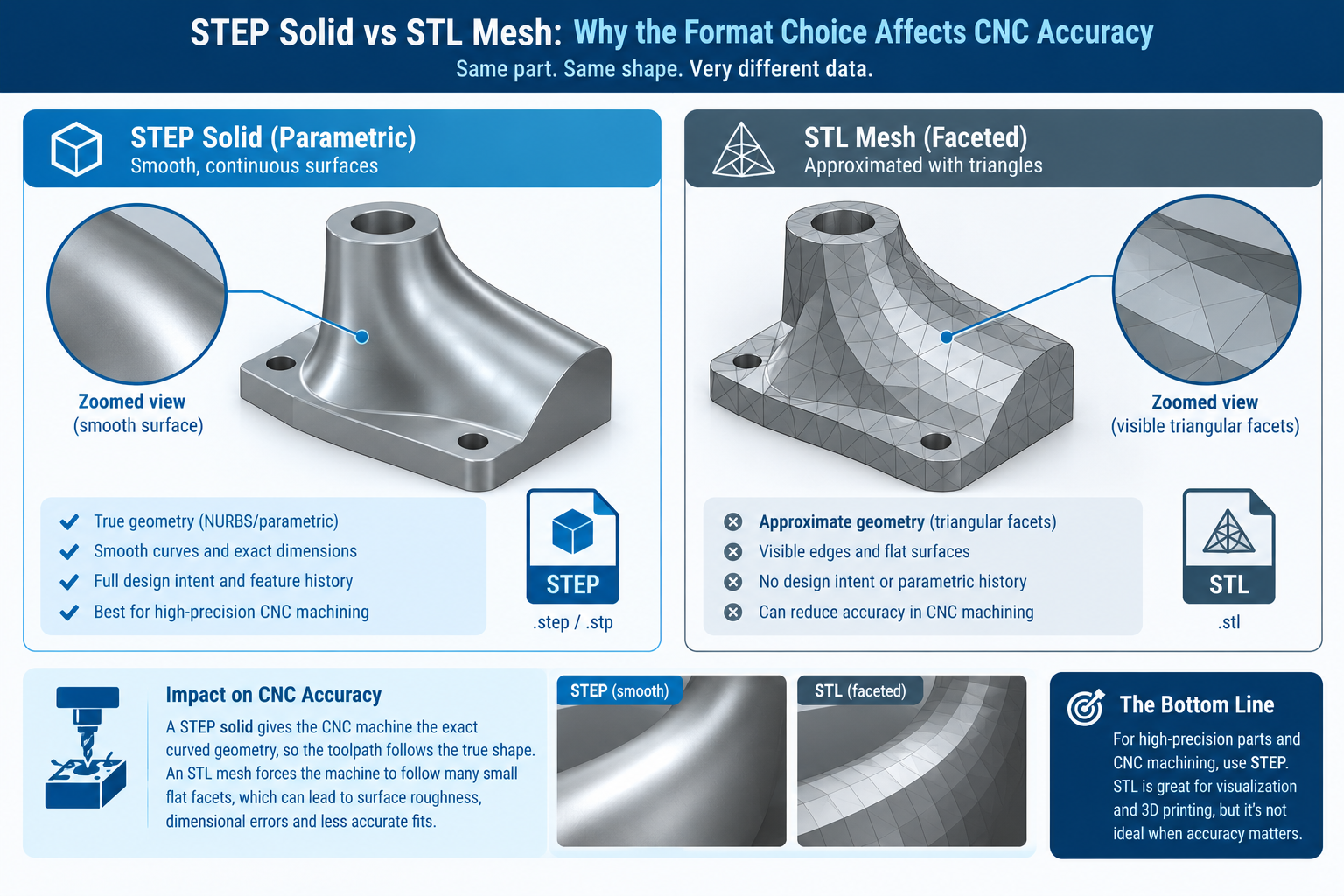
| STEP (.step/.stp) | True parametric/B-rep solid | Yes , the standard choice | Preserves exact solid geometry that CAM software can read directly for toolpath generation |
| DXF/DWG | 2D vector lines and arcs | Only for 2D profile cutting | Fine for laser, waterjet, or simple 2D milling; not a 3D solid on its own |
| STL | Triangulated mesh (approximation) | Not recommended for milling | Approximates curved surfaces with flat facets, which can introduce dimensional error on tight-tolerance features |
| IGES (.igs) | Surface/solid model | Usable, but aging | Still supported by most CAM systems, though STEP has largely replaced it as the preferred neutral format |
If a conversion tool only offers STL output, treat it as a visualization step, not a finished CNC-ready file. For milled or turned parts, always push for a STEP solid before it goes anywhere near a CAM program.
Step-by-Step: From 2D Drawing to CNC-Ready 3D Model
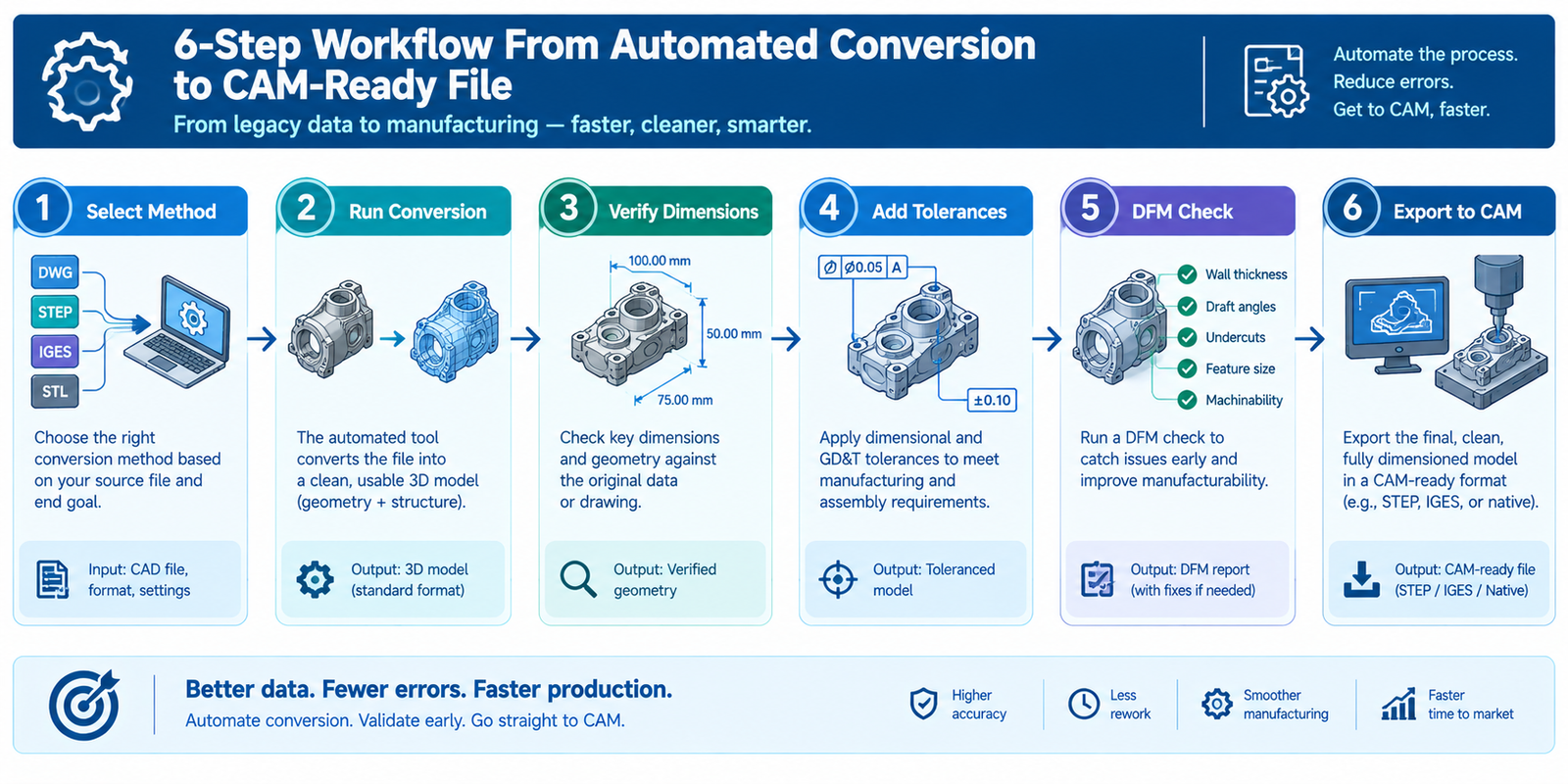
- Choose the right automation method: match the method to your situation using the table above, don’t default to whatever tool you already own if it’s the wrong fit for the job.
- Run the automated conversion: feed in the cleanest source file available, native DXF/DWG beats a scanned PDF, and a scanned PDF beats a blurry photo.
- Verify every critical dimension: cross-check the converted model’s key dimensions against the original drawing before trusting it, especially on mating features and hole positions.
- Add tolerances and GD&T: automated conversion rarely carries tolerance information forward, so this has to be added manually to define acceptable variation for the machinist.
- Run a design-for-manufacturability (DFM) check: confirm the geometry is actually machinable, watch for internal corners, deep pockets, and wall thicknesses your specific CNC setup can’t reliably hold.
- Export to STEP and import into CAM: generate toolpaths only once the solid model has passed the checks above, not directly from the raw conversion output.
How Accurate Is Automated 2D-to-3D Conversion, Really?
Accuracy depends entirely on the method and the source drawing quality. Native feature-recognition tools working from a complete, well-dimensioned DXF file can rebuild simple to moderately complex parts with very high fidelity, because they’re following explicit geometric rules, not guessing.
AI-based reconstruction is a different story. It’s genuinely useful for getting a fast first-pass shape when the original CAD file is gone and only a drawing or photo survives, but current research is clear that the output should be treated as a reference model, not production-ready CNC data, until an engineer verifies it. A 2026 peer-reviewed study on deep-learning-based 2D-to-3D conversion found that combining automated feature recognition with structured verification meaningfully reduced dimensional errors compared to AI inference alone, reinforcing that human review is still the difference between a usable model and a expensive machining mistake.
Common Mistakes to Avoid
- Sending an STL straight to CAM: meshes approximate curves with flat facets, which can create real dimensional error on toleranced features.
- Trusting AI-generated geometry without verification: a visually convincing model is not the same as a dimensionally accurate one.
- Skipping GD&T entirely: without tolerance information, a machinist has no way to know what deviation is actually acceptable.
- Using one tool for every job: a batch-scripting solution built for a family of brackets won’t serve you well for a single, highly custom part, and vice versa.
- Assuming automation removes the need for review: automation speeds up the first draft; it doesn’t replace an engineer’s final check.
Frequently Asked Questions
Q: Can AI convert a 2D drawing into a CNC-ready 3D model?
AI can generate a 3D shape from a 2D drawing quickly, but the output is usually a mesh that needs dimensional verification before it’s safe to machine from. Treat it as a fast first draft, not a finished CNC file.
Q: What is the best file format for CAD to CNC conversion?
STEP is the best format for CNC milling and turning because it preserves true, editable solid geometry. STL is fine for 3D printing but can introduce dimensional error on machined parts.
Q: How accurate is automated 2D-to-3D CAD conversion?
Rule-based feature recognition from a clean, complete drawing is typically very accurate. AI-based reconstruction is faster but less reliable and should always be verified against the original dimensions before use.
Q: What software automatically converts 2D CAD drawings to 3D models?
Simutecra 2D CAD to 3D CAD, SolidWorks, Autodesk Inventor, and Fusion 360 include built-in conversion tools, while Scan2CAD and similar dedicated software specialize in converting scanned or legacy 2D drawings at scale.
Q: Do I still need an engineer to review an automatically converted 3D model?
Yes. Automation speeds up the initial rebuild, but dimension verification, tolerance assignment, and a manufacturability check still require engineering review before the file goes to CAM.
Conclusion
Automating 2D to 3D CAD conversion for CNC machining can save real time, but only if you match the method to the job and never skip verification. Use native or dedicated feature-recognition tools when accuracy matters most, reach for AI reconstruction when speed matters more than precision and the file can be reviewed afterward, and always export a true STEP solid, with tolerances added, before it reaches your CAM software.
Further Reading
For a deeper technical look at how deep learning is being used to automate 2D-to-3D CAD reconstruction, and where verification is still required, see this peer-reviewed 2026 study, Deep Learning-Based Automation for Converting 2D Engineering Drawings into 3D Solid Models, published in the journal Machines (MDPI).
Leave a Reply