Most AutoCAD users start their careers working in 2D: drawing lines, arcs, and polylines on a flat plane. At some point, the need arises to take those 2D drawings, whether they are orthographic views from a hand drawing, a scanned technical sketch, or an existing 2D CAD file, and construct a proper 3D solid model from them. This is the fundamental skill that bridges 2D drafting and 3D engineering design.
It is also, honestly, one of the tasks that AutoCAD tutorials handle poorly. Most guides either teach 3D modelling from scratch without explaining how to interpret existing 2D views, or they explain how to generate 2D drawings FROM an already-completed 3D model. Neither of those answers the question most engineers and students are actually asking: I have a set of 2D orthographic drawings and I need to build the 3D solid from them. Where do I start?
This guide answers that question from beginning to end. It covers the complete workflow: understanding orthographic projection, setting up the AutoCAD 3D modelling workspace, configuring the User Coordinate System (UCS) for each operation, building the 3D solid using EXTRUDE, REVOLVE, LOFT, SWEEP, and PRESSPULL, adding features using Boolean operations, and finally generating professional 2D drawing views from the completed 3D model using FLATSHOT and VIEWBASE. Every section includes numbered steps and practical guidance that works in the real drawing environment.
| Quick Overview: The process of creating a 3D model from 2D views in AutoCAD has five stages: (1) Read and understand the 2D orthographic views to mentally reconstruct the 3D shape. (2) Set up the 3D Modelling workspace and configure visual styles. (3) Draw 2D profiles on the correct planes using the UCS. (4) Use solid creation commands (EXTRUDE, REVOLVE, LOFT, SWEEP, PRESSPULL) to generate 3D geometry from those profiles. (5) Use Boolean operations (UNION, SUBTRACT, INTERSECT) to combine and cut geometry to produce the final form. |
Understanding Orthographic Projection: Reading 2D Views Correctly
Before touching AutoCAD, the most important skill for creating a 3D model from 2D views is the ability to read orthographic projection drawings correctly. Orthographic projection is the system used to represent a 3D object on a 2D drawing sheet using multiple flat views, each showing the object from a different direction.
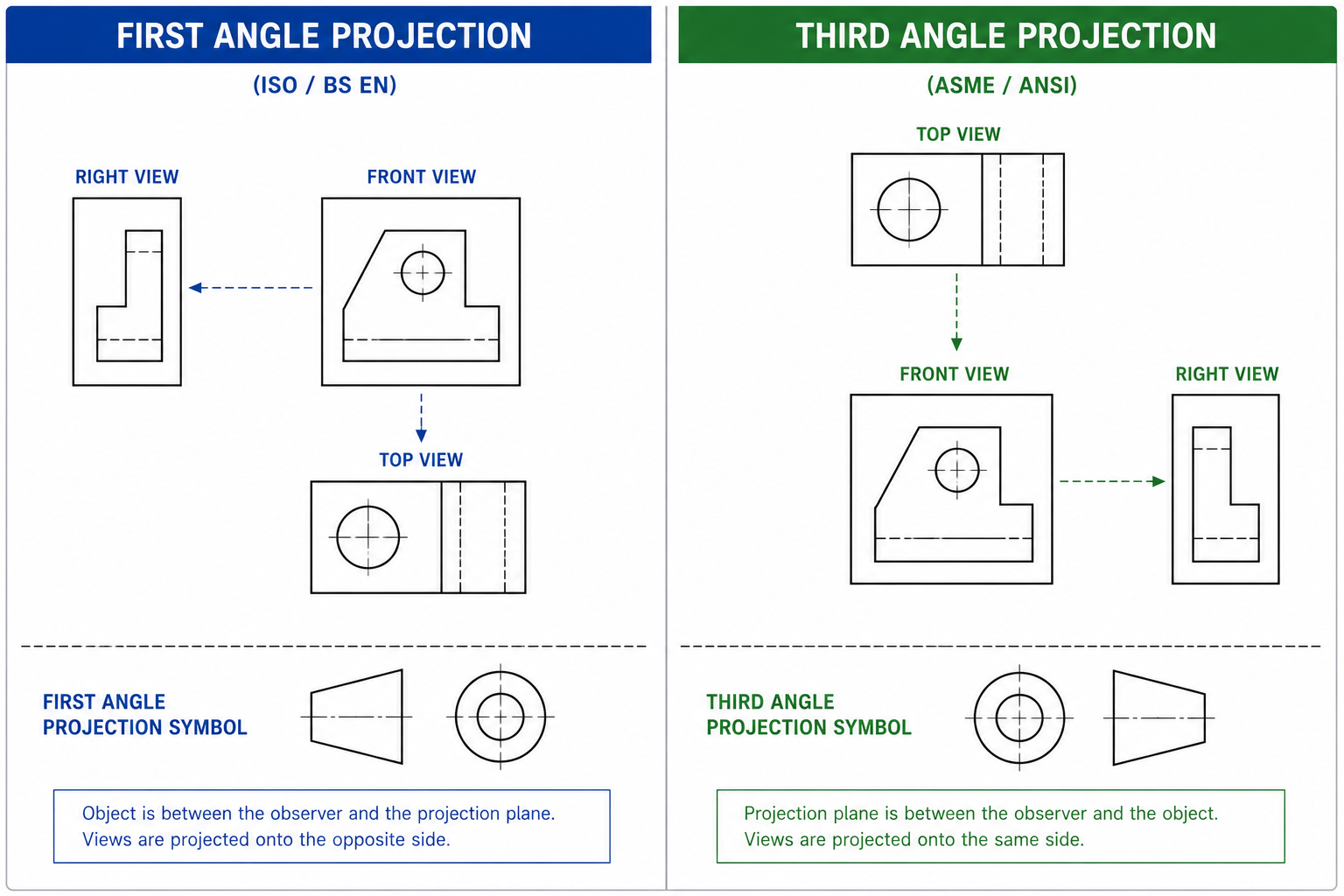
First Angle vs Third Angle Projection
There are two projection systems used globally, and confusing them leads to completely wrong 3D models:
| Projection Type | Used In | View Arrangement | Symbol |
| First Angle (European) | UK, Europe, Asia (except USA/Canada/Australia) | The front view is in the centre. The right-side view is placed to the LEFT of the front view. The top view is placed BELOW the front view. | Circle with a truncated cone pointing left |
| Third Angle (American) | USA, Canada, Australia | The front view is in the centre. The right-side view is placed to the RIGHT of the front view. The top view is placed ABOVE the front view. | Circle with a truncated cone pointing right |
Always check which projection system a drawing uses before modelling. The projection symbol is usually located in the title block. Building from the wrong projection system produces a mirror-image or incorrectly oriented 3D model.
The Three Standard Views and What Each Shows
- Front View (Elevation): Shows the height and width of the object as seen from the front. This is almost always the most informative view and the starting point for 3D modelling.
- Top View (Plan): Shows the width and depth of the object as seen from above. Reveals the footprint and any features on the top surface.
- Side View (Right or Left): Shows the height and depth of the object. Reveals the profile of the side face and any features not visible from the front.
| The golden rule of orthographic reading: any dimension that appears in two adjacent views refers to the same feature. Width is shared between the front view and the top view. Height is shared between the front view and the side view. Depth is shared between the top view and the side view. When a feature is visible in all three views, it is fully defined: you know its exact position, shape, and size in 3D space. |
Hidden Lines and Centre Lines in 2D Views
On engineering drawings, hidden lines (dashed lines) indicate edges and features that exist behind the visible surface being shown. These are critically important when 3D modelling: they reveal holes, channels, recesses, and internal features that are not visible in the current view but must be represented in the 3D solid. Centre lines (dashed-dot lines) indicate the axis of symmetry, the centre of circular features, and the position of holes. Always account for every hidden line in your 3D model.
Read pillar content: AutoCAD tutorials for beginners and professionals
Setting Up the AutoCAD 3D Modelling Workspace
AutoCAD organises its tools into workspaces. The default Drafting and Annotation workspace is configured for 2D work and hides the 3D tools. Before any 3D modelling, switch to the dedicated 3D environment.
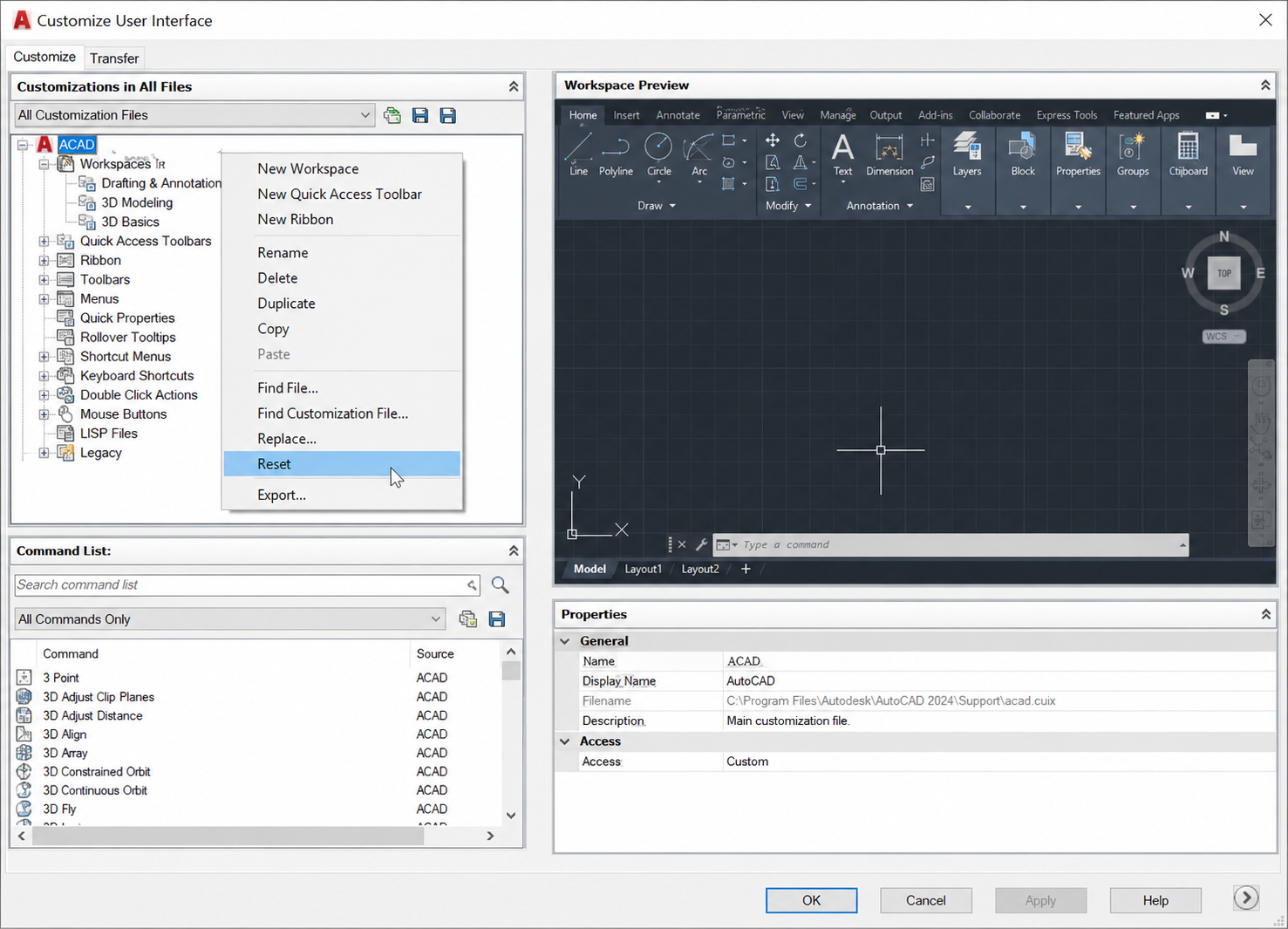
Switching to the 3D Modelling Workspace
- Click the Workspace Switching icon in the bottom-right of the status bar (gear icon).
- Select 3D Modelling from the menu. The ribbon updates to show 3D-specific tabs and panels: Home (with 3D tools), Solid, Surface, Mesh, Visualize, and others.
Setting Up the Visual Style
AutoCAD’s visual style controls how 3D geometry is displayed on screen. For most 3D modelling work, the ideal visual style is Conceptual or Shades of Gray: these display solid faces with shading that makes the 3D form clearly visible while keeping edges defined.
- In the View tab > Visual Styles panel, click the dropdown and select Conceptual or Shades of Gray.
- Alternatively, type VSCURRENT in the command line, press Enter, and type C for Conceptual.
Setting Up Multiple Viewports
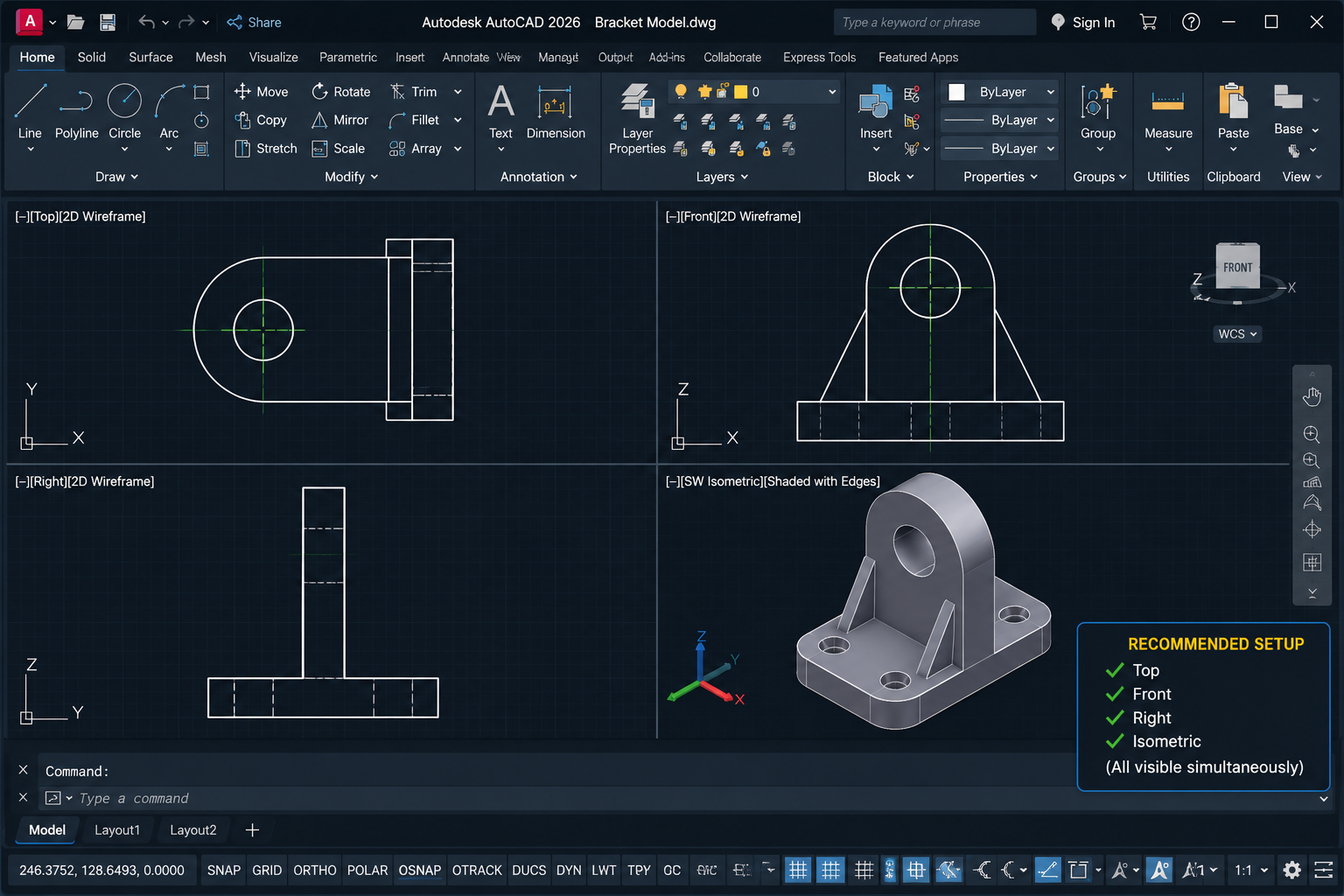
Working in 3D is significantly easier when you can see the model from multiple directions simultaneously. Setting up a four-viewport layout (Top, Front, Right, Isometric) at the start of any 3D session is strongly recommended.
- Go to View tab > Viewports panel > Named Viewports.
- Select Four: Equal from the standard viewports list and click OK.
- Click in each viewport and use the View Cube (top-right corner) or type VIEW to set each viewport to a different view direction: Top, Front, Right/Left, and SE Isometric.
| Professional Habit: Before starting 3D work, set your 3D coordinate system to World UCS by typing UCS and pressing Enter, then W and Enter. This resets the UCS to the standard X (right), Y (up), Z (toward you) orientation. All subsequent modelling operations will reference a known, consistent coordinate base. |
Understanding the User Coordinate System (UCS) in 3D
The User Coordinate System (UCS) is the single most important concept to understand in AutoCAD 3D modelling. Every drawing operation in AutoCAD happens relative to the current UCS. In 2D work, the UCS is always flat on the screen and most users never think about it. In 3D, you must actively control the UCS to draw profiles on the correct planes.
Think of the UCS as a movable drawing board. When you draw a 2D profile to extrude, AutoCAD draws it on the current XY plane of the UCS. If the UCS is oriented with its XY plane aligned to the front face of your model, you will draw the front profile correctly. If you need to draw on the top face, you rotate or move the UCS so its XY plane aligns to the top. Getting the UCS wrong is the most common cause of 3D profiles appearing in the wrong position or orientation.
Key UCS Commands
| Command / Option | What It Does | When to Use It |
| UCS > W (World) | Resets UCS to the default World coordinate system: X right, Y up, Z toward viewer | At the start of any modelling session and whenever you want to return to the global reference system |
| UCS > F (Face) | Aligns the UCS XY plane to a selected face of a 3D solid | When you need to draw on or extrude from a specific face of an existing solid |
| UCS > V (View) | Aligns the UCS to the current view direction (XY plane perpendicular to the view) | When you need to draw text or 2D annotation flat to the current view |
| UCS > 3P (3 Points) | Defines the UCS using three picked points: origin, X direction, Y direction | When you need to define a custom inclined or angled plane not aligned to any standard view |
| UCS > X / Y / Z | Rotates the current UCS around the specified axis by a defined angle | When you need to tilt the drawing plane by a known angle from its current orientation |
| UCSMAN (UCS Manager) | Opens the UCS Manager dialogue to save, restore, and manage named UCS configurations | In complex models where you use many different UCS orientations and need to switch between them reliably |
| The Most Common UCS Mistake: Drawing a 2D profile for extrusion without first verifying the current UCS orientation. If you draw what you think is a front-face profile but the UCS is still set to Top view orientation, the profile will be flat on the ground plane and the extrusion will go sideways rather than forward. Always check the UCS icon orientation before drawing. The X arrow should point in the direction you expect, and the Y arrow should point upward (for front-face profiles). |
Step 1: Draw Your 2D Profiles in the Correct Planes
The foundation of AutoCAD 3D modelling is a correctly drawn 2D profile. A profile is a closed 2D shape (polyline, region, or a closed boundary of lines and arcs) that defines the cross-section or outline of a 3D feature. The accuracy of your 3D model depends entirely on the accuracy of these profiles.
Rules for Profiles That Work Reliably
- Profiles must be closed: A polyline must have its last segment connecting back to its first point. Use PEDIT > Close to close an open polyline, or REGION to convert a set of connected objects into a closed region.
- Profiles must be on the correct plane: Set the UCS before drawing. Draw all profile geometry while the UCS XY plane is aligned to the intended extrusion plane.
- Profiles must be drawn at true scale: Draw dimensions exactly as stated on the 2D drawing. Use the exact dimensions from the front, top, or side view as appropriate. Do not scale or approximate.
- Use OSNAP for all intersections: Ensure endpoints connect precisely. Use PEDIT > Join to combine separate line segments into a single closed polyline before extruding.
- One profile per closed region: If your profile has nested closed shapes (for example, an outer rectangle with a circular hole), you can create both as separate closed profiles and then subtract the inner from the outer after extrusion.
Drawing a Profile from a 2D Front View
- Set the UCS to World (type UCS, Enter, W, Enter).
- In your isometric or front viewport, type PL (POLYLINE) and Enter.
- Draw the outline of the front view profile using the dimensions from the 2D drawing, using ORTHO (F8) to constrain to horizontal and vertical.
- When the polyline is closed back to the start point, type C and Enter to close it exactly. Verify closure with PEDIT > Close if needed.
- To include arcs within a polyline profile, switch between line and arc mode within the POLYLINE command using the A (Arc) and L (Line) sub-options.
Step 2 EXTRUDE: Pushing a 2D Profile into a 3D Solid
EXTRUDE is the most fundamental and widely used 3D solid creation command in AutoCAD. It takes a closed 2D profile and pushes it a specified distance perpendicular to its plane, generating a 3D solid with the cross-section of the profile.
When to Use EXTRUDE
Use EXTRUDE for any component that has a consistent cross-section along one axis: prismatic parts, beams, channels, frames, extruded aluminium profiles, panels, plates with cutouts, and most architectural elements. It is the right command when the front view and side view are different but the top view shows a uniform shape.
Full Step-by-Step: EXTRUDE Command
- Draw your closed 2D profile on the correct UCS plane (see Step 1).
- Type EXT (EXTRUDE) and press Enter.
- Select the closed profile (polyline or region). Press Enter to confirm selection.
- AutoCAD prompts: Specify height of extrusion or [Direction/Path/Taper angle/Expression]:
- For a straight extrusion to a specific depth, type the depth dimension from your 2D side view and press Enter. The profile extrudes perpendicular to its drawing plane.
- The 3D solid appears. Use the orbit tool (type 3DORBIT or press Shift + middle mouse button) to inspect the result from different angles.
EXTRUDE Advanced Options
- Direction: Specify two points to define the direction vector of the extrusion instead of the default perpendicular. Allows diagonal extrusions.
- Path: Extrude the profile along a drawn path (line, arc, polyline, or spline). Produces tapered or curved extrusions following the path. Similar to SWEEP (covered next).
- Taper angle: Adds a draft angle to the extrusion walls. Positive angle tapers inward, negative angle tapers outward. Used for injection moulded parts and castings requiring draft.
| Best Practice: After extruding, immediately check the result in the isometric viewport. The depth of the extrusion should match the depth dimension shown in the top view of your 2D drawing. If the solid looks correct in the front viewport but wrong from above, the extrusion direction may need to be reversed. Type EXTRUDE, select the profile, and enter a negative depth value to extrude in the opposite direction. |
Step 3 REVOLVE: Creating Solids of Revolution
The REVOLVE command creates a 3D solid by rotating a 2D profile around a specified axis. It is the correct command for any object that is radially symmetric: shafts, bolts, cylinders, cones, pipes, flanges, turned components, and any part whose cross-section, when rotated 360 degrees around its centre axis, produces the complete 3D form.
Identifying Parts That Require REVOLVE
On 2D orthographic drawings, parts suited to REVOLVE are easy to identify: the front view and side view are identical or nearly identical (circular symmetry), and the top view shows a circle or concentric circles. The 2D profile for REVOLVE is drawn as a half-section: the right half of the cross-sectional outline from the centre axis outward.
Full Step-by-Step: REVOLVE Command
- Draw the half-profile of the component as a closed polyline or region. Draw it on the side you want to revolve: one edge of the profile must lie exactly on the intended axis of revolution.
- Draw the axis line for the revolution, or identify that the profile’s straight edge will serve as the axis.
- Type REV (REVOLVE) and press Enter.
- Select the closed profile. Press Enter.
- AutoCAD prompts: Specify axis start point or define axis by [Object/X/Y/Z]:. Click the first point of the revolution axis.
- Click the second point of the revolution axis, or type X to revolve around the X axis, Y for Y axis, or Z for Z axis.
- AutoCAD prompts: Specify angle of revolution:. For a complete solid, type 360 and press Enter. For a partial revolution (e.g. a half-pipe or swept arc), enter the angle.
Step 4 LOFT: Blending Between Two or More Profiles
The LOFT command creates a 3D solid or surface that blends smoothly between two or more cross-section profiles located at different positions along the model. It is the correct command when a component changes shape from one cross-section to another: tapered housings, aircraft fuselage shapes, transitions between square and round ducts, and any component whose profile varies along its length.
Full Step-by-Step: LOFT Command
- Draw at least two closed 2D profiles at different positions along the intended axis of the solid. Each profile defines the cross-section of the solid at that location.
- Type LOFT and press Enter.
- Select the cross-section profiles in order from one end of the solid to the other. Press Enter after selecting all profiles.
- AutoCAD prompts with options: Guides / Path / Cross-sections only / Settings. For most cases, press Enter to accept cross-sections only and AutoCAD creates the lofted solid.
- In the Loft Settings dialogue, choose Smooth Fit for organic shapes or Ruled for a linear (flat-faceted) transition between profiles.
Step 5 SWEEP: Extruding a Profile Along a Path
The SWEEP command extrudes a 2D profile along any drawn path: a line, arc, polyline, circle, ellipse, or spline. Unlike EXTRUDE (which always extrudes perpendicular to the profile plane), SWEEP follows the geometry of the path. It is the correct command for curved parts: pipe bends, handrails, spiral springs, cam profiles, and any component with a consistent cross-section following a curved or complex path.
Full Step-by-Step: SWEEP Command
- Draw the cross-section profile (the shape you want to sweep). This must be a closed polyline or region.
- Draw the path that the profile will follow (a line, arc, polyline, circle, or spline).
- Type SWEEP and press Enter.
- Select the cross-section profile. Press Enter.
- AutoCAD prompts: Select sweep path or [Alignment/Base point/Scale/Twist]:. Click the path object.
- AutoCAD sweeps the profile along the entire path, generating the 3D solid.
Step 6 PRESSPULL: The Fastest Way to Add or Remove Material
PRESSPULL is one of the most intuitive and fastest tools for modifying 3D solids in AutoCAD. It detects closed bounded regions on the surface of a solid or within a 2D drawing and either pushes (removes material) or pulls (adds material) those regions to create features. It works like a physical push-and-pull action: click inside a bounded area and drag to add or subtract a boss or pocket.
Full Step-by-Step: PRESSPULL Command
- Type PRESSPULL and press Enter.
- Move the cursor over the bounded region you want to press or pull (a face of a solid, a closed polyline on a solid face, or a 2D closed boundary in model space). The region highlights.
- Click inside the highlighted region.
- Move the cursor upward to pull (add material) or downward to press (remove material). The solid face deforms dynamically.
- Type the exact distance and press Enter, or click a second point to define the depth of the press or pull.
| PRESSPULL vs EXTRUDE: PRESSPULL is best for quickly adding or removing features on an existing solid (adding a boss, cutting a pocket, pushing a hole). EXTRUDE is better for creating the initial solid from a flat profile or for complex extrusions with taper or path options. In practice, most engineers use EXTRUDE or REVOLVE to create the base solid and PRESSPULL to add or remove features. |
Step 7 Boolean Operations: Combining and Cutting Solids
Boolean operations are the fundamental tools for combining, cutting, and intersecting 3D solids to create complex forms from simpler ones. In AutoCAD, the three Boolean commands are UNION, SUBTRACT, and INTERSECT. Together they form the backbone of constructive solid geometry (CSG) modelling, the approach underlying most 3D solid modelling workflows.
UNION: Combining Two or More Solids
UNION merges two or more overlapping or touching 3D solids into a single combined solid object. Use it to combine separate solid features into one complete component.
- Type UNION and press Enter.
- Select all the 3D solid objects you want to combine. Press Enter.
- AutoCAD merges all selected solids into one unified solid.
SUBTRACT: Cutting One Solid from Another
SUBTRACT removes the volume of one solid from another. It is used to create holes, pockets, slots, recesses, and any feature that removes material. The workflow is: create the solid body first, then create the cutting solid (a cylinder for a hole, a box for a rectangular pocket), then subtract the cutter from the body.
- Create the body solid (the part from which material will be removed).
- Create the cutter solid (the shape of the material to be removed: a CYLINDER for a hole, BOX for a rectangular pocket, etc.). Position it precisely where the hole or pocket needs to be.
- Type SU (SUBTRACT) and press Enter.
- Select the body solid (the one you are cutting FROM). Press Enter.
- Select the cutter solid (the one being subtracted). Press Enter.
- AutoCAD removes the cutter volume from the body, creating the hole or pocket.
INTERSECT: Keeping Only the Overlapping Volume
INTERSECT retains only the volume where two or more solids overlap, discarding everything outside the intersection. It is useful for complex shapes that can be defined as the intersection of two simpler shapes, and for checking whether components clash in an assembly.
- Type INTERSECT and press Enter.
- Select the two or more solids to intersect. Press Enter.
- AutoCAD keeps only the overlapping volume.
Step 8: Adding Holes, Fillets, and Chamfers to the 3D Model
After the primary 3D form is established using EXTRUDE, REVOLVE, LOFT, or SWEEP and combined using Boolean operations, most mechanical components require additional features: holes, fillets (rounded edges), and chamfers (bevelled edges). These are added directly to the 3D solid.
Adding Holes Using SUBTRACT
To add a hole to a 3D solid: type CYLINDER and press Enter. Specify the centre of the hole (snap to the exact position using OSNAP and the dimensions from the 2D drawing), the radius (from the drawing), and the height (at least as deep as the solid thickness). Then use SUBTRACT: select the body solid, Enter, select the cylinder, Enter. The hole is cut.
Adding Fillets Using the 3D FILLET Command
The FILLET command works on 3D solid edges as well as 2D objects. Type FILLET (or F) and press Enter. Select the edge(s) of the 3D solid you want to round. Type the fillet radius from the engineering drawing and press Enter. AutoCAD rounds the selected edges.
Adding Chamfers Using the 3D CHAMFER Command
Similarly, the CHAMFER command (CHA) works on 3D solid edges. Select the base surface first (AutoCAD may highlight a face), confirm the correct face, select the edge to chamfer, and specify the chamfer distances. Chamfers on external edges of machined components are common and necessary to represent accurately for manufacturing.
Step 9: Generating 2D Drawing Views from the 3D Model
Once the 3D model is complete, the final step in the workflow is generating professional 2D drawing views from it for documentation, manufacturing, or client delivery. AutoCAD provides two main approaches: FLATSHOT for quick 2D projections directly in model space, and VIEWBASE/VIEWPROJ for full paper space drawing view management.
Method A: FLATSHOT Quick 2D Projections
FLATSHOT creates a flat 2D projection of all visible geometry from the current view direction, placing the result as a block in model space. It is fast and simple, ideal for quickly generating a front, top, or side view outline.
- Set the current view to the direction you want to flatten (e.g. Front View using the View Cube).
- Type FLATSHOT and press Enter.
- In the Flatshot dialogue, set visible lines to a solid line and hidden lines to the HIDDEN linetype (or no hidden lines if not required).
- Click Create. AutoCAD asks where to insert the resulting block.
- Click a location in model space to place the 2D view. Scale it to your requirements.
Method B: VIEWBASE Professional Drawing Views in Paper Space
VIEWBASE generates intelligent, associative 2D drawing views from a 3D model directly in a paper space layout. These views update automatically if the 3D model is modified, making VIEWBASE the professional standard for generating 2D documentation from AutoCAD 3D models.
- Switch to a Layout tab (paper space).
- Go to Layout tab > Create View panel > Base > From Model Space.
- In the Drawing View Creation tab that appears, set the view orientation (Front, Top, etc.) and scale.
- Click to place the base view on the layout sheet.
- AutoCAD automatically prompts you to add projected views. Click to the right of the base view to add a right-side view, above for a top view, and diagonally for an isometric view.
- Press Esc when all required views are placed.
- Add dimensions, annotations, and title block as normal. If you later modify the 3D model, all views update automatically.
Complete Worked Example: Bracket from Orthographic Views
To tie all of the above together, here is a complete step-by-step workflow for building a typical mounting bracket from a three-view orthographic drawing. The bracket is an L-shaped plate with two mounting holes and a fillet on the internal corner.
| Stage | What You Do | Commands Used |
| 1. Read the drawing | Identify front, top, and side views. Note the L-shape in the front view, the depth dimension in the side view, and the hole positions in the top view. | None, analysis only |
| 2. Set up workspace | Switch to 3D Modelling workspace. Set visual style to Conceptual. Set up 4 viewports (Top, Front, Right, Isometric). Type UCS > W to reset to World. | VSCURRENT, VPORTS, UCS |
| 3. Draw base profile | On World UCS (XY = front plane), draw closed polyline of the L-shape from the front view dimensions. Include the inner corner at exact coordinates. | PL (POLYLINE), ORTHO (F8) |
| 4. Extrude base | Select the L-profile, type EXT, press Enter. Enter the bracket thickness (depth from side view). 3D L-shape solid appears. | EXT (EXTRUDE) |
| 5. Add fillet to internal corner | Type F (FILLET), select the internal vertical edge of the L-solid, enter fillet radius from drawing. | F (FILLET) |
| 6. Create hole cutters | Type CYLINDER, snap to hole centre positions (from top view dimensions), enter hole radius and full height through bracket. Create one cylinder per hole. | CYLINDER, OSNAP |
| 7. Subtract holes | Type SU (SUBTRACT). Select the L-solid (body). Press Enter. Select all cylinders (cutters). Press Enter. Holes are cut. | SU (SUBTRACT) |
| 8. Inspect the model | Use 3DORBIT to rotate and inspect all faces. Check holes appear in correct positions, fillet is correct, proportions match the drawing. | 3DORBIT, ZOOM |
| 9. Generate 2D views | Switch to Layout tab. Use VIEWBASE > From Model Space to place Front, Top, Right, and Isometric views at correct scale in paper space. | VIEWBASE, VIEWPROJ |
| 10. Add dimensions and annotations | Dimension all views using DIMLINEAR, DIMRADIUS, etc. Add surface finish, GD&T, and title block information. | DLI, DRA, MTEXT |
Common Mistakes When Creating 3D Models from 2D Views
| Mistake | What Happens | How to Avoid It |
| Drawing profiles without setting the UCS first | The profile is created on the wrong plane, and the extrusion goes in the wrong direction or appears at an unexpected location | Always type UCS > W (World) to reset first. Then reorient the UCS to the correct face before drawing any profile. |
| Open polyline profile | EXTRUDE fails with ‘Object is not a closed loop’ error, or creates a surface instead of a solid | Before extruding, type PEDIT, select the polyline, choose Close. Or use REGION to convert connected line objects into a closed region. |
| Not checking projection type (First vs Third Angle) | The side view is placed on the wrong side, leading to an incorrectly mirrored or rotated 3D model | Always check the projection symbol in the title block before reading any orthographic drawing. |
| Extruding in the wrong direction | The solid extrudes toward the viewer instead of into the screen, or vice versa | After extruding, inspect in the isometric viewport. If depth is wrong, use EXTRUDE with a negative value, or use MOVE to reposition the solid. |
| Forgetting to account for hidden lines | The 3D model represents only the visible features, missing internal channels, recesses, or holes shown by dashed lines in the 2D views | Go through every dashed line in every view before starting the model. Create a checklist of features represented by hidden lines. |
| SUBTRACT selecting objects in wrong order | The wrong object gets subtracted, leaving the cutter solid and removing the body instead | SUBTRACT: first click selects the body (what you cut FROM). Second click selects the cutter (what you remove). Always confirm which is body and which is cutter before pressing Enter. |
| Not verifying dimensions against all three views | A feature looks correct in one view but is the wrong size or position when checked against another view | After completing each feature, check it against all three views. The object must read consistently from front, top, and side. |
Frequently Asked Questions (FAQ)
How do you create a 3D model from 2D views in AutoCAD?
To create a 3D model from 2D views in AutoCAD: (1) Read the orthographic projection views to understand the 3D shape. (2) Switch to the 3D Modelling workspace and set the visual style to Conceptual. (3) Set the UCS (User Coordinate System) to align with the plane you want to draw on. (4) Draw closed 2D profiles representing the cross-sections of the component. (5) Use EXTRUDE, REVOLVE, LOFT, or SWEEP to generate 3D solids from those profiles. (6) Use UNION and SUBTRACT to combine and cut solids. (7) Add fillets, chamfers, and holes. (8) Use VIEWBASE to generate 2D drawing views from the completed model.
What is the EXTRUDE command in AutoCAD?
The EXTRUDE command (EXT) in AutoCAD takes a closed 2D profile (polyline or region) and pushes it a specified distance perpendicular to its plane, creating a 3D solid with that profile’s cross-section. It is the most commonly used 3D modelling command for prismatic parts, plates, frames, and any component with a consistent cross-section. It supports tapered extrusions (with a draft angle) and path-following extrusions.
What is the difference between EXTRUDE and REVOLVE in AutoCAD?
EXTRUDE creates a 3D solid by pushing a 2D profile straight in one direction (or along a path). It is used for prismatic parts with a constant cross-section. REVOLVE creates a 3D solid by rotating a 2D profile around a specified axis, producing a radially symmetric solid. It is used for turned parts, shafts, cylinders, flanges, and any component that is symmetric around an axis of rotation. If the front and side views are identical in shape, REVOLVE is almost certainly the right command.
What is the UCS in AutoCAD 3D and why does it matter?
The User Coordinate System (UCS) defines the orientation of the drawing plane in AutoCAD 3D. All drawing operations happen relative to the current UCS’s XY plane. In 3D modelling, you must actively manage the UCS to ensure profiles are drawn on the correct face or plane of the model. If the UCS is on the wrong plane, your 2D profiles will be in the wrong position and your extrusions will go in the wrong direction. Type UCS > W to reset to World UCS, or UCS > F to align to a specific face of an existing solid.
How do I generate 2D drawings from a 3D model in AutoCAD?
AutoCAD provides two main methods. FLATSHOT creates a quick 2D projection from the current view direction directly in model space as a block. VIEWBASE (in a paper space layout) creates intelligent, associative drawing views that update automatically if the 3D model changes. VIEWBASE is the professional standard: switch to a Layout tab, go to Layout > Create View > Base > From Model Space, place the base view, then add projected views (right, top, isometric) using VIEWPROJ. Annotate with dimensions in the layout as normal.
What are Boolean operations in AutoCAD 3D?
Boolean operations are commands that combine or modify 3D solids by performing mathematical set operations on their volumes. UNION merges two or more solids into one. SUBTRACT removes one solid’s volume from another (used to cut holes, slots, and pockets). INTERSECT keeps only the overlapping volume of two solids. Together, these three commands allow complex 3D forms to be built from combinations of simpler solid primitives (boxes, cylinders, cones) and profile-based solids (extruded or revolved shapes).
Can I create a 3D model from a scanned 2D drawing in AutoCAD?
Yes, with some preparation. Insert the scanned 2D drawing as an image (use INSERT > Attach or the IMAGEATTACH command) and scale it to the correct dimensions using a known reference length. Then trace the 2D profiles over the image using POLYLINE with OSNAP. Once you have accurate traced profiles, delete or turn off the image reference and use EXTRUDE, REVOLVE, or other solid creation commands as normal. This method works well for relatively simple parts. For complex components, redrawing the profiles from the scanned dimensions (rather than tracing) typically produces more accurate results.
Conclusion
Creating a 3D model from 2D views in AutoCAD is the skill that completes the engineering CAD workflow. It transforms flat orthographic drawings into solid models that can be inspected from any angle, analysed, modified, and documented to manufacturing standards. The workflow is logical and methodical: read and understand the 2D views, set up the 3D environment correctly, draw accurate profiles on the right planes, build the solid geometry using the appropriate creation commands, combine and cut using Boolean operations, and generate professional 2D drawing output.
The UCS is the key that unlocks everything in AutoCAD 3D. Getting comfortable with setting and re-setting the UCS to align with different faces and planes is the single skill that most transforms a beginner’s 3D modelling ability. Every other concept in this guide builds on it.
Practise the worked example in this guide using a simple bracket or plate, then progress to more complex parts. The same workflow read, profile, extrude/revolve, boolean, document applies whether you are modelling a simple bracket or a multi-feature mechanical component.
Continue building your AutoCAD 3D skills: read How to Make a 3D Solid from Profile Outlines for a deeper dive into profile-based modelling, or return to the full guide: AutoCAD Tutorials for Beginners and Professionals.
Leave a Reply